How to Create Subscript in Canva
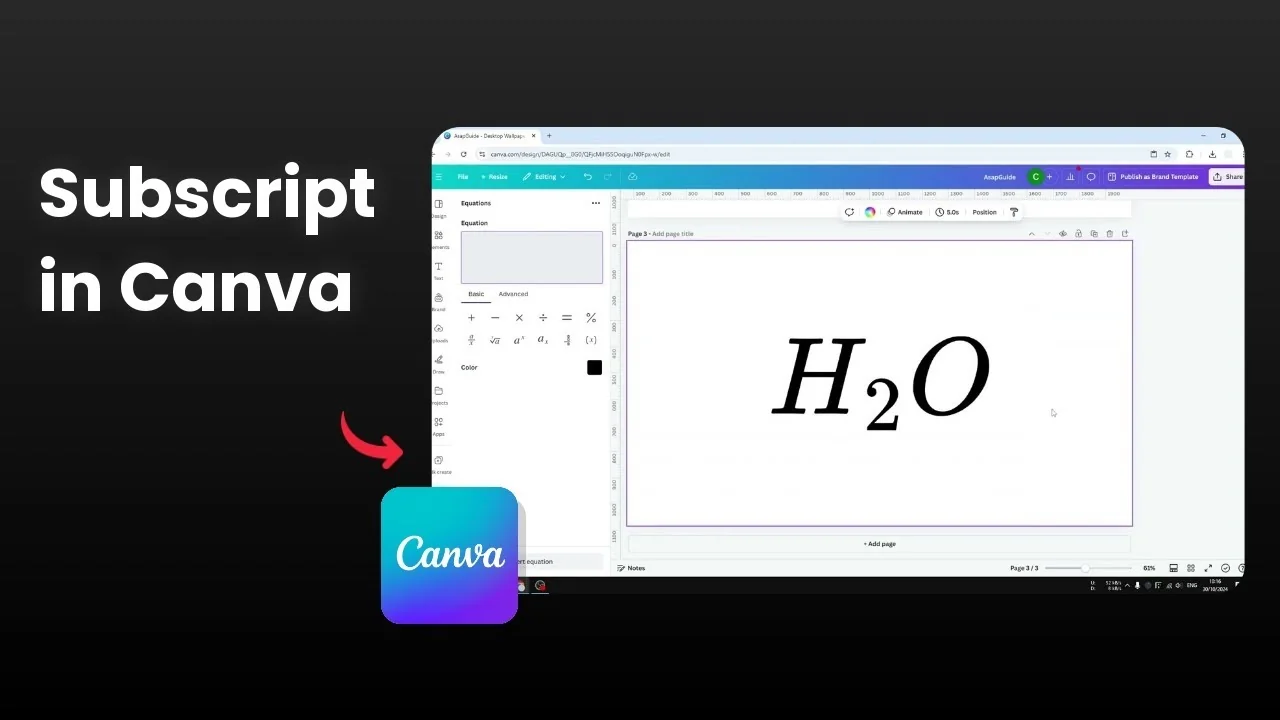
I'm going to show you how you can create a subscript in Canva. There are two methods you can try, and you can decide which one works best for your use case.
Two methods to Create Subscript in Canva
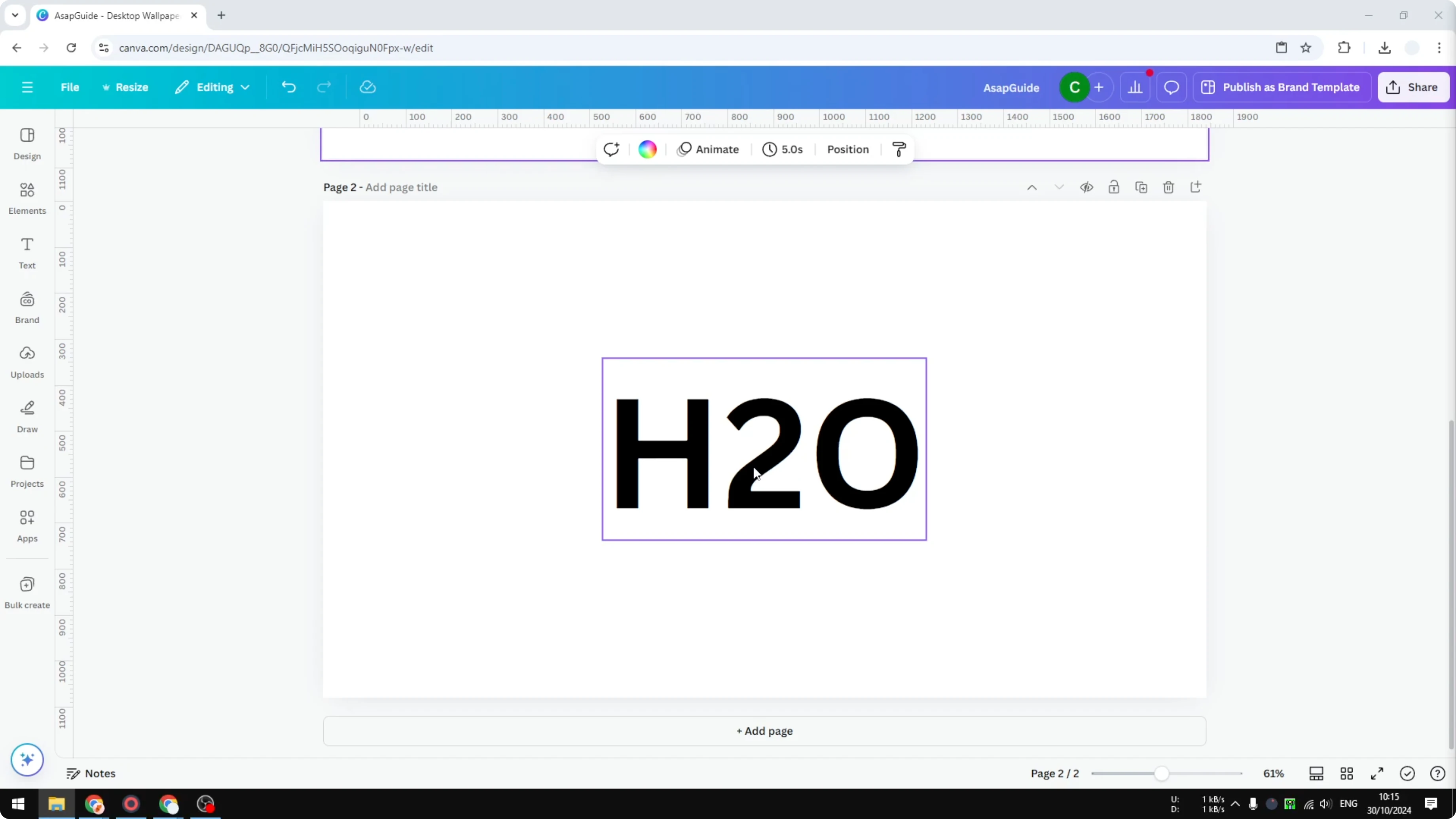
I have this text and it's a very simple representation of hydrogen and oxygen. This is just water. The number 2 should be a subscript, but this is just a regular number 2, so we need to make it smaller.
Manual method to Create Subscript in Canva
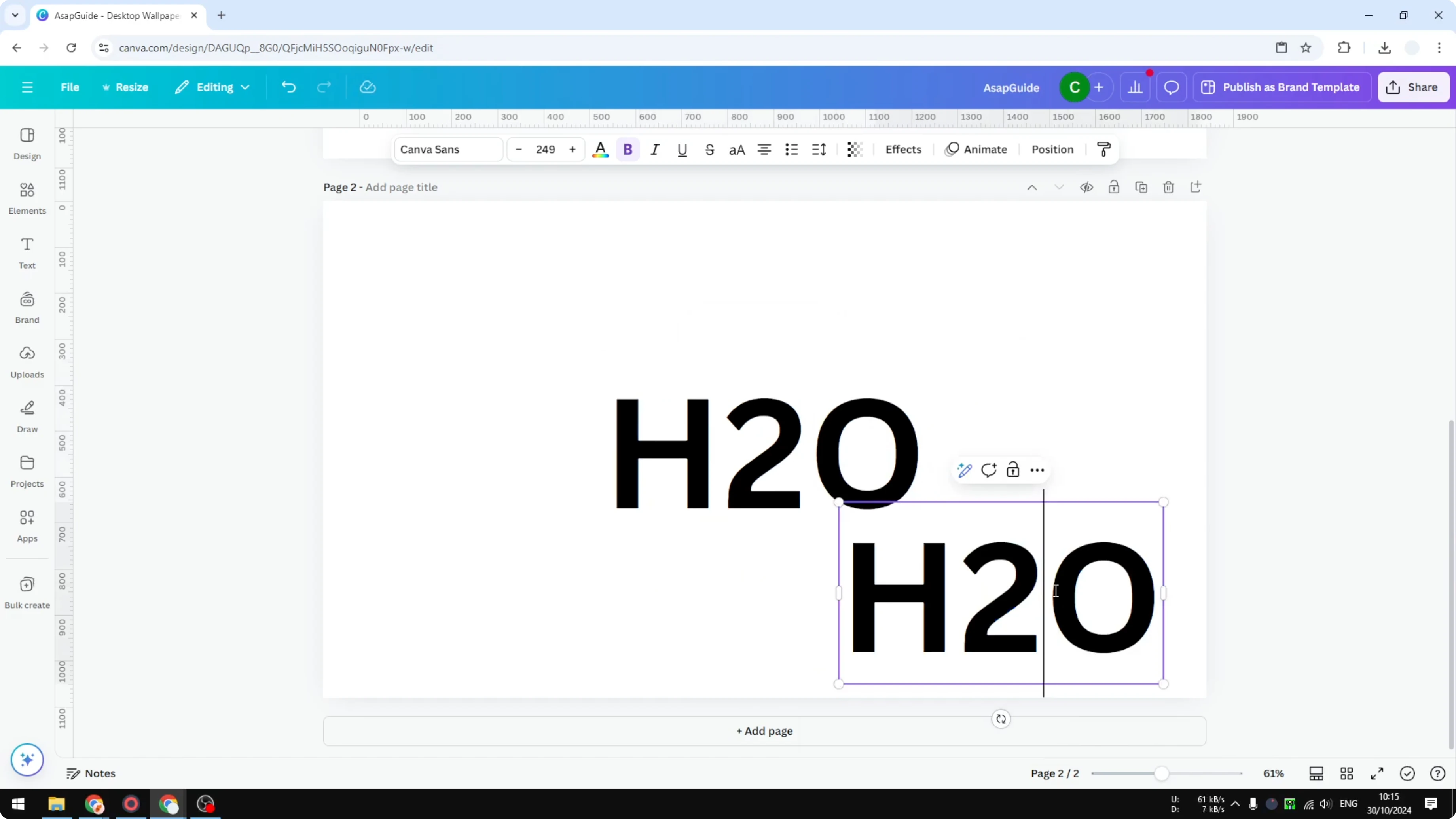
What I'm going to do now: I'm going to duplicate this text box and I'm going to remove the O, remove the H, and let's make this text smaller. After that, I'm going to remove this number 2 in the original text box and I'm going to create some spaces in the middle. Now let's put the number 2 and there you go.
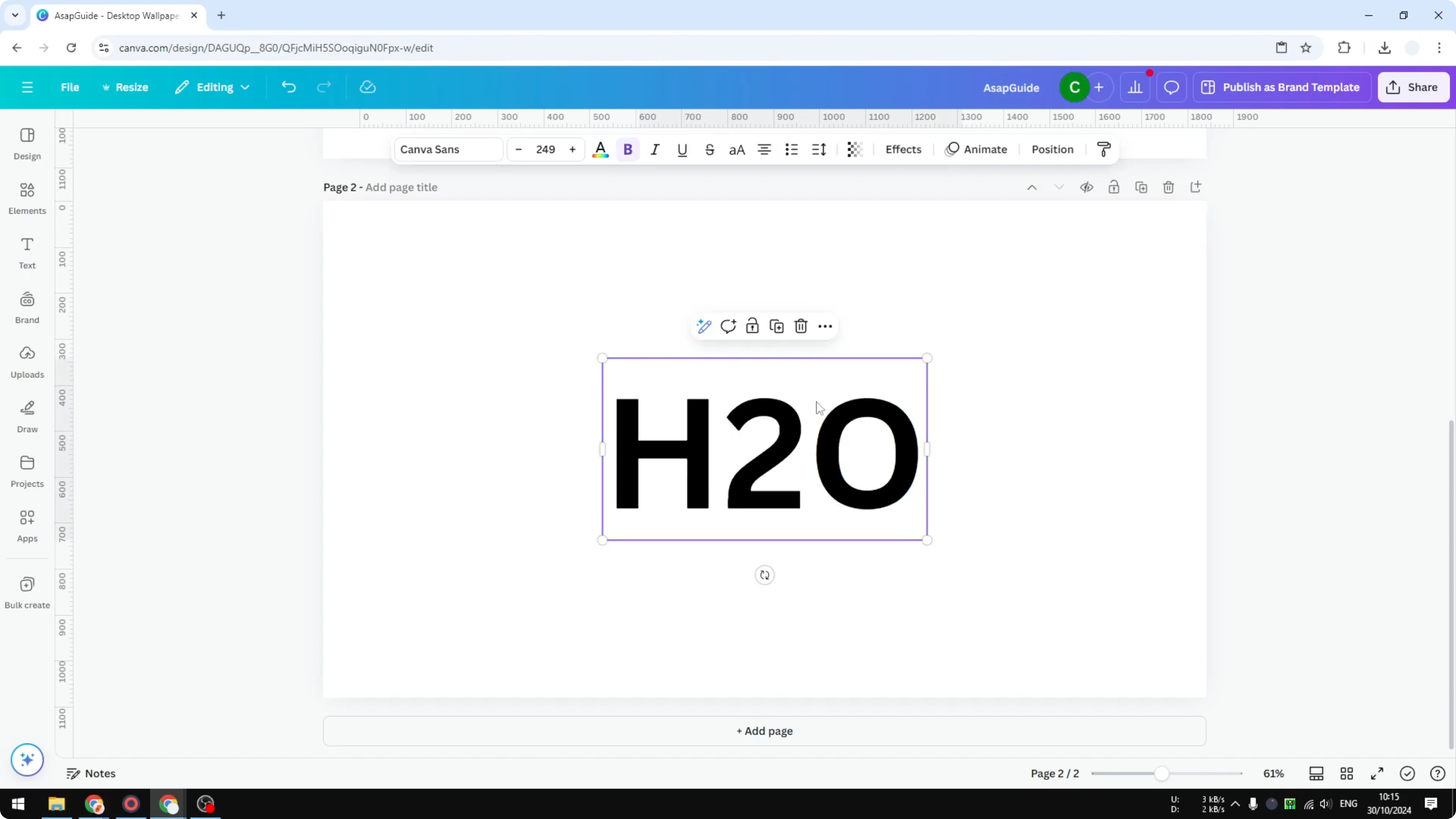
This is one simple way to do that. You can basically do this to create superscript as well, but of course this is not the best method for it because you have to deal with multiple text boxes. If you're styling text like this, try a balloon text effect in Canva to make titles stand out.
Type H2O in a text box.
Duplicate the text box.
In the duplicate, delete H and O so only 2 remains.
Make the 2 smaller to match a subscript size.
In the original text box, delete the 2 and add a small space between H and O.
Place the smaller 2 between H and O, aligned slightly below the baseline.
Equations app to Create Subscript in Canva
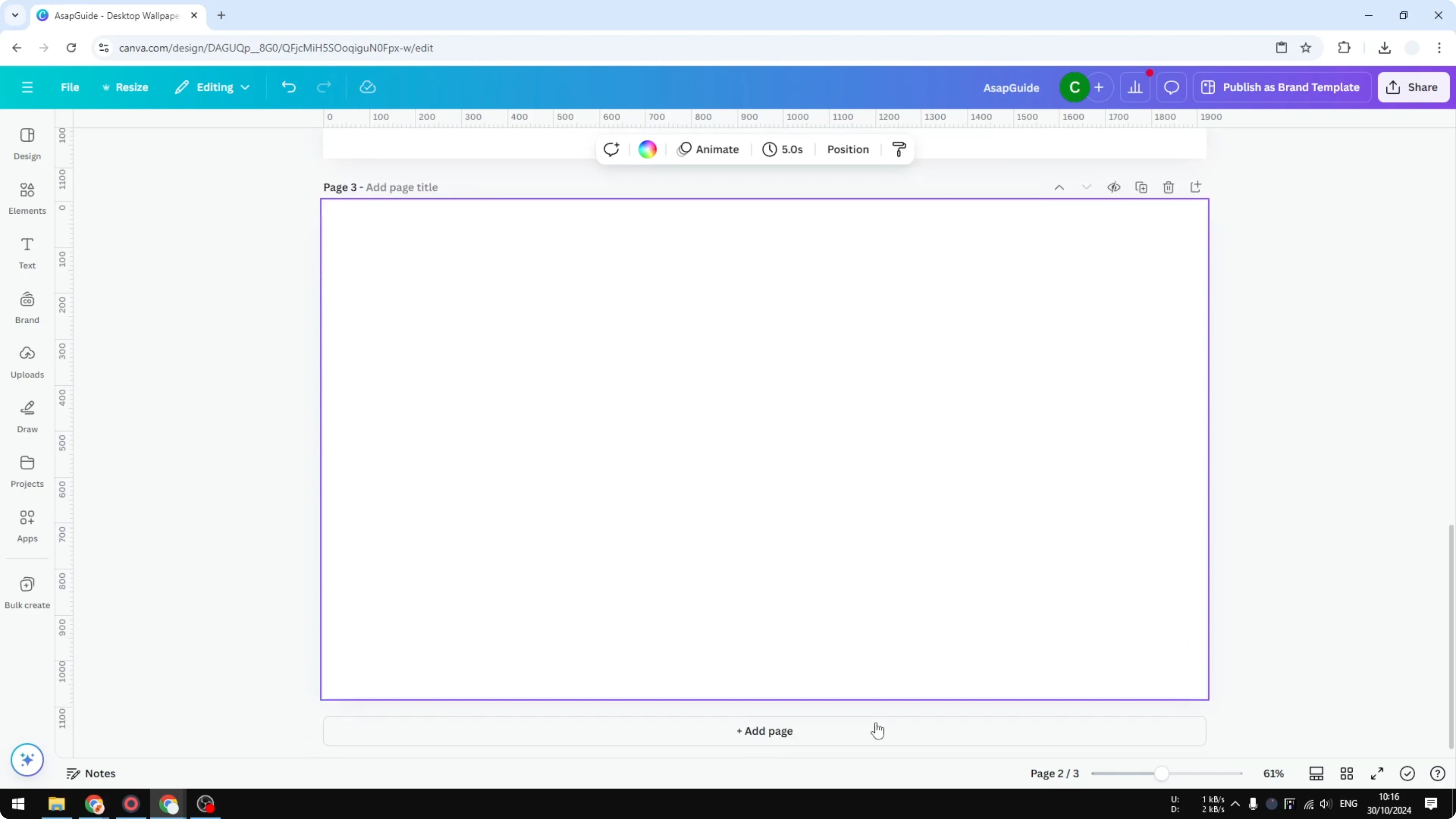
Another method you can try is by using an Equations app in Canva. Go to Apps and then search for Equations, that's the name of the app that we are going to use. Click on it and click Open.
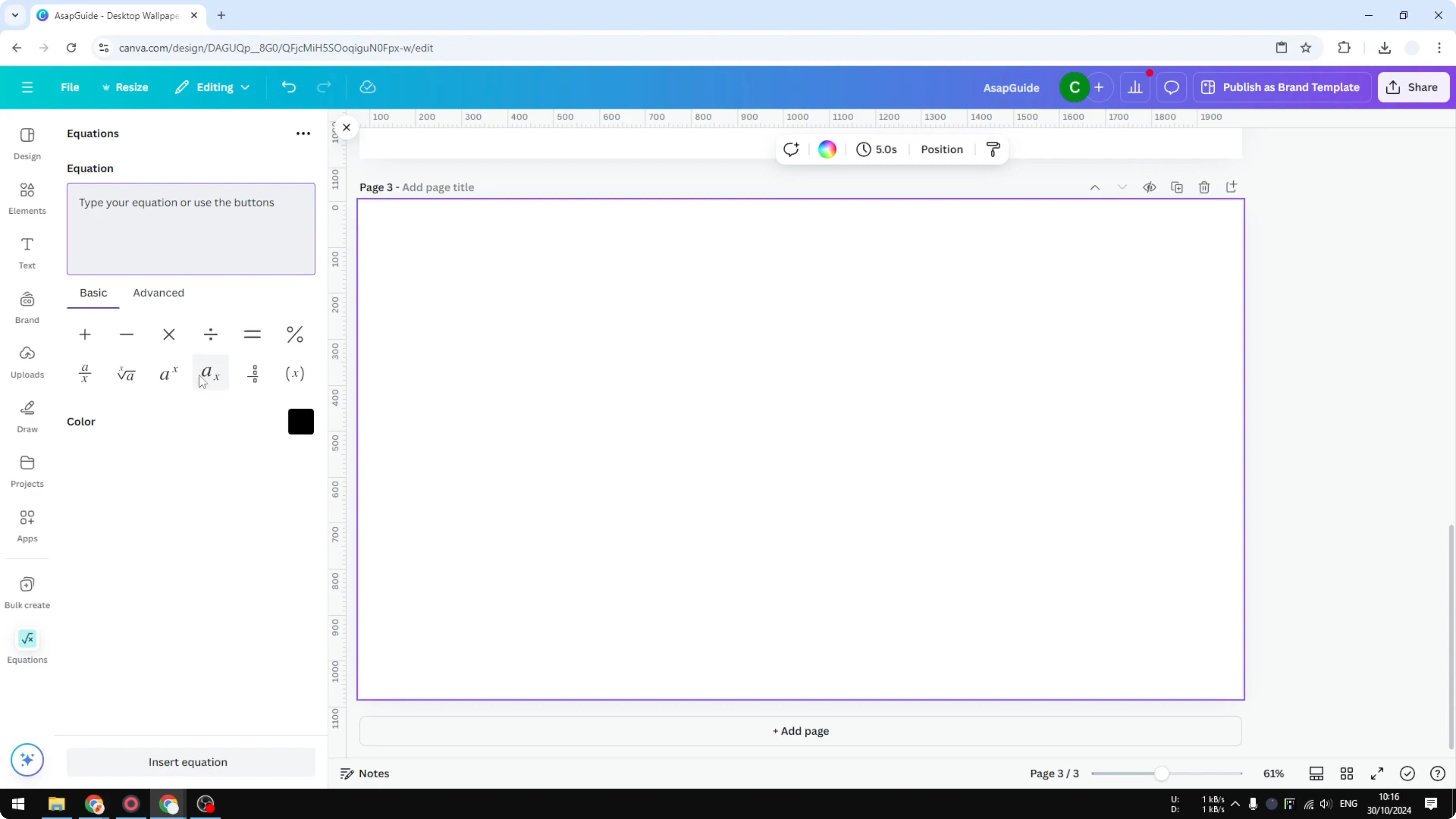
On the Basic menu right here you want to select Subscript. This is one that you can use. Click on it.
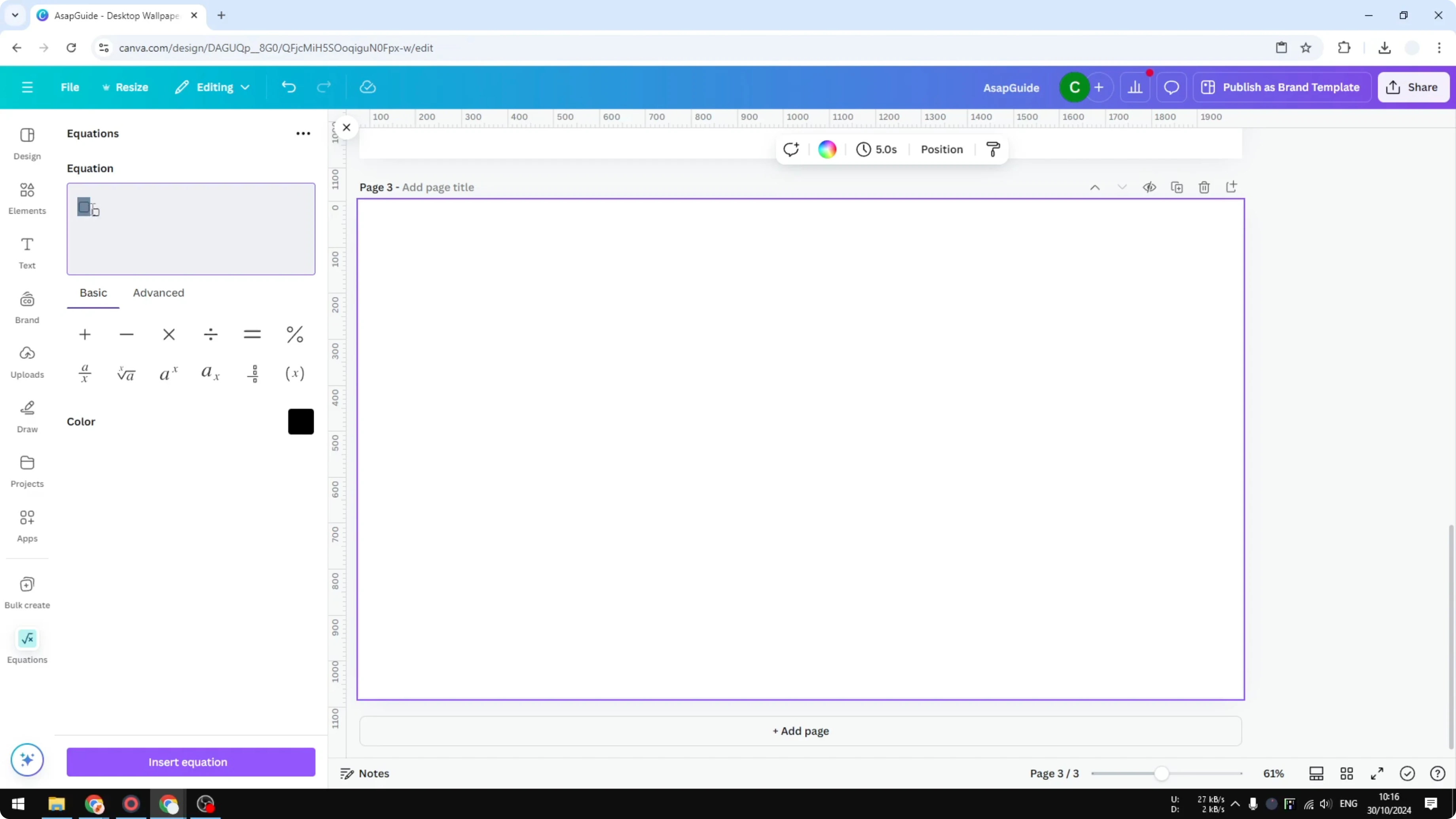
I'm going to type the letter H, then after that for the subscript it is going to be number 2, and I can follow up with the O after. Before inserting you can change the color if you want to and click Insert equation. There you have it, the two methods you can try to create a subscript in Canva.
If you are building formulas alongside diagrams, add visual pointers with a custom arrow in Canva to guide the eye.
Go to Apps in Canva.
Search for Equations and open it.
In Basic, choose Subscript.
Type H, set the subscript to 2, then add O.
Adjust the color if needed.
Click Insert equation.
Final thoughts on Create Subscript in Canva
The manual text box method gives you quick control, but it creates multiple layers to manage. The Equations app handles subscript cleanly in one element and lets you adjust styling before you insert it. For extra polish around your text, you can add a soft background highlight with a bokeh effect in Canva so the formula stays readable.
Recent Posts

How to Visualize Yourself as a Pixelized Character with AI?
How to Visualize Yourself as a Pixelized Character with AI?

How to Revive Faded Memories and Enhance Image Clarity with AI?
How to Revive Faded Memories and Enhance Image Clarity with AI?

How to Visualize Yourself as an Animal Crossing Character with AI?
How to Visualize Yourself as an Animal Crossing Character with AI?