How to Create a Strikethrough Effect in Canva
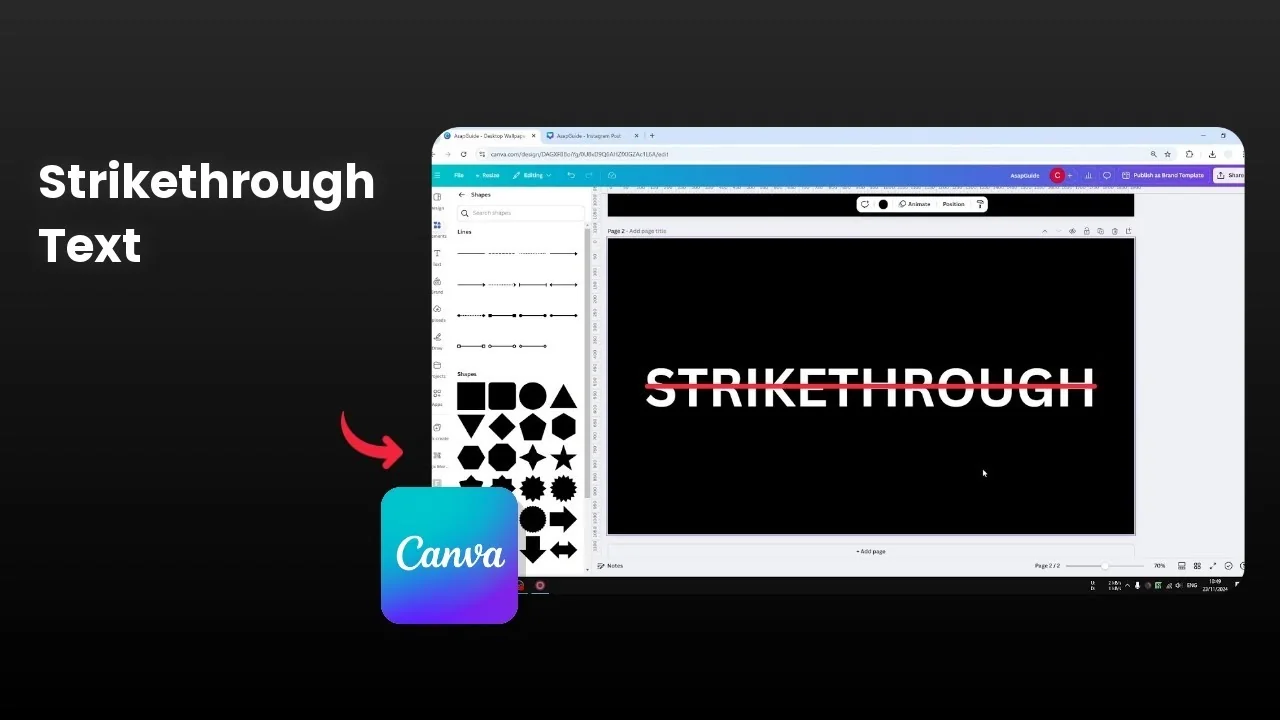
I’m going to show you how you can create a strikethrough effect to a text in Canva. I’ll walk you through three different methods. Pick the one that gives you the look you want.
If you are exploring typography effects, you might also want to try a soft fade on letters. See how to do it here: create a faded text look in Canva.
Create a Strikethrough Effect in Canva
Built-in option
Select the text you want to edit.
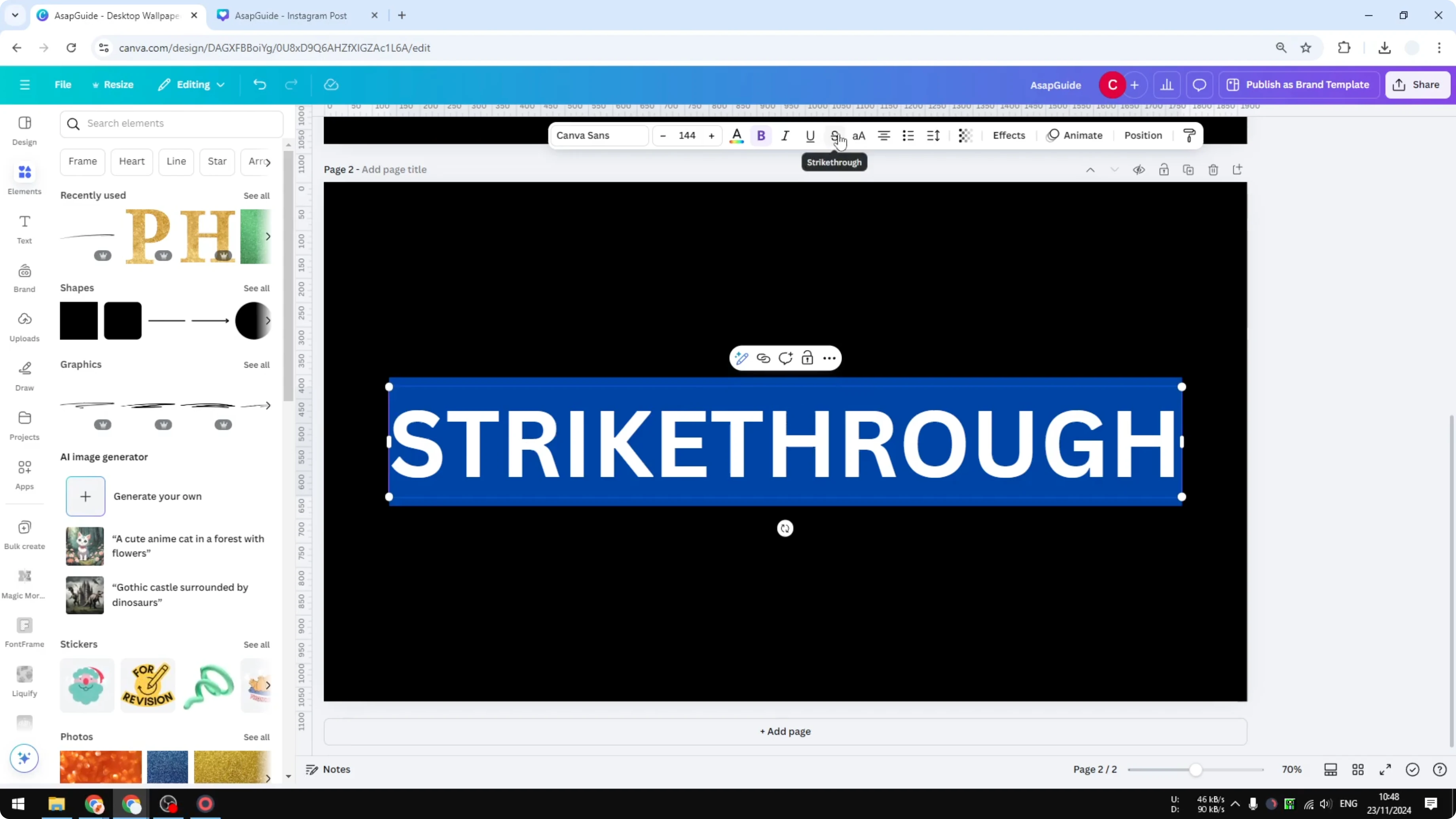
Click the Strikethrough option in the toolbar to apply the line. This is the simplest method.
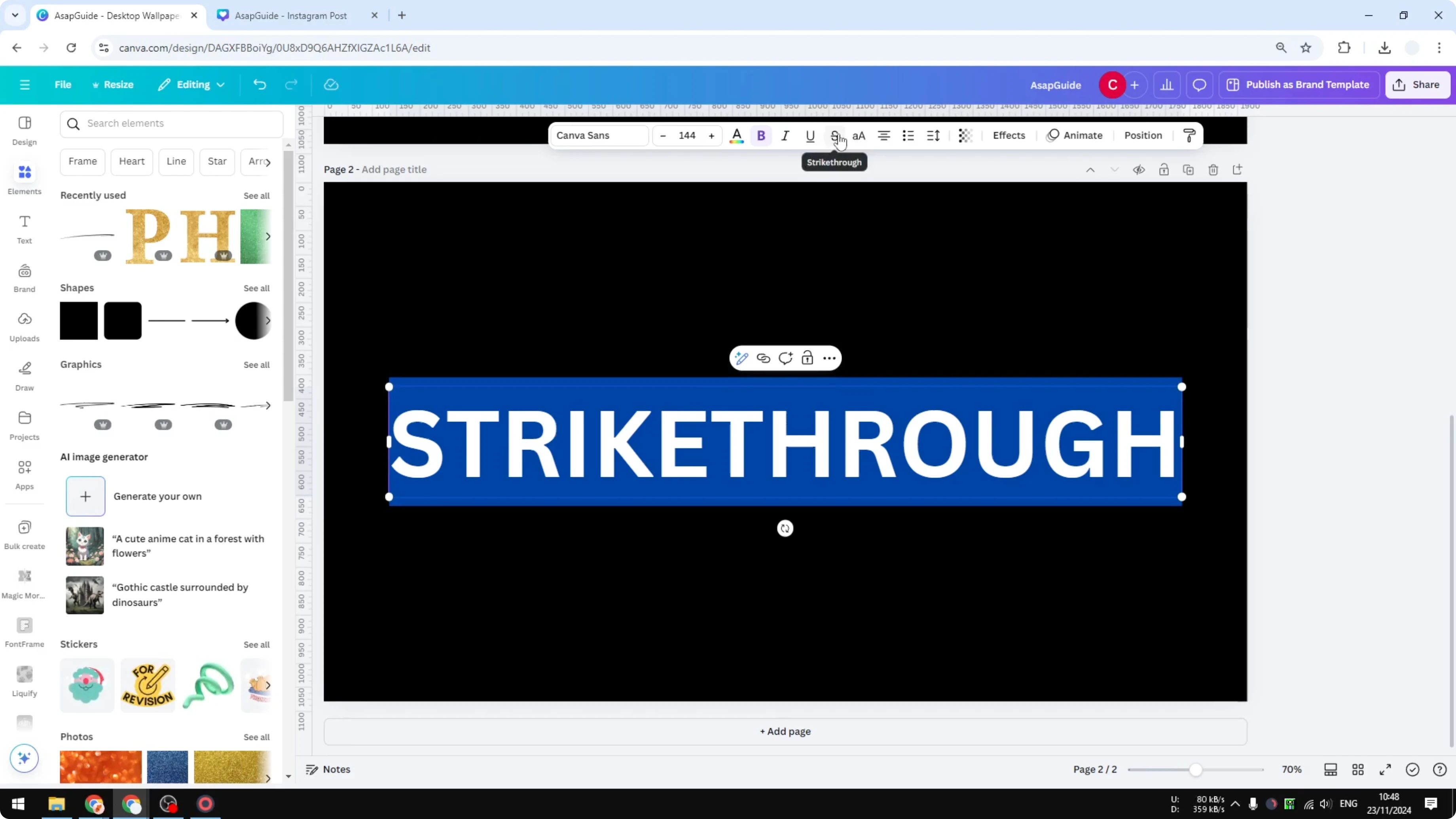
Line shape method
Add the line
Go to Elements.
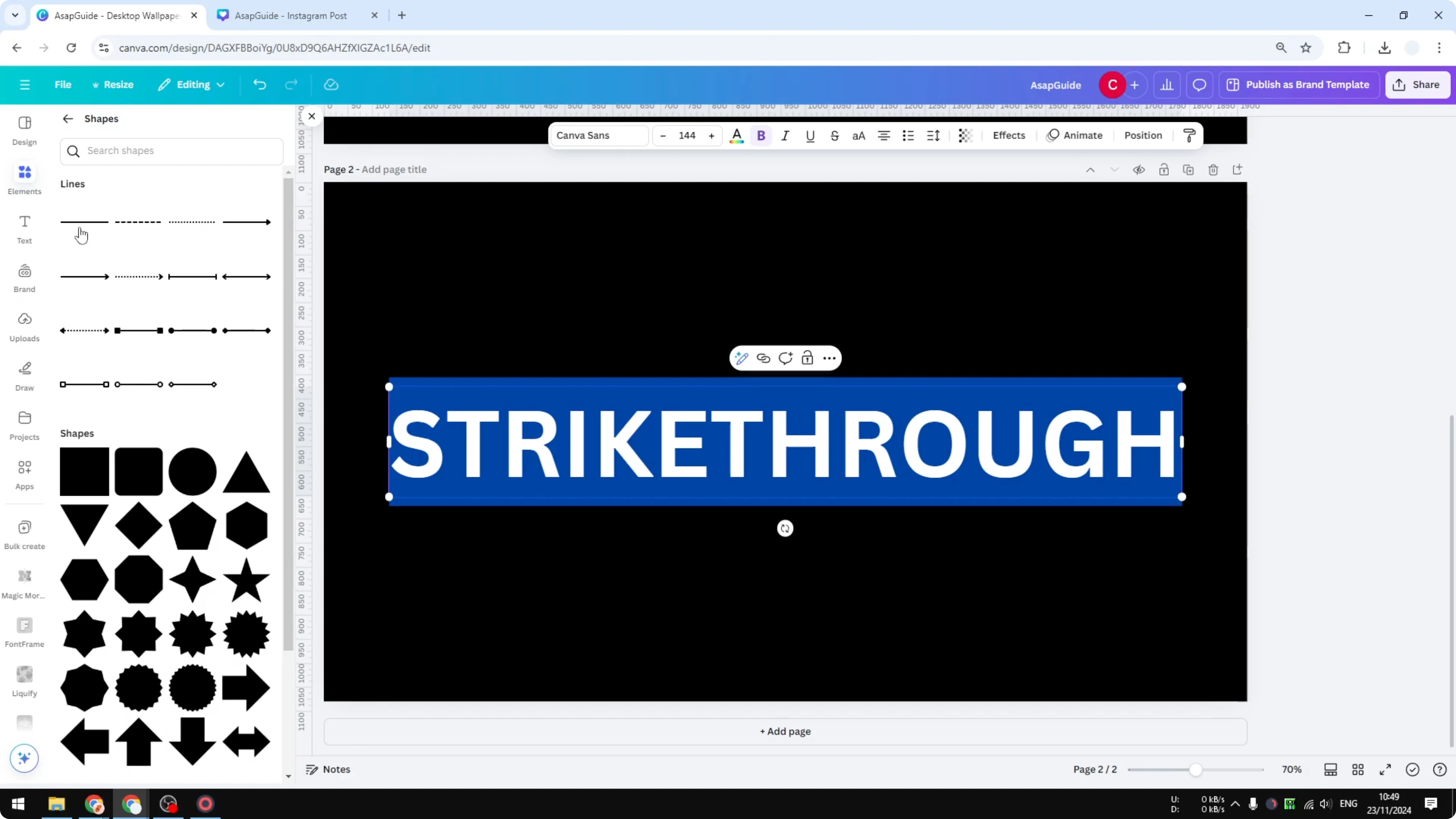
Open the Lines and Shapes section, then click Line.
Style the line
Increase the line weight to around 18 so it has presence over your text.
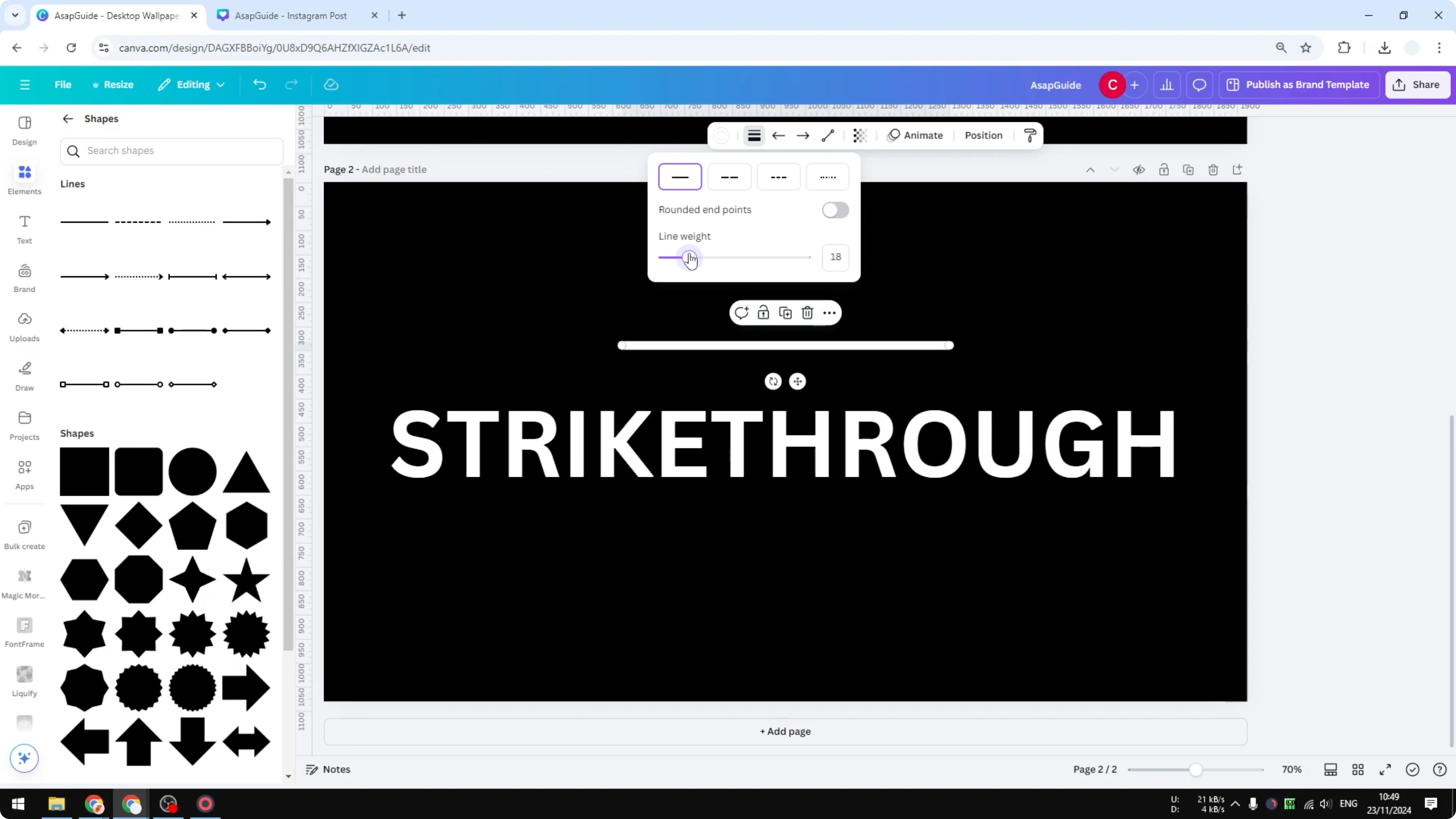
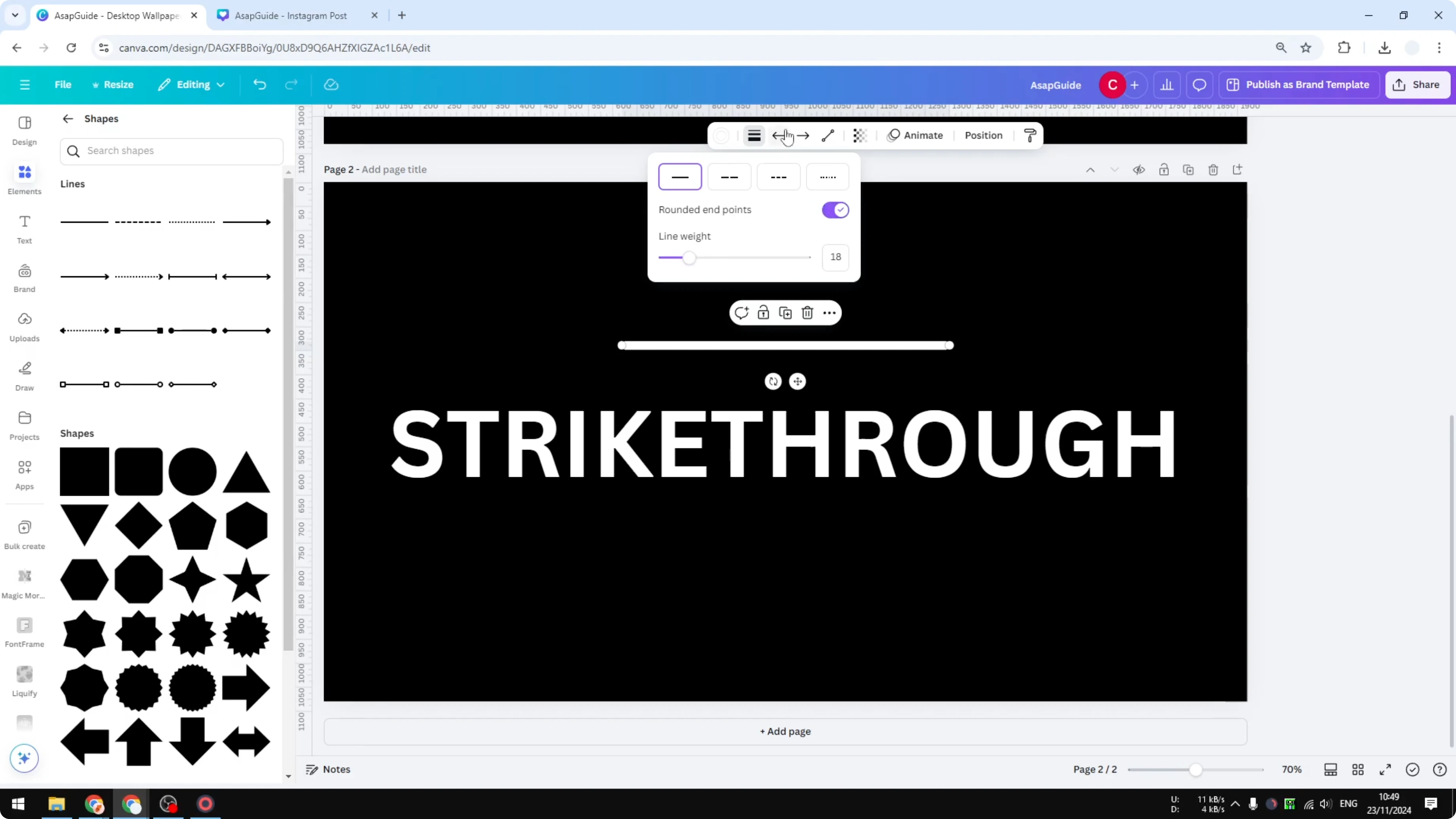
Enable rounded end points for a cleaner finish.
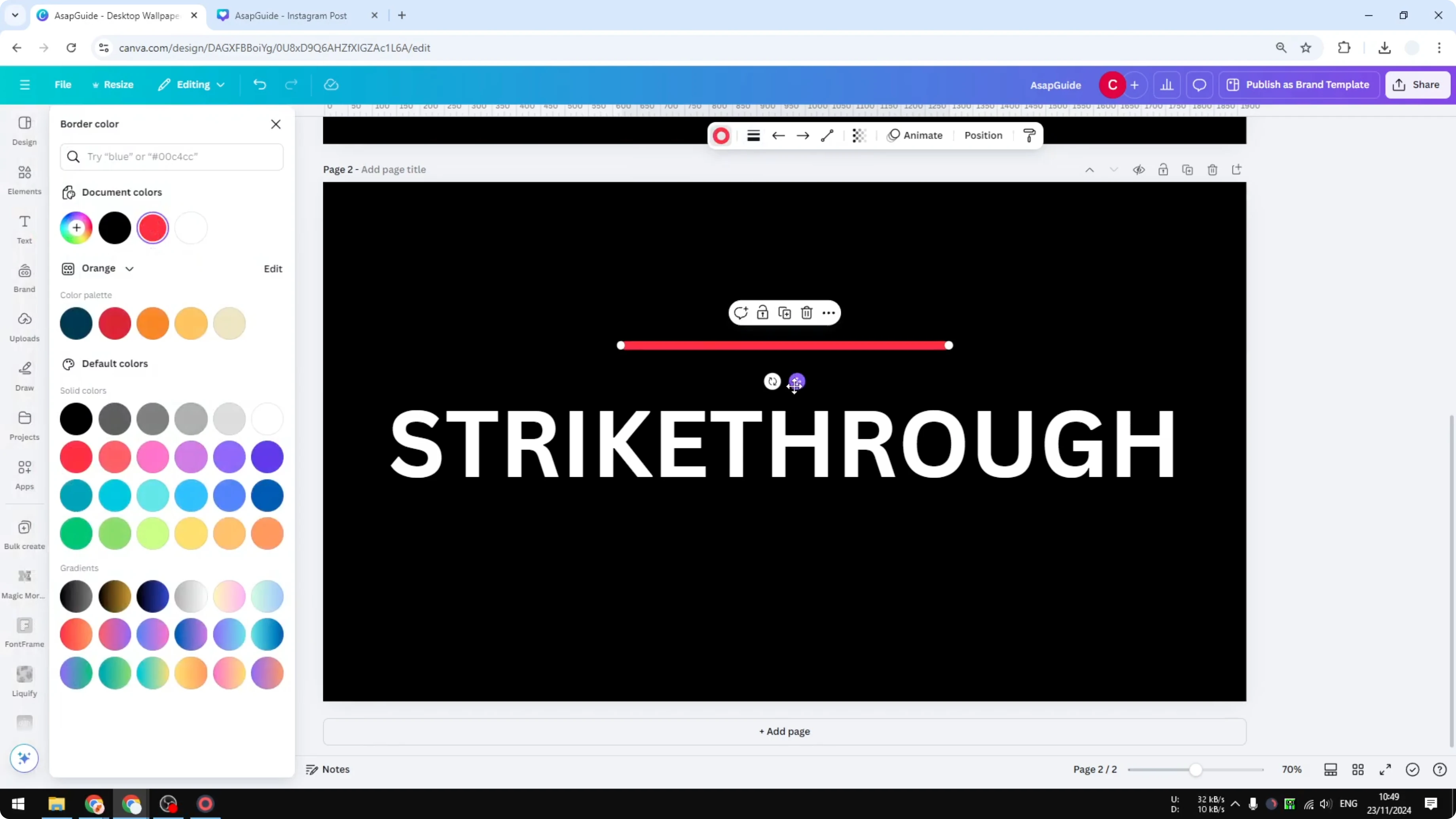
Change the color to something more interesting, like red.
Position over text
Drag the line across your text where you want the strikethrough to appear.
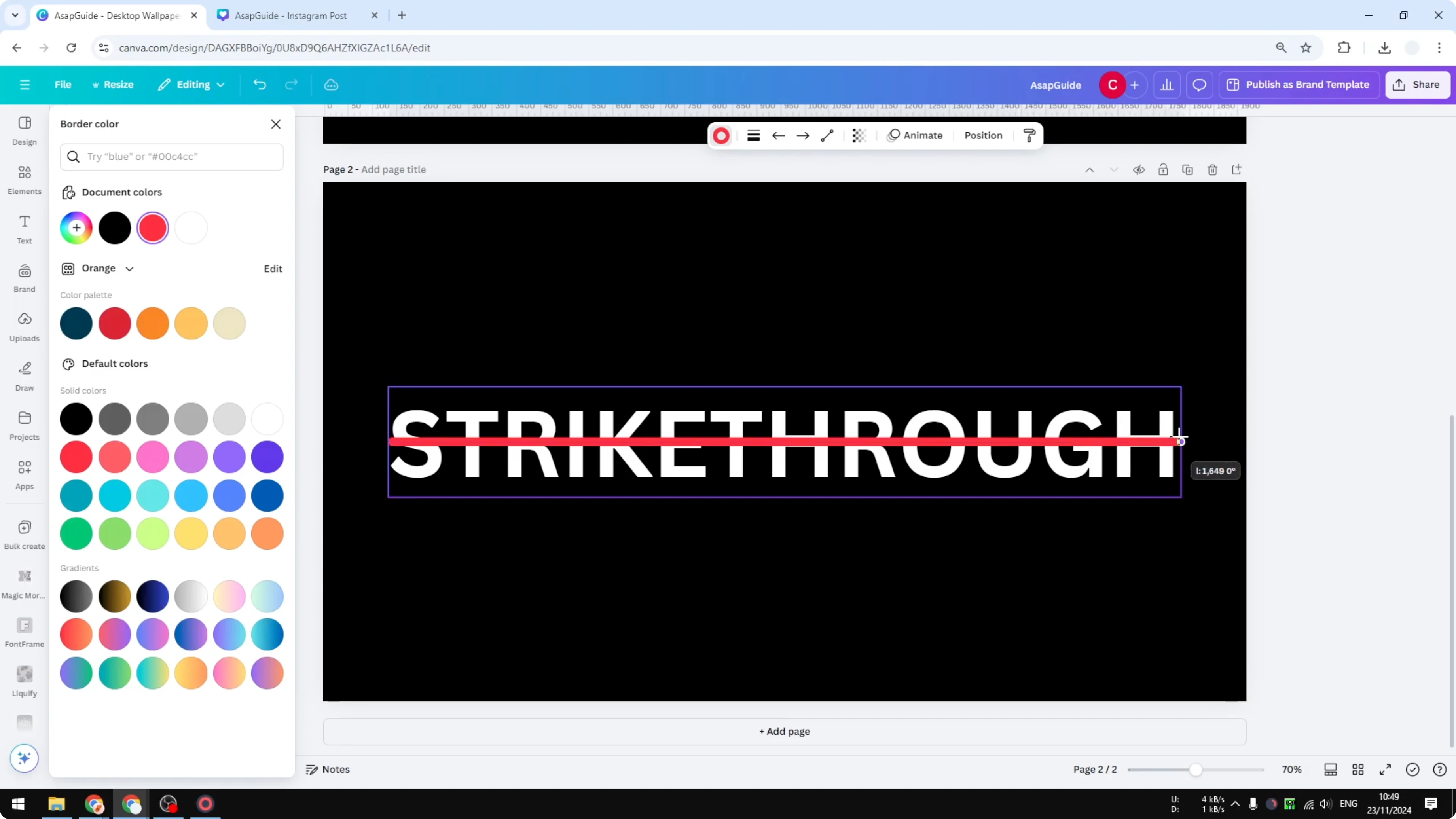
Extend the endpoints so the line spans the full word or phrase.
Want a bolder typography effect for headings too? Check out this tutorial on adding a glitch look: create a glitch text effect in Canva.
Scribble line method
Find a scribble
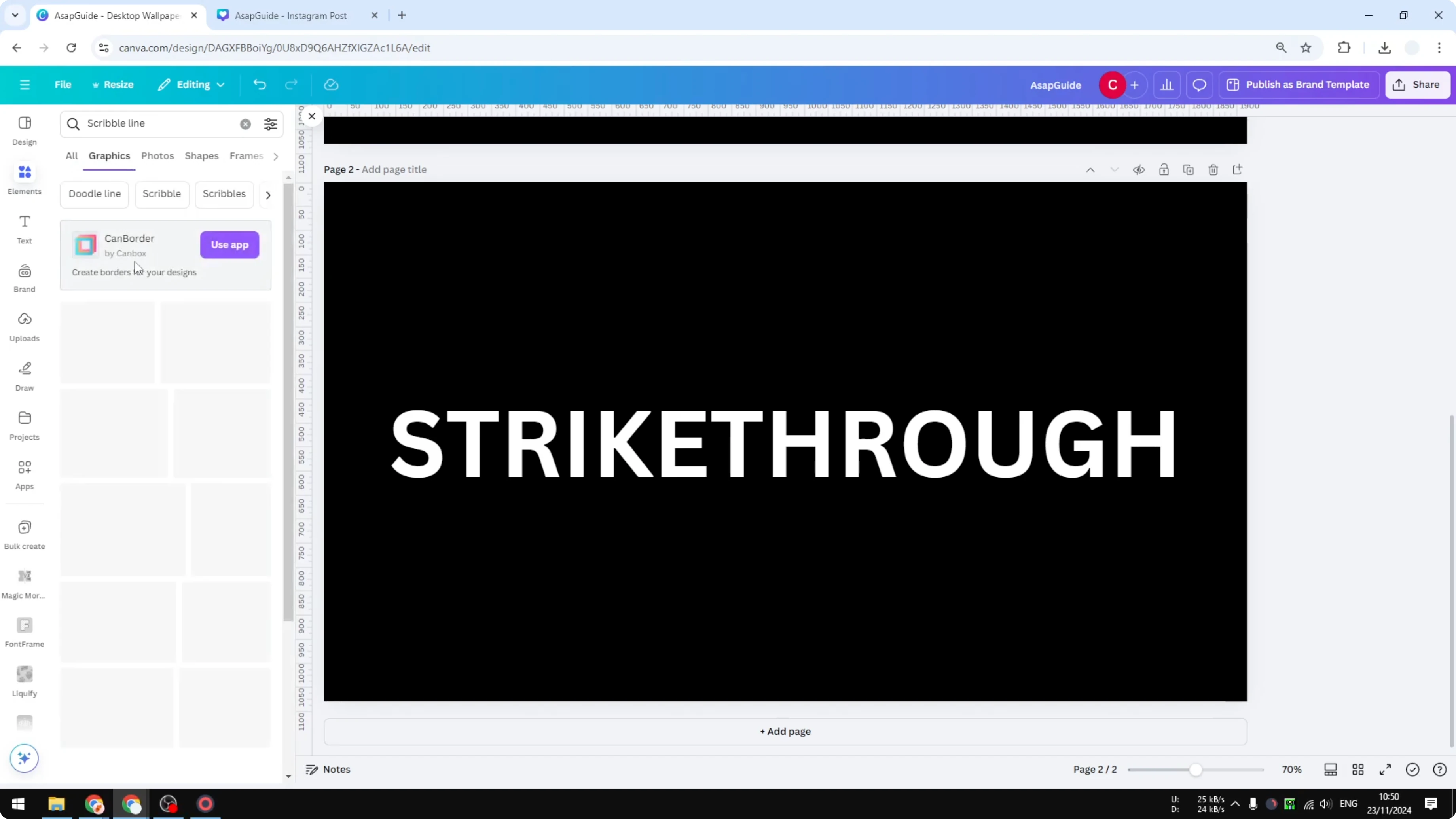
Go to Elements and search for “scribble line”.
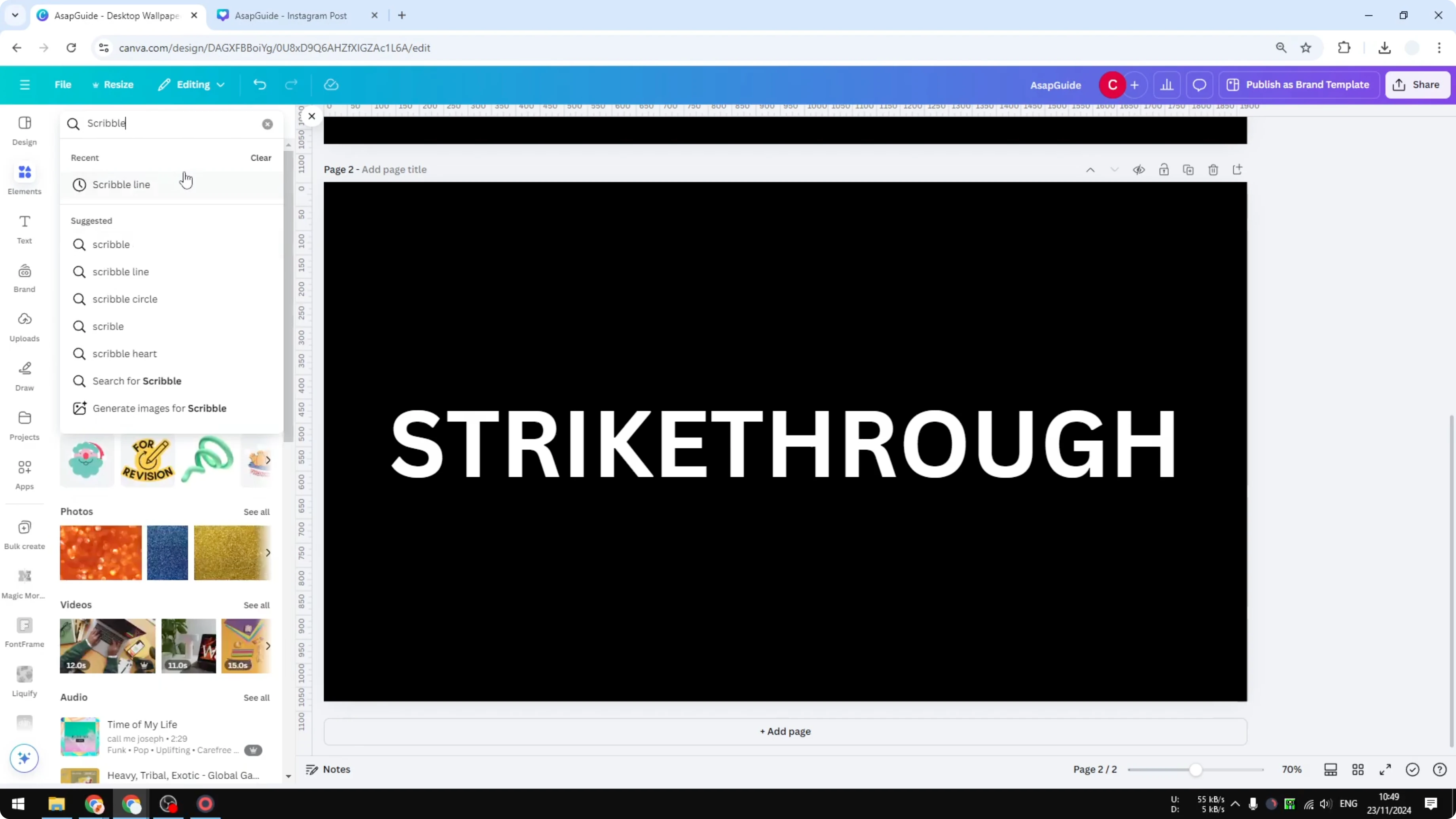
Open the Graphics section and pick a scribble that fits your style.
Customize
Change the color to match your design, for example red.
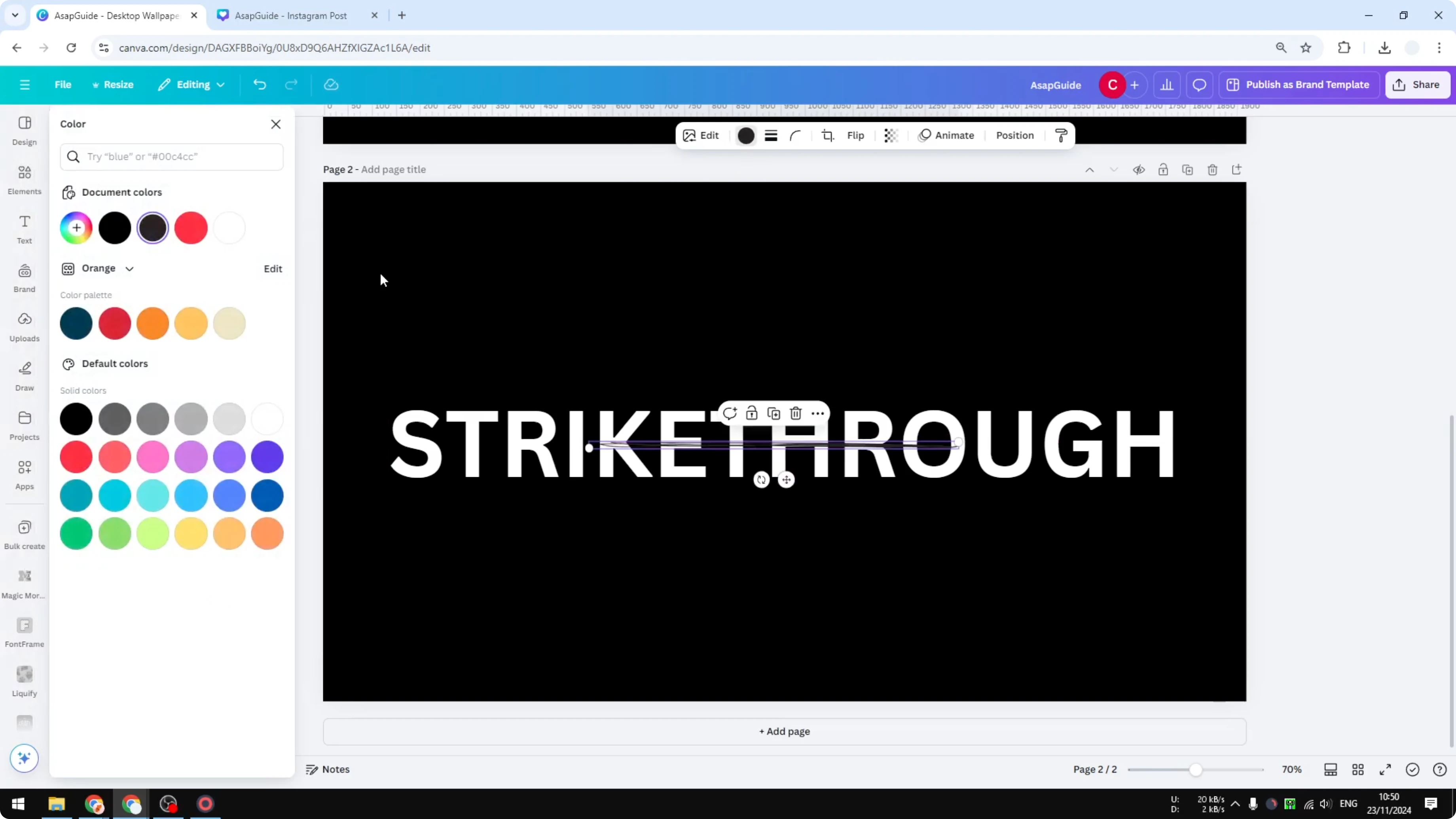
Resize the scribble so it’s wide enough for your text.
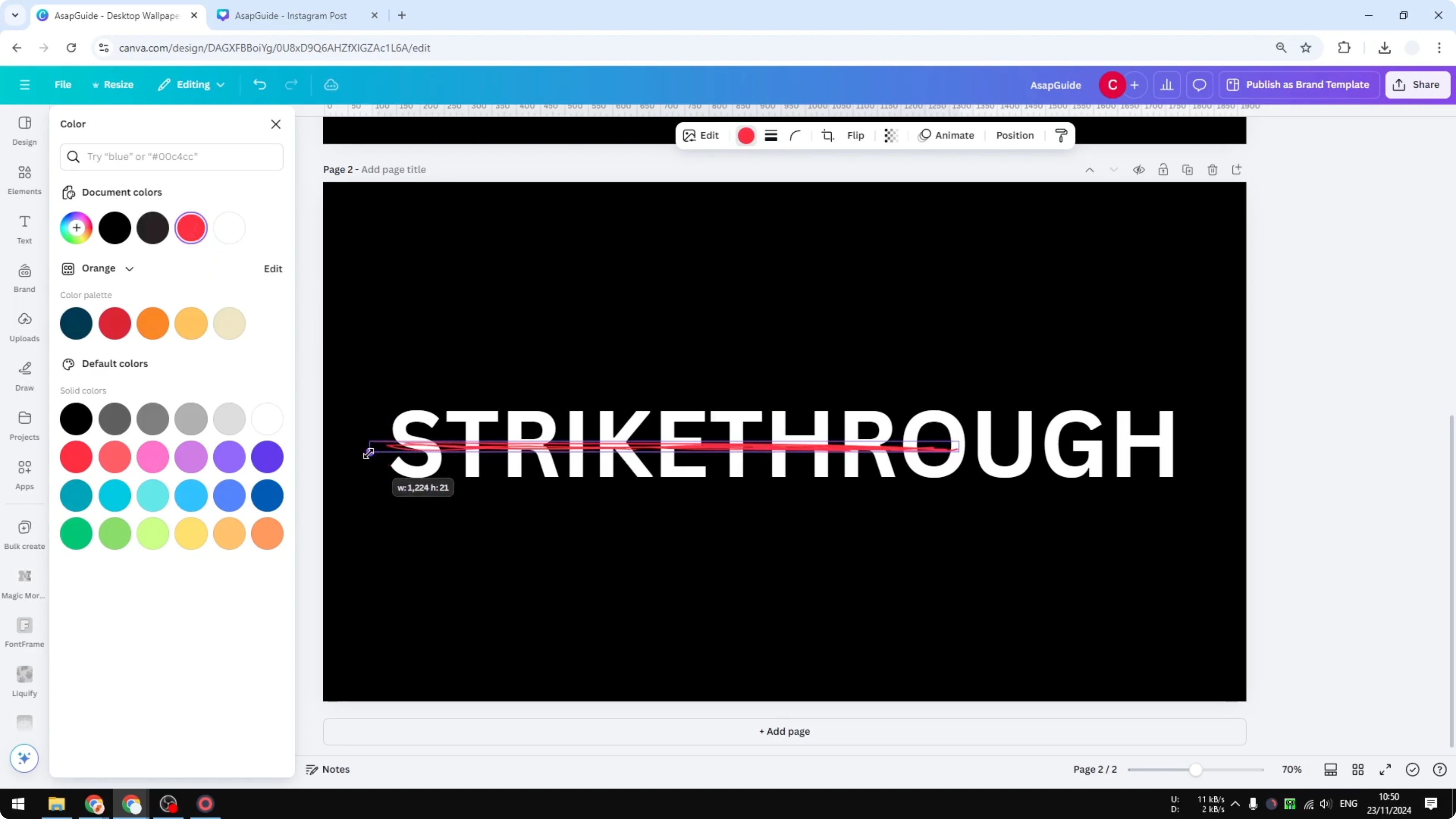
Fit it to text
Place the scribble across the word for a natural, hand-drawn strikethrough look.
Adjust scale and angle until it lines up the way you like.
If you want a soft, stylized background to pair with your text effects, learn how to add blur circles with this guide: create a bokeh effect in Canva.
Final thoughts
There is a simple strikethrough using the built-in option, a clean line-based version, and a scribble style that looks more natural. Change weight, endpoints, and color to match your design. Pick the method that fits your text and overall layout.
Recent Posts

How to Visualize Yourself as a Pixelized Character with AI?
How to Visualize Yourself as a Pixelized Character with AI?

How to Revive Faded Memories and Enhance Image Clarity with AI?
How to Revive Faded Memories and Enhance Image Clarity with AI?

How to Visualize Yourself as an Animal Crossing Character with AI?
How to Visualize Yourself as an Animal Crossing Character with AI?