How to Create a Simple Price List in Canva
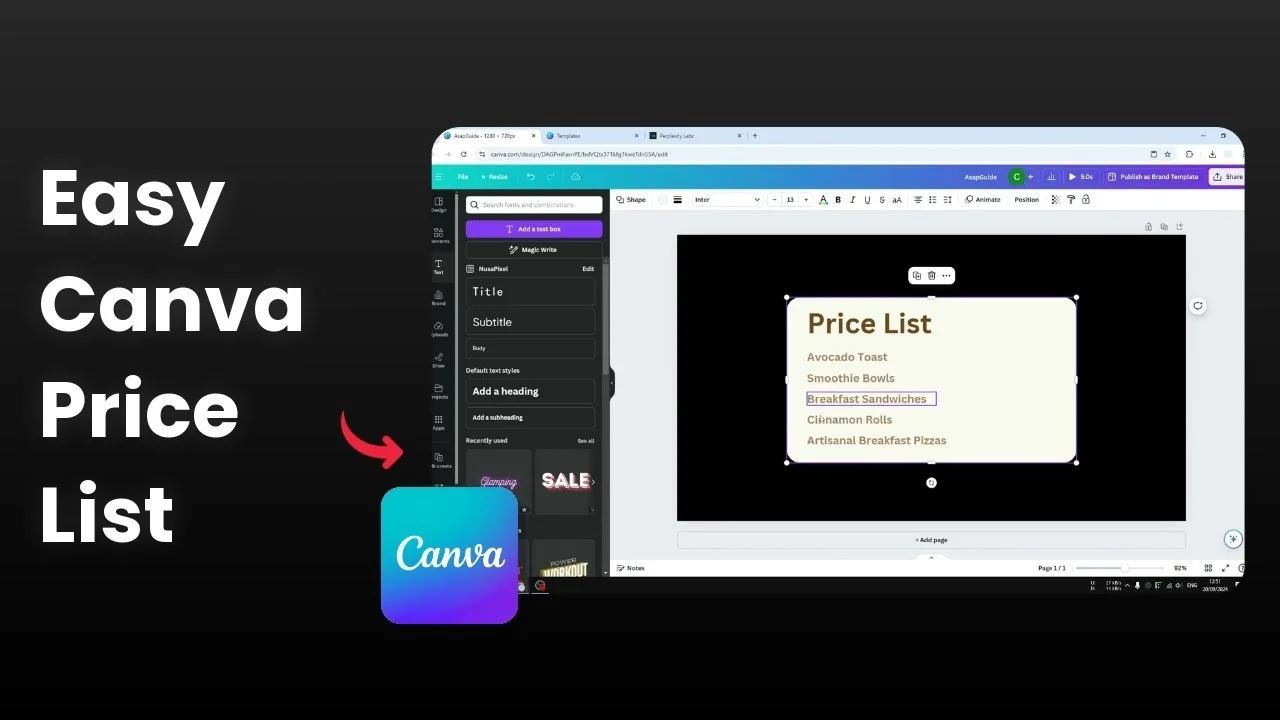
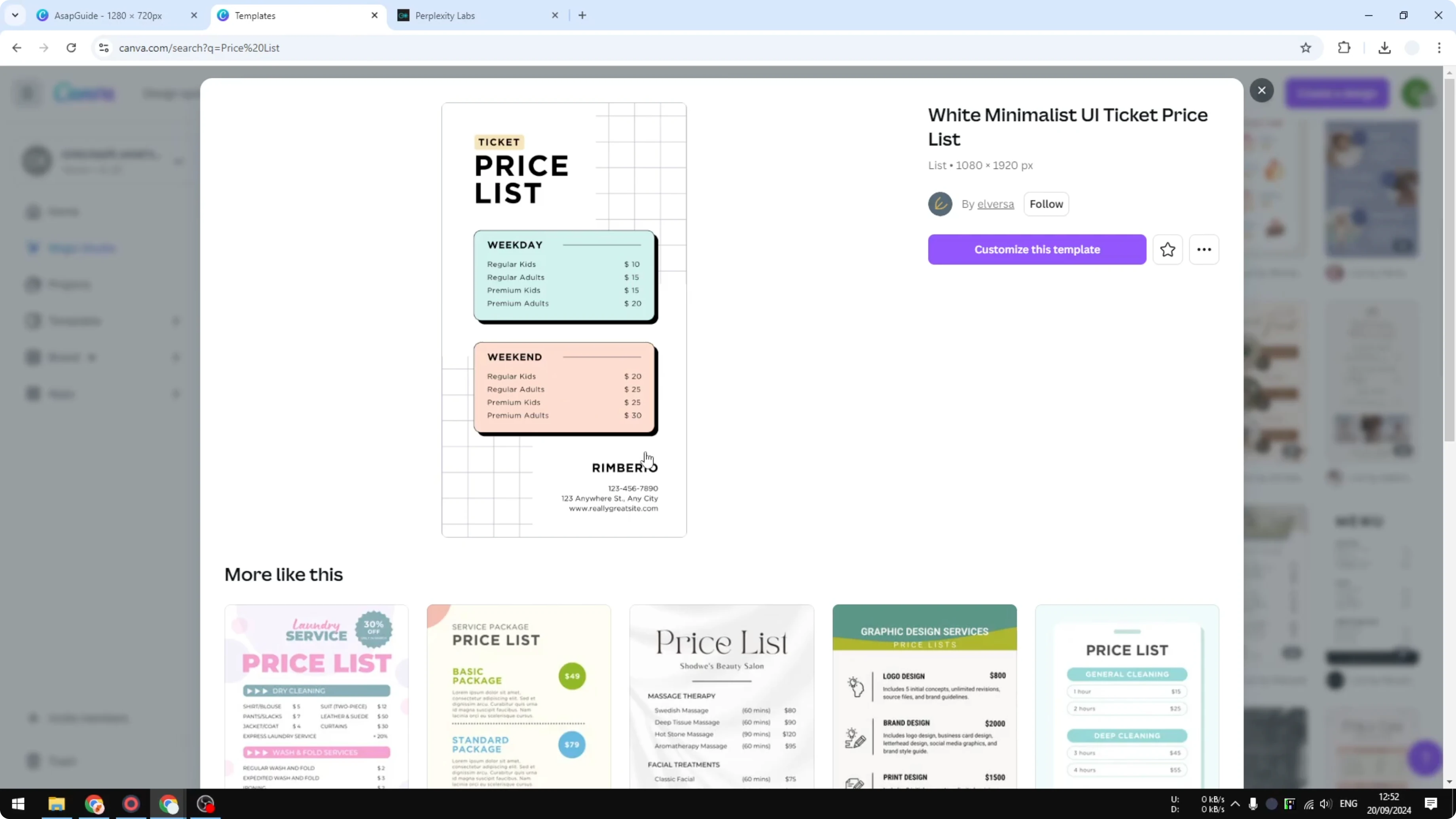
I will show you how you can design a simple price list using Canva. If you are a busy person and cannot spend time designing everything from scratch, I recommend starting from a template. Search for price list on the Canva homepage and you will see plenty of beautiful designs made by professionals.
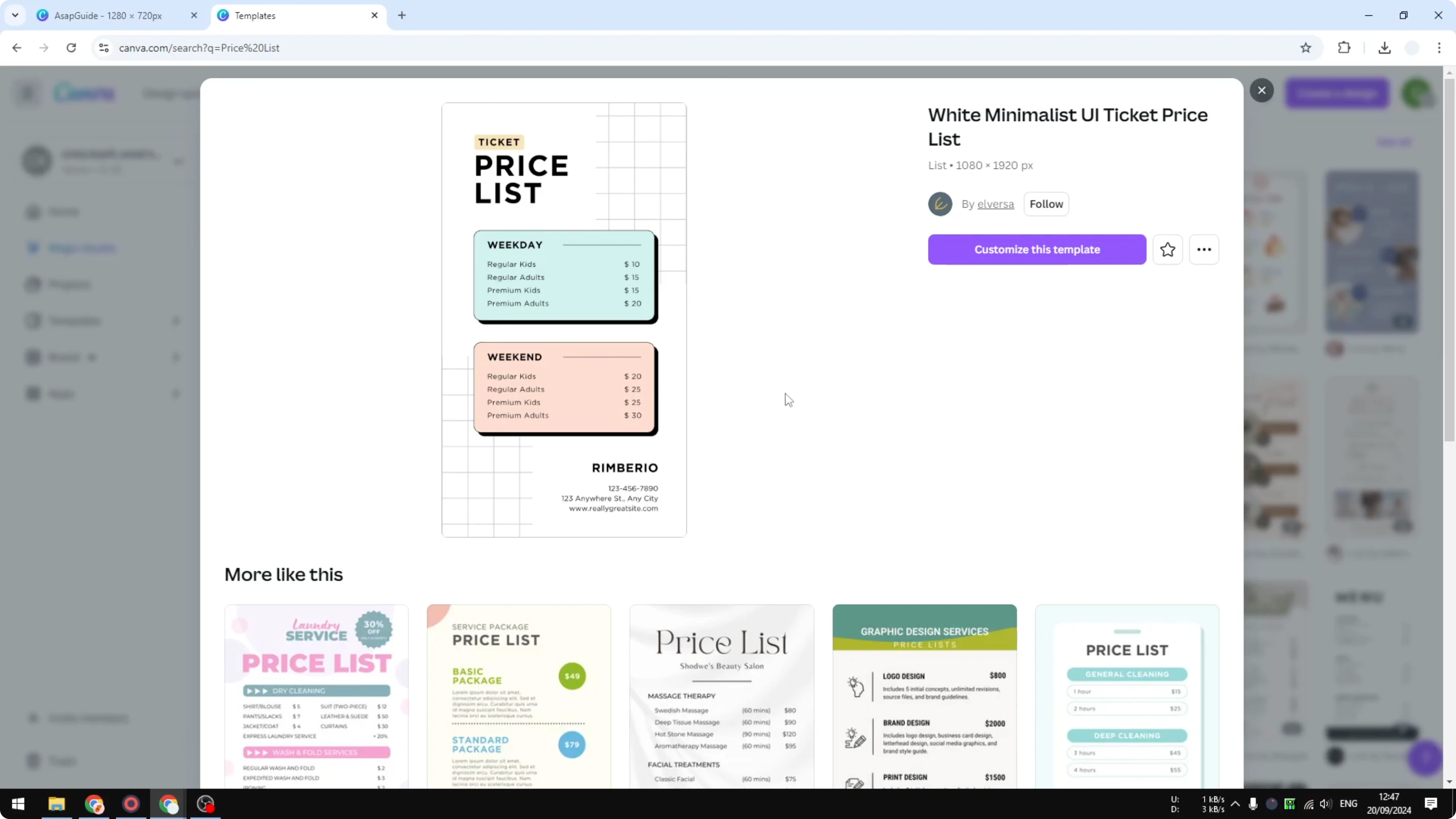
Click any template and modify the price, modify the item, and maybe modify the color. The design is done by them, which is very useful if you do not have time to design everything. If you want to design from scratch and are interested in it, here is how you can do it.
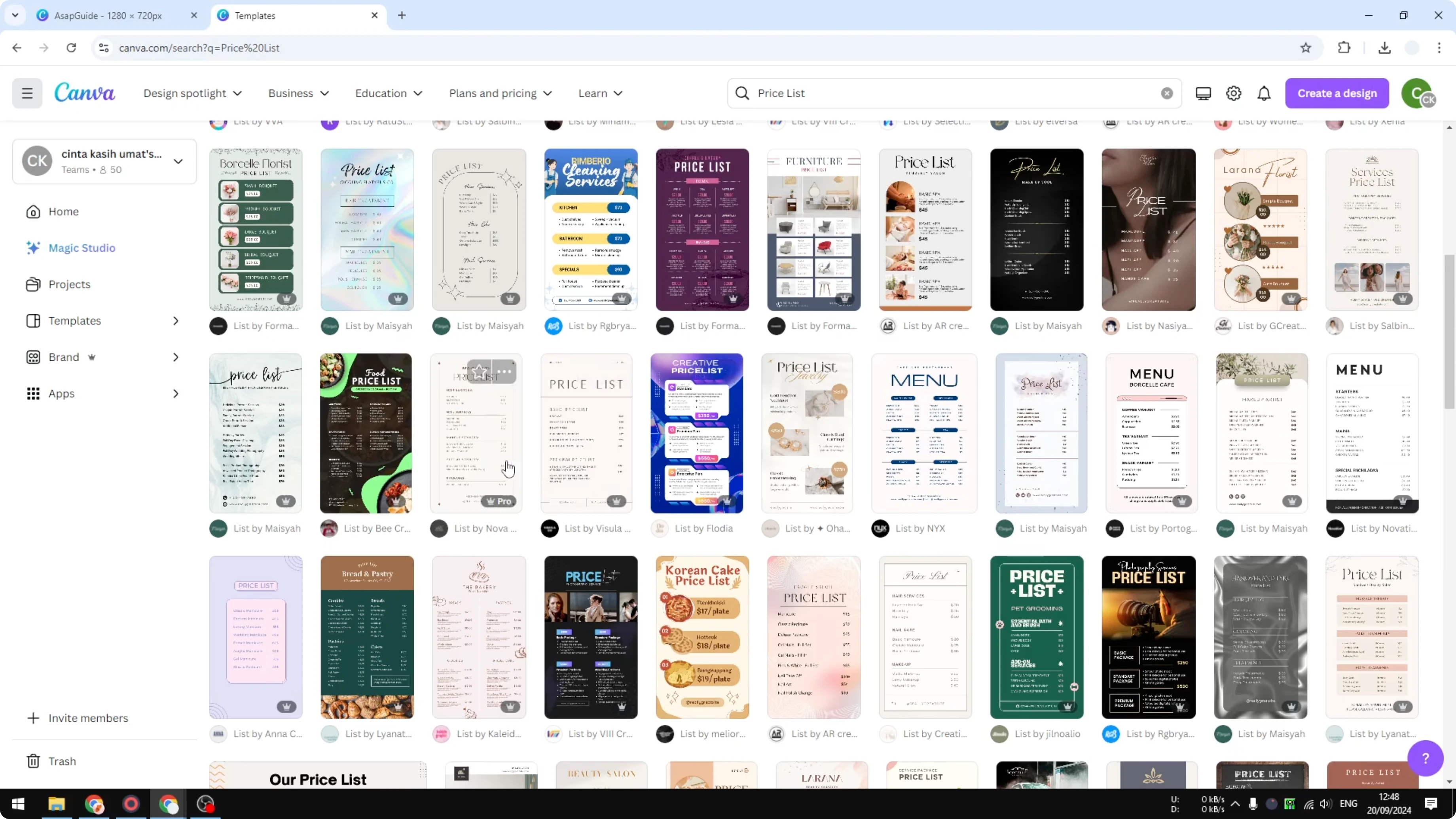
Templates
Open Canva and search for price list. Choose a template you like, then edit the titles, items, and colors to match your brand. You can finish a clean menu in minutes with this approach.
Read More: Create Simple Before After Image Canva
Create a Simple Price List in Canva
Base panel
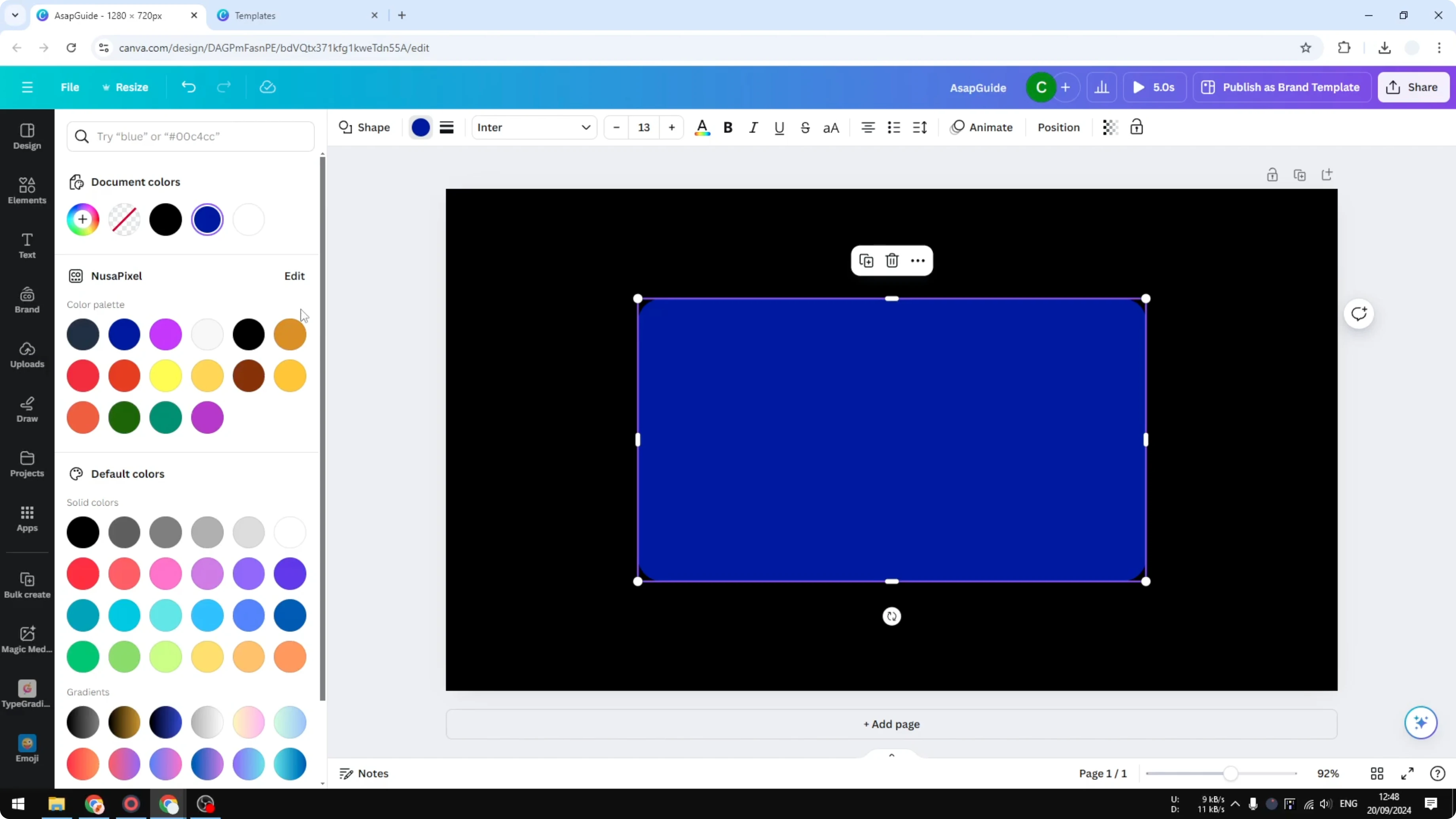
I start with a simple plain document. Go to Elements, open Shapes, and pick the square with rounded corners. Make it wider so it feels like a panel for your menu.
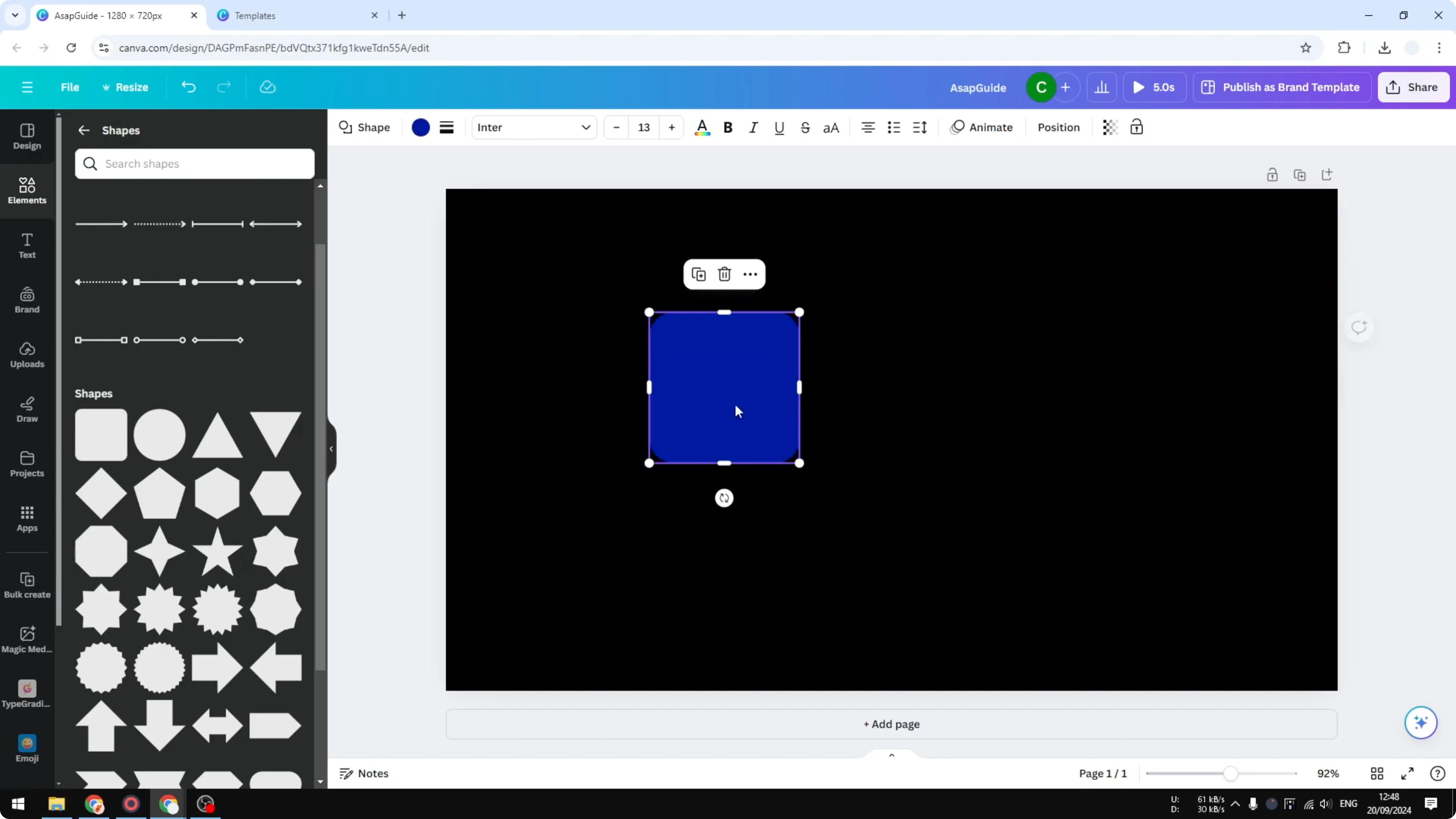
Change the color to something bright but not exactly white. I want a little texture or a soft tint so it does not look flat. Pick a light, subtle tone that looks great as a background.
Title and items
Add text for the title or heading. I call it R list, then I change the color to something that looks appropriate and a bit darker. Place it at the top of the panel.
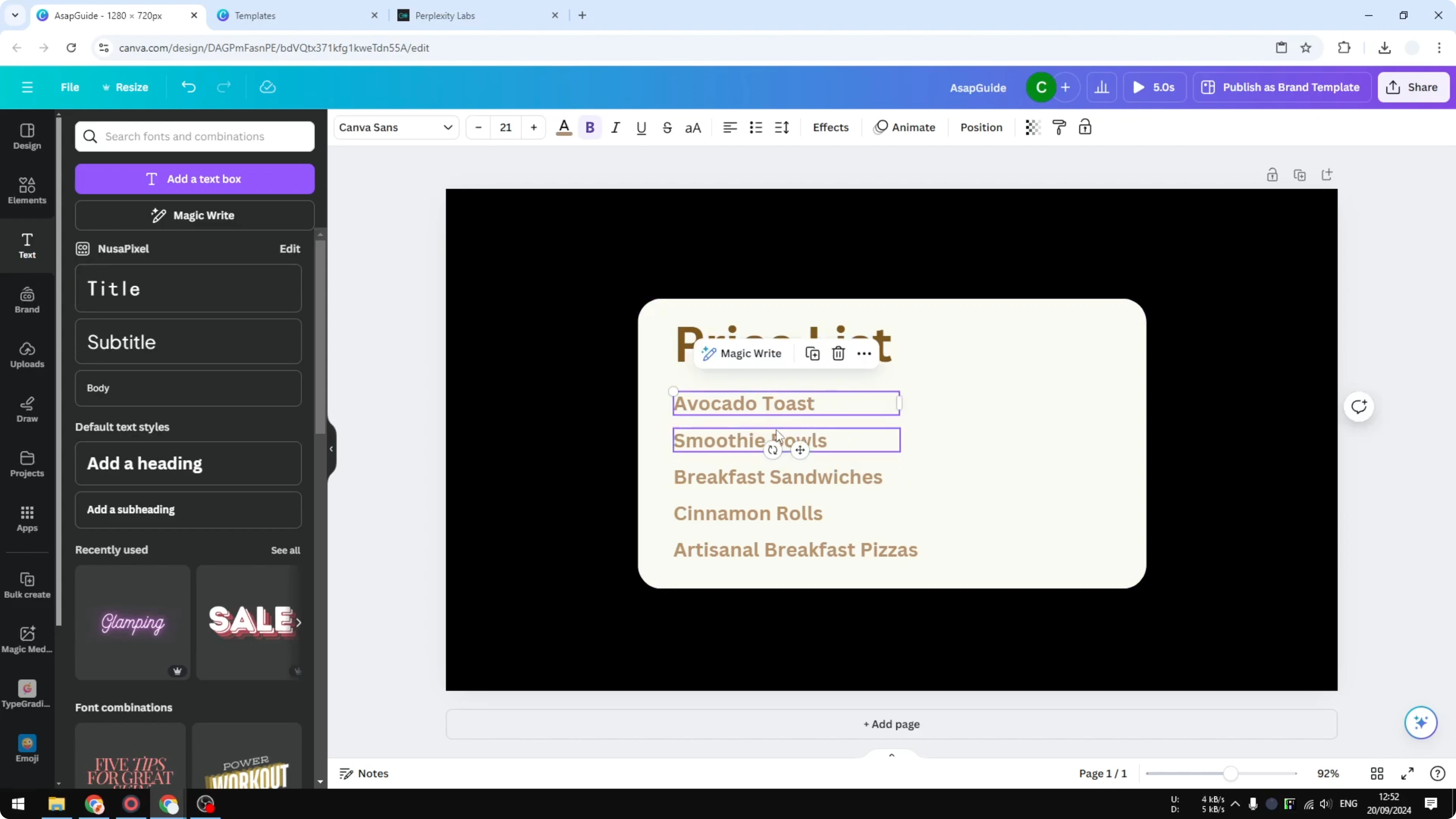
Add another text box for the first item. Align it to the left and make it smaller so it reads like a list. Duplicate the text instead of typing each one manually to speed things up.
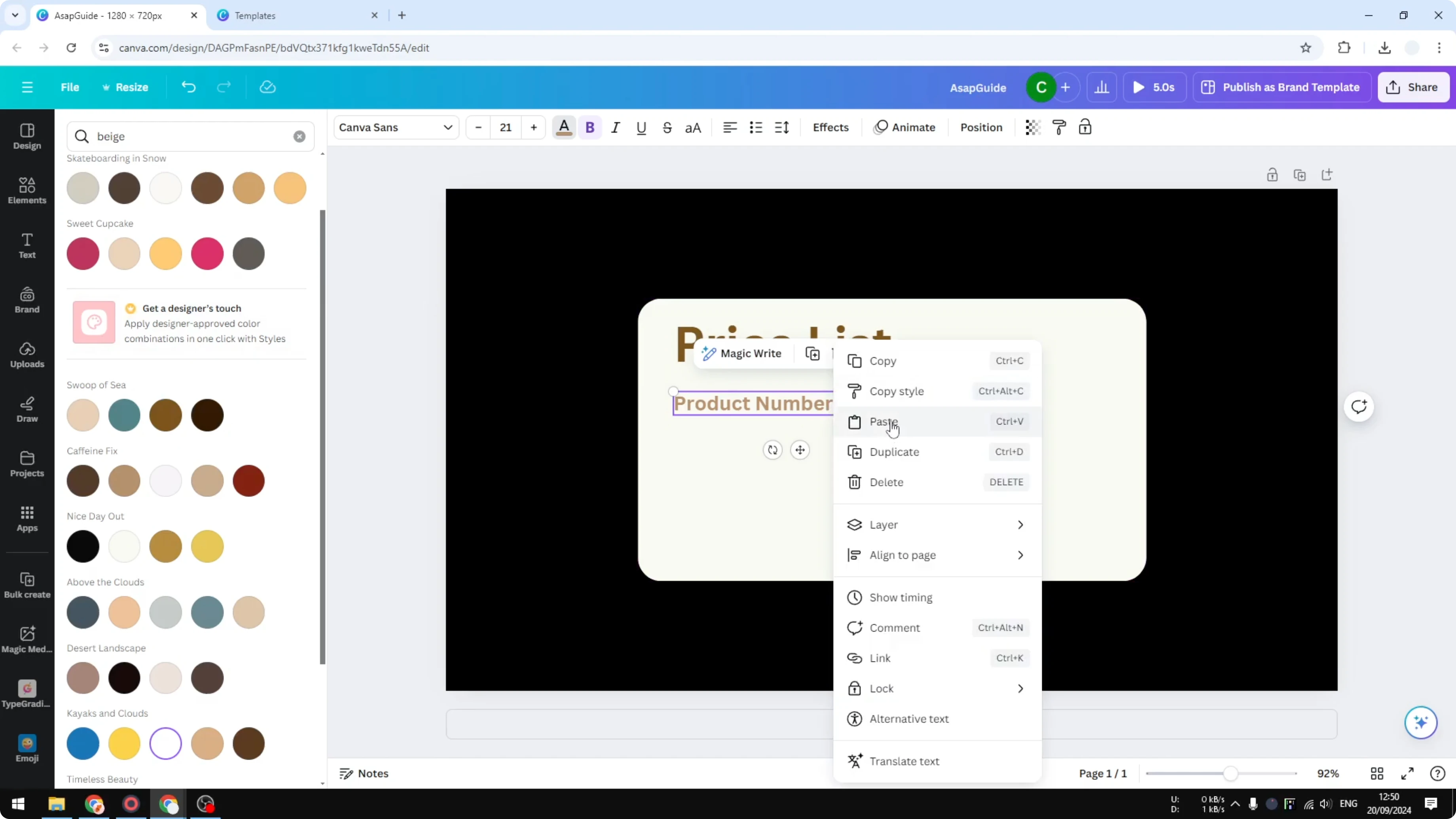
Select two or three at a time and duplicate again until you have enough lines. Populate the items with your menu or product names. I asked AI to give me some menu examples, then I copied and pasted the ones I liked.
Prices
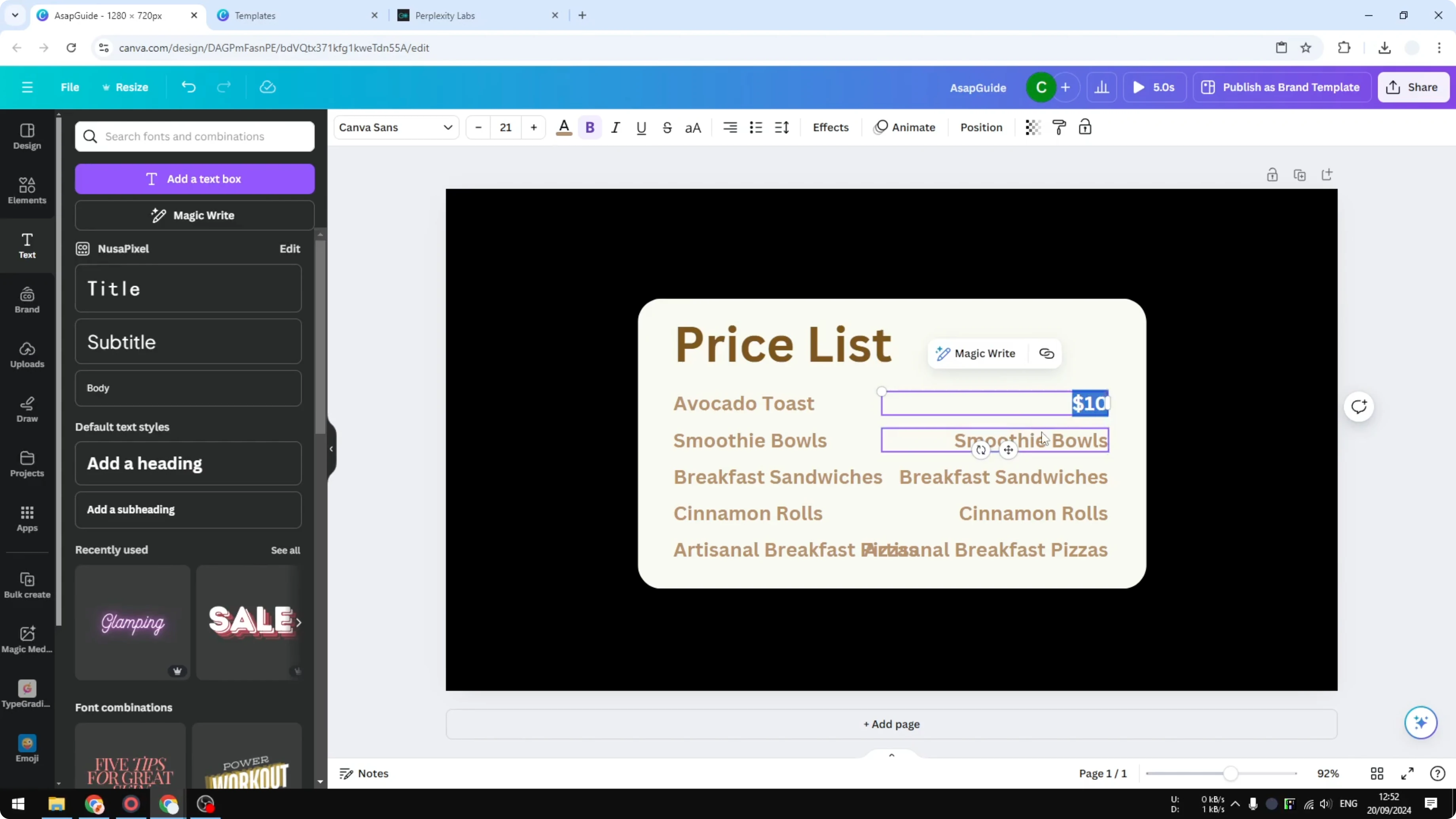
Select the list of items and duplicate it for the prices. Align this copy to the right side so the numbers sit neatly across from the items. Place it so the spacing looks balanced.
Change the content to prices. For a quick mockup, I set every item to $10 just to show the layout. You can fine tune the numbers later.
Decoration
I like to add a soft light behind the panel. Search Elements for a simple bright rectangle, place it behind the main shape, and send it to the back. This gives a gentle glow that lifts the design.
Keep the decoration subtle so the text stays readable. A small shadow or light patch can add depth. Avoid heavy effects that distract from the menu.
Read More: Create Balloon Text Effect Canva
Dividers
Add a line to separate the title from the items or to group sections. Insert a simple line, change the color, and adjust the length so it fits your layout. Keep it thin for a clean look.
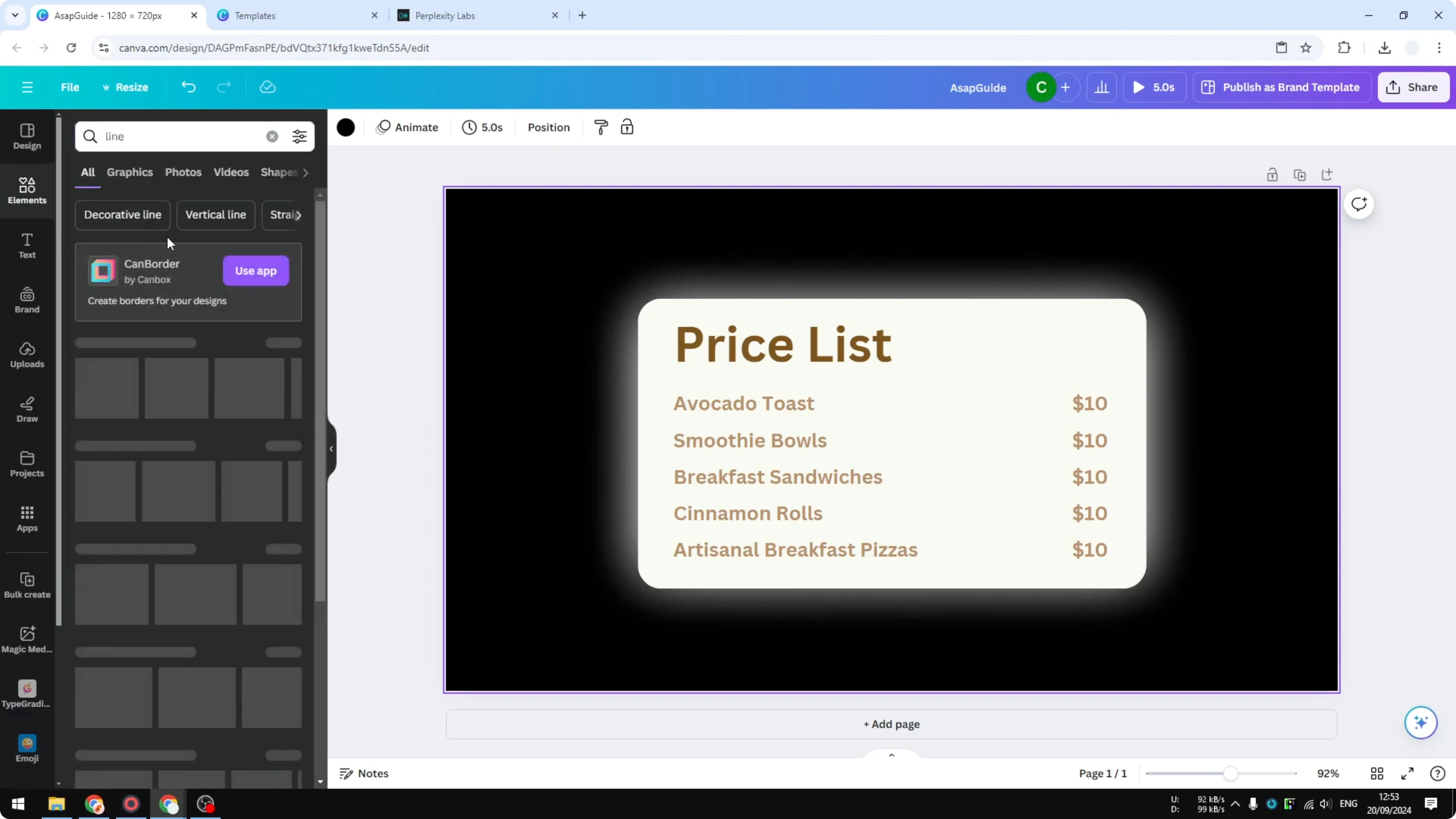
If the line snaps in odd ways, zoom in and drag from the endpoints for precise control. Place it carefully so it helps the eye scan the list. A single divider is often enough.
Read More: Create 3D Cube Canva
Final thoughts
That is basically how you can create a simple price list in Canva from scratch. You can always add more details later like extra lines, icons, or color accents. Keep the layout clean, align your text carefully, and your menu will look polished.
Recent Posts

How to Visualize Yourself as a Pixelized Character with AI?
How to Visualize Yourself as a Pixelized Character with AI?
How to Revive Faded Memories and Enhance Image Clarity with AI?
How to Revive Faded Memories and Enhance Image Clarity with AI?

How to Visualize Yourself as an Animal Crossing Character with AI?
How to Visualize Yourself as an Animal Crossing Character with AI?