How to Create Running Text Effect in Canva
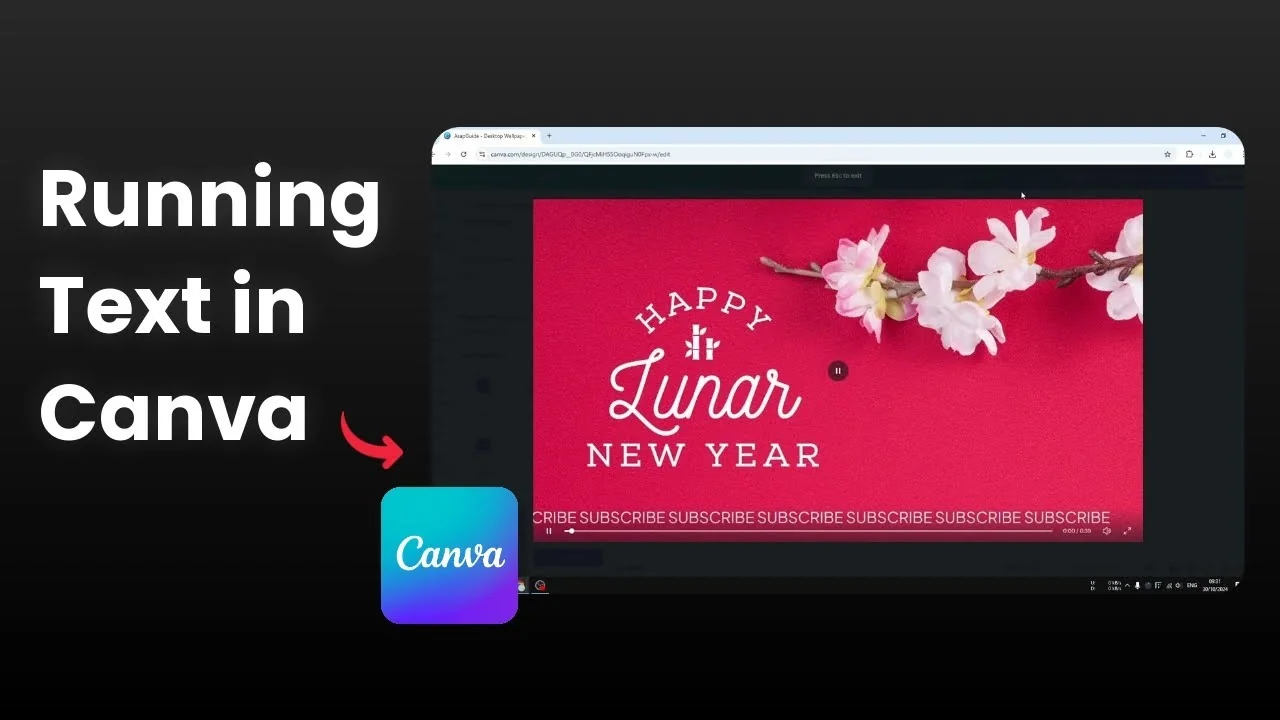
I’m going to show you how I create a scrolling or running text effect in Canva. Canva doesn’t ship a true ticker feature, but there is an animation trick that produces a very similar result to the news-style crawl you see on TV.
This approach will not loop from the beginning like a proper broadcast ticker. It works well for short segments and looks convincing if you set the timing right.
Running text in Canva - limitation
Canva cannot create a native running text effect. It isn’t designed for that, which is why the text will not loop back automatically.
I use an animation that records a simple horizontal drag. That motion, applied to a long single-line text string, mimics a ticker across the design.
If you’re exploring more creative text looks in Canva, see this step-by-step on the balloon text effect.
Prepare the text
Go to Text and insert the content you want to scroll.
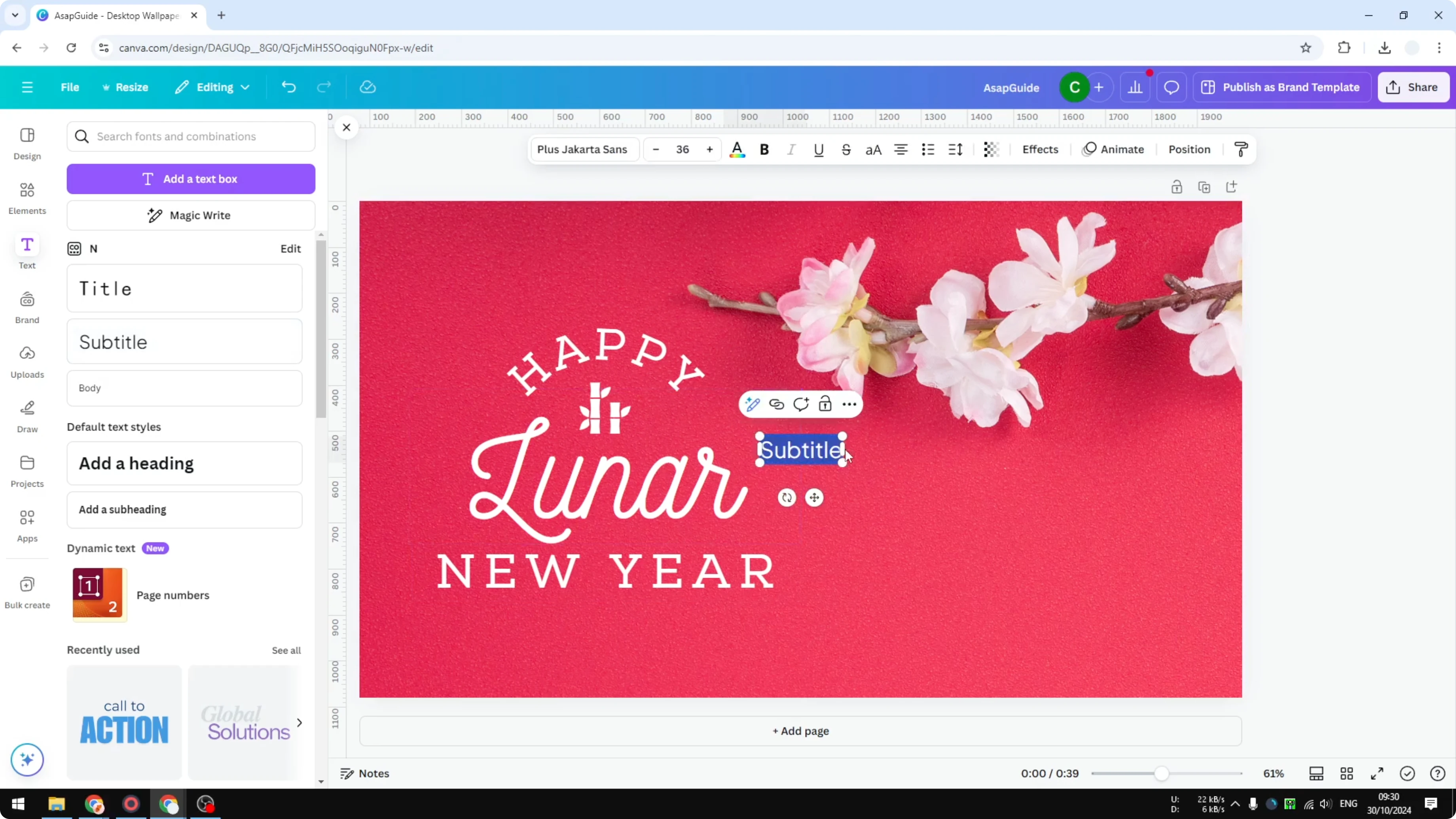
Copy that text repeatedly so it becomes a very long string. The idea is to turn what would be a paragraph into one continuous line.
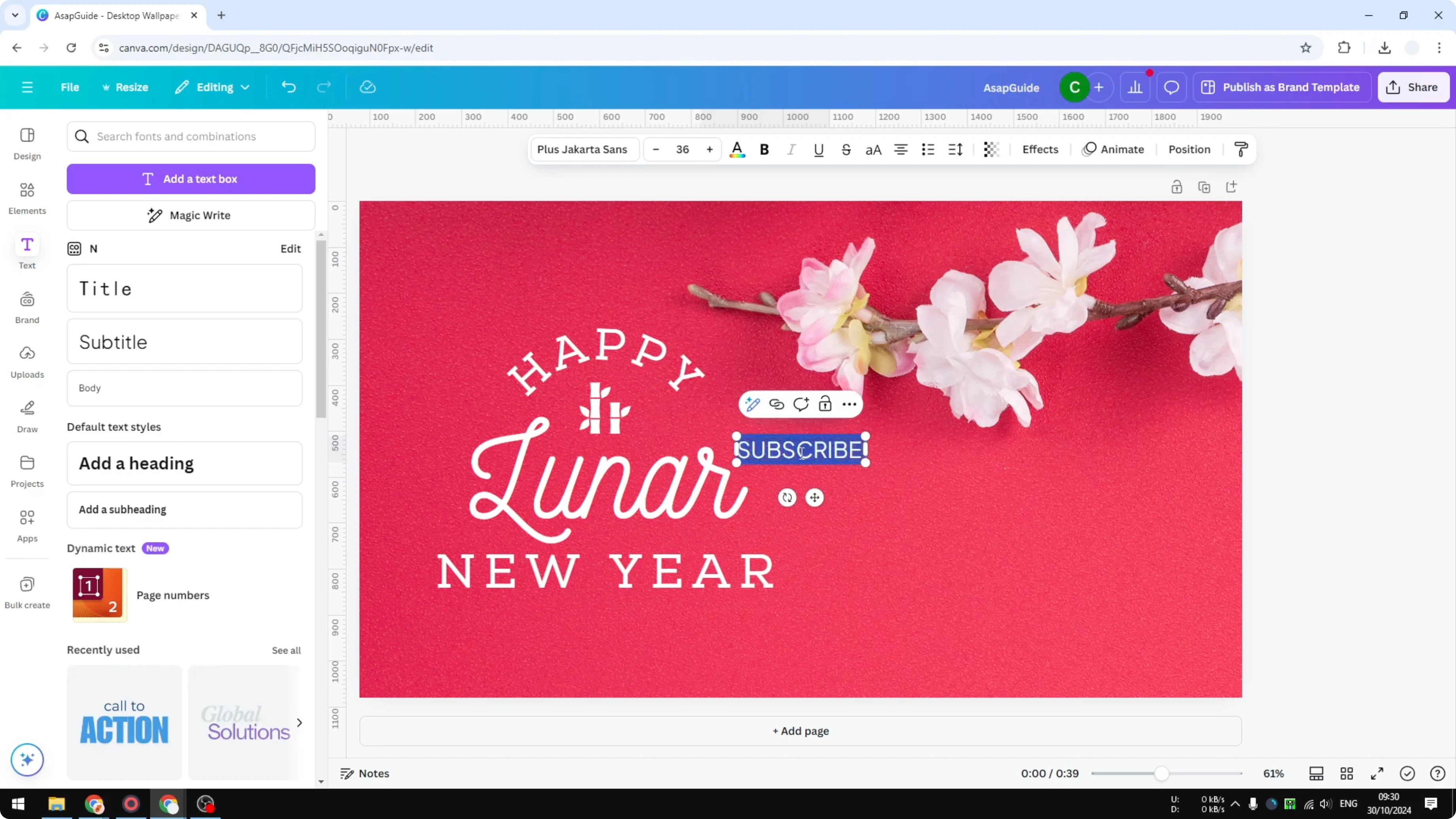
Convert the text box from multiple lines into a single line. Zoom out and extend the box so the text becomes one long string without wrapping.
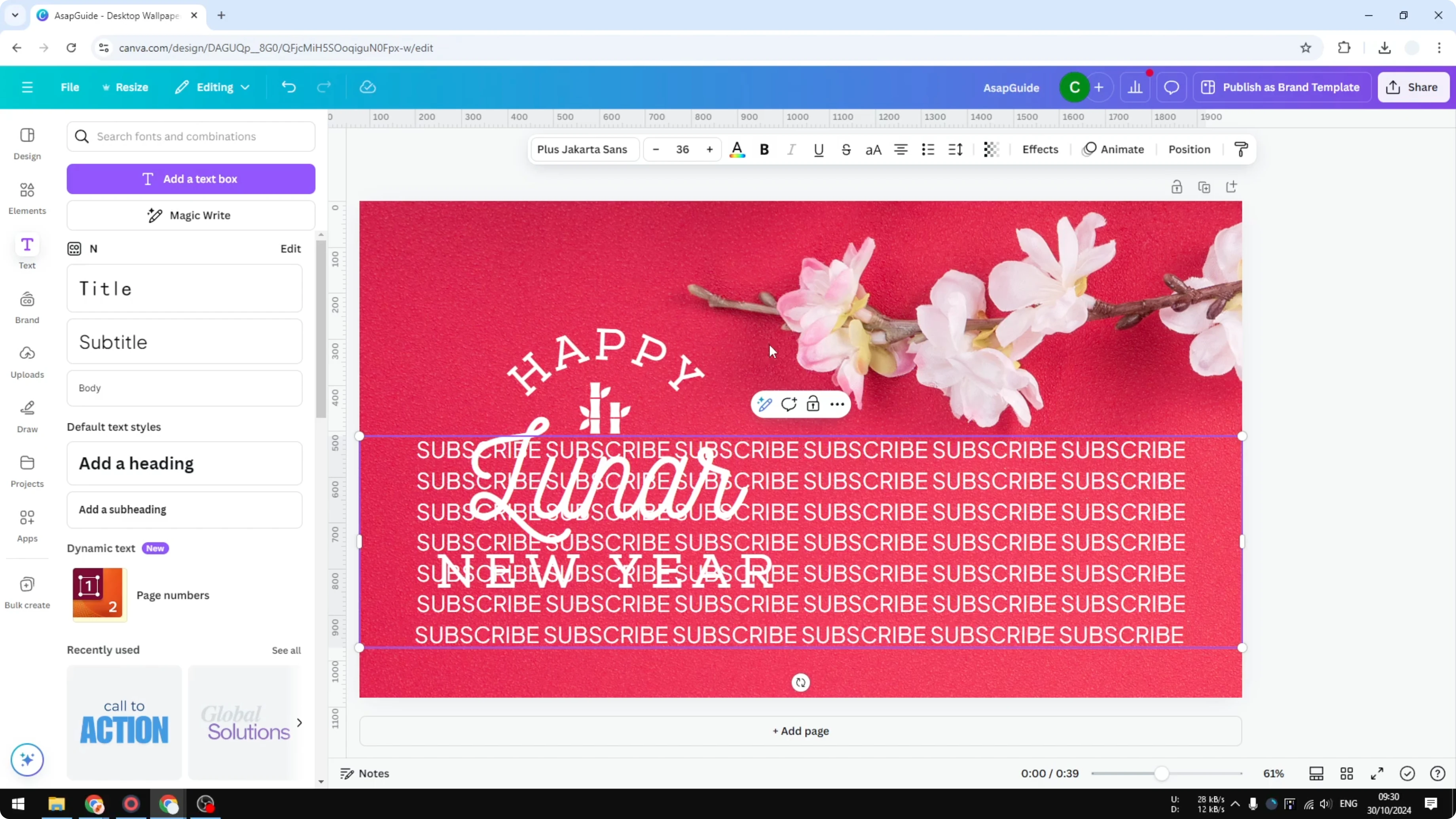
Position the single-line text at the bottom of your design.
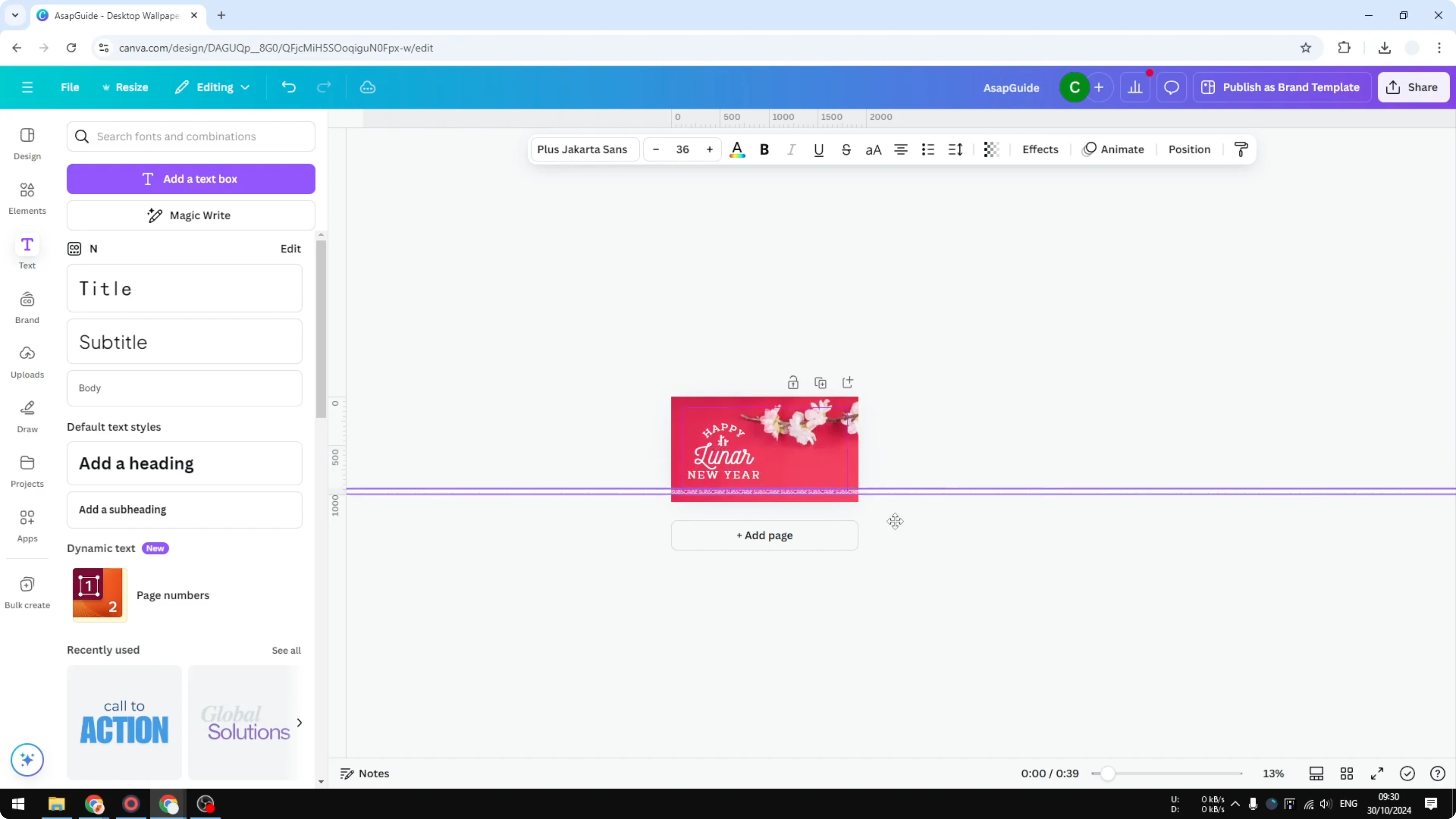
Animate the scroll
Record the movement
Select the text box, open Animate, and choose Create an animation.
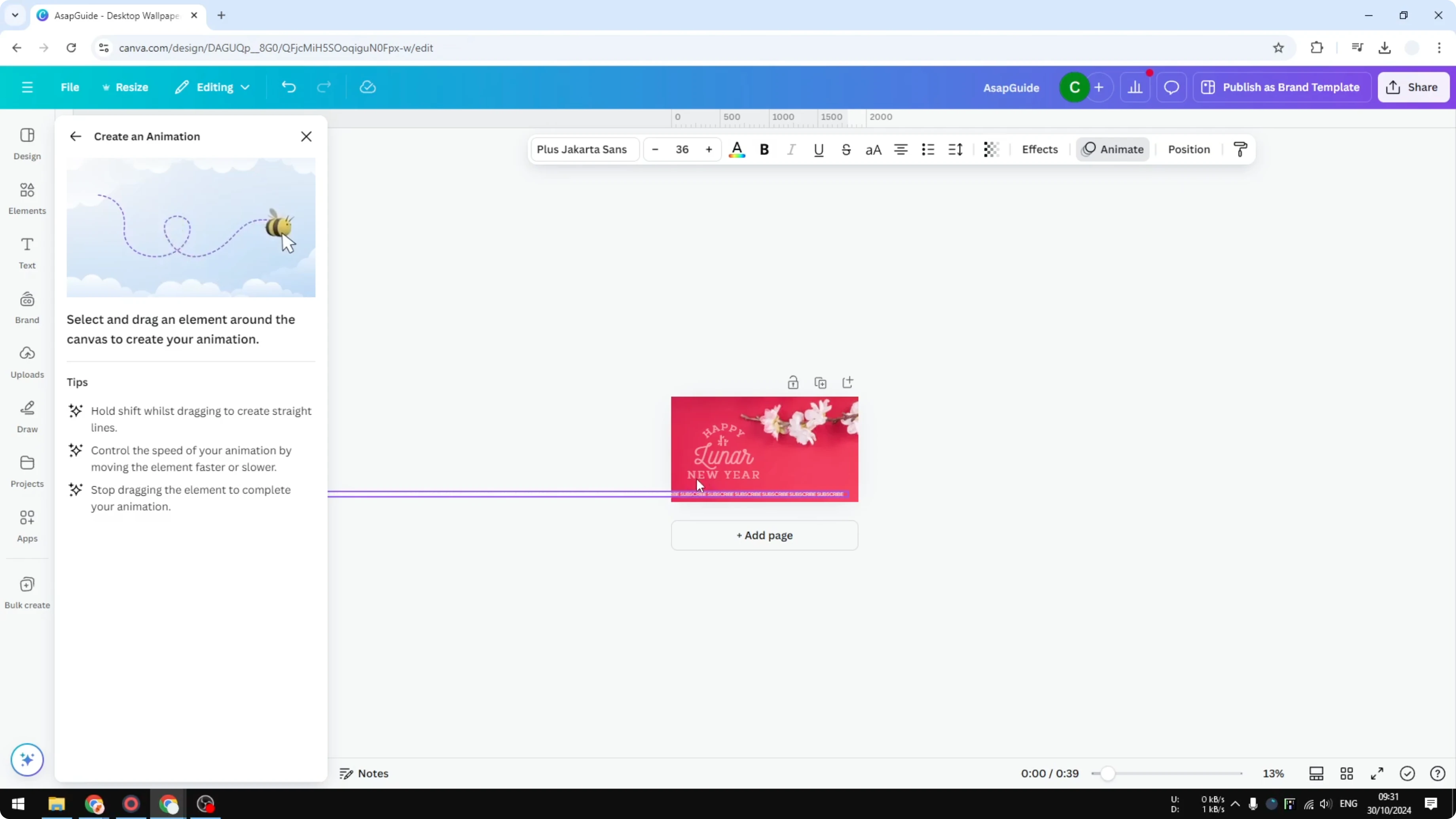
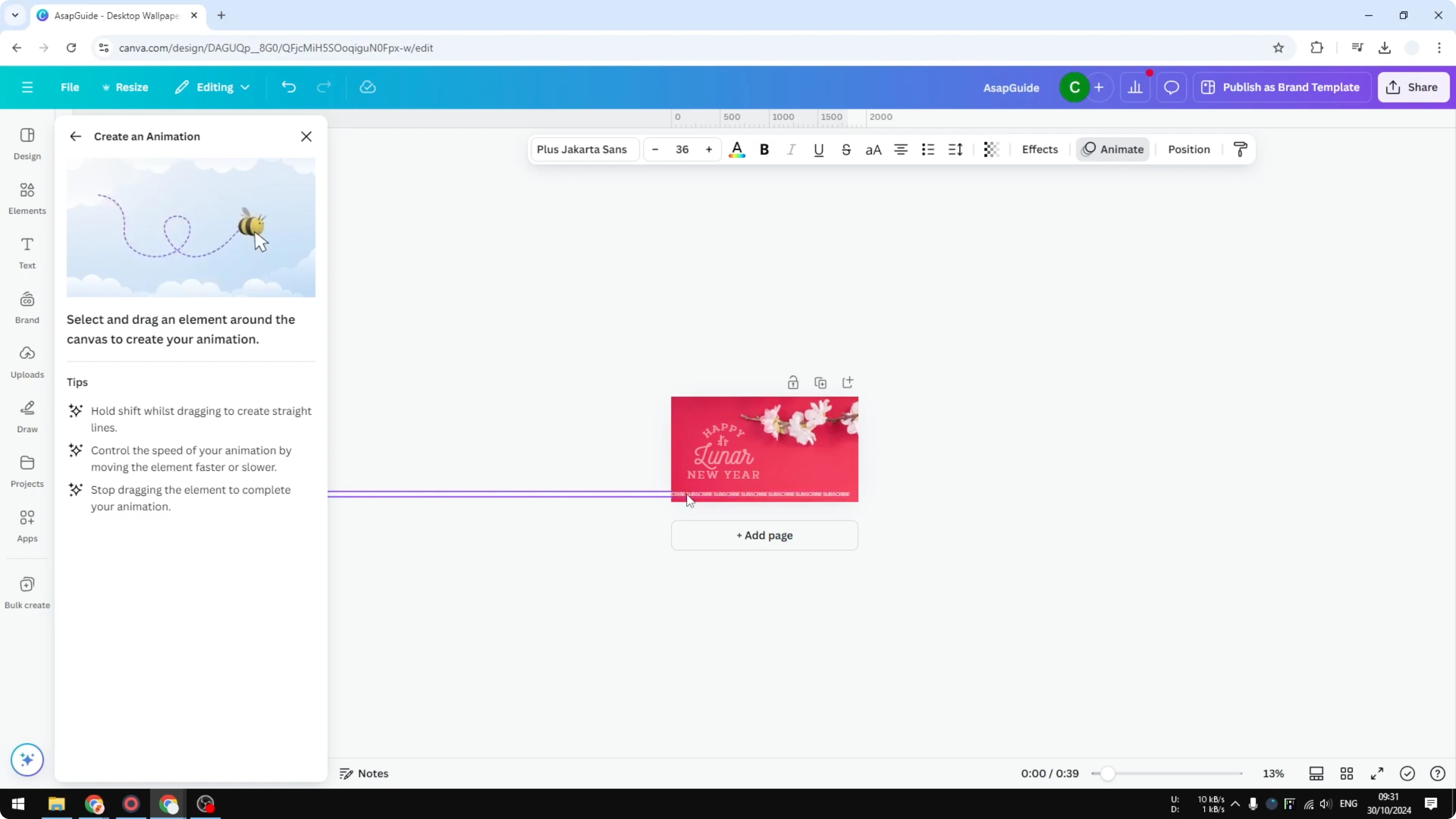
Press and hold Shift to keep the motion perfectly straight. Drag the text to the right slowly while recording - slower is better, and you don’t have to be perfectly consistent because you can change the settings afterward.
Tweak speed and style
Set the animation speed to the minimum.
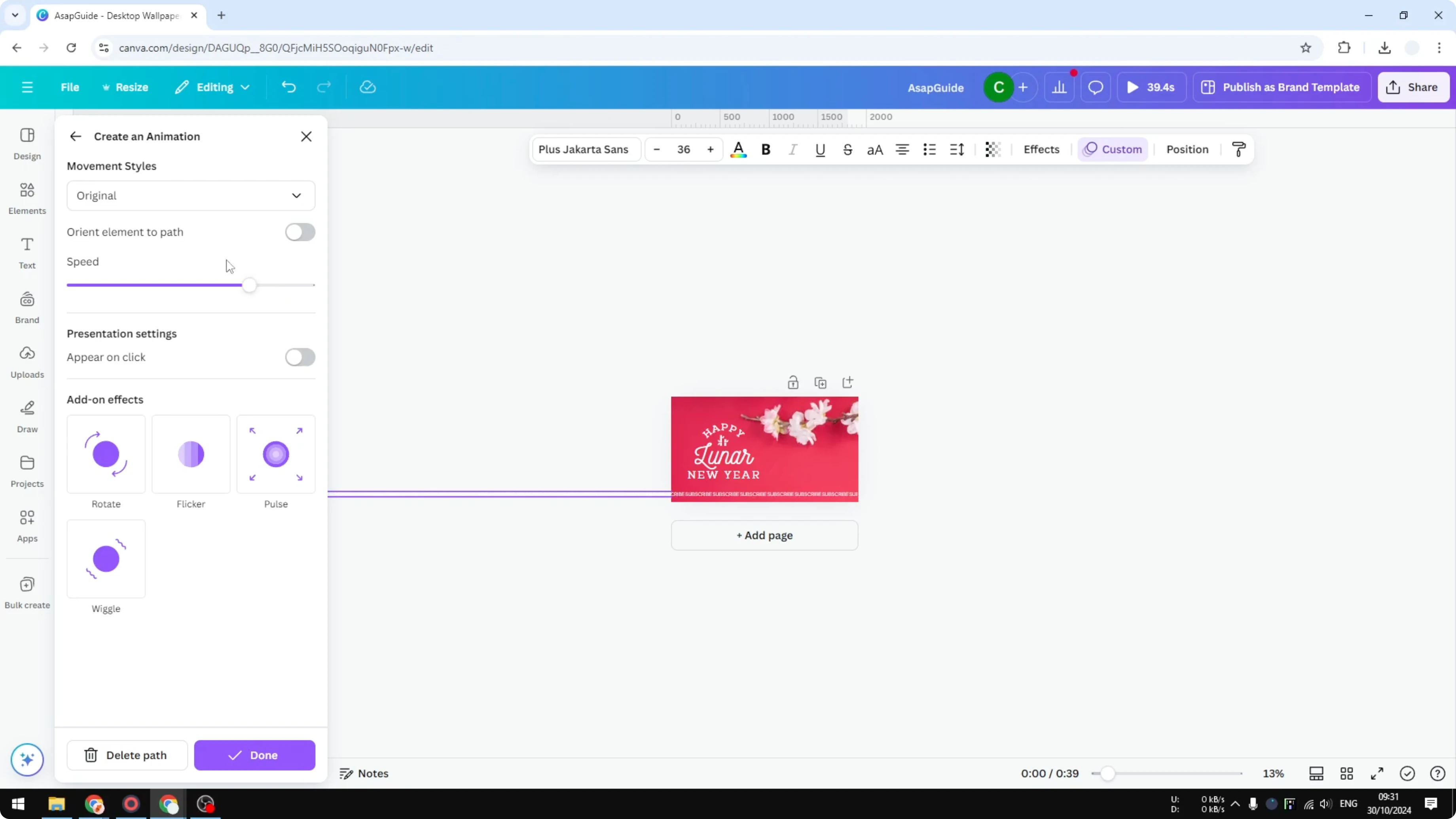
Choose the Steady style for the movement.
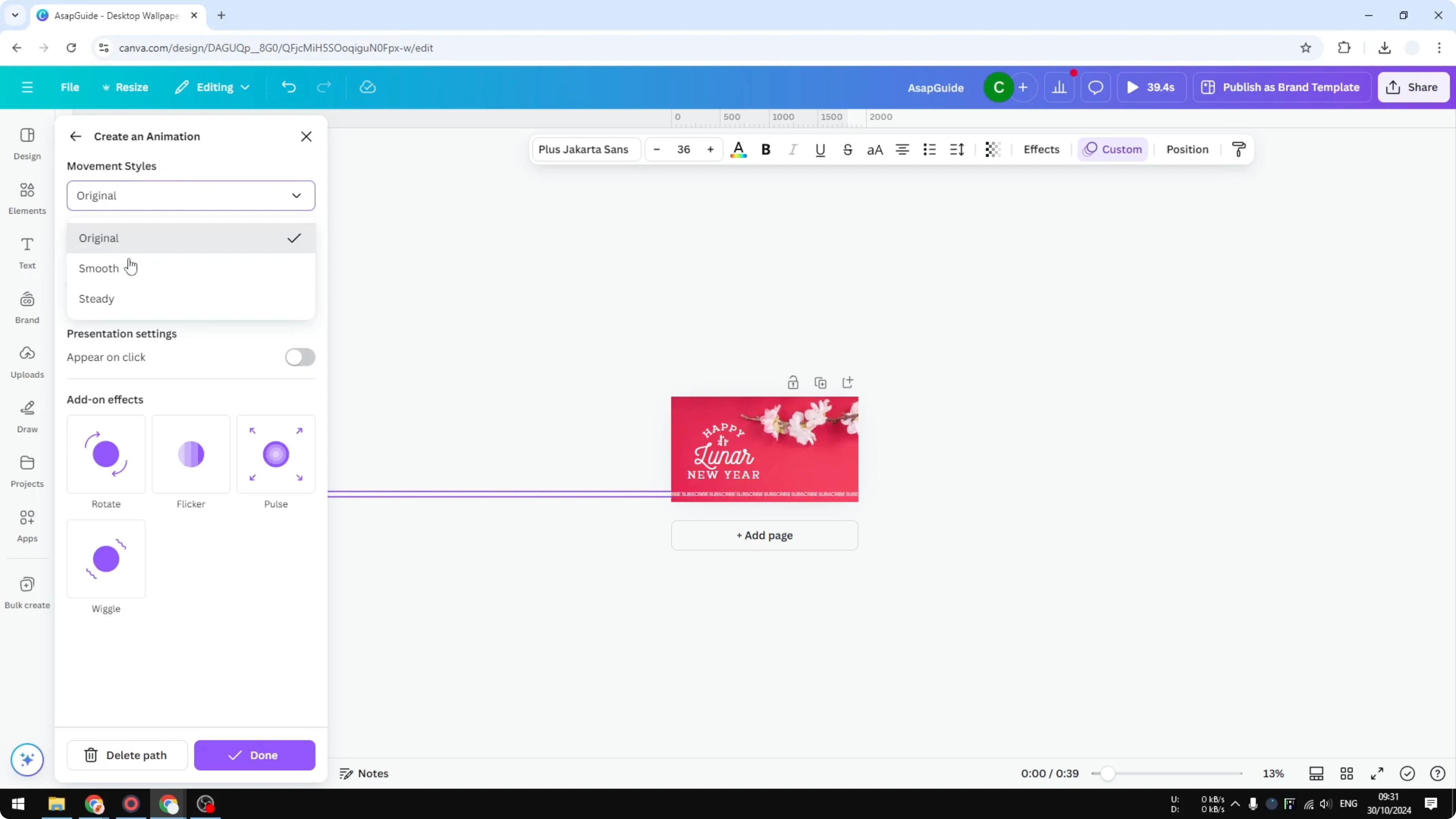
Preview the animation to confirm the text moves smoothly across the bottom.
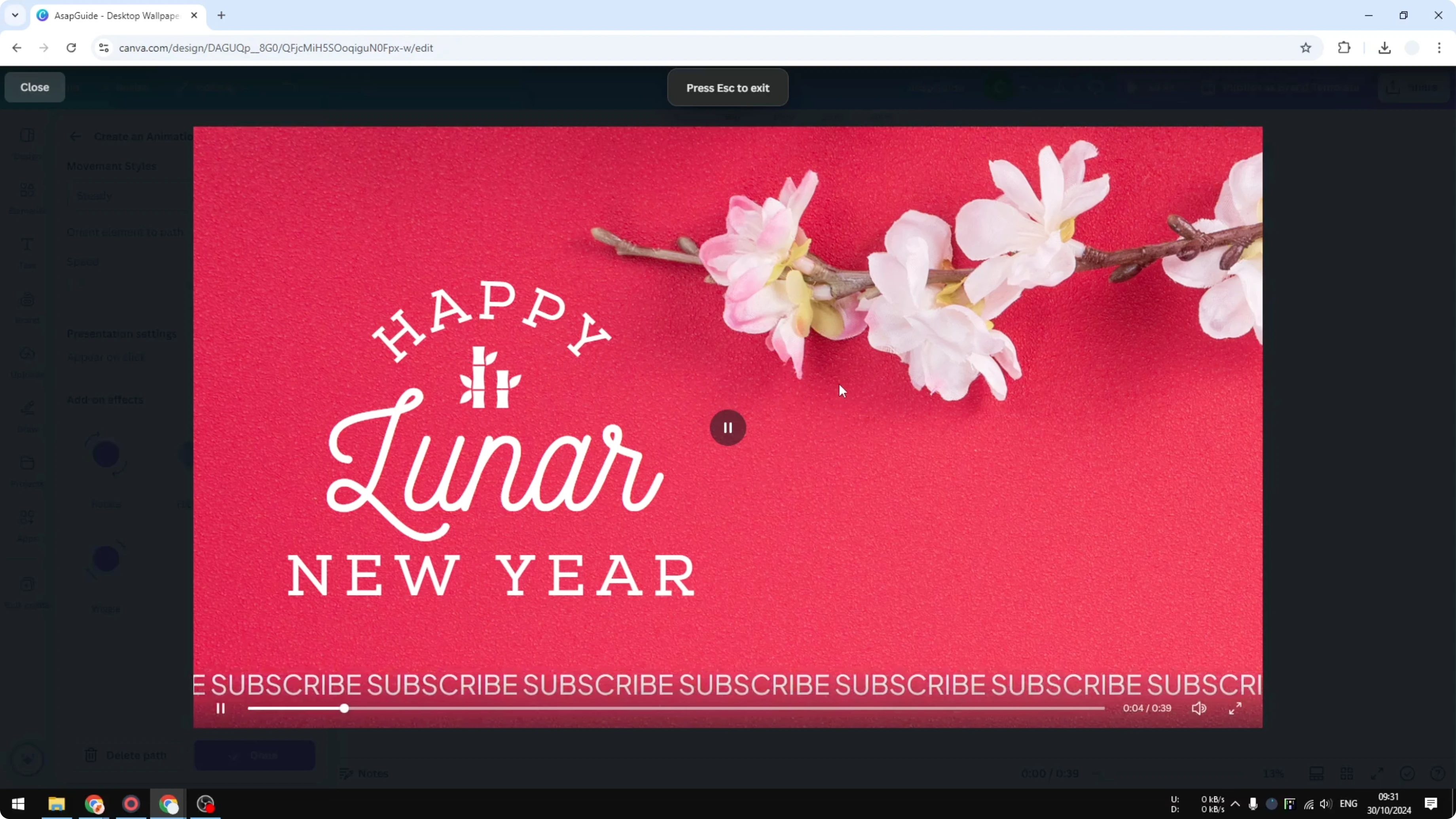
For another animation-oriented typography idea, try this guide to the echo text effect.
Timing and duration
This method will not loop from the start once it exits the frame. It is only good for a few seconds of convincing ticker movement.
Increase the overall duration of your design so the motion stays slow and visible. Make sure the file is longer than five seconds - I often set it around 40 seconds.
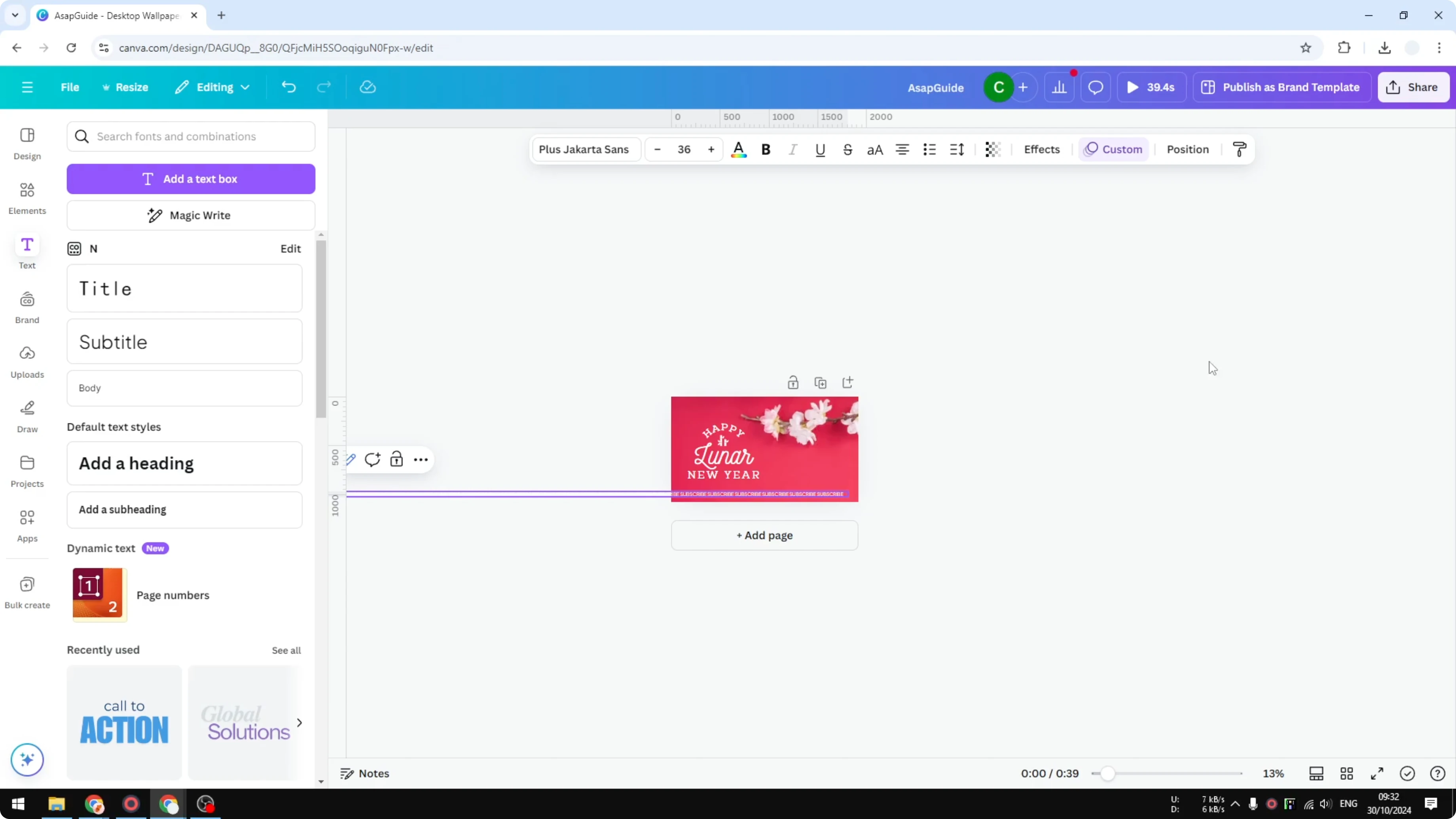
Open Thumbnail View and increase the duration there. A longer duration gives the animation time to crawl steadily across the entire video.
Final thoughts
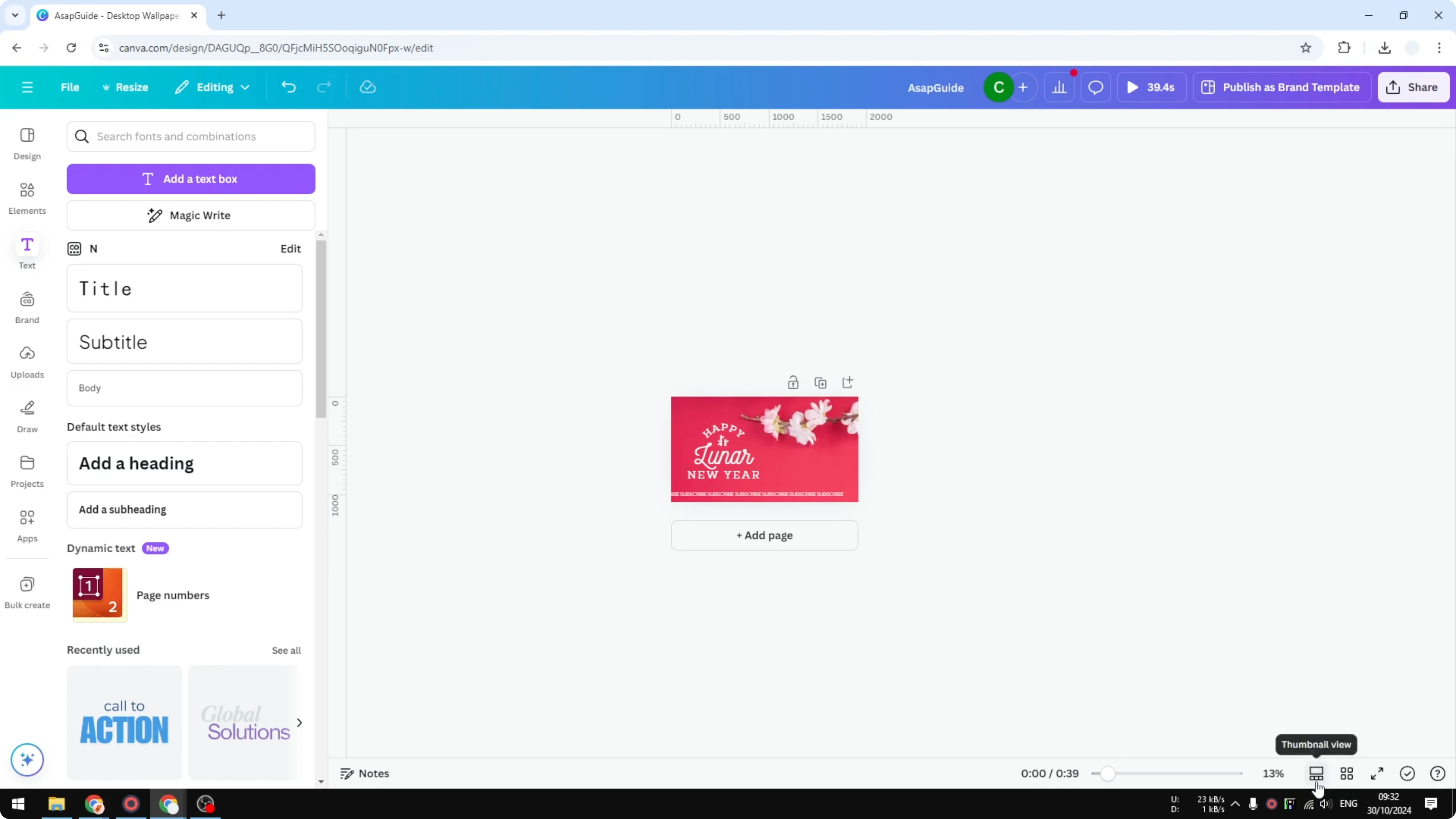
This is a practical way to fake a running text effect in Canva. Build one long single-line string, animate it by recording a slow horizontal drag with Shift, and keep the duration long enough for a steady crawl.
If you want more subtle looks for titles or lower thirds, take a look at this clean approach to a faded text effect.
Recent Posts

How to Visualize Yourself as a Pixelized Character with AI?
How to Visualize Yourself as a Pixelized Character with AI?

How to Revive Faded Memories and Enhance Image Clarity with AI?
How to Revive Faded Memories and Enhance Image Clarity with AI?

How to Visualize Yourself as an Animal Crossing Character with AI?
How to Visualize Yourself as an Animal Crossing Character with AI?