How to Create a Progress Bar in Canva

You can create your own progress bar by using shapes arranged to resemble a progress bar. Make it thinner, make it longer, and change the color to blue. Copy it, move the copied version, and change it to a different color.
It is a basic construction of a progress bar. You can do that, but it is not the most elegant approach because it's difficult to pinpoint the percentage.
Read More: Bokeh effect
Create a Progress Bar in Canva
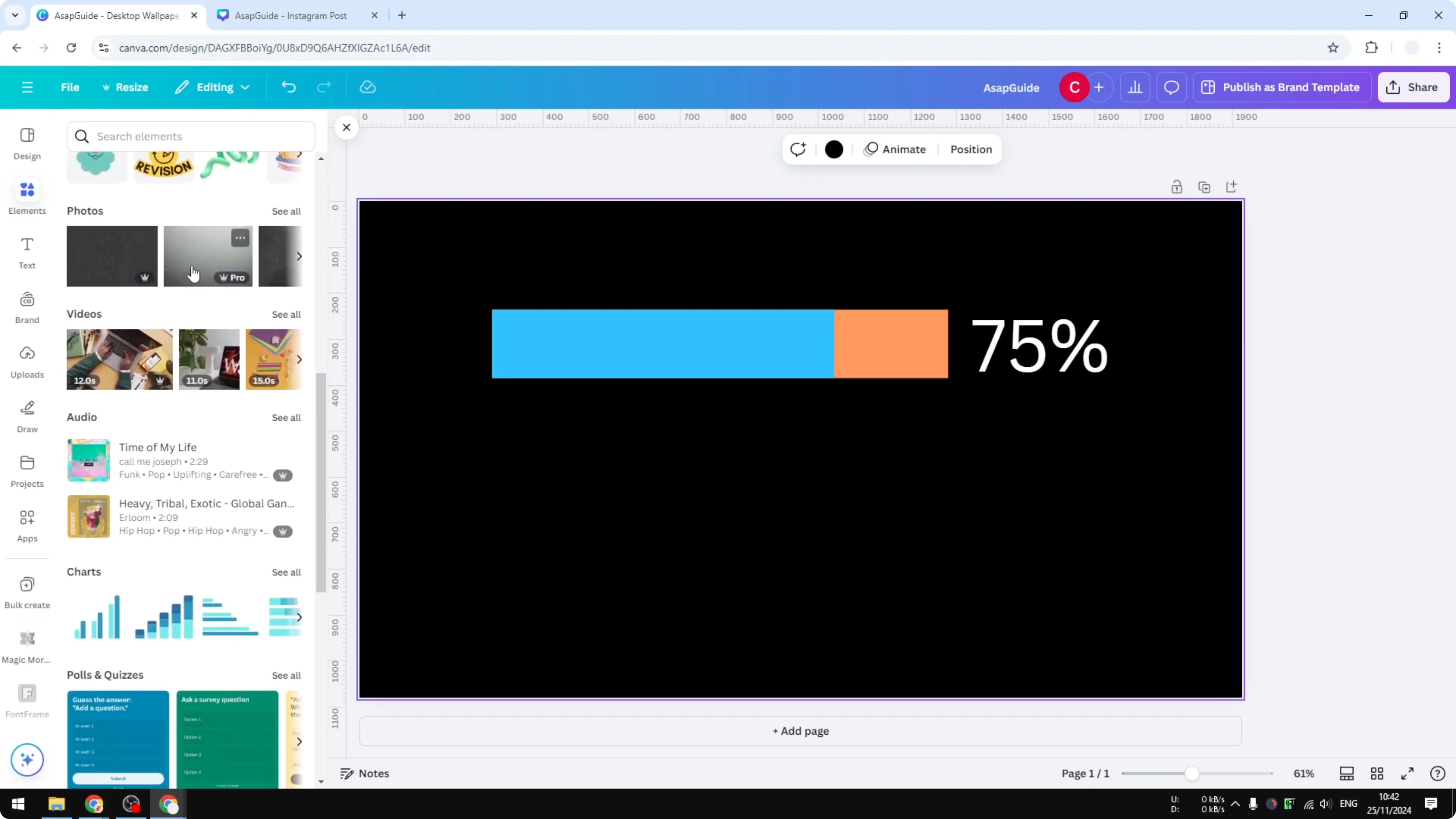
I have a progress bar that I created using a native feature in Canva. It is very useful and very easy to use.
Use chart element
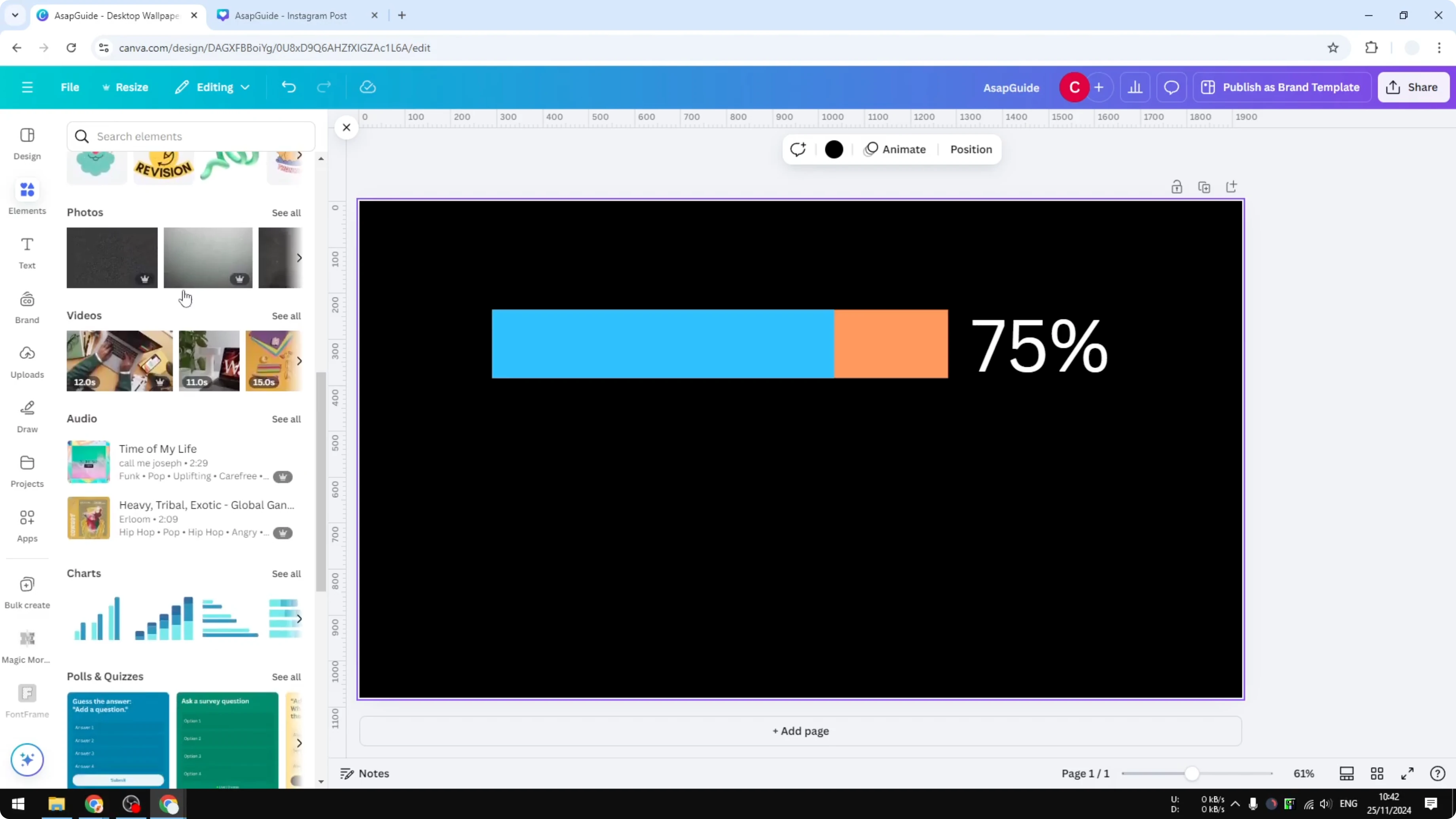
Go to the Elements section.
Scroll down and navigate to the Charts section.
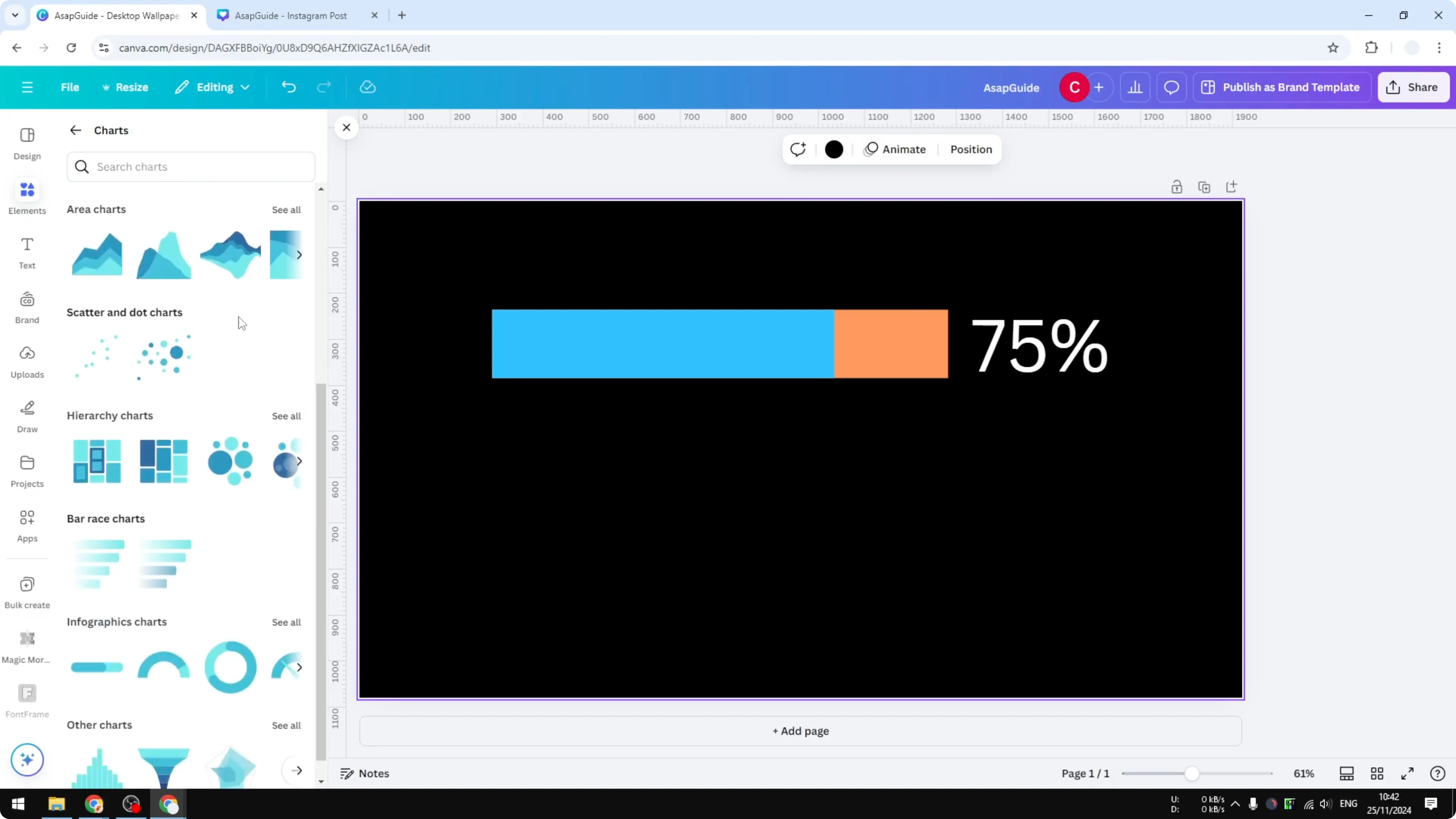
Click Charts.
Scroll down to the Infographic Charts section and click See all.
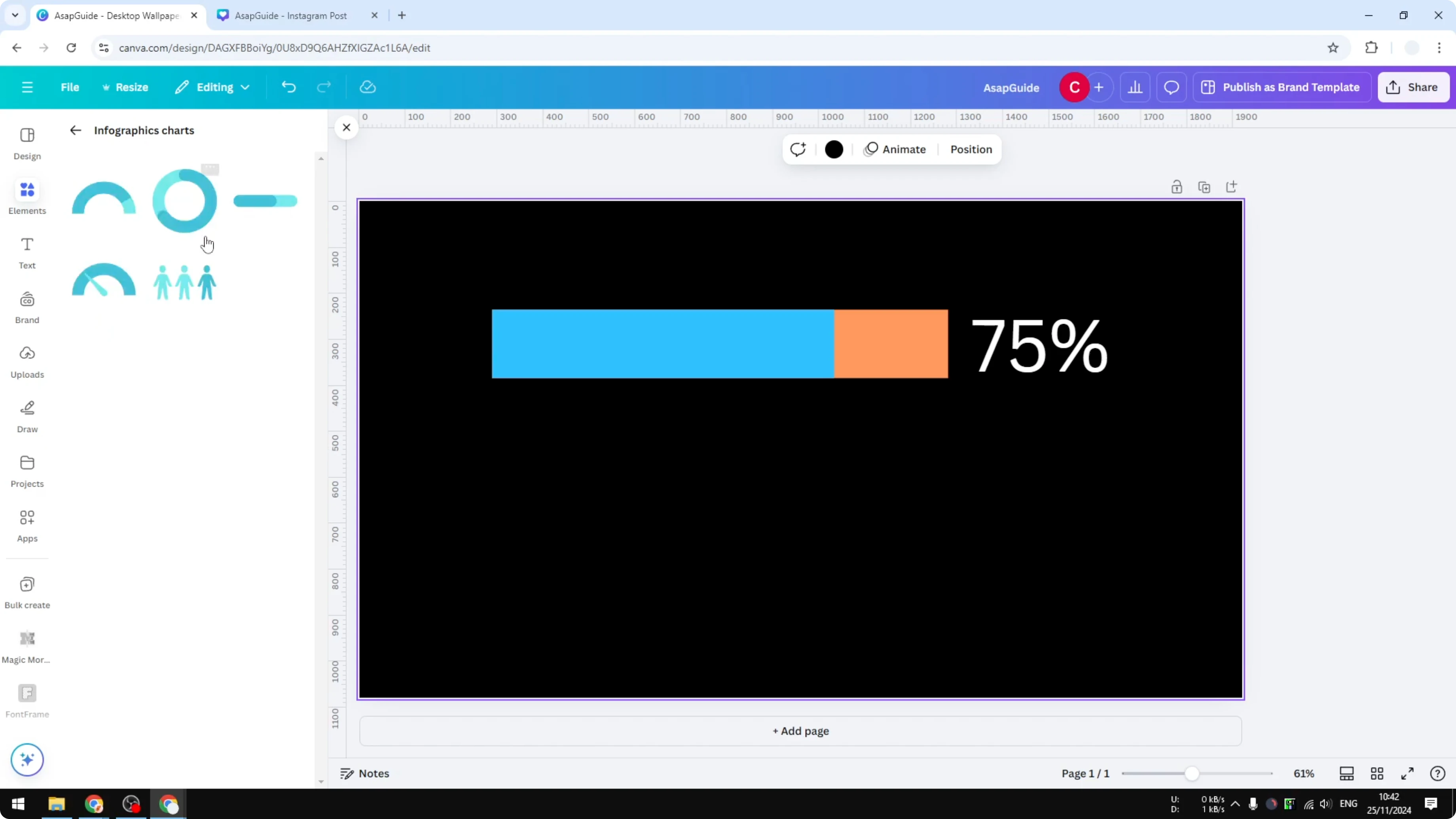
Select a progress bar. I am going to use this one because it looks a lot more interesting.
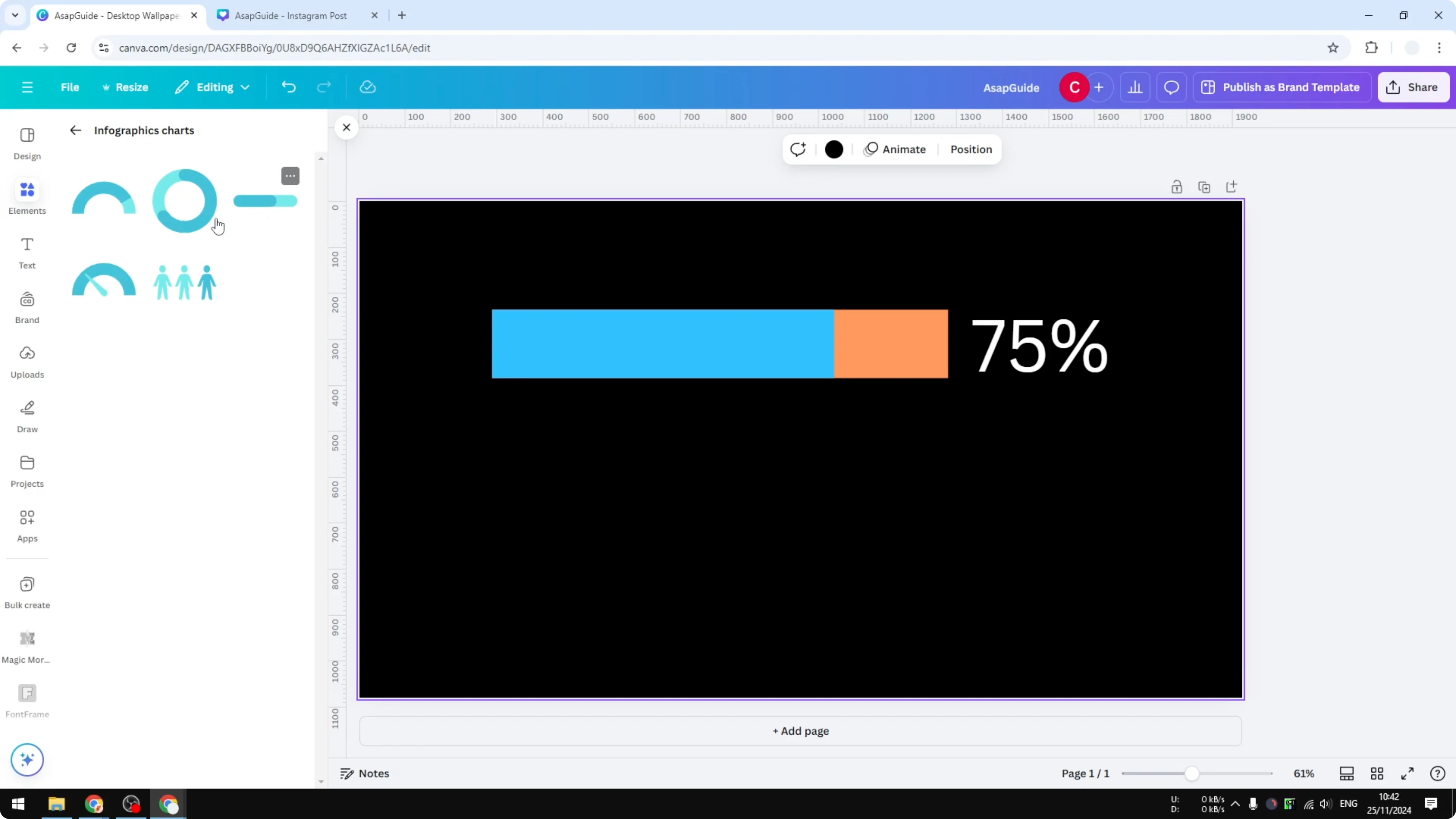
Adjust options
Once it is on the canvas, check the left panel for options. There is an option to change the style, an option to adjust the percentage, and an option to make the progress bar thinner or thicker. Enable the percentage label, and round the end points if you want something that looks smoother and softer.
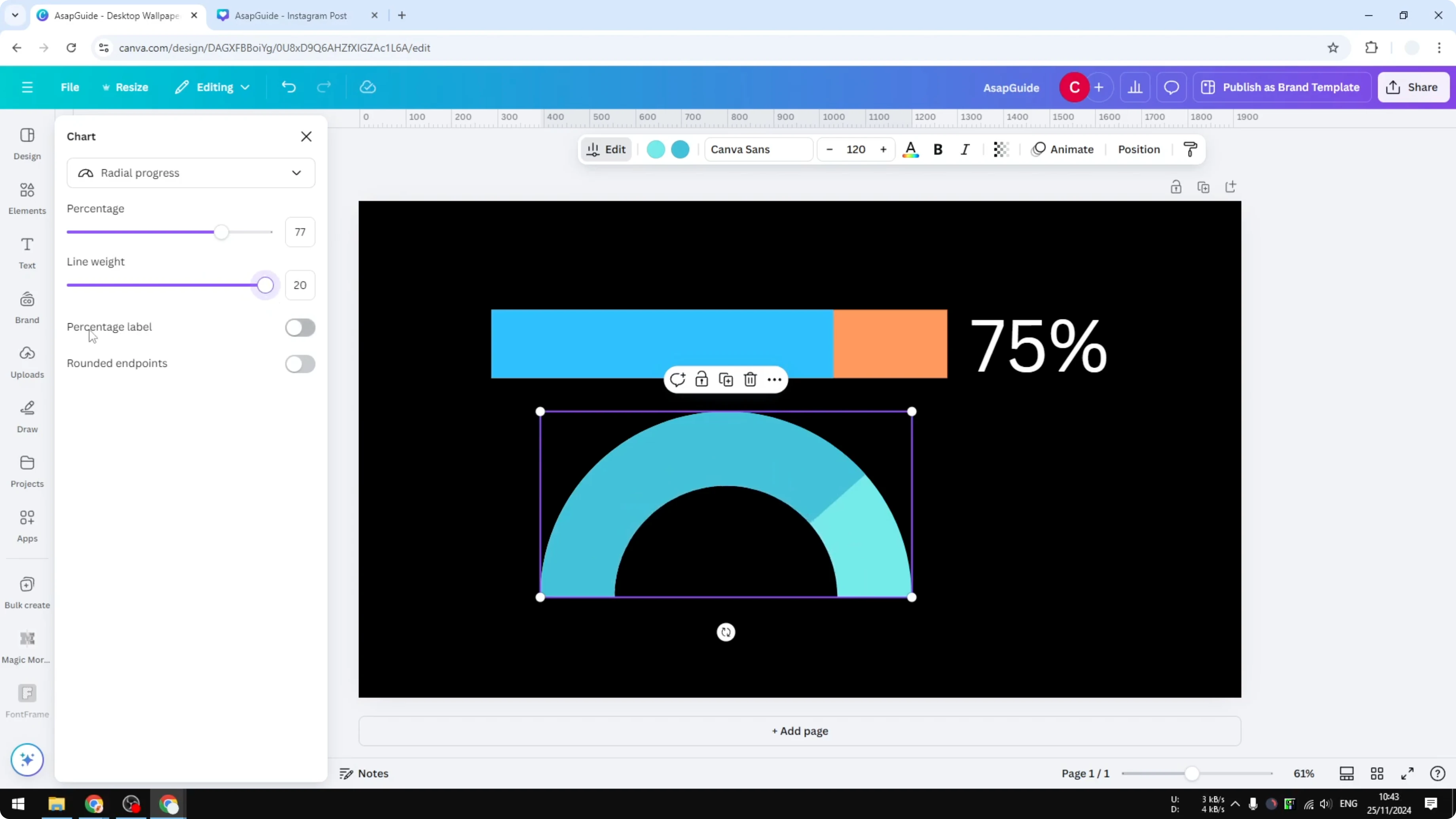
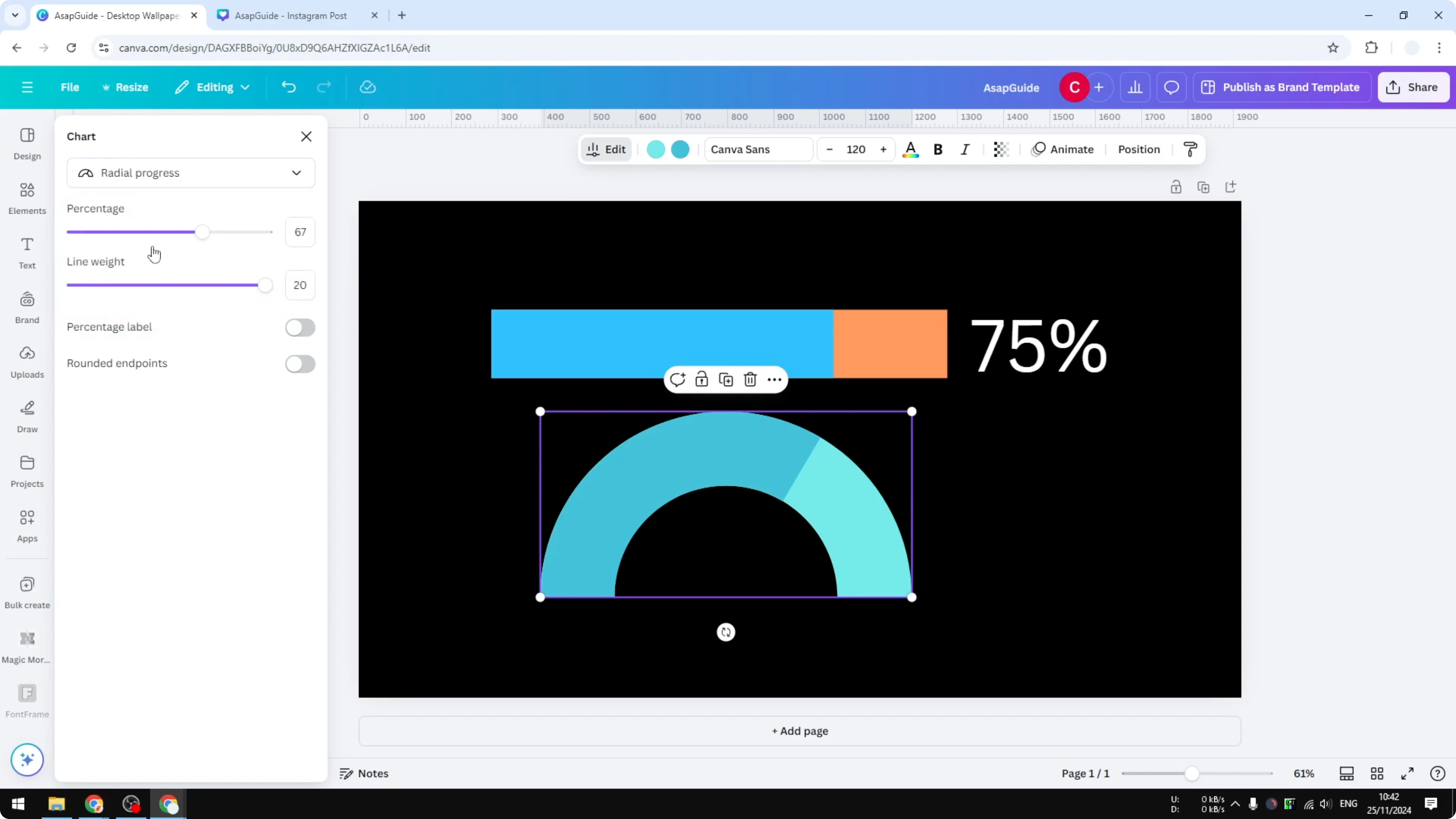
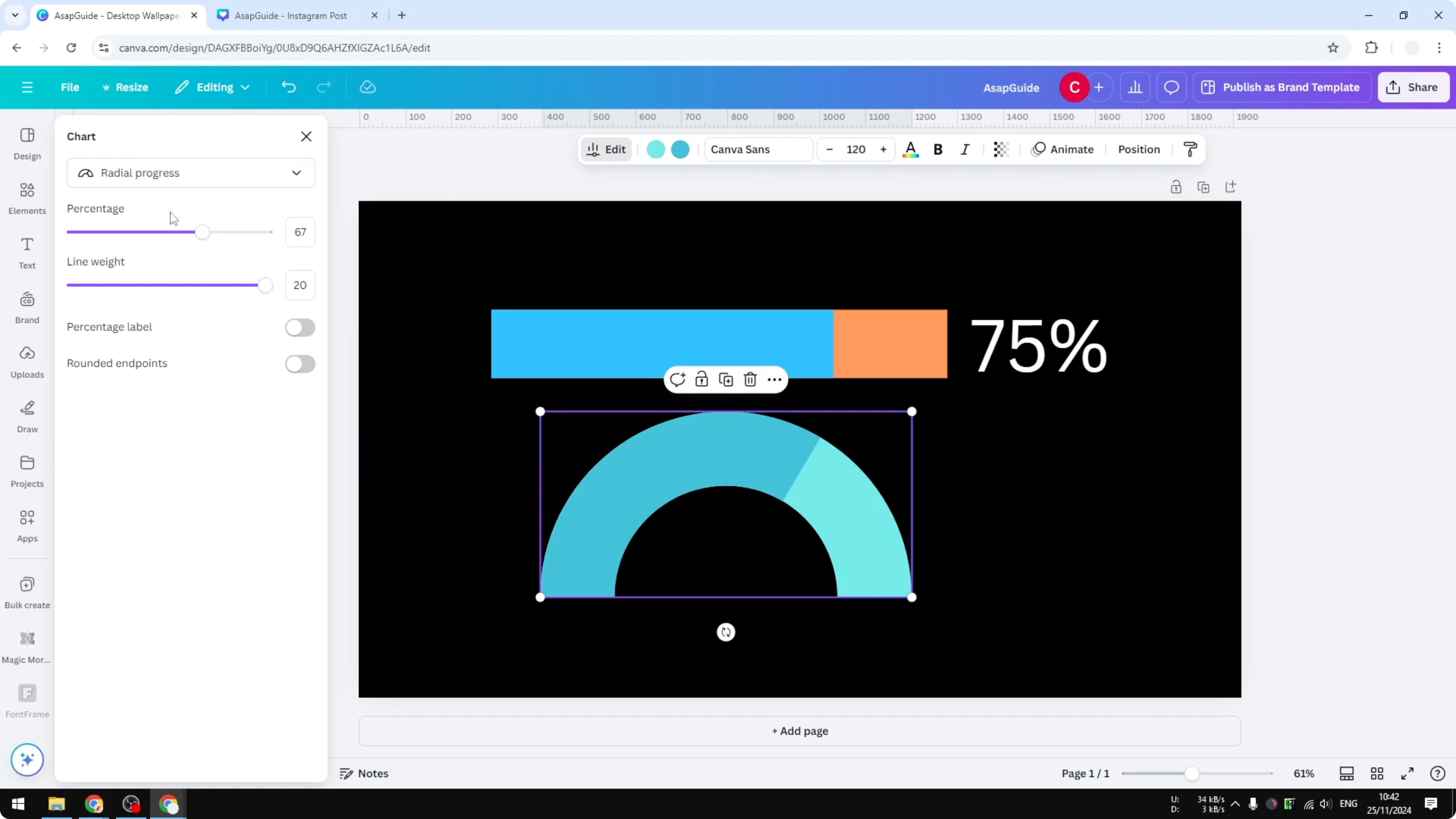
I am using the default settings for that.
Read More: Favicon guide
Create a Progress Bar in Canva - Final Thoughts
That is basically how you can create a simple progress bar in Canva. The chart element is very useful and easy to use for precise progress.
Read More: Grass text
Recent Posts

How to Visualize Yourself as a Pixelized Character with AI?
How to Visualize Yourself as a Pixelized Character with AI?

How to Revive Faded Memories and Enhance Image Clarity with AI?
How to Revive Faded Memories and Enhance Image Clarity with AI?

How to Visualize Yourself as an Animal Crossing Character with AI?
How to Visualize Yourself as an Animal Crossing Character with AI?