How to Create a Favicon in Canva
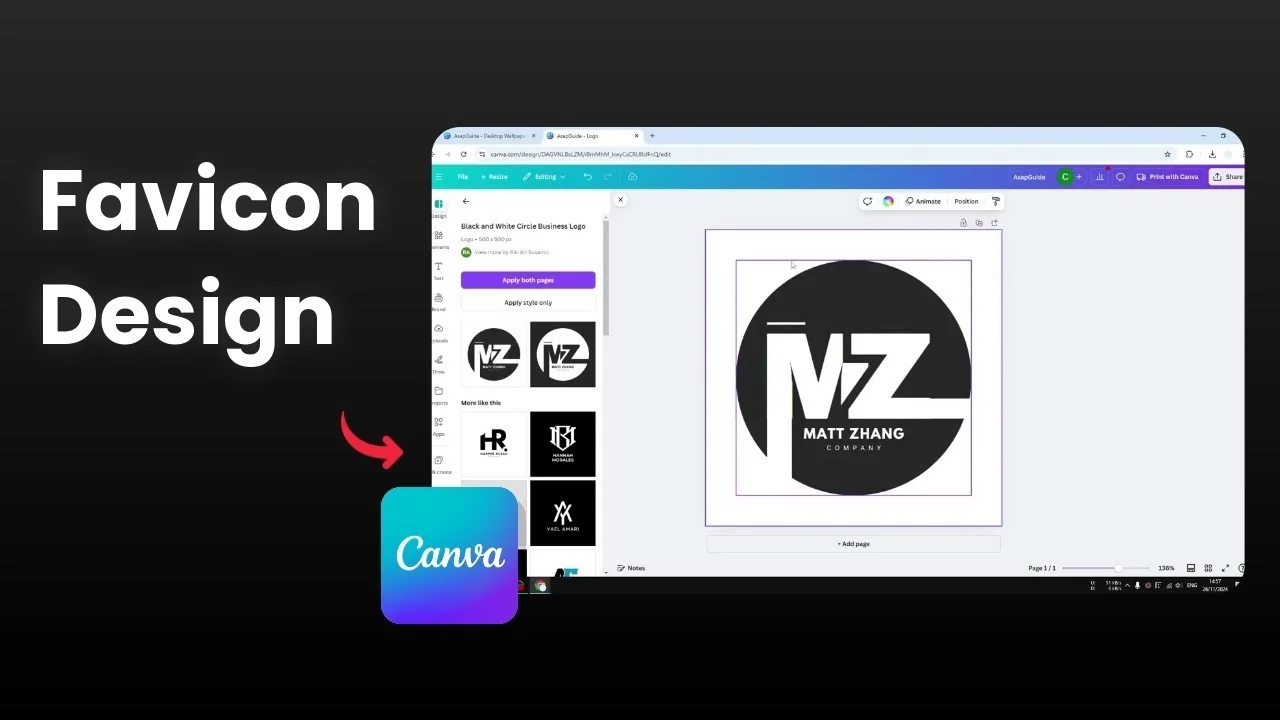
I’m going to show you how you can create a favicon in Canva. A favicon is really just a logo you see on a website. The logo is usually displayed on the browser tab, and pretty much every website will have that icon next to its title.
Create a Favicon in Canva
Template size
Open a template that is square.
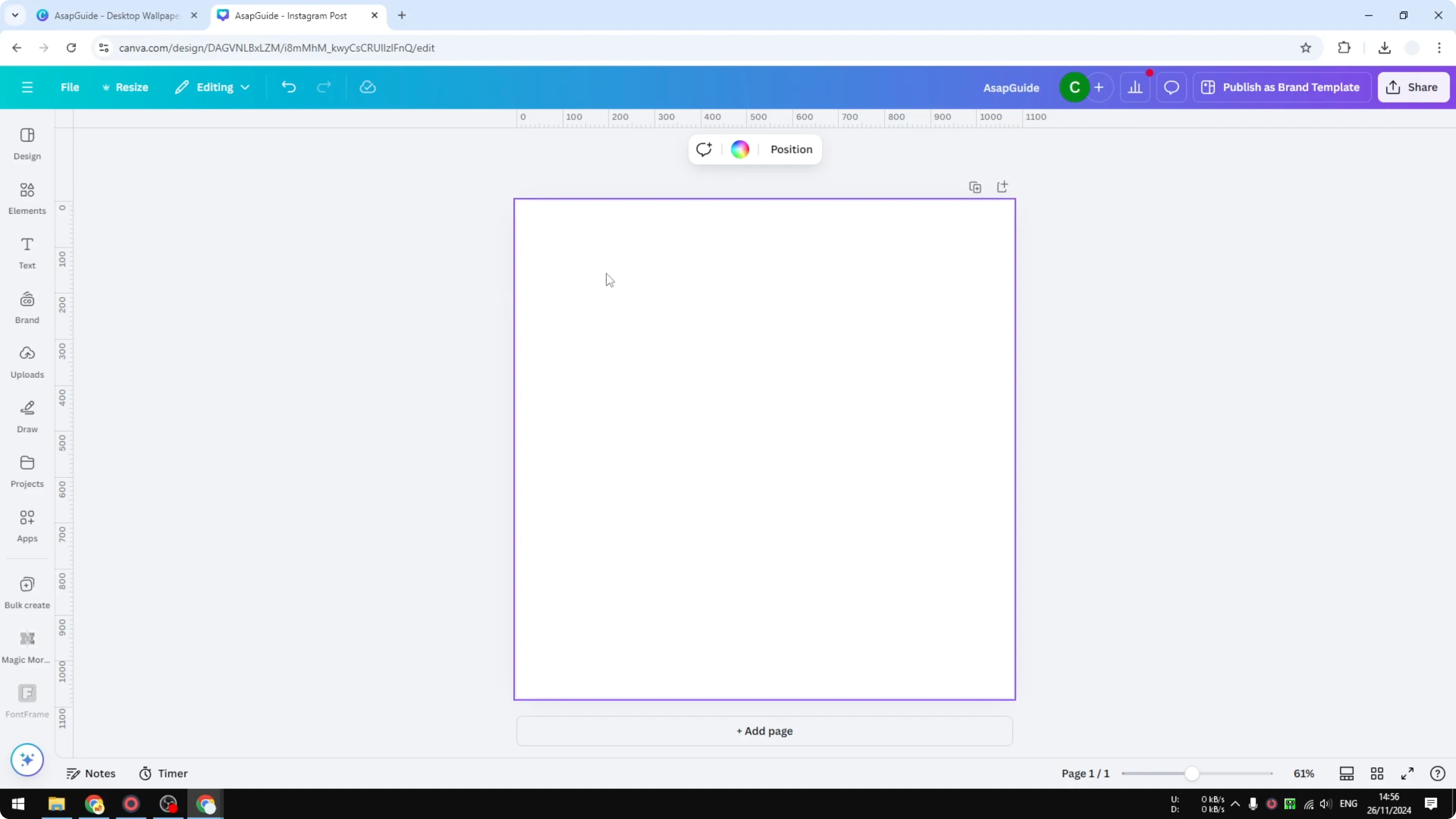
It could be an Instagram post template which in this case has 1080 by 1080 resolution, but in my opinion that is a bit too big.
I’m going to be using something smaller because for a website we want to use an asset that is optimized and not unnecessarily too big.
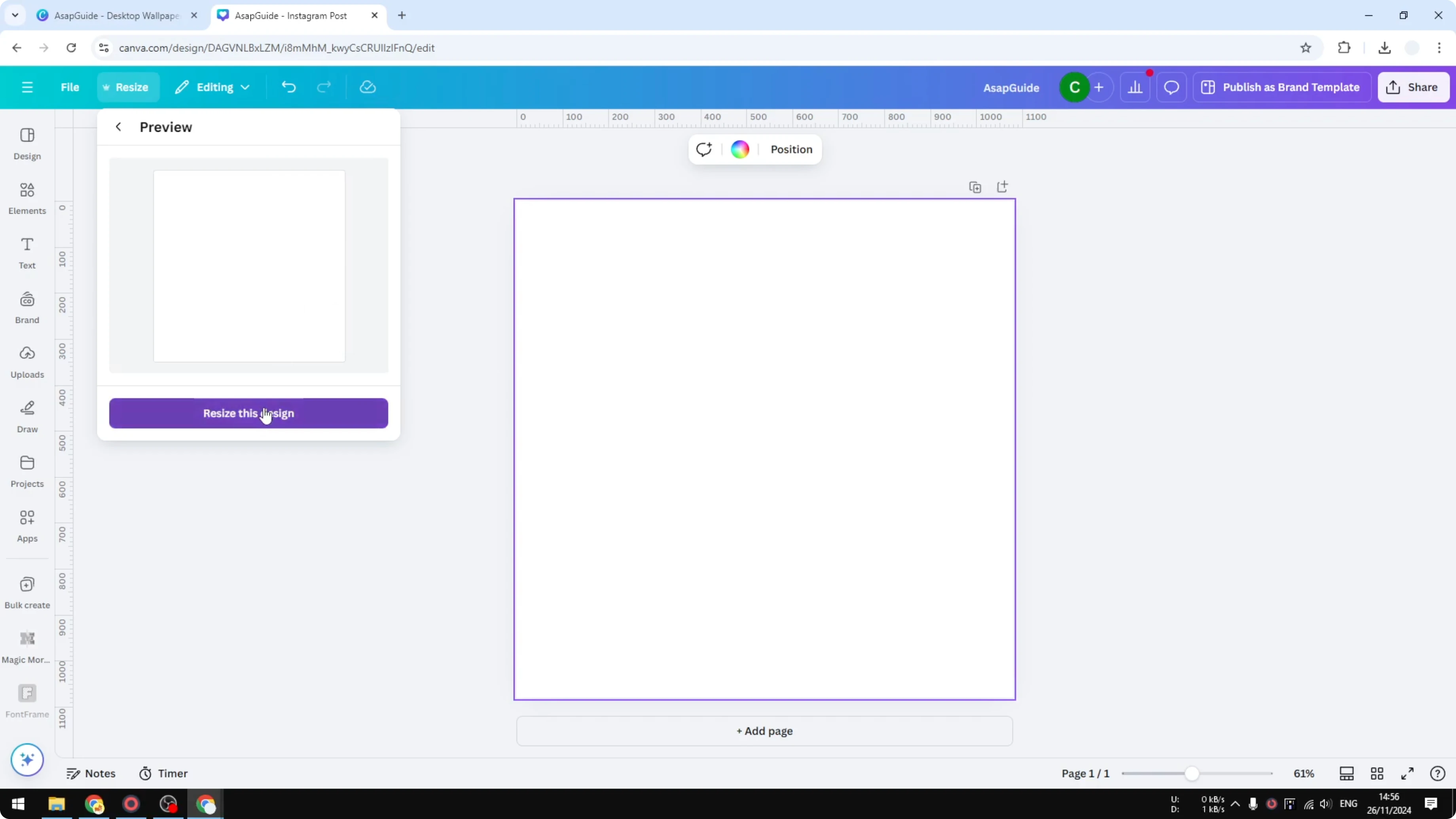
I’m going to resize this design to the Logo size in Canva, which is 500 by 500 pixels.
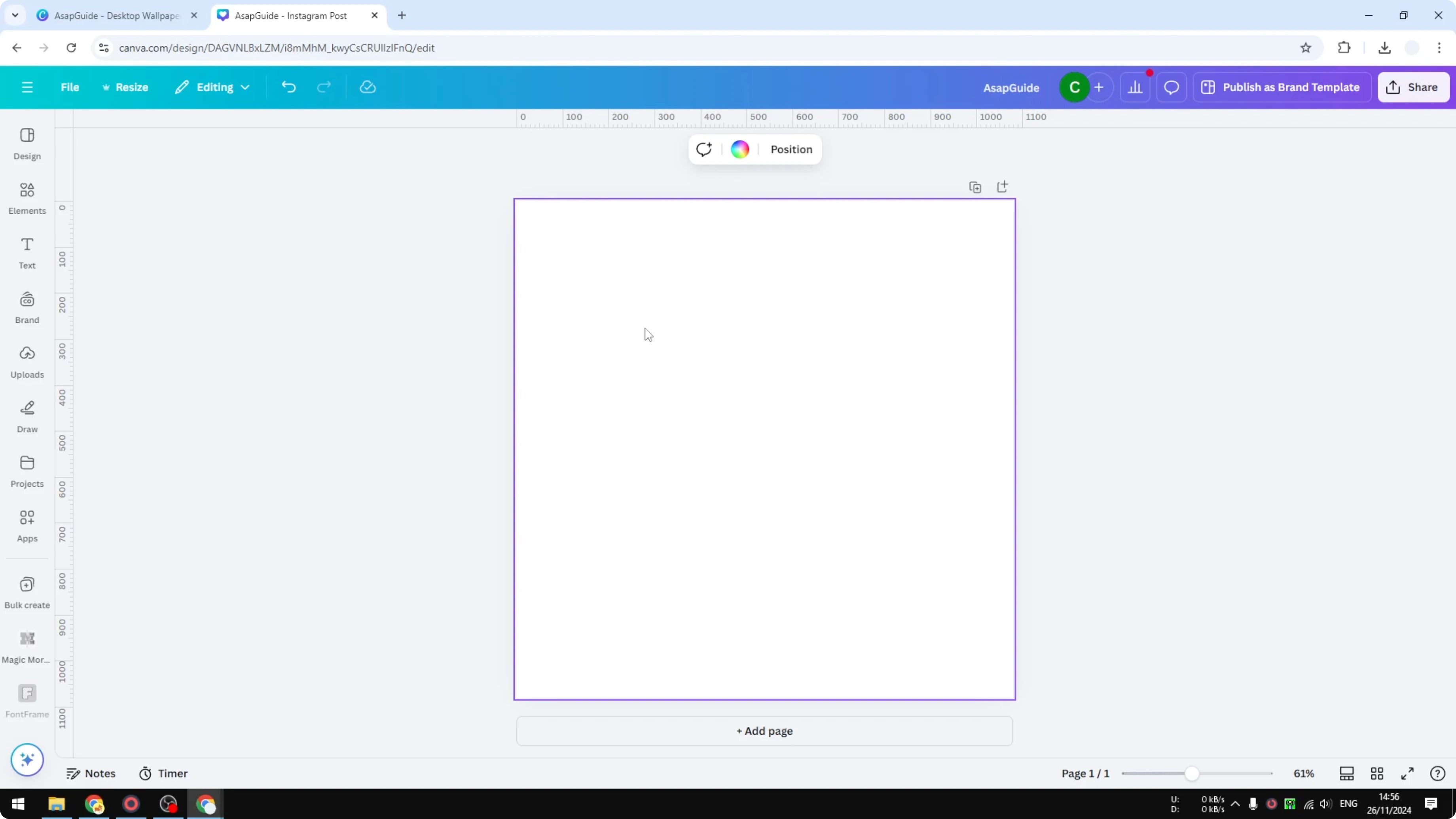
Click on it and resize the design.
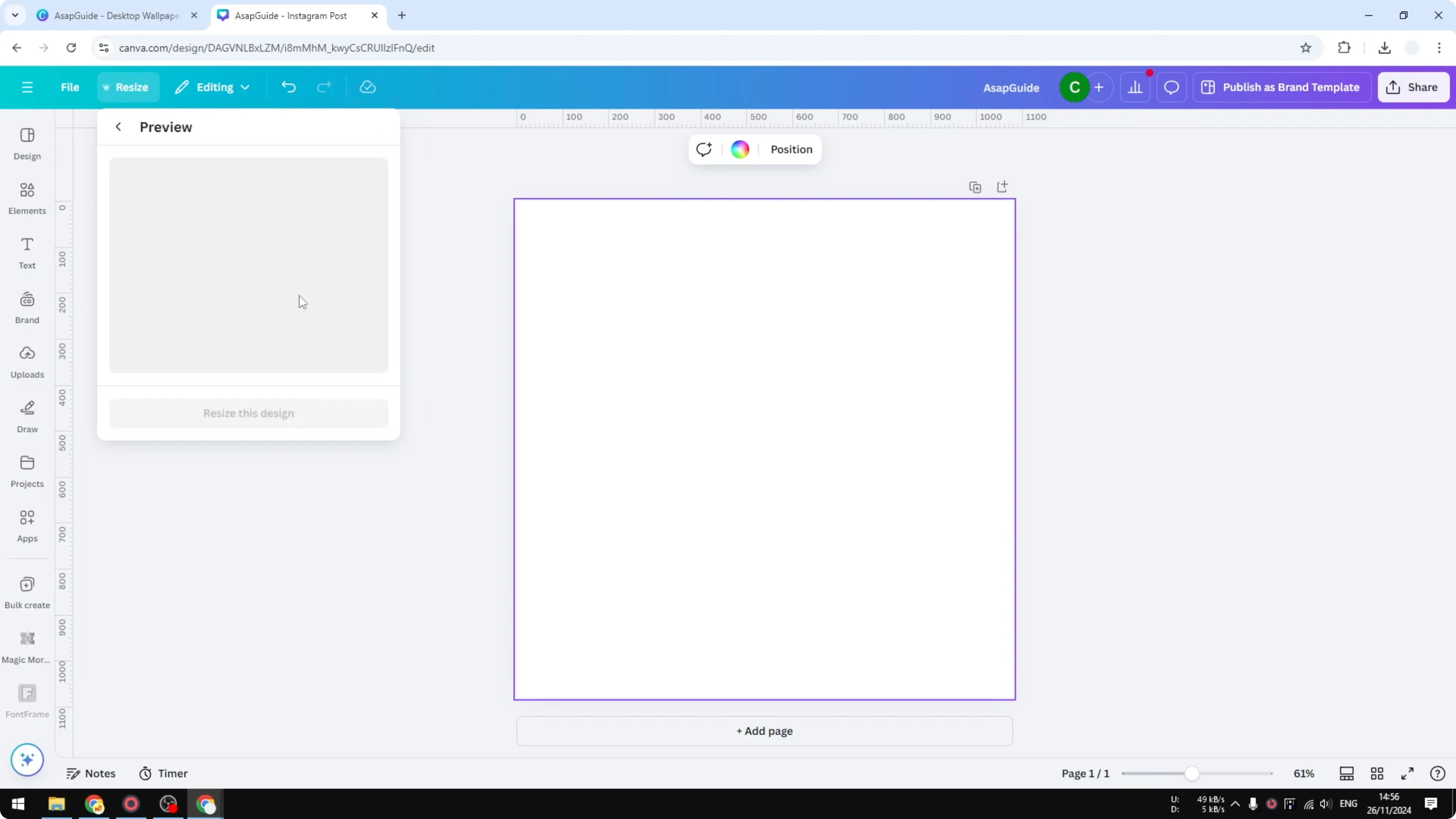
Canva may provide a preview which is unnecessary because the page is empty, so click Resize and wait until it creates a new template document.
For more ideas and options, see this favicon guide.
Build your logo
Here you can start building your own logo.
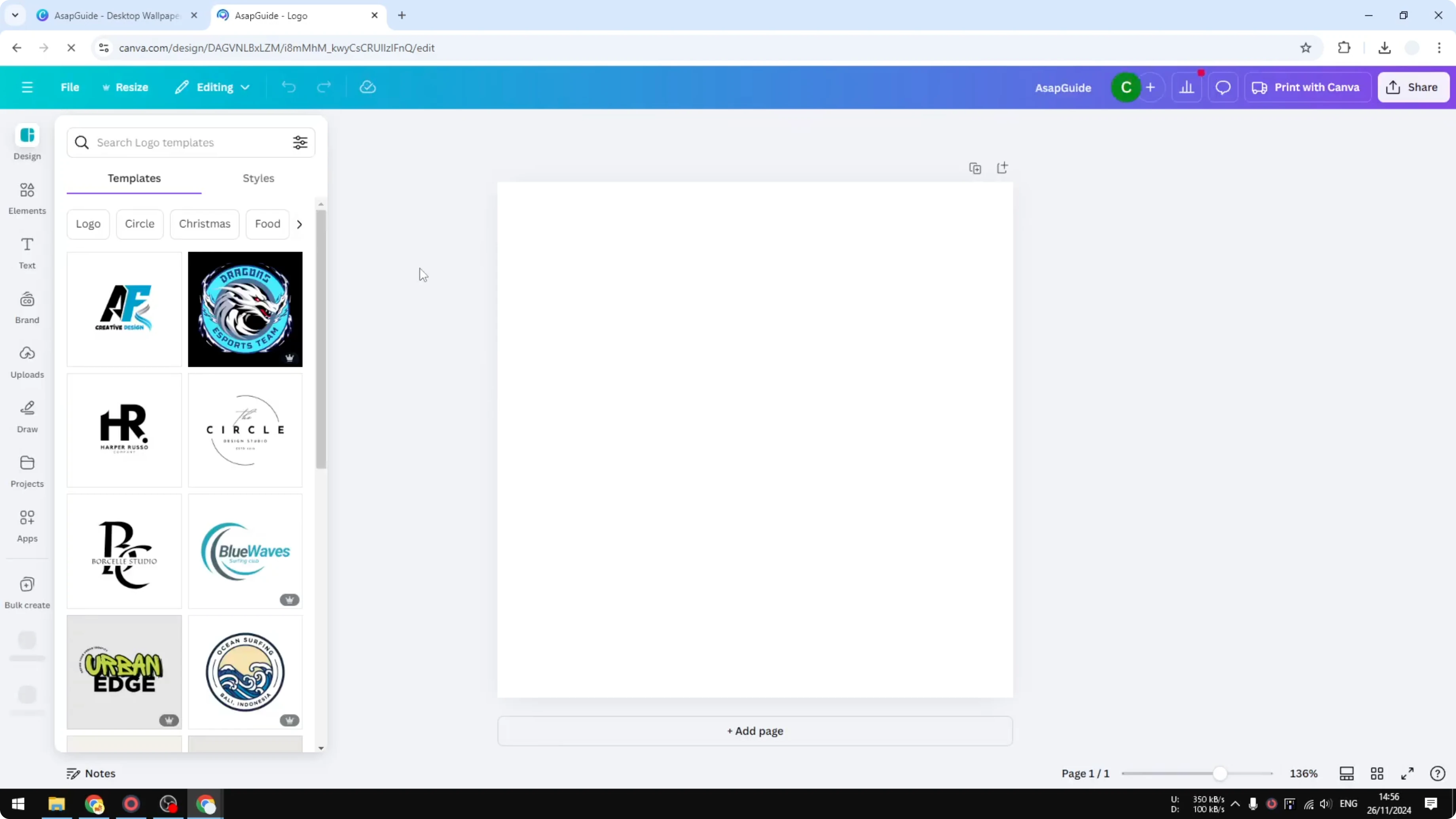
You could use features in Canva like Elements, Pictures, and Icons that you can insert into the document to create your logo or your favicon.
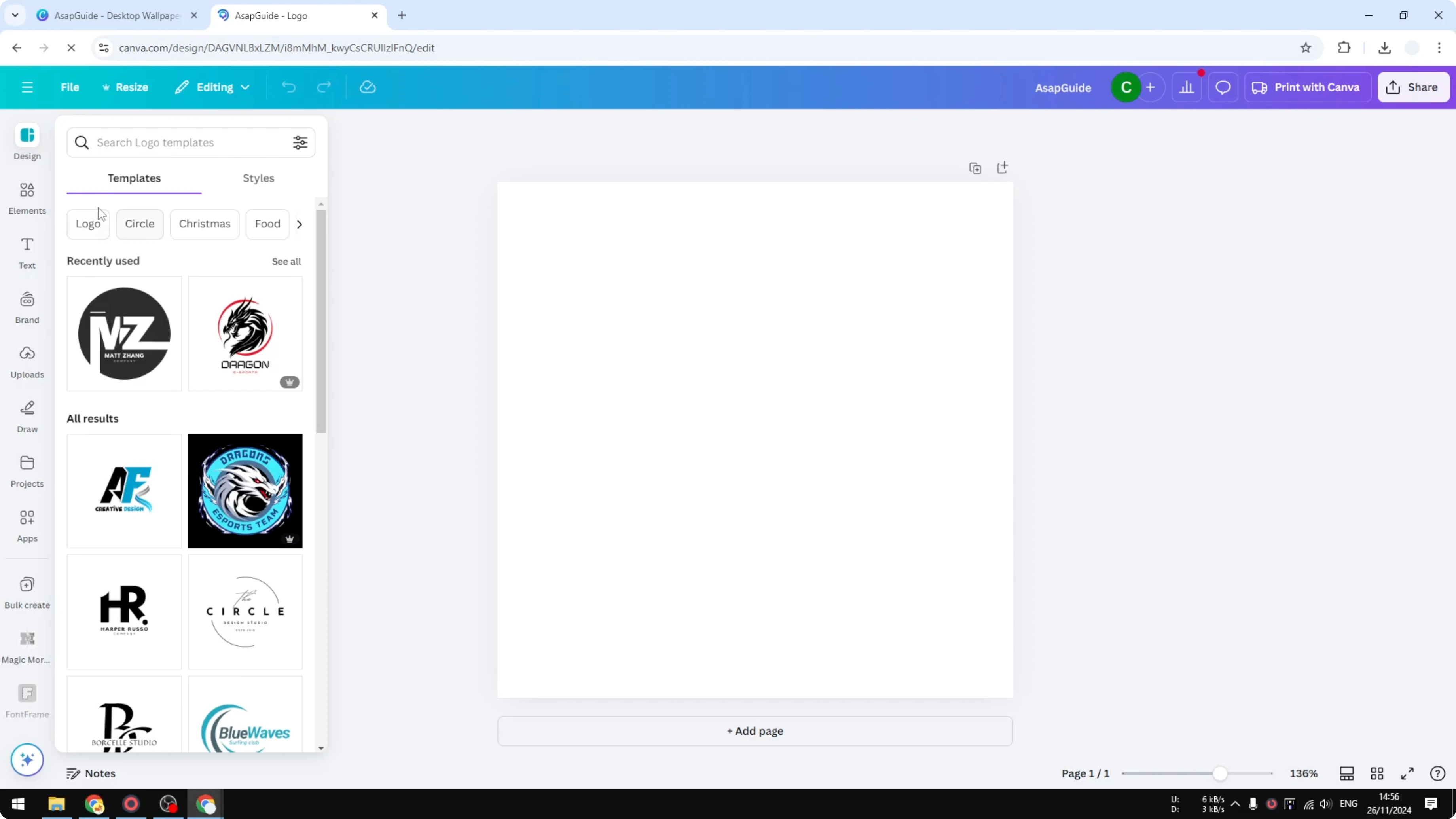
To save time, I’m going to use a logo from the templates I have in Canva.
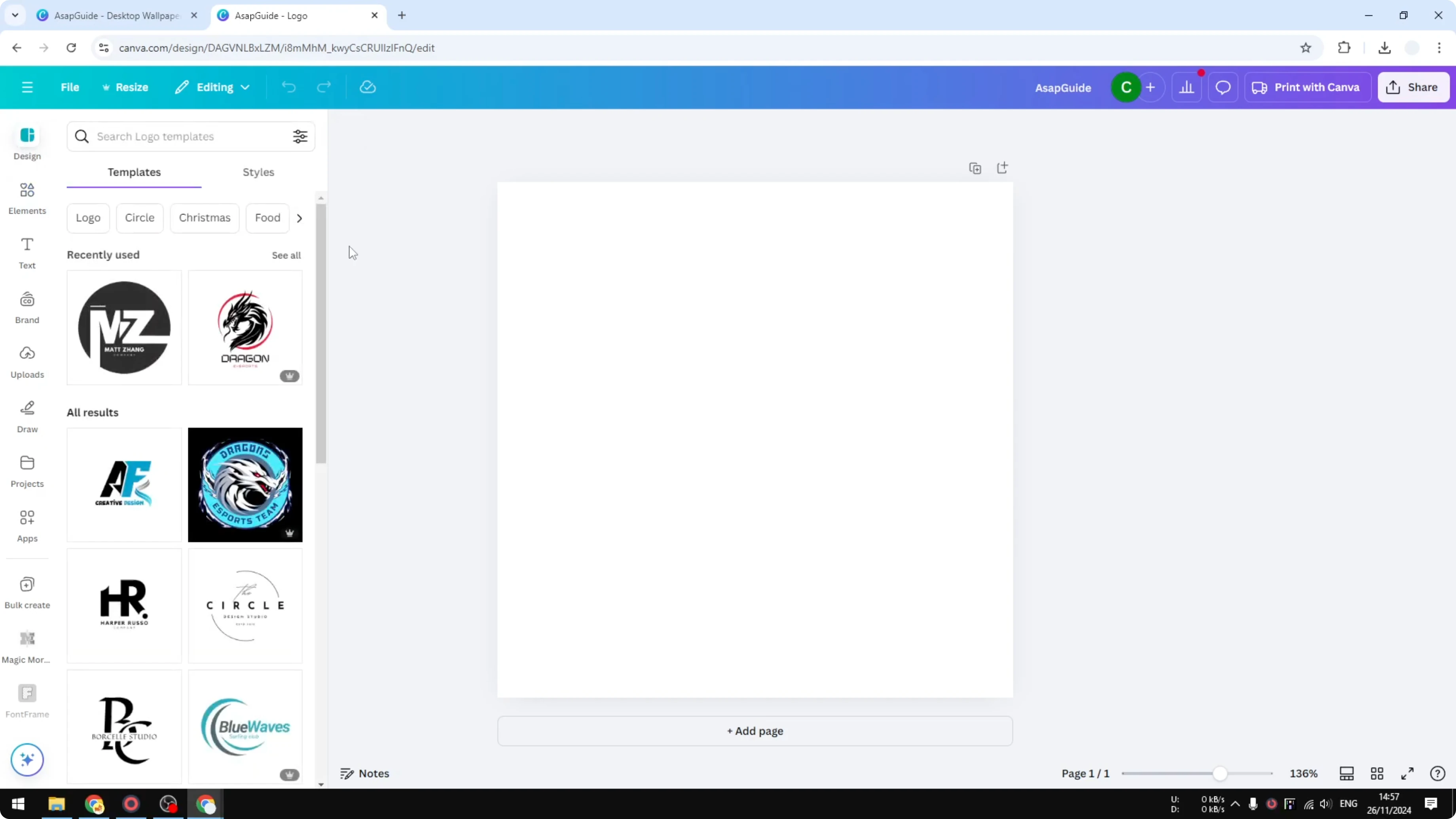
It looks really good, and you can resize the logo if you want.
You can make it bigger or smaller, and it’s totally up to you.
If you want extra polish, try a subtle bokeh effect.
Export settings
Click Share.
Click Download.
Select the file type as PNG.
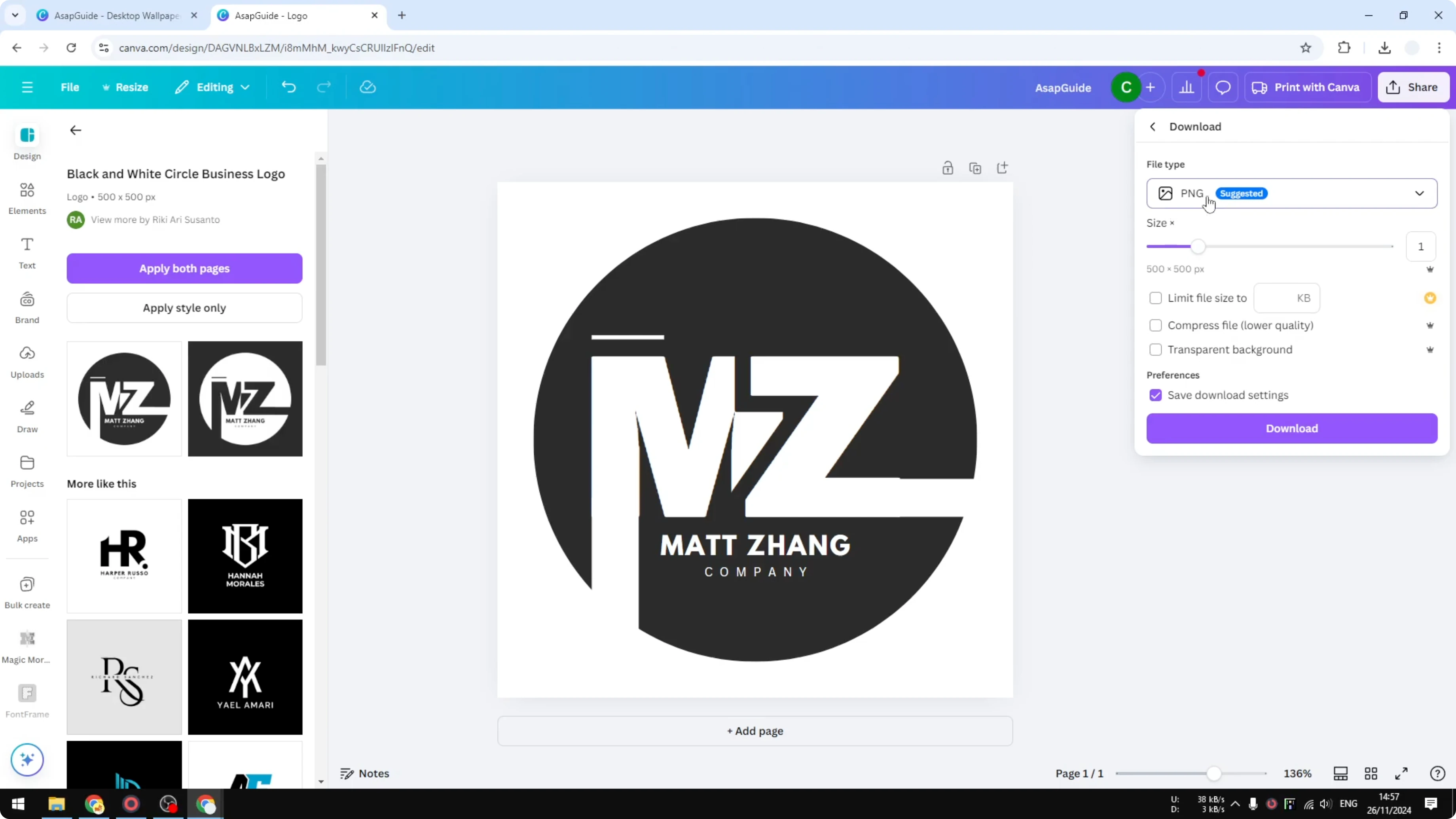
This is not the most common format for a favicon; a favicon is usually ICO, but PNG should do.
If you are optimizing the speed of your website, you might want to reduce the size of the favicon to 250 pixels, which I think is good enough even for a retina display like an iPad or iPhone.
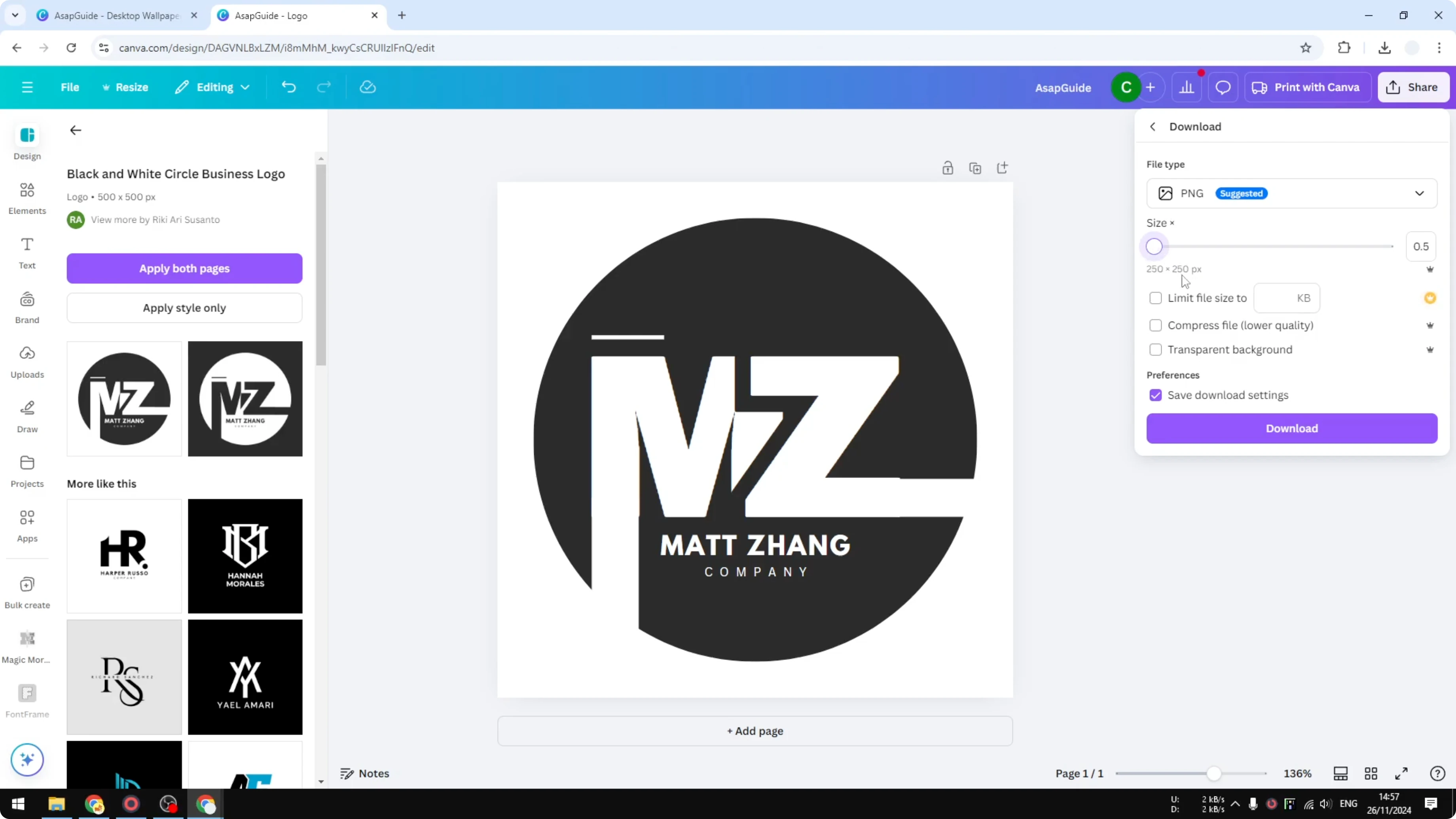
I recommend enabling Compress file size to make it smaller.
Since the logo looks like this, I don’t want to have an empty white background visible, so I’m going to enable Transparent background.
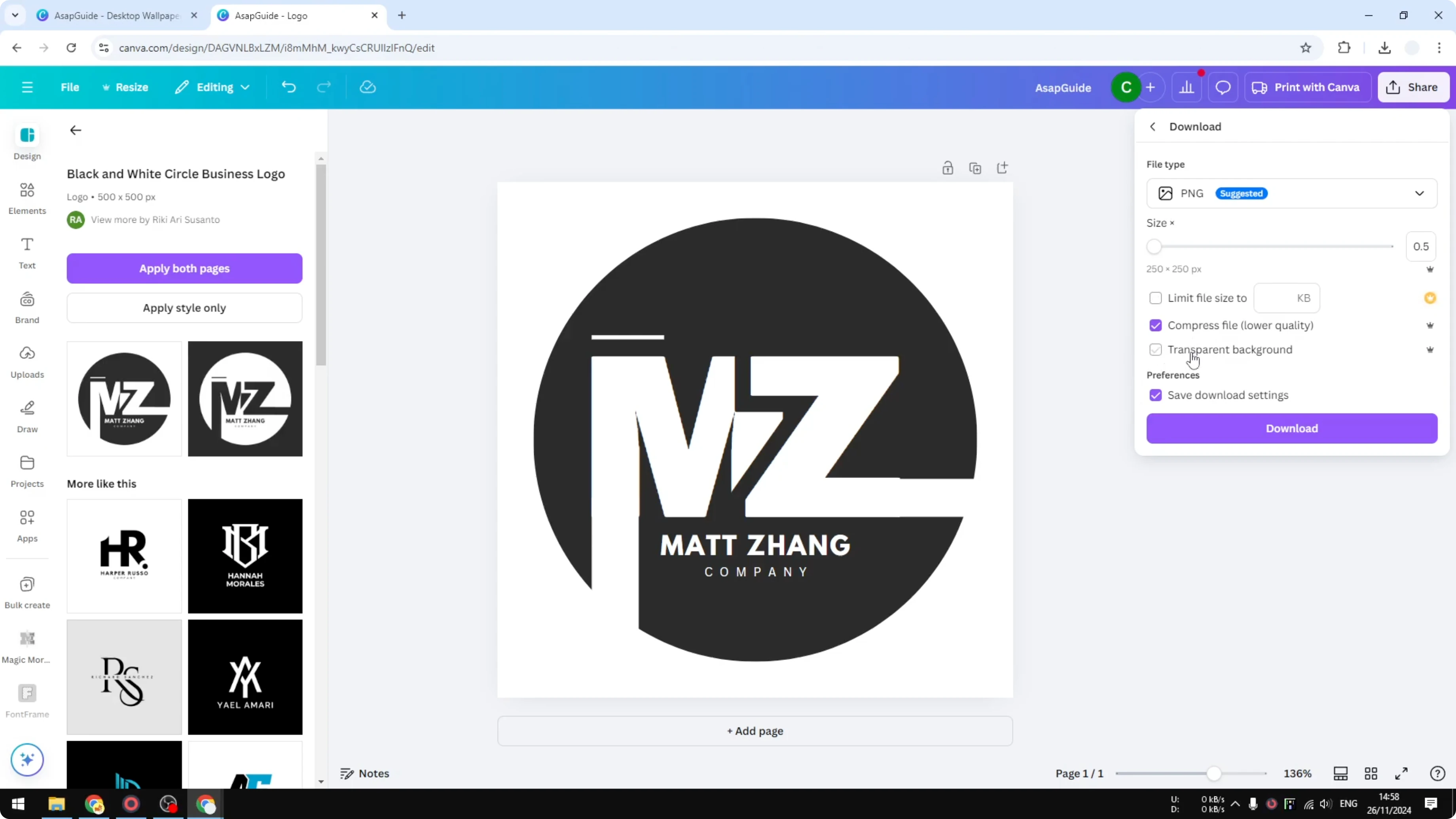
This is optional and depends on what you are trying to build.
For an inverted version of the logo, I wouldn’t enable Transparent background because that background can be important to make the logo visible.
If you are exploring creative type treatments, you can also experiment with a grass text effect before exporting.
Upload and quality
When you are done, click Download and it will be saved to your computer.
After that you can upload the file to your website as a favicon.
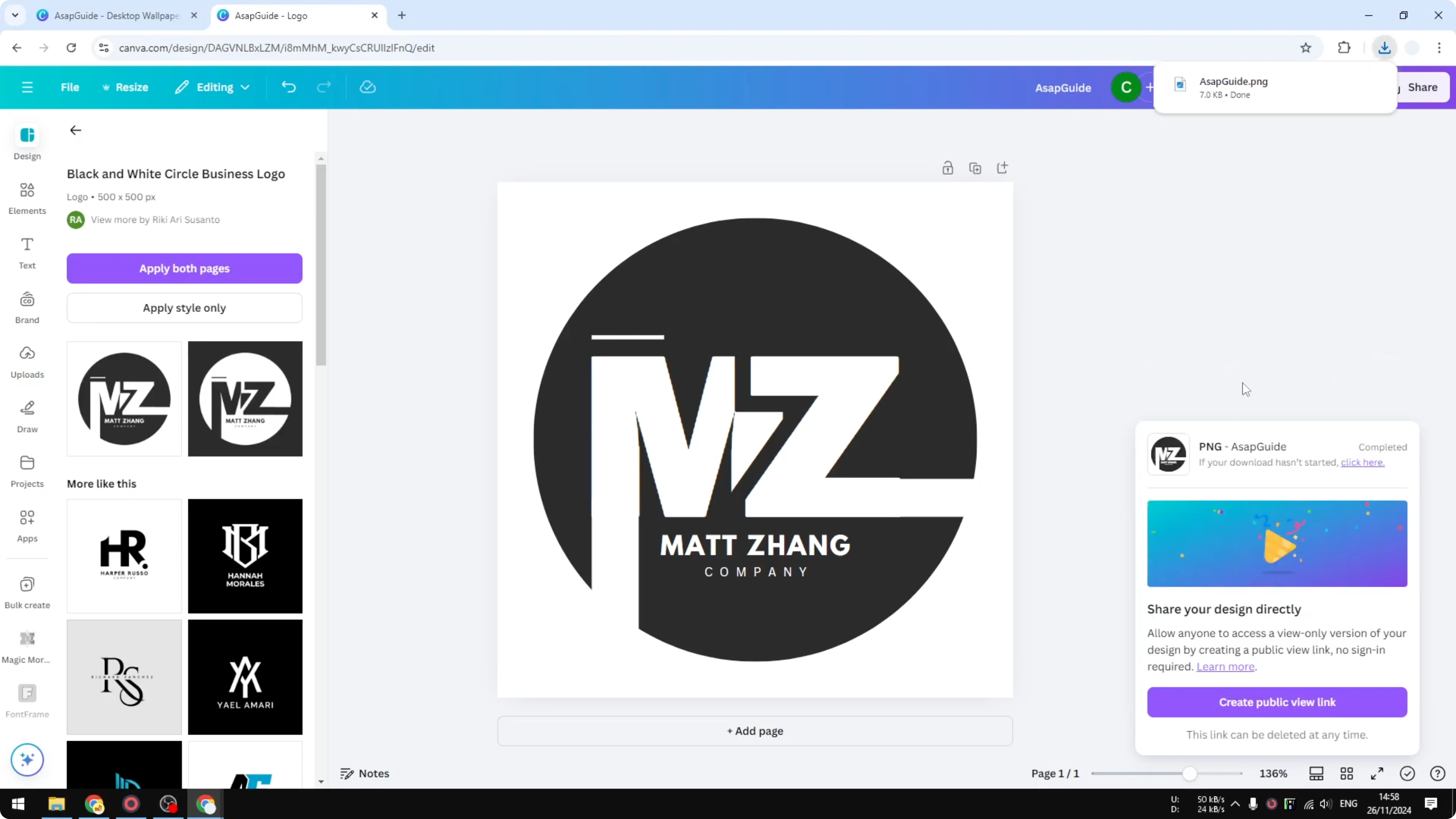
It may look blurry because the actual resolution is only 250 pixels, but this is good enough.
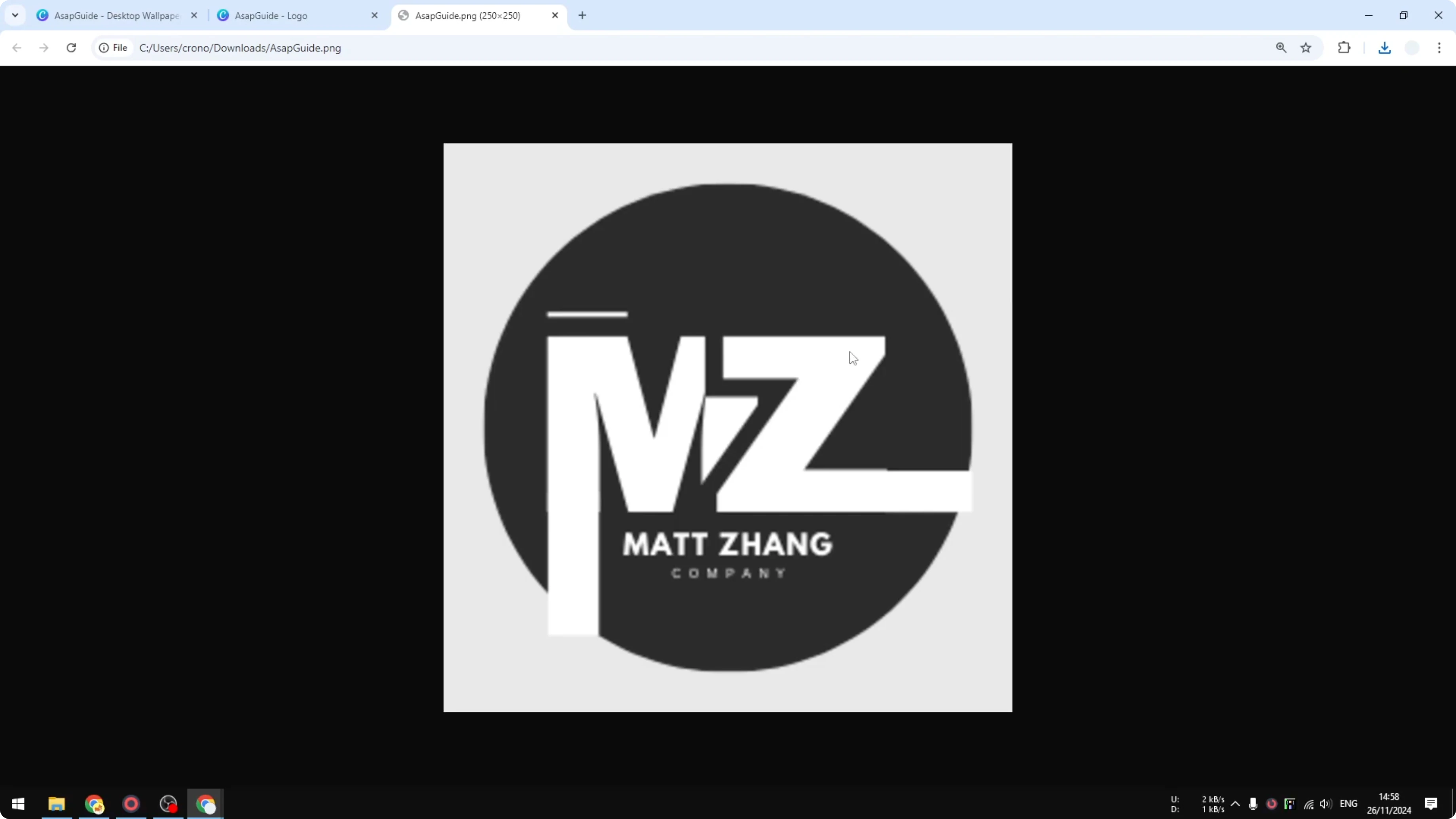
At the end of the day we want to make something small for the tab size, so there is no problem using a lower quality or lower resolution favicon.
Final thoughts
Start with a square template, resize to 500 by 500, design a simple mark, and export a small PNG.
Use 250 pixels with compression for faster loading, and toggle Transparent background based on how your logo reads.
Upload it to your site and you’re set.
Recent Posts

How to Visualize Yourself as a Pixelized Character with AI?
How to Visualize Yourself as a Pixelized Character with AI?

How to Revive Faded Memories and Enhance Image Clarity with AI?
How to Revive Faded Memories and Enhance Image Clarity with AI?

How to Visualize Yourself as an Animal Crossing Character with AI?
How to Visualize Yourself as an Animal Crossing Character with AI?