How to Create Parallax 3D Effect in Canva
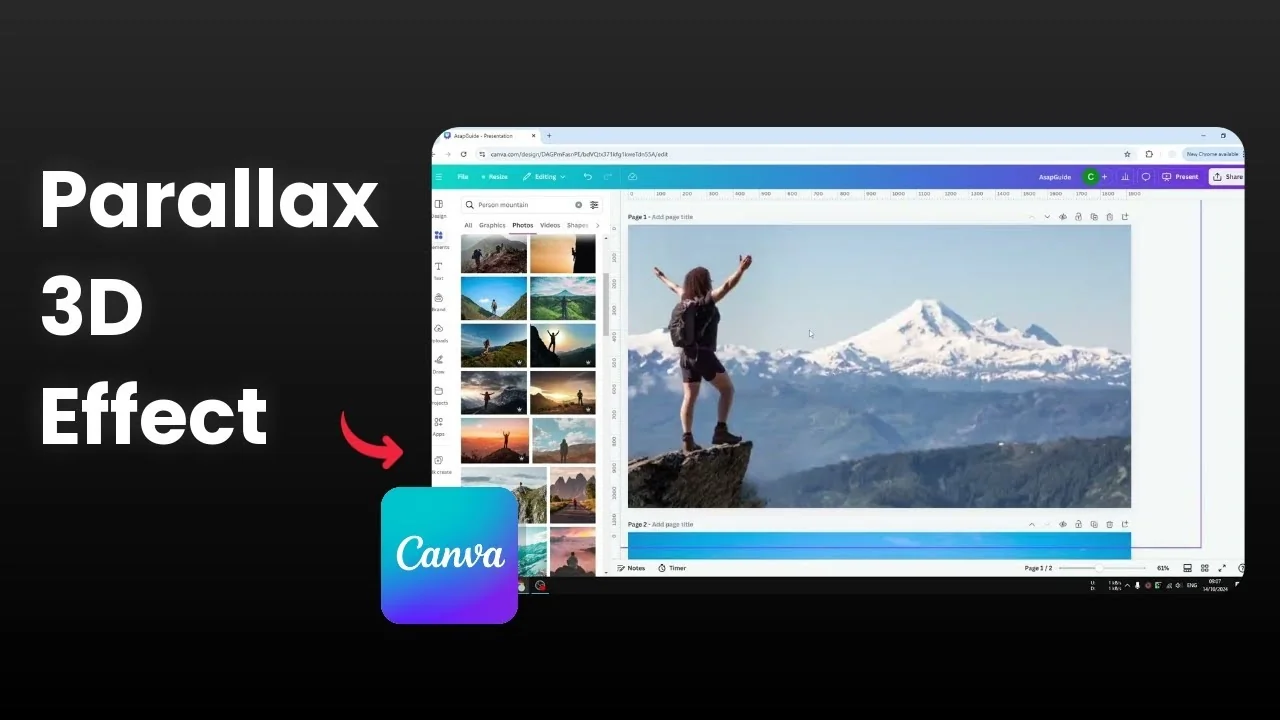
I will show you how you can create a simple parallax 3D effect in Canva using just one photo. I isolate the subject from the photo, keep the ground the person is standing on, and animate the subject and background in opposite directions to get a nice parallax effect. Here is how I build it step by step.
If you also want a depth-focused look for photos, see this bokeh effect in Canva guide.
Create Parallax 3D Effect in Canva
Choose the image
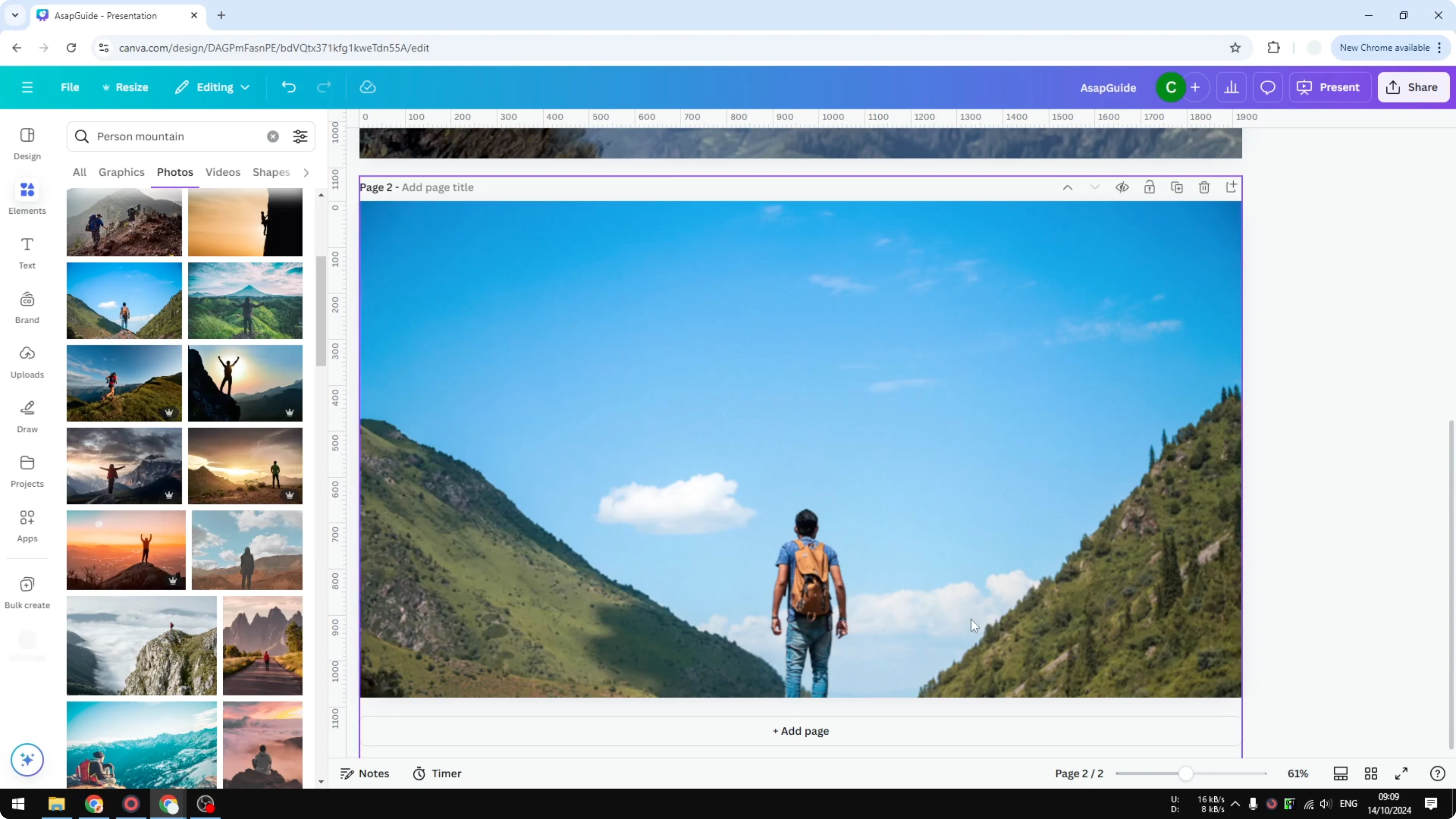
Add a new page and pick a photo with a clear subject and a background that looks great. I like using a person standing on a rock with mountains behind, then I make the image larger on the canvas. I will create the same effect as my first example, but I will change the direction slightly.
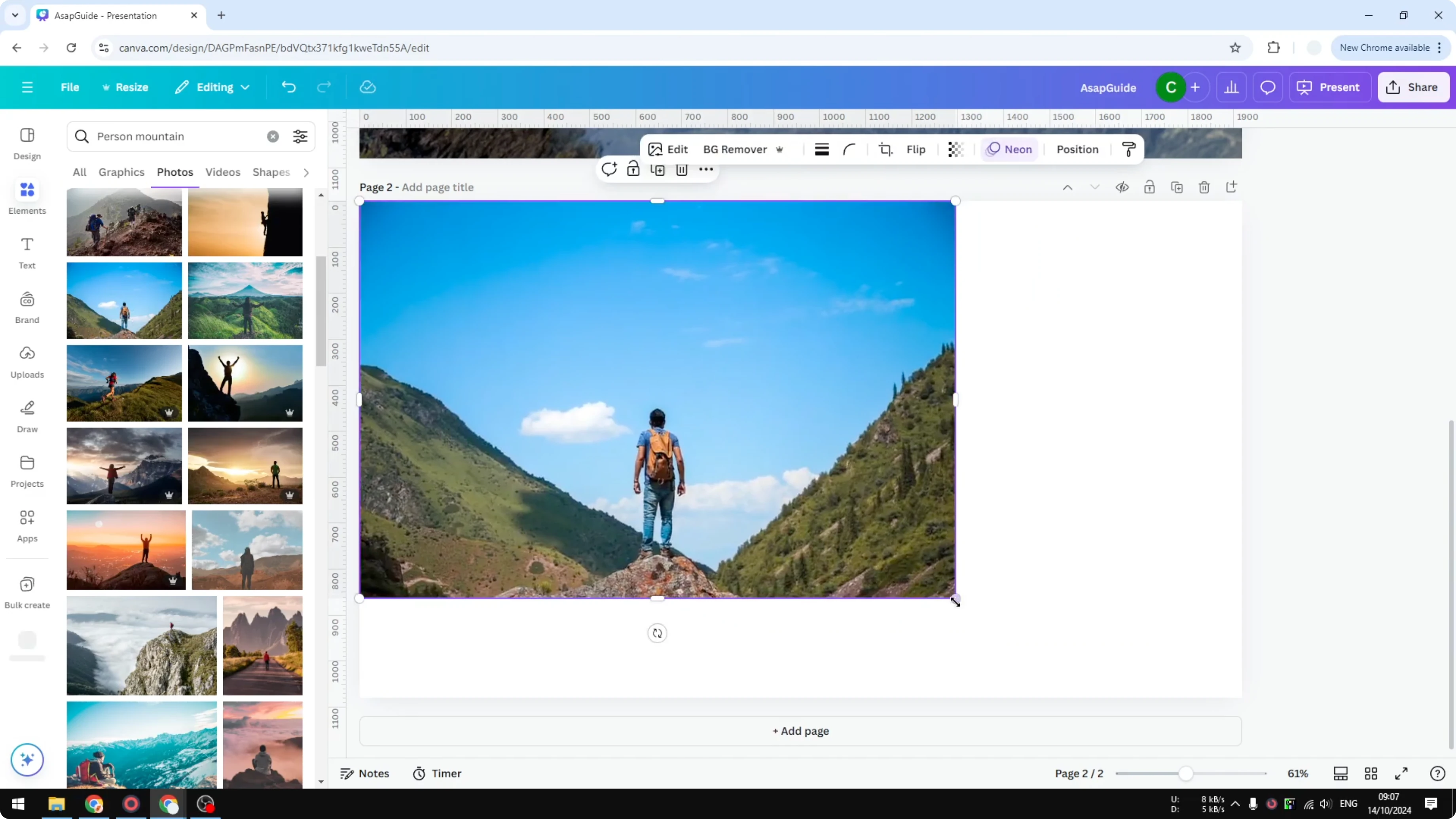
Isolate the subject and ground
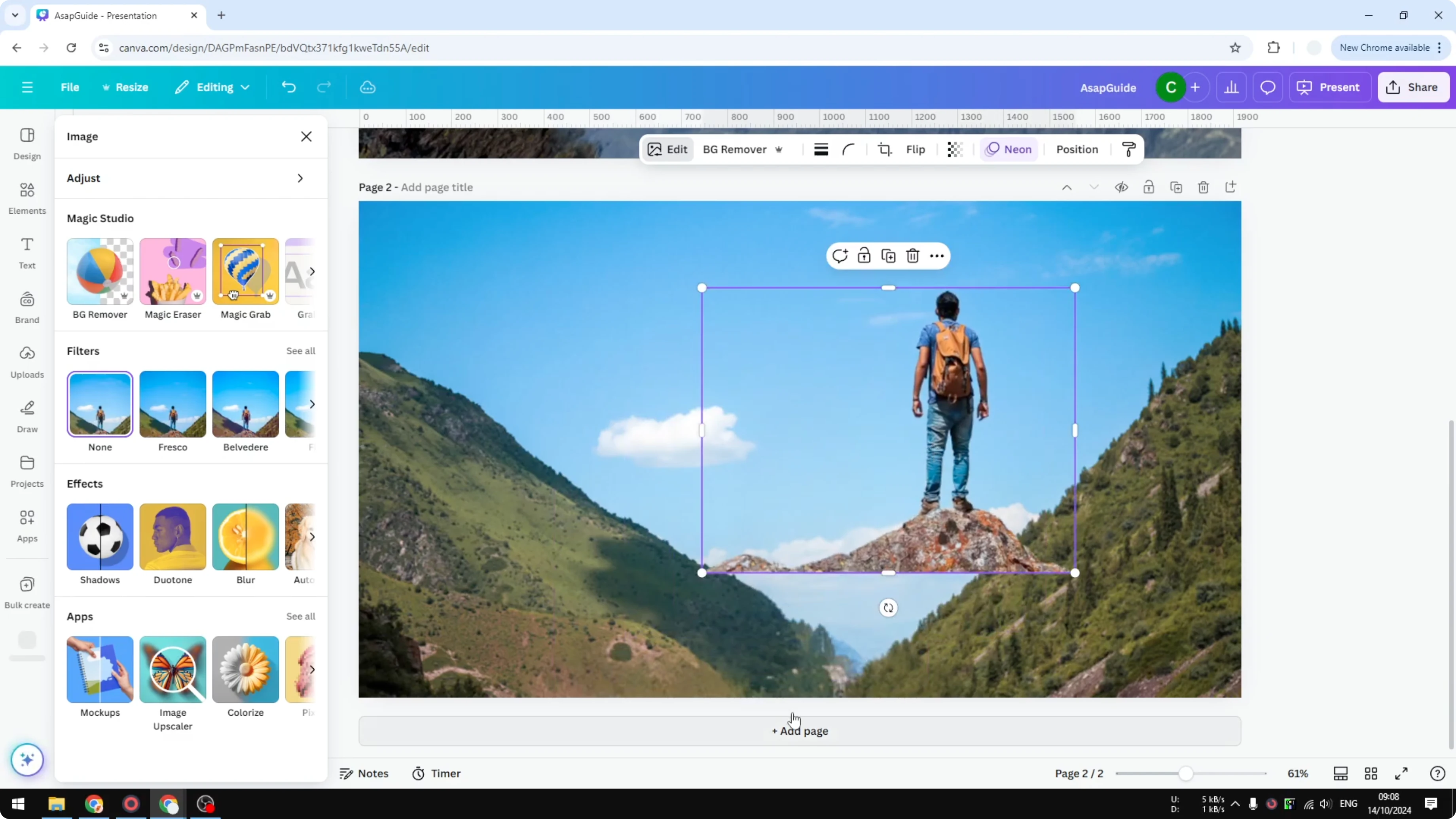
Click the image, click Edit, then select Magic Grab.
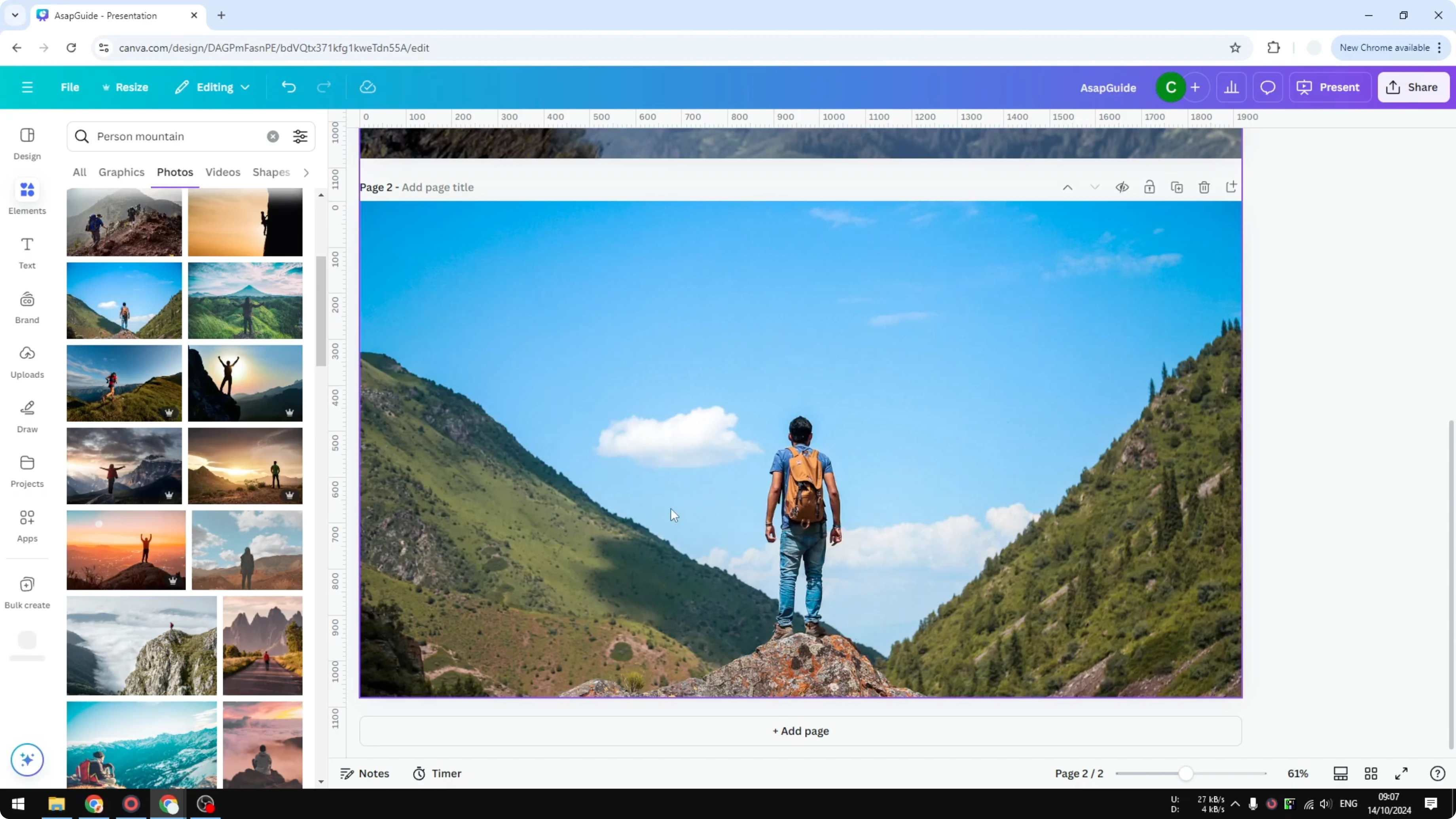
Open the Brush section and paint over the person and the rock or ground they are standing on.
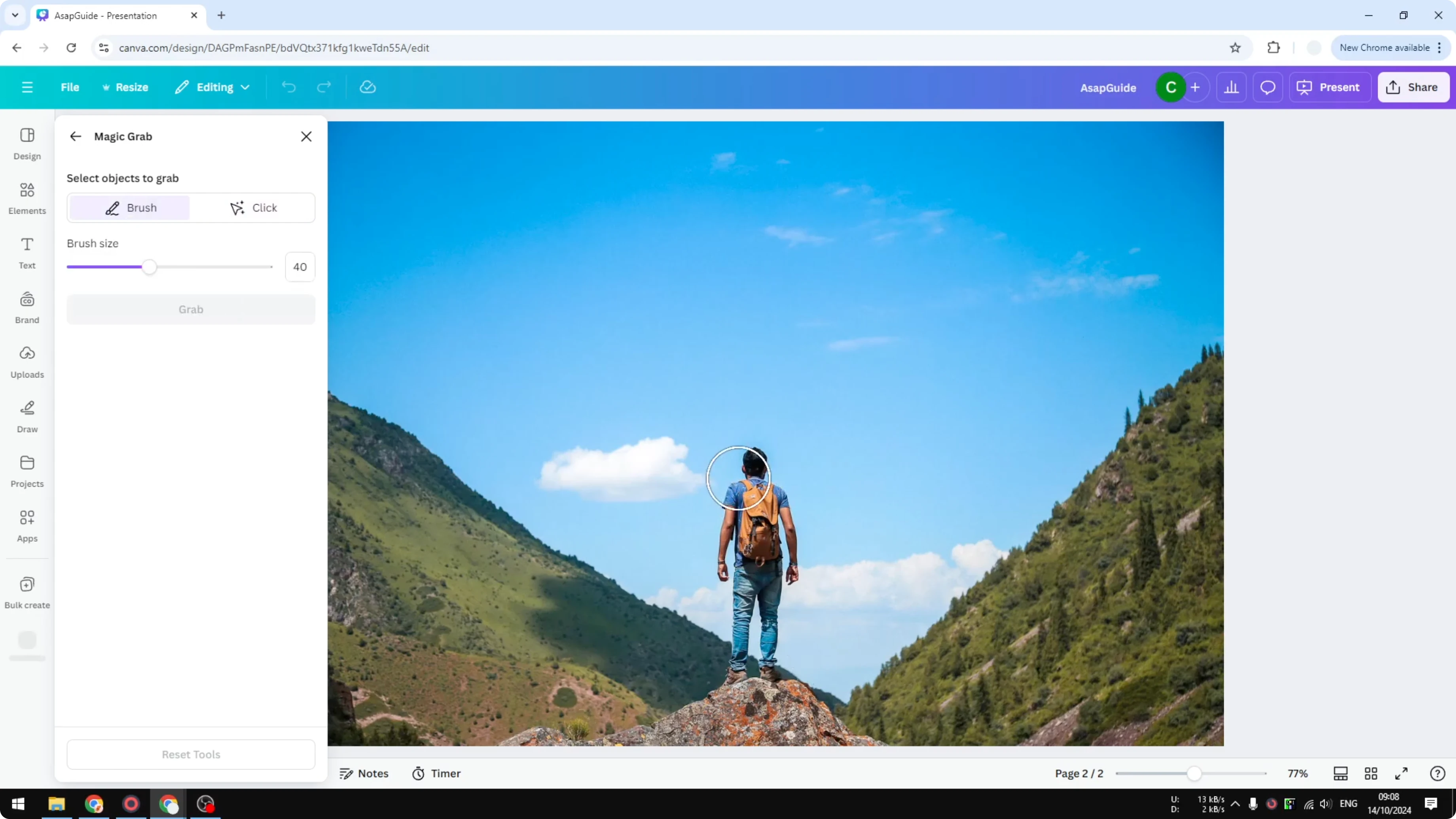
You do not have to be perfect because the AI will clean small imperfections.
Click Grab and let it isolate the subject and the rock.
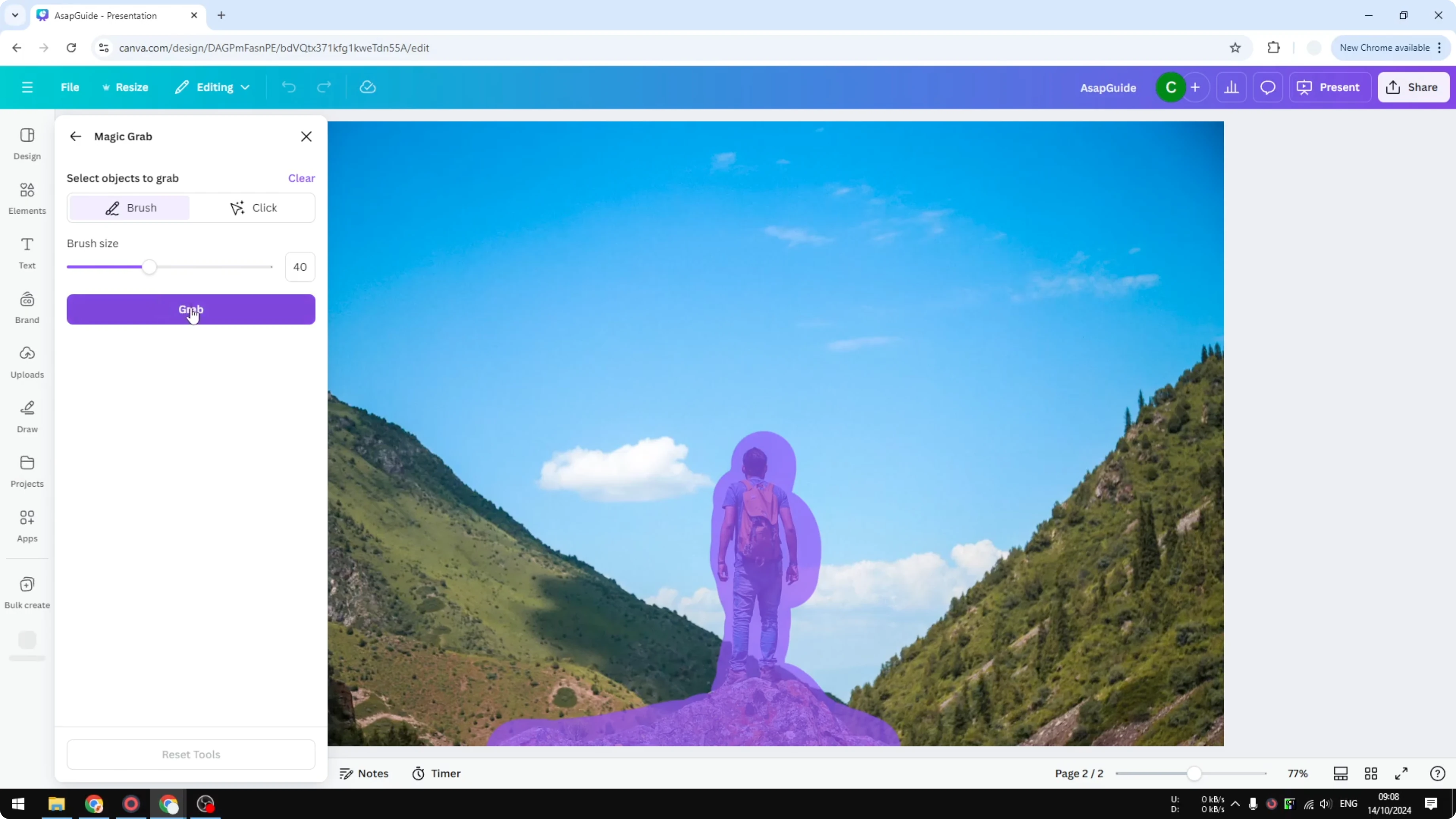
After a few seconds, the background is separate, and you can move the subject independently.
For another depth project that plays well with this technique, try building a simple 3D cube in Canva.
Animate foreground and background
Animate the subject
Click the isolated person, click Animate, and choose Drift.
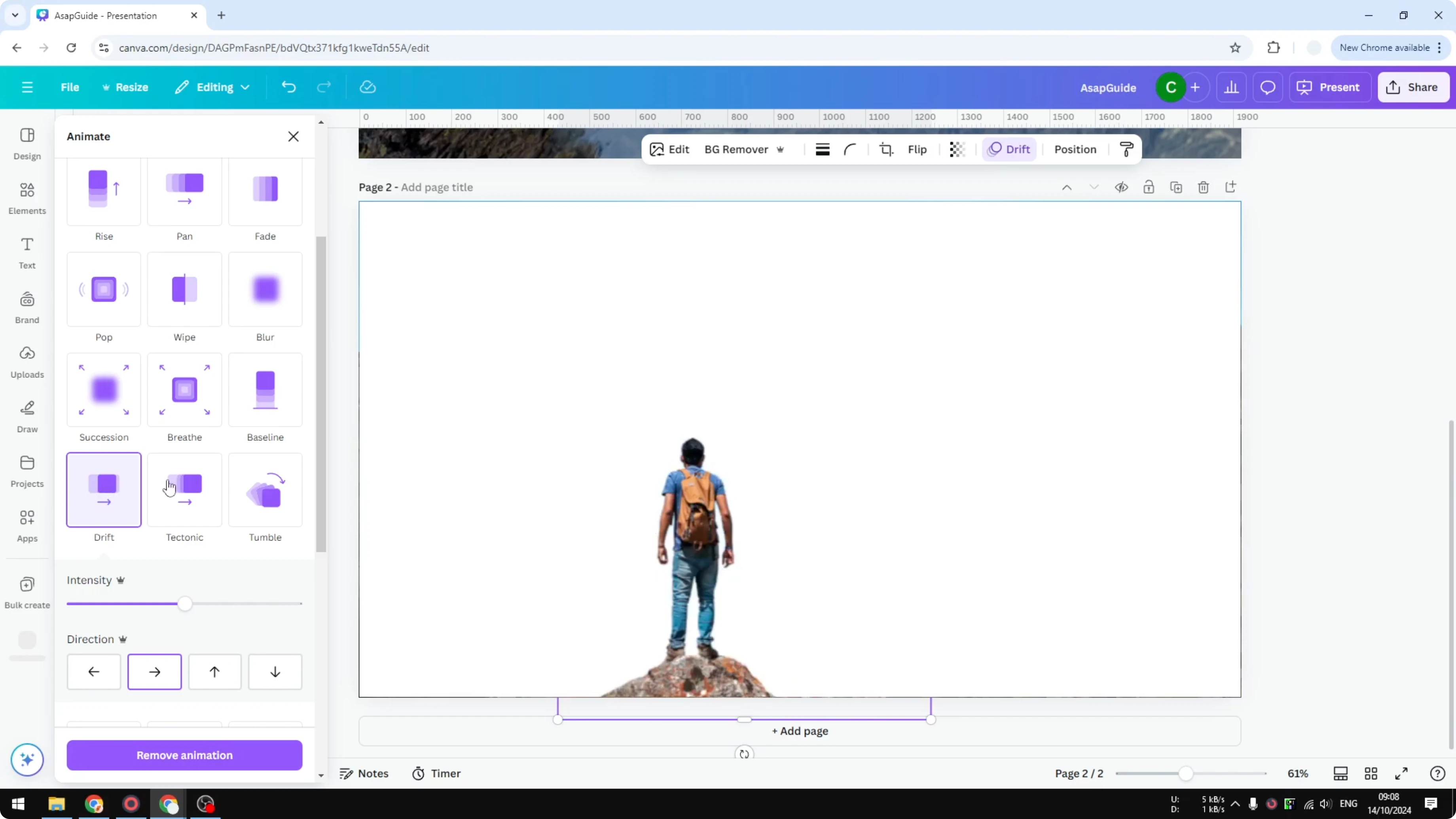
This makes the person move from bottom to top.
Reduce the speed, and place the person a bit lower in the frame because the animation will push them upward.
Animate the background
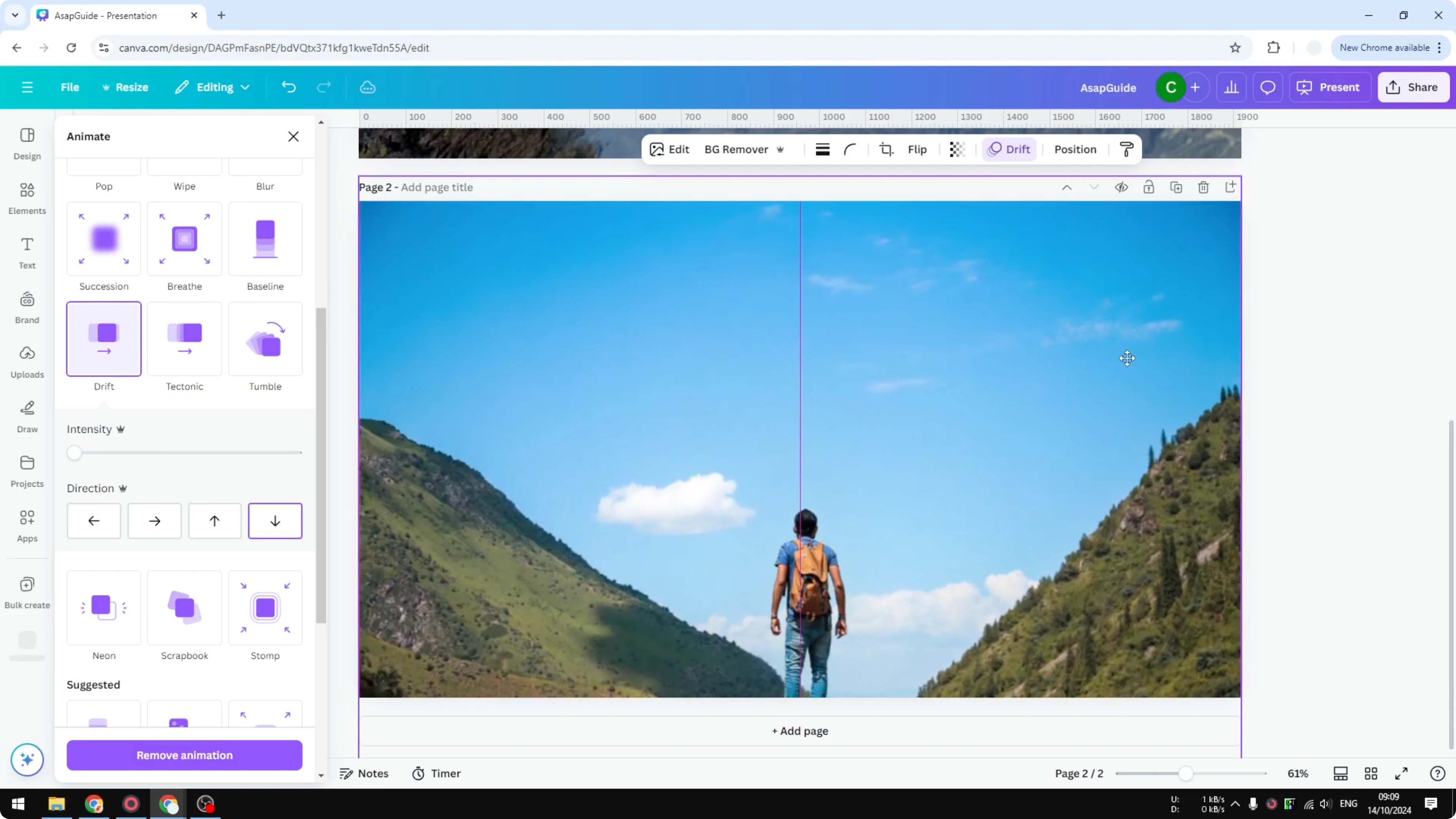
Click the background layer, click Animate, and choose Drift again.
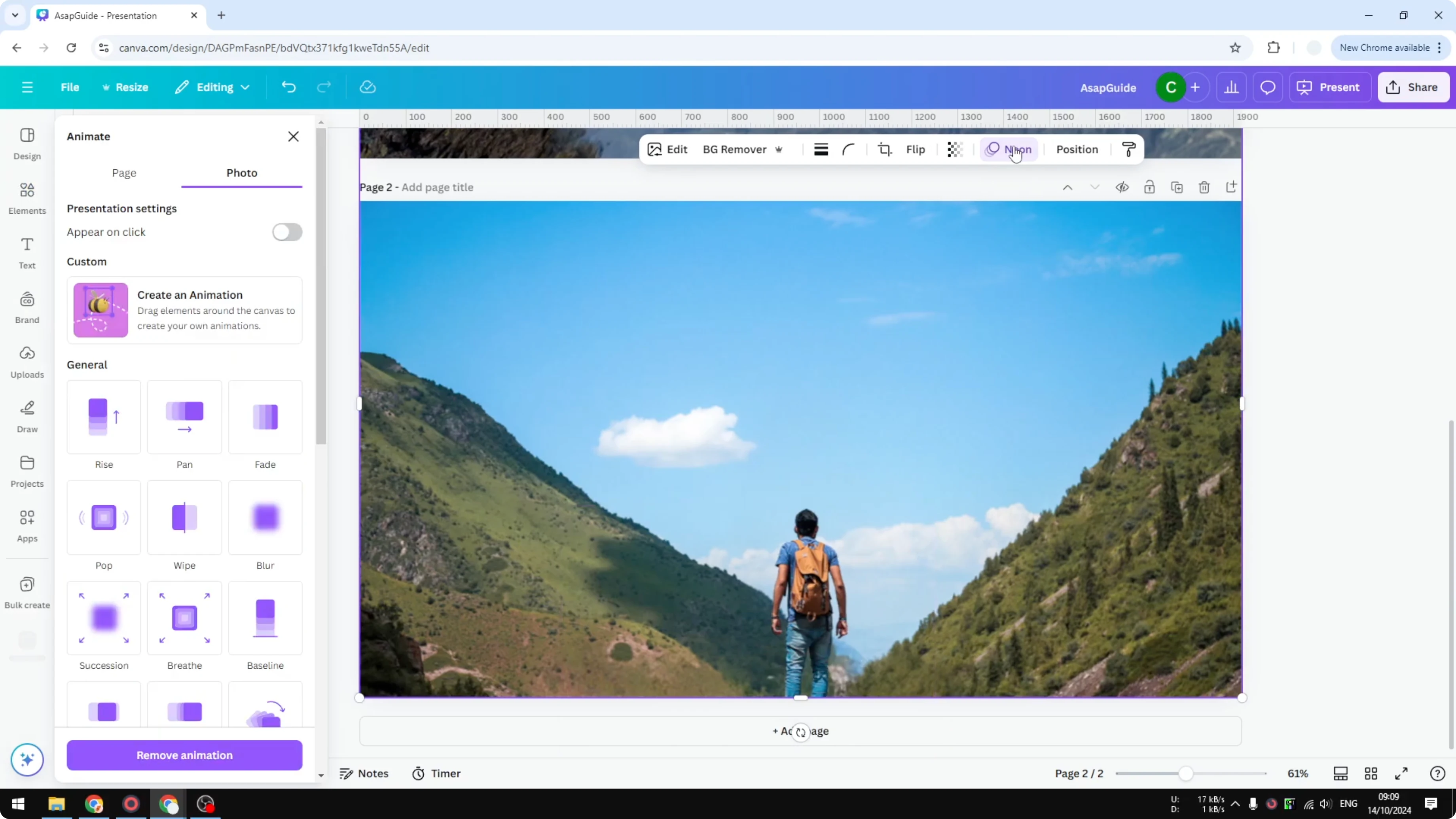
Set the direction from top to bottom and reduce the intensity.
Adjust the background position slightly so it looks right when both layers move.
Preview and adjust
Open thumbnail view, click Duration, then hit Play to preview the parallax effect.
If the movement feels off, adjust the starting positions and try again.
This is probably the most difficult part because you need the right starting point for each layer, but the result is really great.
I showed two examples of the same effect with different directions, and both look great once the movement is balanced. You can flip directions any time by changing the Drift direction on each layer. Keep testing until the motion feels natural to you.
If you enjoy playful text styles that match this 3D feel, try this balloon text effect in Canva tutorial.
Final thoughts
You can create a strong parallax 3D effect in Canva by isolating the subject and ground with Magic Grab, then animating the subject and background in opposite directions using Drift. Start the subject lower, run a quick preview, and tweak positions until it feels right. The positioning takes a bit of trial and error, but the final motion is worth it.
Recent Posts

How to Visualize Yourself as a Pixelized Character with AI?
How to Visualize Yourself as a Pixelized Character with AI?

How to Revive Faded Memories and Enhance Image Clarity with AI?
How to Revive Faded Memories and Enhance Image Clarity with AI?

How to Visualize Yourself as an Animal Crossing Character with AI?
How to Visualize Yourself as an Animal Crossing Character with AI?