How to Create a Pagebreak in Canva Docs
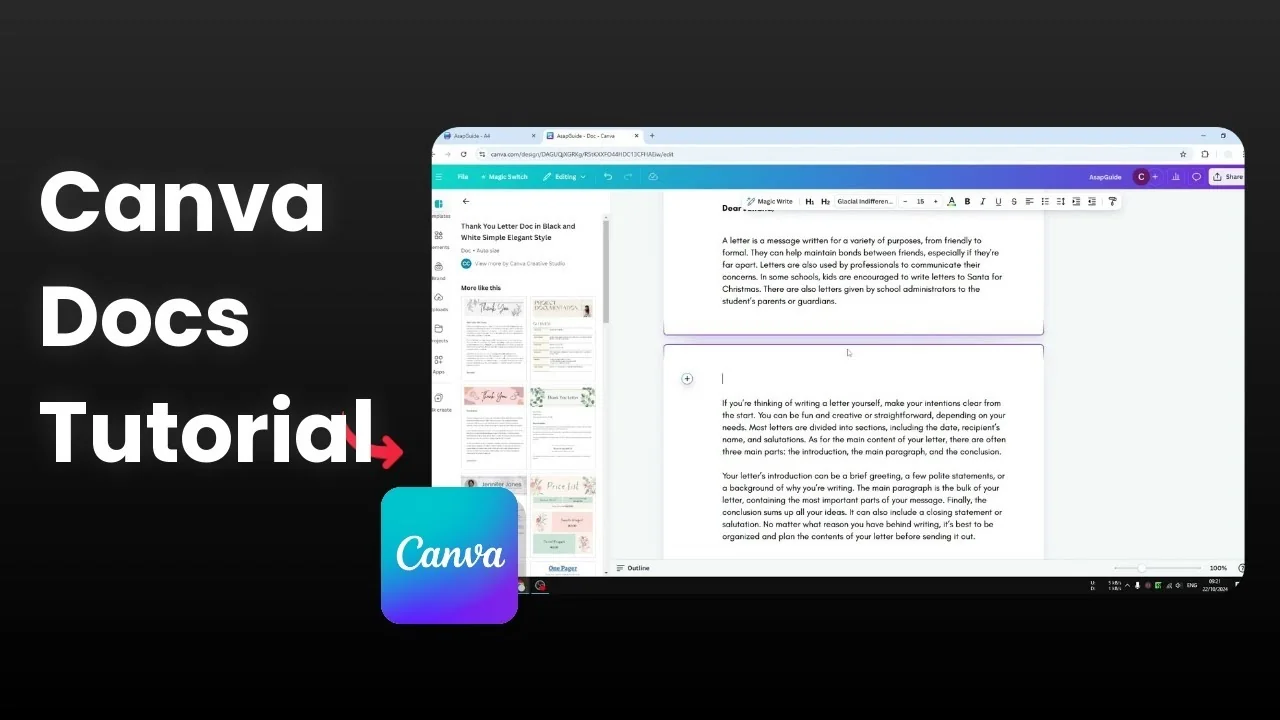
You can add a page break in Canva Docs at any point. A page break marks the end of one page and starts the next. You do not have to fill a page before moving on.
You can split one page into two even if the content is short. This lets you control layout and pacing. Here is how I add a page break cleanly.
Create a Pagebreak in Canva Docs
The page break is just the end of the page and a new start for the next page. You can insert it anywhere you want. The result is always consistent.
Quick actions
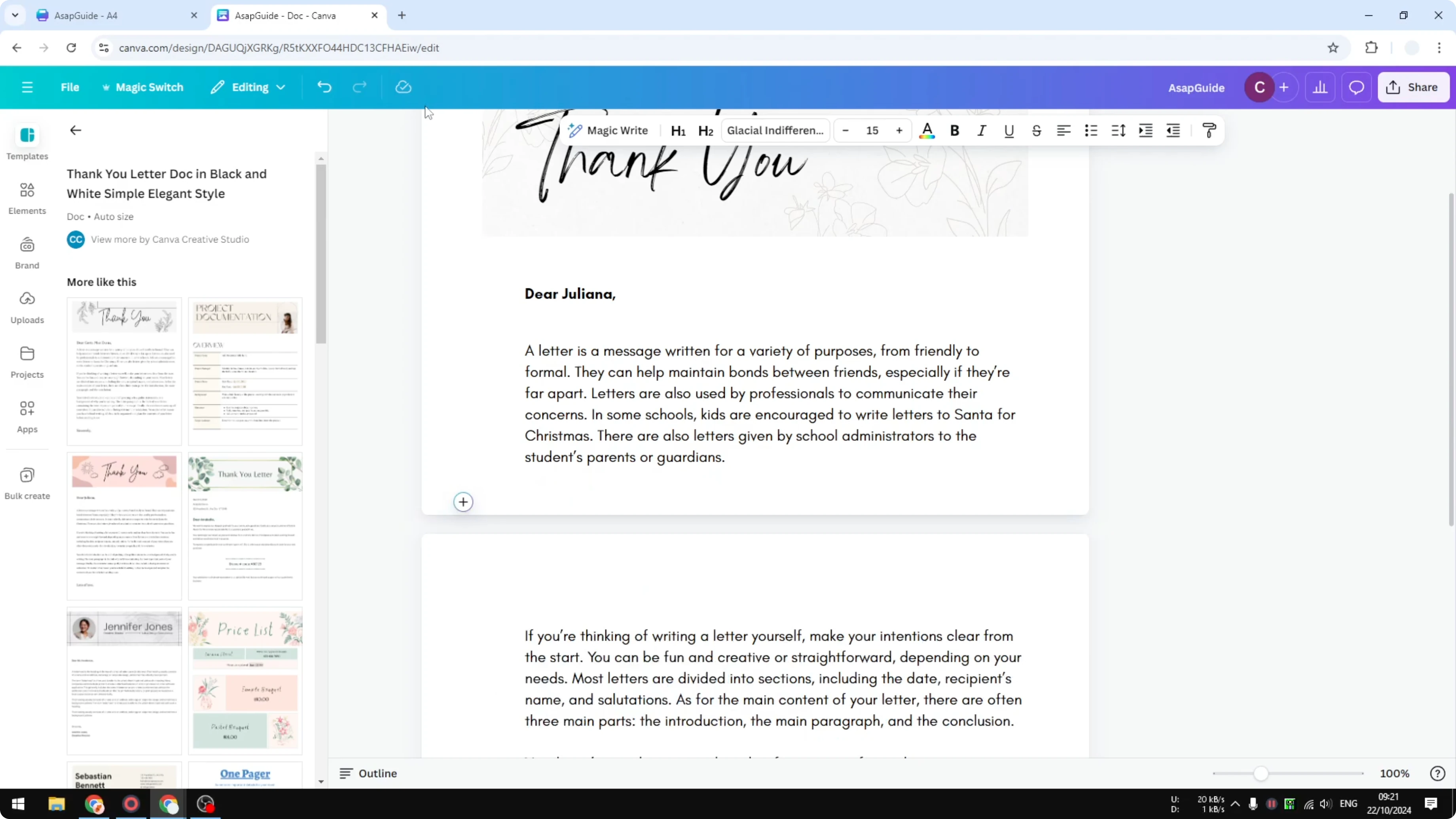
Place your cursor at the point where you want the new page to begin.
Add a new line if needed to keep content tidy.
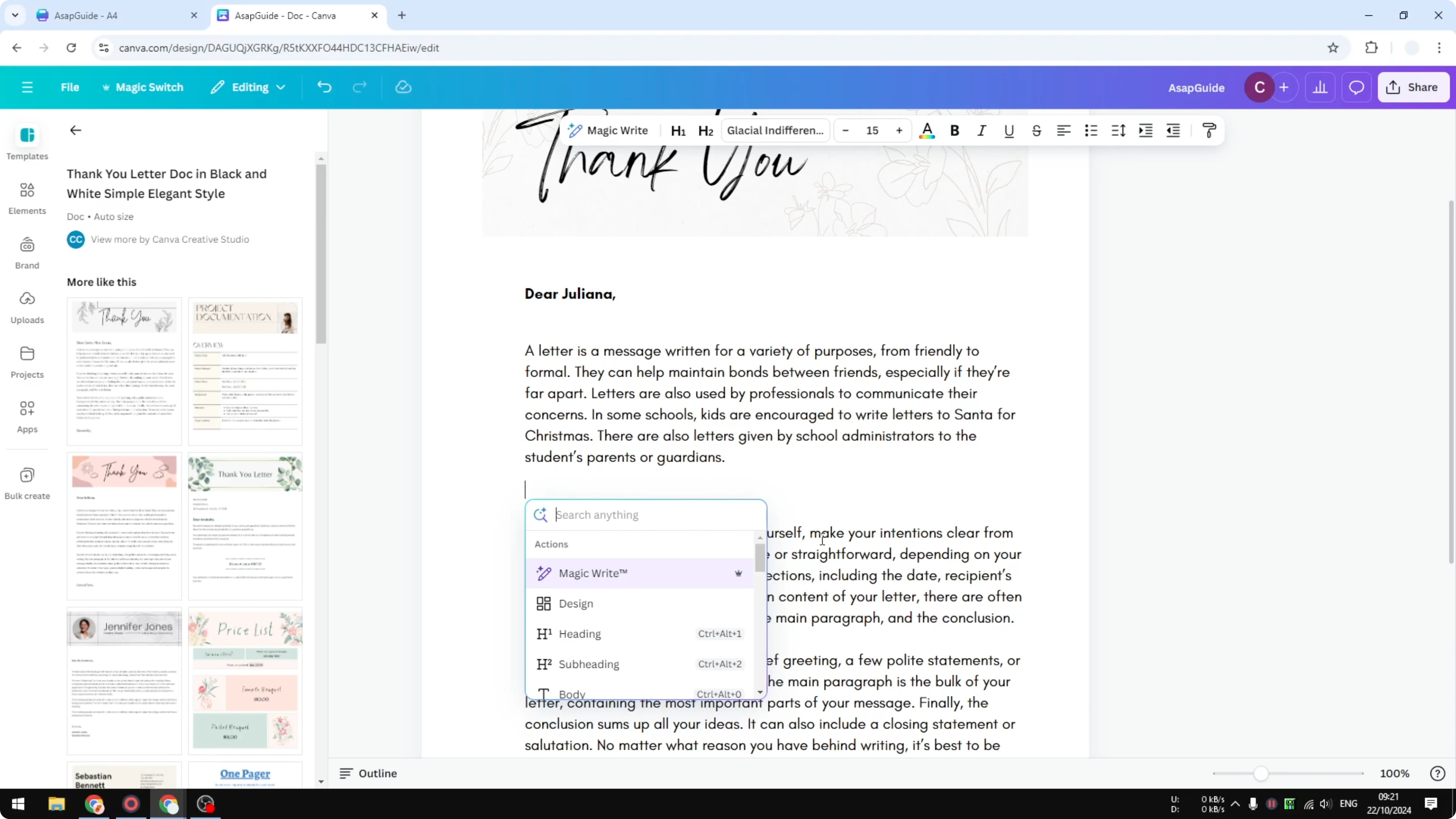
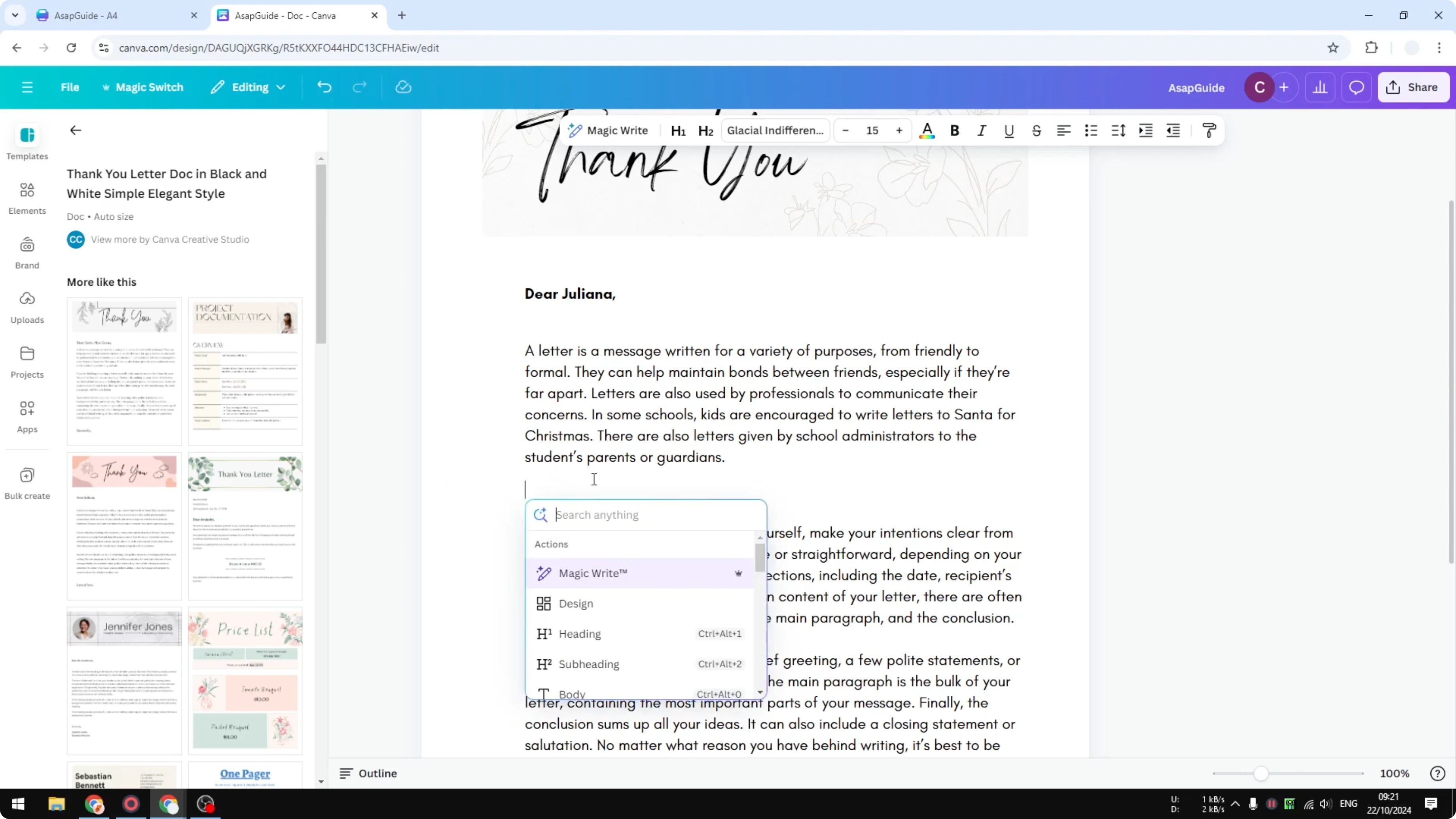
Click the plus button to open Quick actions.
Search for Page break.
Click Page break to split the current page into two.
Read More: Create Balloon Text Effect Canva
Keyboard shortcut
Press the shortcut to insert a page break instantly at the cursor.
Windows: Ctrl + Enter
Mac: Command + Enter
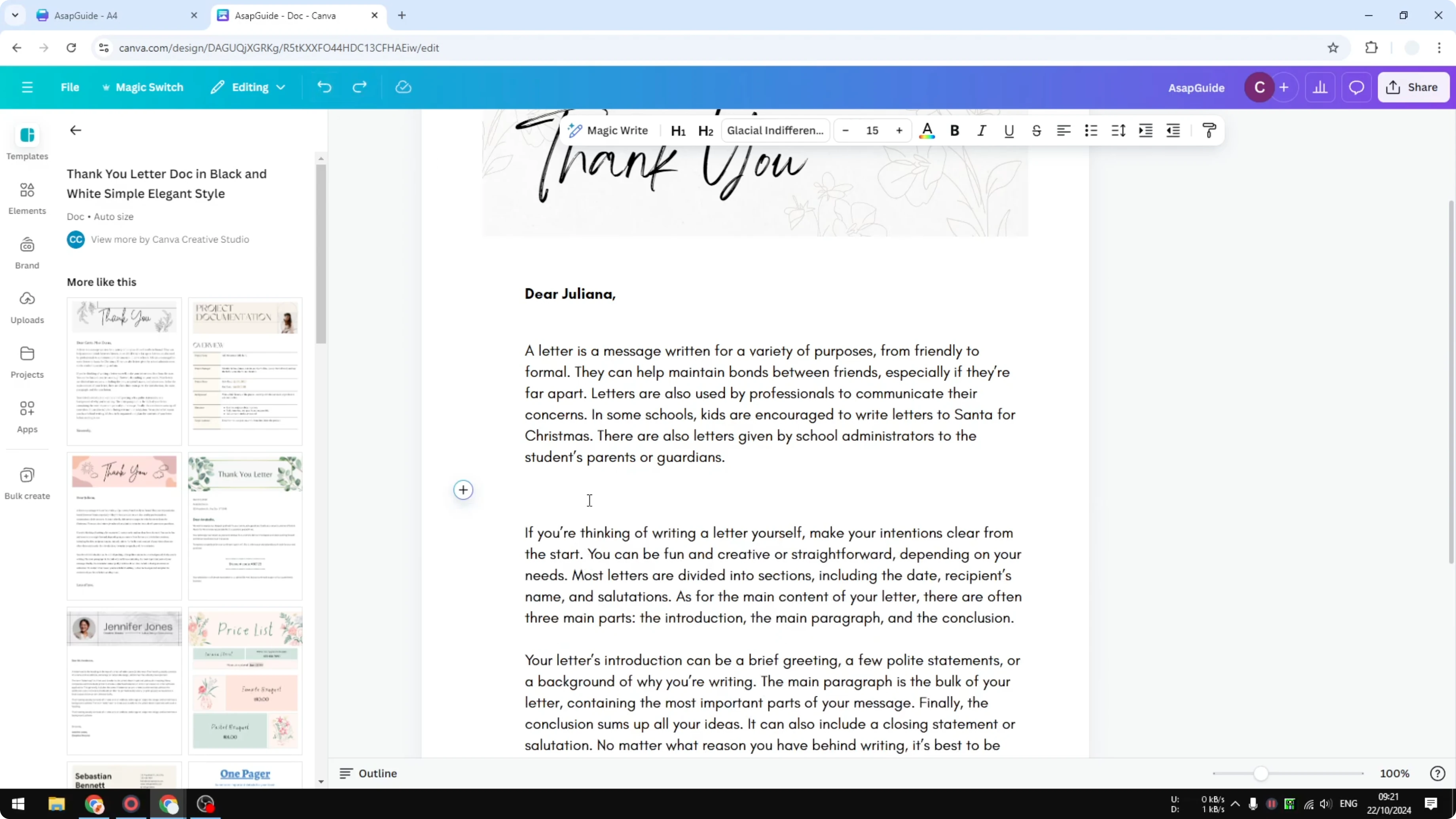
This is the fastest method if you prefer keys over menus.
Read More: Create Bokeh Effect Canva
Slash menu
Place your cursor where the break should appear.
Type "/" to open the command menu.
Type page break, then press Enter to insert it.
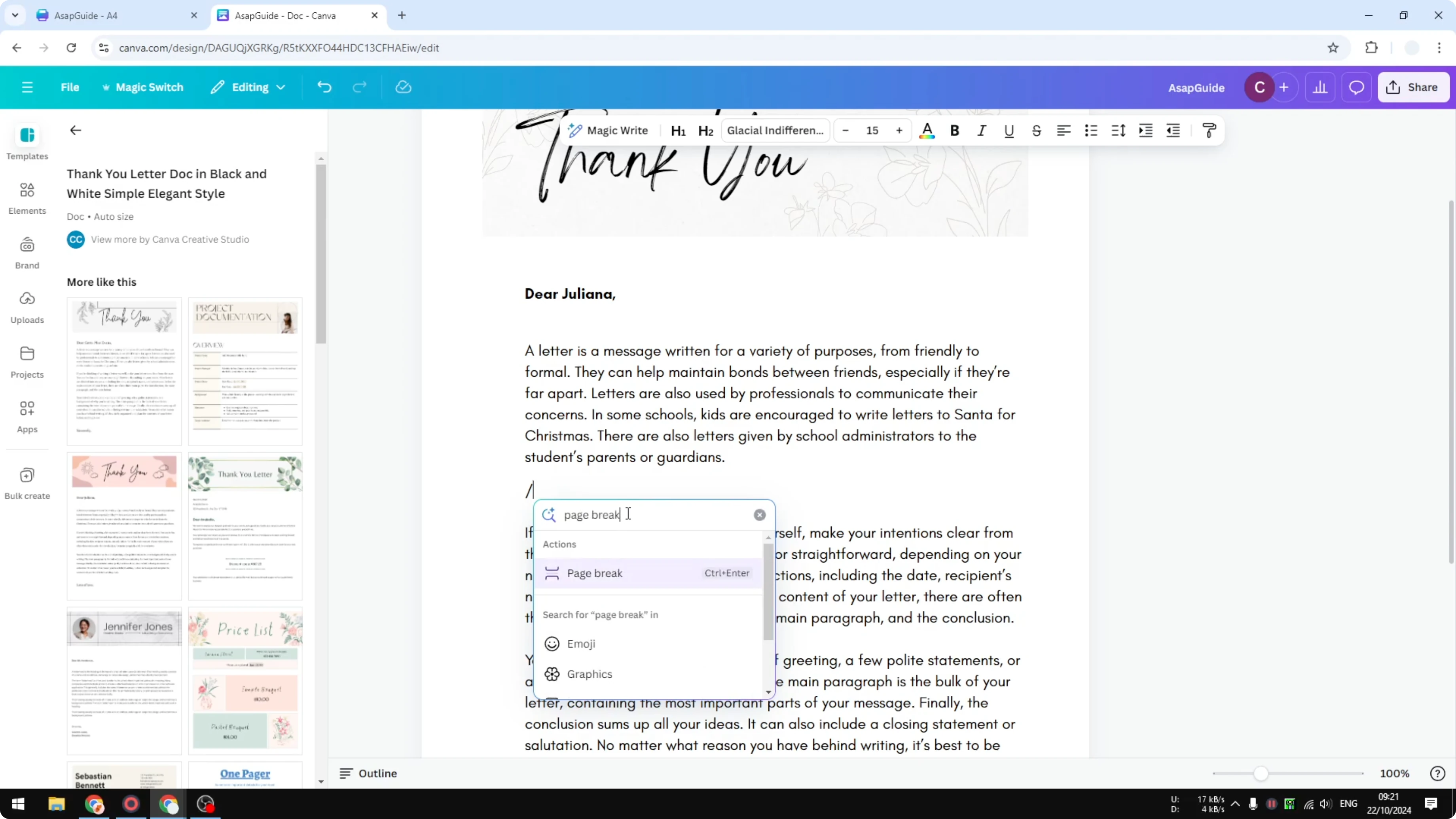
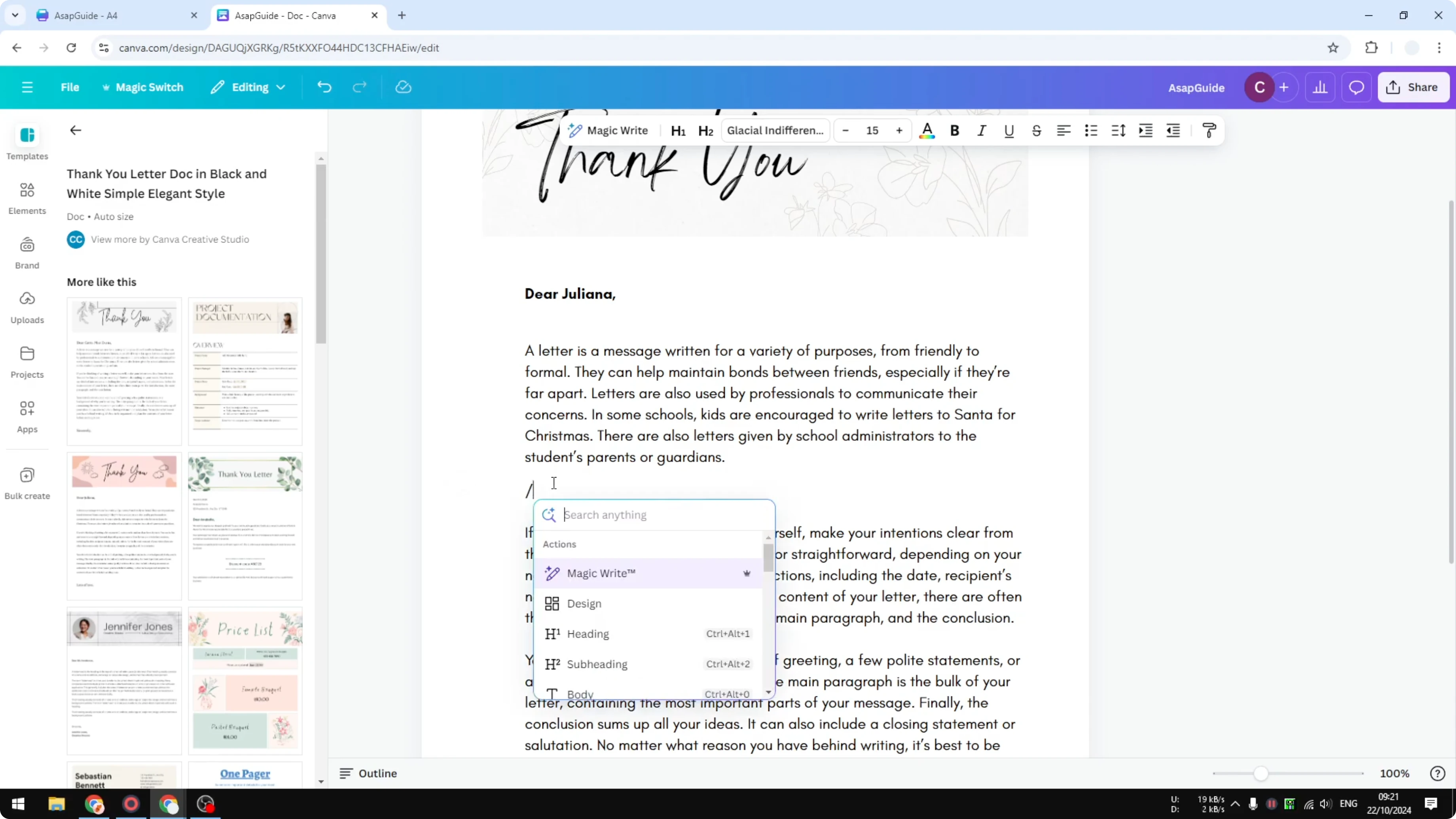
This approach mirrors Quick actions and gives the same result. It is handy if you prefer typing over clicking.
Read More: Create Bubble Map Canva
Final thoughts on Create a Pagebreak in Canva Docs
A page break in Canva Docs is simple and flexible. Use Quick actions, the keyboard shortcut, or the slash menu based on your workflow. Each method produces the same clean split, so pick the one that feels most natural.
Recent Posts

How to Visualize Yourself as a Pixelized Character with AI?
How to Visualize Yourself as a Pixelized Character with AI?

How to Revive Faded Memories and Enhance Image Clarity with AI?
How to Revive Faded Memories and Enhance Image Clarity with AI?

How to Visualize Yourself as an Animal Crossing Character with AI?
How to Visualize Yourself as an Animal Crossing Character with AI?