How to Create Motion Path Animations in Canva
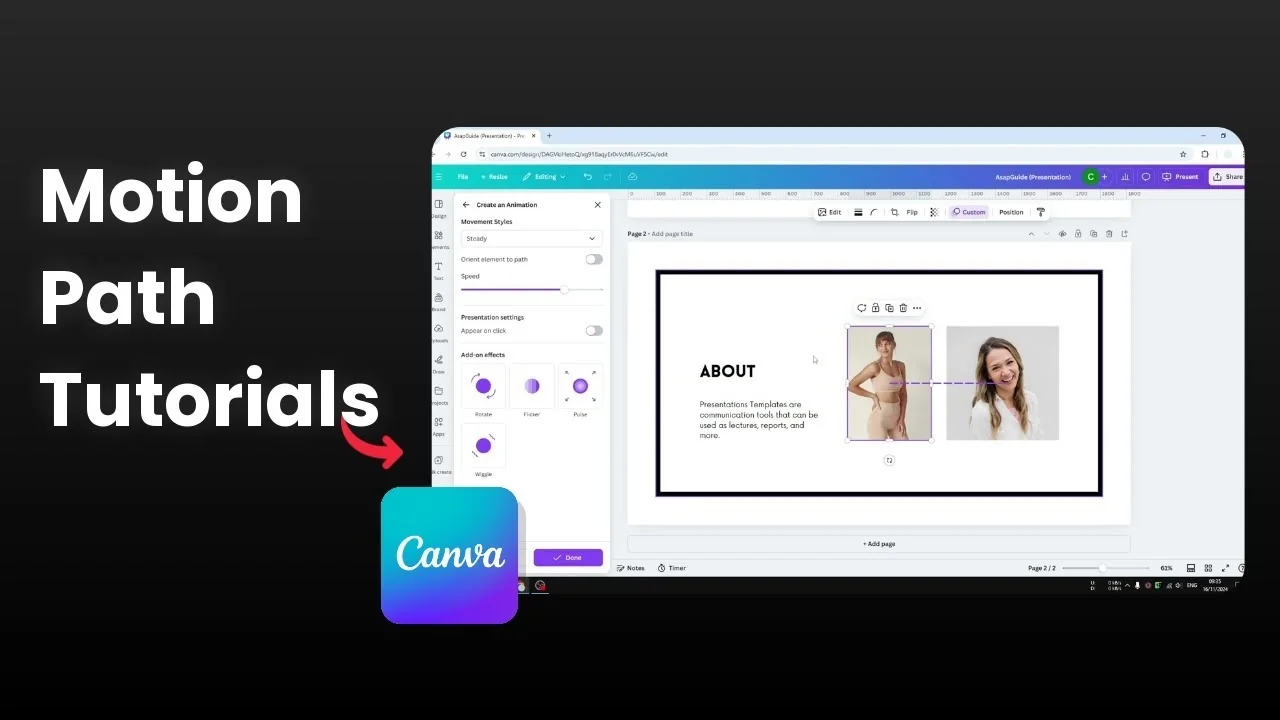
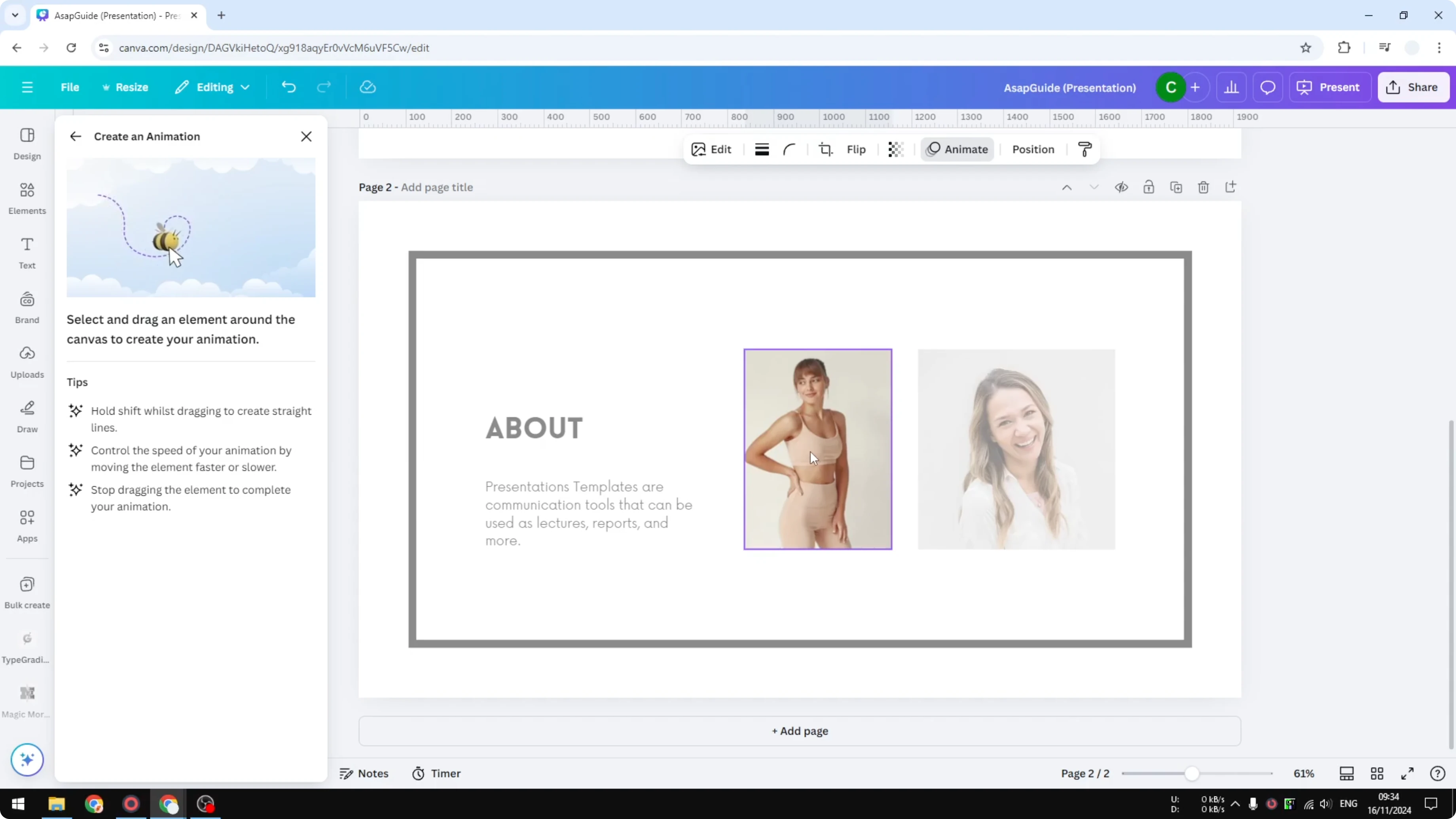
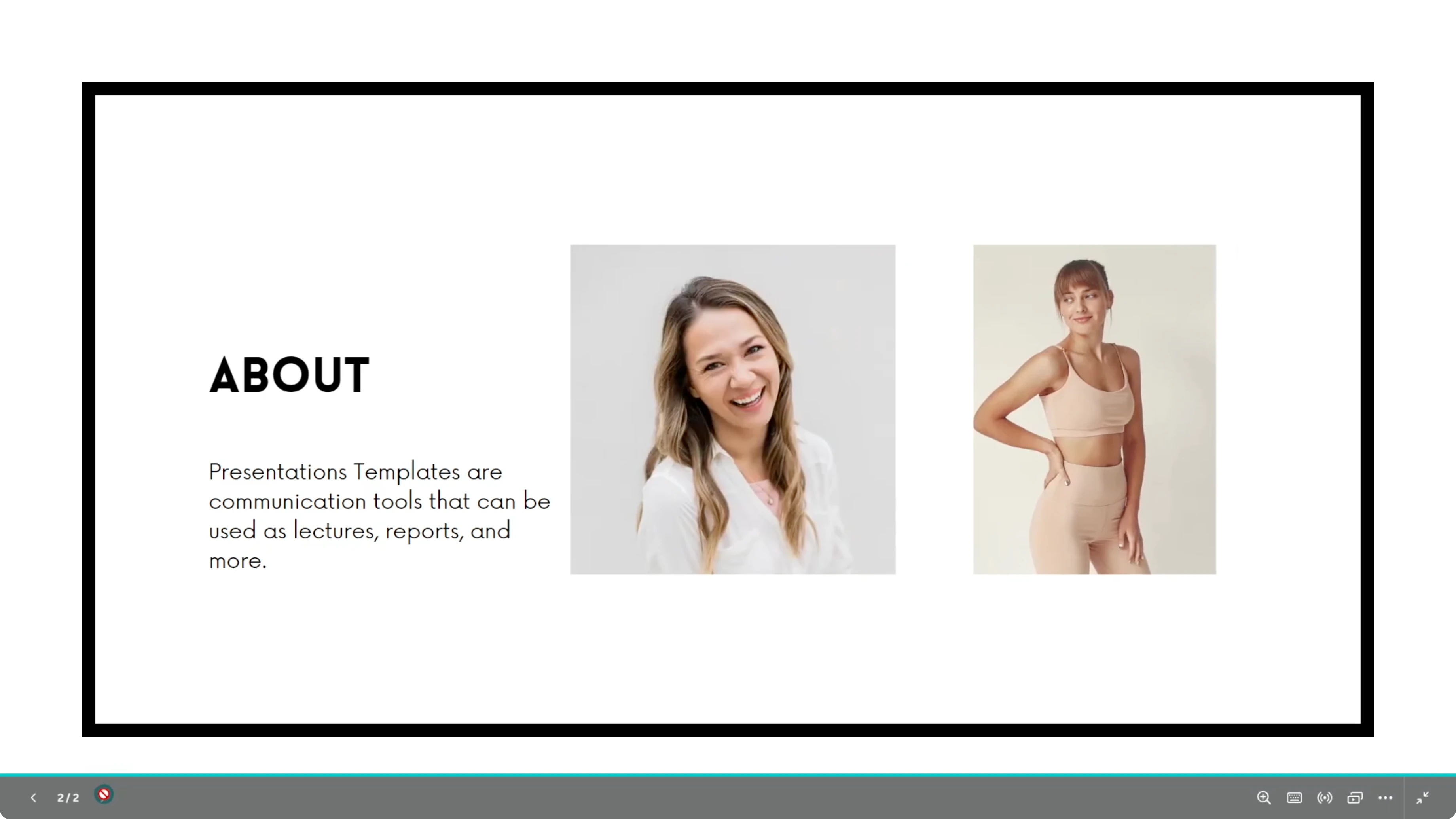
I am going to show you how you can create a motion path animation in Canva. Path animation is essentially the kind of animation that you can create yourself in Canva, and it is very simple. For example, I could make this image move from here to the right and this image move to the left.
Basics - Create Motion Path Animations in Canva
Click on the object. It could be a picture, a text box, a shape, or a graphic vector.
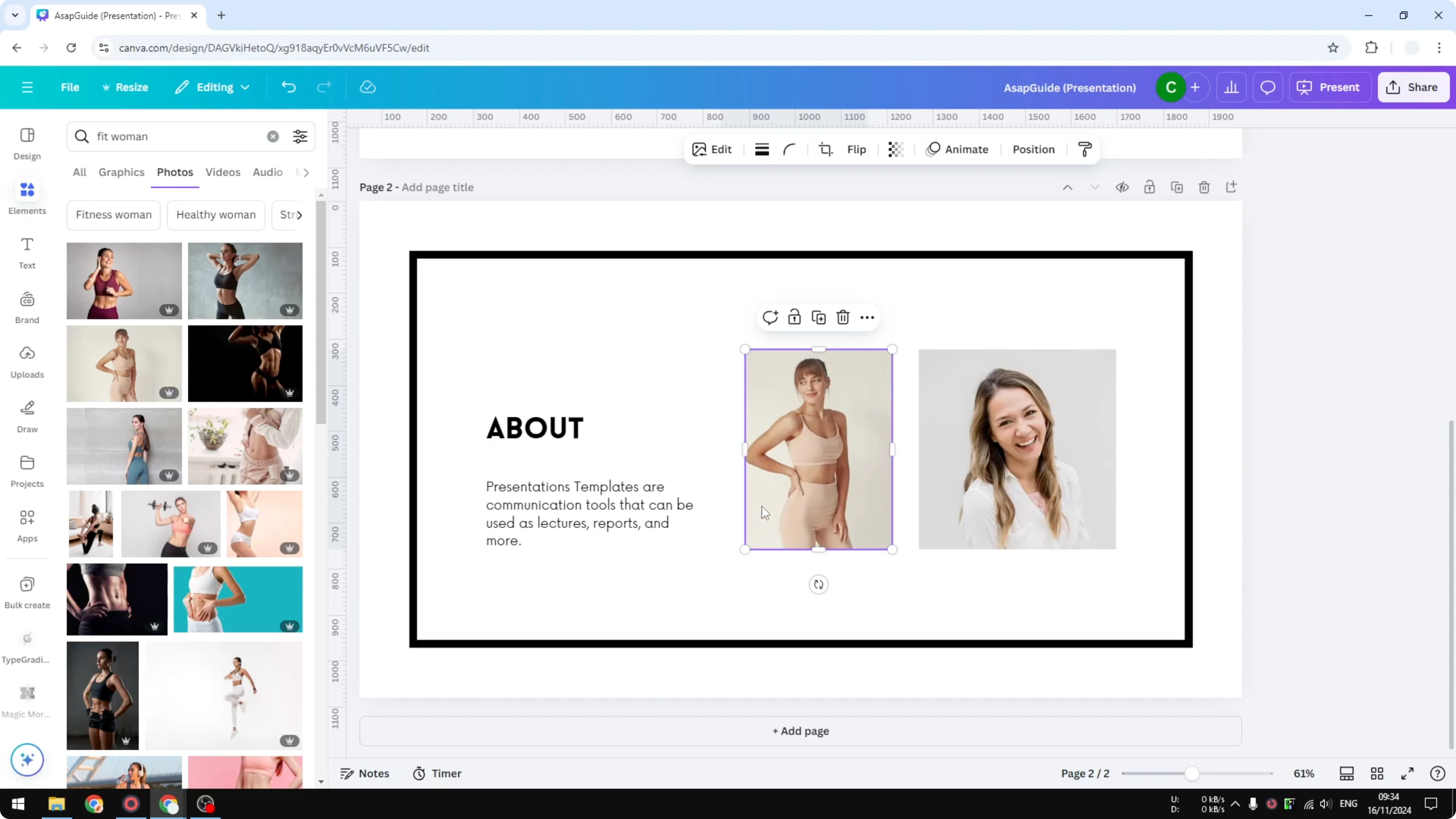
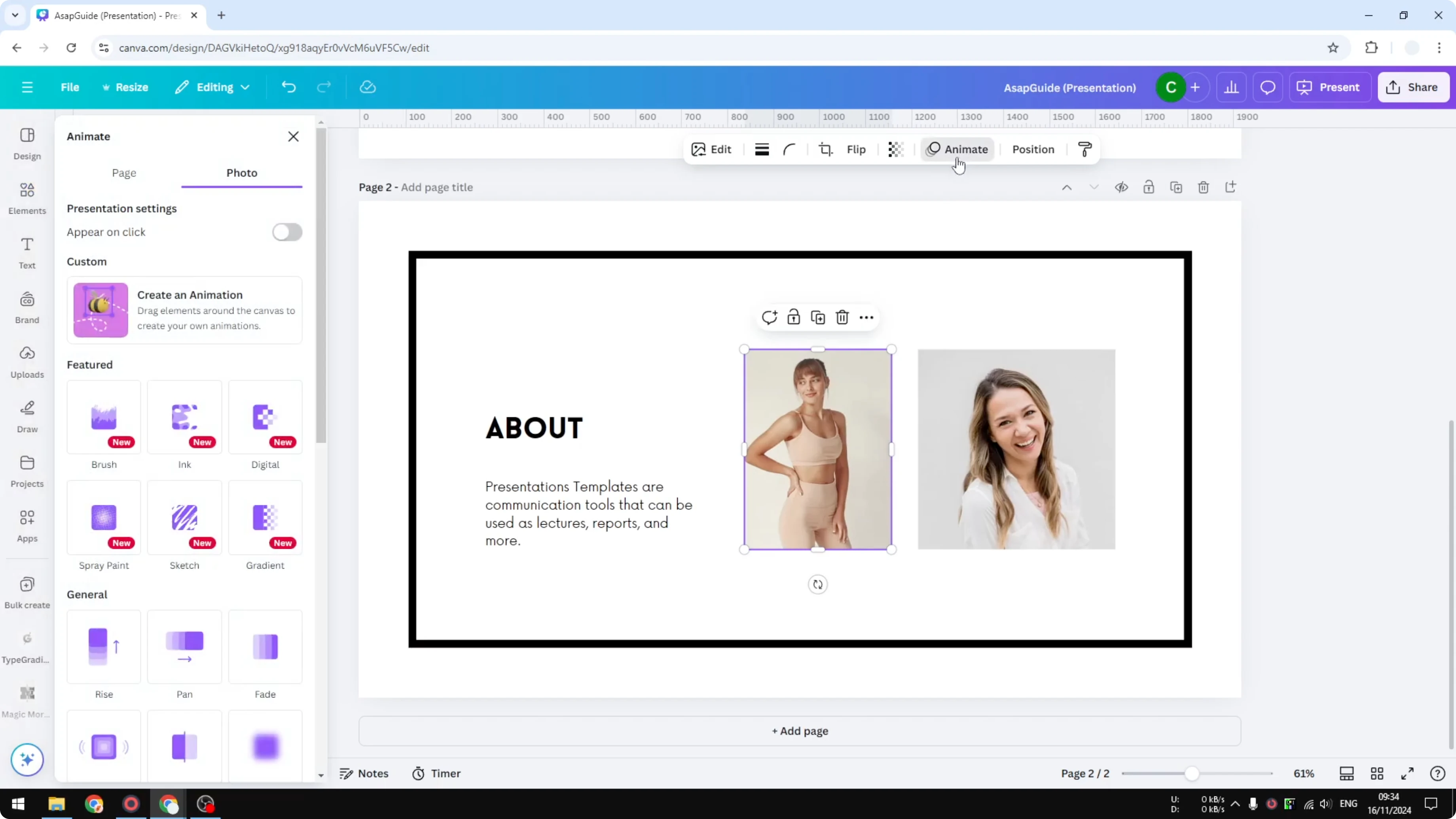
Click Animate. In the Custom section, click Create an animation.
Draw the path - Create Motion Path Animations in Canva
Here is the most difficult part. You have to draw your own animation with the cursor. I want to put this image from here to the right, so I click and drag it to the right, and that creates an animation.
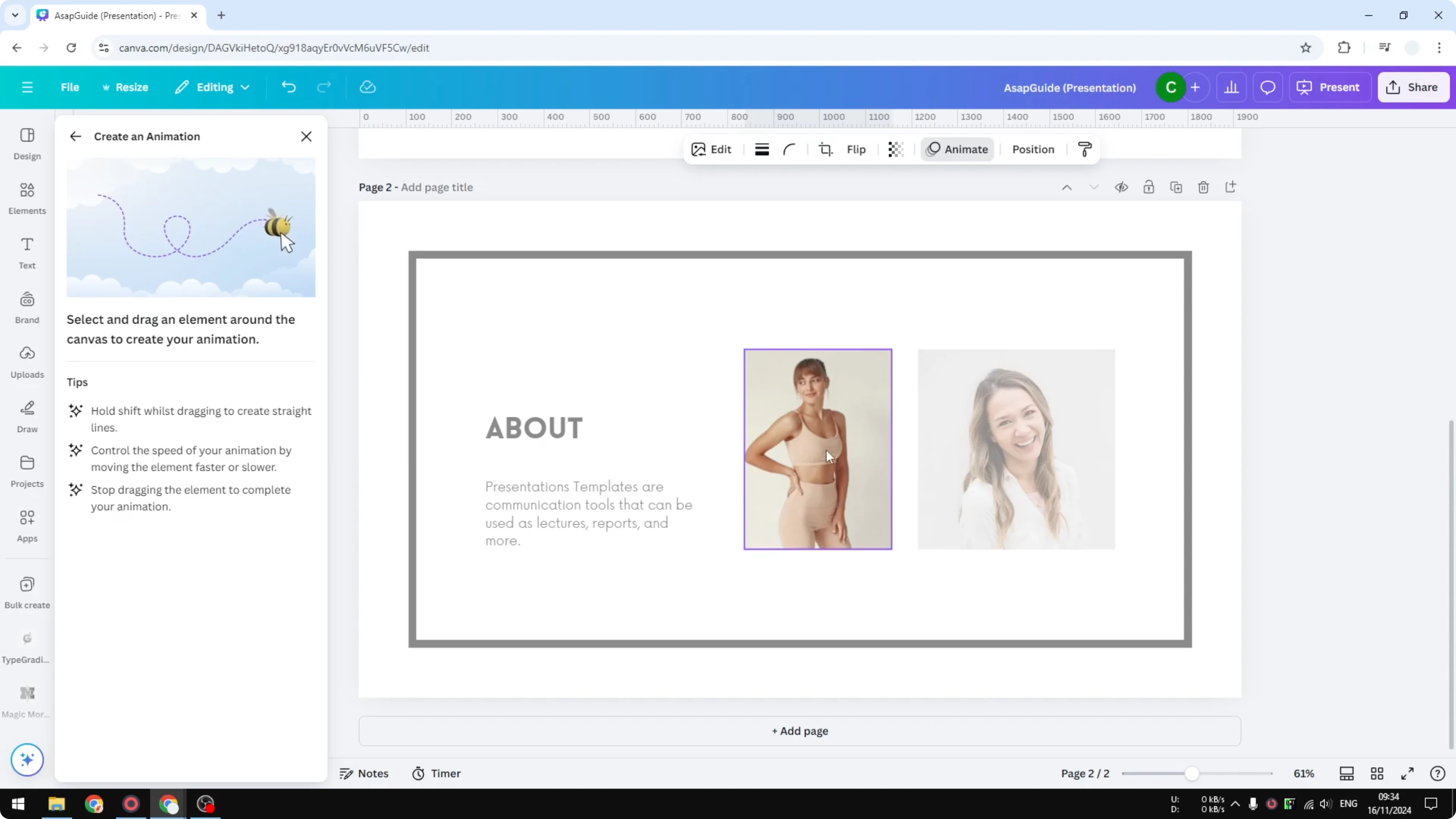
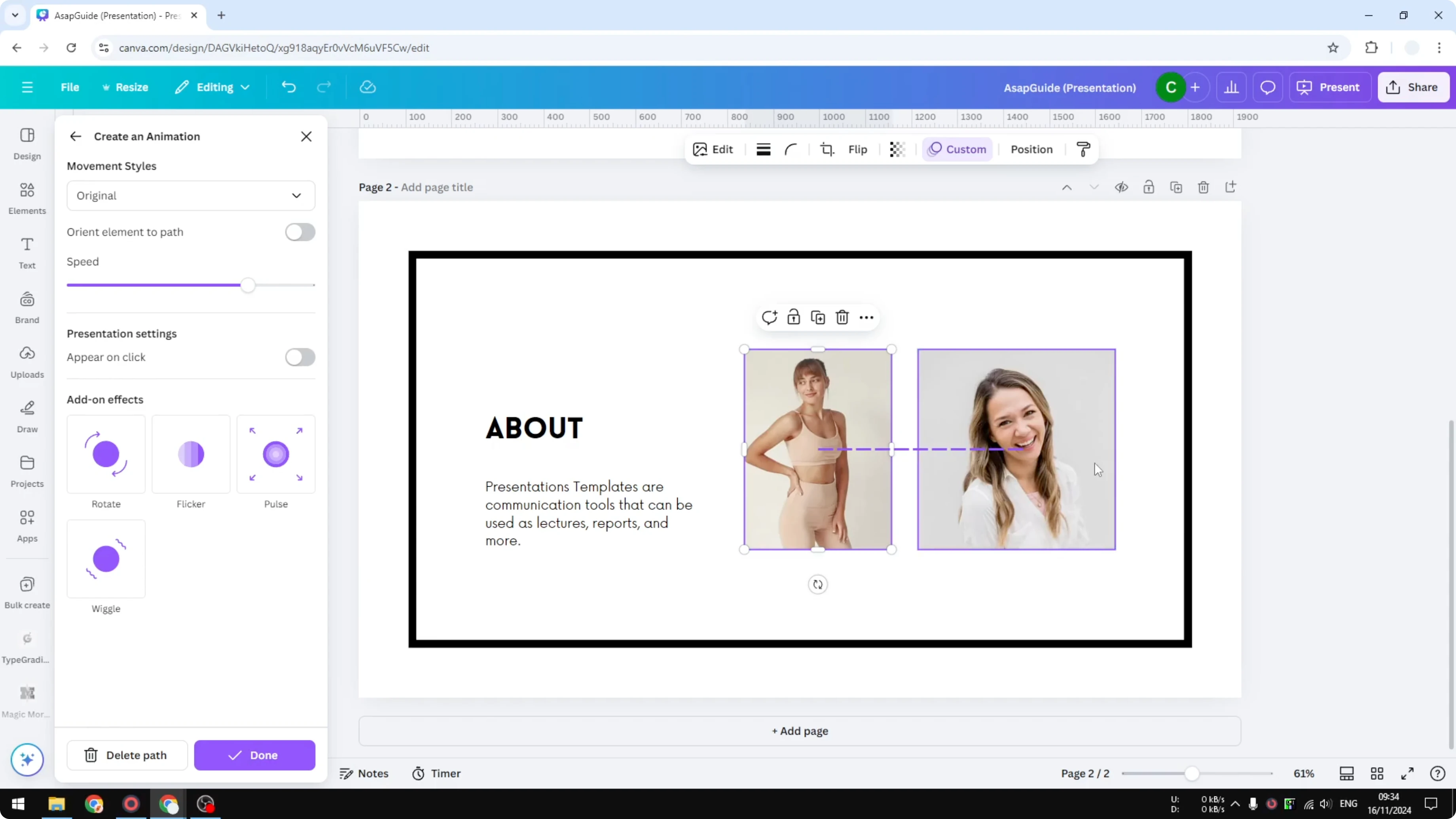
You might notice it is not a perfect straight line, and I do not want that. Delete the path first. Do it again, but this time press and hold the Shift key, then click and drag the image to the right to create a straight line.
I think it is way better than the previous line that I just created. We just created the animation, so it is time to modify it.
Read More: Create Slow Motion Effect Canva Video
Movement styles - Create Motion Path Animations in Canva
On Movement Styles, I personally prefer Smooth because it speeds up at the beginning and slows down at the end. I think it will make the animation smoother. Steady will unify the speed, so it does not matter if when you were drawing it you got it too fast or too slow.
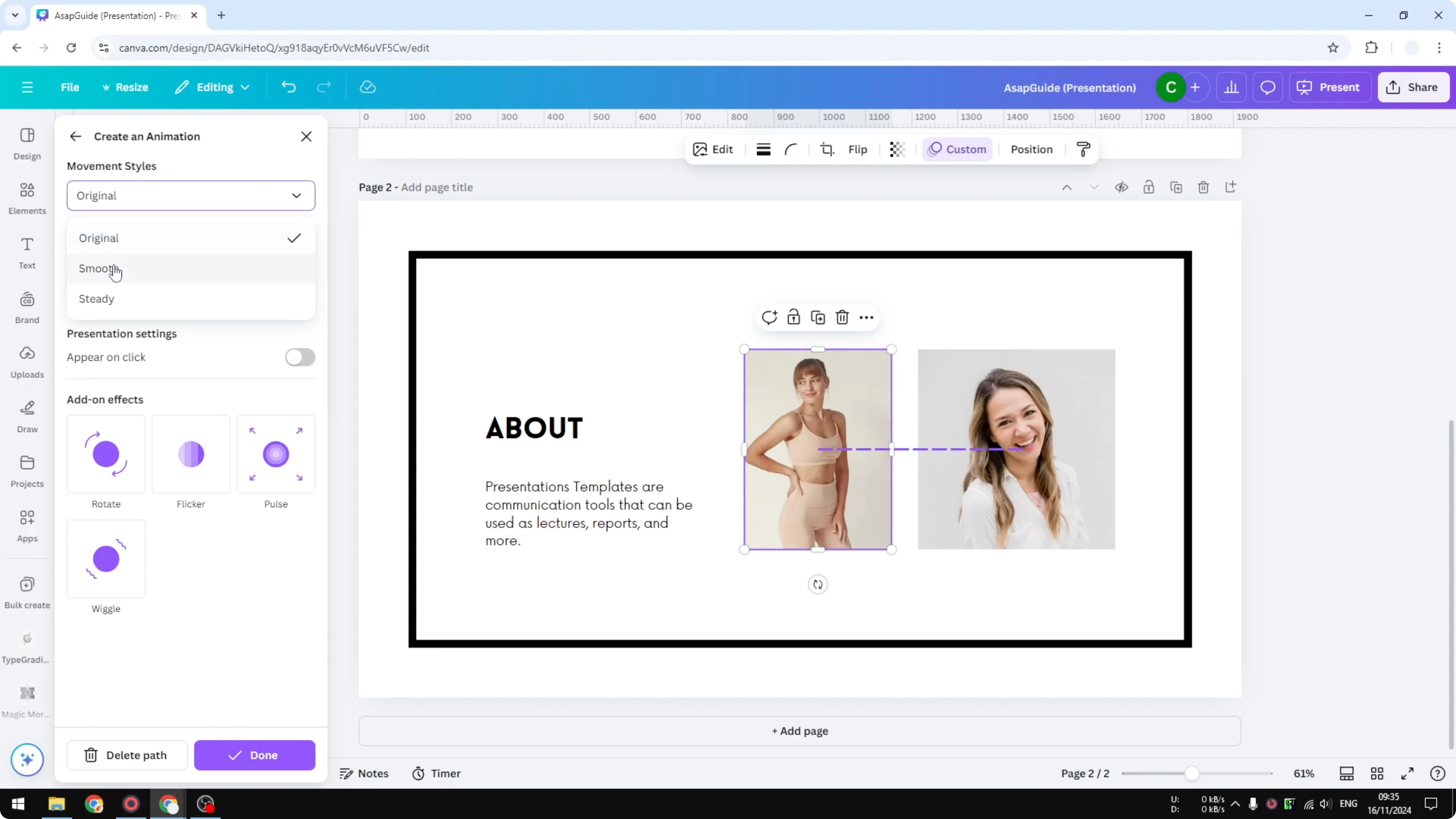
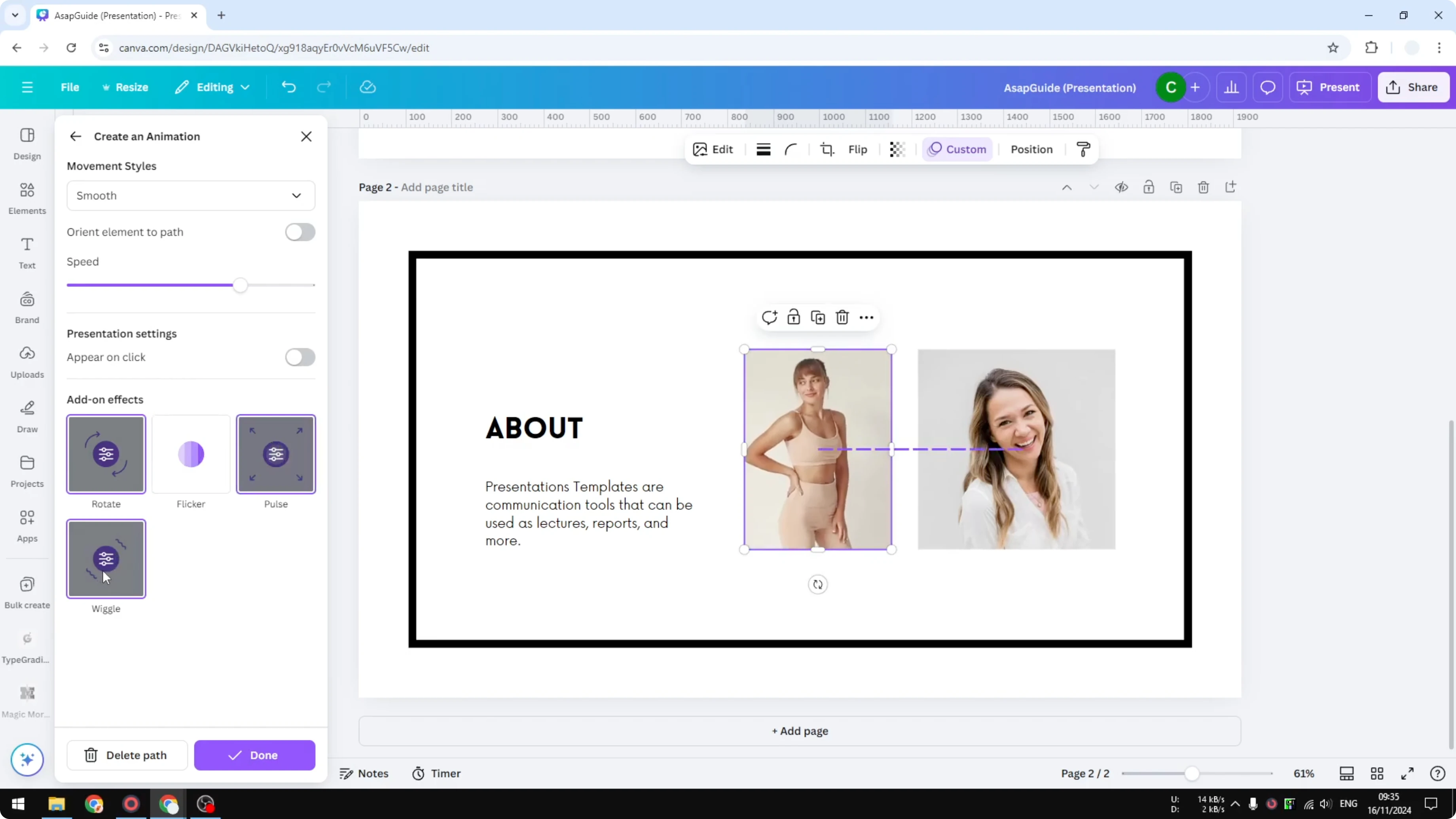
But again I prefer using the Smooth method. There is an option to change the speed, and I am going to use the default state because it looks perfect. Of course there is an option for Add-on animations you can combine with your custom path.
You could make the image rotate, wiggle, click, or pulse. I do not want to apply that, so I just want to have a simple moving animation like this one.
Read More: How To Create Stop Motion Animation Effect In Canva
Animate another object - Create Motion Path Animations in Canva
I just created an animation for this picture, so let us do the same for the other picture. Click on the image and click Animate, then click Create animation. Press and hold the Shift key, click on the image, and drag it to the left.
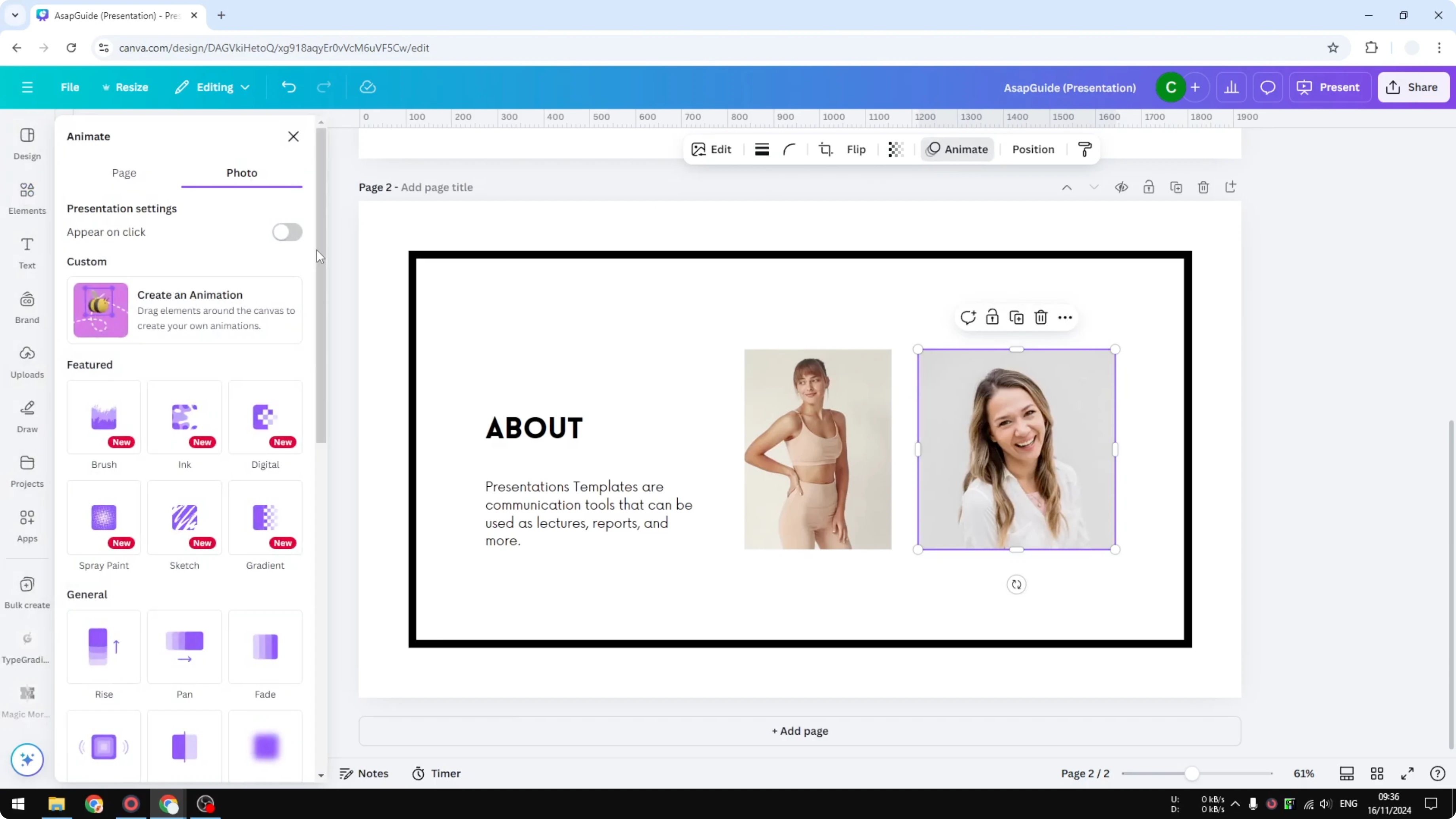
Change Movement Style to Smooth.
Preview - Create Motion Path Animations in Canva
Preview the result. Do it again if needed. That looks really good.
Read More: Create Bokeh Effect Canva
Final thoughts - Create Motion Path Animations in Canva
That is exactly how you can create motion path animations in Canva. Click an object, create a custom path, hold Shift for straight lines, and tweak style and speed for the look you want. Keep it simple or add optional effects like rotate or wiggle if you need them.
Recent Posts

How to Visualize Yourself as a Pixelized Character with AI?
How to Visualize Yourself as a Pixelized Character with AI?

How to Revive Faded Memories and Enhance Image Clarity with AI?
How to Revive Faded Memories and Enhance Image Clarity with AI?

How to Visualize Yourself as an Animal Crossing Character with AI?
How to Visualize Yourself as an Animal Crossing Character with AI?