How to Create Logo Icon in Canva
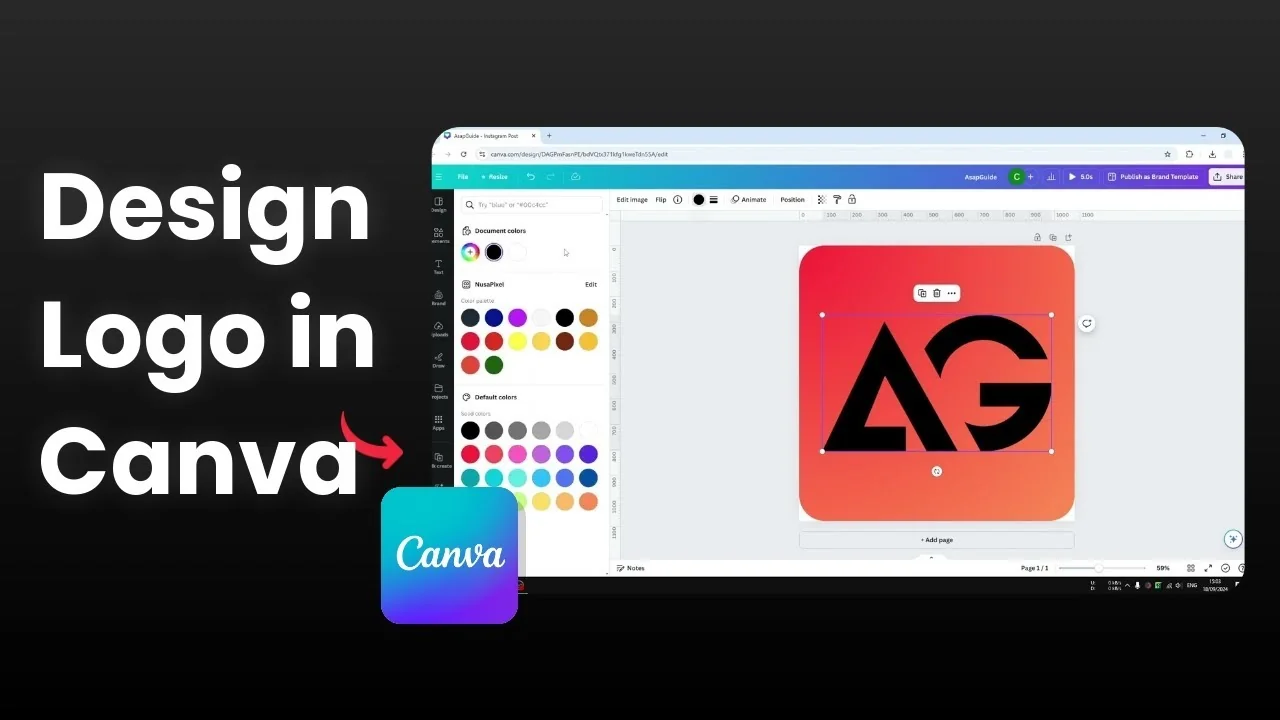
I will show you how you can create an app icon or a website icon using Canva. This is much easier than most people have thought.
Create Logo Icon in Canva: Quick Start
Open a brand new document. I recommend a square document, for example an Instagram format like 1080 by 1080 pixels, but you can also create something smaller like 600 or 500 pixels. It has to be square because it is the standard dimension for logos and icons.
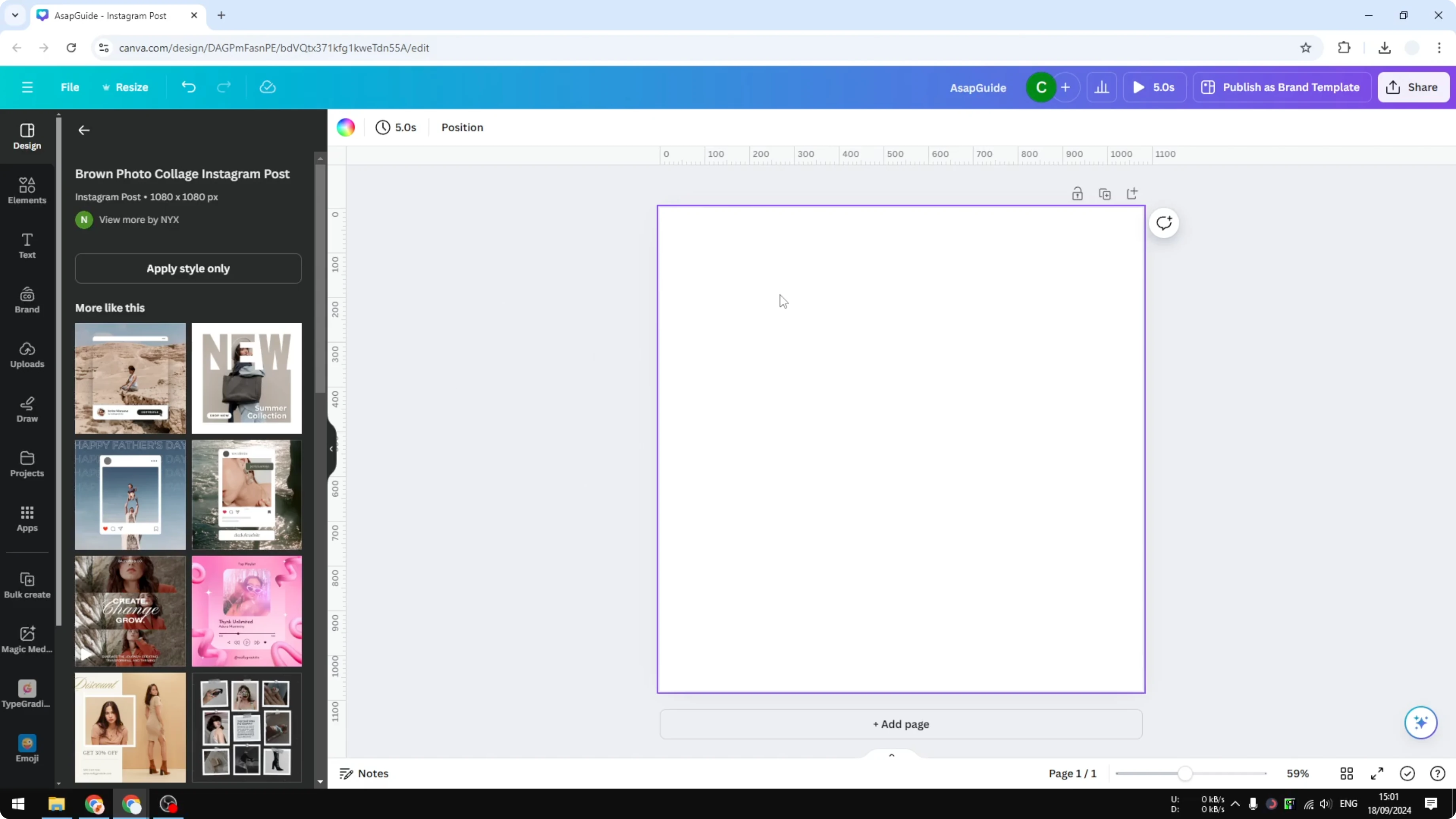
Create Logo Icon in Canva: Background
Create a background for the icon. Go to Elements and open Shapes, then choose either a square or a circle as the background. A square with rounded corners works best.
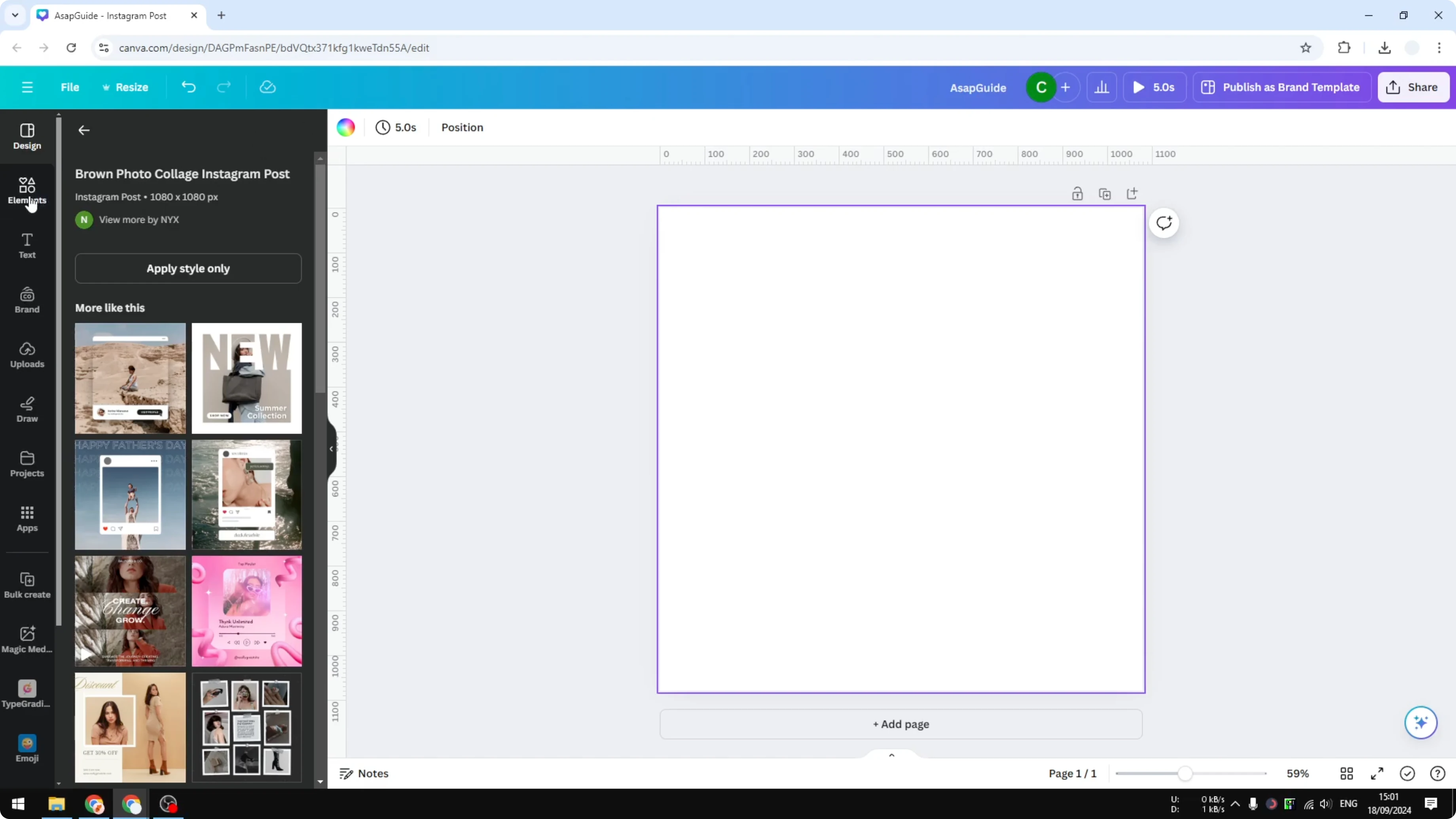
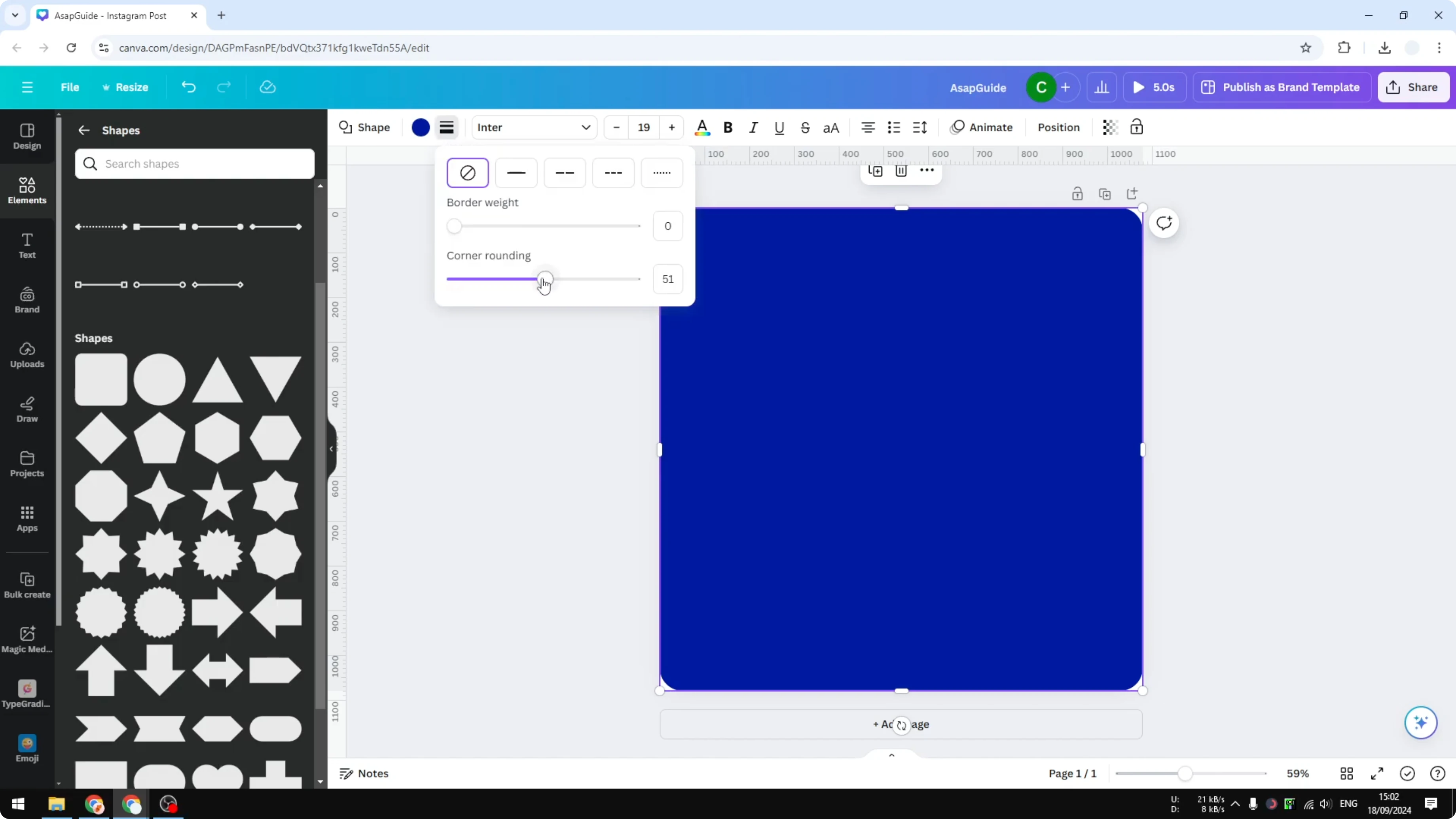
Enlarge the background to match the size of the canvas. Increase the corner rounding to 100. Select a gradient color or a solid color for the background.
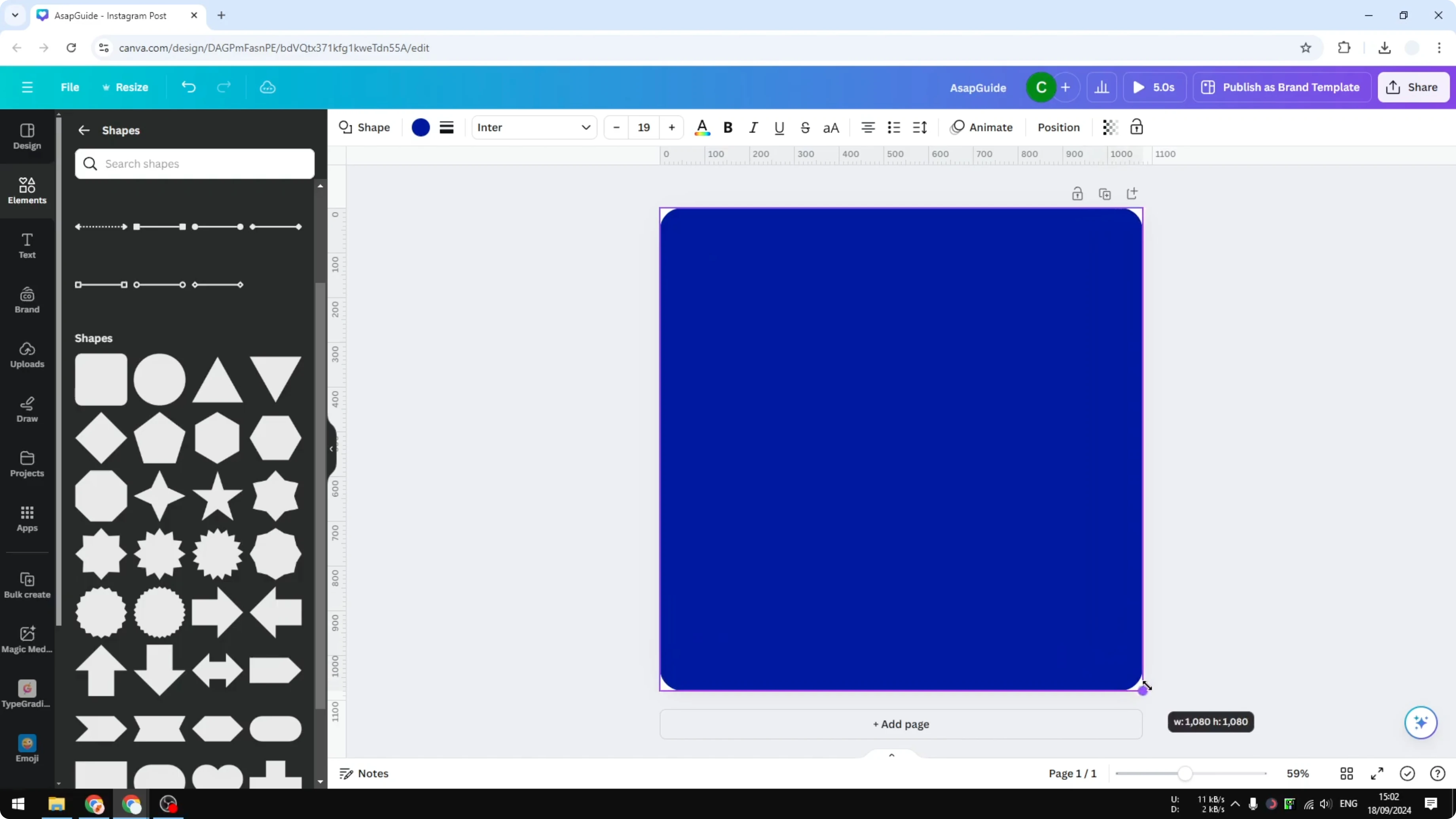
Adjust the color until it feels right for your icon. Balanced contrast helps the icon stand out. If you want playful typography to pair with the icon, try a fun style like a balloon text effect.
Create Logo Icon in Canva: Add the Icon
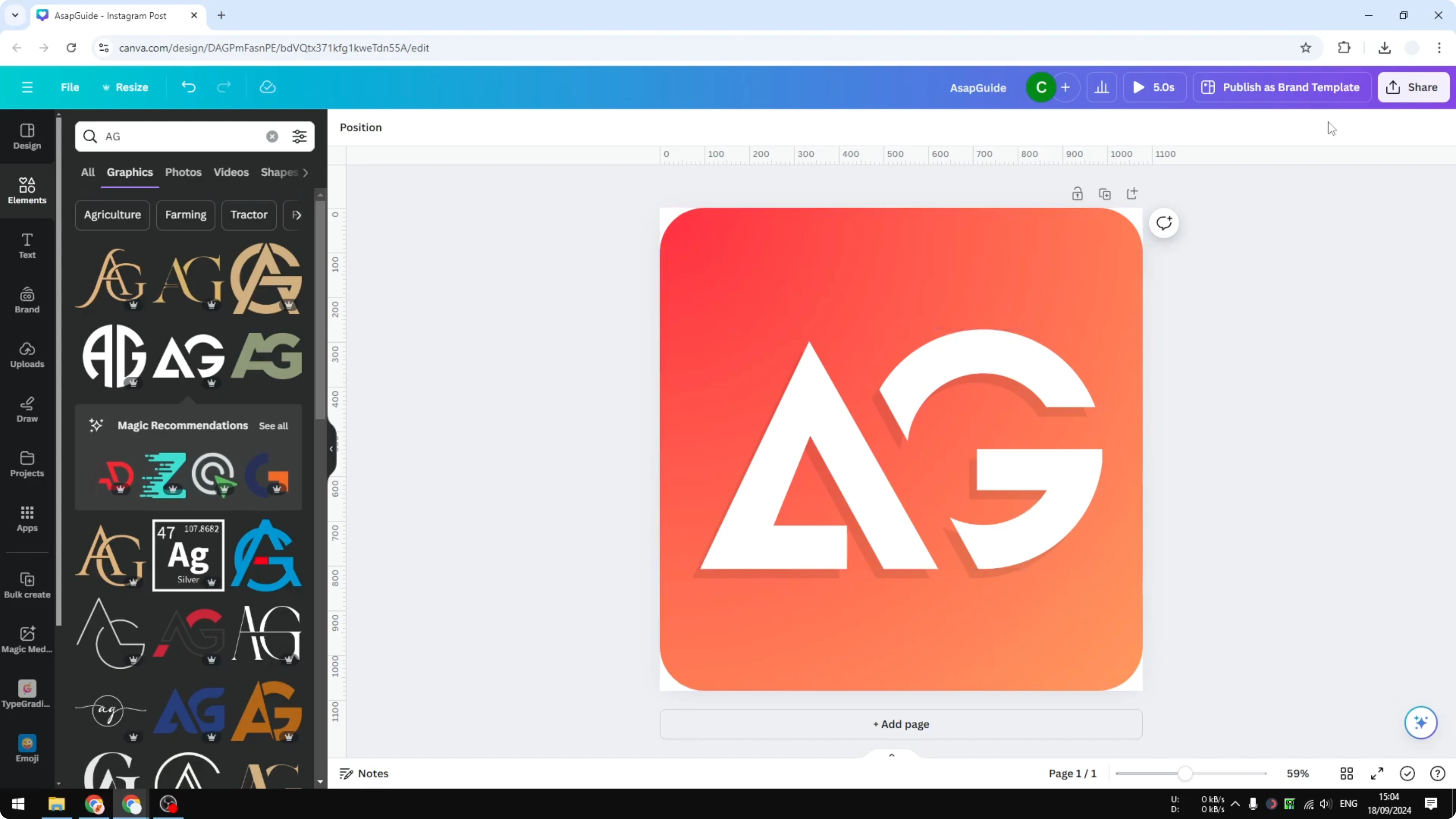
Insert the logo or the icon. If you have the file on your computer, upload the file to Canva. For a quick illustration, you can find ready logos and marks in the Graphics section.
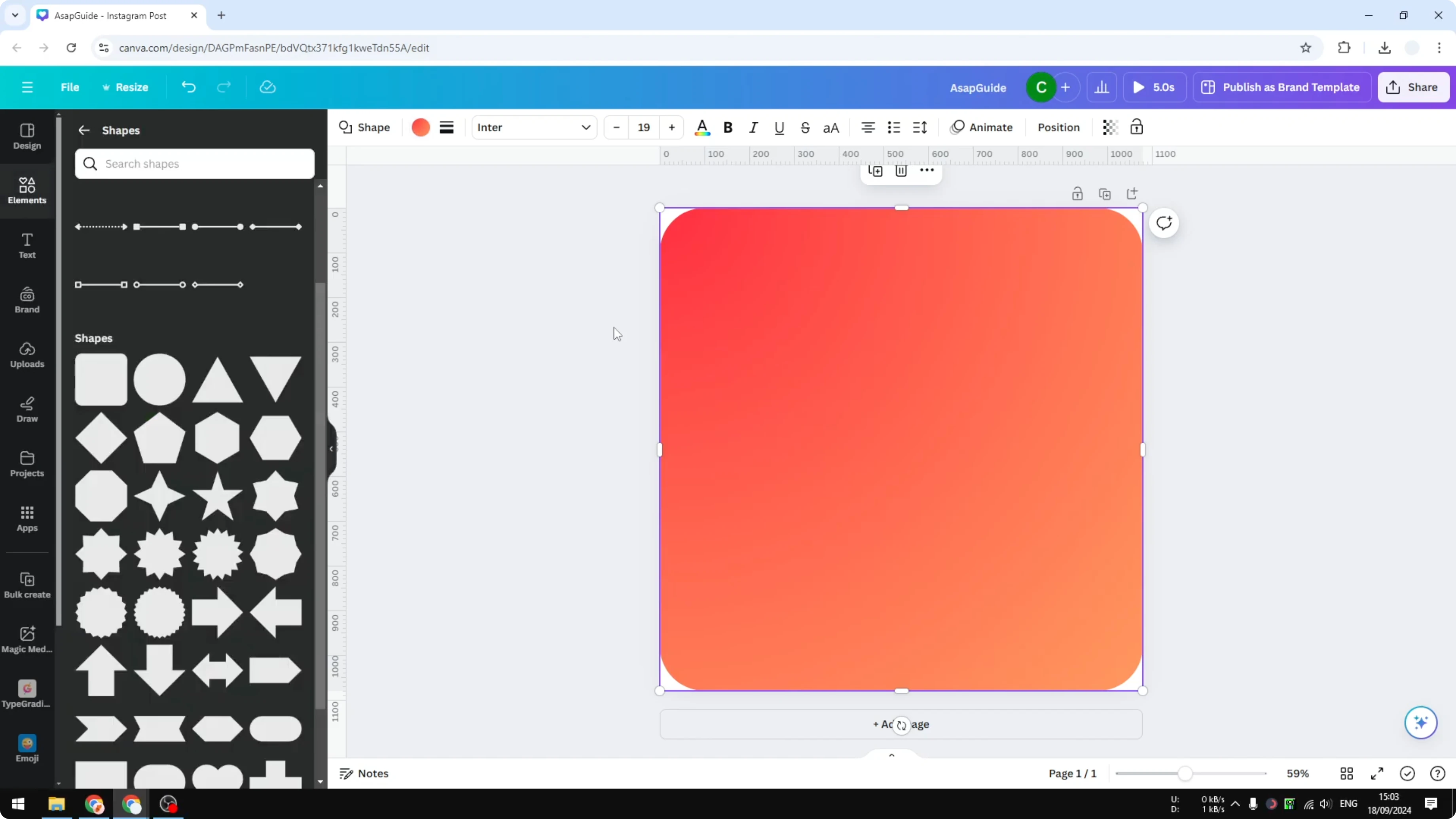
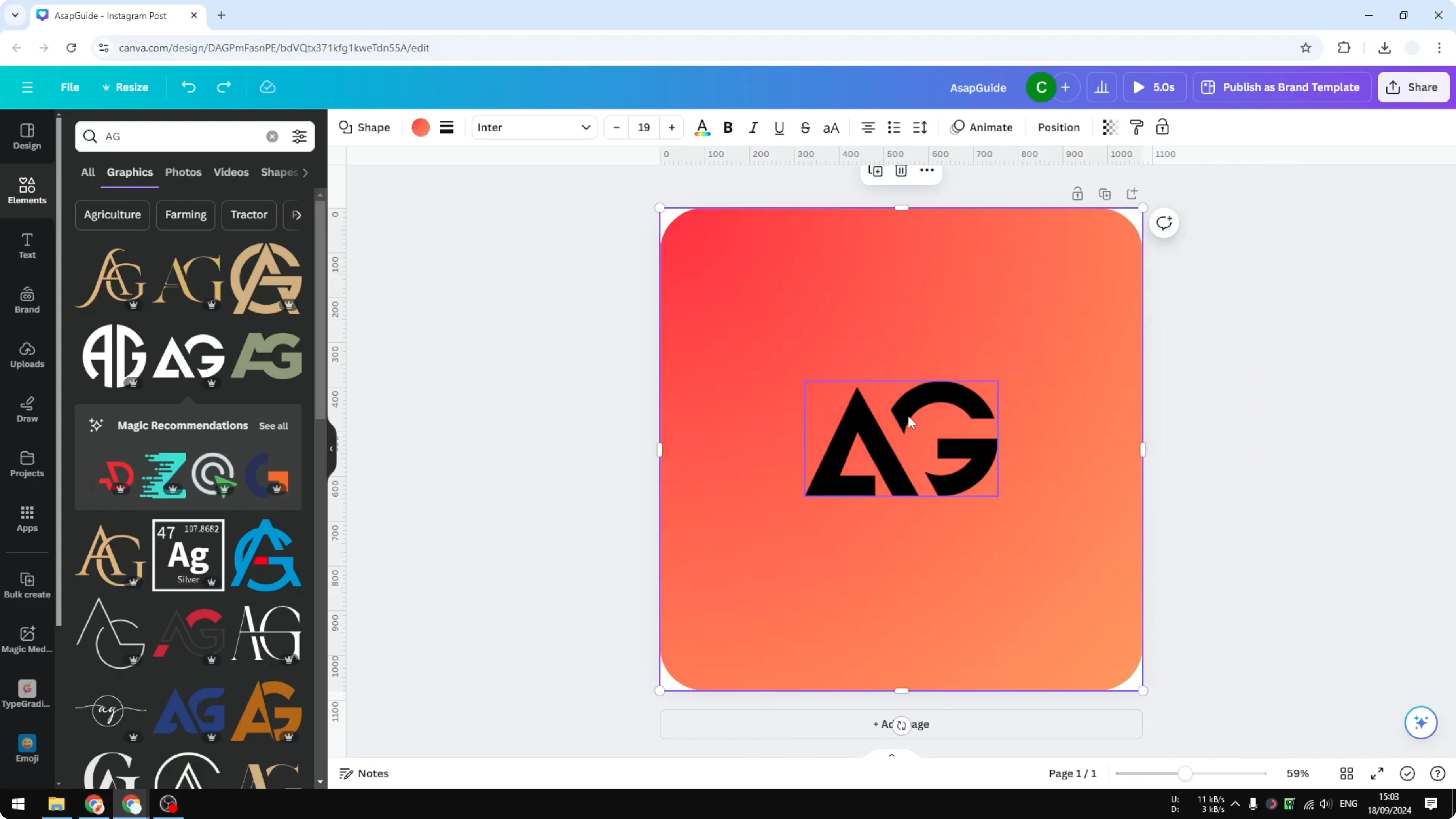
Make the icon larger and center it precisely in the middle. Some graphics let you change colors in the color menu. Switch it to white for a clean, strong contrast.
Create Logo Icon in Canva: Shadow Effect
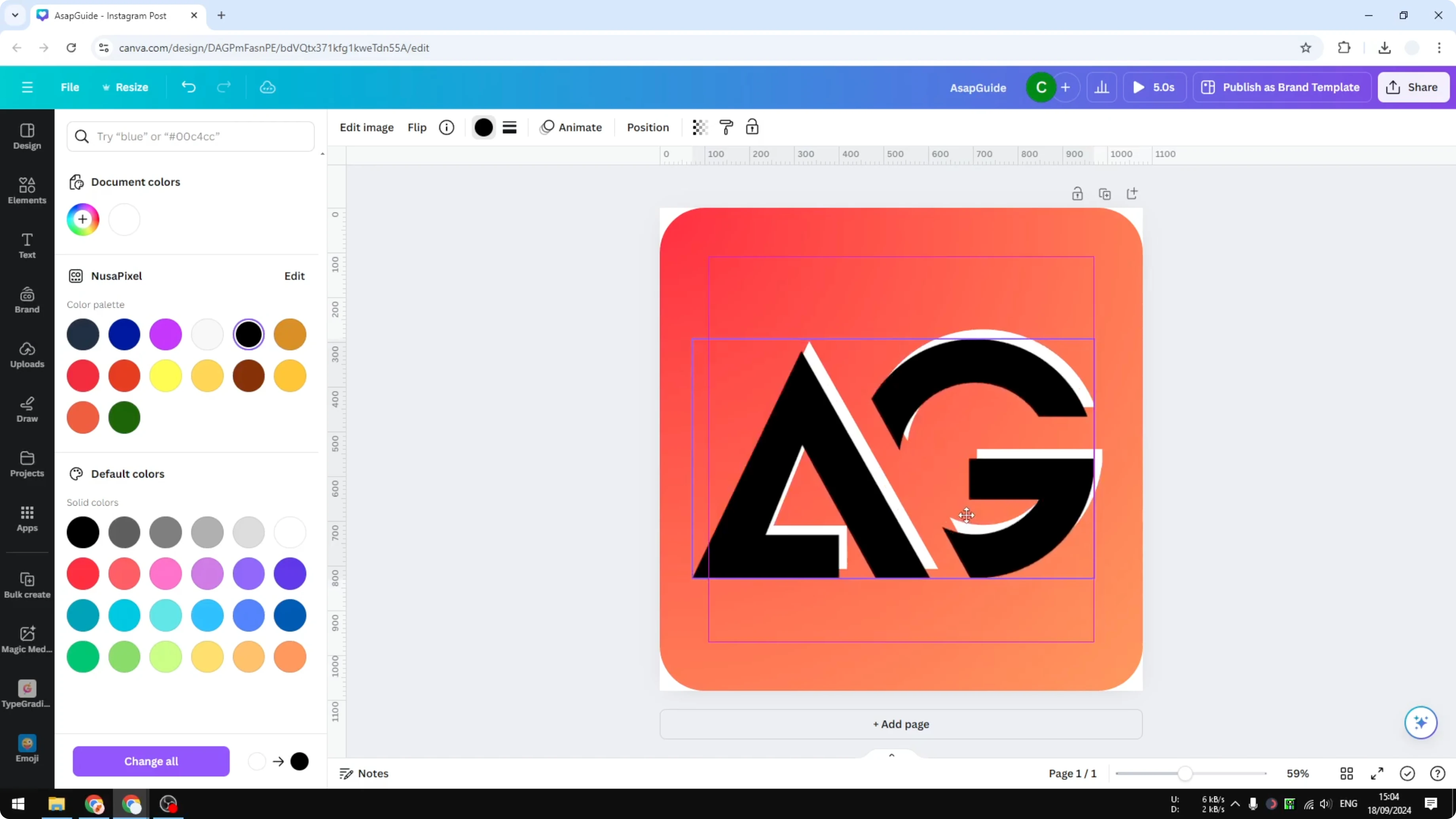
Some elements do not support a shadow directly. A simple alternative is to duplicate the icon and turn the duplicate into the shadow.
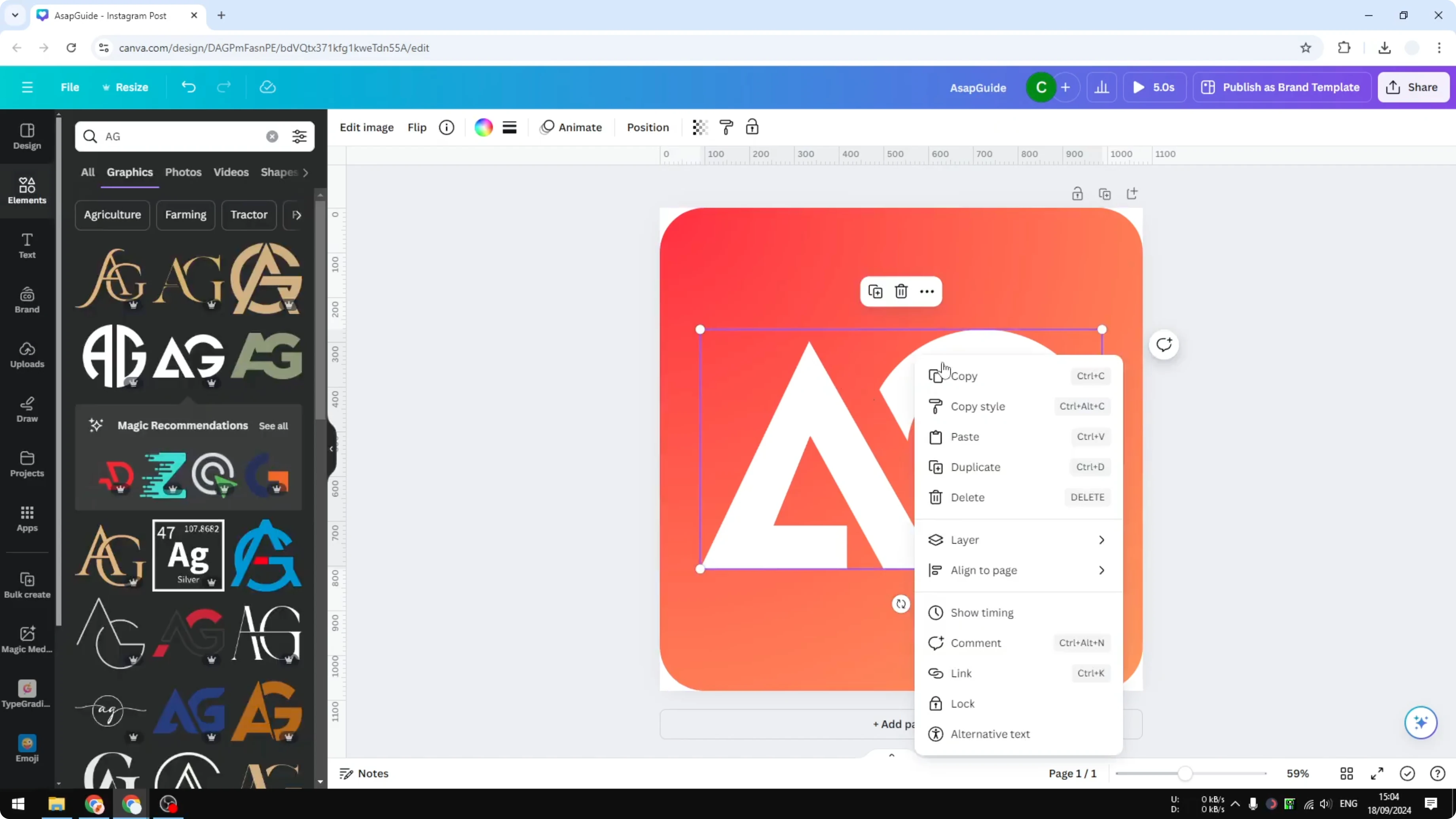
Change the duplicate’s color to black. Put it behind the main icon and reduce transparency to around 10 percent. Send it backward or to back so the white icon sits on top, creating a subtle 3D feel. For more depth ideas, see how to create a 3D cube in Canva.
Create Logo Icon in Canva: Export
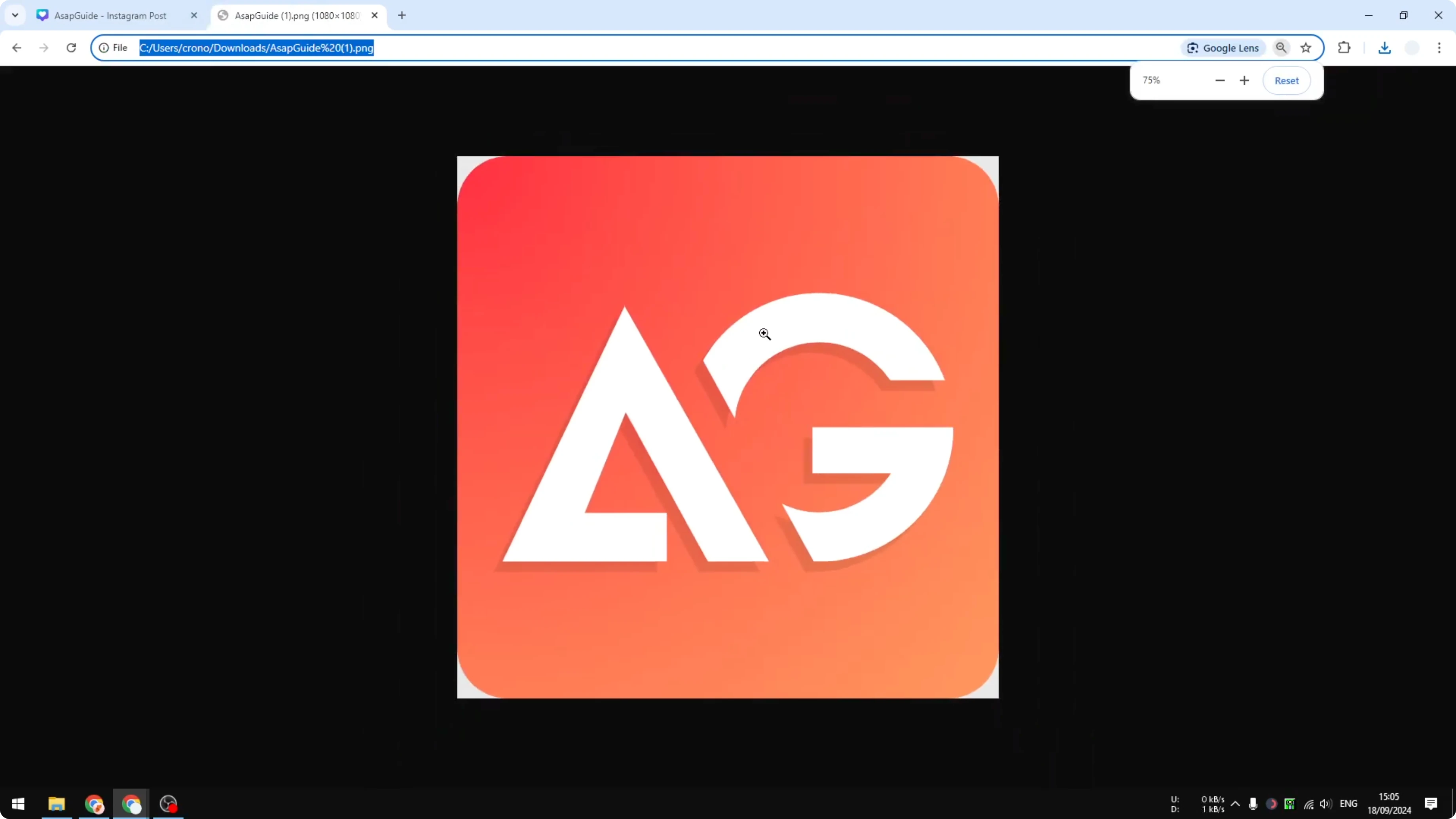
When you are done, open Share and choose Download. I recommend PNG and enabling Transparent background to preserve the nice rounded corners on the icon. For detailed export tips, check this guide to a clean transparent background logo in Canva: transparent PNG export from Canva.
Click Download and preview your icon. You should see a crisp mark with clean edges. It only takes two or three minutes to finish.
Final Thoughts on Create Logo Icon in Canva
Start with a square canvas, build a clean rounded background, and center a simple mark. A quick duplicate as shadow trick adds depth when native shadows are not available. Export as PNG with a transparent background for a polished result ready for apps and websites.
Recent Posts

How to Visualize Yourself as a Pixelized Character with AI?
How to Visualize Yourself as a Pixelized Character with AI?

How to Revive Faded Memories and Enhance Image Clarity with AI?
How to Revive Faded Memories and Enhance Image Clarity with AI?

How to Visualize Yourself as an Animal Crossing Character with AI?
How to Visualize Yourself as an Animal Crossing Character with AI?