How to Create a Hollow Text Effect in Canva
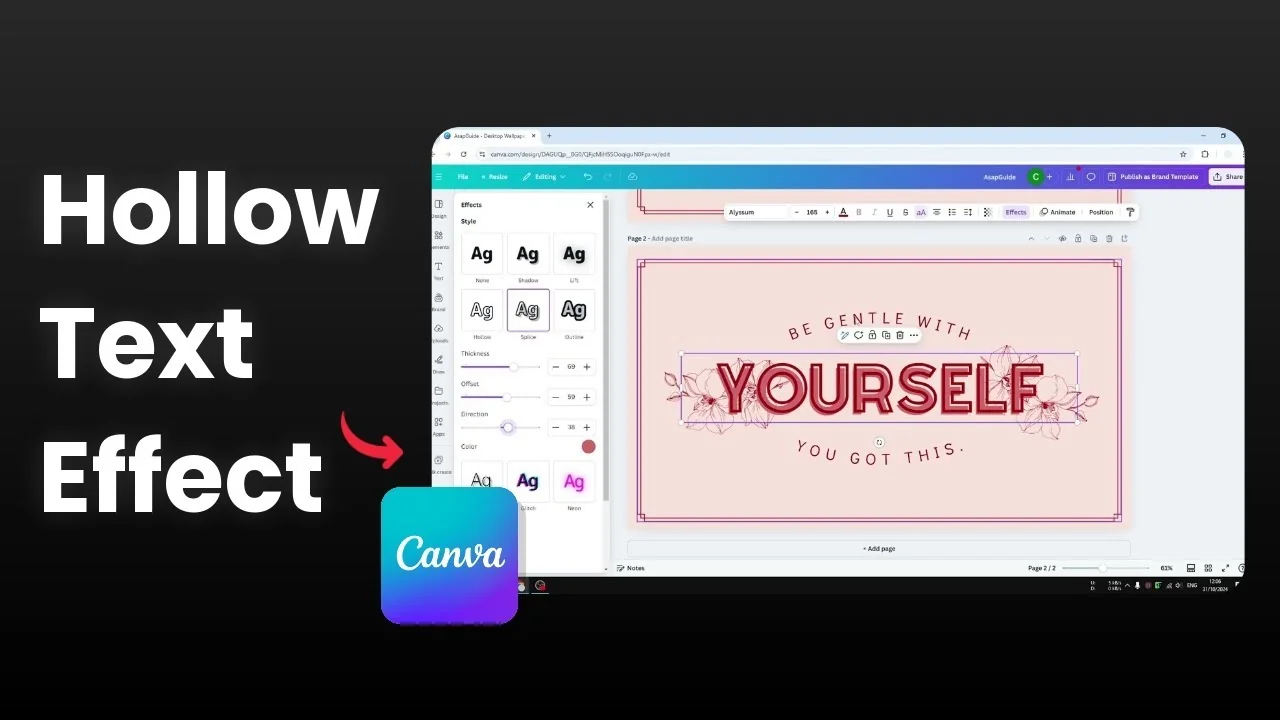
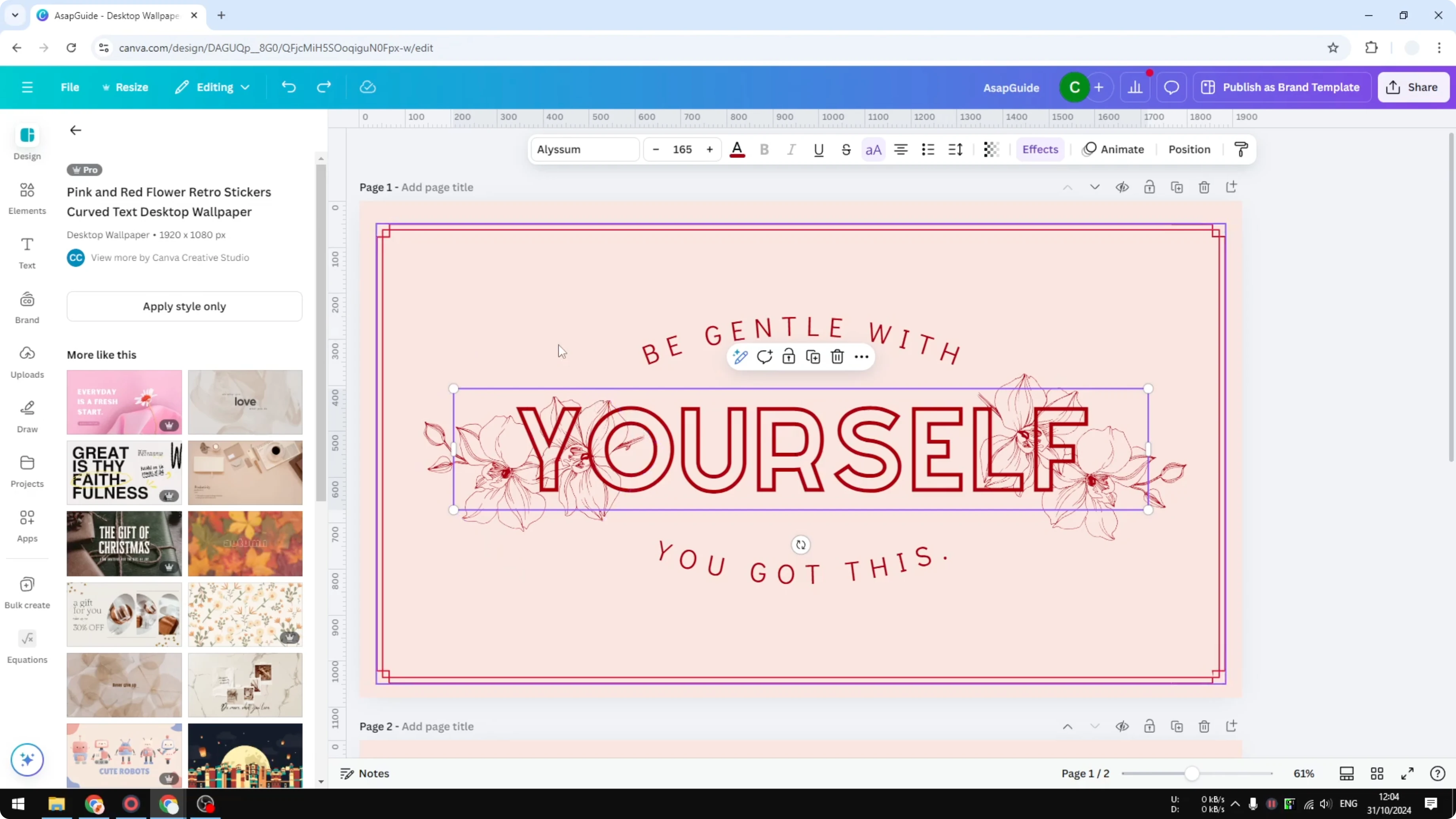
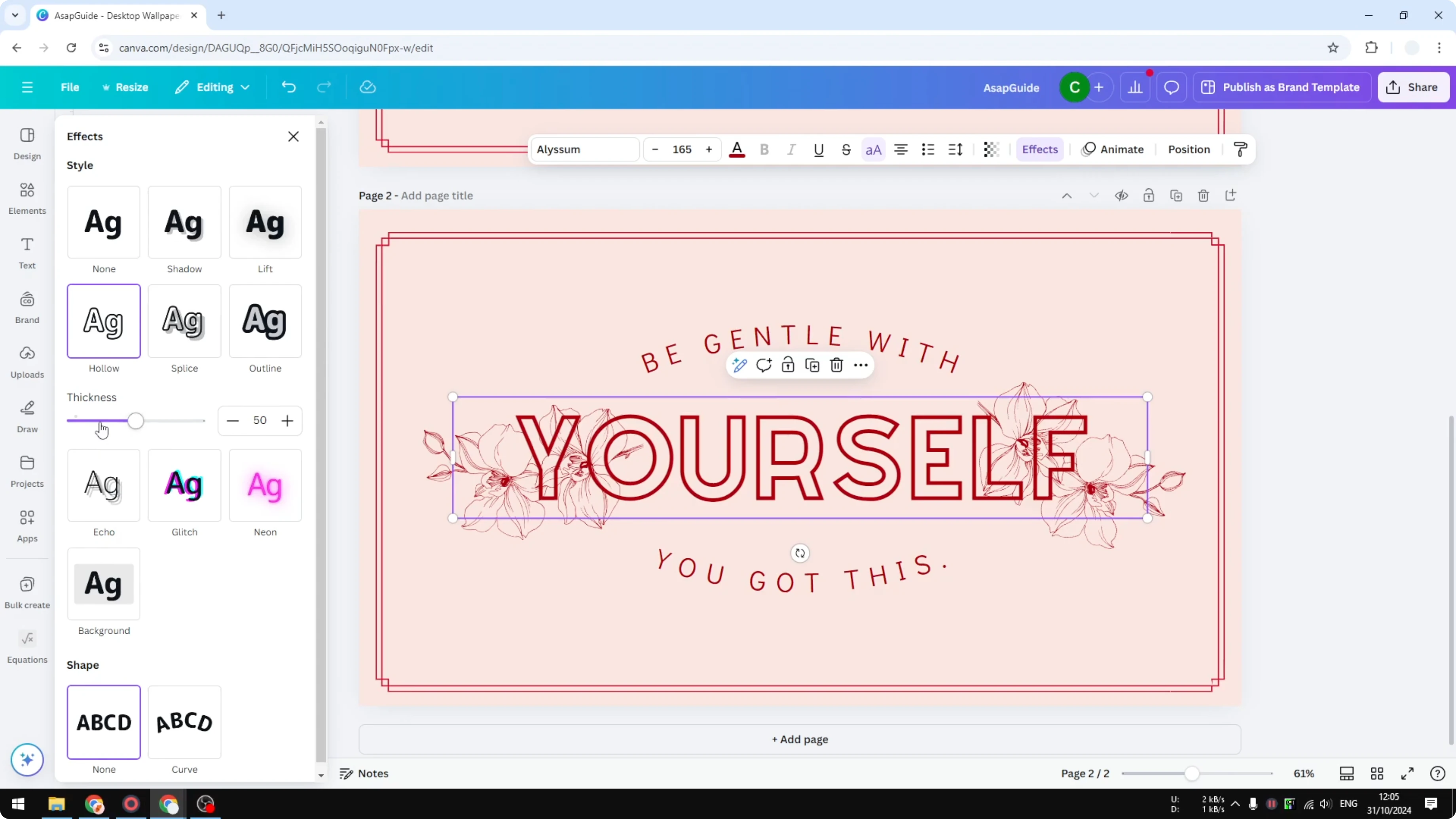
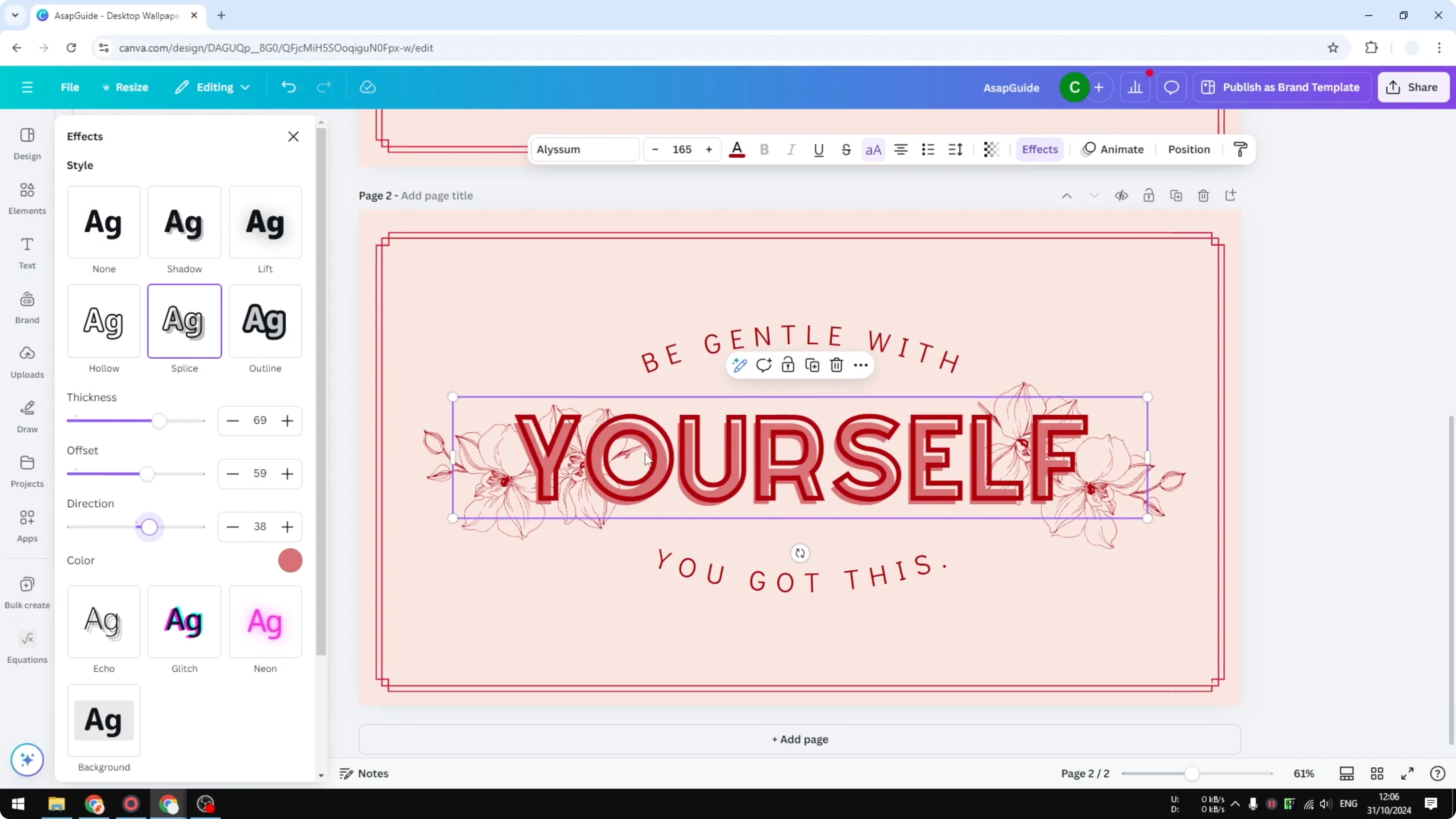
A hollow text effect removes the solid fill of your letters while keeping the border intact. This is particularly useful when you want to show the text and also showcase what's behind it, like decorative elements. In my example, there is a picture of a flower, and the flower remains visible even though the text overlaps it.
If you want another playful outline style after this, try an echo text effect in Canva for layered outlines.
Create a Hollow Text Effect in Canva
Click on the text box.
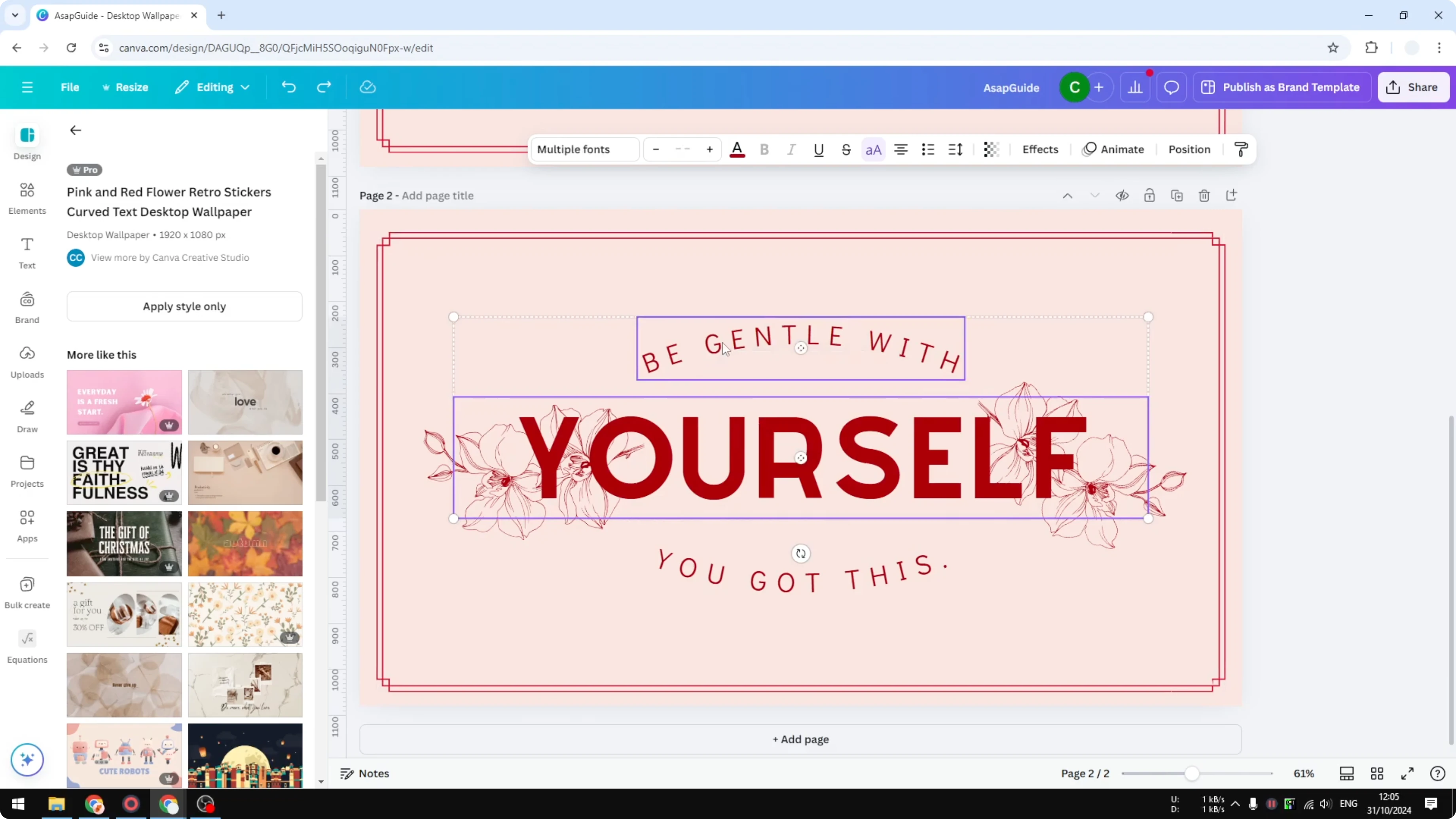
To select multiple text boxes, press and hold the Shift key, then click each text box you want to select.
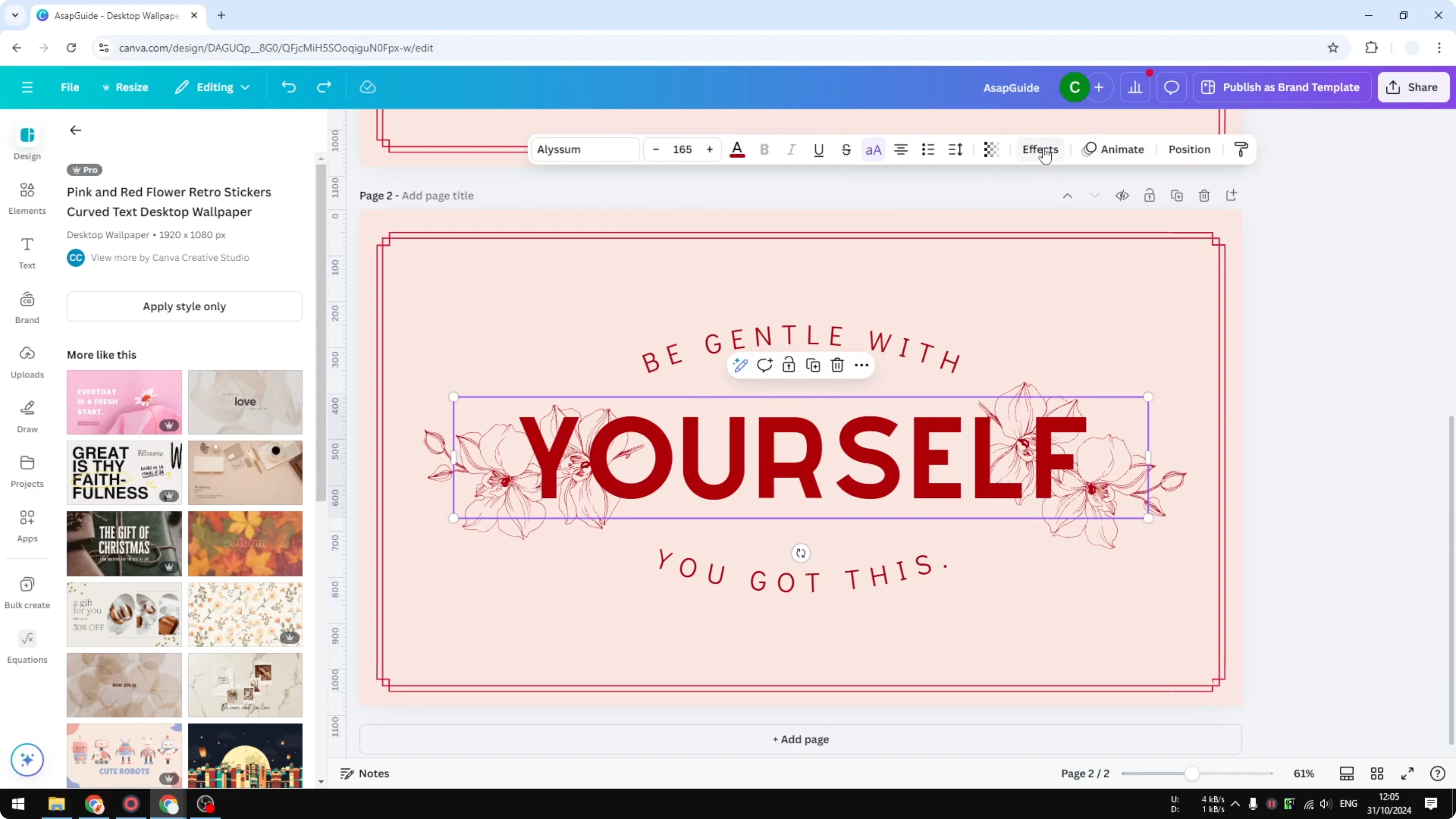
In the top menu, open Effects and enable Hollow.
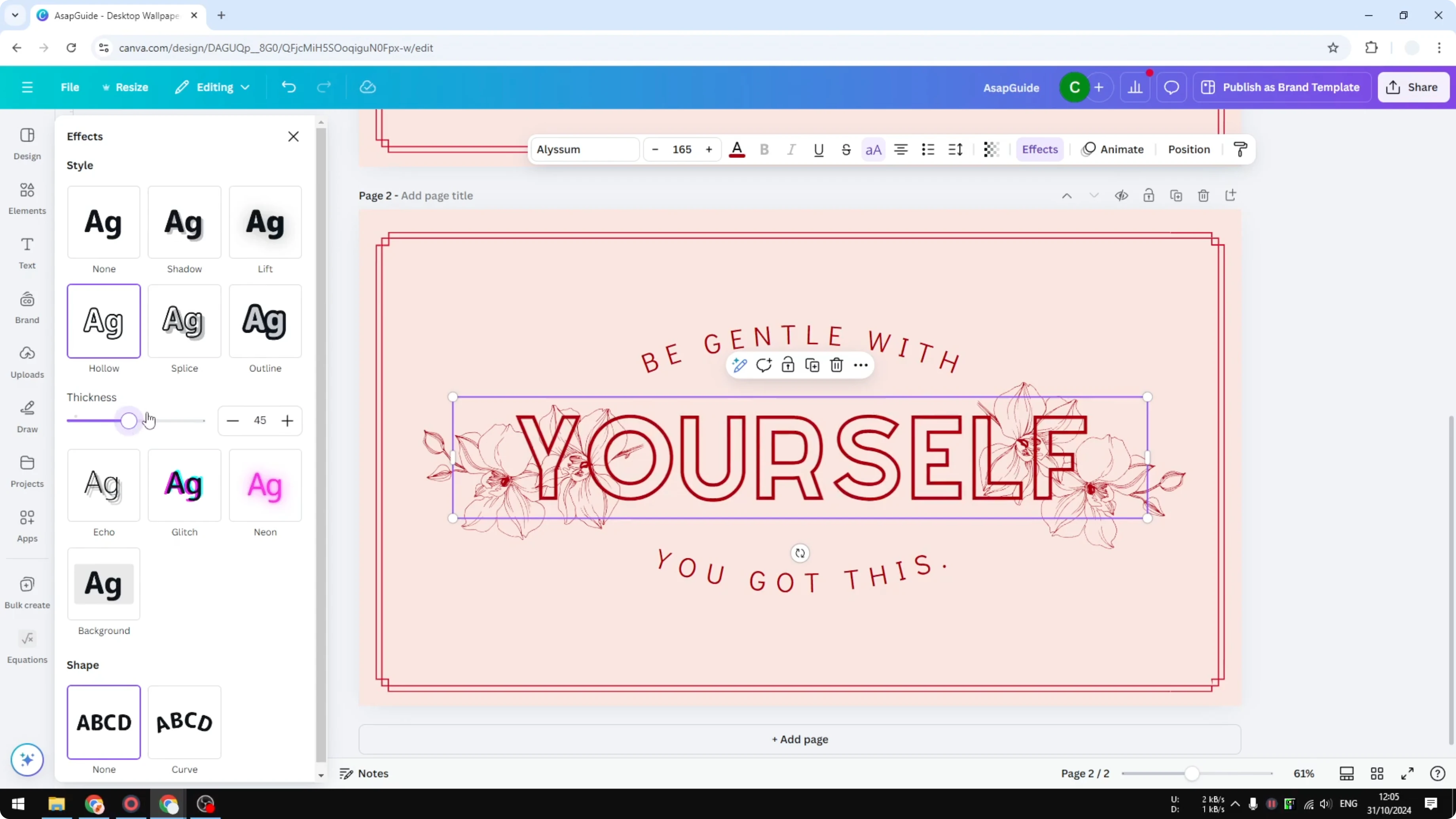
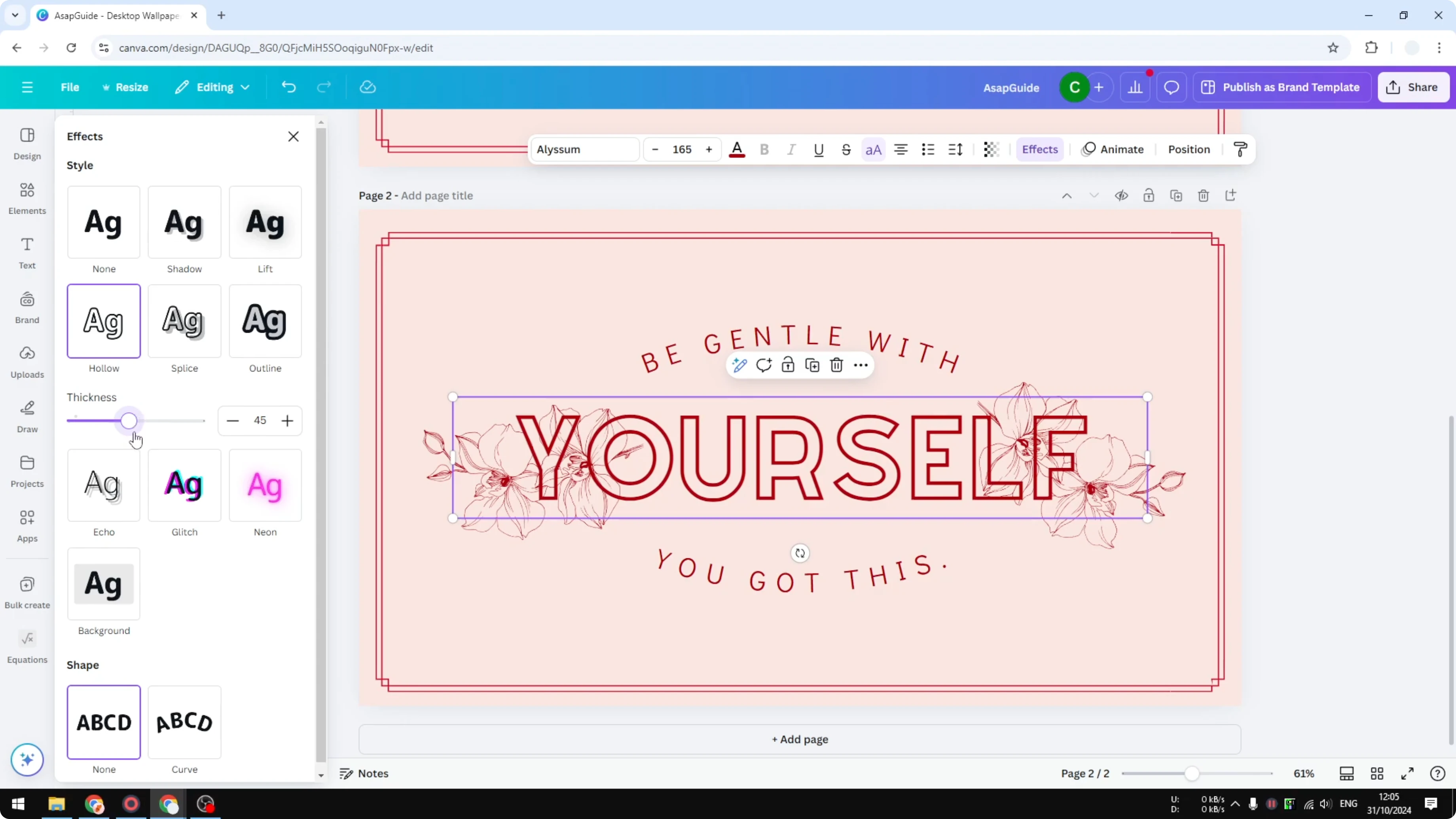
By default, the border thickness of the text is set to 50 percent. Make it very thin or very thick by moving the slider, depending on how bold you want the outline to look. The same steps work no matter the font or text style.
Adjustments that matter
Fine-tune the border color to match your design, or contrast it so the outline reads clearly over your background. Keep an eye on legibility if your background is busy. A slightly thicker outline often helps the text stay readable.
Splice for a similar look
There is another style that is very similar called Splice. The solid inner part of the text is gone, and what is left is the outline shape of the text with a colored offset. You can adjust the thickness, the position of the offset, and also the direction of the offset.
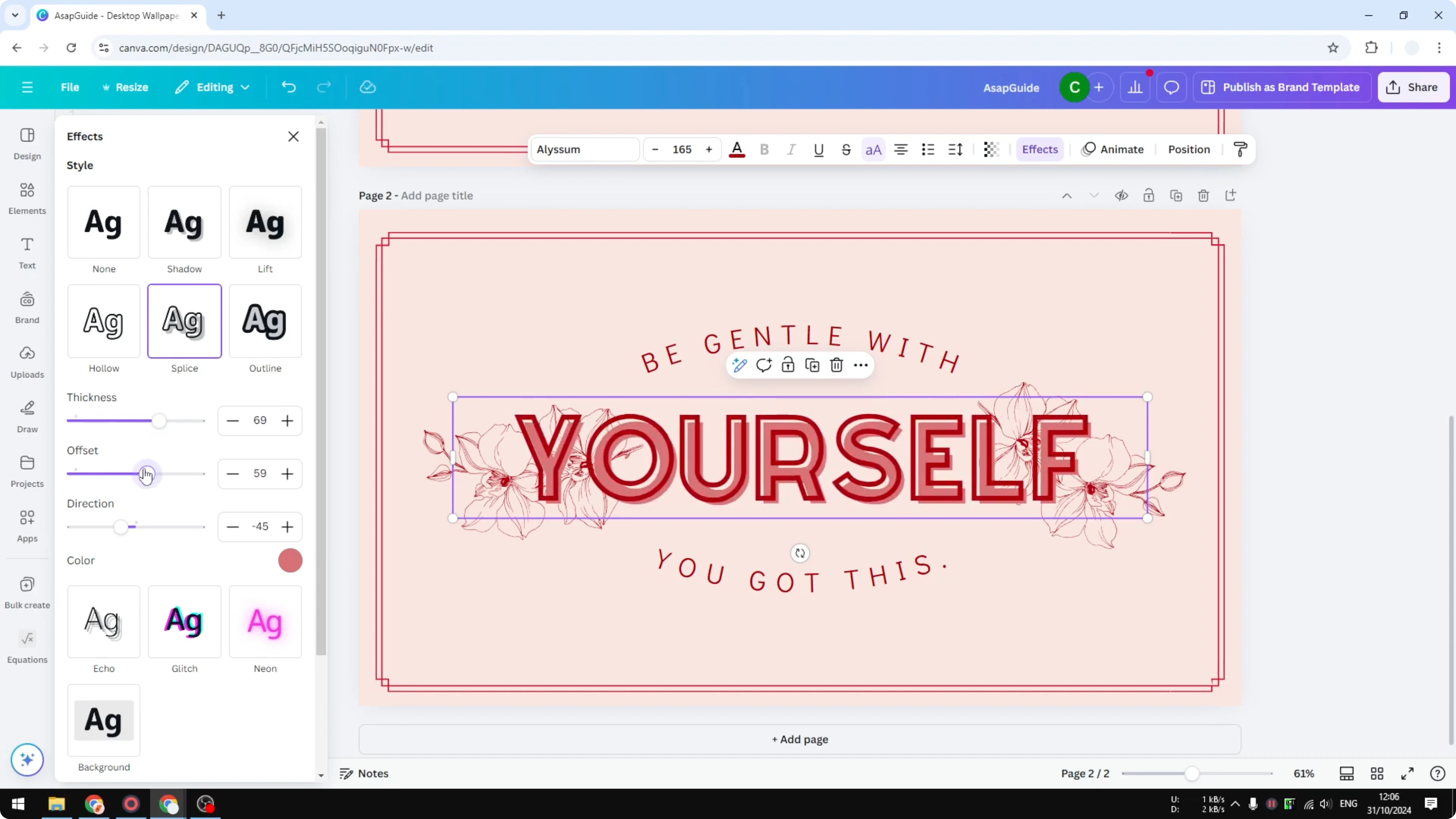
This is similar to old comic book printing, where color appears to bleed outward from the edges of a character. If you want to achieve that design, use the Splice effect and nudge the offset controls until you get the retro misprint look. For a more distorted, offset-driven style, see this glitch text effect in Canva.
Final thoughts on Create a Hollow Text Effect in Canva
Hollow keeps your letters readable while letting the background show through, which is great for overlays on photos or decorative elements. Splice gives you a close variant with offset control for a retro print aesthetic. If you prefer a softer, transparency-based look instead, take a look at this faded text effect.
Recent Posts

How to Visualize Yourself as a Pixelized Character with AI?
How to Visualize Yourself as a Pixelized Character with AI?

How to Revive Faded Memories and Enhance Image Clarity with AI?
How to Revive Faded Memories and Enhance Image Clarity with AI?

How to Visualize Yourself as an Animal Crossing Character with AI?
How to Visualize Yourself as an Animal Crossing Character with AI?