How to Create Halftone Effect in Canva
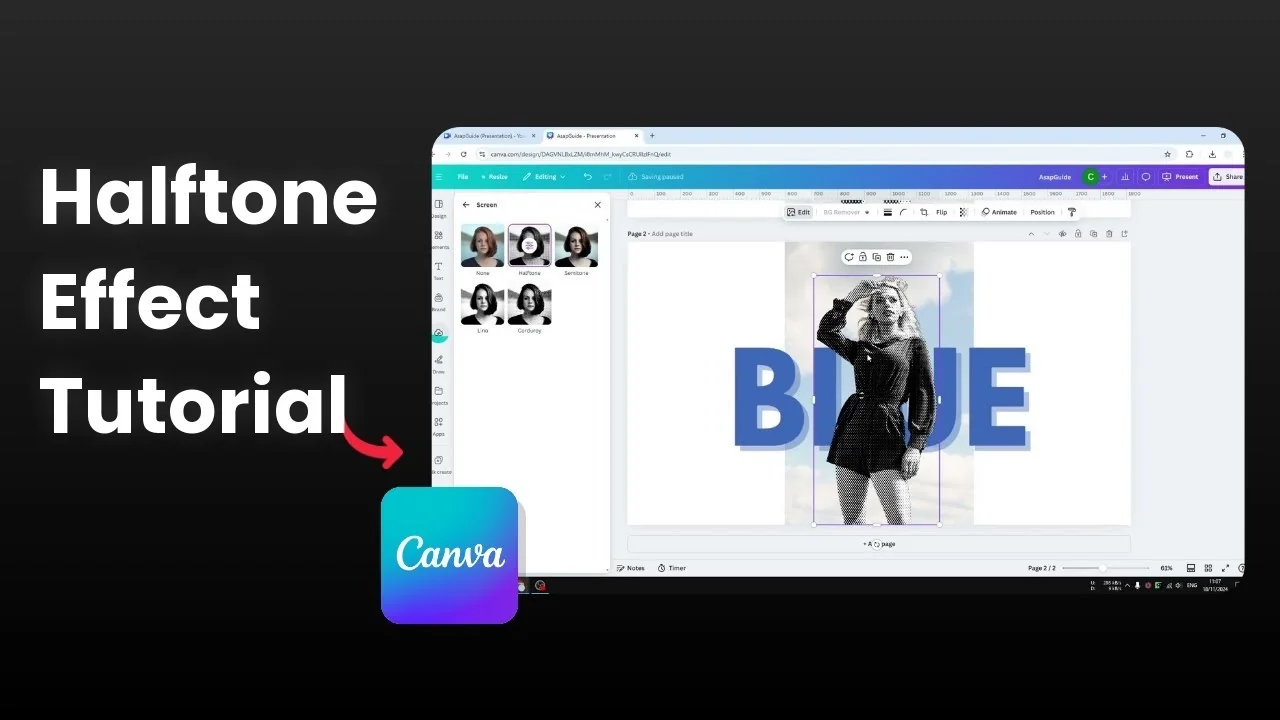
The halftone effect comes from printing technology from decades ago. You have probably seen it in comic books and magazines. It gives an old look to an image, and I think it looks really cool.
Here is how you can apply it to any image in Canva. Start with the original image you want to transform. I’ll show the steps I use to get a clean result.
If you like photo aesthetics with visual texture, you might also enjoy a soft blur look. See the bokeh effect in Canva for another creative option.
Why Create Halftone Effect in Canva
This effect adds retro print texture with dots or lines that build up the image. It works well on portraits, posters, and graphic collages. It also helps unify colors and tones with a stylized finish.
Apply Create Halftone Effect in Canva
Start with your original image. There’s a subject and a background, and I want this one to have the halftone effect.
Select the image and click Edit. In the Apps section, scroll to the right until you find Screen. This is the app we are going to use.
If this is your first time opening it, confirm by clicking the Open button at the bottom right. The app will load on the left panel.
You will see four different presets. Click any of them to immediately preview the result. They are the same tool with different settings.
For more creative looks that push shapes and forms, you can also try a warped look using a distortion effect in Canva on separate elements.
Tweak Settings - Create Halftone Effect in Canva
Click Halftone to adjust values. Increase or reduce the scale to change dot size. Reduce the halftone amount to soften the texture or raise it for a stronger pattern.
Play around with the settings until the preview matches your style. Subtle adjustments usually look better on skin and gradients. Stronger values can work well on posters and high-contrast graphics.
Save Results - Create Halftone Effect in Canva
When you like the look, click Save. The effect will be applied to that image.
Canva uploads the result to your account as a brand new image. Your original image is not affected, so you can always go back to it or try a new variation.
If you want to carry the retro mood into your typography, try a softened type treatment. Here’s a simple way to get it with a faded text effect in Canva.
Final thoughts
The halftone effect brings classic print character to modern designs. Use the Screen app, test the presets, then fine-tune scale and amount until it fits your image. Save the result as a new asset so you can experiment freely without losing the original.
Recent Posts

How to Visualize Yourself as a Pixelized Character with AI?
How to Visualize Yourself as a Pixelized Character with AI?

How to Revive Faded Memories and Enhance Image Clarity with AI?
How to Revive Faded Memories and Enhance Image Clarity with AI?

How to Visualize Yourself as an Animal Crossing Character with AI?
How to Visualize Yourself as an Animal Crossing Character with AI?