How to Create Gradient Text in Canva
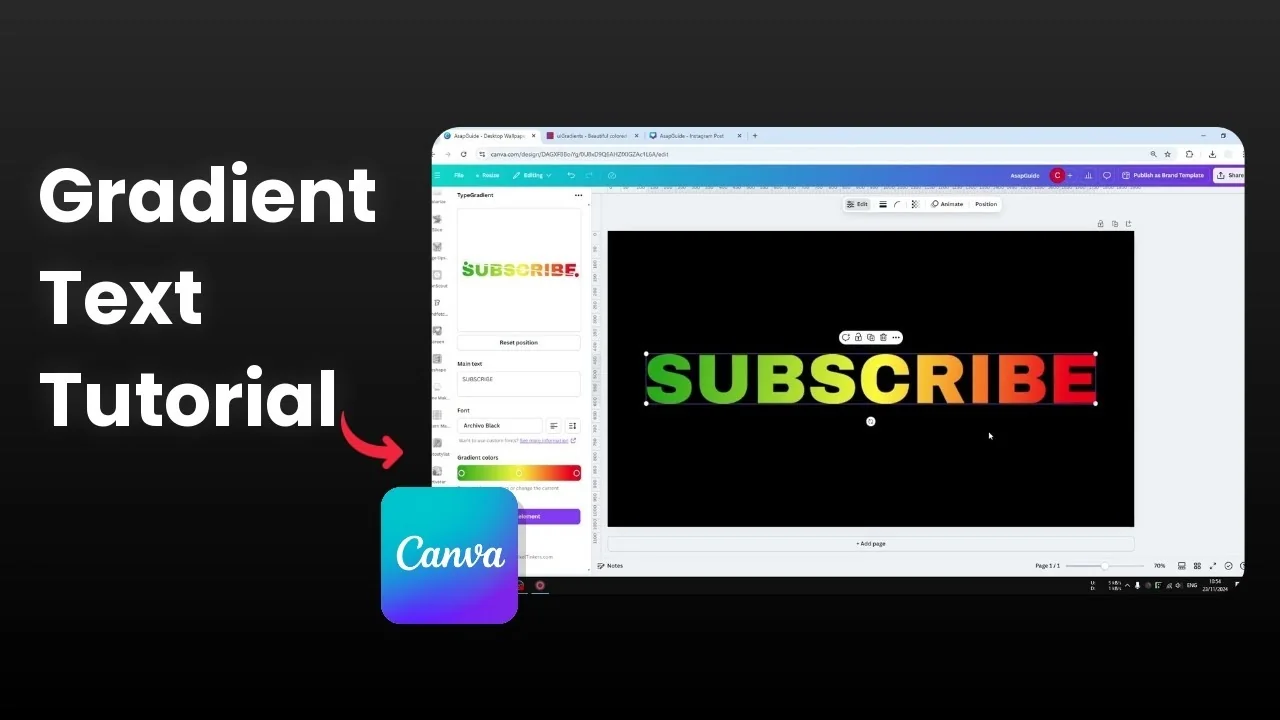
Creating a gradient effect on text in Canva is simple, and it works best with a third-party tool that is already available inside Canva. I’ll walk you through the exact steps I use. I’ll also share a quick way to pick great color combinations.
Create Gradient Text in Canva: Open the document and app

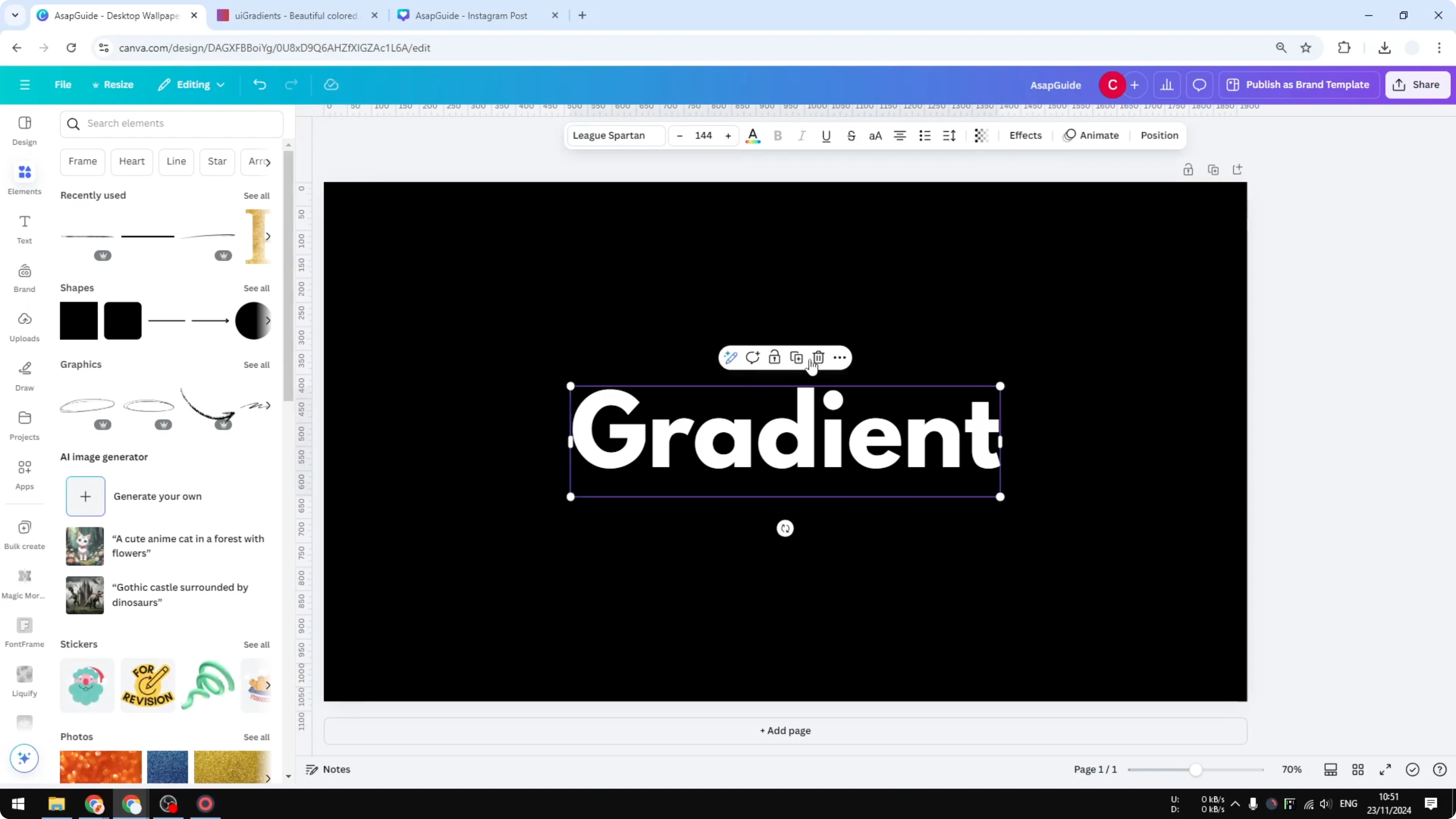
Open a new Canva document and remove any text boxes you do not need.
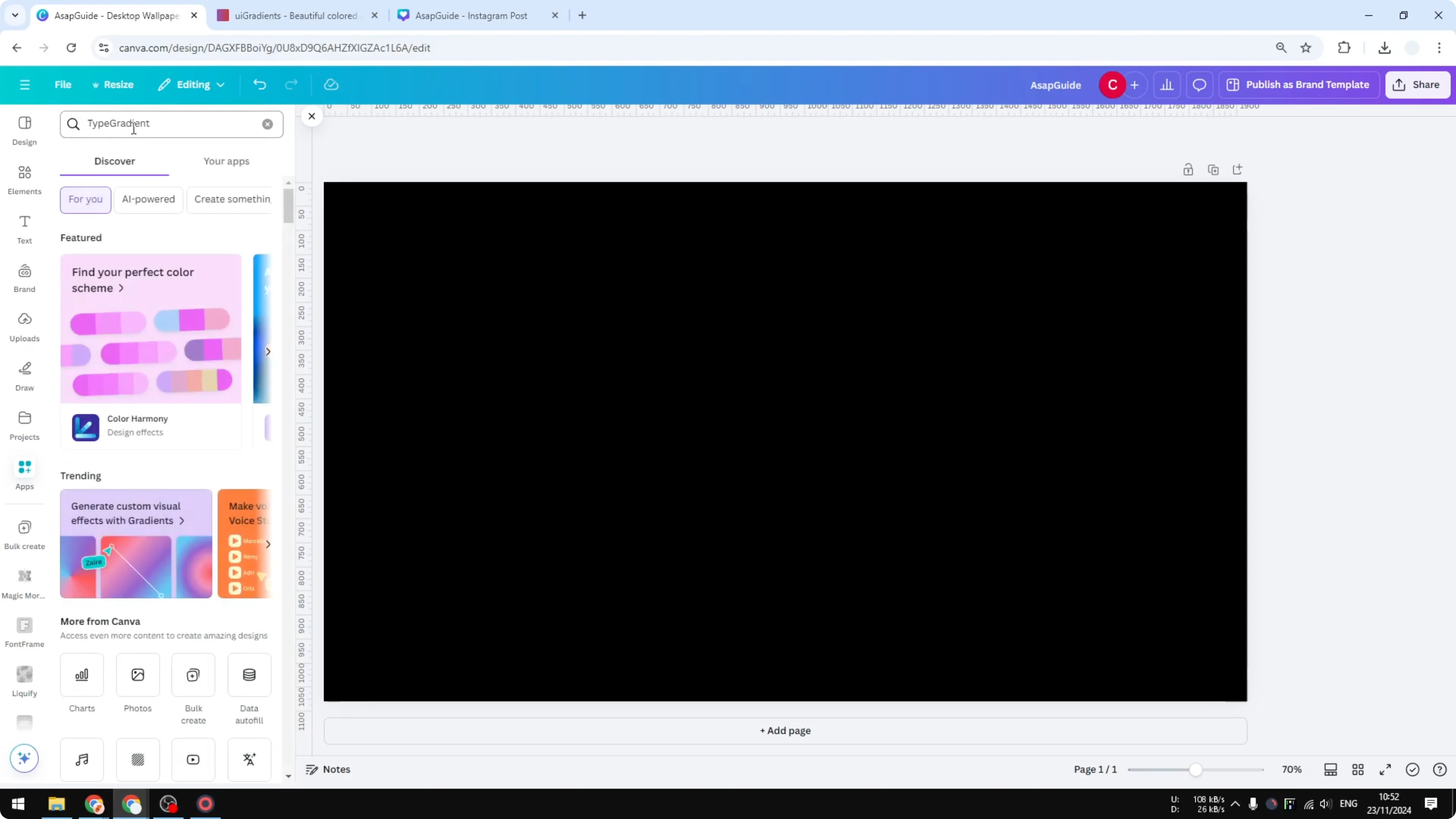
Go to Apps in the left sidebar, search for an app called Type Gradient, click it, then click Open. The tool will load as a side panel in your Canva document so you can work directly in place.
If you are exploring more text styles in Canva, see this quick guide to a faded text effect for another clean look.
Create Gradient Text in Canva: Set your text and font
Enter your text in the Type Gradient panel. I used the word Subscribe for this example.
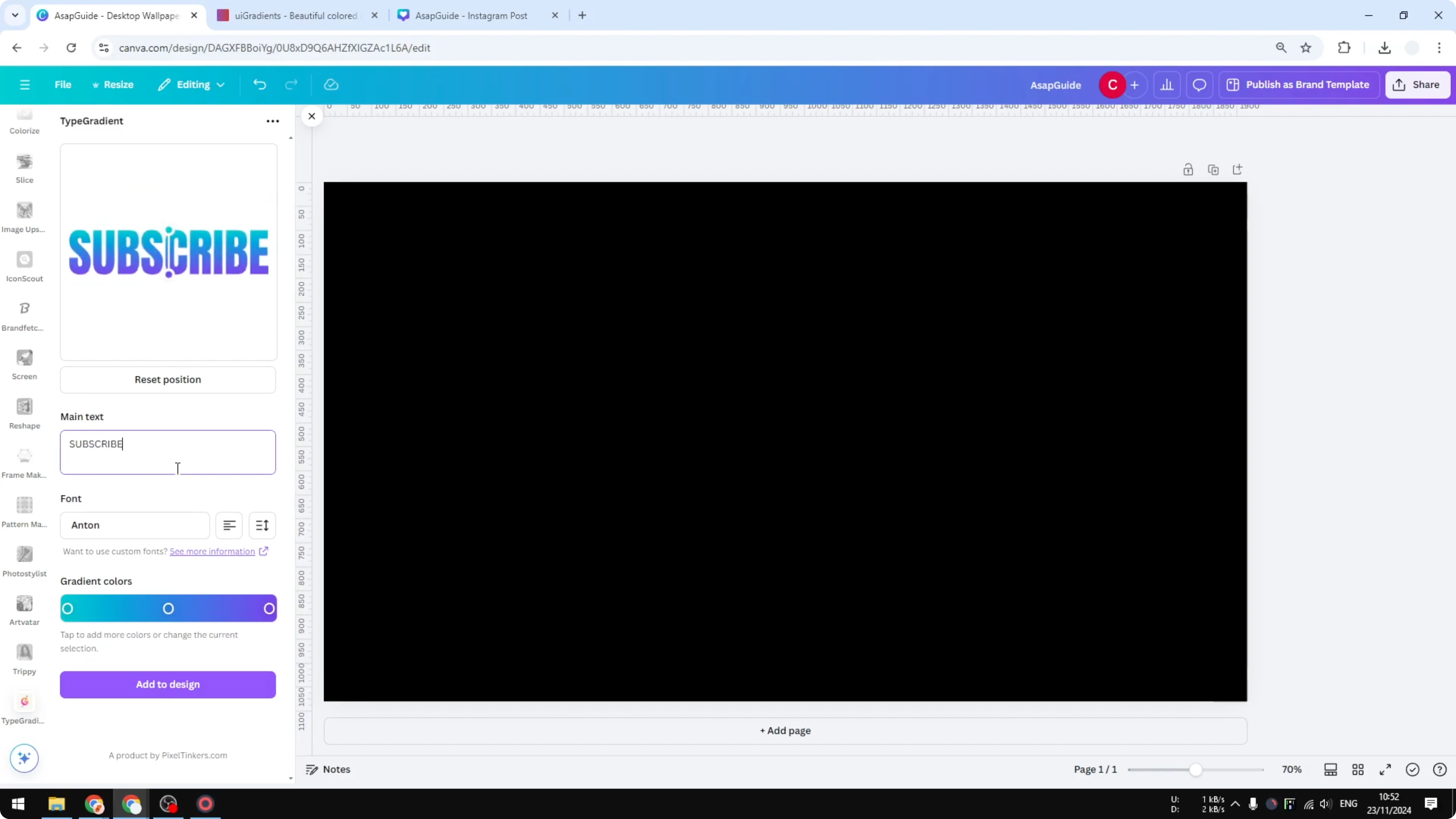
You can change the font within the app. The selection is smaller than the full Canva library, but there are enough good options, and a bold font works great for gradients.
Adjust alignment and line height if you need to tighten or space the text. The gradient direction is controlled by two points you can drag to set the angle and flow.

Create Gradient Text in Canva: Choose gradient colors

I like using uigradients.com to grab color combinations that look great together. I tried pink first, then yellow and orange, and went with a fun warm gradient.
Copy the hex code for the first color and paste it into the first color stop in Type Gradient. Do the same for the second color, and add more color stops if you want a multi-step gradient.
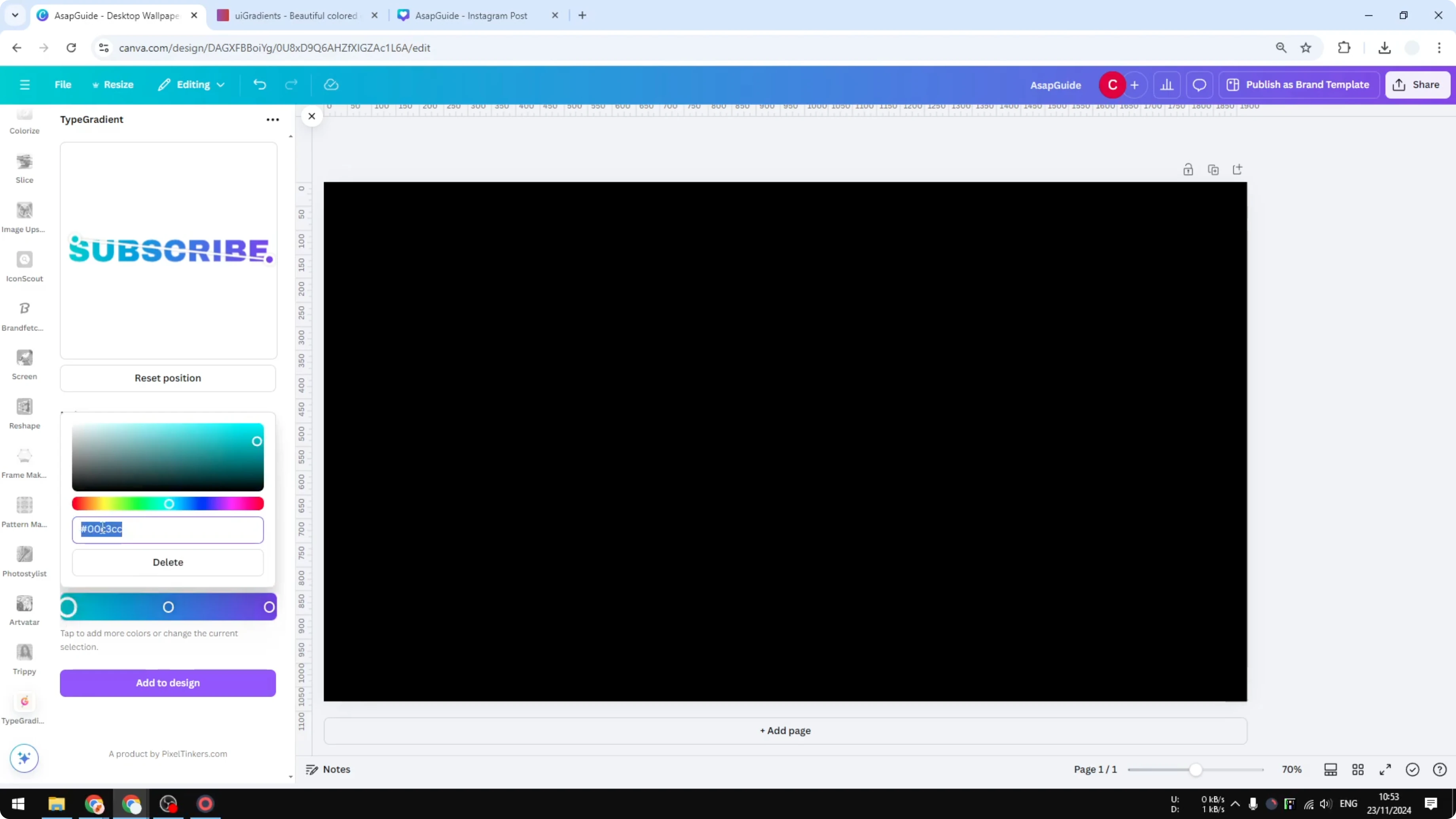
You can add a new control point by clicking in the gradient bar and delete any extra one you do not need. This gives you precise control over how the colors blend.
If you want a bold effect that stands out, try this quick glitch text effect tutorial after you finish your gradient.
Create Gradient Text in Canva: Fine-tune and add to design
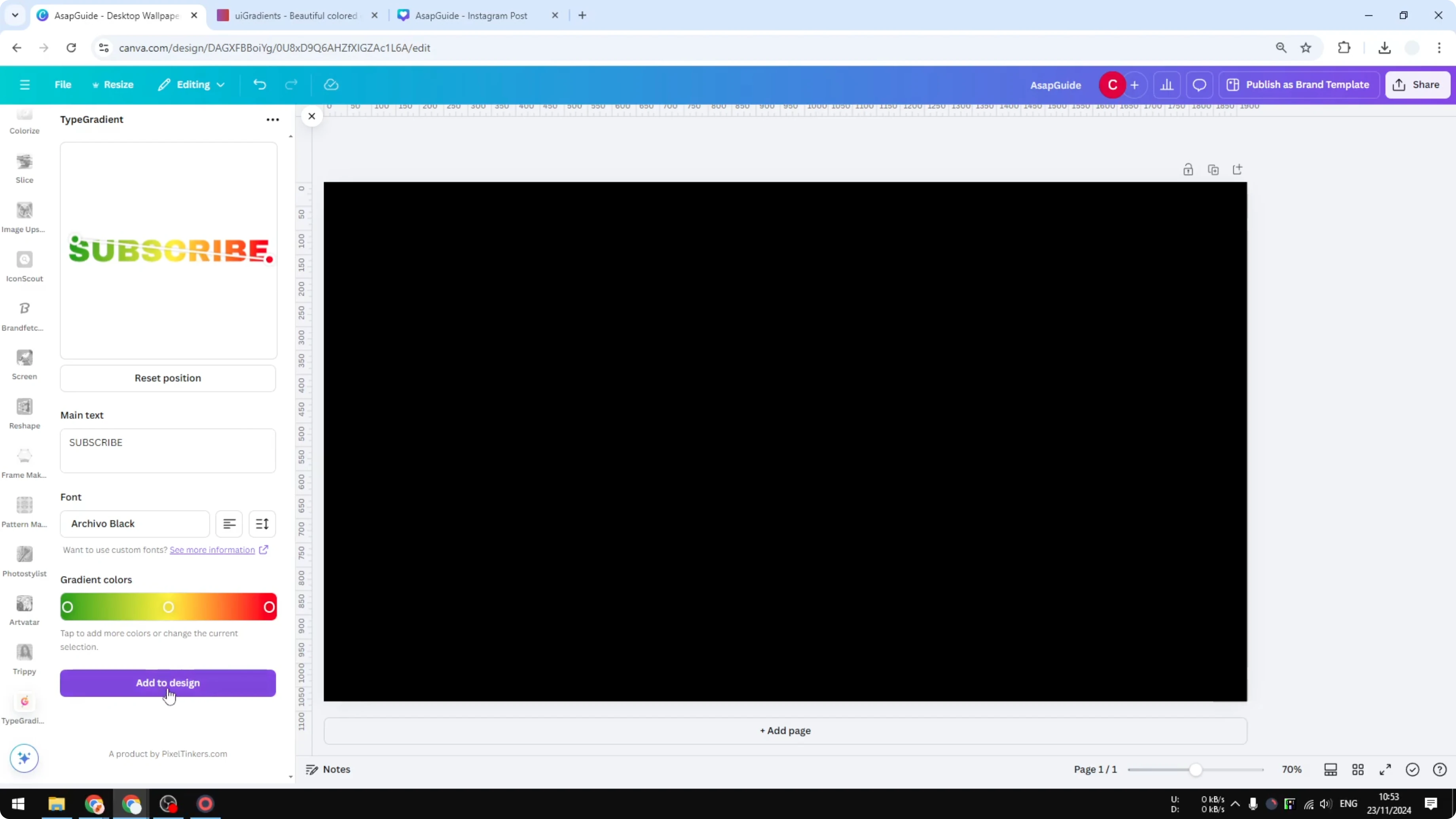
Drag the two control points to adjust the angle and position of the gradient until it looks the way you want.
Check the live preview in the panel. Click Add to design to place the gradient text into your Canva document.
Create Gradient Text in Canva: Editing limitations
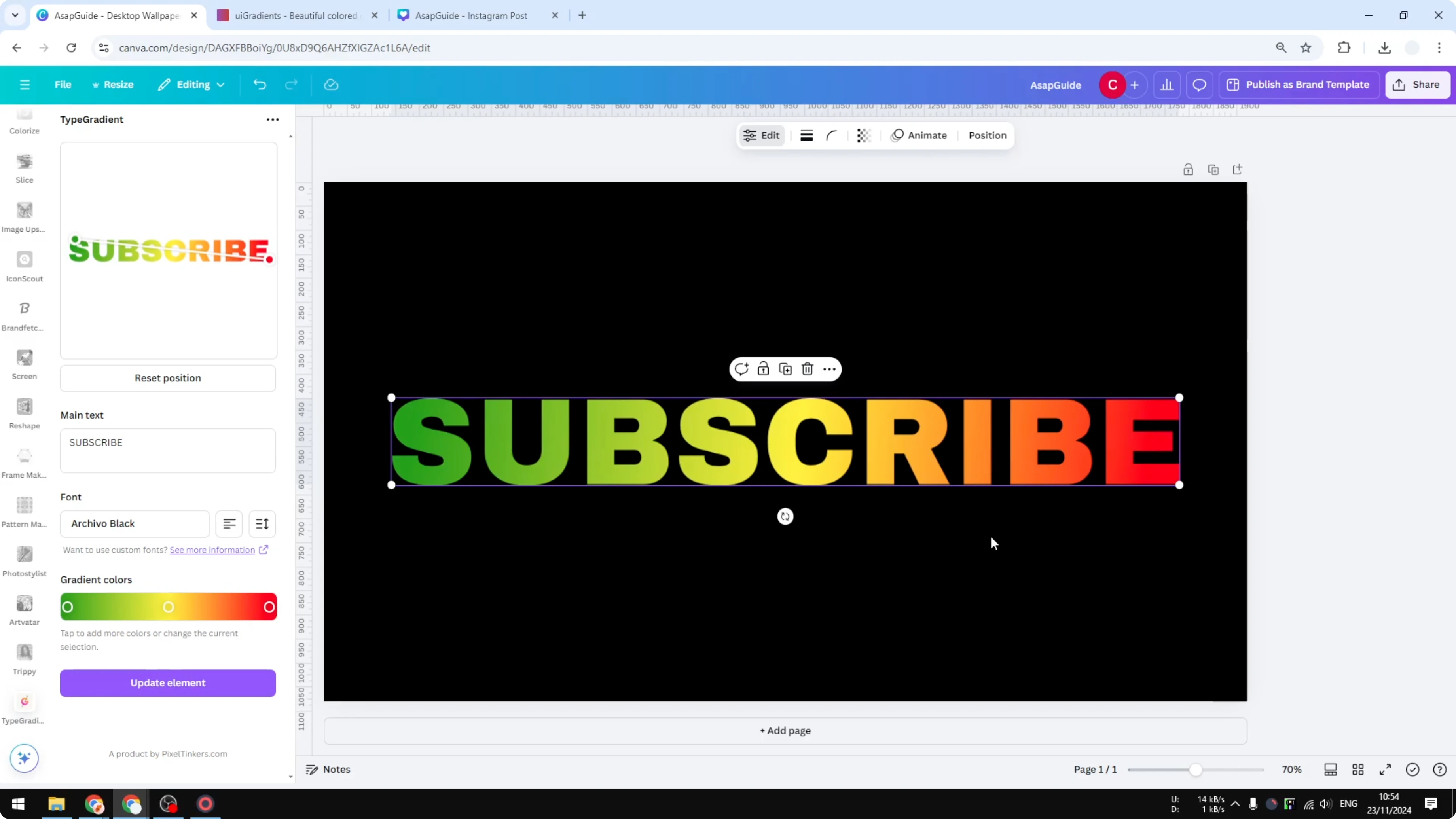
Keep in mind the gradient text you add is no longer a regular text box in Canva. You cannot edit the wording directly on the canvas.
To change the text or colors later, reopen the Type Gradient tool and make your edits there.

For another creative look, try building a textured title with this simple grass text effect walkthrough.
Final thoughts
Using Type Gradient inside Canva makes it straightforward to create colorful gradient text without leaving your design. Set your text and font, paste in hex colors from a palette you like, adjust the angle with the control points, and add it to your canvas. Remember that the result is not a standard text box, so make edits through the Type Gradient panel when needed.
Recent Posts

How to Visualize Yourself as a Pixelized Character with AI?
How to Visualize Yourself as a Pixelized Character with AI?

How to Revive Faded Memories and Enhance Image Clarity with AI?
How to Revive Faded Memories and Enhance Image Clarity with AI?

How to Visualize Yourself as an Animal Crossing Character with AI?
How to Visualize Yourself as an Animal Crossing Character with AI?