How to Create an Em Dash in Canva
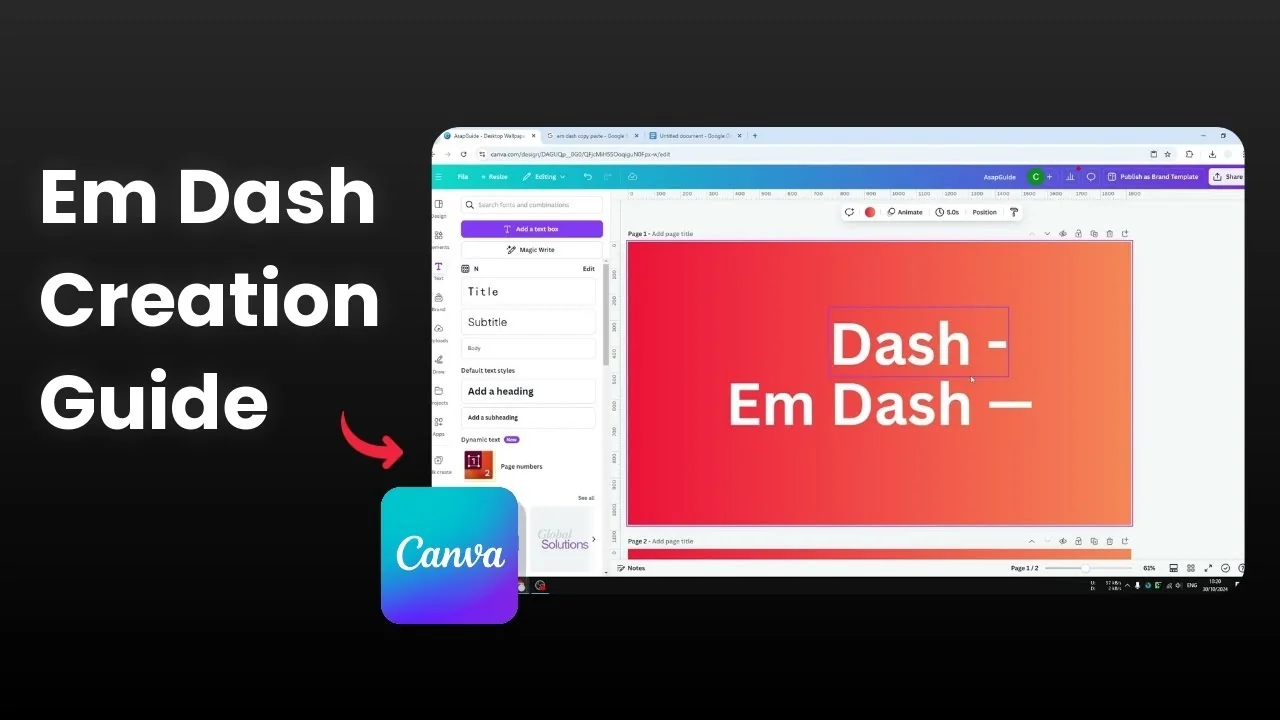
I am going to show you how to create an em dash in Canva. An em dash is like a hyphen but much longer, and it is useful for a paragraph or to add emphasis.
There are three methods you can use. I will start with the keyboard shortcut, then cover copy and paste, and finish with a Google Docs trick.
Create an Em Dash in Canva with Keyboard Shortcuts
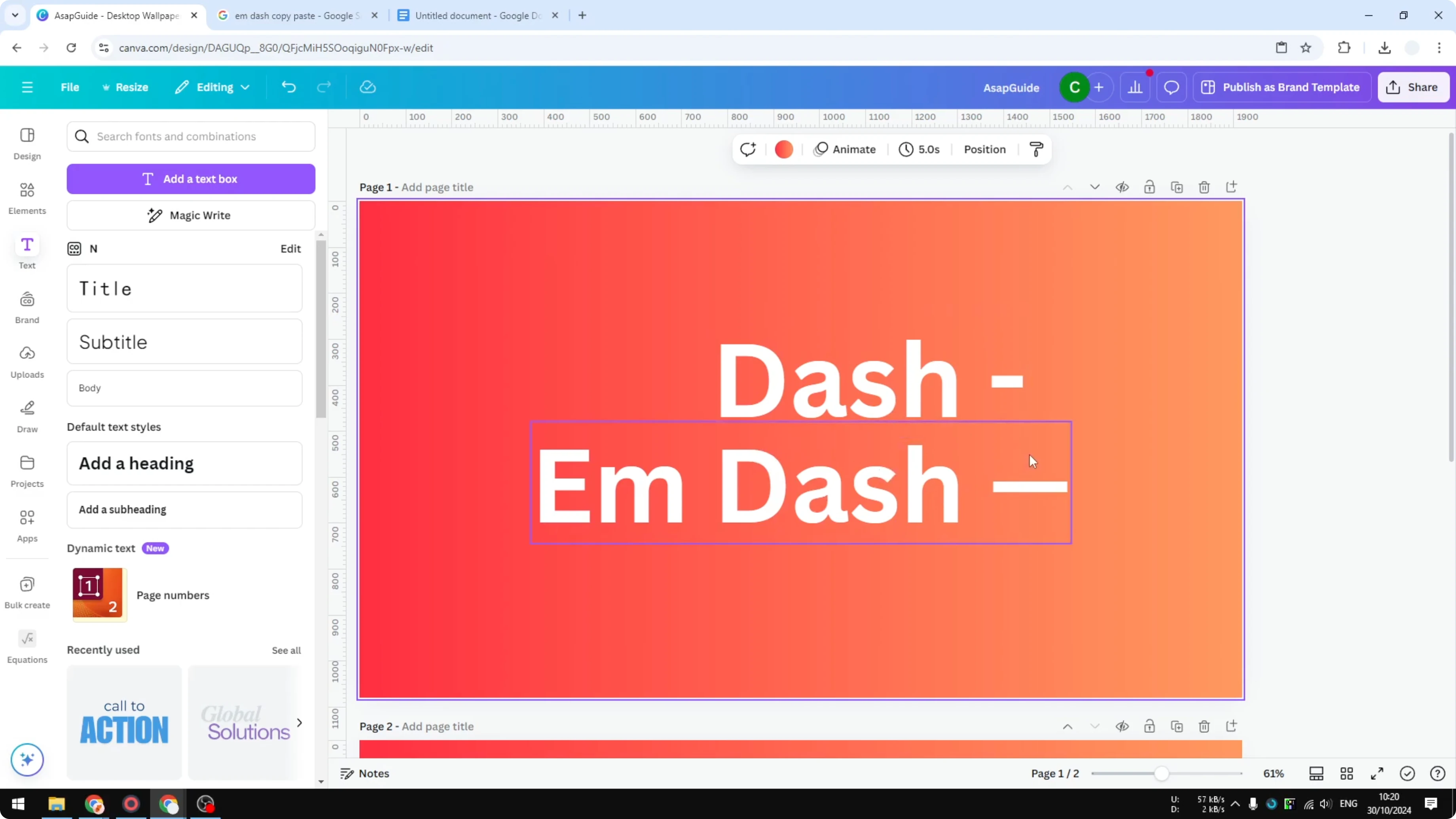
The first method uses a keyboard shortcut.
On Windows, hold the Alt key.
Type 0151 on the numeric keypad.
Release Alt to insert the em dash symbol.
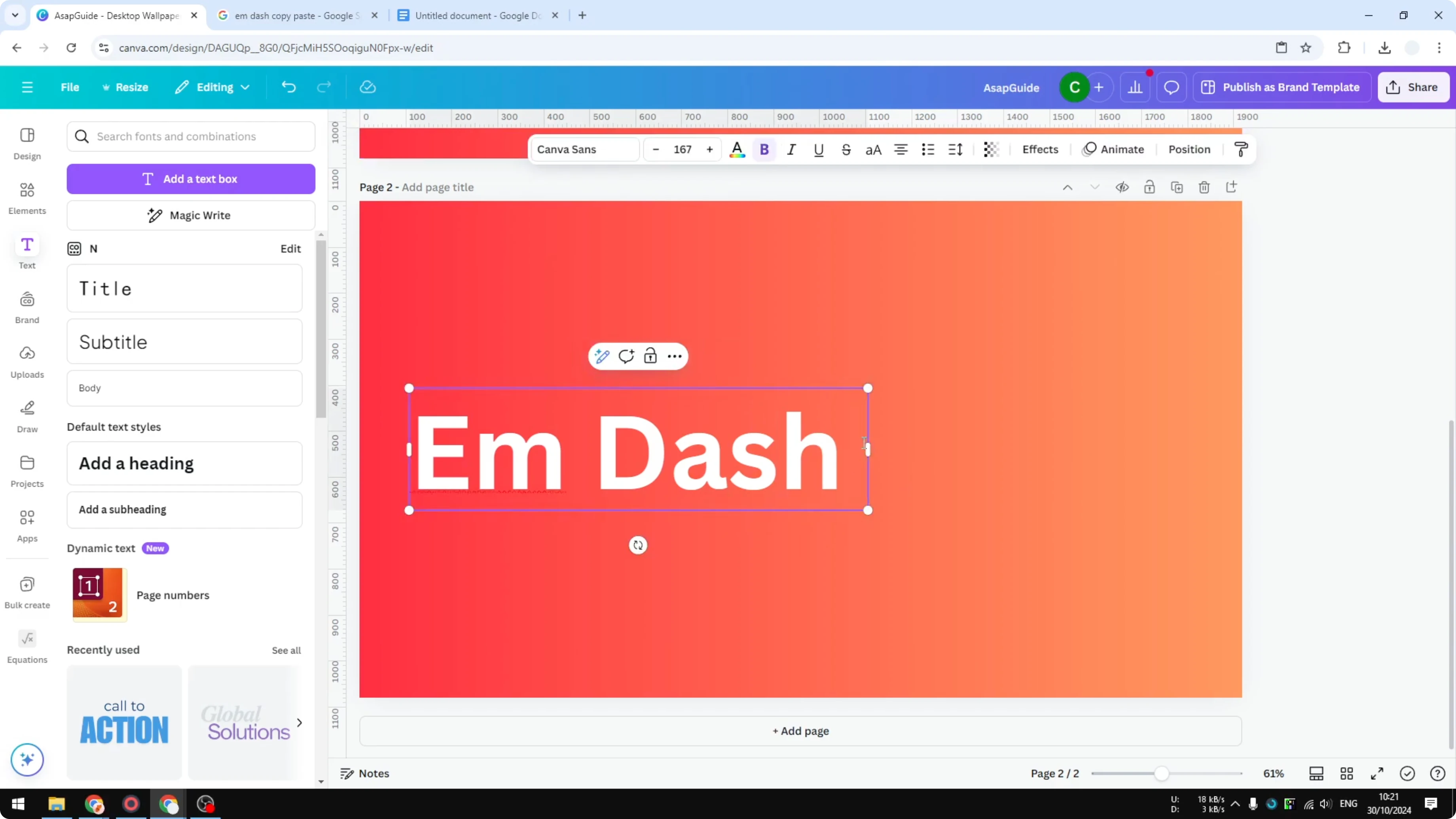
If you are on a laptop, combine Alt with the Fn key to access the numeric keypad. The Fn key is usually next to Alt, and you still type 0151.
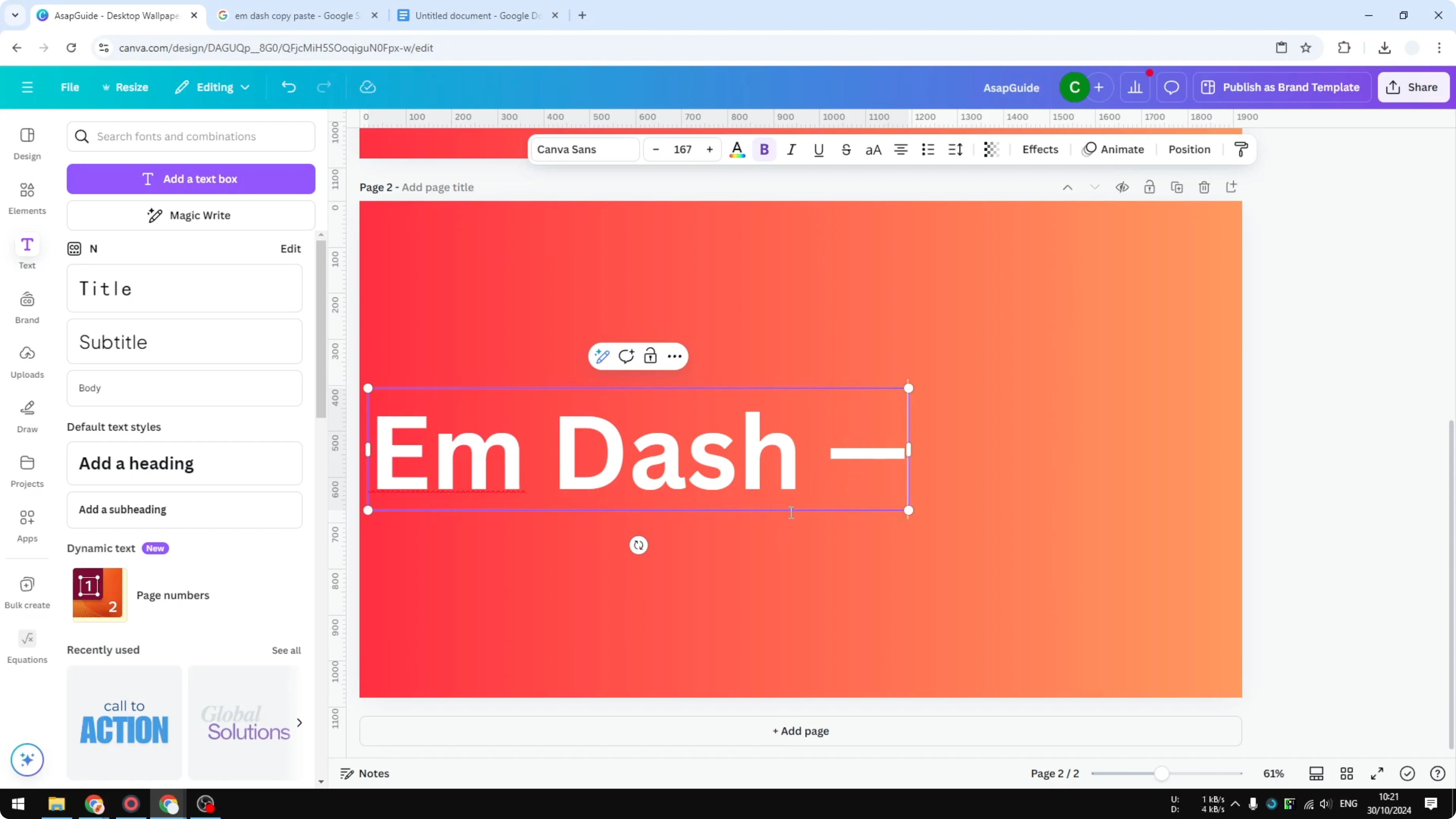
I do not use Mac, but the shortcut for Mac is Option and Shift, then press the hyphen key at the same time to create an em dash.
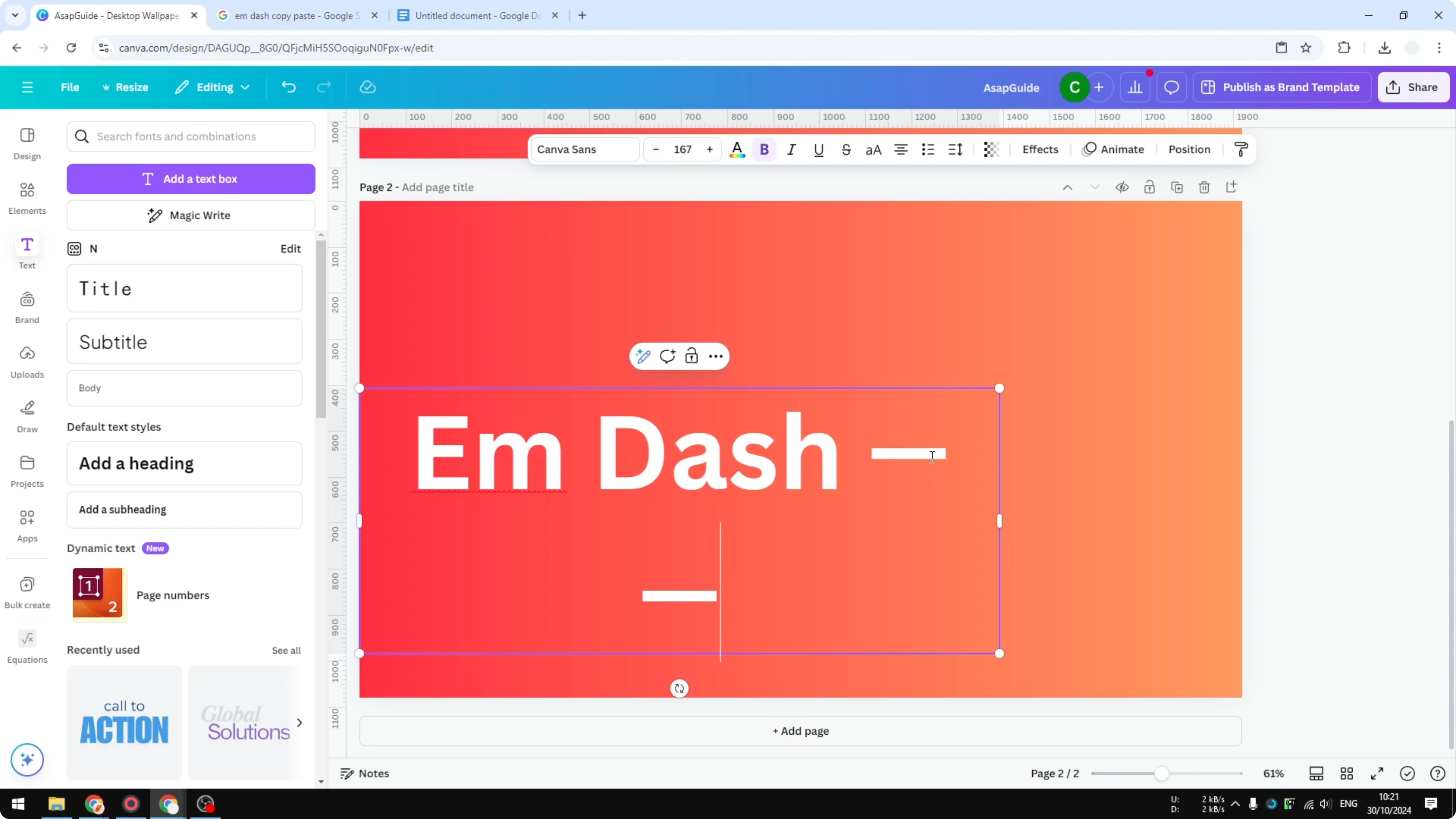
Windows: Alt + 0151
Mac: Option + Shift + -
Read More: Create Balloon Text Effect Canva
Create an Em Dash in Canva by Copy and Paste
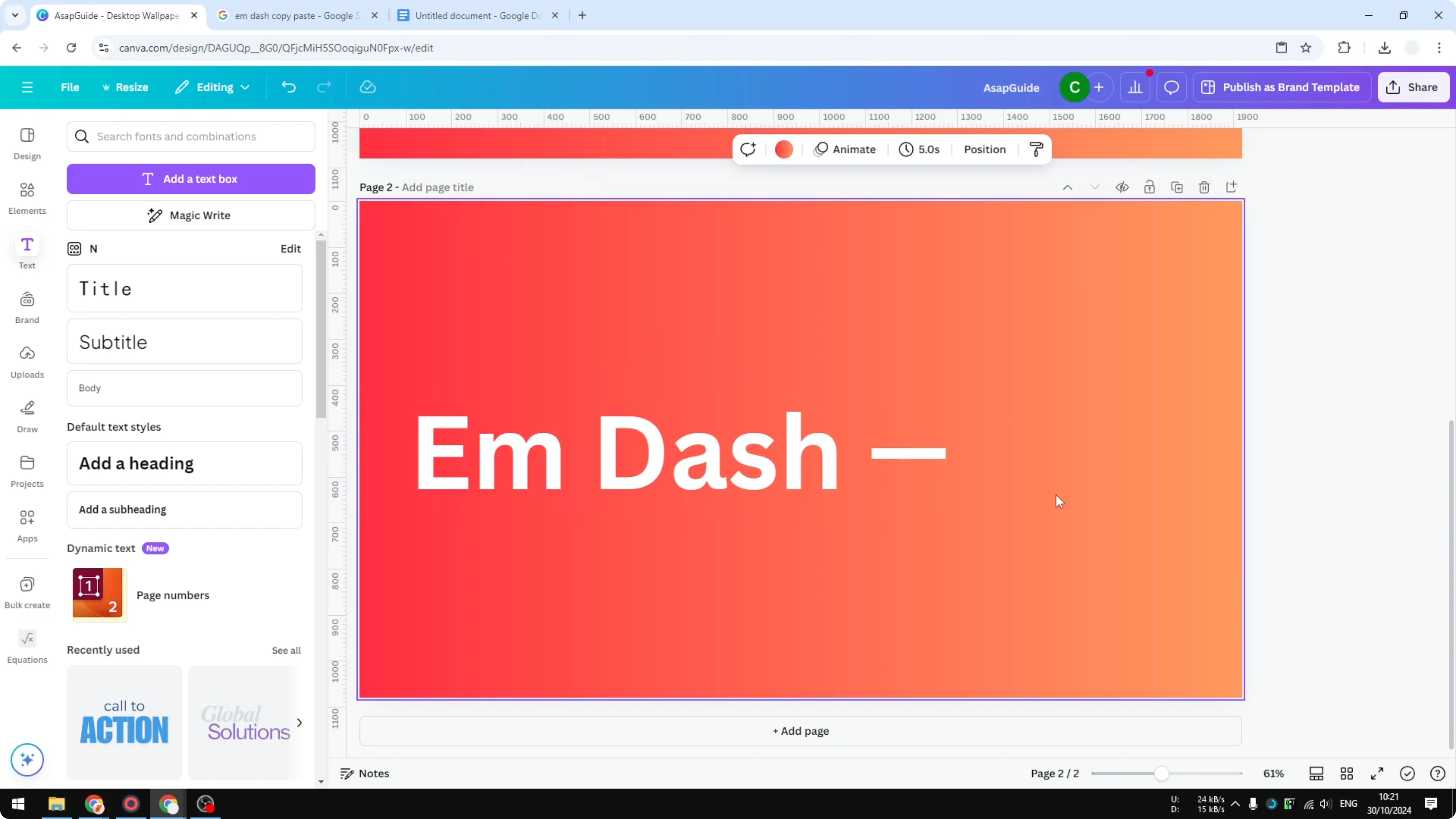
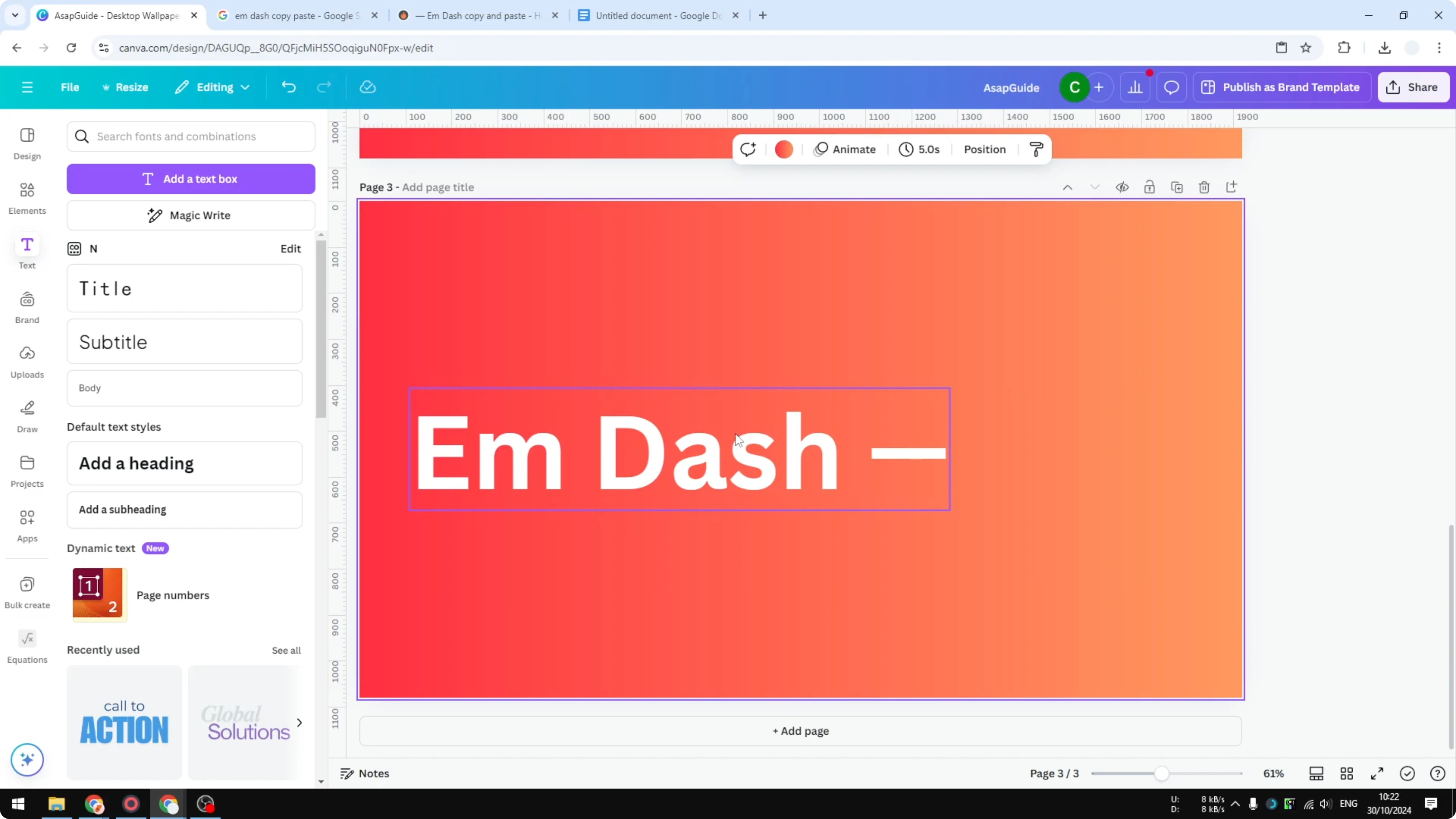
You can use a copy and paste method. Search Google for em dash copy paste, copy the symbol you find, and paste it into your design in Canva.
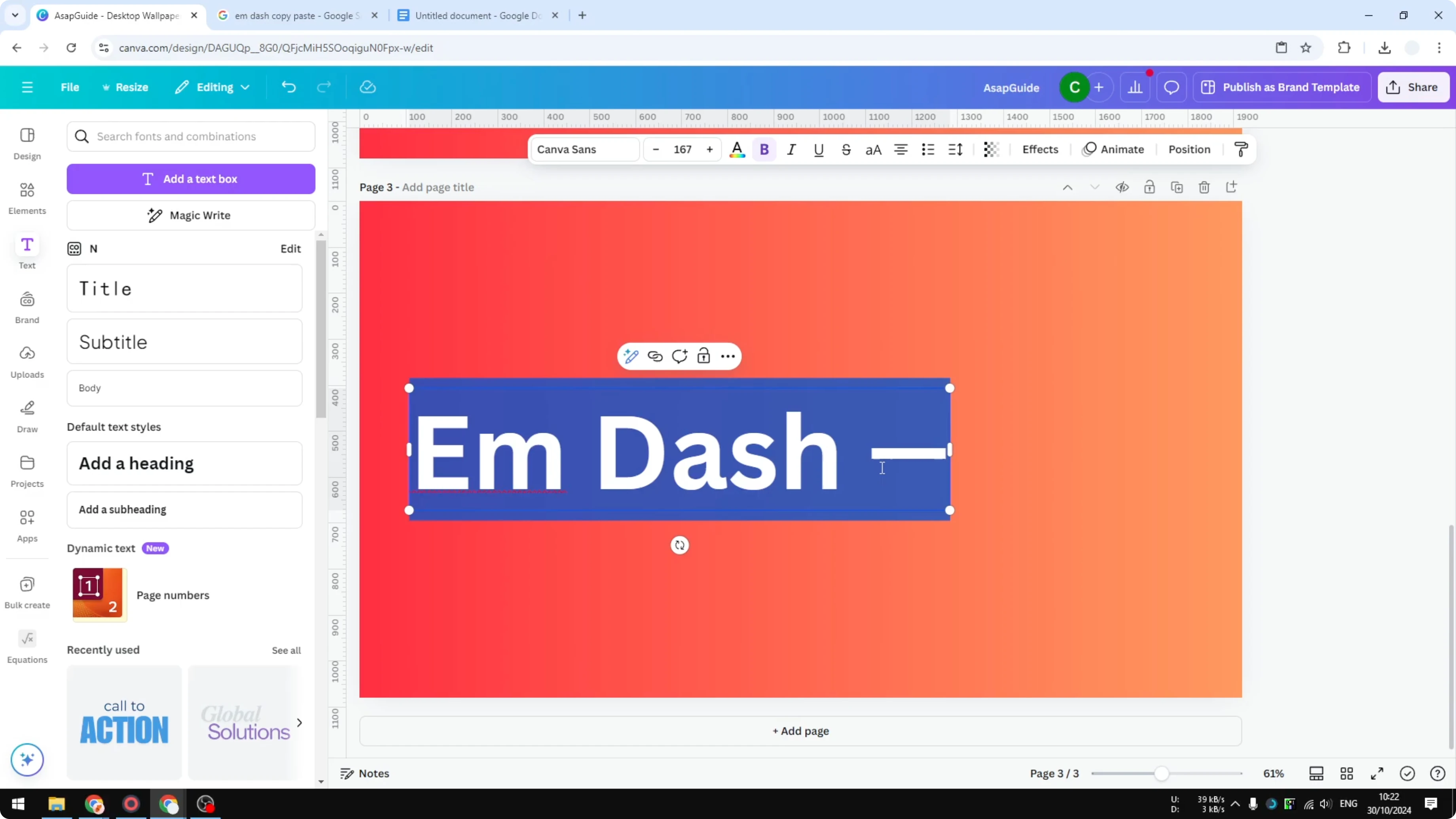
This is popular because it is simple and quick.
Read More: Create Custom Arrow Canva
Create an Em Dash in Canva with Google Docs
On Google Docs you can type a regular hyphen multiple times in quick succession to create an em dash.
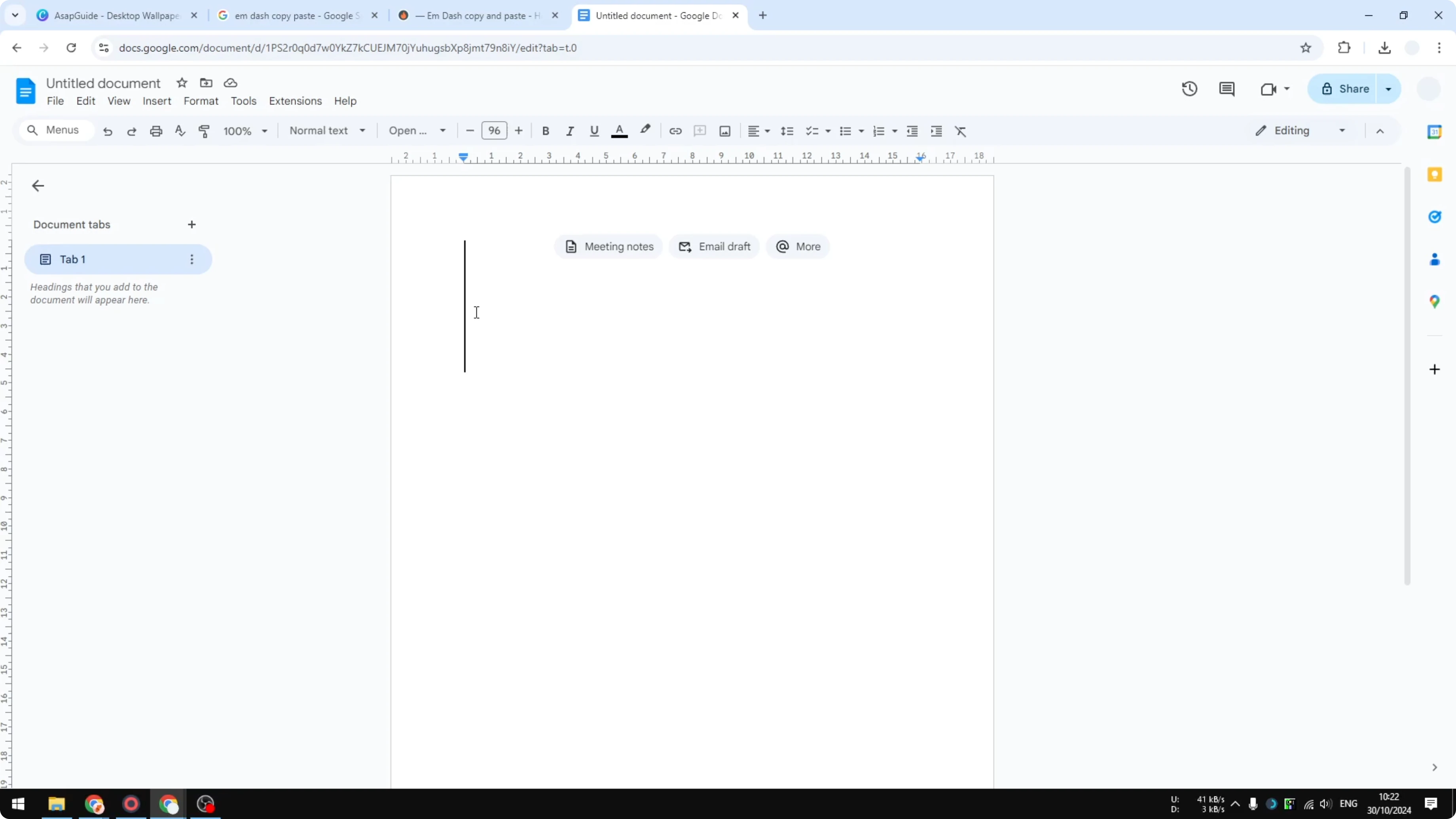
For example, type a single hyphen for a normal dash, type two hyphens for a double dash, and type three hyphens quickly to trigger an em dash.
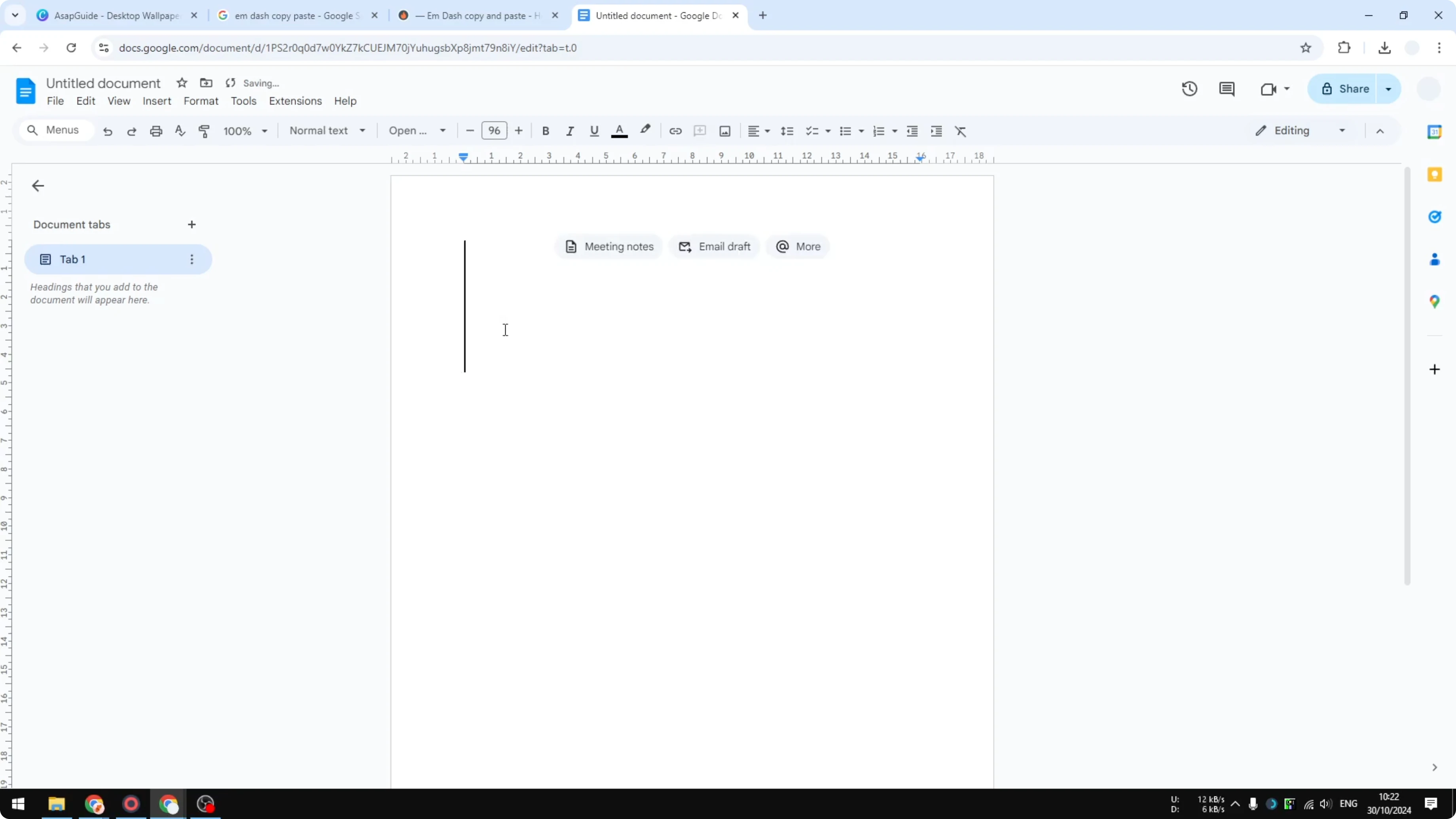
Copy the result from Google Docs and paste it into your design in Canva.
Single dash: -
Double dash: --
Triple dash (typed quickly): ---  → converts to an em dash in Google Docs
Read More: Create Bokeh Effect Canva
Final Thoughts
You can create an em dash in Canva with a Windows or Mac shortcut, by copying and pasting the symbol, or by generating it in Google Docs. Pick the method that fits your workflow. Once you know these shortcuts, adding emphasis in your Canva text is straightforward.
Recent Posts

How to Visualize Yourself as a Pixelized Character with AI?
How to Visualize Yourself as a Pixelized Character with AI?

How to Revive Faded Memories and Enhance Image Clarity with AI?
How to Revive Faded Memories and Enhance Image Clarity with AI?

How to Visualize Yourself as an Animal Crossing Character with AI?
How to Visualize Yourself as an Animal Crossing Character with AI?