How to Copy Text Style in Canva
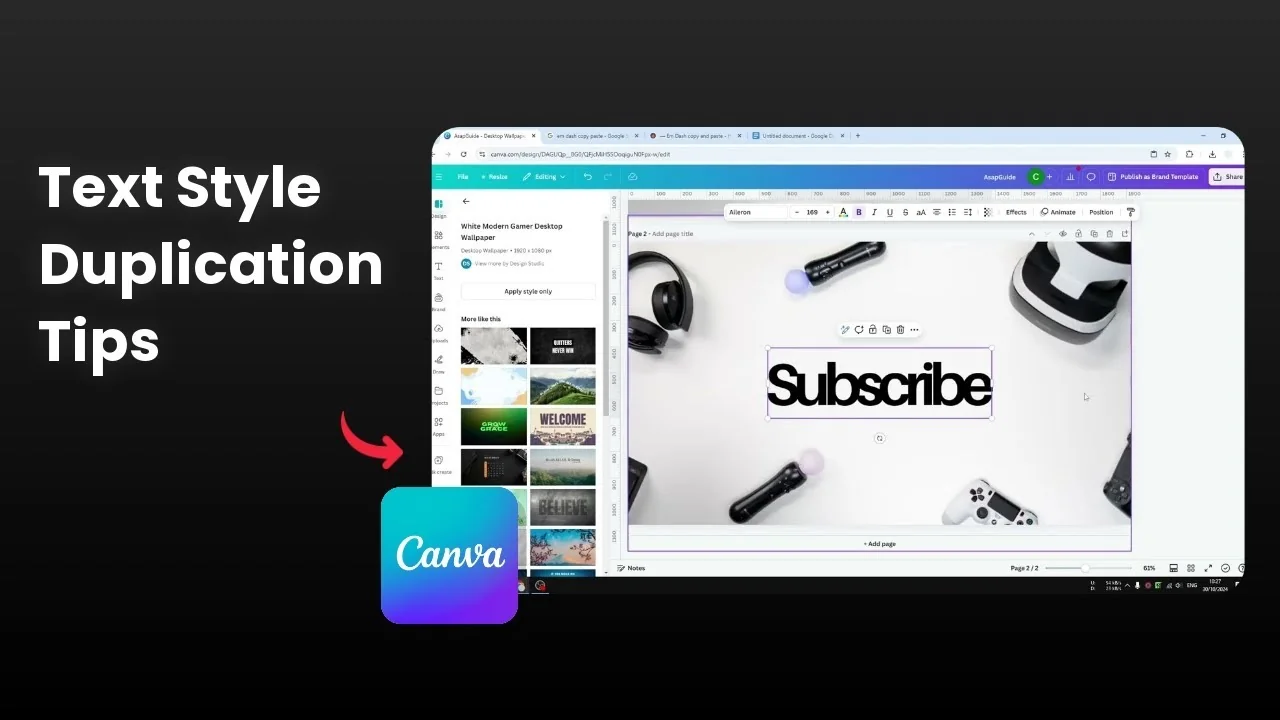
I’m going to show you how you can copy the text style and format in Canva. You can copy a text style like maybe the color, the length, or the spacing of the text. Then you can apply that style to a different text, so you don’t have to manually change the style over and over again.
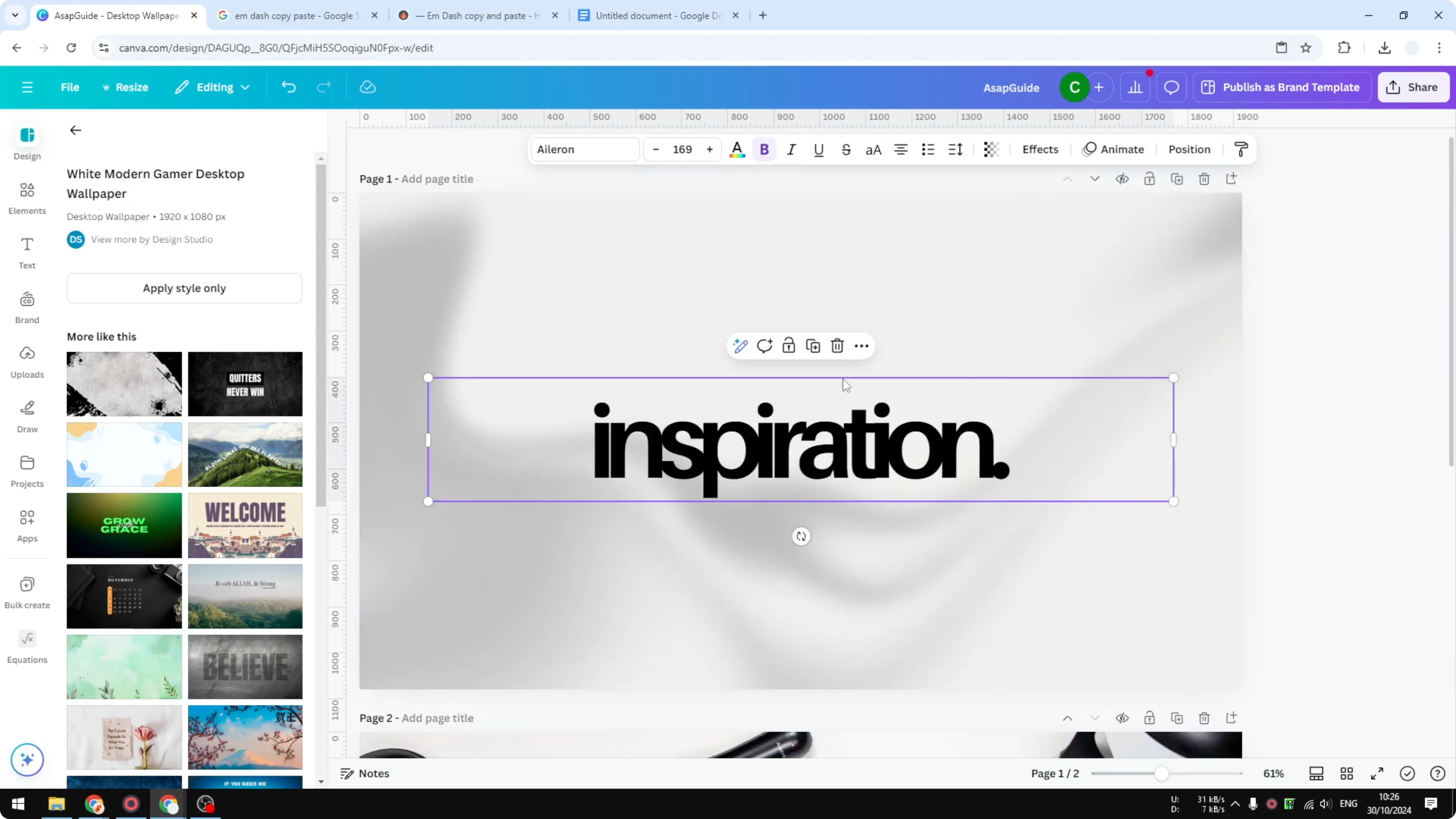
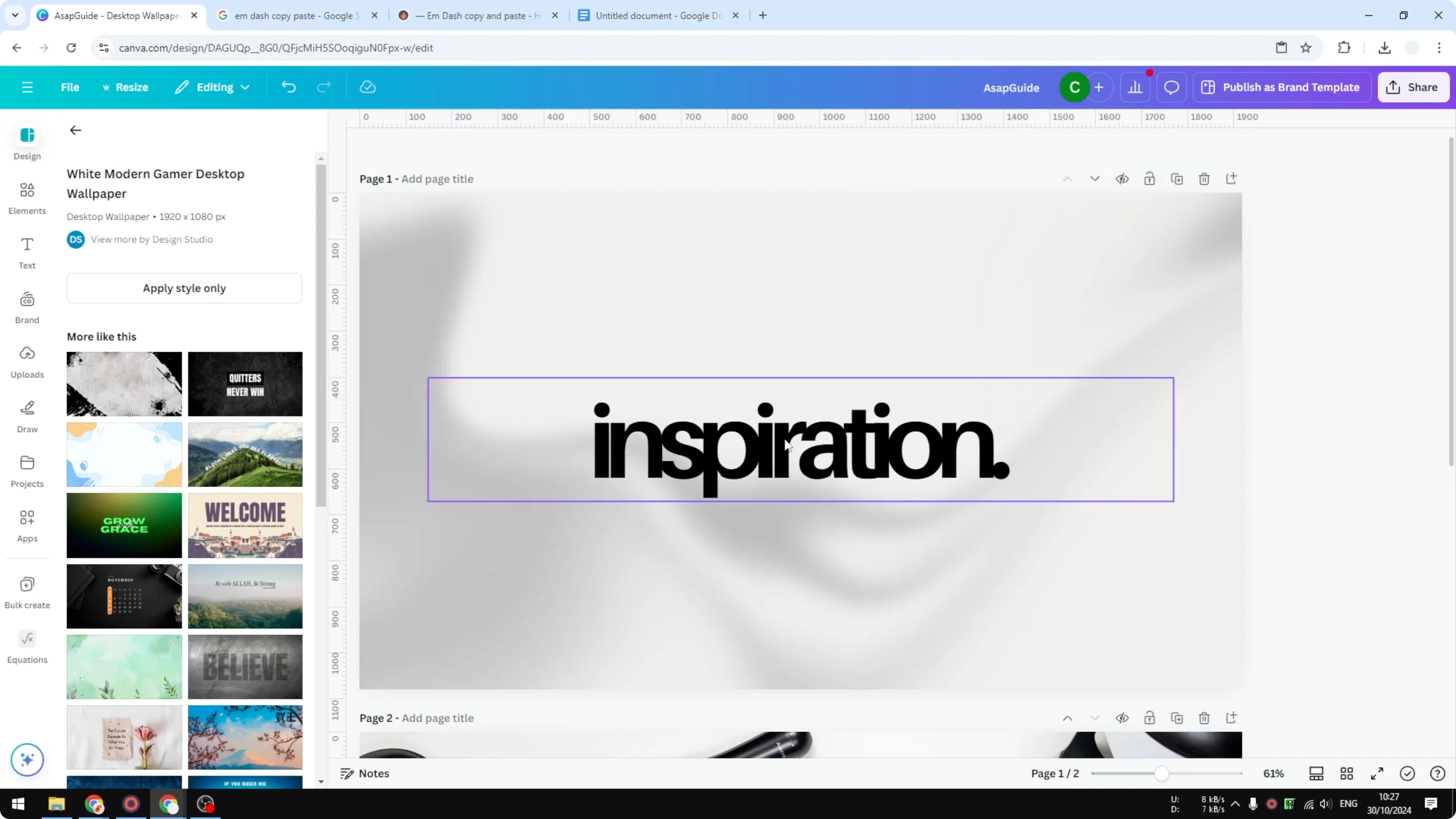
This helps a lot if you have a lot of text boxes and you want to maintain the same design language. I have this text and I also have this text. You can see that they are very different.
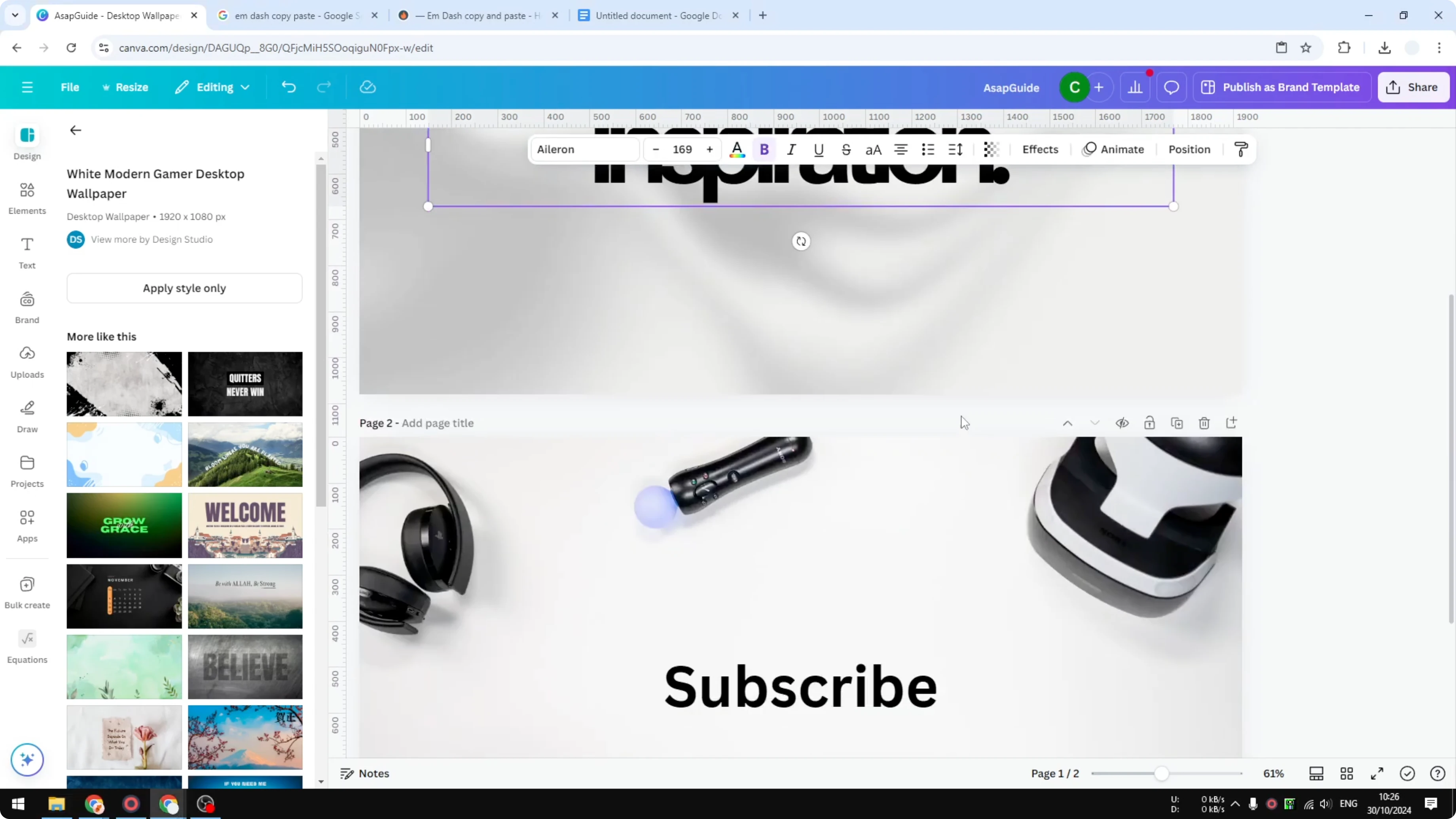
Copy Text Style in Canva
What gets copied
The font type can be copied, the size can be copied, and also the spacing of the text can be copied. You can apply that style to another text in your design. You don’t have to redo formatting each time.
Read More: Add Background Text Canva
Right-click method
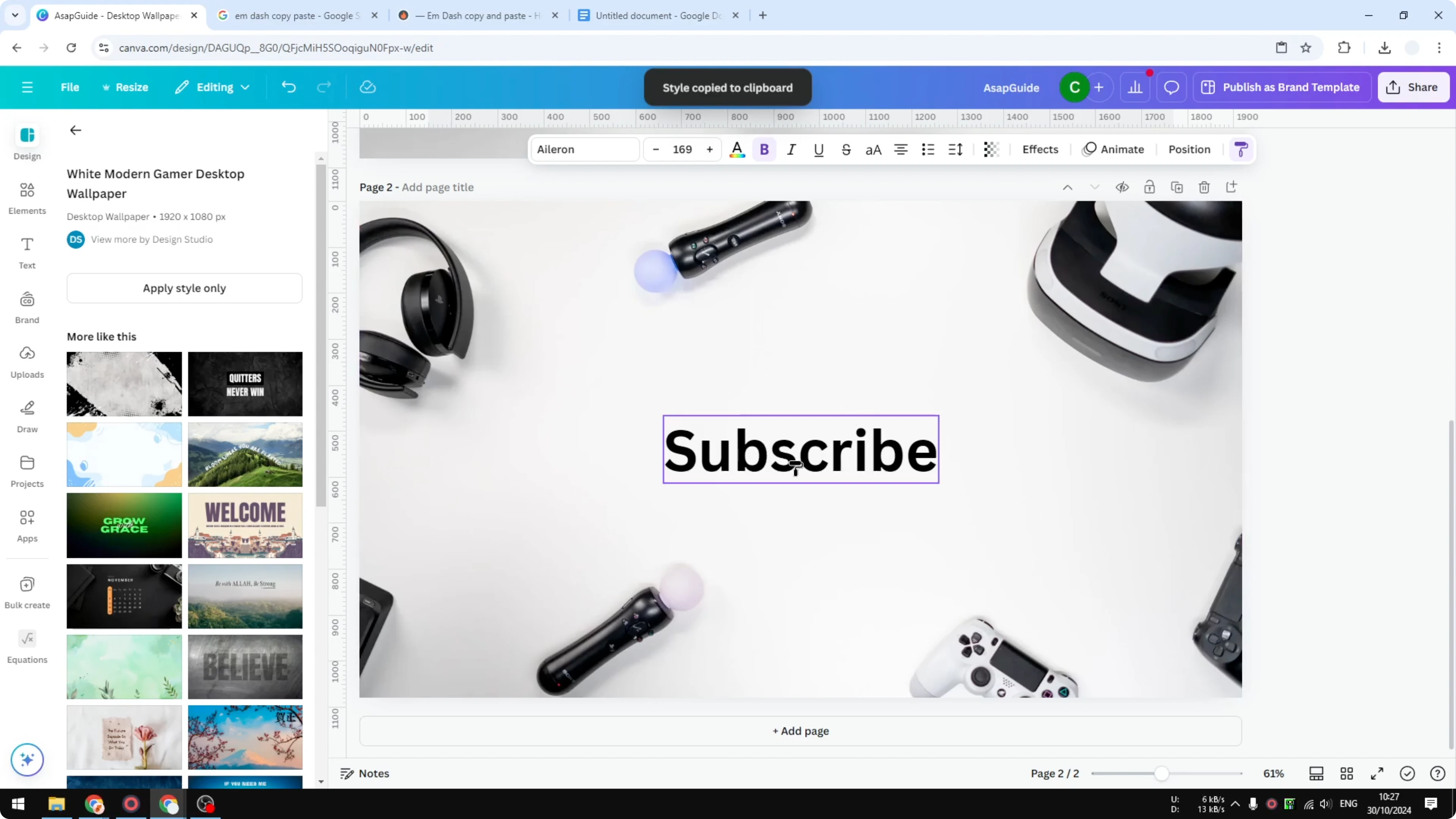
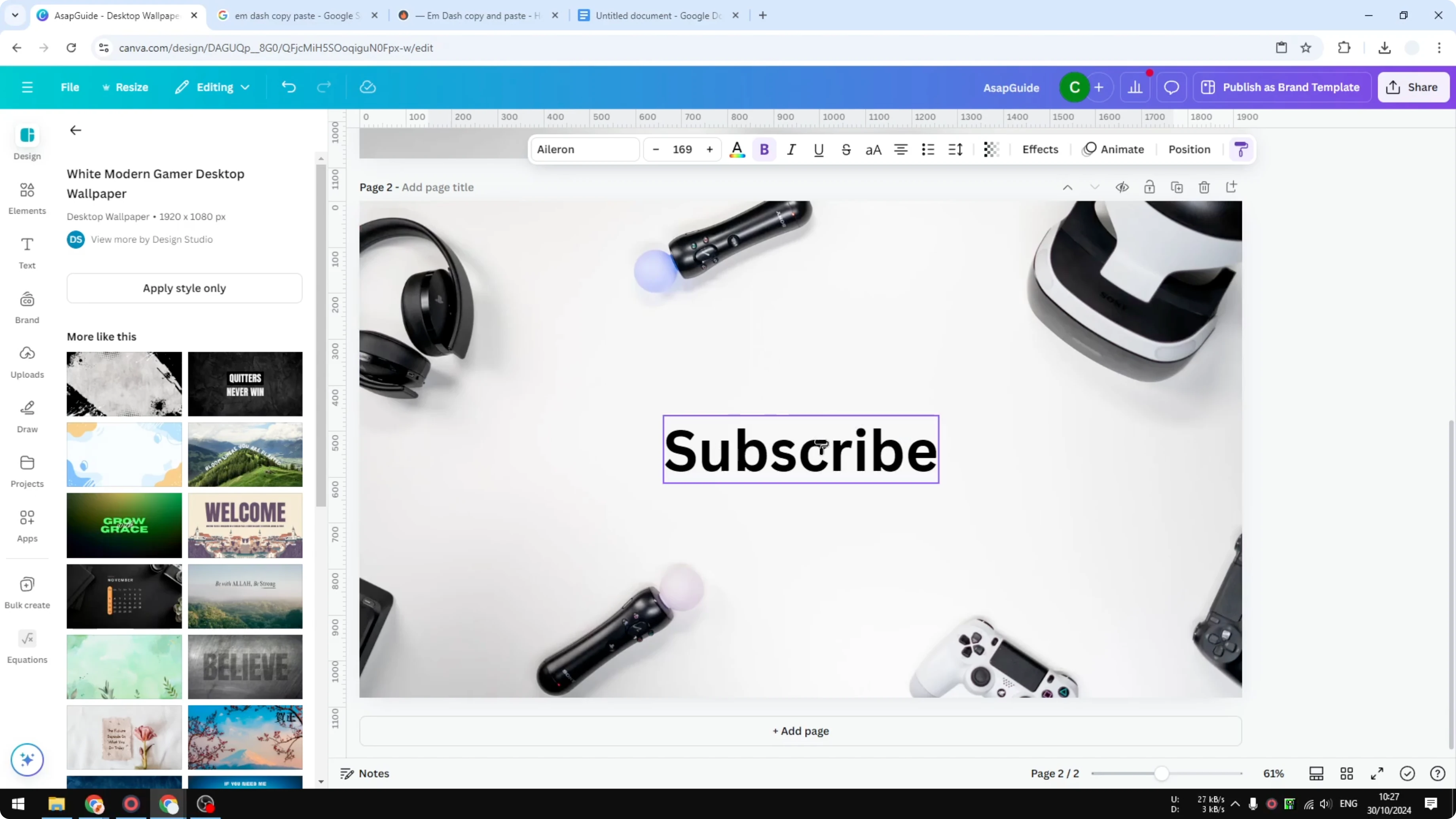
How do you actually copy this style to another text? Right click on the text that you want to copy its style and click Copy style. That grabs the style from the original text.
Keyboard shortcut
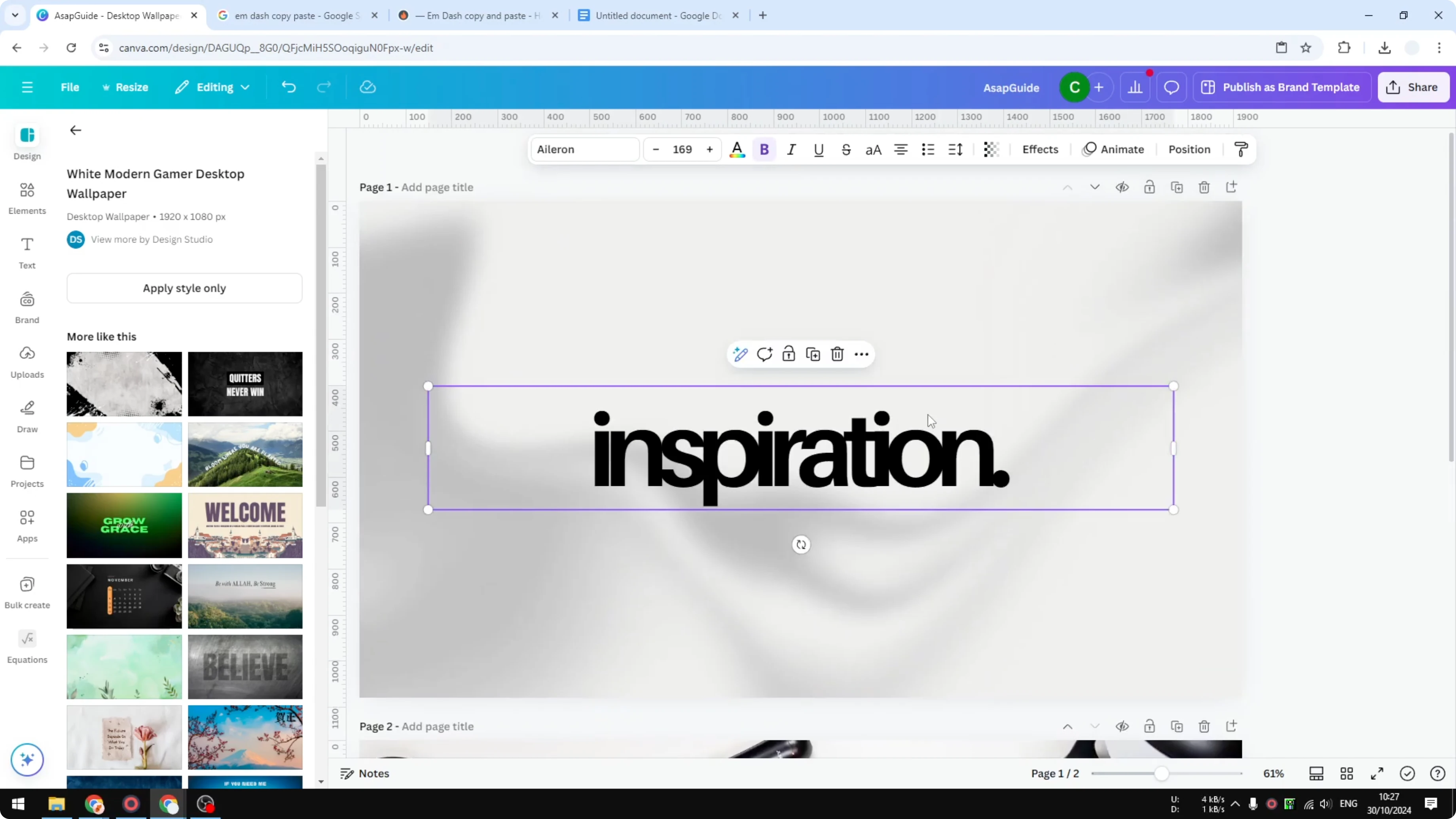
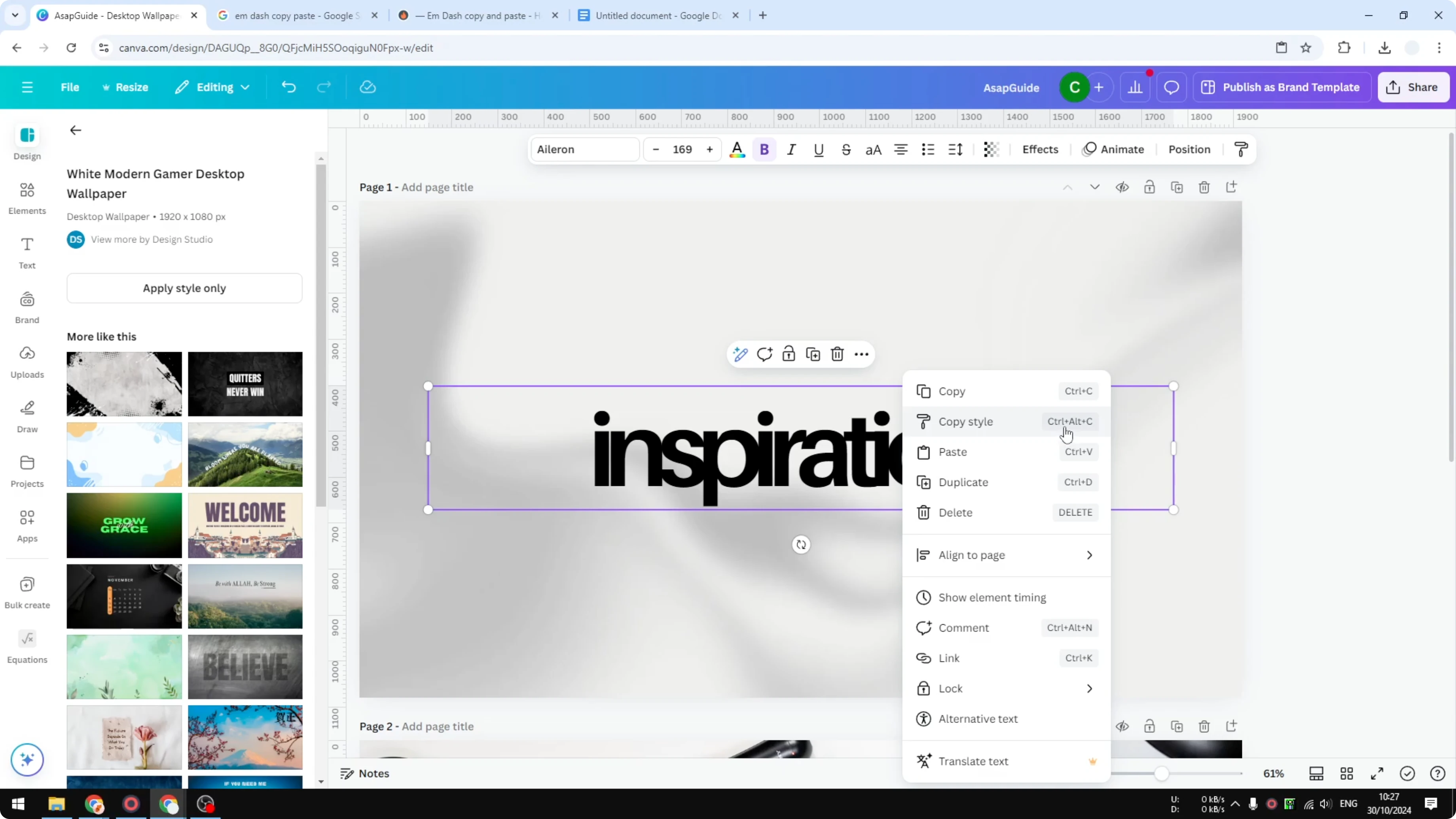
You can also use this keyboard shortcut: Control + Alt + C. You’ll see the cursor turn into some sort of paint tool. I forgot the name of this.
Read More: Add Border Text Box Canva
Apply to another text
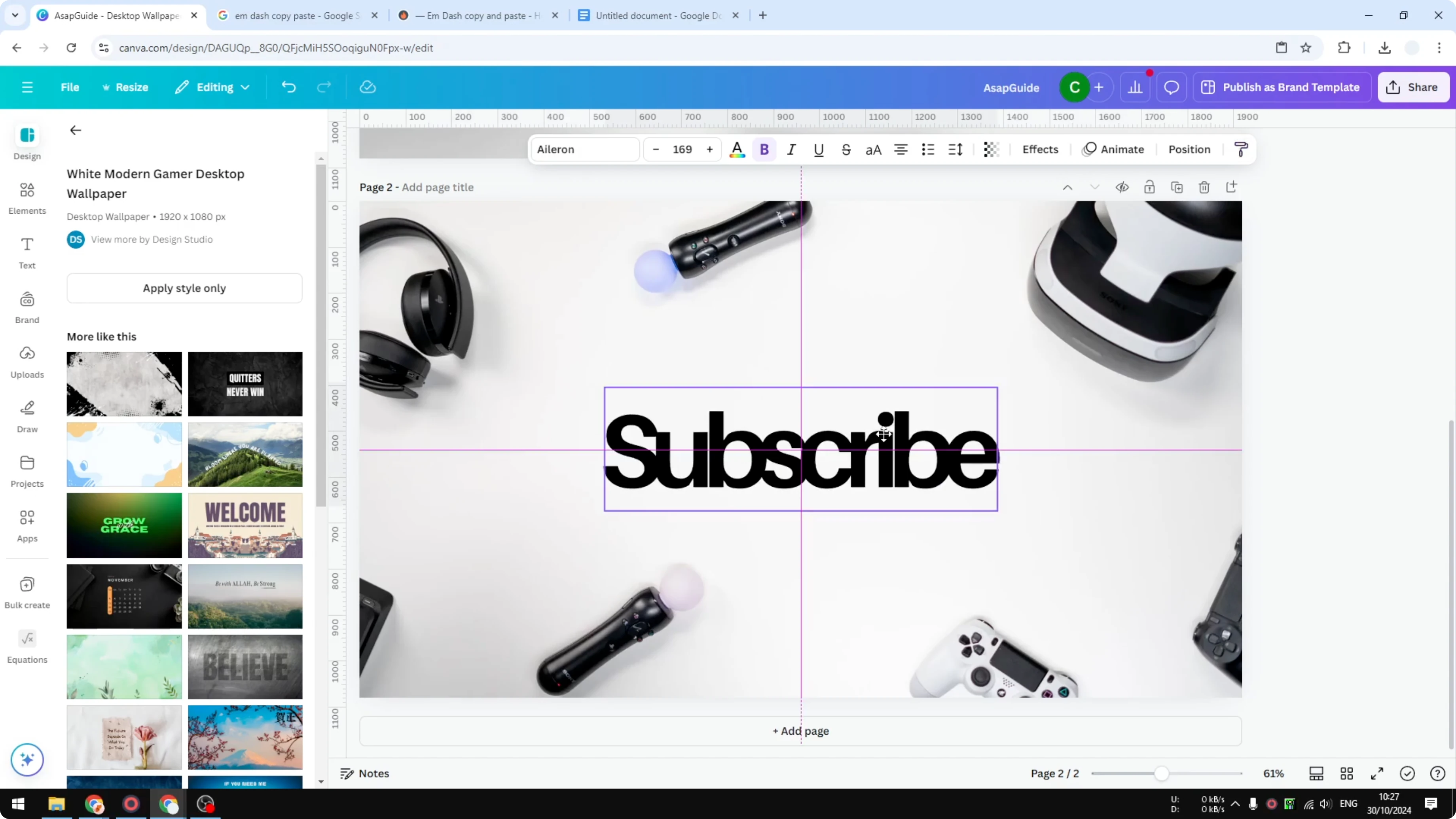
Click on the text that you want to apply the style. Click on it and now the text has copied the style from the original text. That’s exactly how you can copy and paste the text style in Canva.
Read More: Attach Text Shape Canva
Final thoughts
Copy Text Style in Canva lets you match fonts, sizes, and spacing fast. Right click and choose Copy style, or press Control + Alt + C, then click the target text. Your formatting stays consistent without extra work.
Recent Posts

How to Visualize Yourself as a Pixelized Character with AI?
How to Visualize Yourself as a Pixelized Character with AI?

How to Revive Faded Memories and Enhance Image Clarity with AI?
How to Revive Faded Memories and Enhance Image Clarity with AI?

How to Visualize Yourself as an Animal Crossing Character with AI?
How to Visualize Yourself as an Animal Crossing Character with AI?