How to Copy Paste Canva to Microsoft Word

Copying content from a Canva document to Microsoft Word is not straightforward. You cannot just select all the content in Canva and paste it into Word. That will only bring over text and will drop images, decorative elements, and colors.
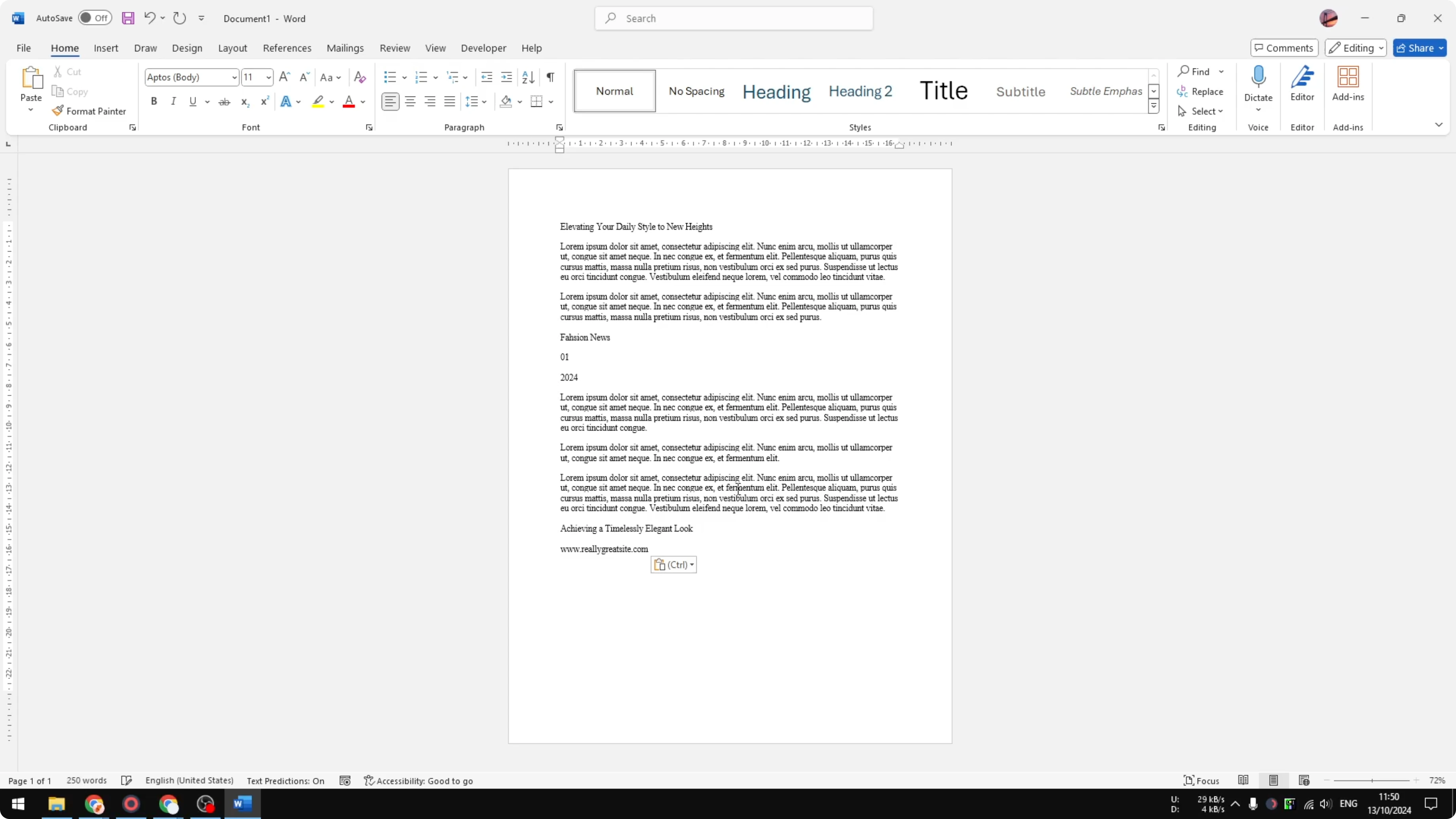
The reliable path is to export your Canva design as a PDF first. Then convert that PDF to a Word document. This preserves images, colors, and layout far better than direct copy and paste.
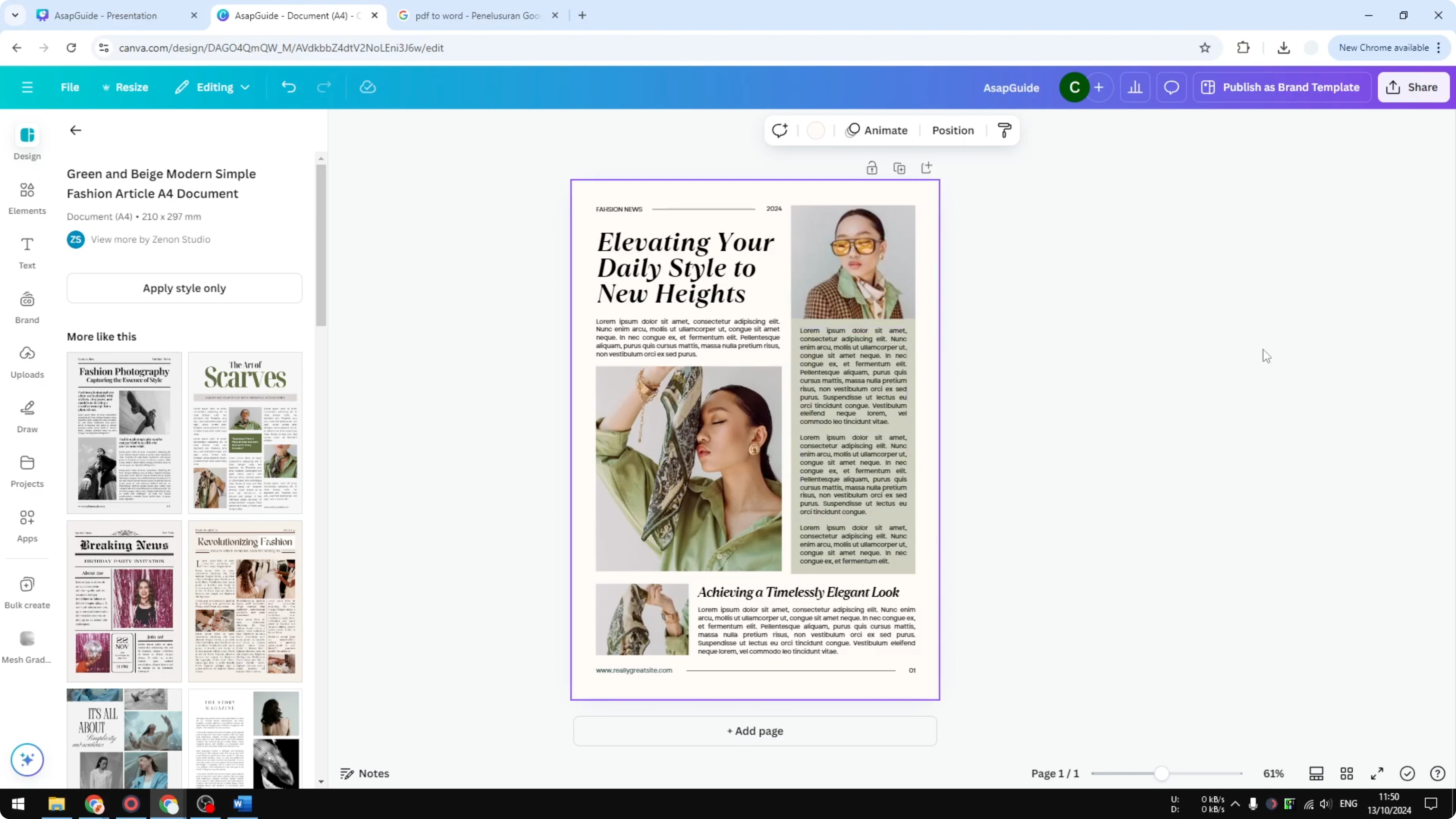
Why Copy Paste Canva to Microsoft Word fails
Direct copying only transfers plain text. It does not include images, shapes, or decorative backgrounds.
Word expects structured elements rather than Canva’s design canvas. That is why exporting to PDF first makes the difference.
If your goal is to move a page between Canva designs instead, see how to copy a Canva page into another design.
Export to PDF before Copy Paste Canva to Microsoft Word
Open your Canva document.
Go to the Share menu and choose Download.
Select the file type as PDF Standard or PDF Print.
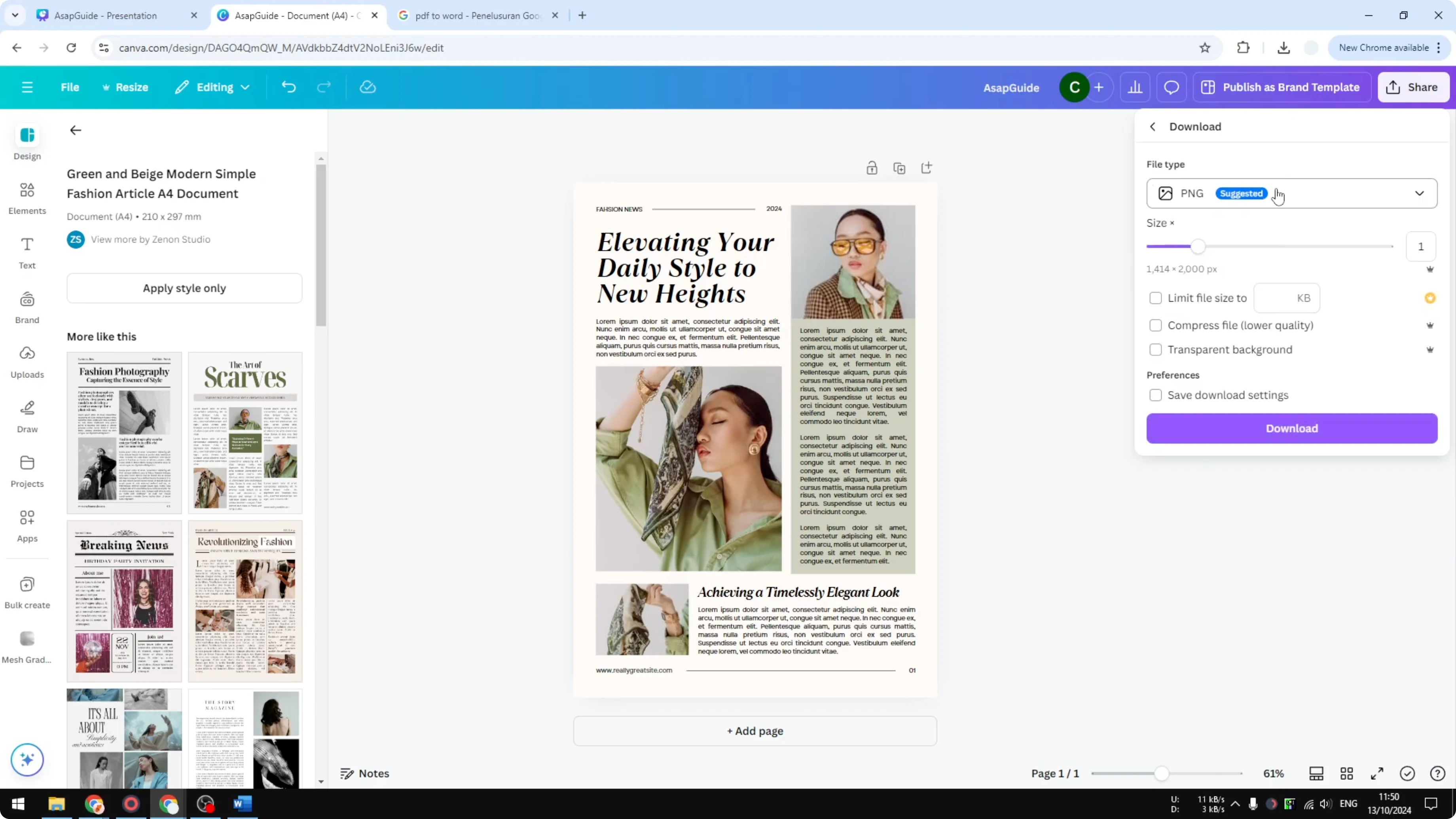
Choose the right PDF for Copy Paste Canva to Microsoft Word
PDF Standard is usually best for editing or sending the document by email. PDF Print is for printing and the color is more accurate, but the file is going to be larger.
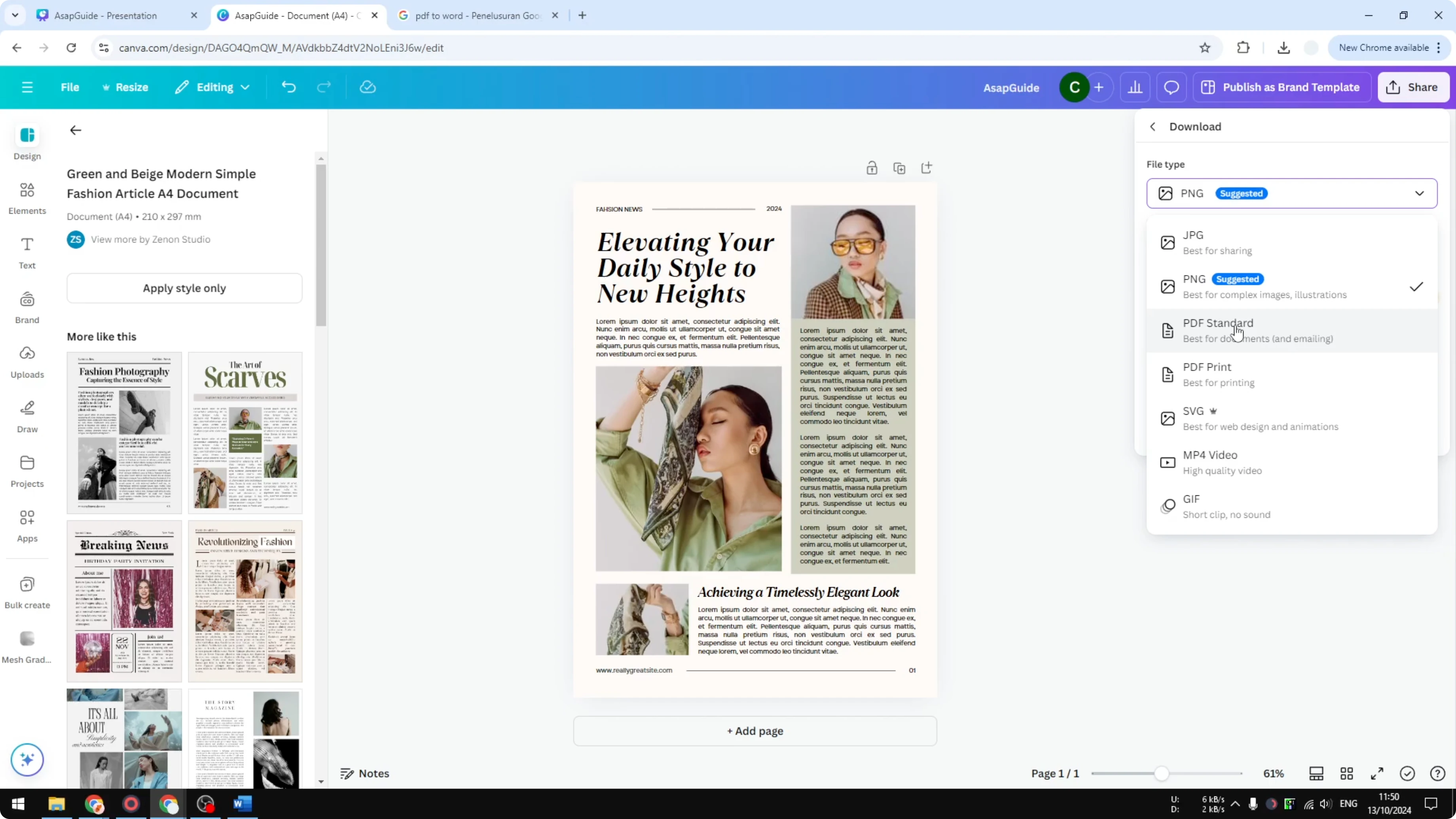
Click Download to save the PDF to your computer.
You can open the PDF preview in your browser or Adobe Acrobat. You still cannot bring this PDF into Microsoft Word as a perfect editable document without conversion.
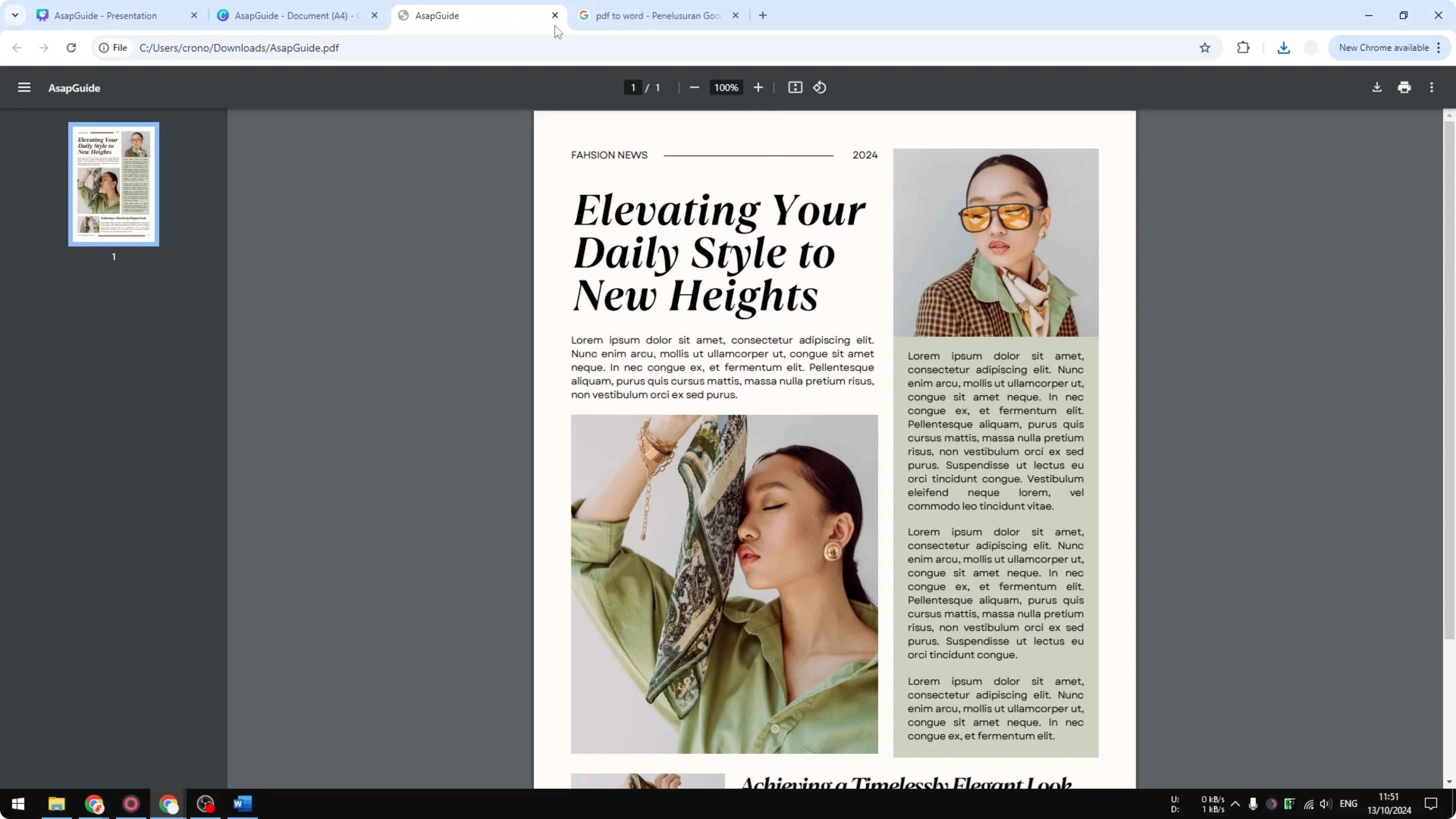
If you need to match typography across designs before exporting, see how to copy text style in Canva.
Convert the PDF for Copy Paste Canva to Microsoft Word
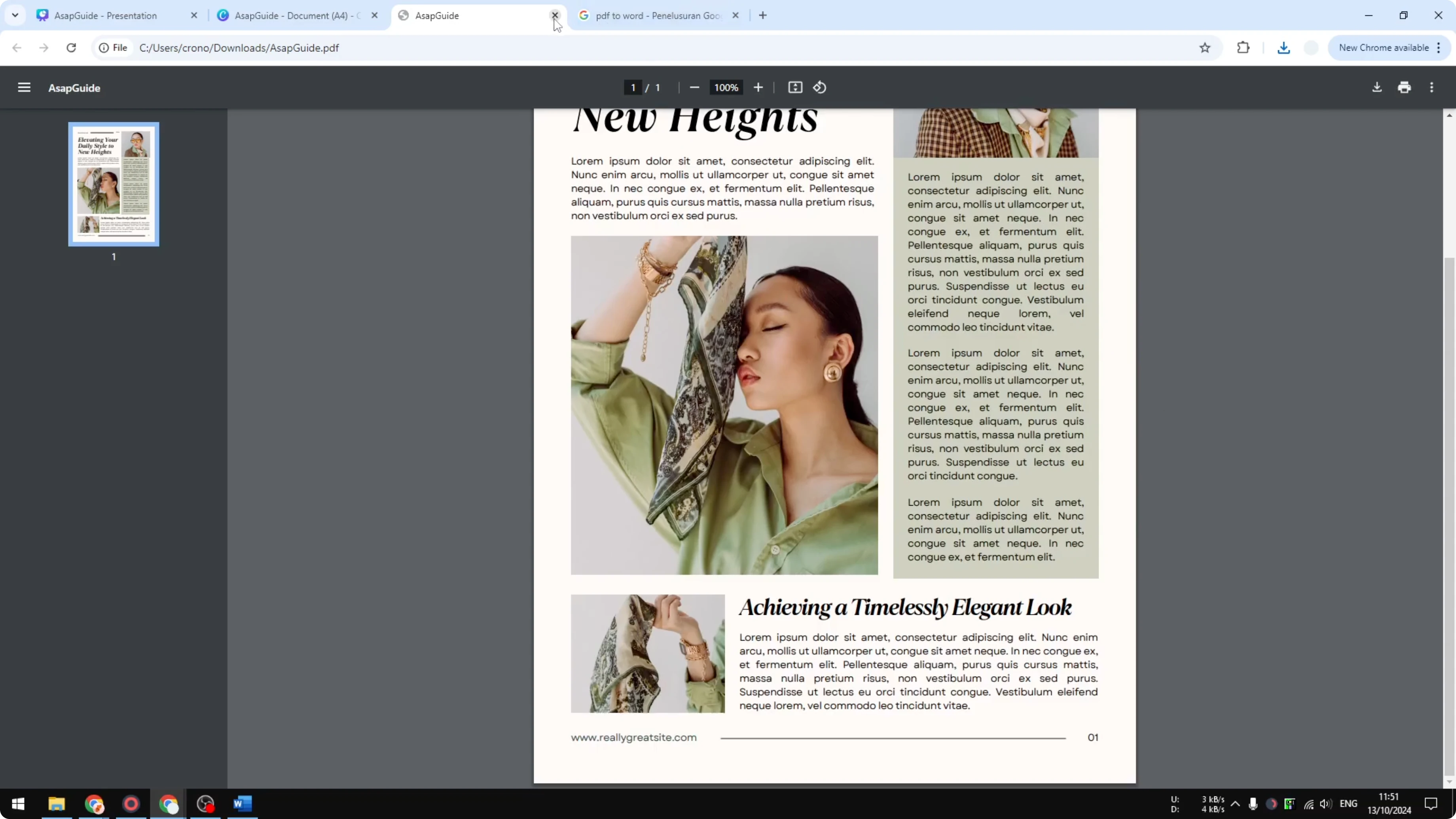
Search for PDF to Word using Google. You will find many free tools that convert a PDF document into supported formats like DOC and DOCX.
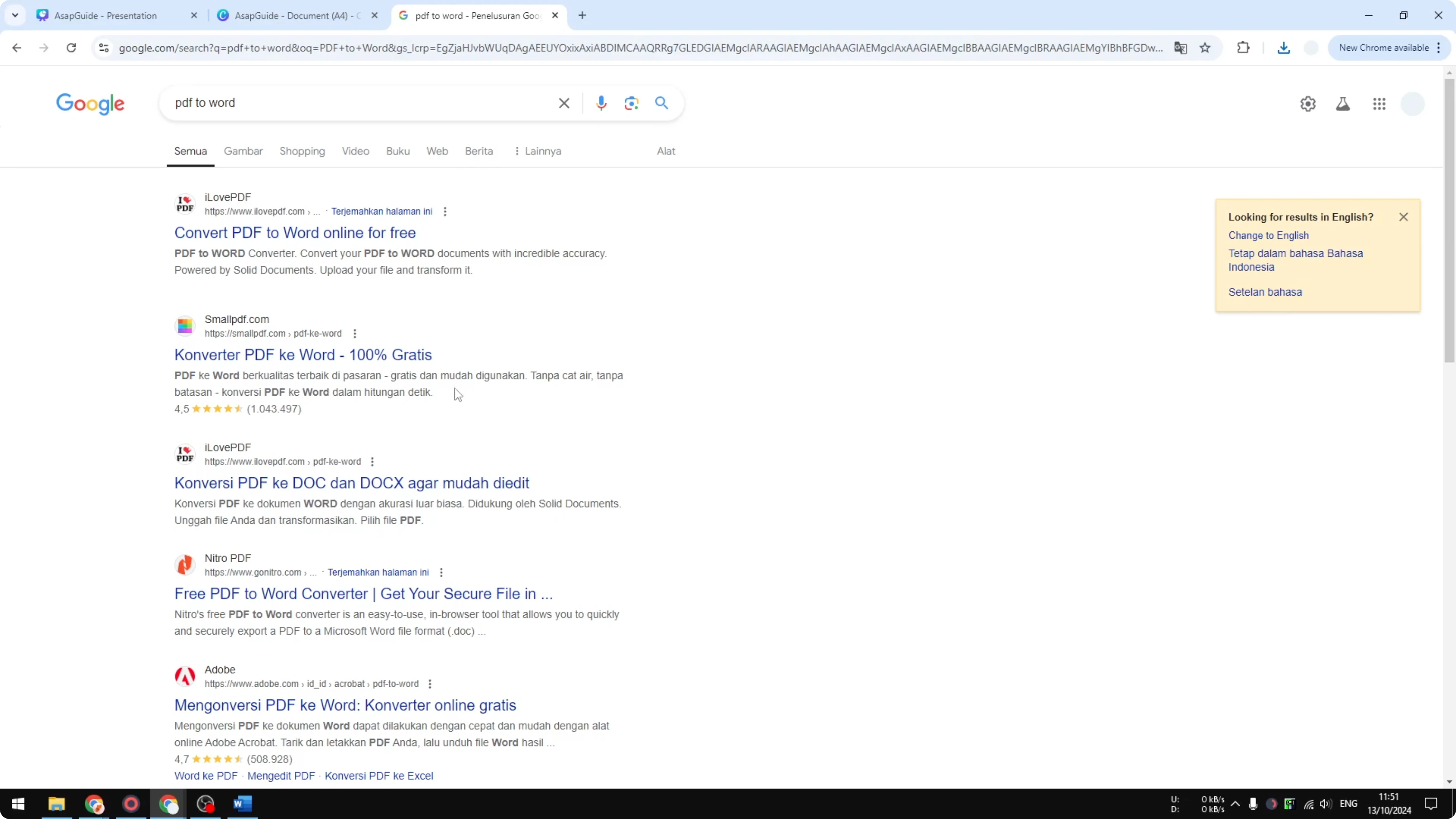
I use the one from Adobe, but you can use any tool that you prefer. Drag and drop your PDF into the converter and let it process the file.
Download the resulting DOCX file. Open it with Microsoft Word.
As you can see, the document matches the original Canva design with the same images, colors, and layout. This is the best way to copy content from a Canva document to Microsoft Word.
If you are organizing content across multiple Canva files, here is a guide for copying a page to another project in Canva.
Final thoughts
Direct copy and paste from Canva to Word does not work for full designs. Export the Canva design as a PDF, then convert the PDF to DOCX, and open it in Word.
This approach keeps your visuals intact and gets you an editable Word document that looks like your original Canva file.
Recent Posts

How to Visualize Yourself as a Pixelized Character with AI?
How to Visualize Yourself as a Pixelized Character with AI?

How to Revive Faded Memories and Enhance Image Clarity with AI?
How to Revive Faded Memories and Enhance Image Clarity with AI?

How to Visualize Yourself as an Animal Crossing Character with AI?
How to Visualize Yourself as an Animal Crossing Character with AI?