How to Convert WebP to PNG in Canva
WebP is small and preserves high quality, and in many ways it is better compared to PNG or JPG. Some legacy software still cannot accept this newer format, so when we encounter a WebP file we may need to convert it to a traditional format like JPG or PNG. Canva allows us to do that quickly.
If you also need a similar workflow for documents, see how to convert a PDF to JPEG in Canva.
Why Convert WebP to PNG in Canva
WebP gives you high quality at a small file size, but compatibility can be an issue in older tools. Converting inside Canva keeps the original dimensions intact and avoids resizing problems. You can also switch to JPG if that suits your needs.
Steps to Convert WebP to PNG in Canva
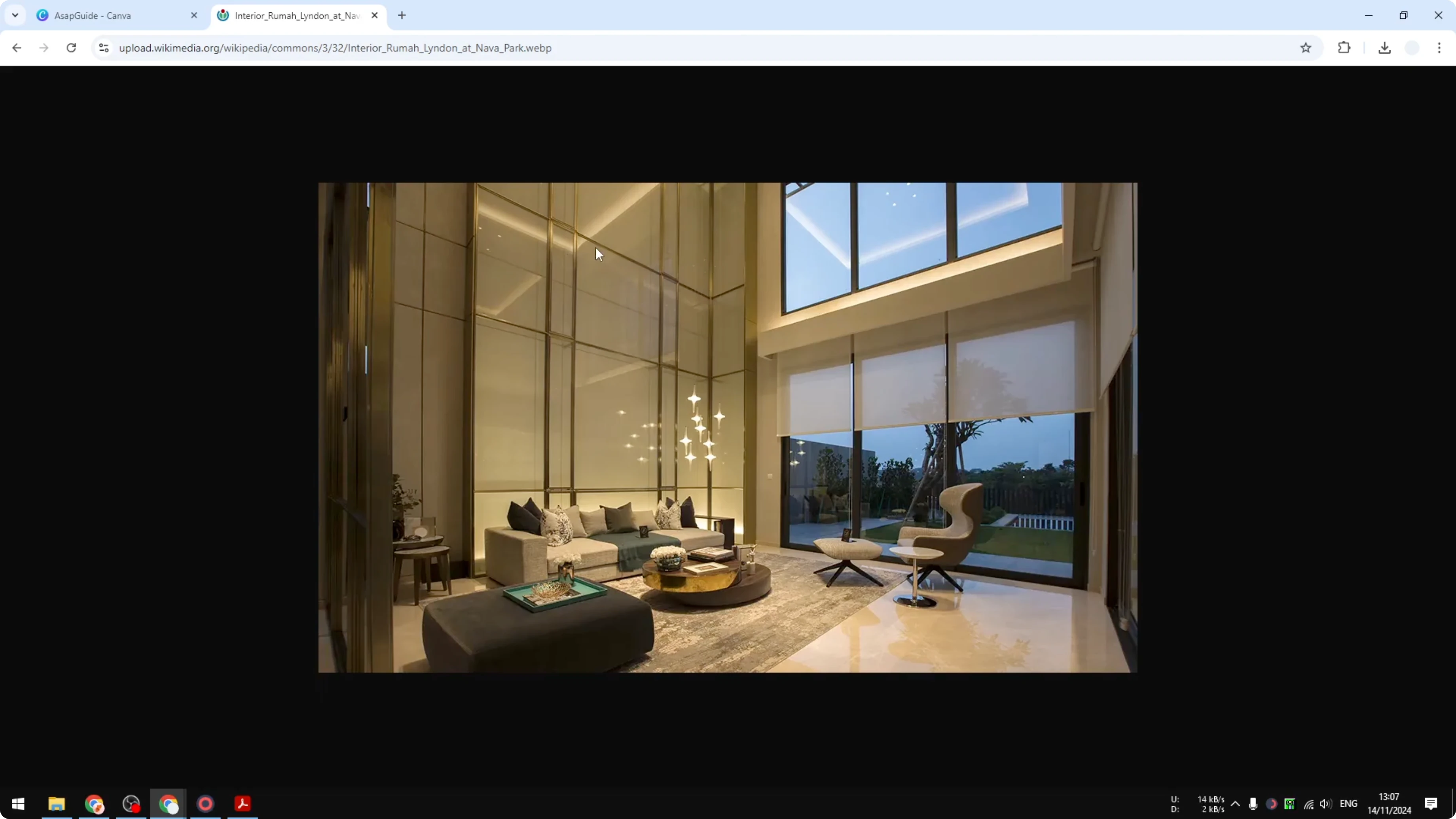
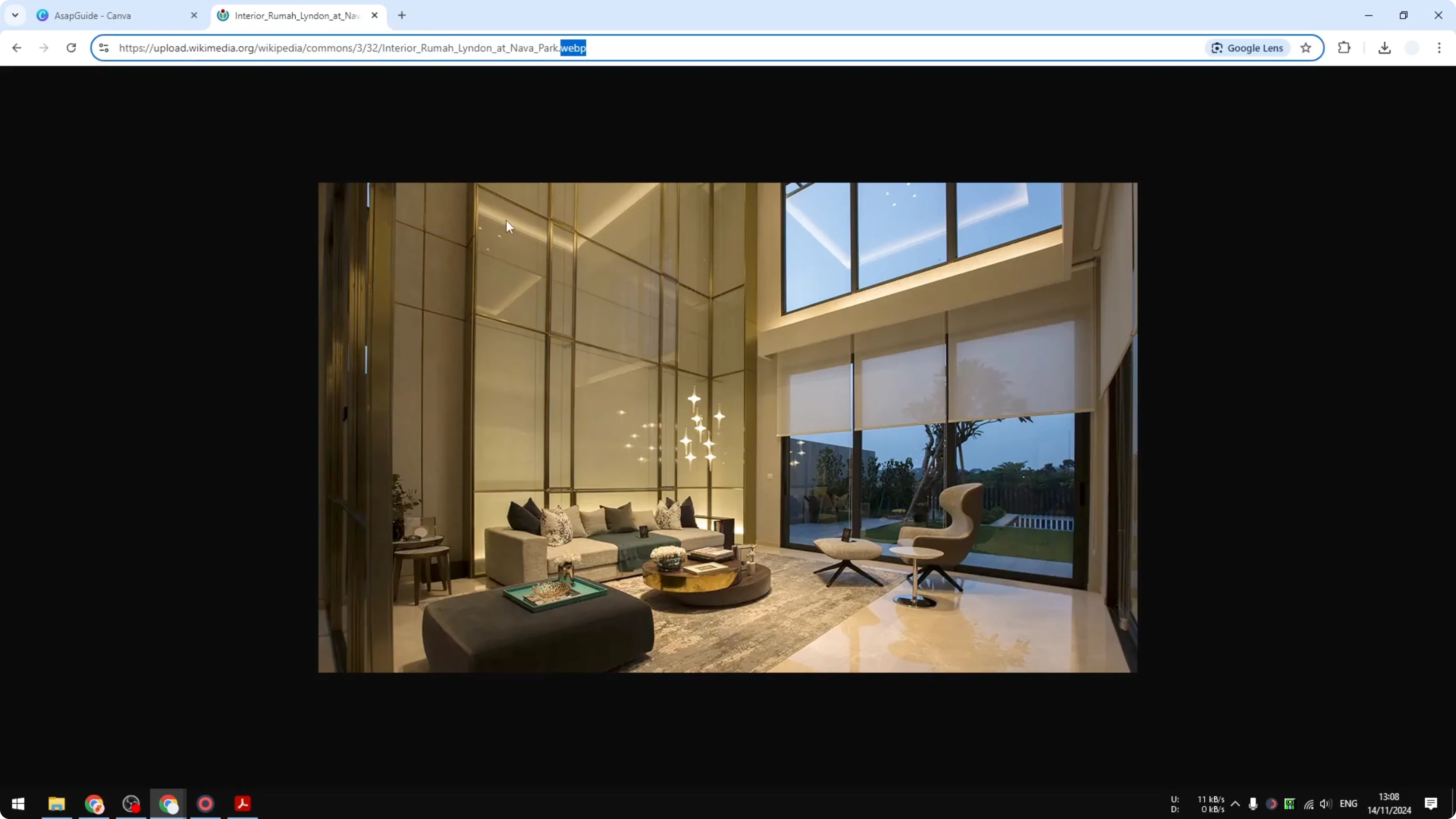
Download your WebP file to your computer.
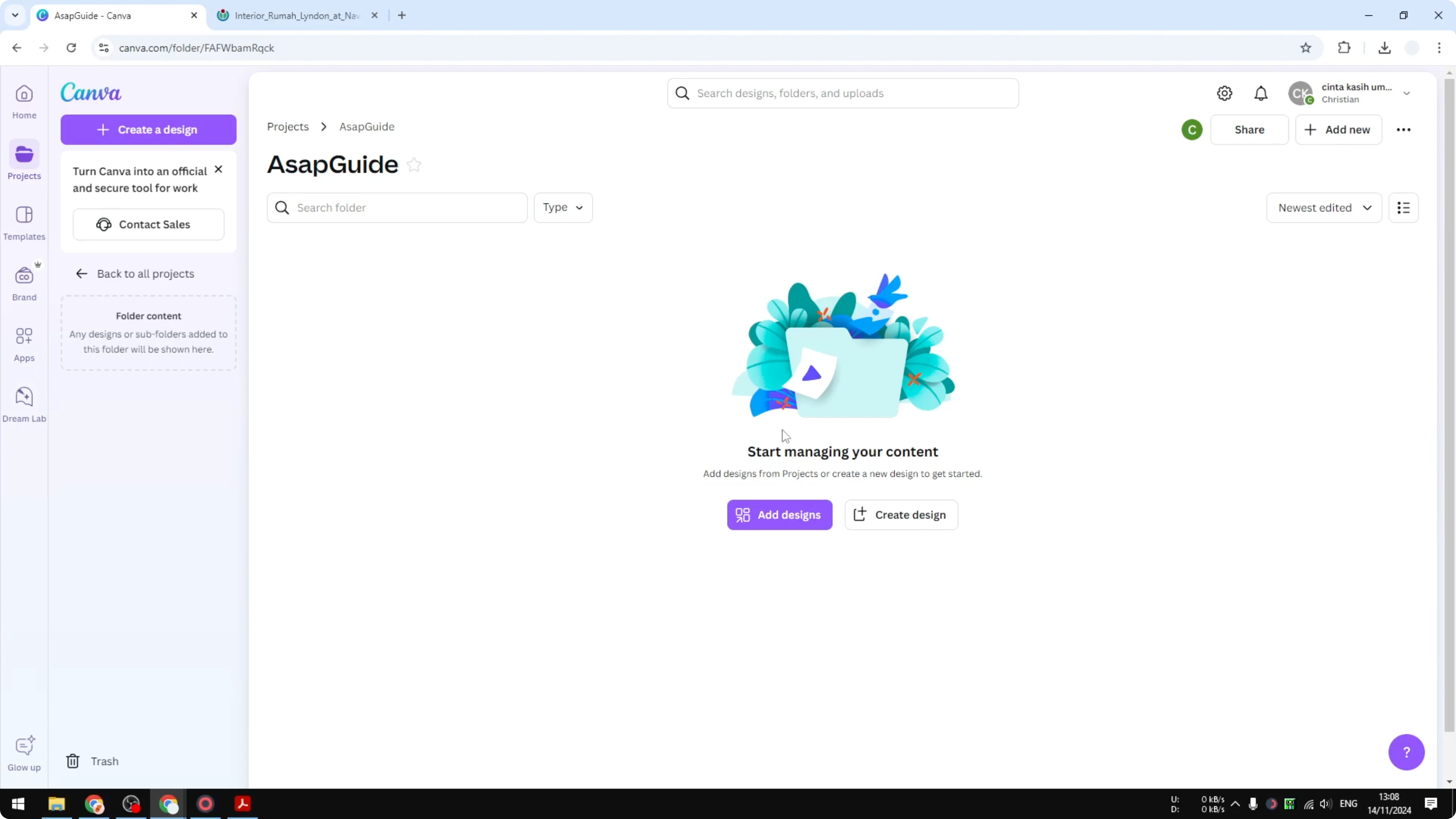
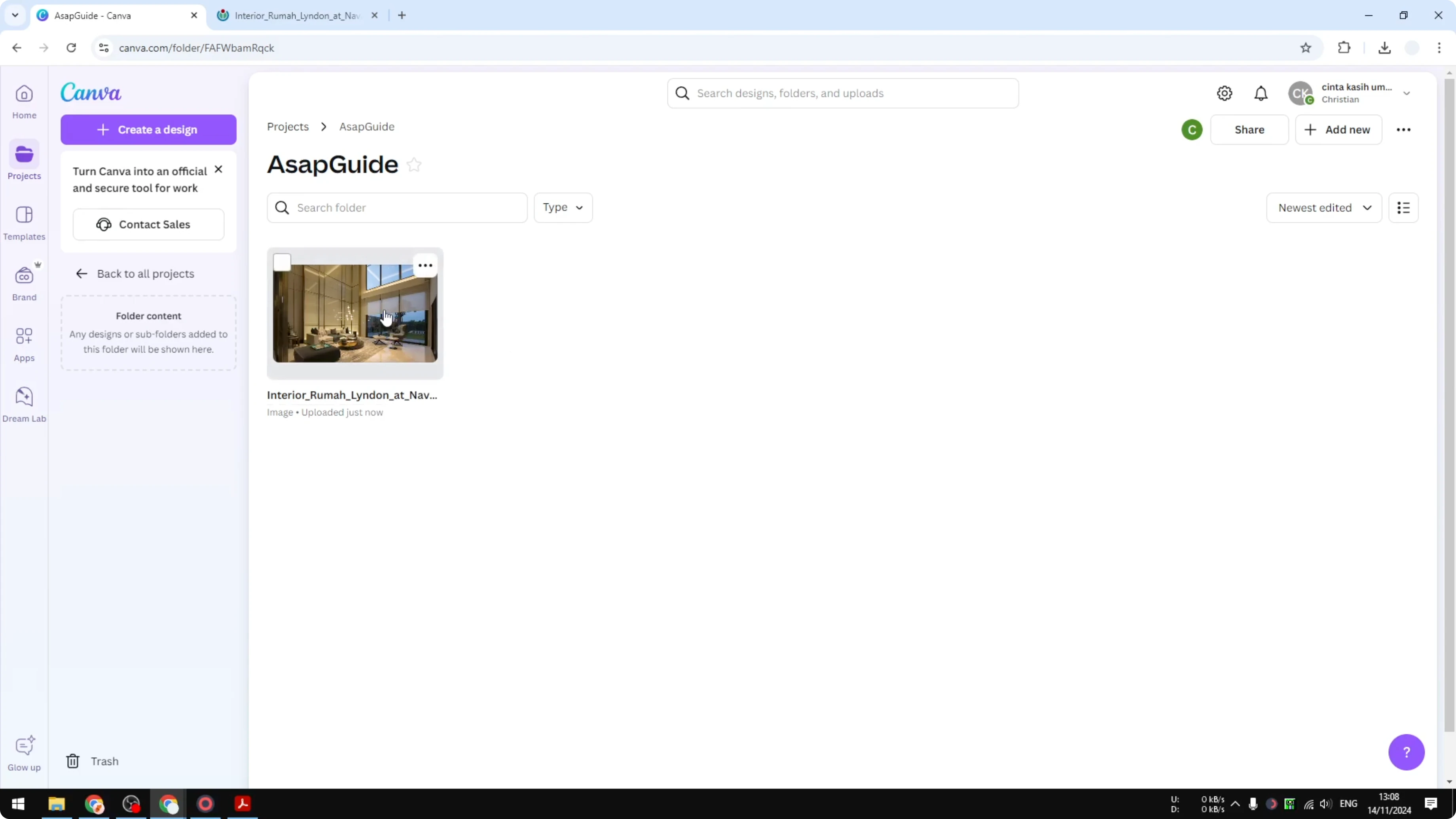
Upload the file to your Canva homepage or a folder in your Projects. You can click Add New, then Upload, or just drag and drop the file, and Canva will add it to your account.
Right click the uploaded image and click Edit image.
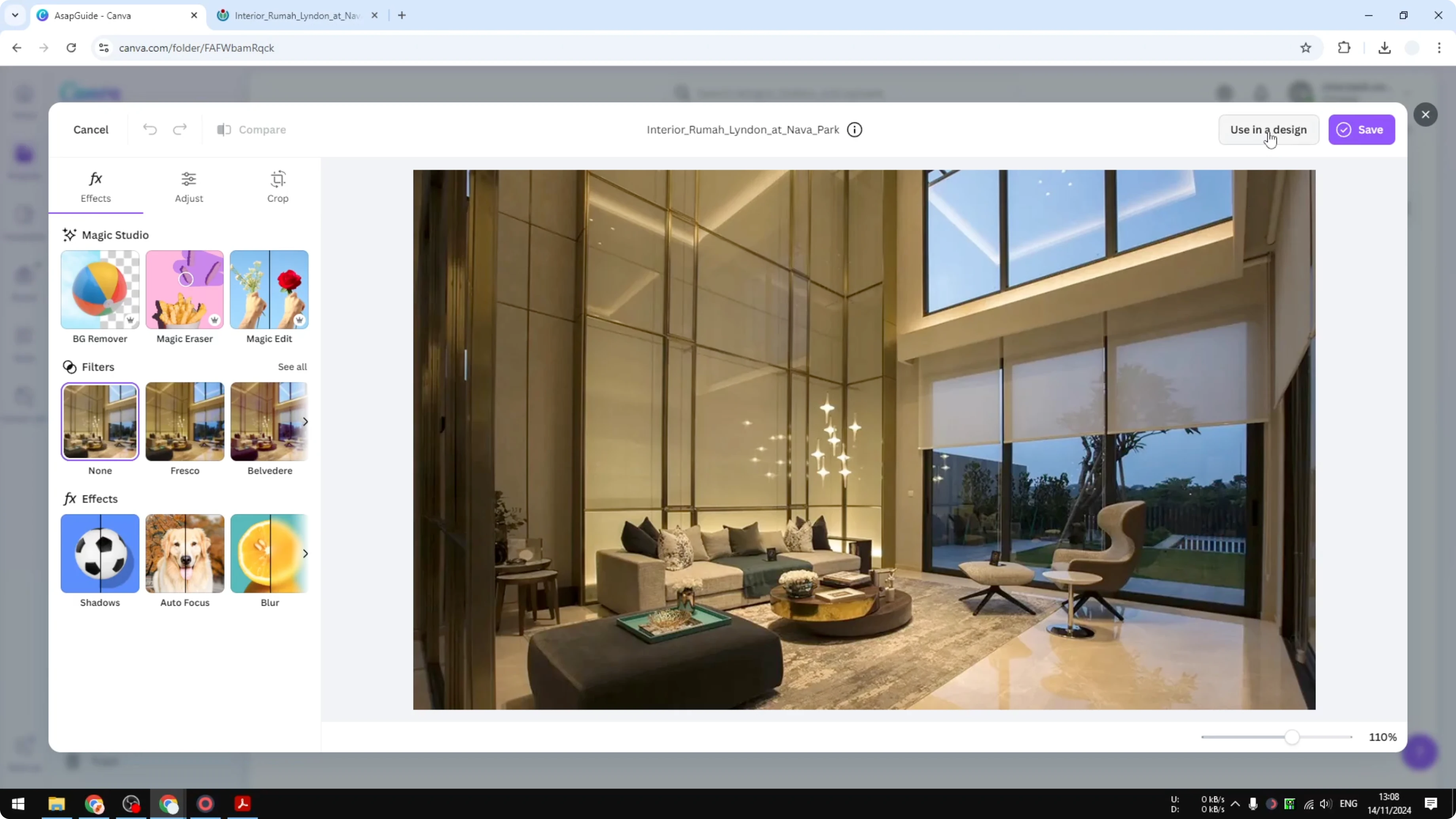
Click Use in a design. We are not going to use the editing tools here.
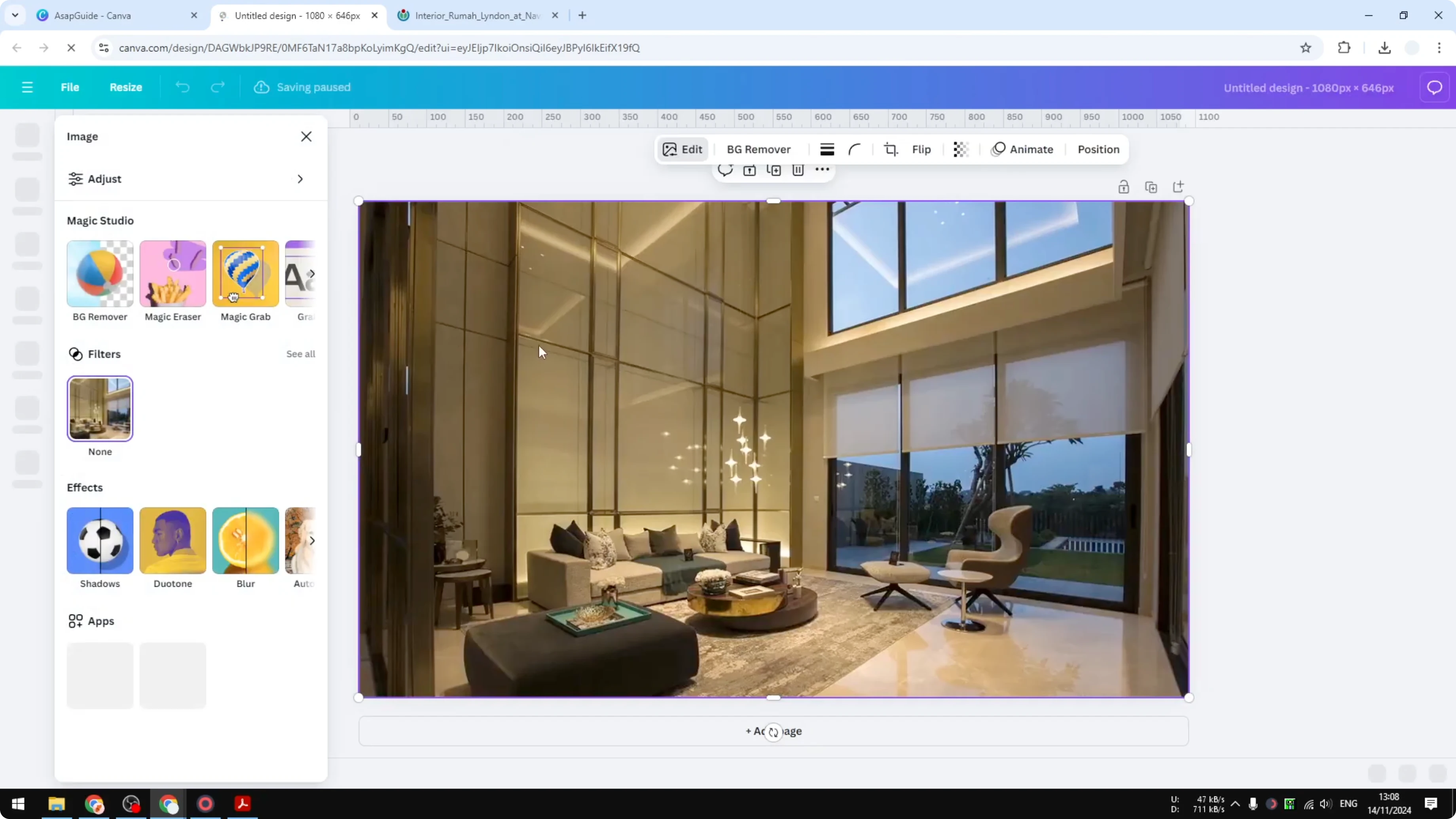
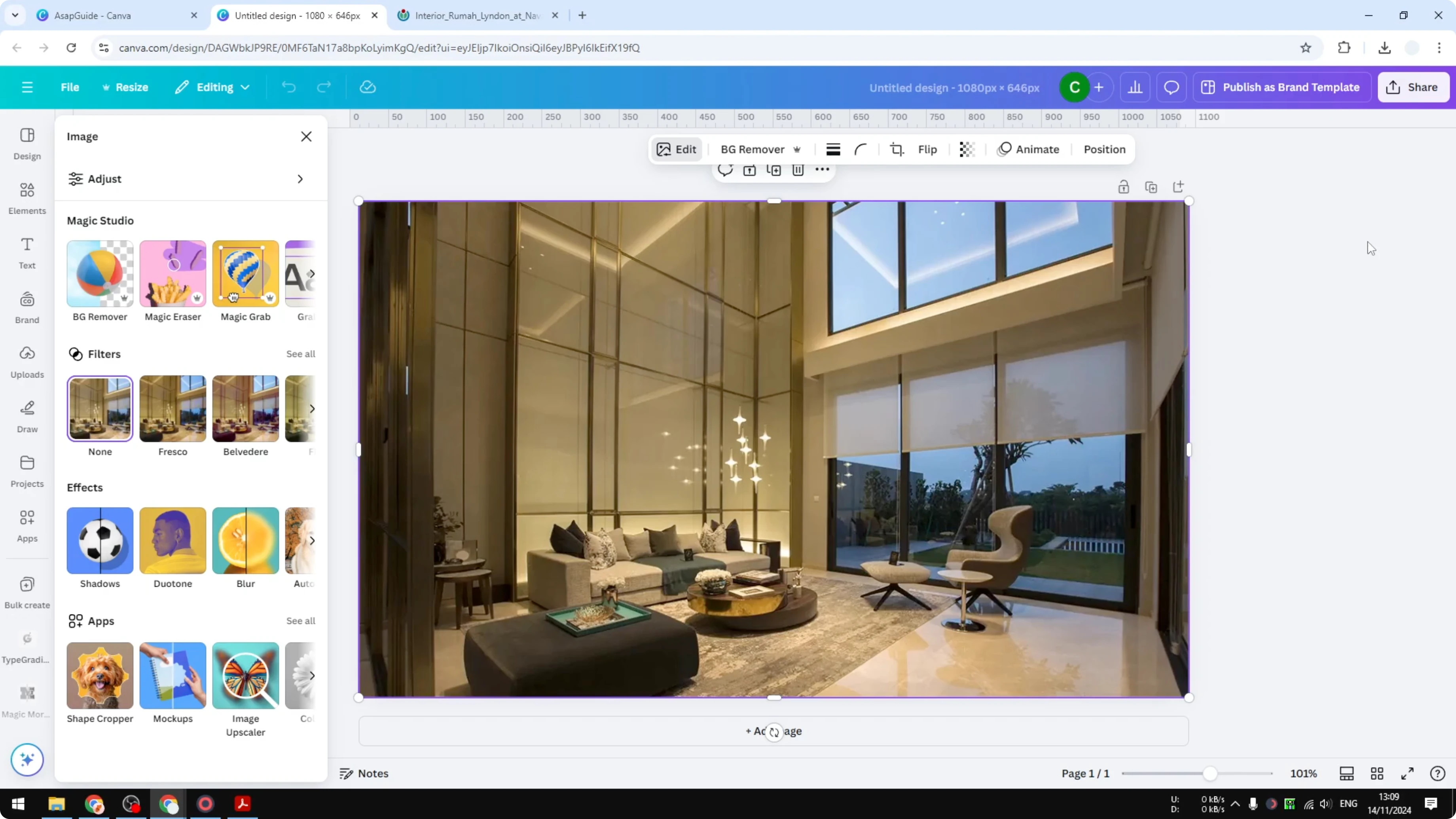
Wait for Canva to open a new document for that image. The canvas size will match the exact dimensions of the image, so you do not end up with something too small or too big.
Go to Share and click Download.
Under File type, select PNG or JPG. You can also choose SVG, GIF, or PDF if you need those formats.
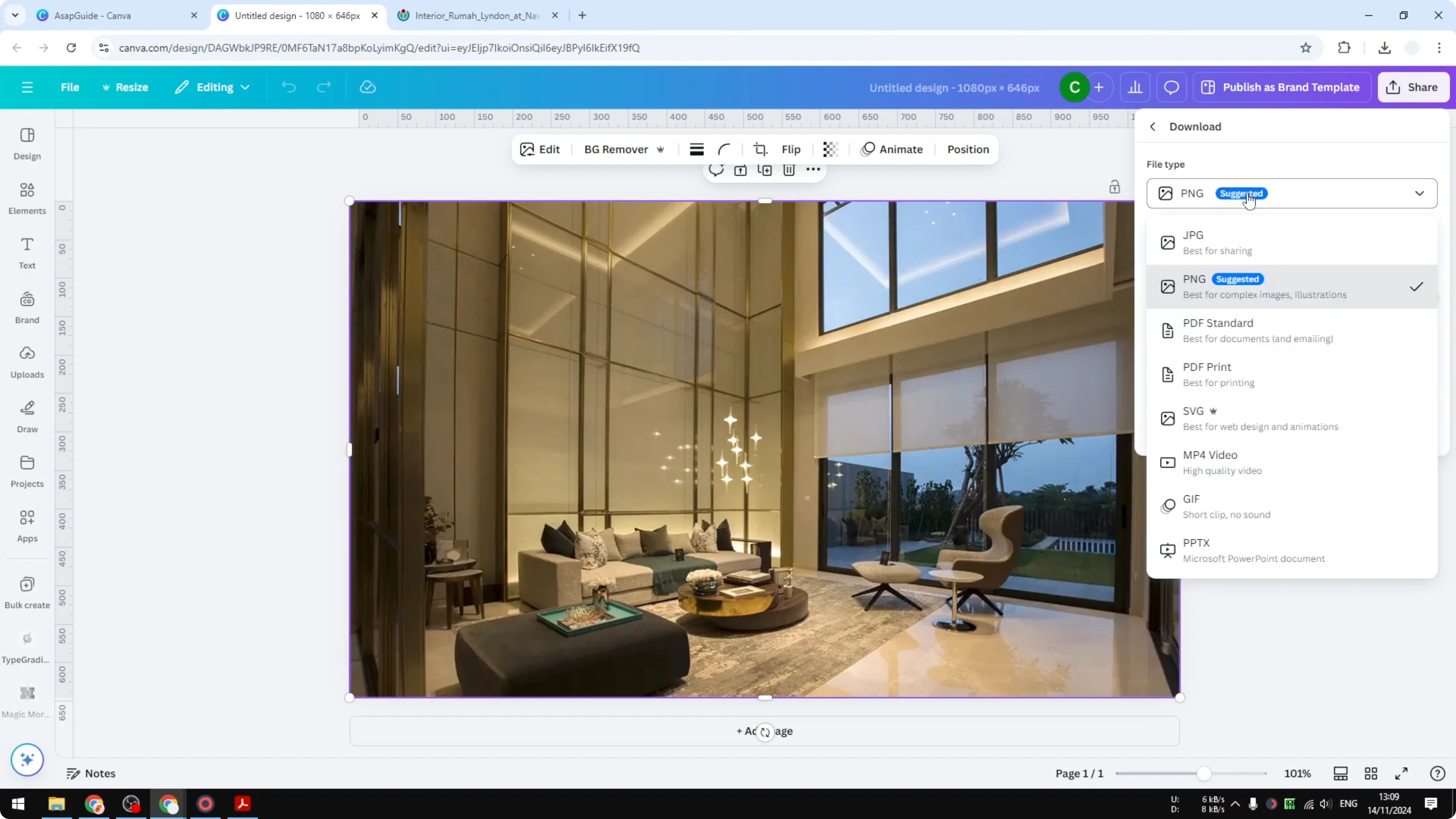
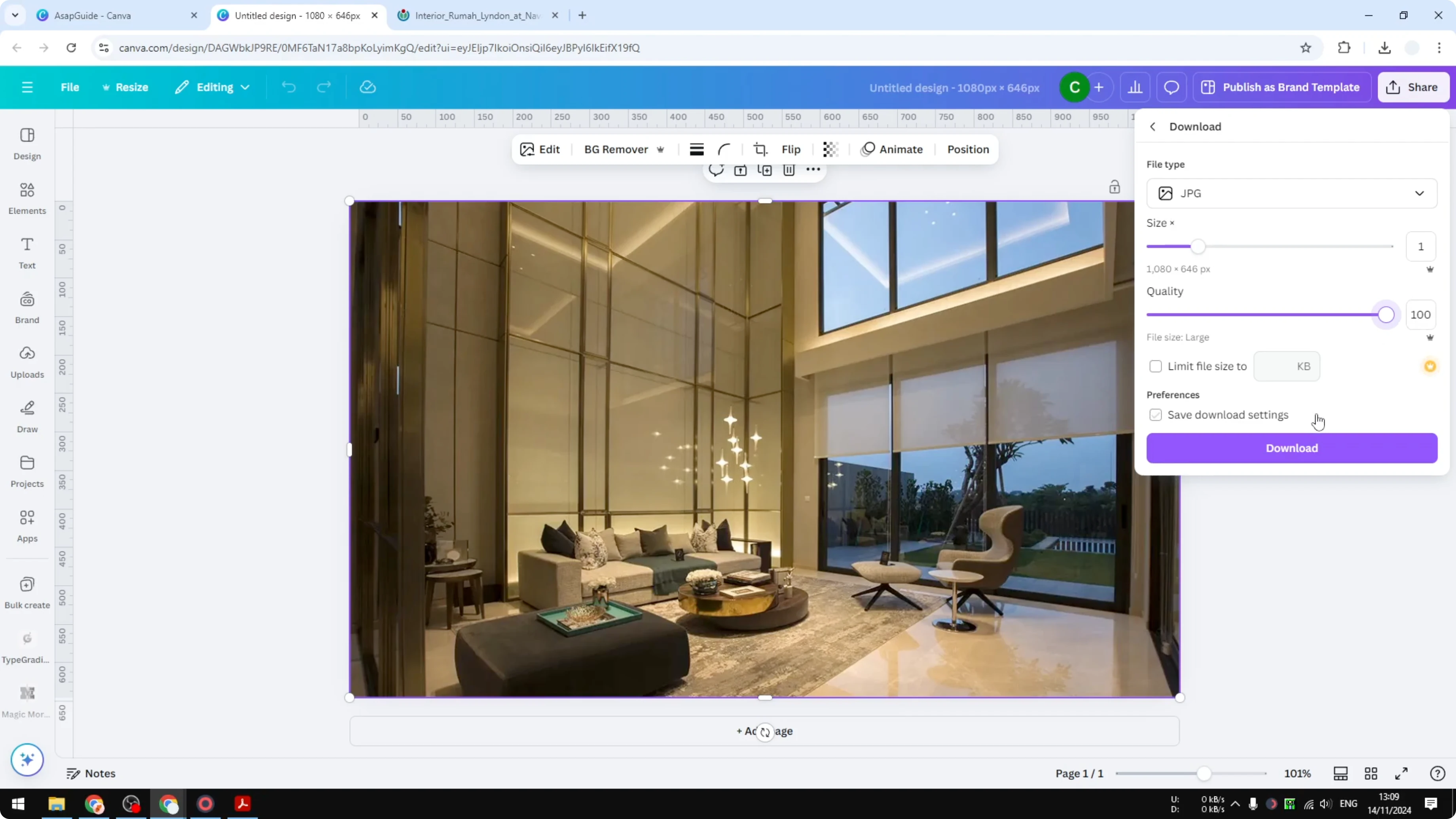
Adjust the size if needed. Set quality to 100 percent for JPG.
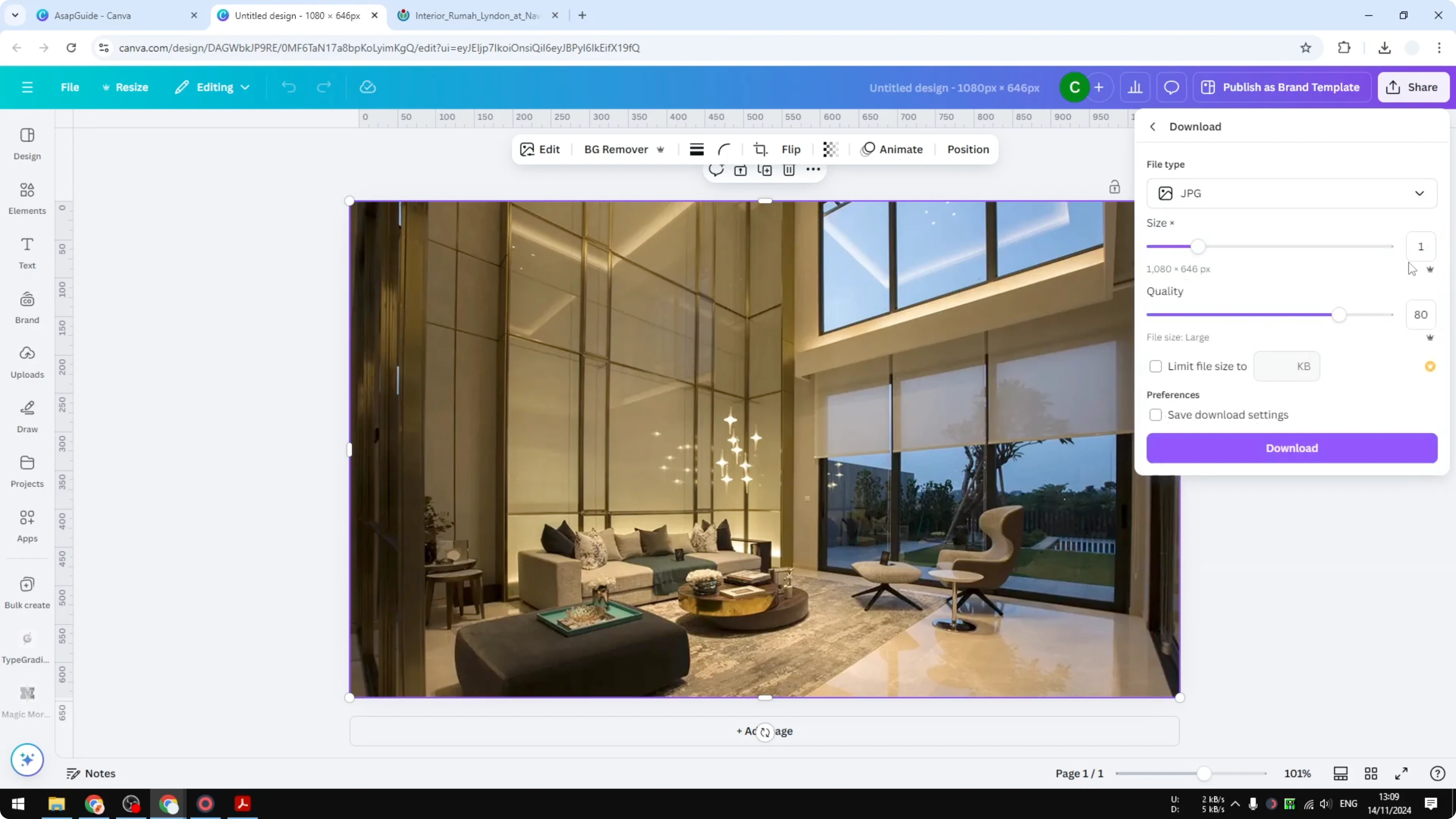
Click Download. Canva will render the image and give you the PNG or JPG version with the same content as the original WebP.
If you are also working with motion and want an animation, you can convert a video to a GIF in Canva.
Notes on dimensions and quality
Opening the image with Use in a design ensures the document is made specifically for that image. This keeps the original dimensions without guessing or manual input. You can still make edits before exporting if you want.
If you need a logo with a transparent background after exporting, you can follow this guide to create a transparent PNG logo in Canva.
Final thoughts
WebP is efficient, but converting to PNG or JPG in Canva is straightforward and preserves your image dimensions. Upload the file, open it as a design, then export in the format you need. The process gives you the same content, just in a format that works with your software.
Recent Posts

How to Visualize Yourself as a Pixelized Character with AI?
How to Visualize Yourself as a Pixelized Character with AI?

How to Revive Faded Memories and Enhance Image Clarity with AI?
How to Revive Faded Memories and Enhance Image Clarity with AI?

How to Visualize Yourself as an Animal Crossing Character with AI?
How to Visualize Yourself as an Animal Crossing Character with AI?