How to Convert PDF to JPEG in Canva
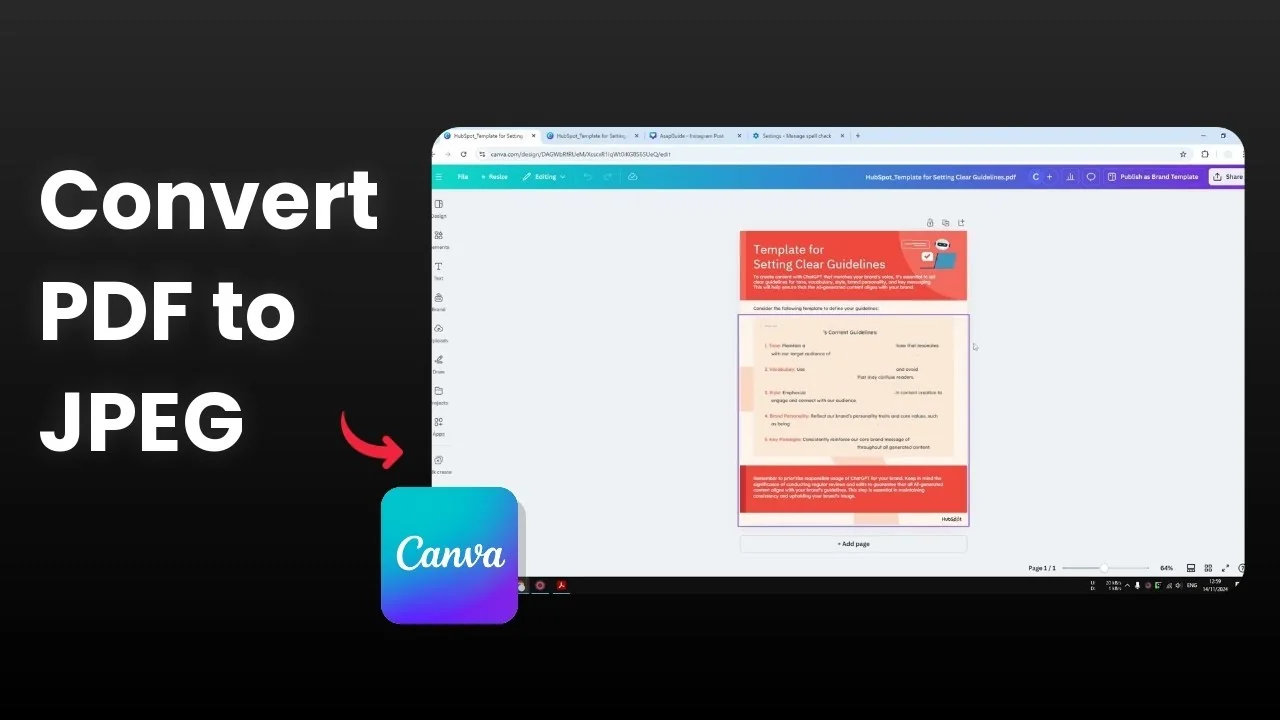
One of many hidden features in Canva is that you can convert a PDF document into a JPG or PNG file. That way it is easier to share and also easier to store on any platform because that image format is much more popular. Here is how I convert a PDF document into a JPG or PNG in Canva.
I am starting with a PDF document I got from the internet, and I want to convert it into an image file. The process is very easy.
Convert PDF to JPEG in Canva - upload
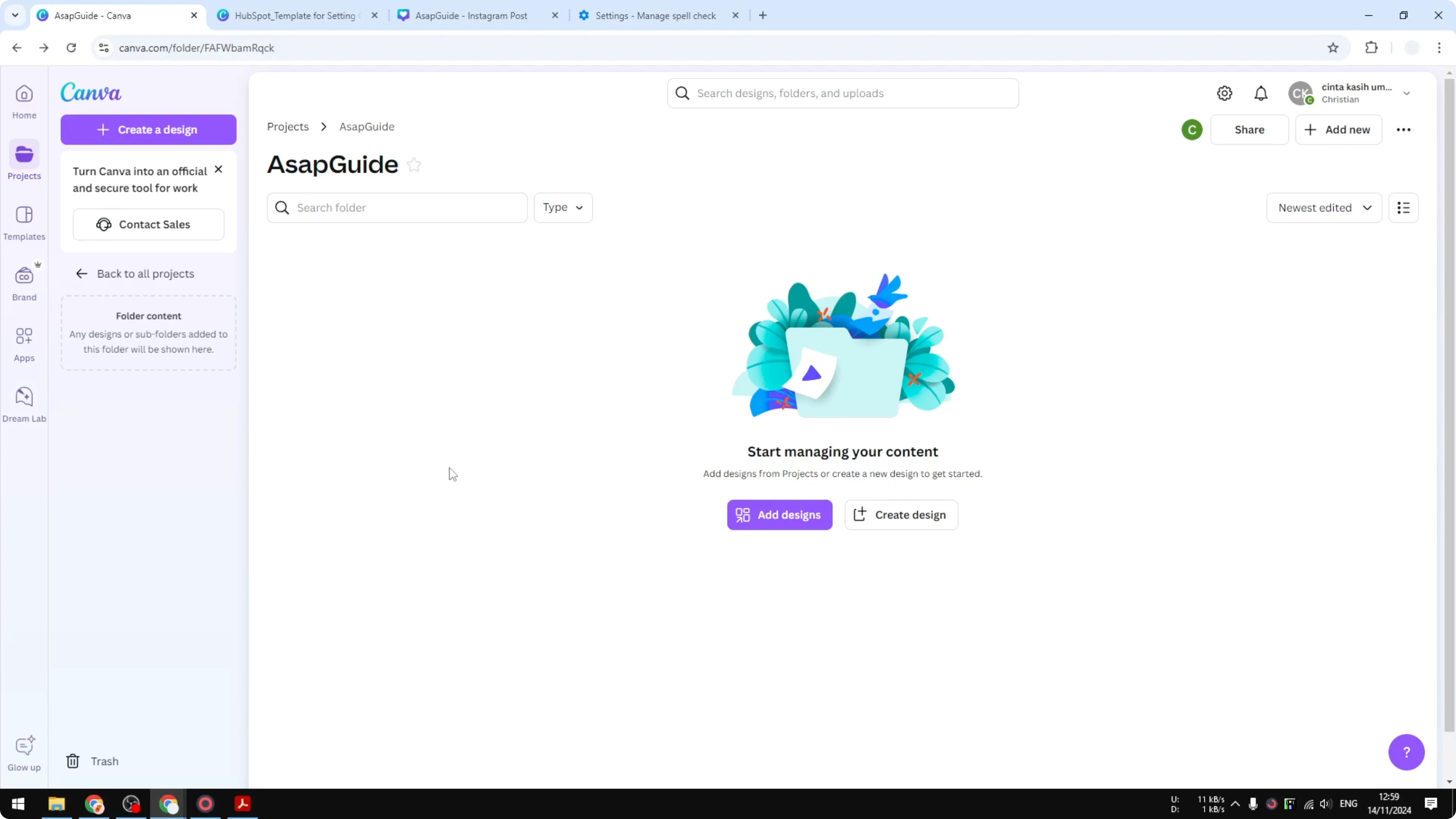
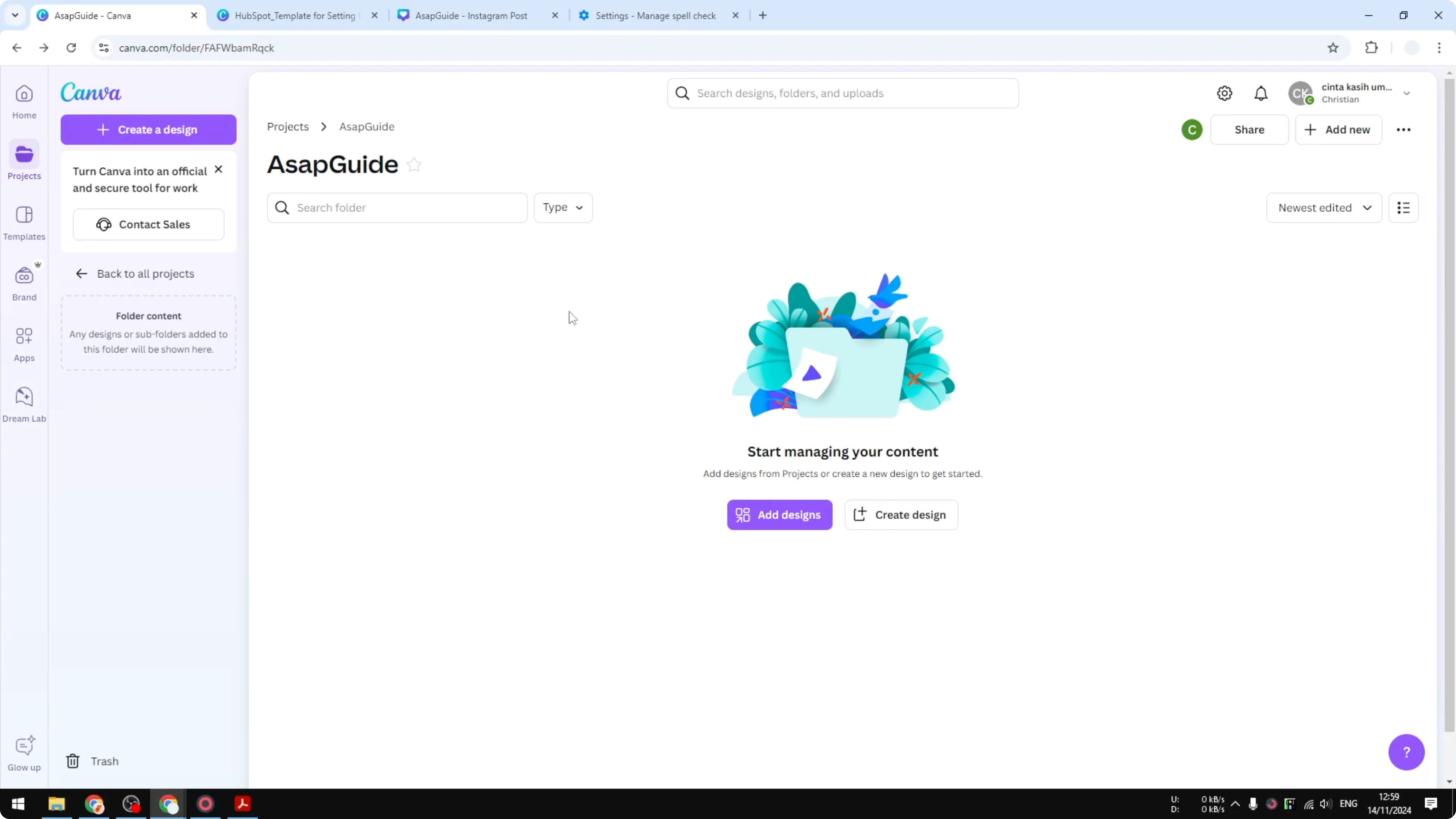
Go to the Canva homepage or open your project folder.
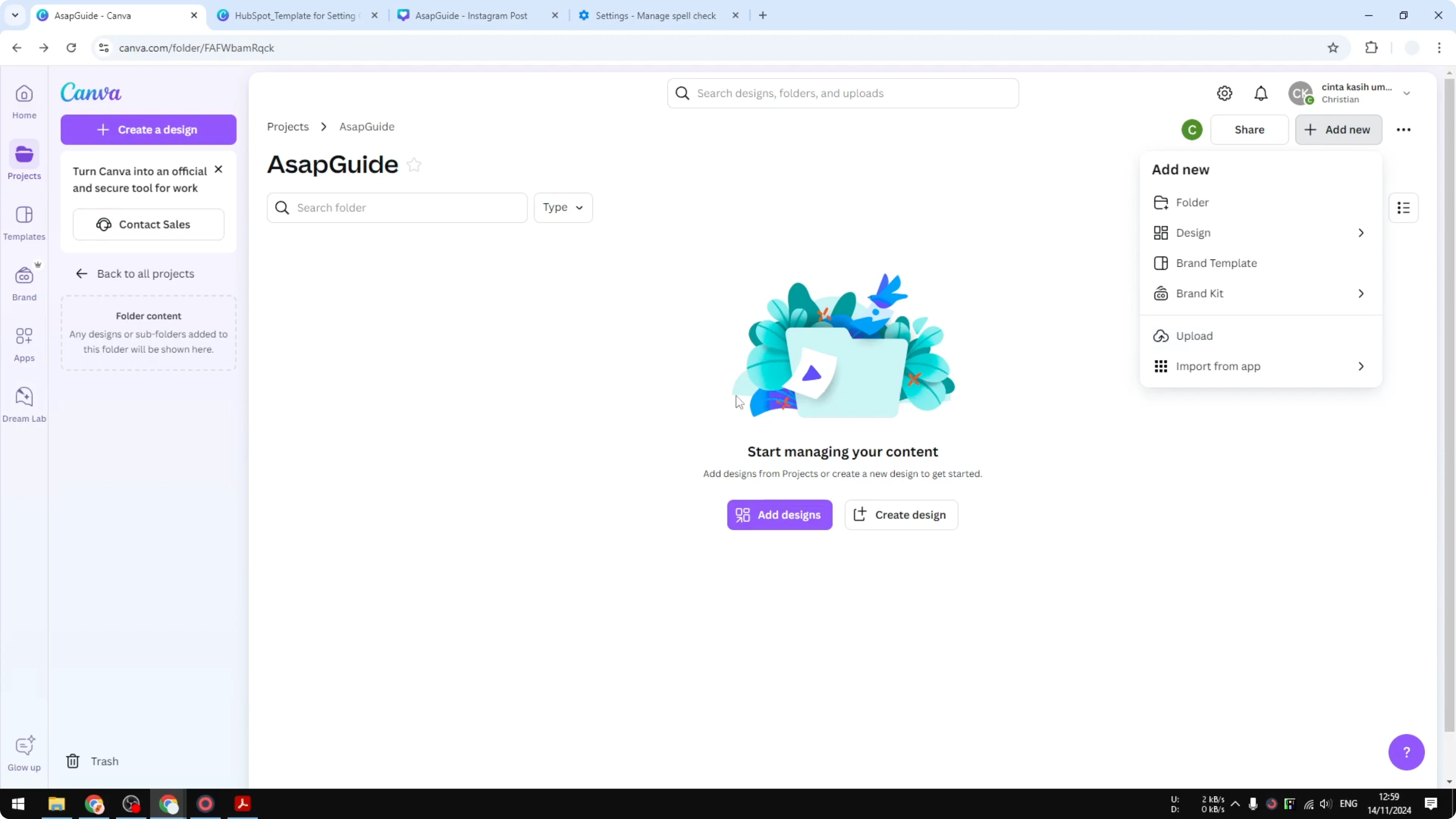
Click Add new, then click Upload.
Select the PDF file you want to convert or drag and drop it into the upload area.
Canva will recognize the document and upload it to your account.
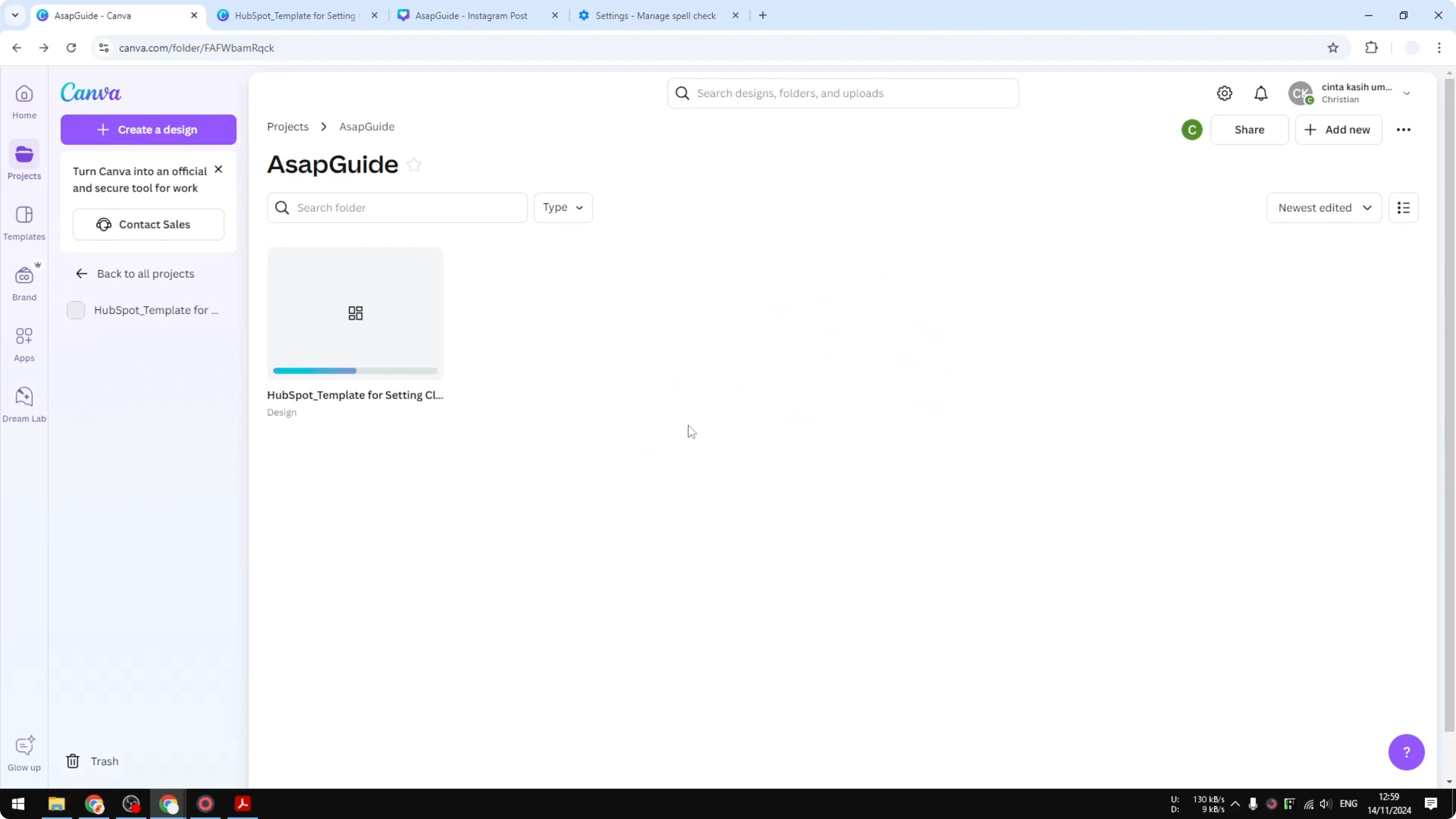
Open it by clicking on the document.
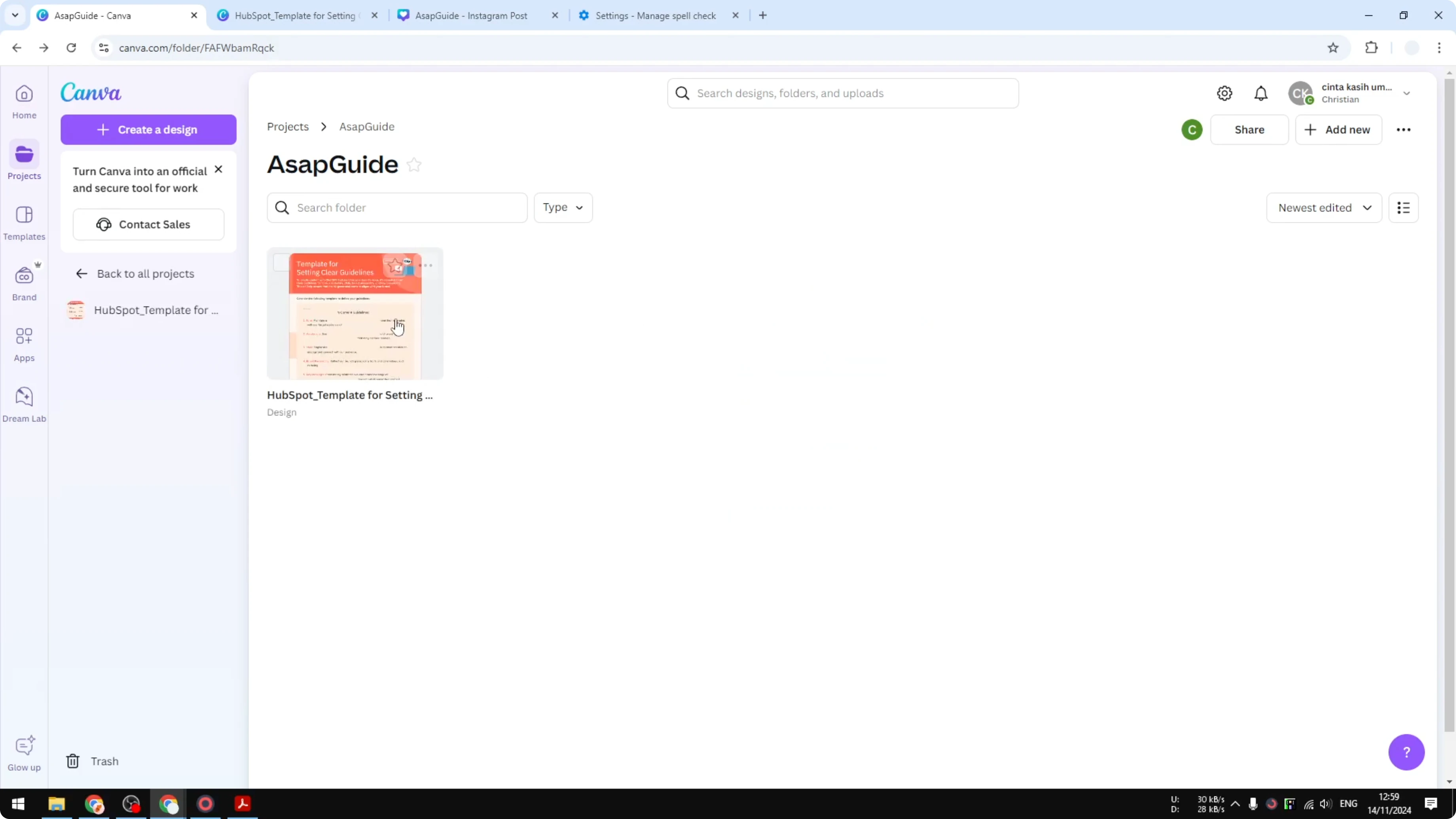
After opening, the PDF is still editable. I can change the background, add icons, and change the text, but that is not the purpose here. I just want to convert it into an image.
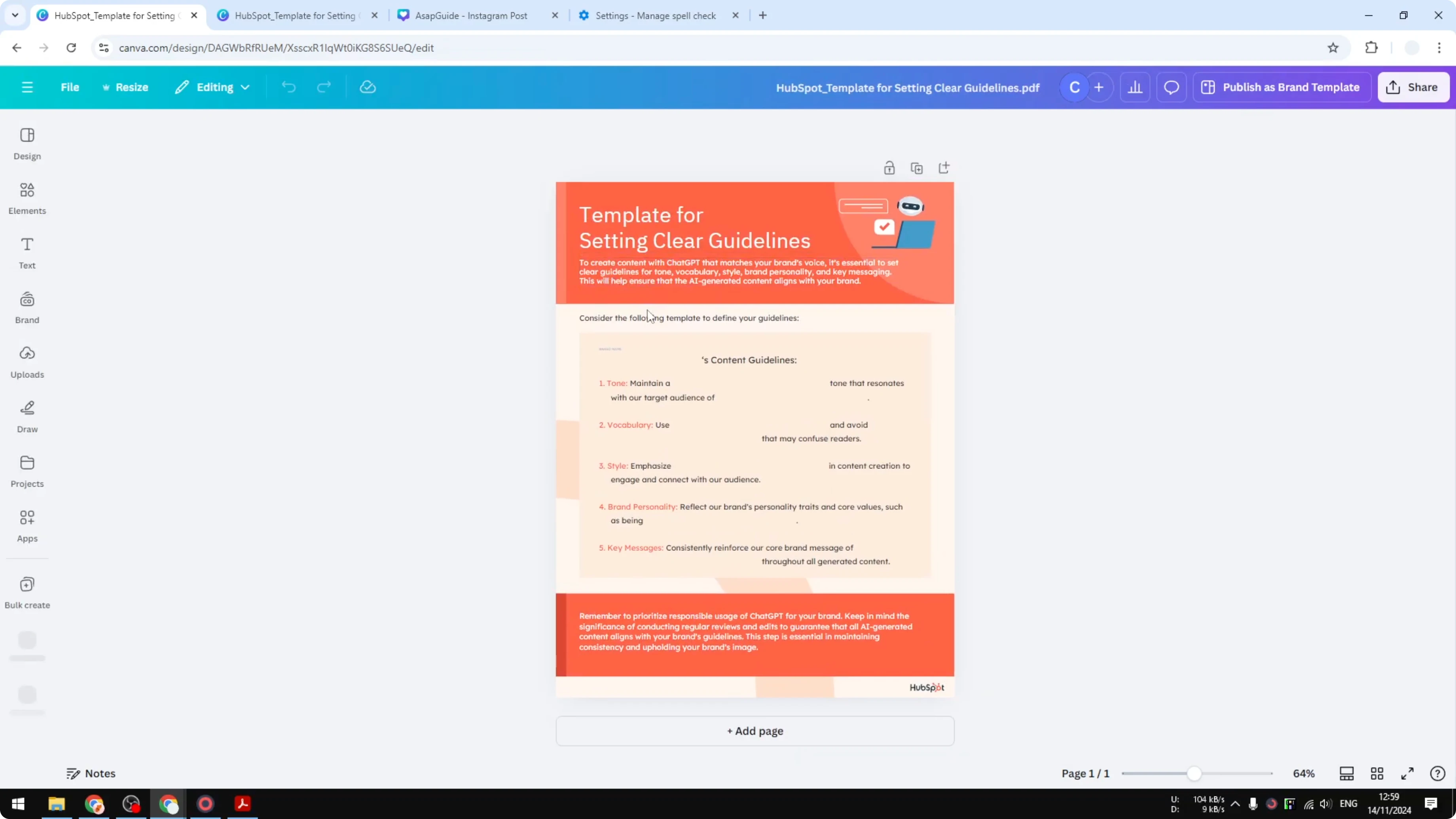
If you do want to tweak text styling before exporting, see this guide on background text effects in Canva: add background behind text.
Convert PDF to JPEG in Canva - export
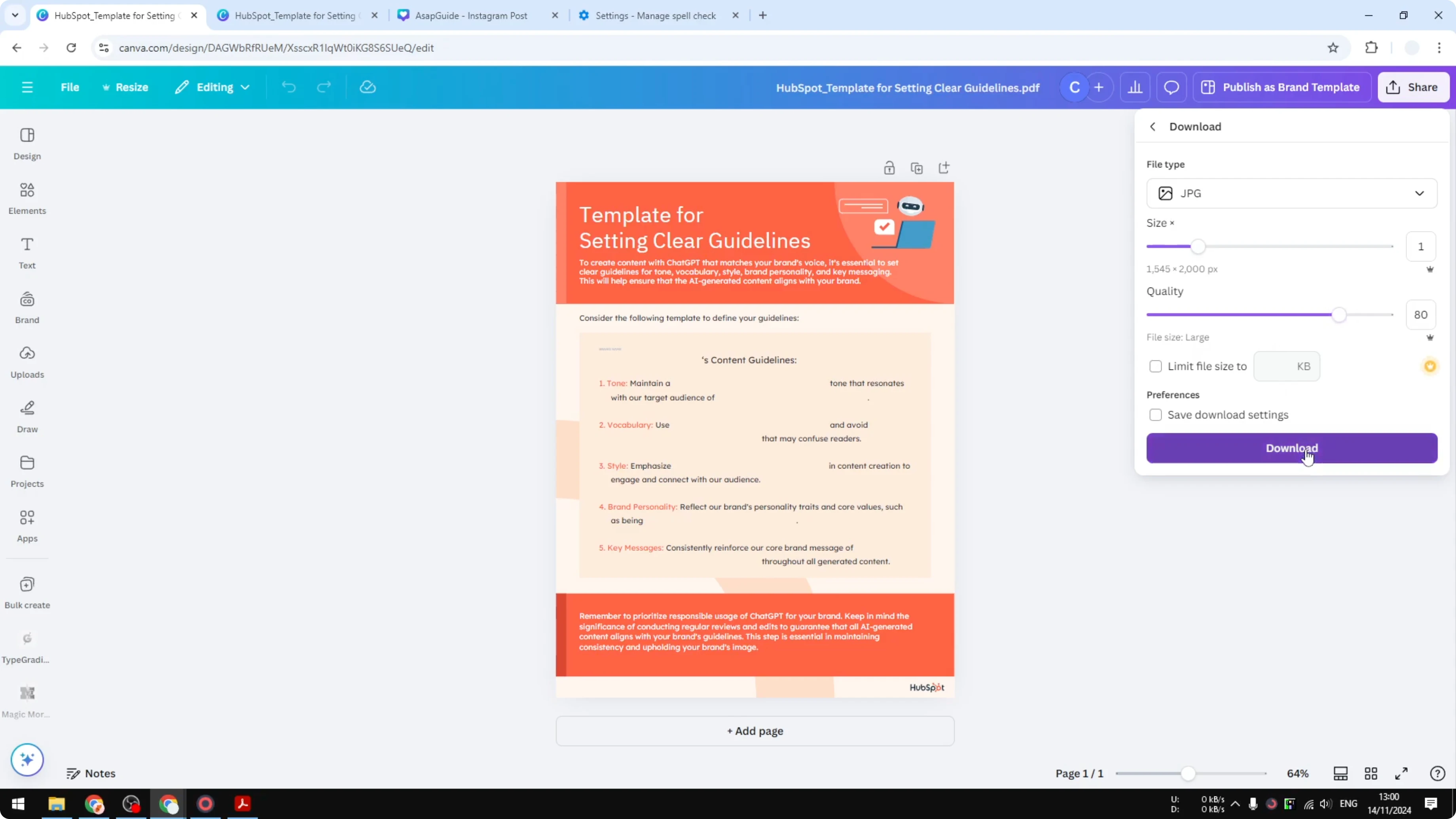
Click Share.
Click Download.
In the File type menu, select JPG.
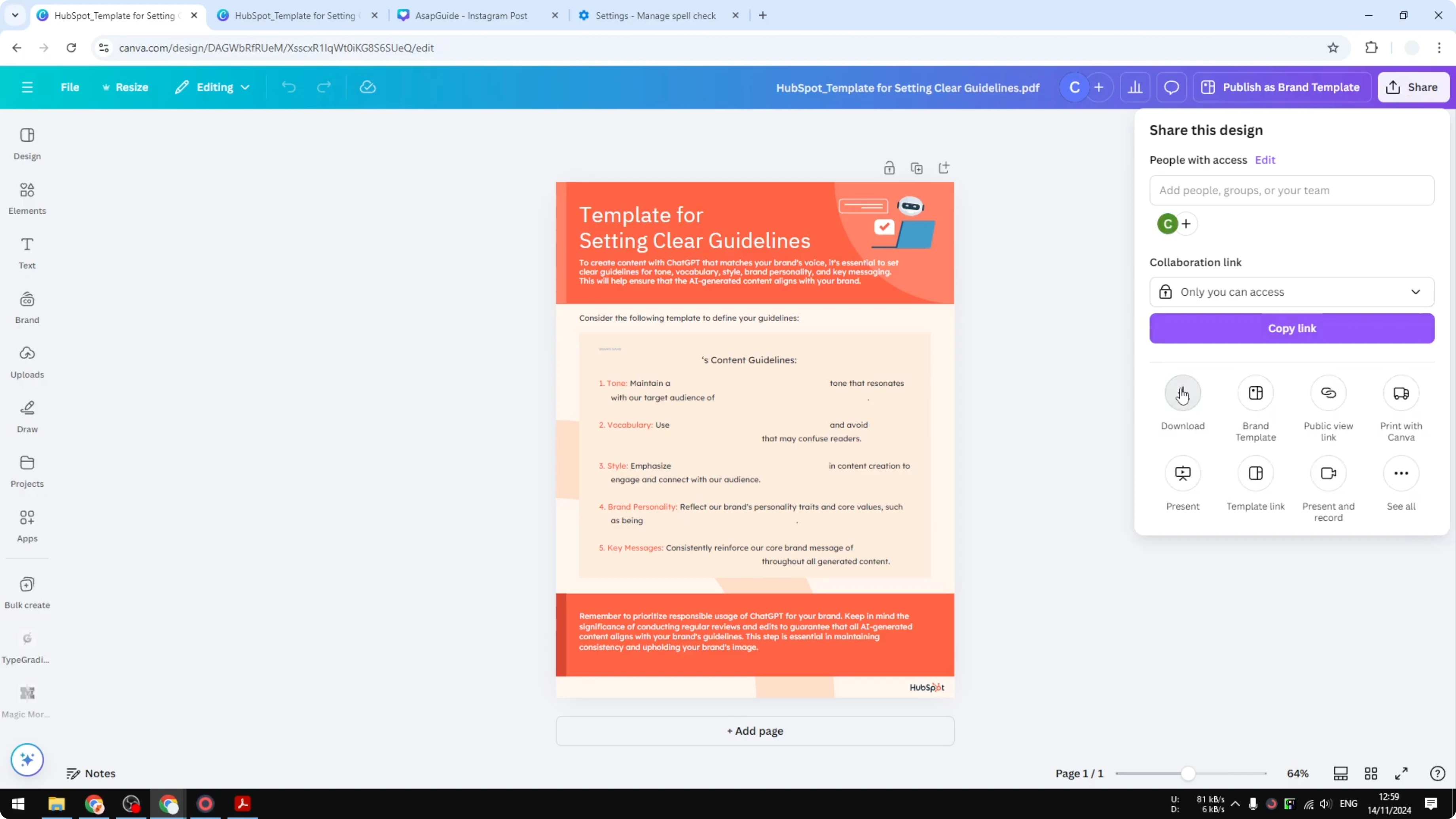
Leave Size as the default from the PDF unless you need a change.
For Quality, JPG tends to look okay even when you reduce it. Set 100 percent to preserve the highest quality, and 80 percent is often fine.
Click Download to get the file in JPG format.
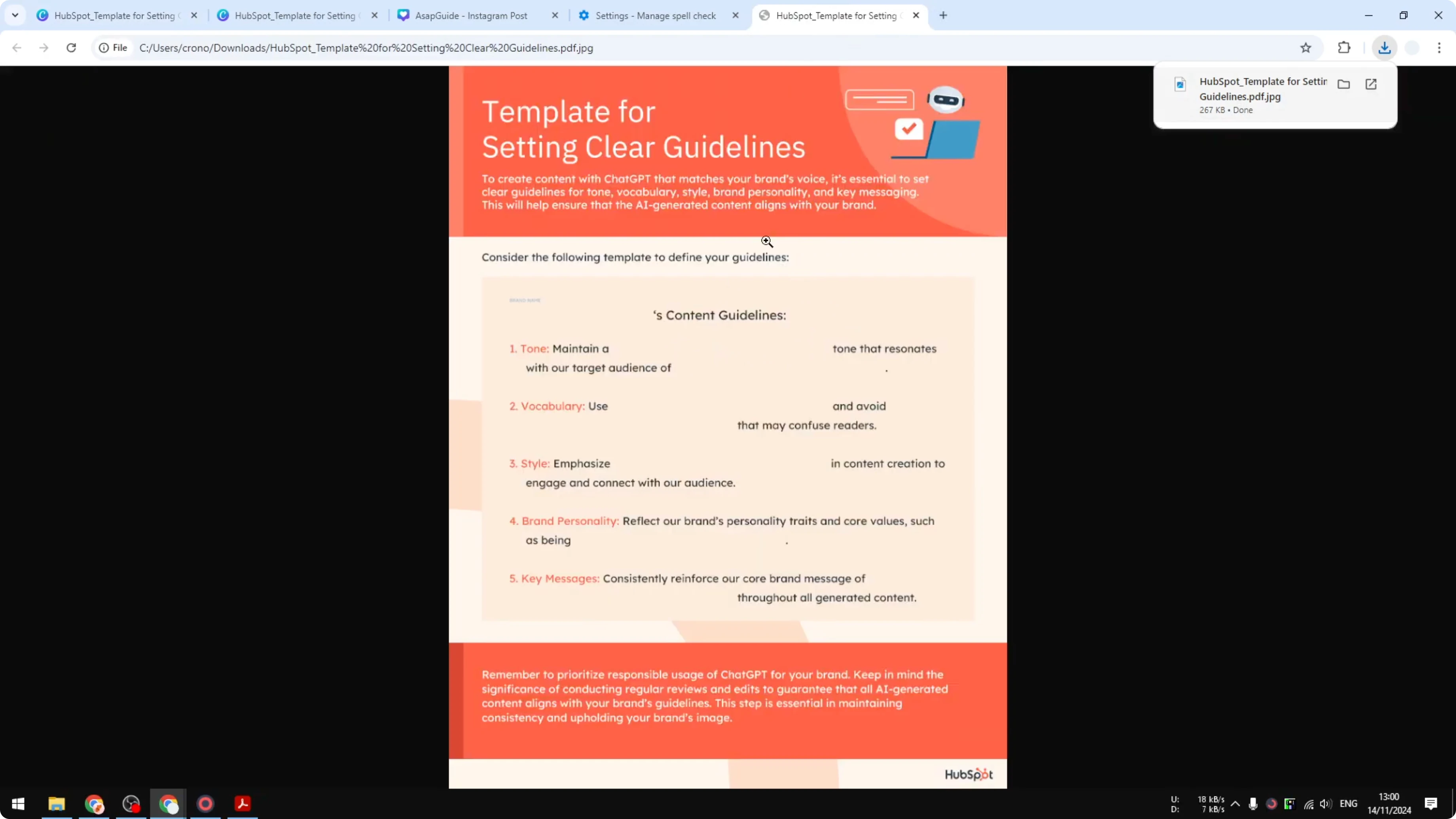
Open the result to confirm it is an image and no longer a PDF.
Convert PDF to JPEG in Canva - other formats
If you prefer, choose PNG in the File type menu instead of JPG. Canva also supports other export formats based on your needs. For motion content, you might want a GIF export.
To create looping images from clips you design in Canva, see how to convert a video to a GIF.
Final thoughts
Converting a PDF to an image in Canva is quick: upload the PDF, open it, choose JPG in the download settings, set your quality, and export. You can keep the PDF editable if you want to adjust elements, or just export straight to an image for easier sharing. For more creative output from your designs, you might also like this tutorial on making a 3D book cover in Canva.
Recent Posts

How to Visualize Yourself as a Pixelized Character with AI?
How to Visualize Yourself as a Pixelized Character with AI?

How to Revive Faded Memories and Enhance Image Clarity with AI?
How to Revive Faded Memories and Enhance Image Clarity with AI?

How to Visualize Yourself as an Animal Crossing Character with AI?
How to Visualize Yourself as an Animal Crossing Character with AI?