How to Convert Video to GIF Animation in Canva
Canva lets you convert a video into a GIF animation. Upload a video, clip a section, and export it as a GIF to share on Twitter, Facebook, TikTok, Instagram, and more. GIFs are great for expressing emotion or showing a short clip without dealing with a long video.
I’ll walk you through how I do it, including clipping a short segment to keep the file size reasonable. GIF files tend to be large compared to MP4, so keeping it short matters a lot.
Convert Video to GIF Animation in Canva
Get your video
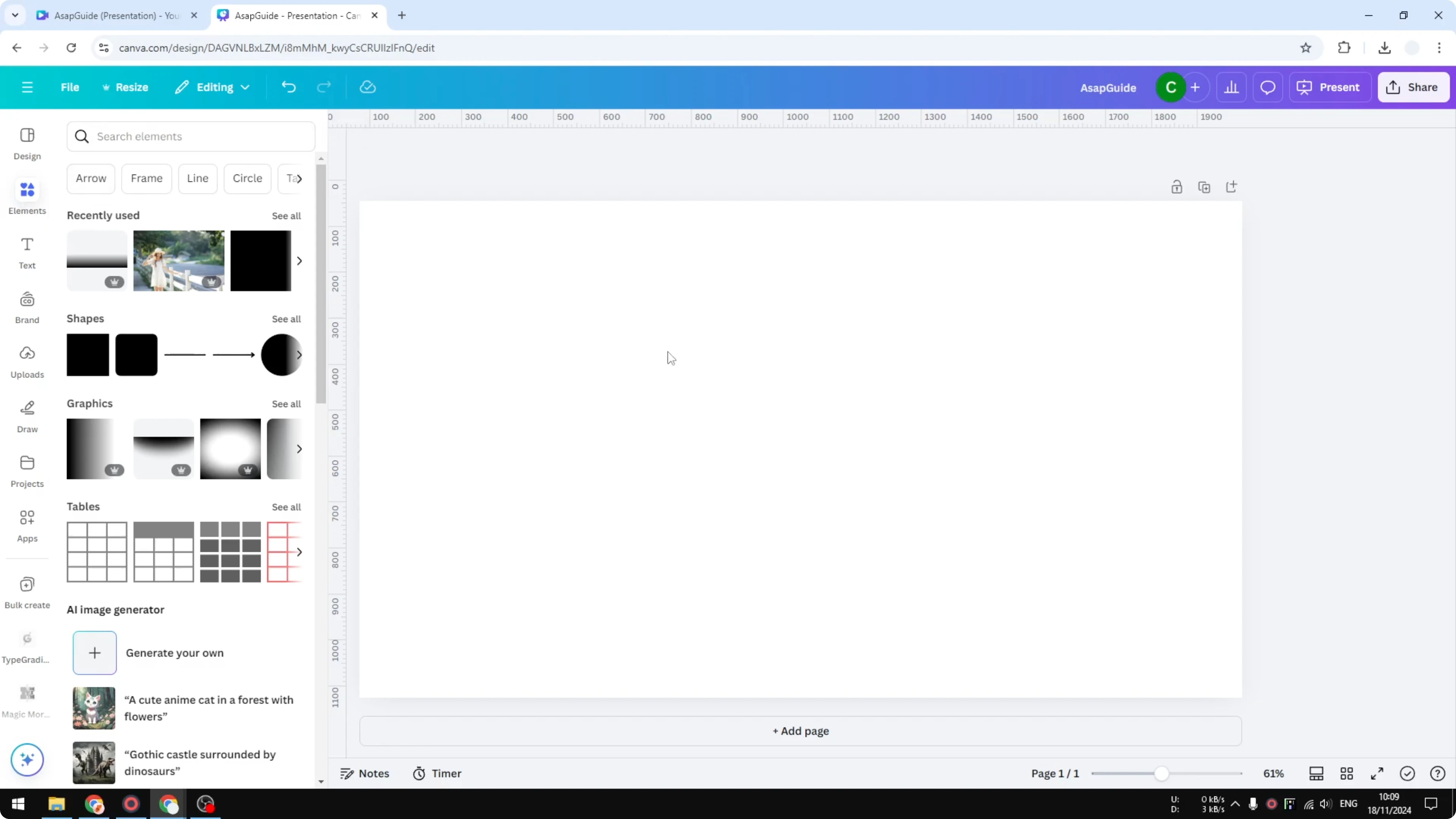
You can upload a video to your Canva library, or grab one from the stock library in the Elements tab. Search for a video and insert it into the canvas. I have this video, a commercial made by Fulo, and I think this is a legendary commercial, and I just want a section of the clip from around here to here.
Read More: Add Video Transitions Canva
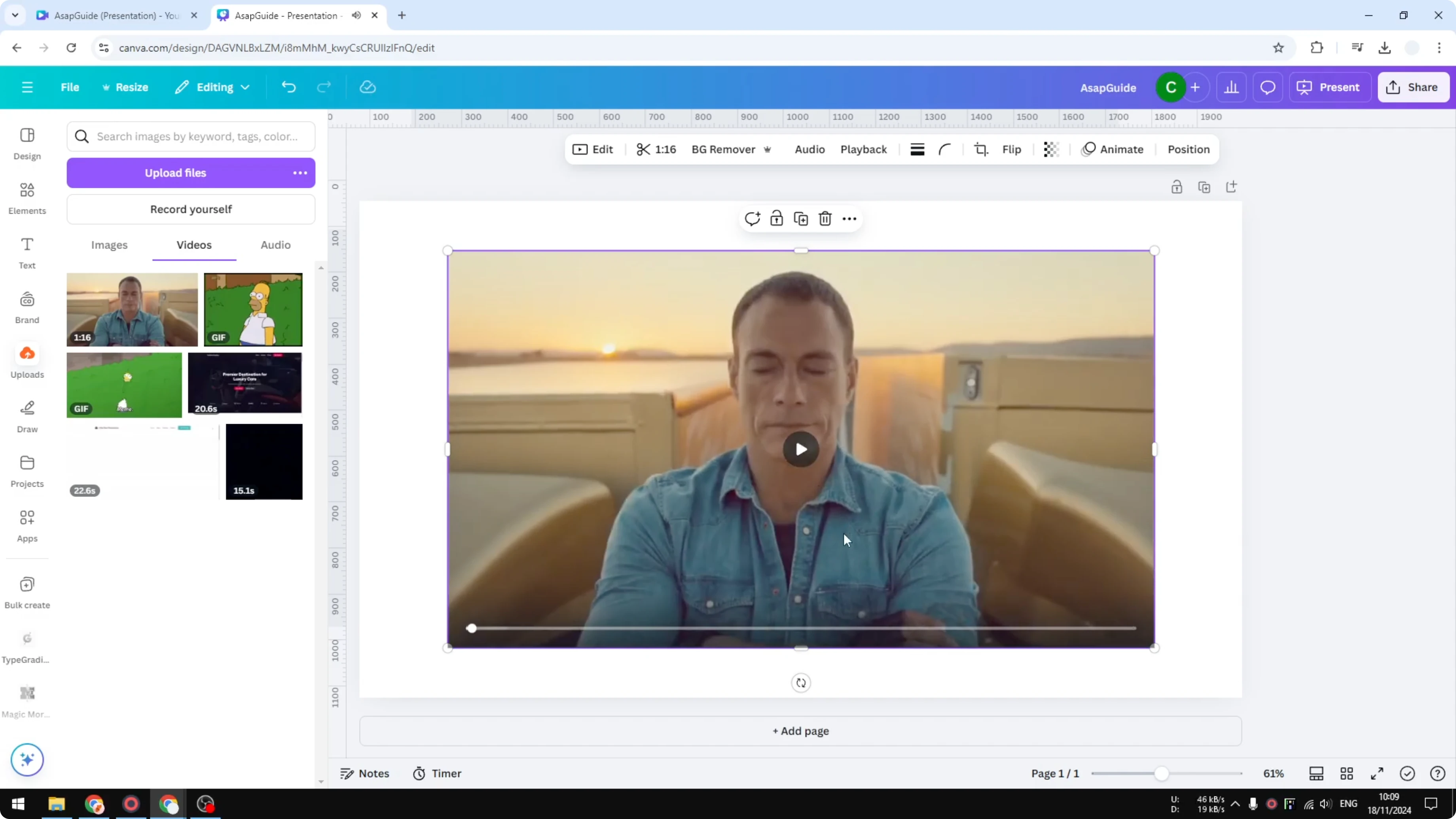
Keep it short
GIF is not very efficient when it comes to file size. If you compare a video versus a GIF, you will see that a GIF animation is often a lot bigger than the original MP4 video even with no audio. I highly recommend clipping the video to less than 10 seconds before downloading it as a GIF animation.
Prepare the canvas
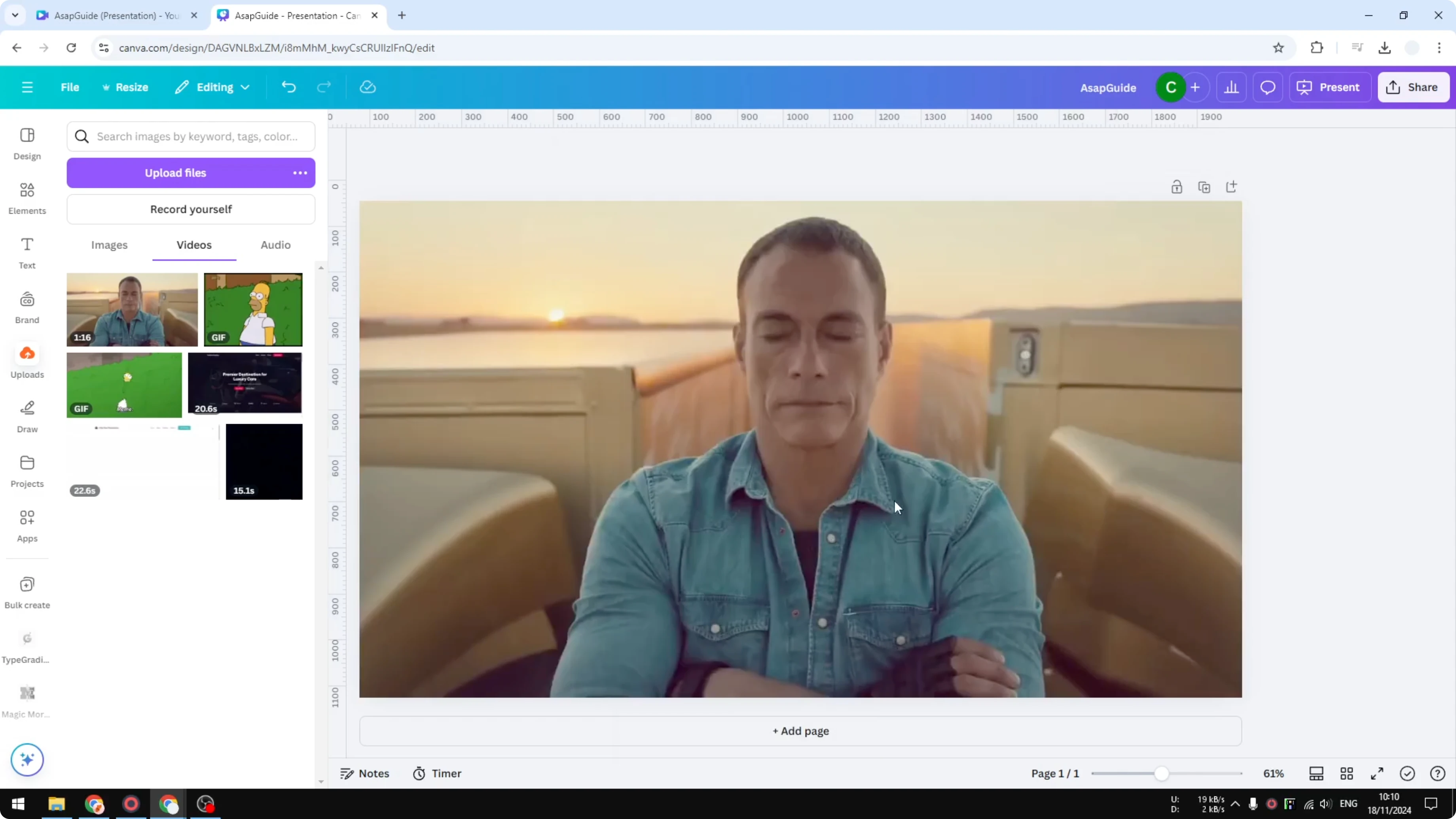
Set the video as a background so you can see it full screen. Open the thumbnail view and enable duration to see the length of each clip. I want to get something around 40 to 50 seconds on the timeline where the moment happens, but I will only export a few seconds of that moment as a GIF.
Clip the segment
Put the playhead on the exact section you want to clip.
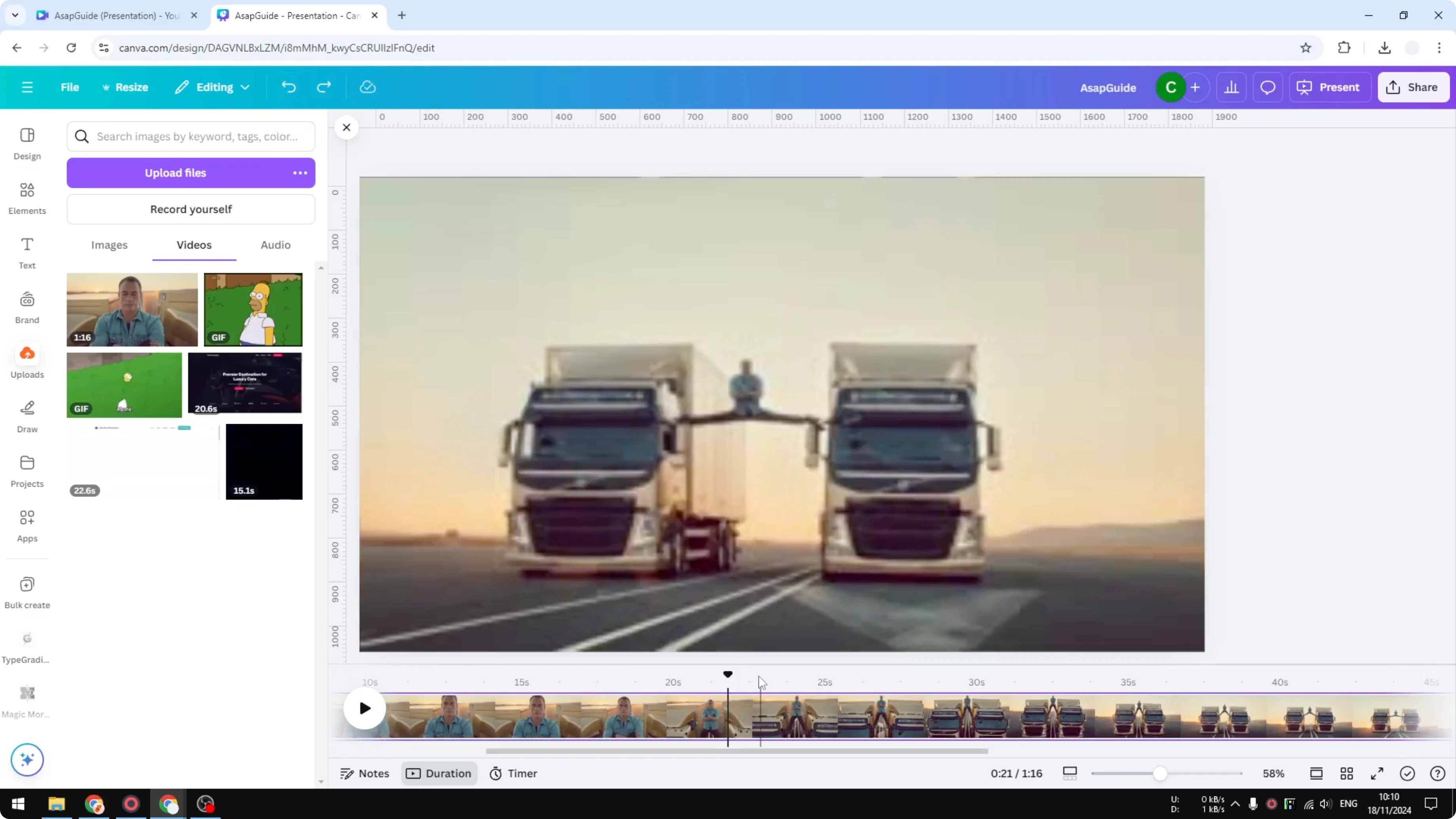
Right click and choose Split.
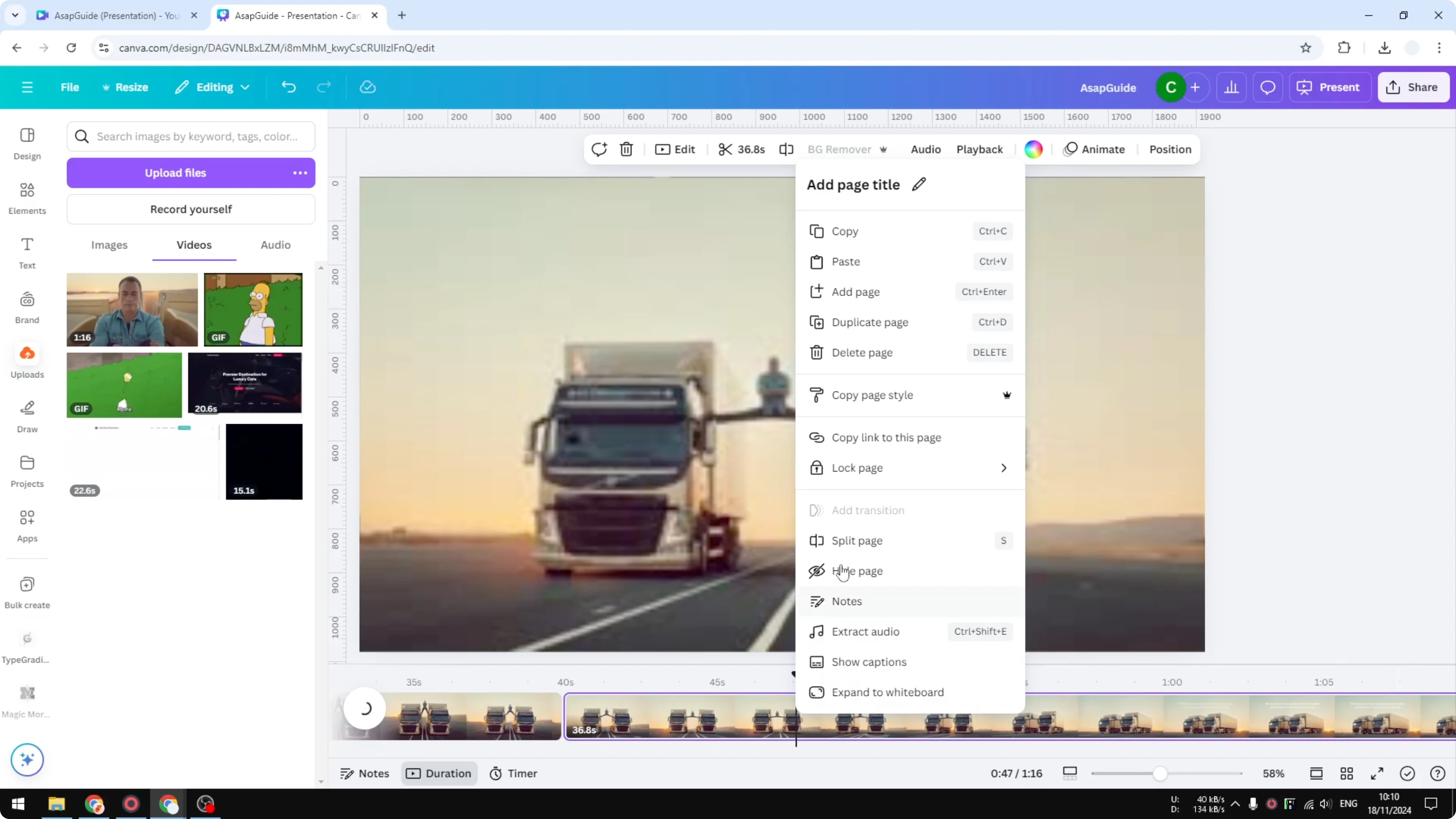
Move the playhead to the end point of the section and Split again.
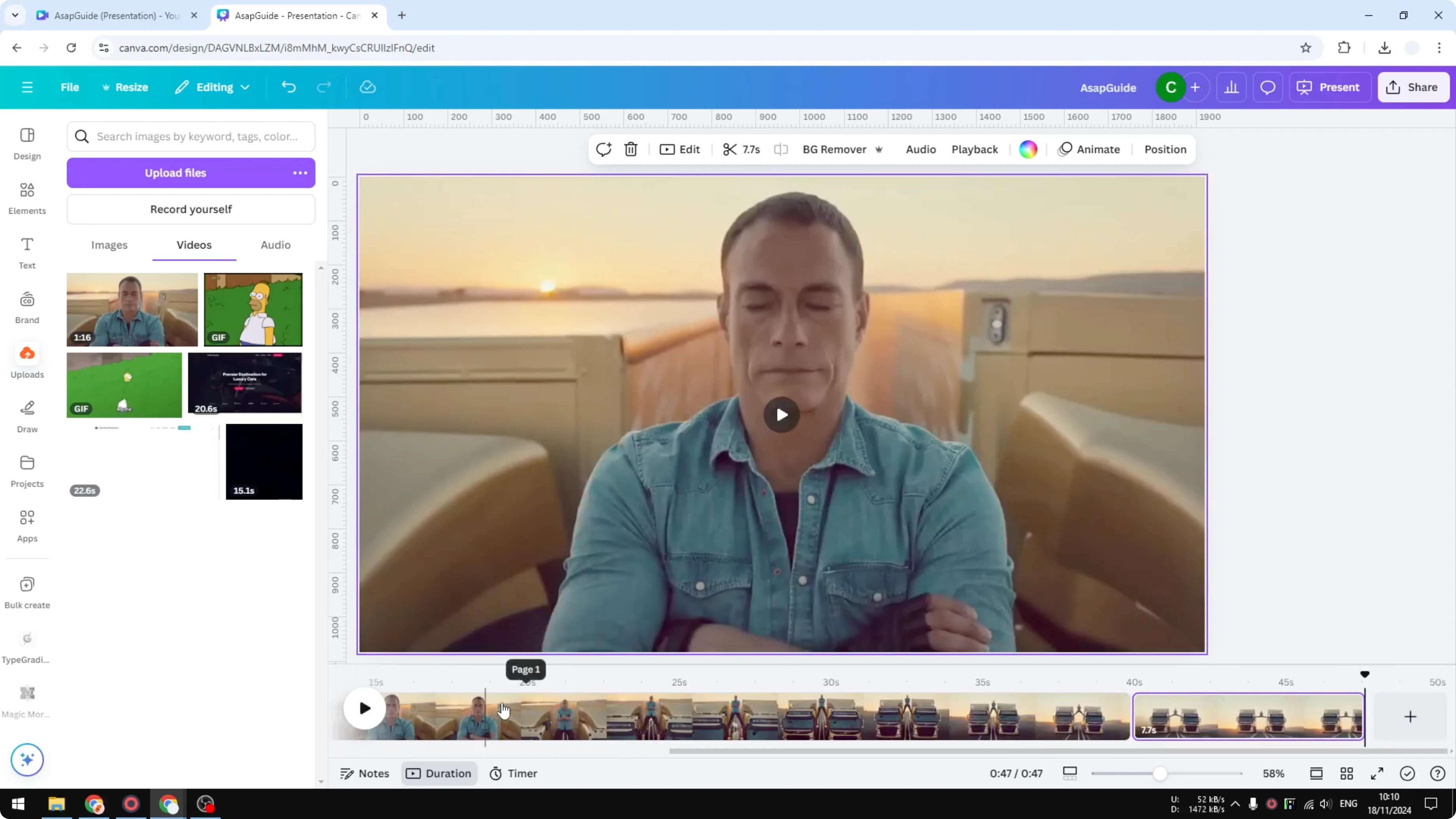
Remove the sections that are not needed.
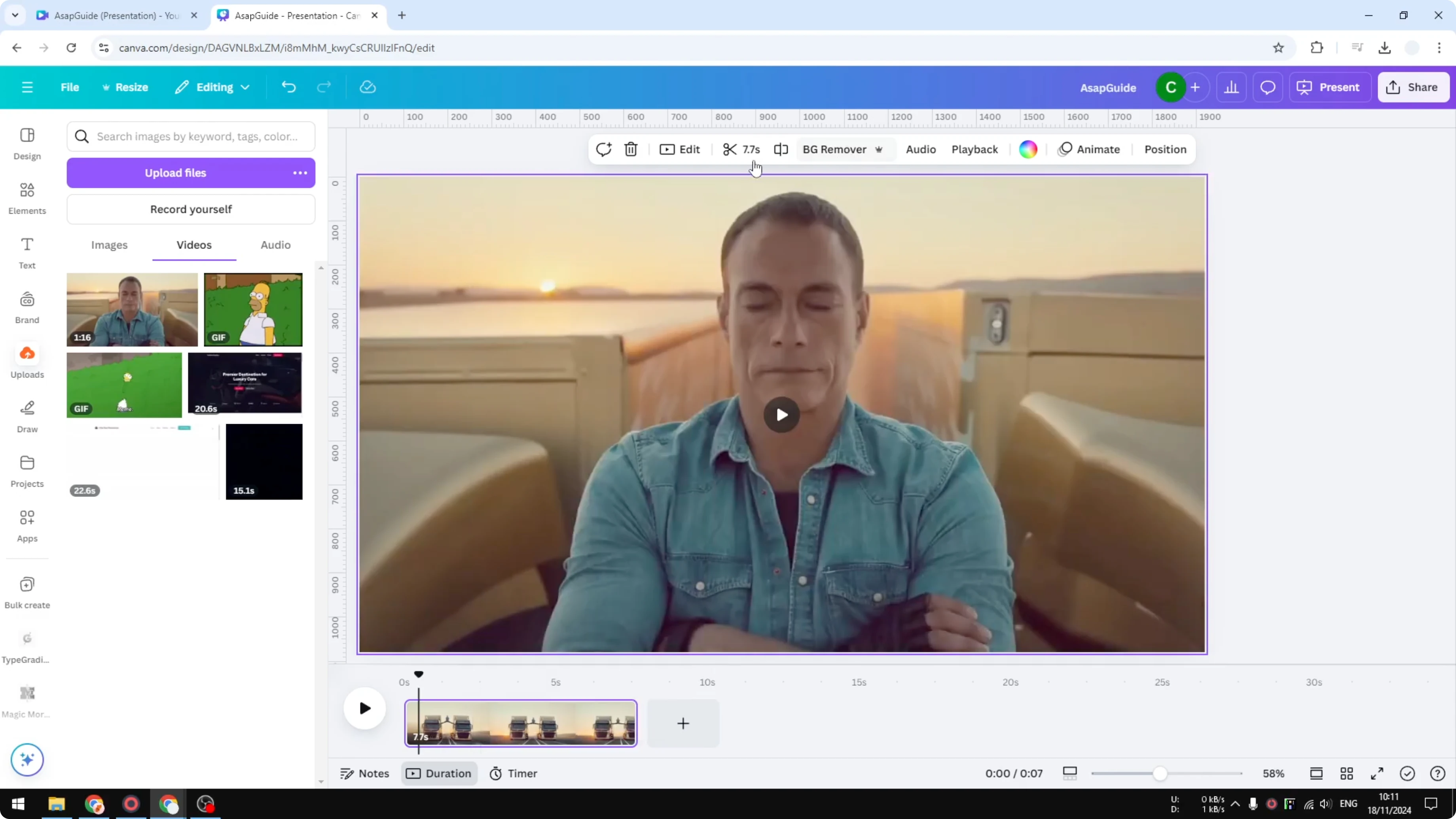
Right click on unwanted pages and choose Delete page so it leaves only the section you want.
I have to disable the audio because I don’t want to get copyrighted.
Read More: Blur Video Canva
Export as GIF
Click Share.
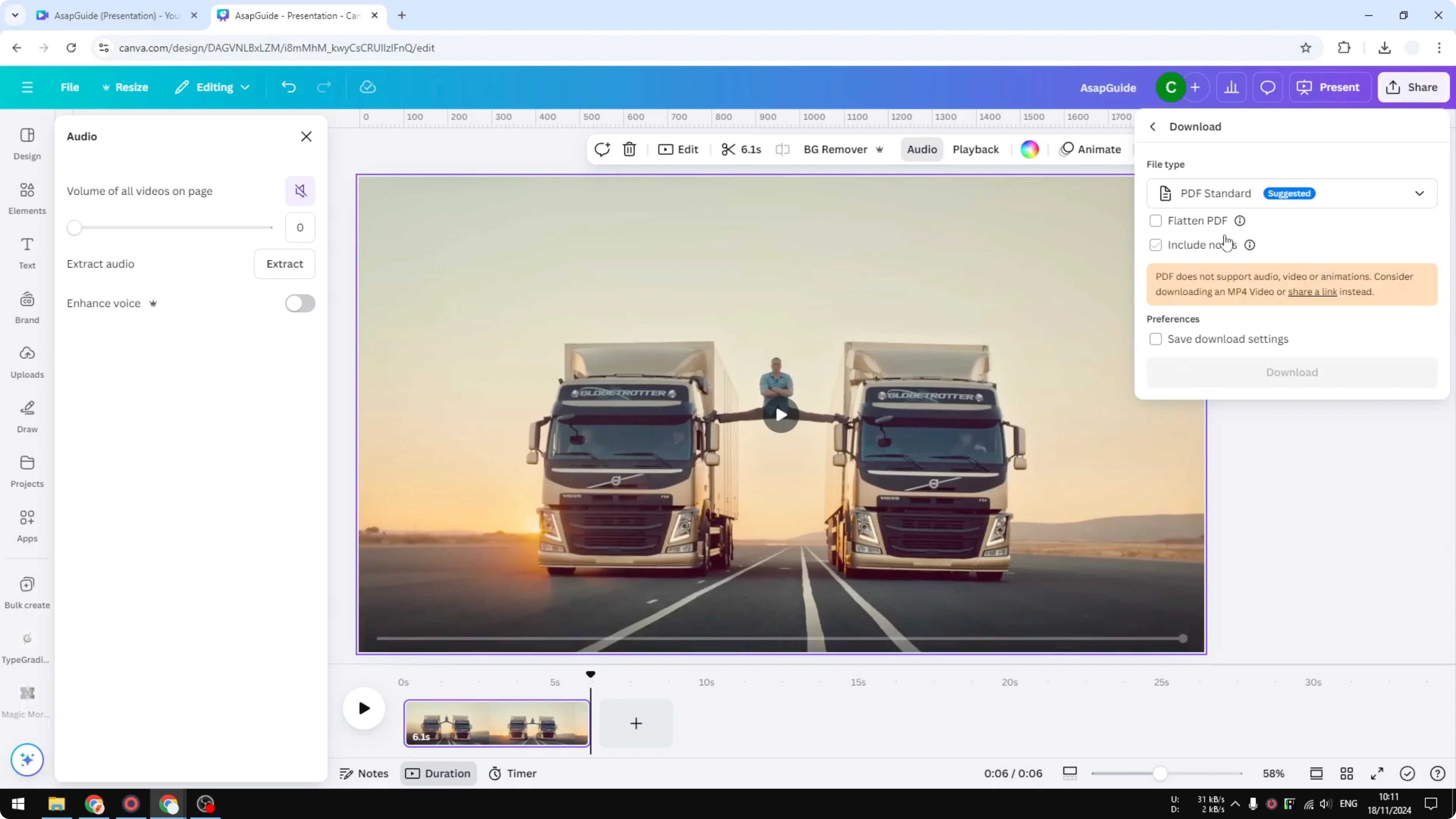
Click Download.
Under File Type, select GIF.
Choose Clip and make sure it is set to No sound.
Reduce the quality if you want a smaller file size. I personally keep it low because a lower resolution is fine for a short clip.
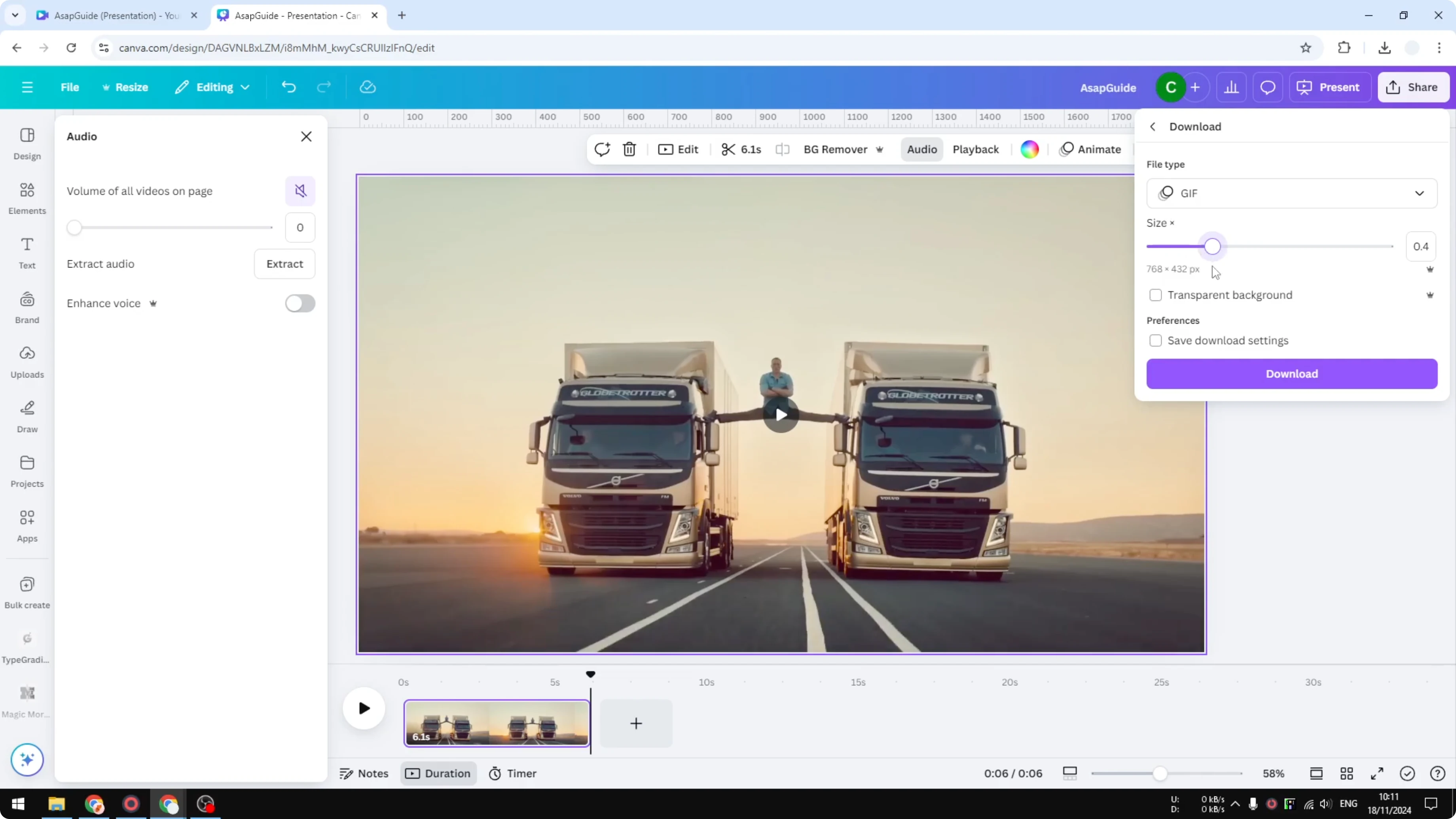
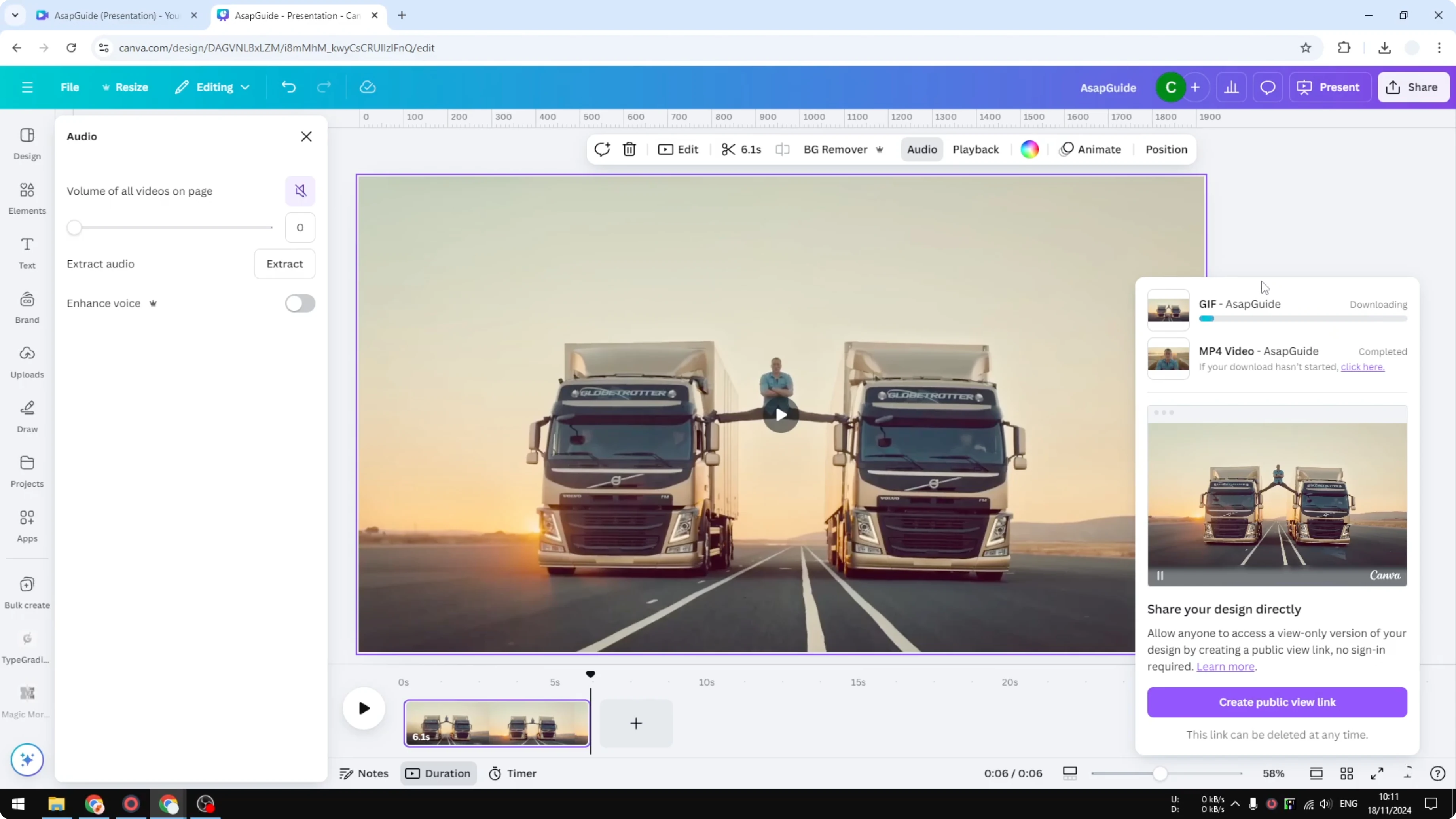
Click Download and wait until it finishes. The file will be saved to your computer.
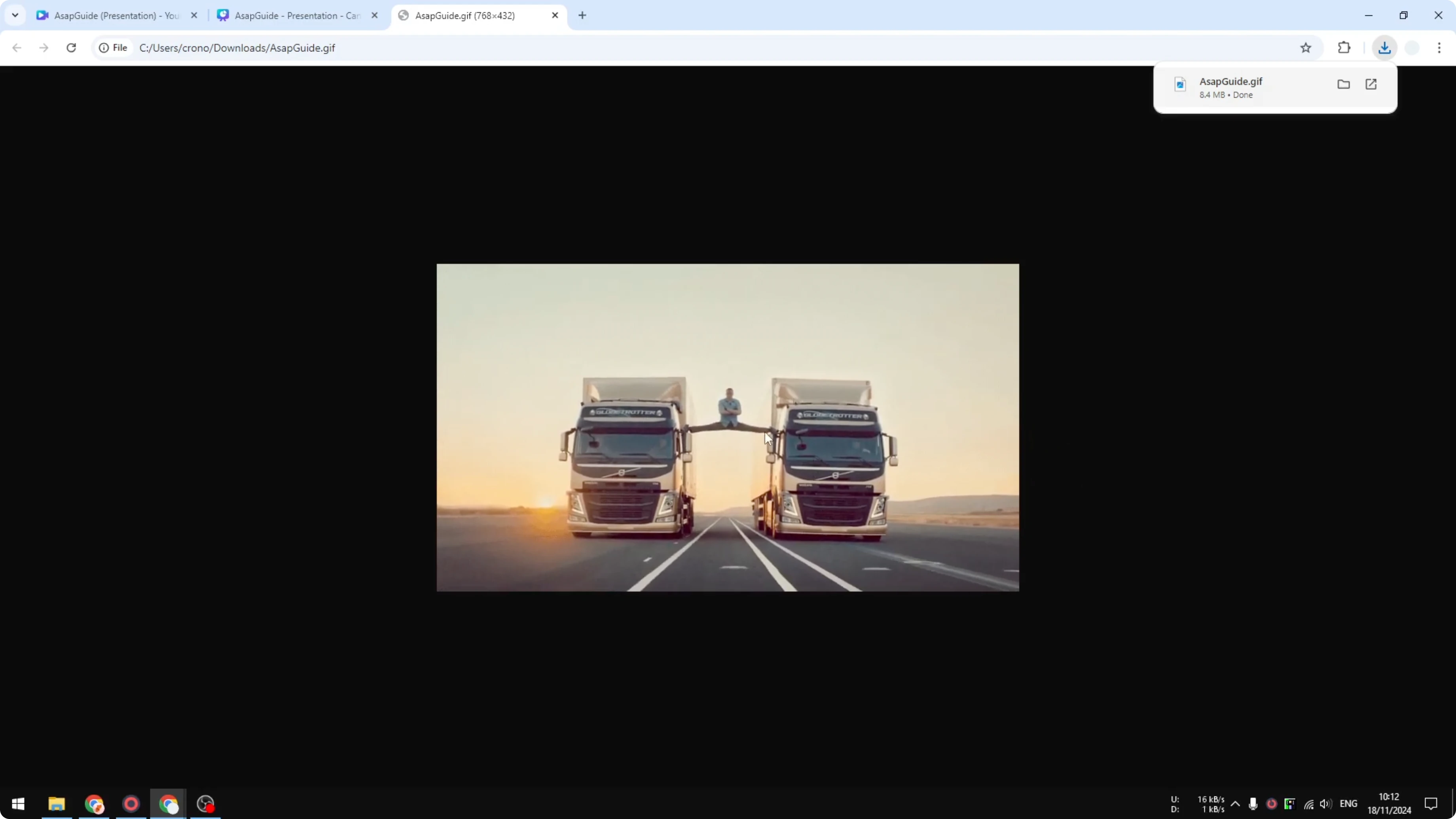
File size example
My exported GIF is 8.4 MB for about 6 seconds. I forgot the file size of the original video, but I think it was around 20 MB for the full video. This gives you an idea of how big a GIF animation can be compared to MP4.
Read More: Can You Remove Text From A Video In Canva
Final thoughts
That’s how to convert a video into a GIF animation in Canva. Keep your selection short, check the export settings, and lower the quality if you need a smaller file. You’ll get a shareable GIF that captures just the moment you want.
Recent Posts

How to Visualize Yourself as a Pixelized Character with AI?
How to Visualize Yourself as a Pixelized Character with AI?

How to Revive Faded Memories and Enhance Image Clarity with AI?
How to Revive Faded Memories and Enhance Image Clarity with AI?

How to Visualize Yourself as an Animal Crossing Character with AI?
How to Visualize Yourself as an Animal Crossing Character with AI?