How to Change the Weight of a Line in Canva
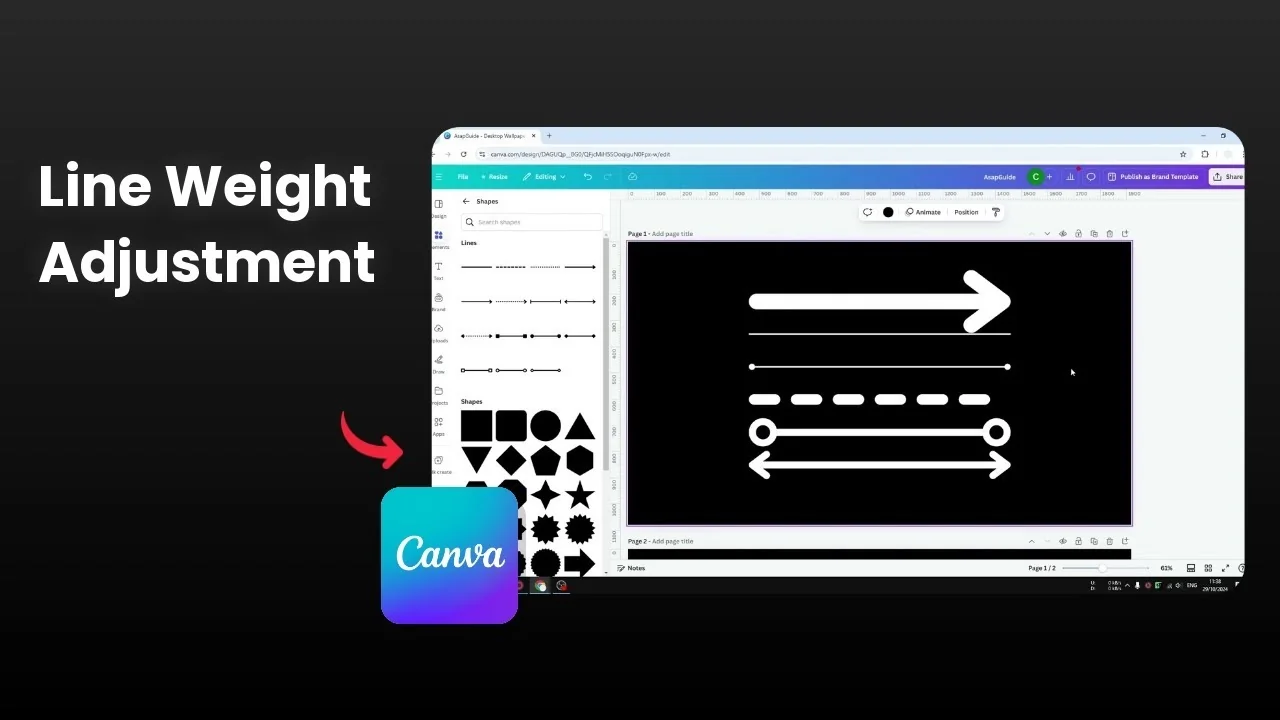
I’m going to show you how to change the weight of a line in Canva. If you have a line or multiple lines that look too thin and not very visible, make the line bigger by changing its thickness, basically the weight. I have multiple lines here, and I’m going to make them a bit thicker.
If a line still looks faint against your design, adjust the contrast. You can also change the background to make lines stand out better. See how to change the background color in Canva.
Change the Weight of a Line in Canva
Insert a line
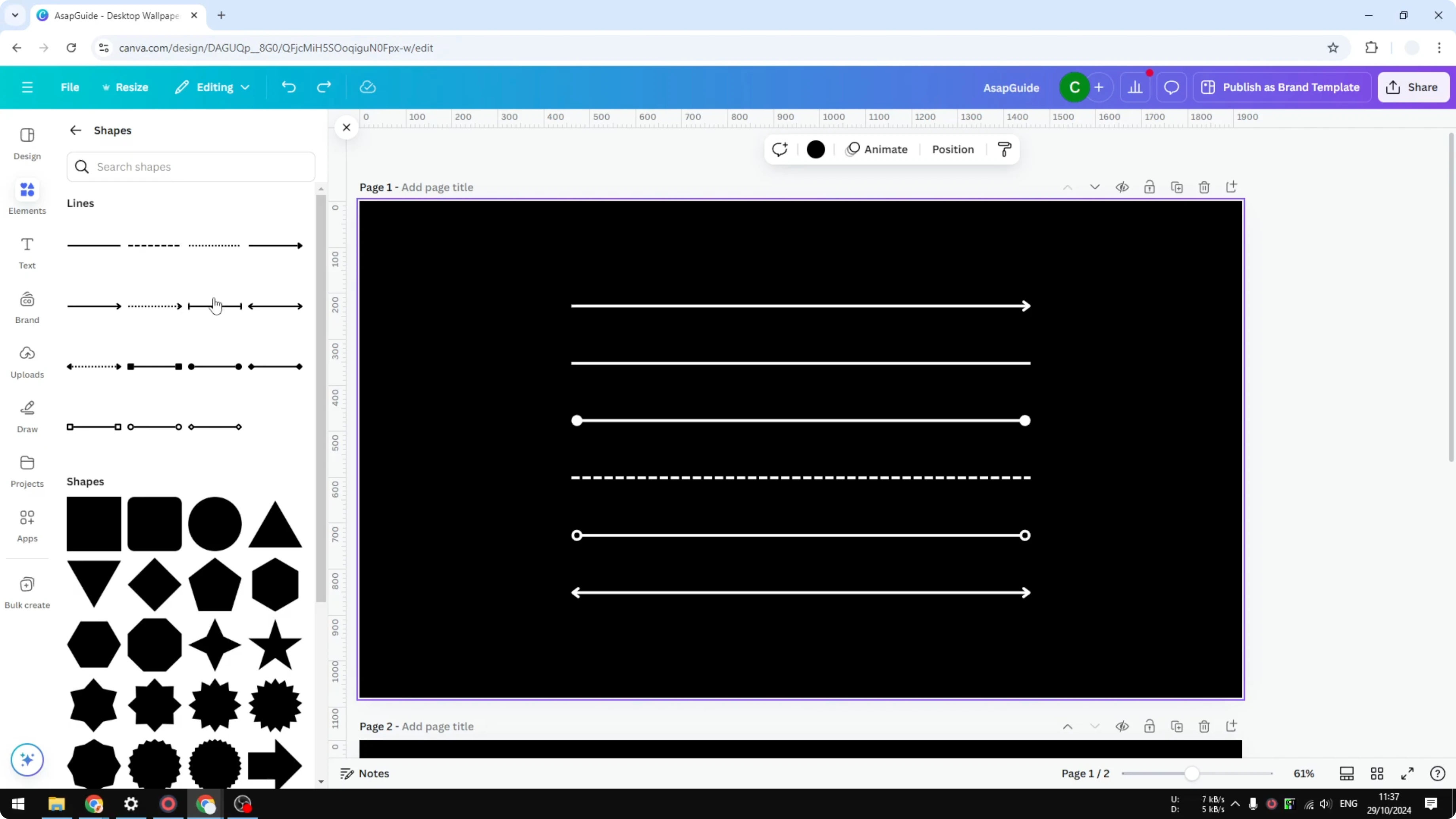
To insert a line, go to Elements, choose Shapes, and click a line to add it to your document. Place it where you want in the layout. Resize the length if needed by dragging the endpoints.
Adjust the weight
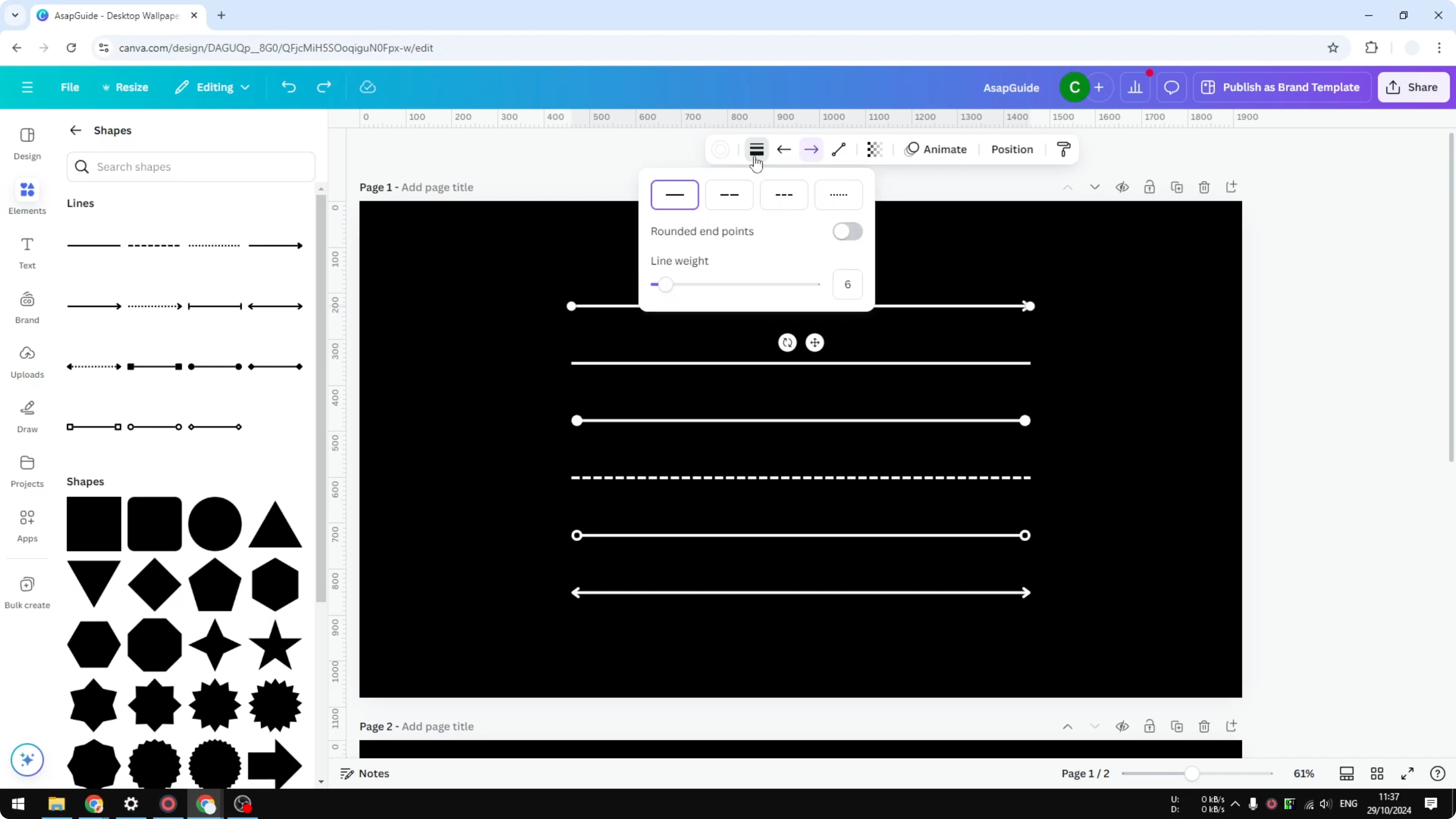
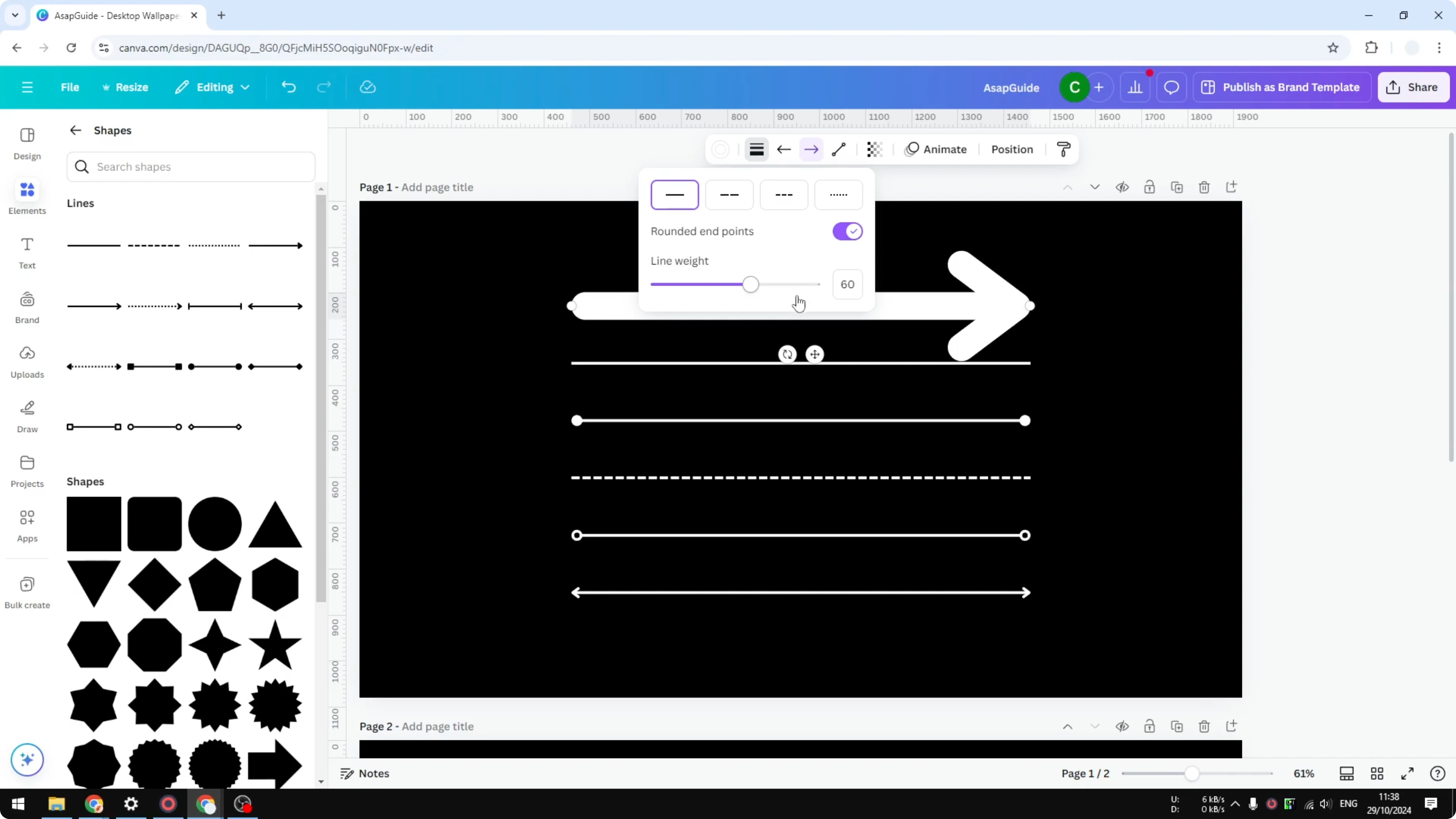
Click the line. In the top toolbar, click Line style, then change the line weight. By default it’s 6. I don’t know the unit, but the number is 6.
Drag the slider to the right to make it bigger and thicker. The length stays the same, but the weight is now a lot bigger. You can also manually enter a number from 0 to 100.
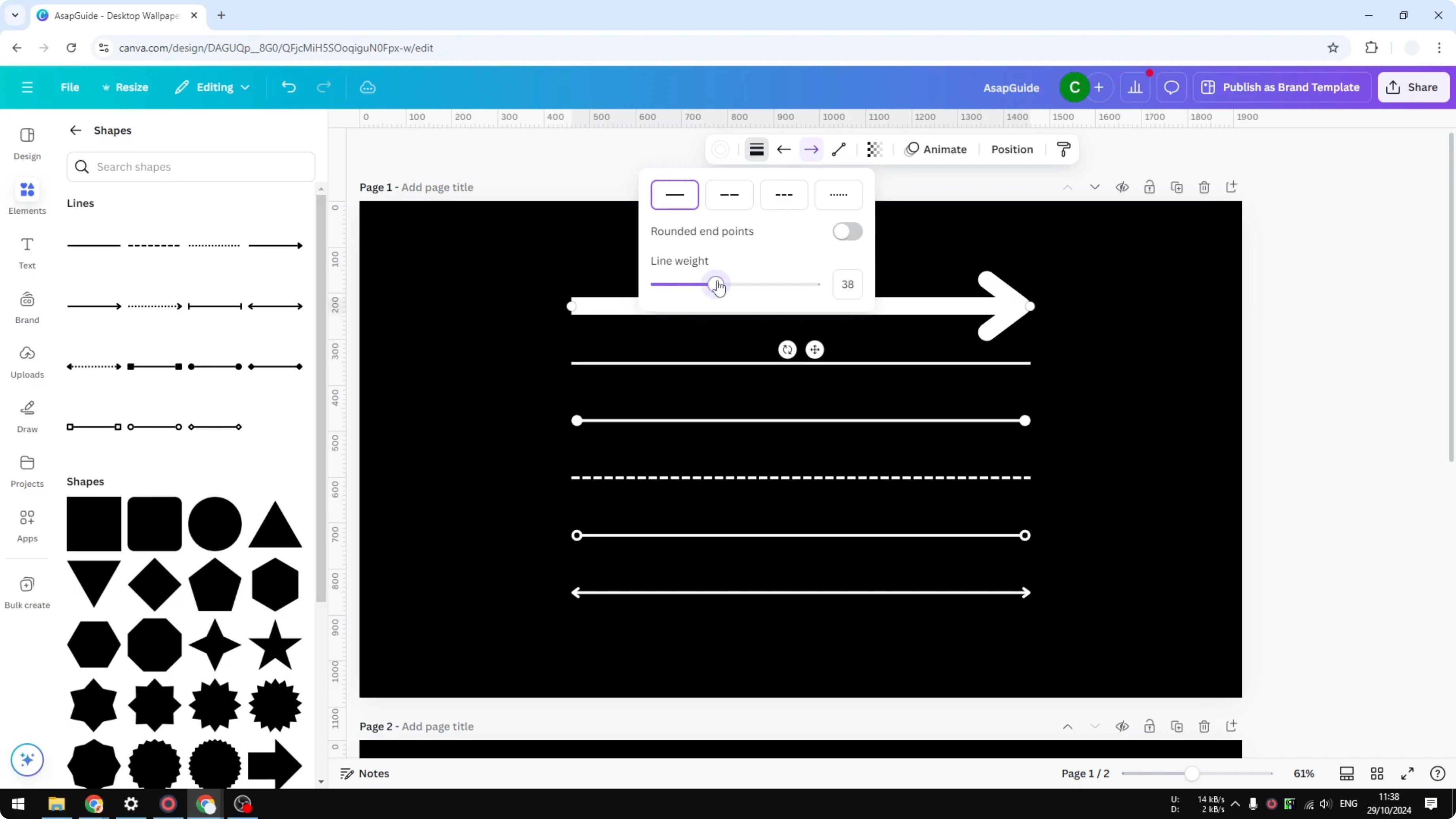
There’s an option to enable round endpoints. I usually enable it to make the design look a bit cleaner and rounder. Toggle it on if you want softer ends.
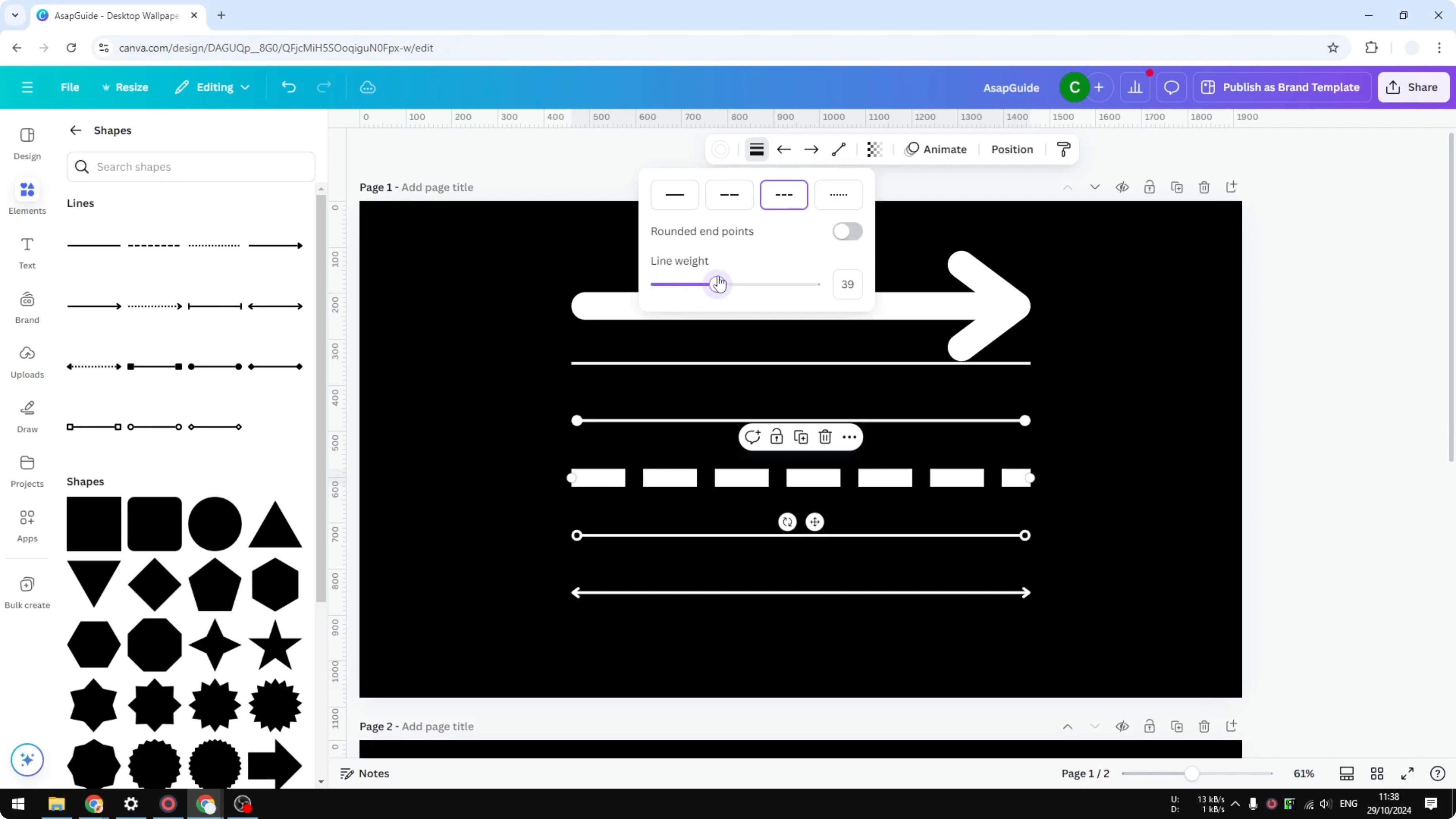
Dashed lines
You can do the same for other lines. For example, with dashed lines, increase the line weight and it becomes thicker. It keeps the dash pattern while making it more visible.
If resizing your layout changes how your lines look across pages or formats, adjust your canvas size first. Here is how to change the Canva slide aspect ratio for a better fit.
Multiple lines at once
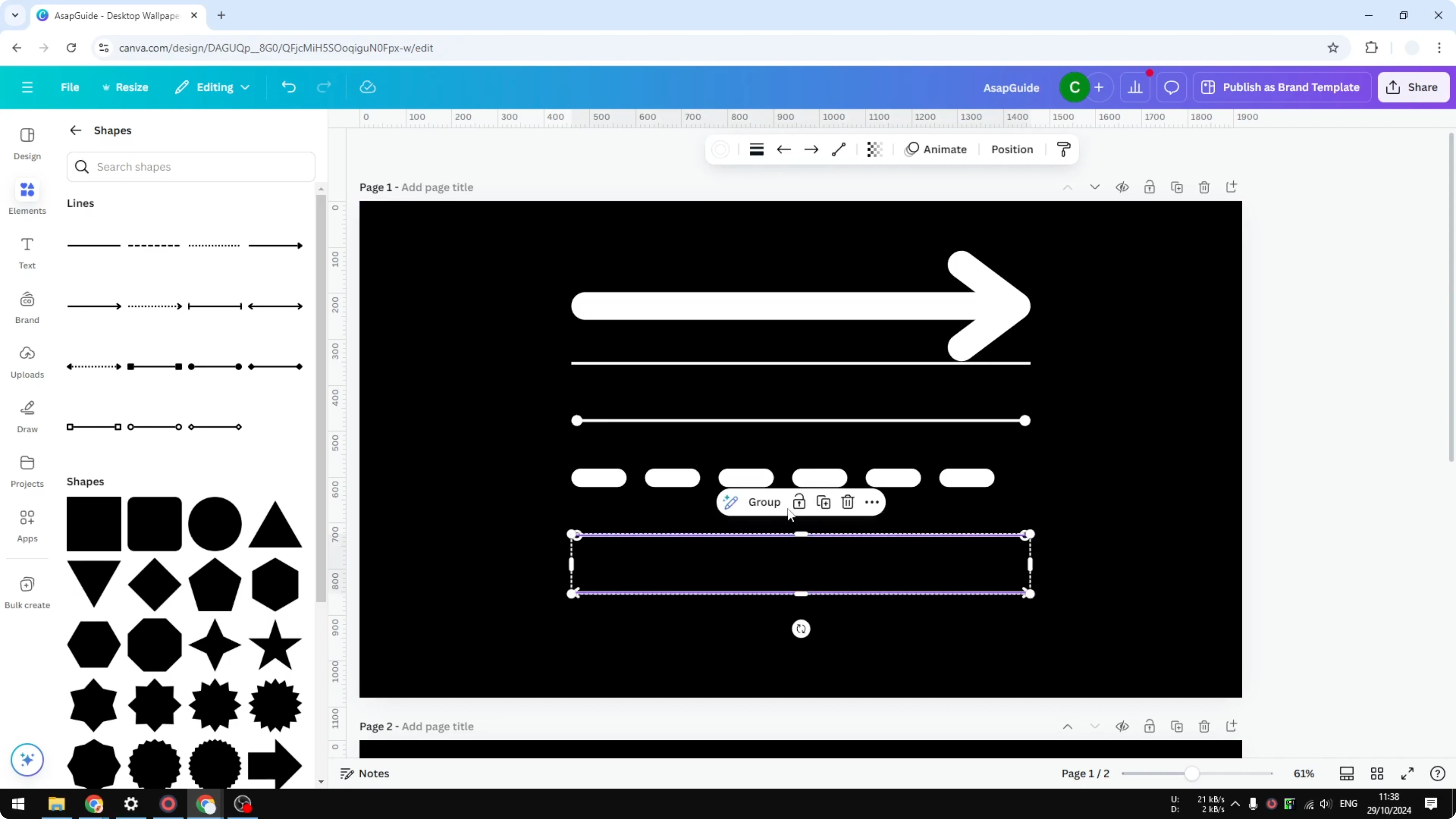
You can select multiple lines together and apply the same setting. Drag to select them or Shift-click each one, then adjust the Line style once. All selected lines will update to the same weight and endpoint style.
For better overall contrast, tweak nearby graphics or photos. If an image color is clashing with your lines, you can change the color of an image in Canva to balance the design.
Final thoughts
That’s how you can increase the thickness or change the weight of a line in Canva. Click the line, open Line style, adjust the weight, and enable round endpoints if you want a smoother look. Apply the same steps to dashed lines and multiple selections to keep your design consistent.
Recent Posts

How to Visualize Yourself as a Pixelized Character with AI?
How to Visualize Yourself as a Pixelized Character with AI?

How to Revive Faded Memories and Enhance Image Clarity with AI?
How to Revive Faded Memories and Enhance Image Clarity with AI?

How to Visualize Yourself as an Animal Crossing Character with AI?
How to Visualize Yourself as an Animal Crossing Character with AI?