How to Change Solid Color to Gradient in Canva
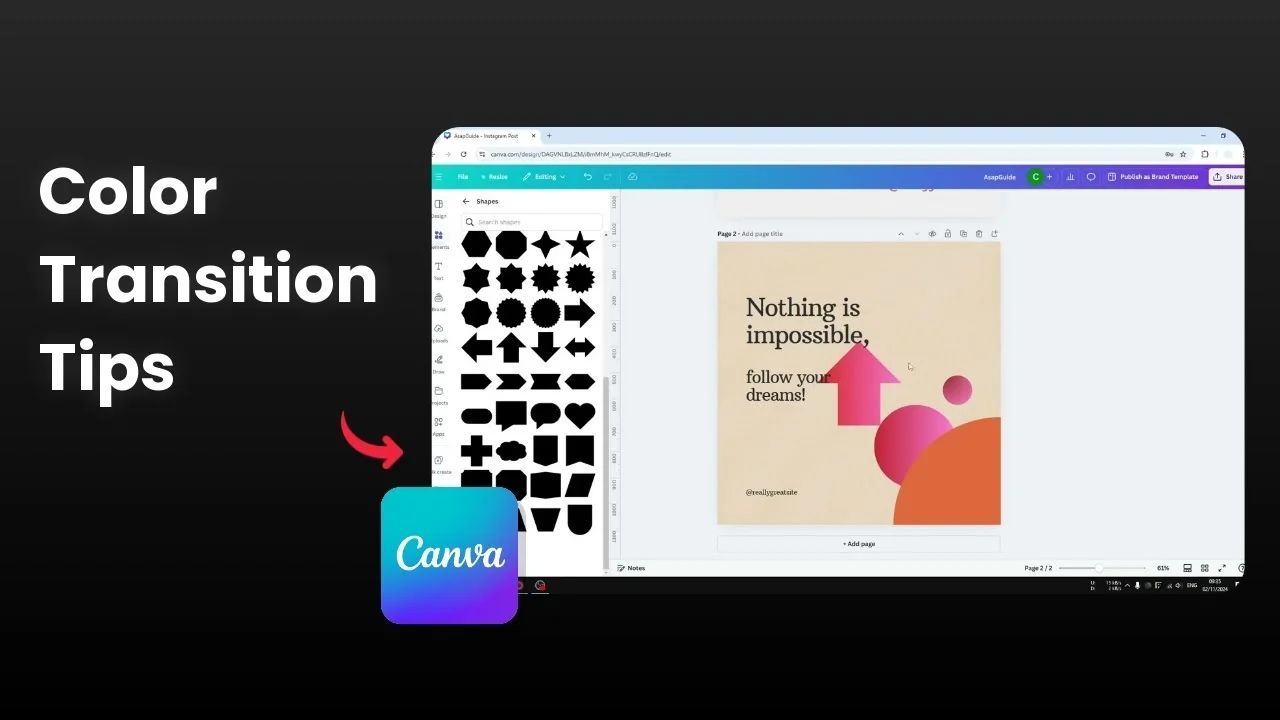
I’m going to show you how you can change the color of an object from solid to gradient. I have a document with multiple elements with different colors, and I’m focusing on three objects with prominent solid colors. I want to turn them into gradient color.
I have this circle, another circle, and a quarter of a circle. Here is how you change a solid red to a gradient color. It is pretty easy.
Change Solid Color to Gradient in Canva: Quick start
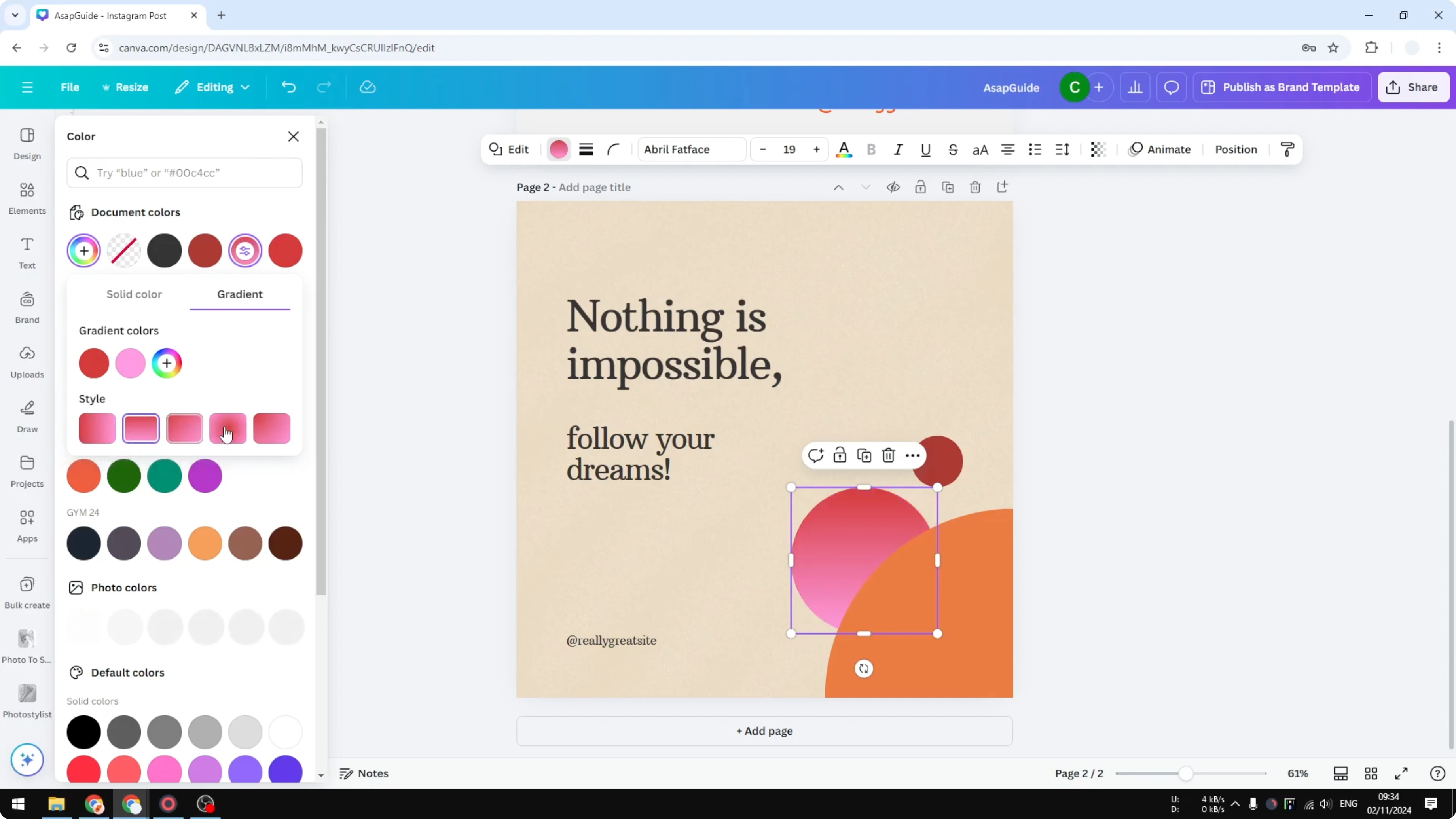
Click on the object.
Click the color menu.

Click Add a new color or modify the existing color.
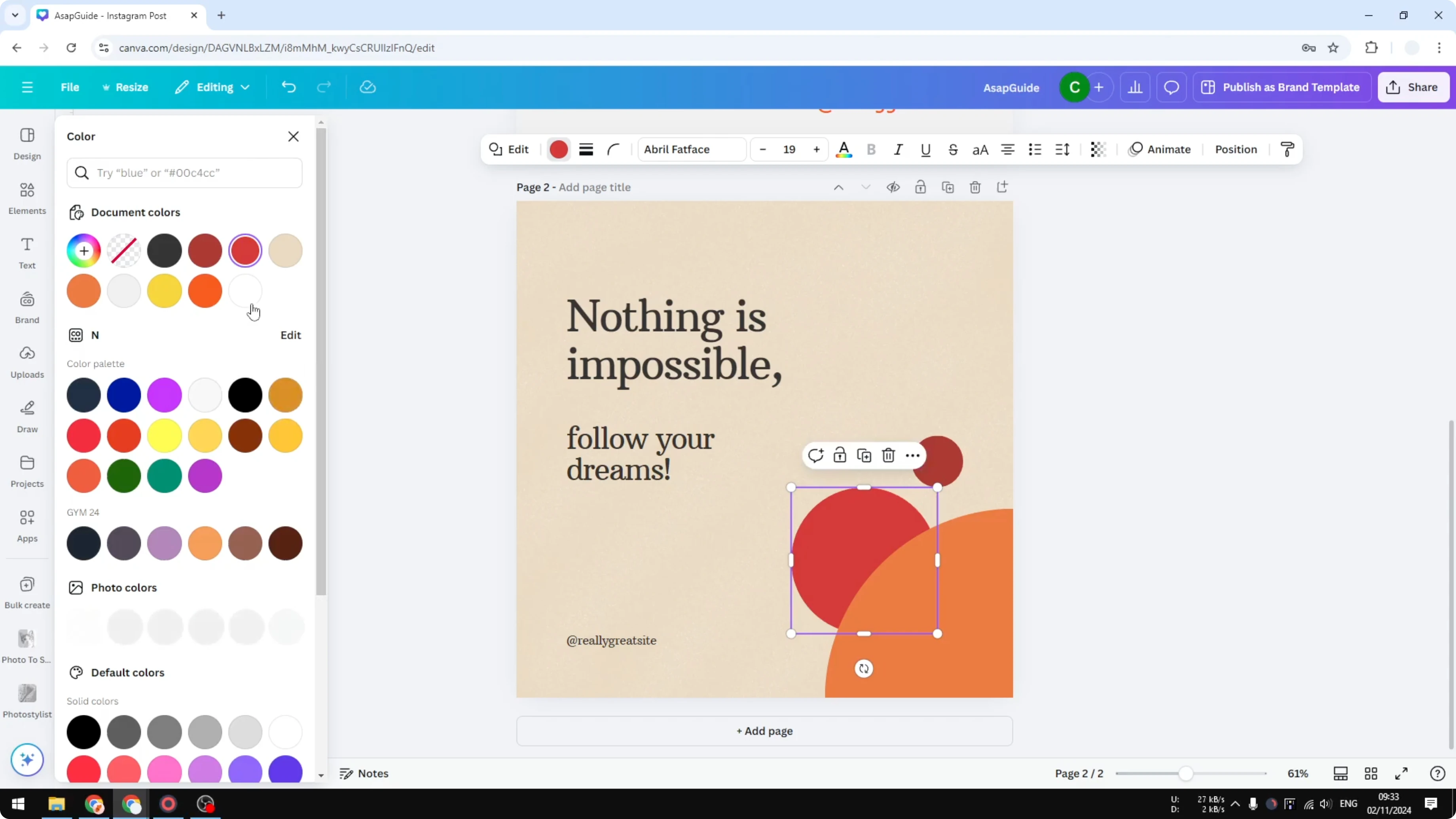
Click Gradient.
Canva automatically adds another, usually lighter, color for the gradient.
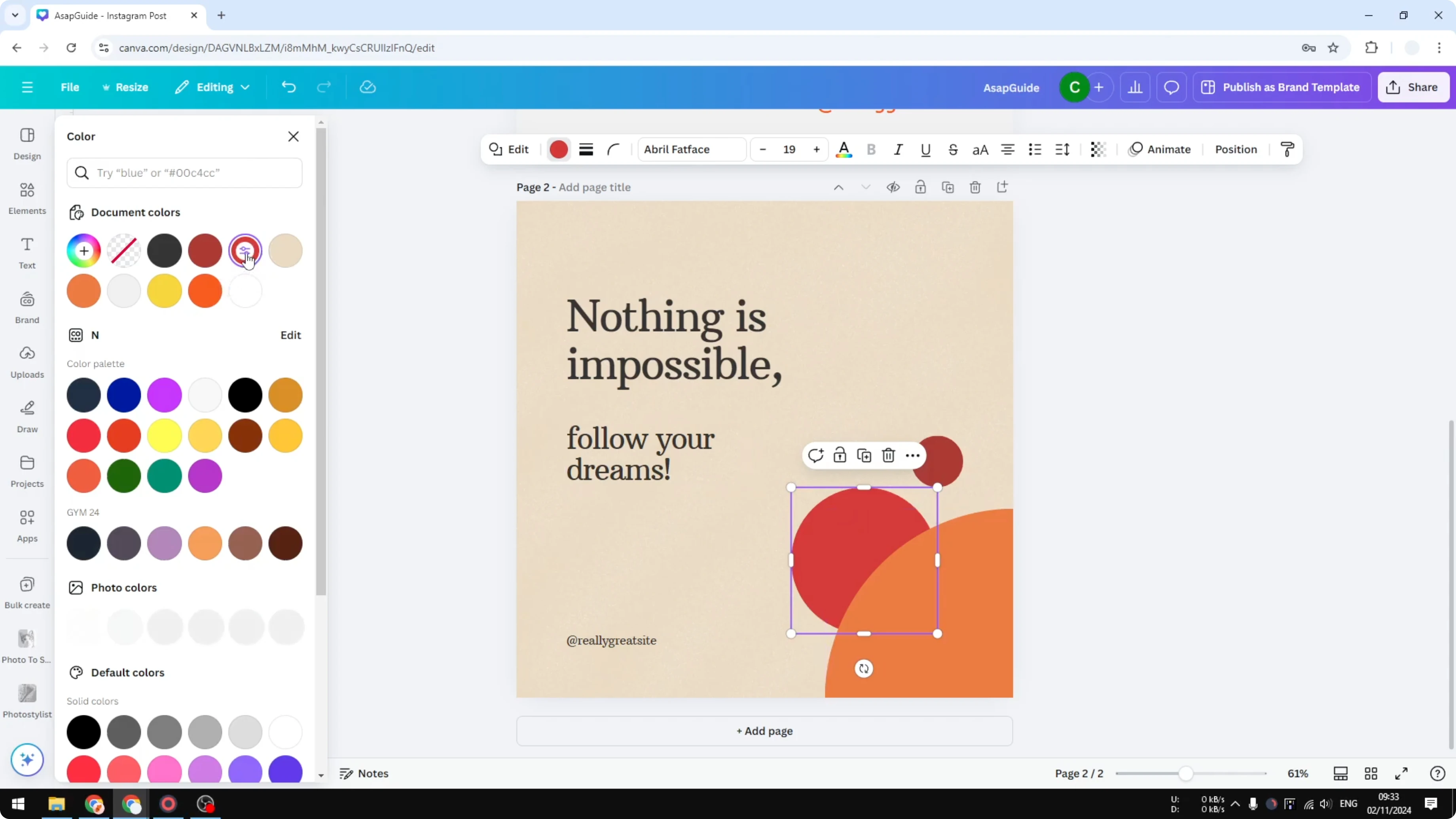
You have two colors for this gradient setting by default.
Add another color if you want to.
Change the style or the orientation of the gradient.
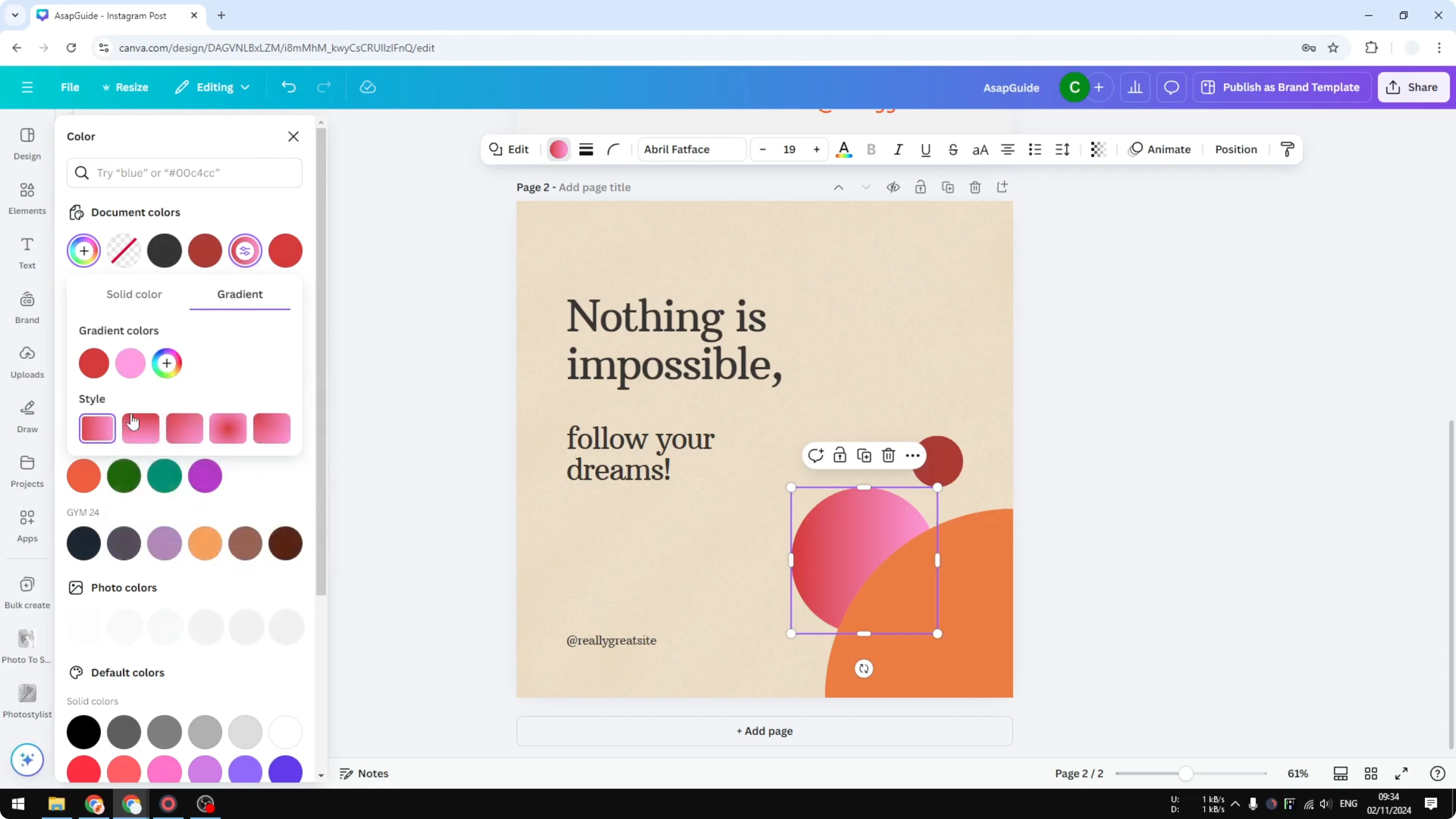
Use linear or circular gradient.
If you are updating the entire page color instead of a single object, see how to change your background color in Canva.
Change Solid Color to Gradient in Canva: Shapes vs Graphics
The same steps work for another circle. Click it, click color, and go to Gradient to add gradient color. That part is straightforward.
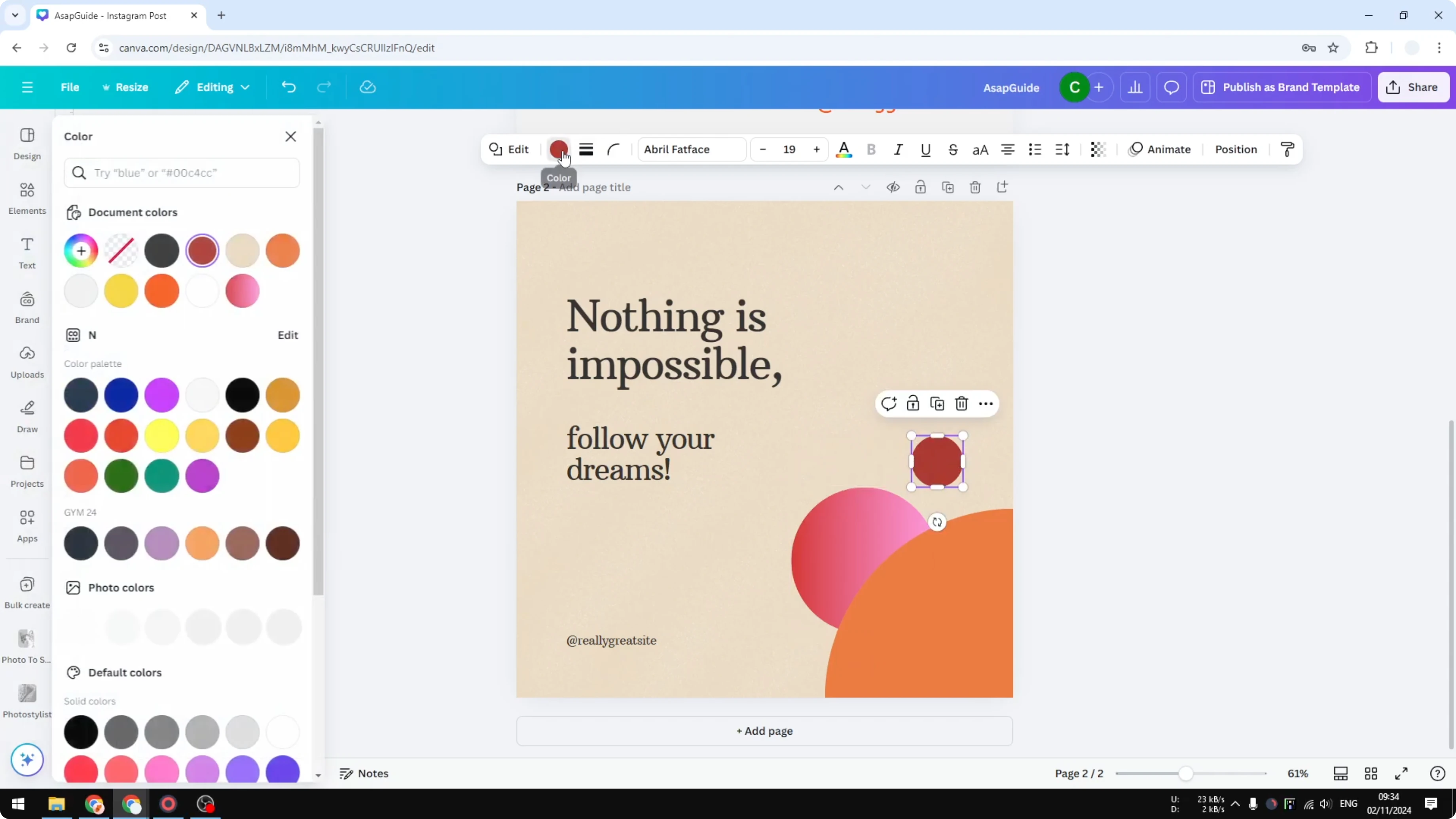
In some cases you cannot do that. For example, with a quarter of a circle, you can still change the color, but there is no option for gradient. This is one thing to keep in mind with a graphic object.

Change Solid Color to Gradient in Canva: Shapes that work
Go to Elements and click Shapes.
Pick a shape, like an arrow, and insert it.
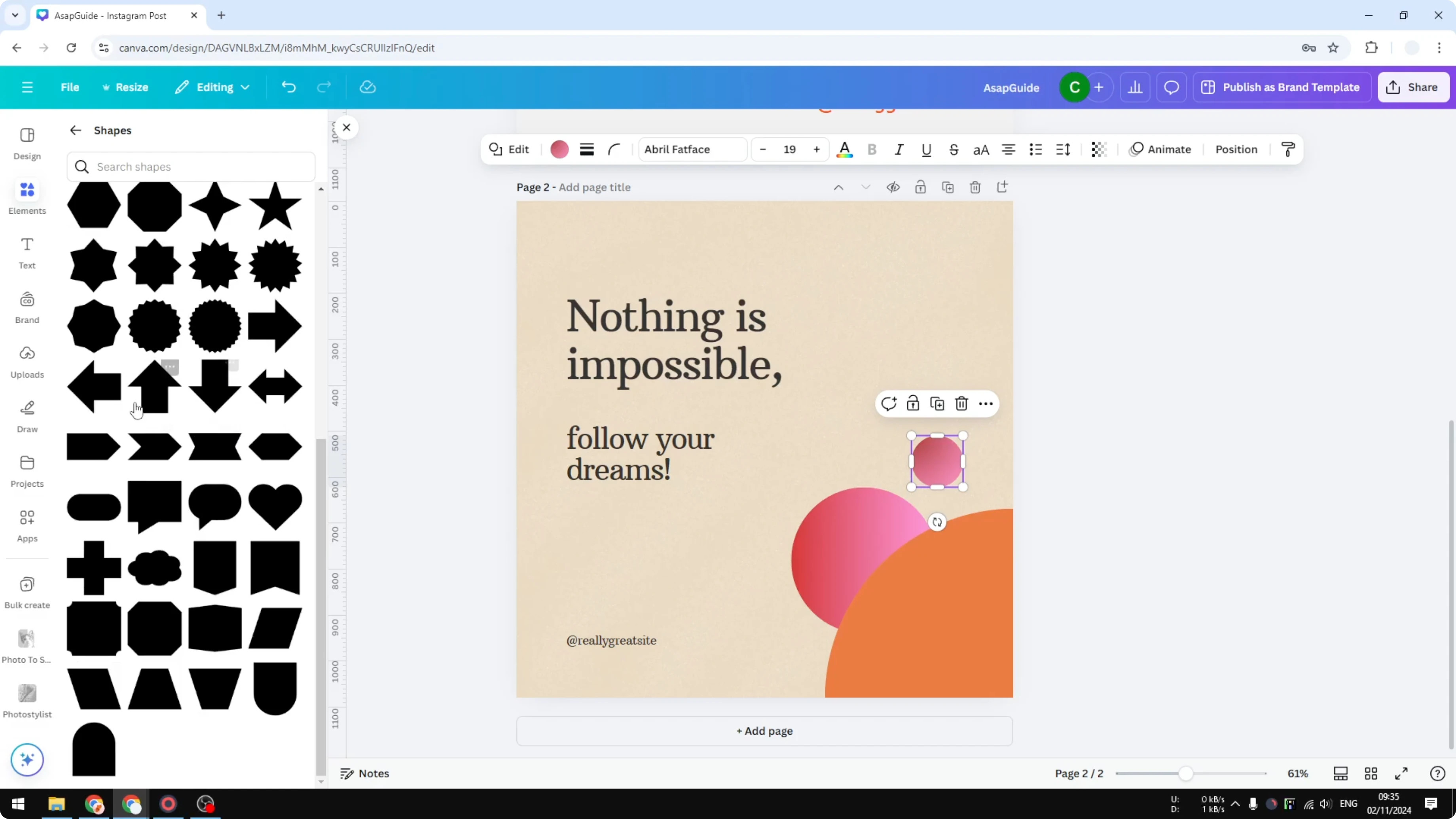
Click on the color and apply a gradient color.
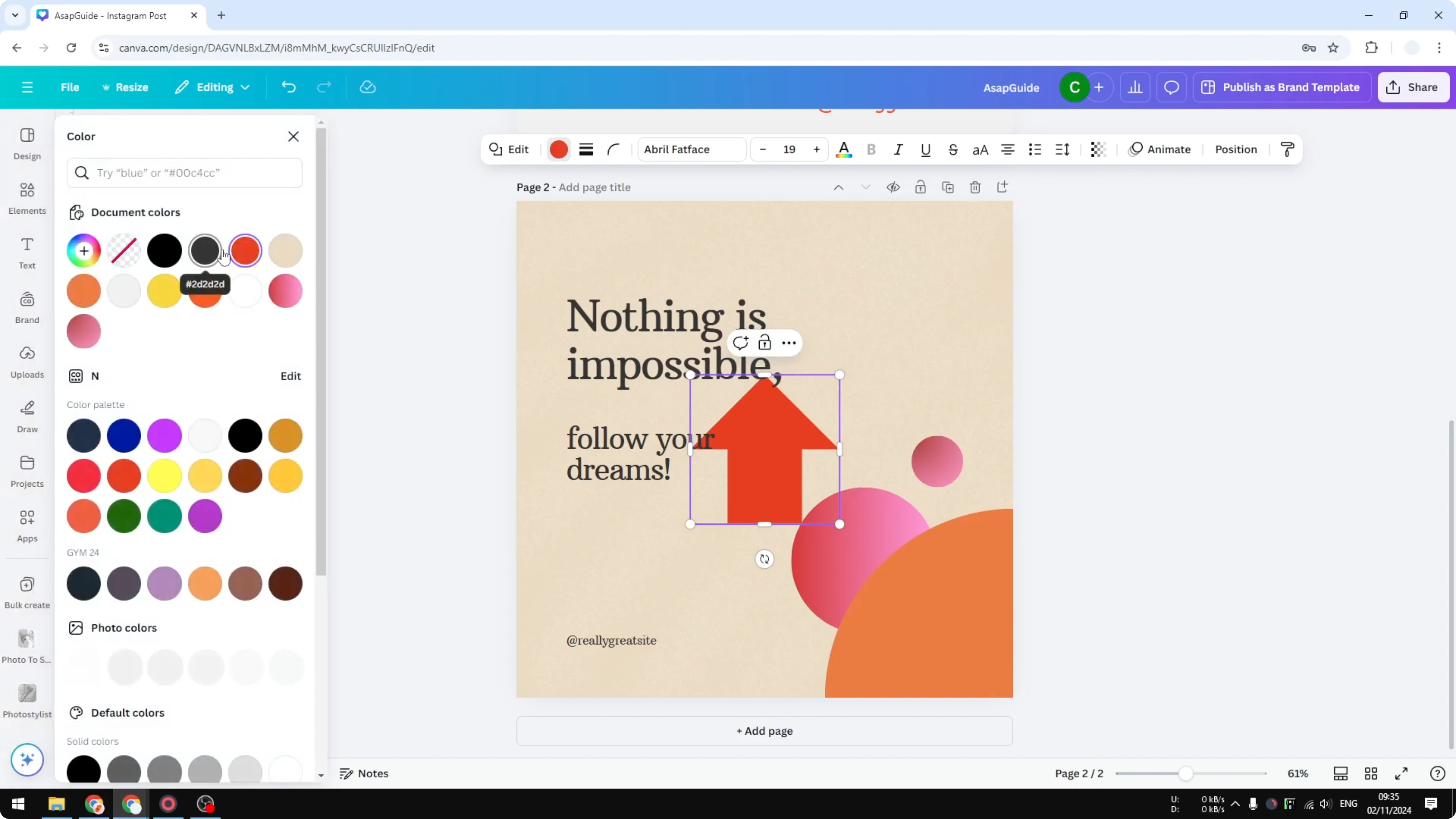
Shapes generally let you switch from solid to gradient. They make this setting available in the color menu. That is why circles from the Shapes section work.
If your goal is to recolor photos or illustrations rather than shape fills, see this guide on changing image colors in Canva.
Change Solid Color to Gradient in Canva: Graphic objects that do not
This quarter of a circle is not a shape, it is a graphic. When you click on the color, there is no option for gradient.
The same is true for the 1 2 3 4 circles that look separate but are actually one graphic object. You can click on it, but you will not see any gradient option.
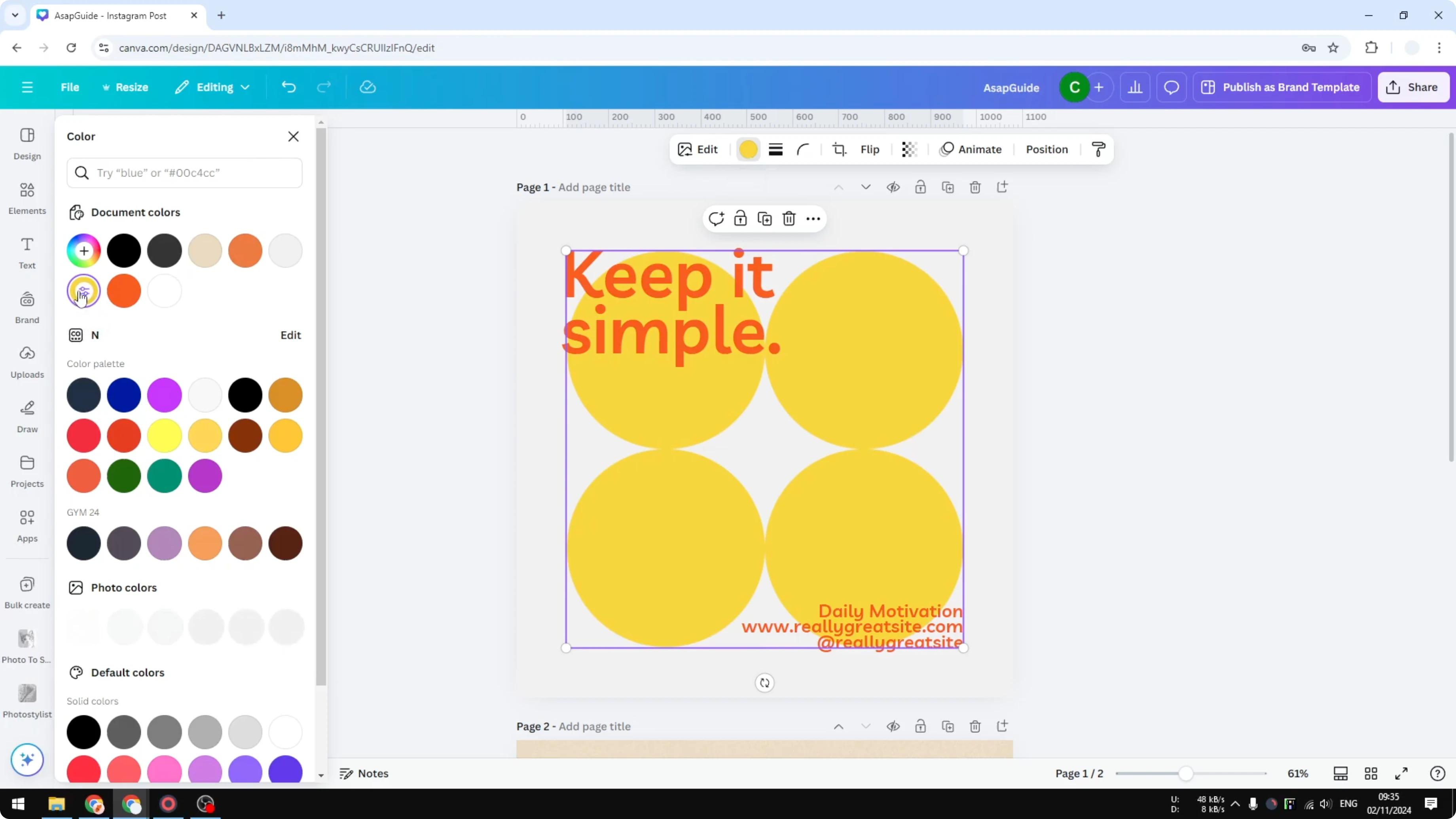
The graphic object is usually found from the Elements menu under Graphics. Frames show a lot of different options, and they may look like separate parts, but they are the same object together. You can click on the color in some frames, and there is the option for changing from solid to gradient.
For fine tuning on photos placed inside frames, you might want to adjust brightness, contrast, and color settings. Here is how to adjust image color in Canva.
Change Solid Color to Gradient in Canva: Limitation to remember
You cannot turn a solid color to gradient for a graphic object. Shapes support gradients, but many graphic objects do not.
Change Solid Color to Gradient in Canva: Final thoughts
That is basically it. You can add gradients to shapes, choose linear or circular styles, and add more colors when needed. Keep in mind the limitation that many graphic objects do not offer a gradient option.
Recent Posts

How to Visualize Yourself as a Pixelized Character with AI?
How to Visualize Yourself as a Pixelized Character with AI?

How to Revive Faded Memories and Enhance Image Clarity with AI?
How to Revive Faded Memories and Enhance Image Clarity with AI?

How to Visualize Yourself as an Animal Crossing Character with AI?
How to Visualize Yourself as an Animal Crossing Character with AI?