How to Change Slide Duration on Canva
I am going to show you how you can change the slide duration in Canva. Each slide shows for about 5 seconds by default before it moves to the next. If you use Present with Autoplay, it runs automatically and progresses to the next slide on its own.
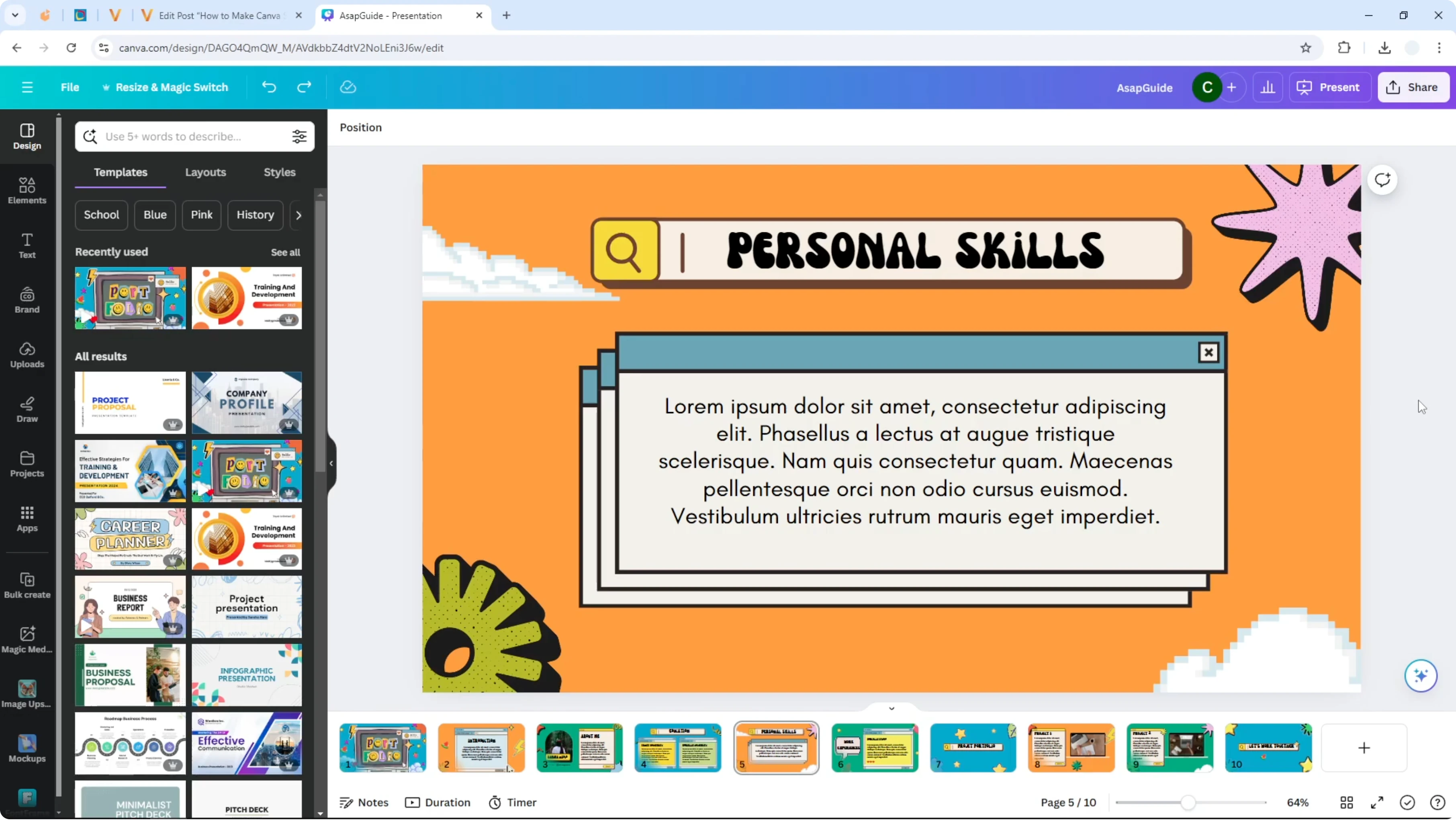
If you have a lot of animation, the visible time can be a little shorter than 5 seconds. That is the timing before jumping to the next slide. There are two ways to change a slide duration to something like 10 seconds or 3 seconds.
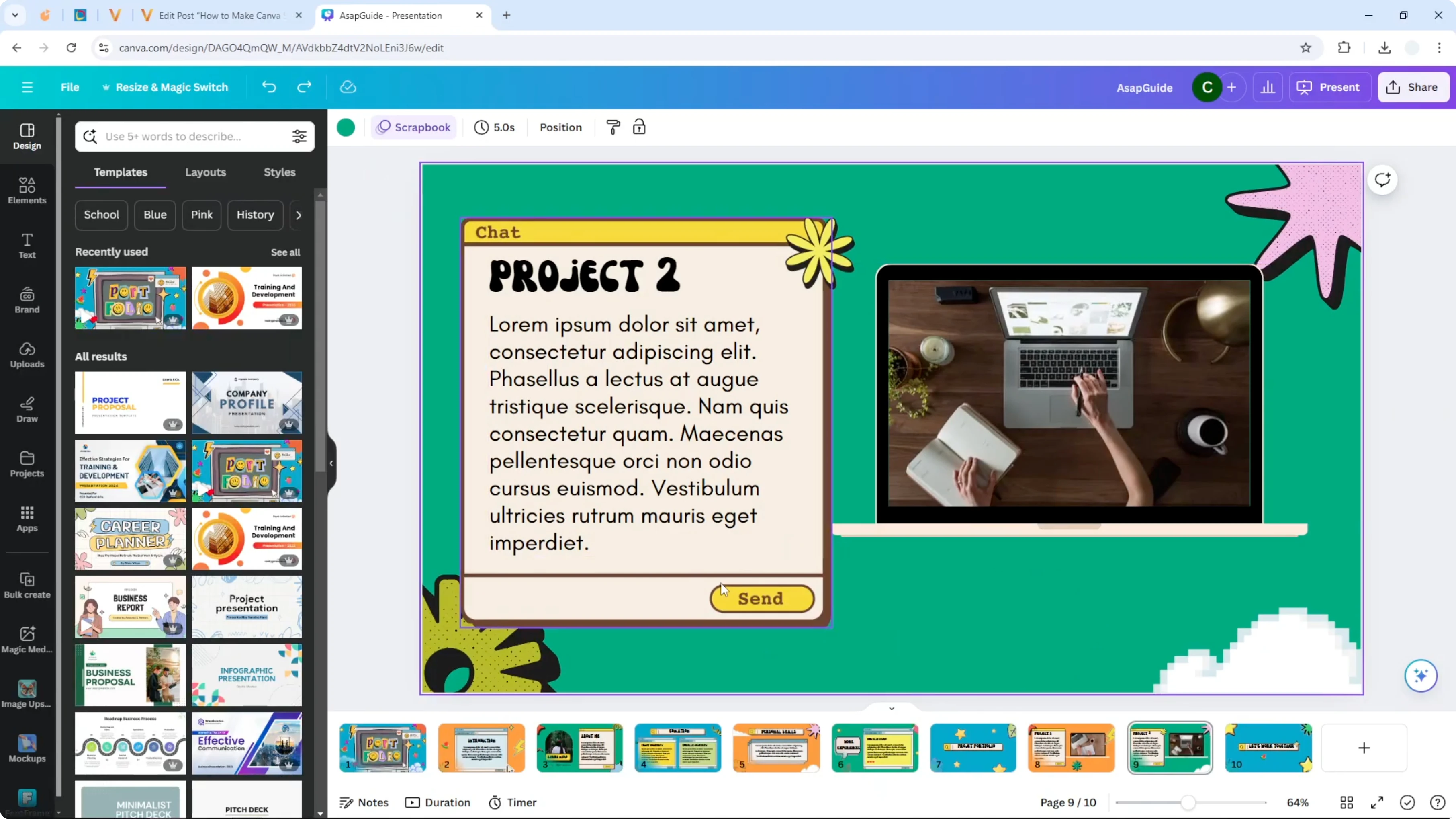
If you need to adjust all slides at once, check how to adjust all slides duration in Canva.
Change Slide Duration on Canva
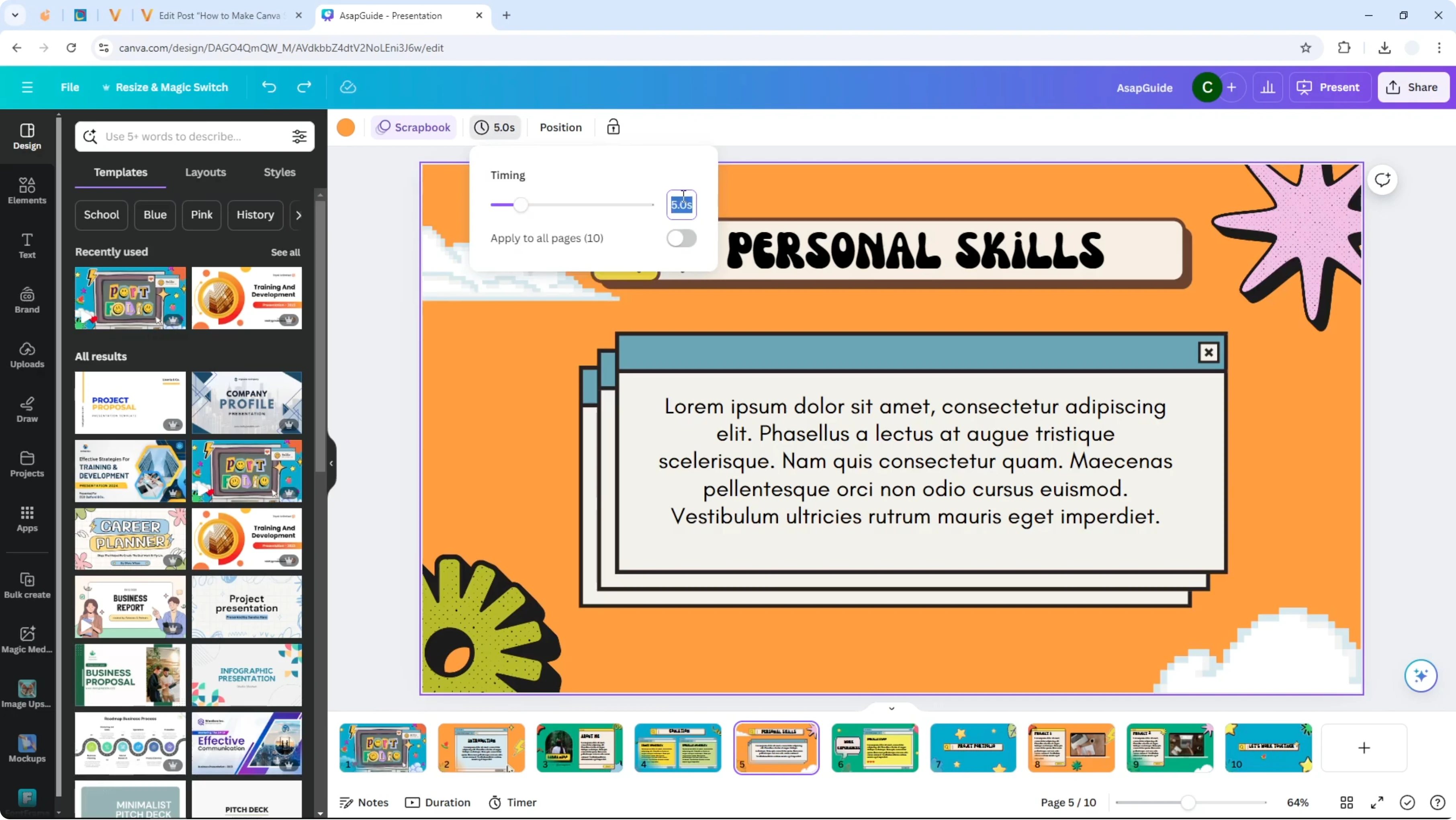
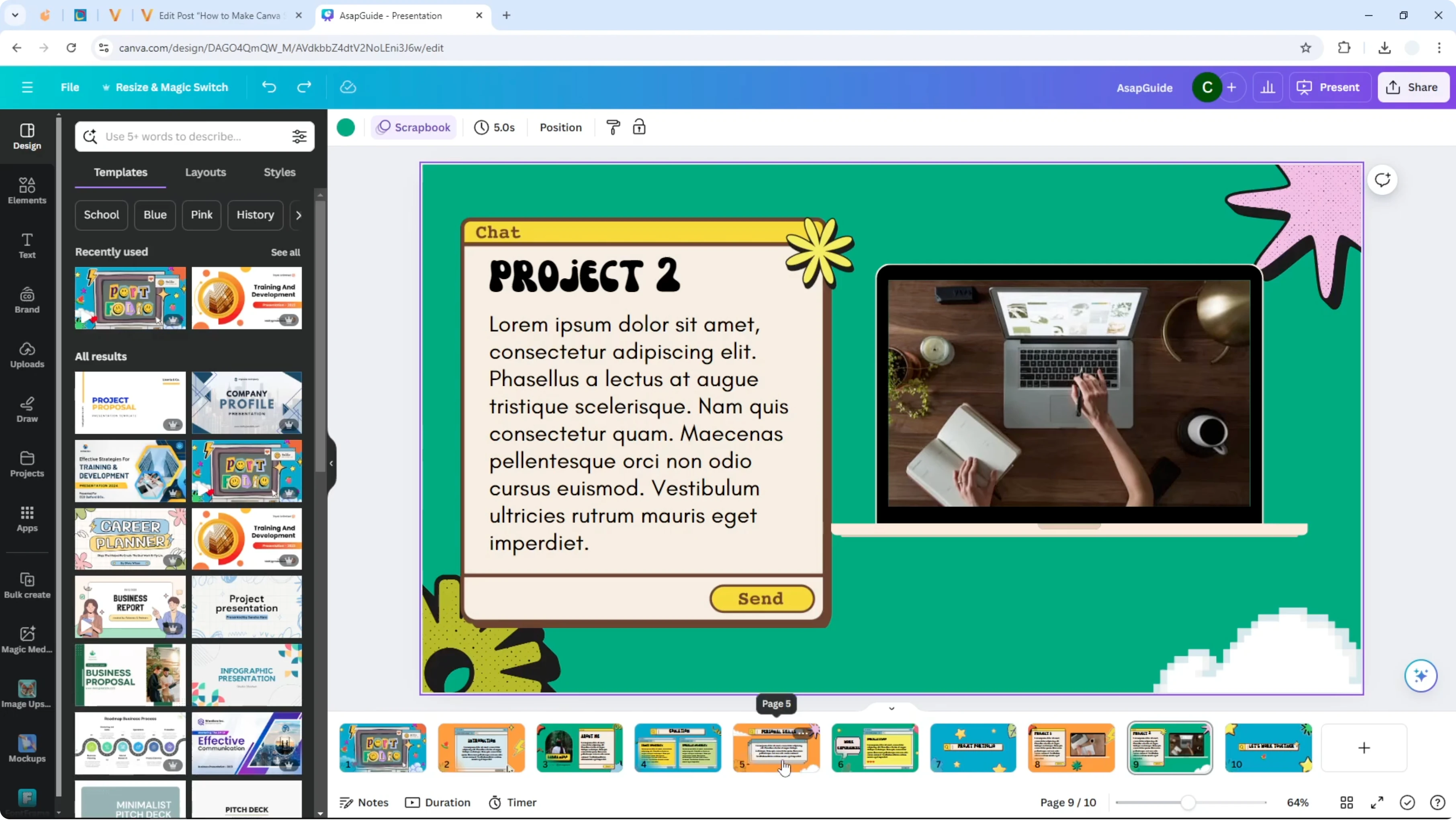
Edit timing menu
You can set an exact value in seconds. I highly recommend this if you want a precise duration.
Click the slide you want to edit.
Open the Edit timing menu.
Type the new duration in seconds, for example 10, and press Enter.
You might not see anything change, but the slide is now using the new duration.
Duration menu slider
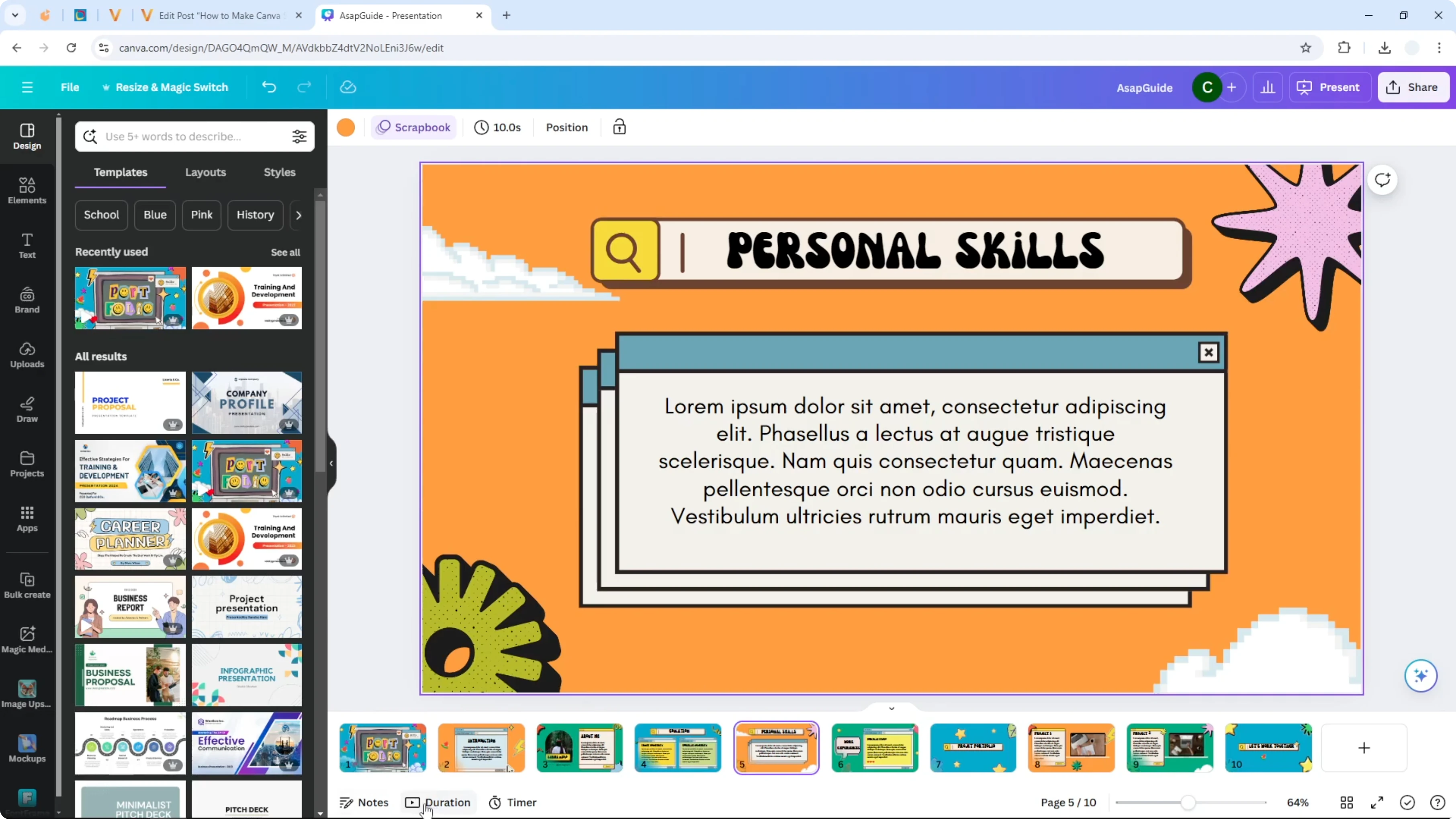
You can also adjust the time visually with a slider. This gives you a clear cue for how long the slide has become.
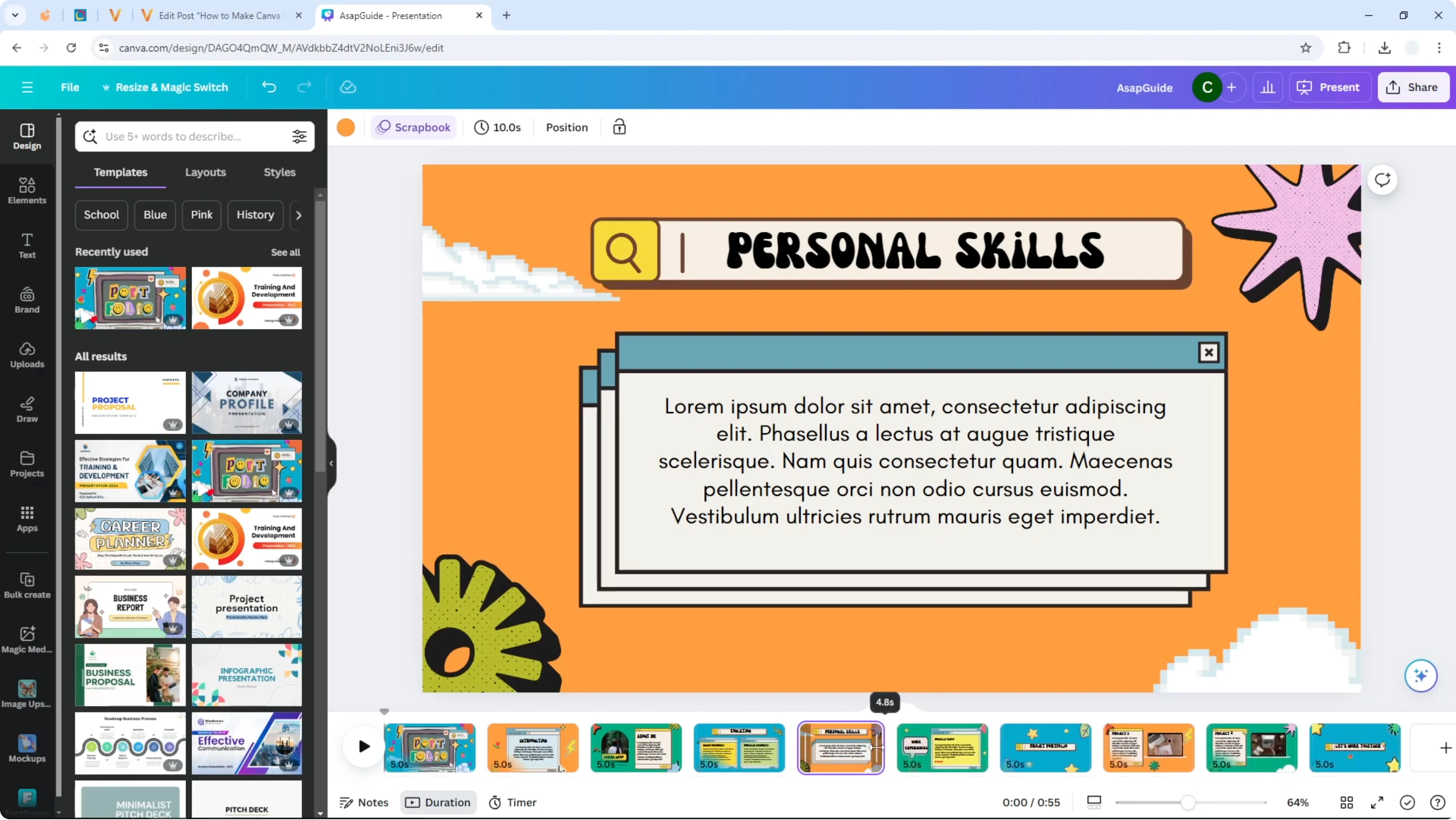
Click the slide you want to edit.
Open the Duration menu.
Drag the slider to make it shorter or longer.
The menu shows the updated time for that slide.
Autoplay and timing
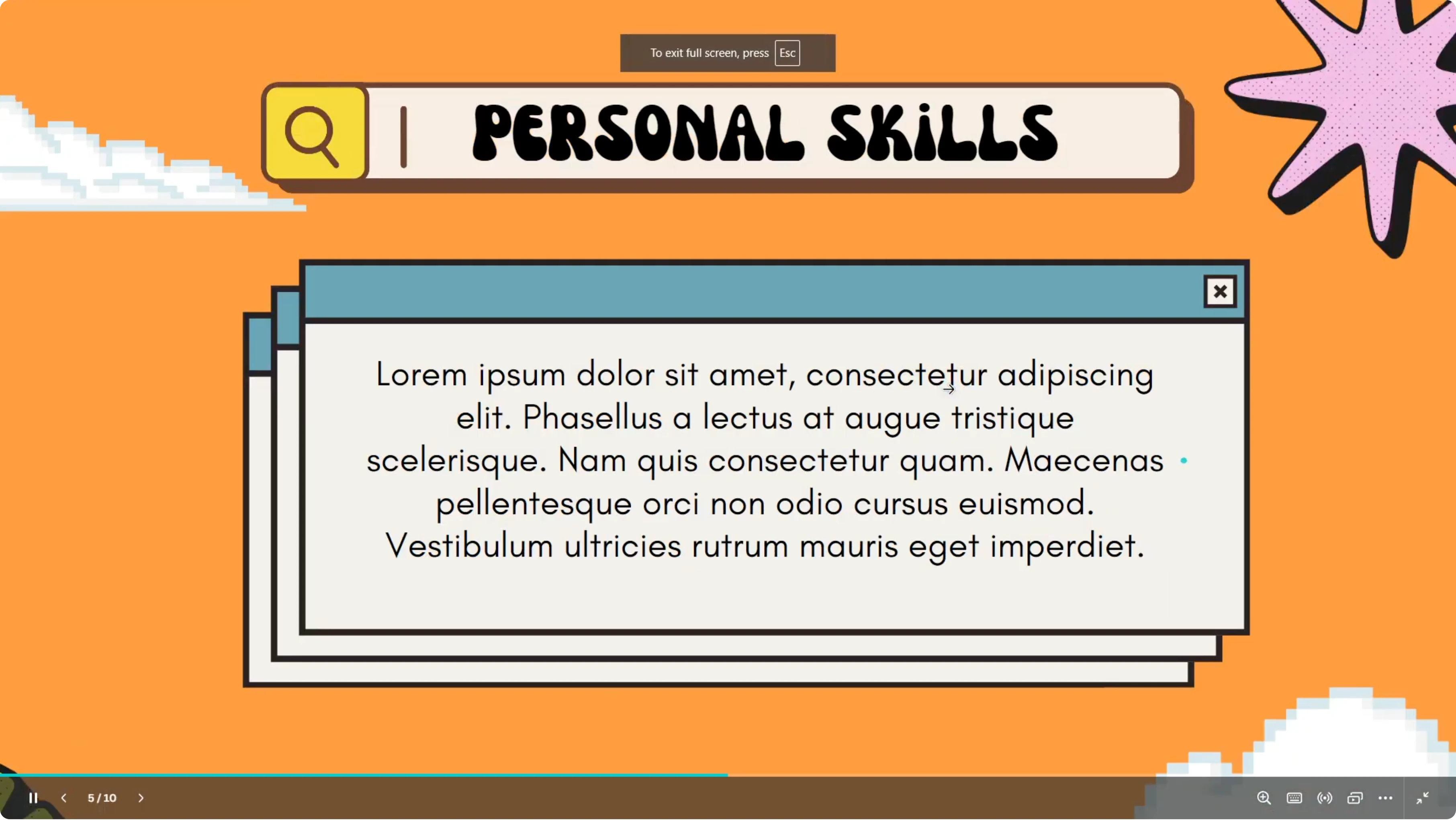
Open Present and choose Autoplay, then click Present. It runs on its own and advances based on the timing you set.
If the slide includes many animations, the effective display time can appear shorter. Use the Duration menu to confirm the current value for each slide.
If you are preparing your deck for a different screen, see how to change your slide aspect ratio before you finalize timings.
My recommendation
I highly recommend opening the Duration menu after you edit a time. You will see the updated value and get a helpful visual cue.
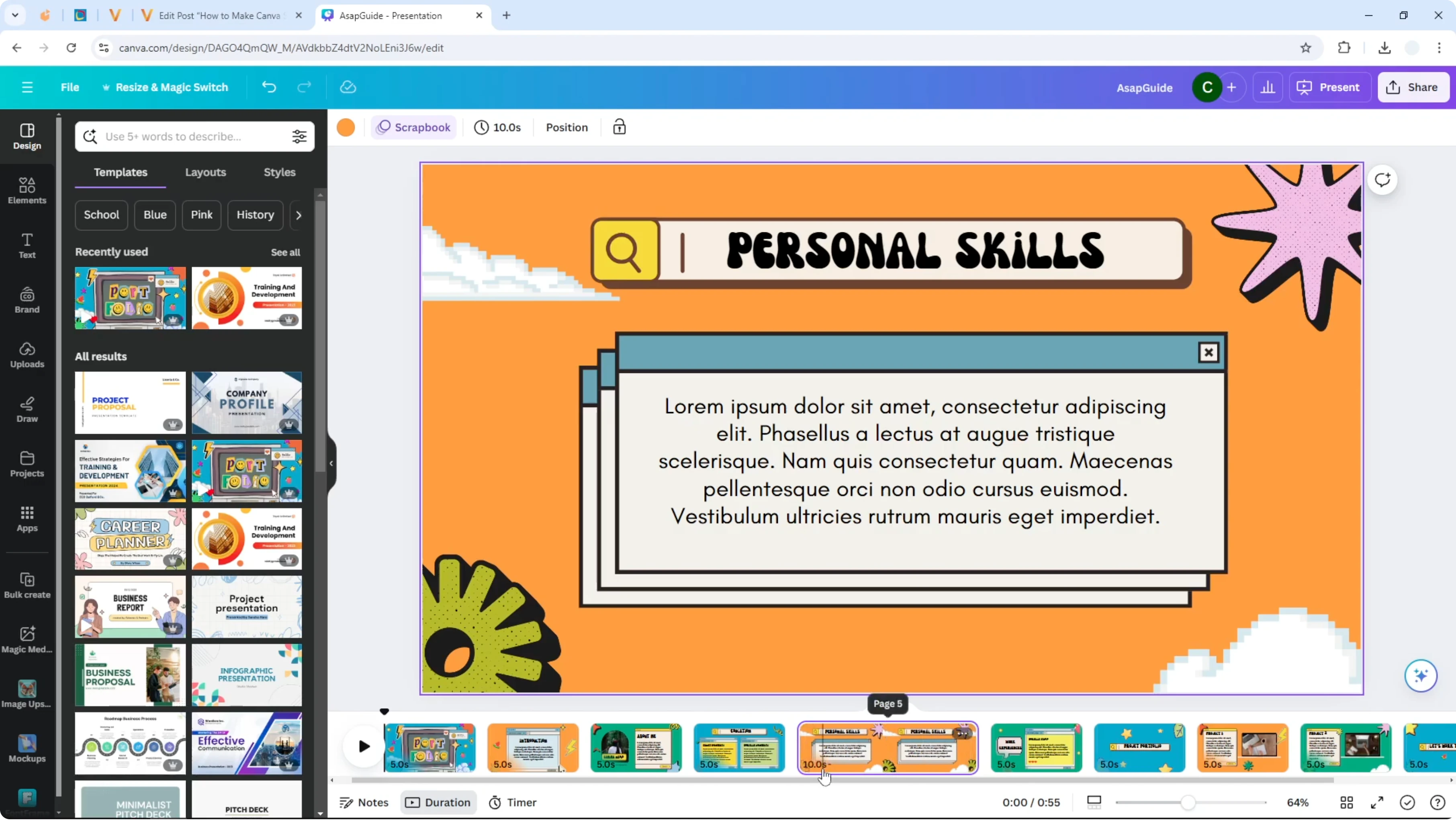
Use the Edit timing menu for precise values. Use the Duration menu slider for quick adjustments.
Final thoughts
Changing slide duration in Canva is straightforward. Set an exact value in the Edit timing menu or adjust visually with the Duration menu slider, then confirm the new time. If you also need a different layout, you can change your slide size before presenting.
Recent Posts

How to Visualize Yourself as a Pixelized Character with AI?
How to Visualize Yourself as a Pixelized Character with AI?

How to Revive Faded Memories and Enhance Image Clarity with AI?
How to Revive Faded Memories and Enhance Image Clarity with AI?

How to Visualize Yourself as an Animal Crossing Character with AI?
How to Visualize Yourself as an Animal Crossing Character with AI?