How to Change All Slides Duration on Canva

I want to show you how to change the duration for all slides in Canva at once. The default timing is 5 seconds, and you might want to switch everything to 10 seconds. There is a quicker way than editing one by one.
If you only need to adjust a single slide, see this guide on how to change duration for a Canva video slide.
Change All Slides Duration on Canva
Preview duration
Open your design and click the Duration menu. This gives a clear view of how long each slide is. You will likely see every slide set to 5 seconds.
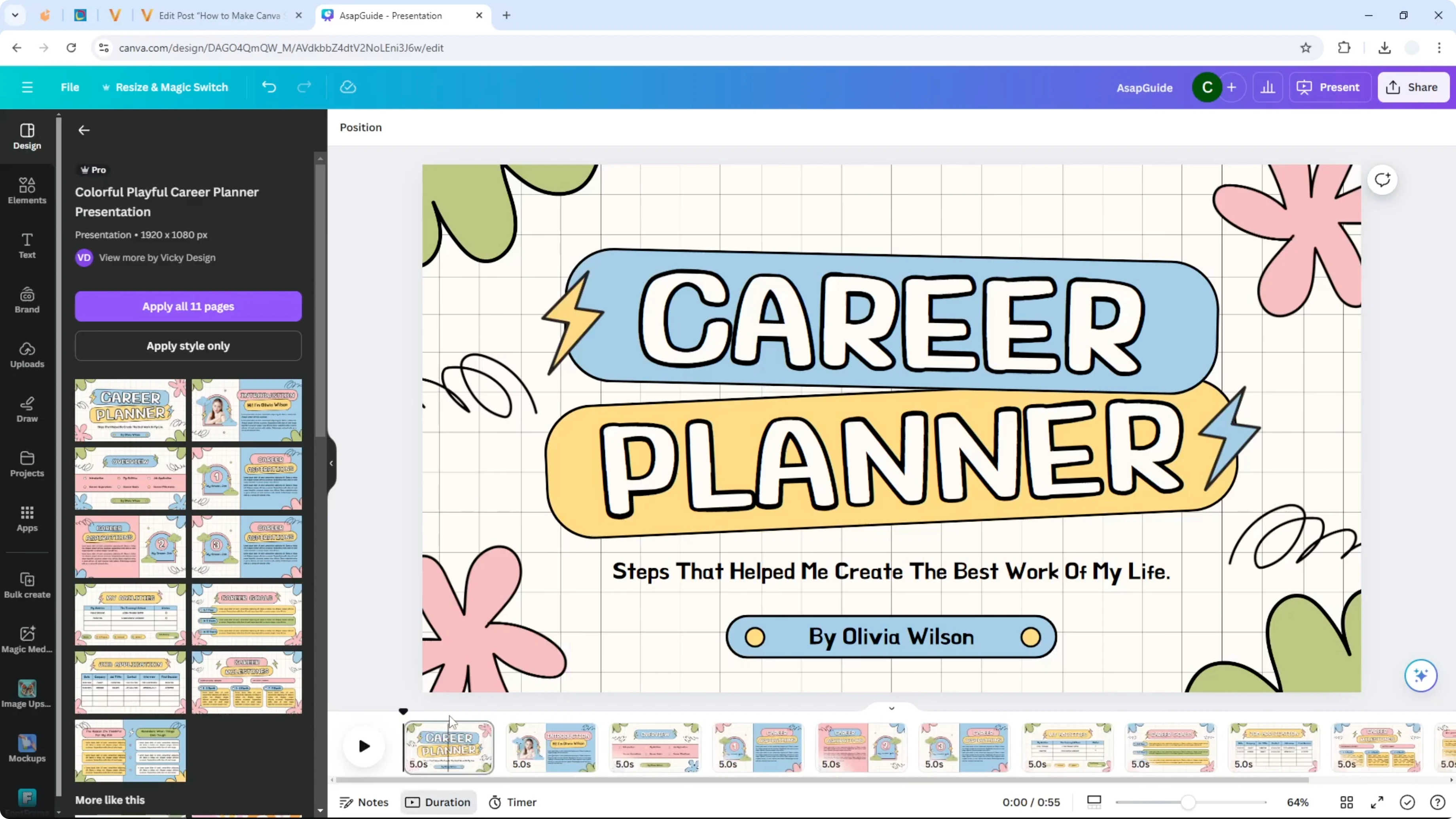
Select all slides
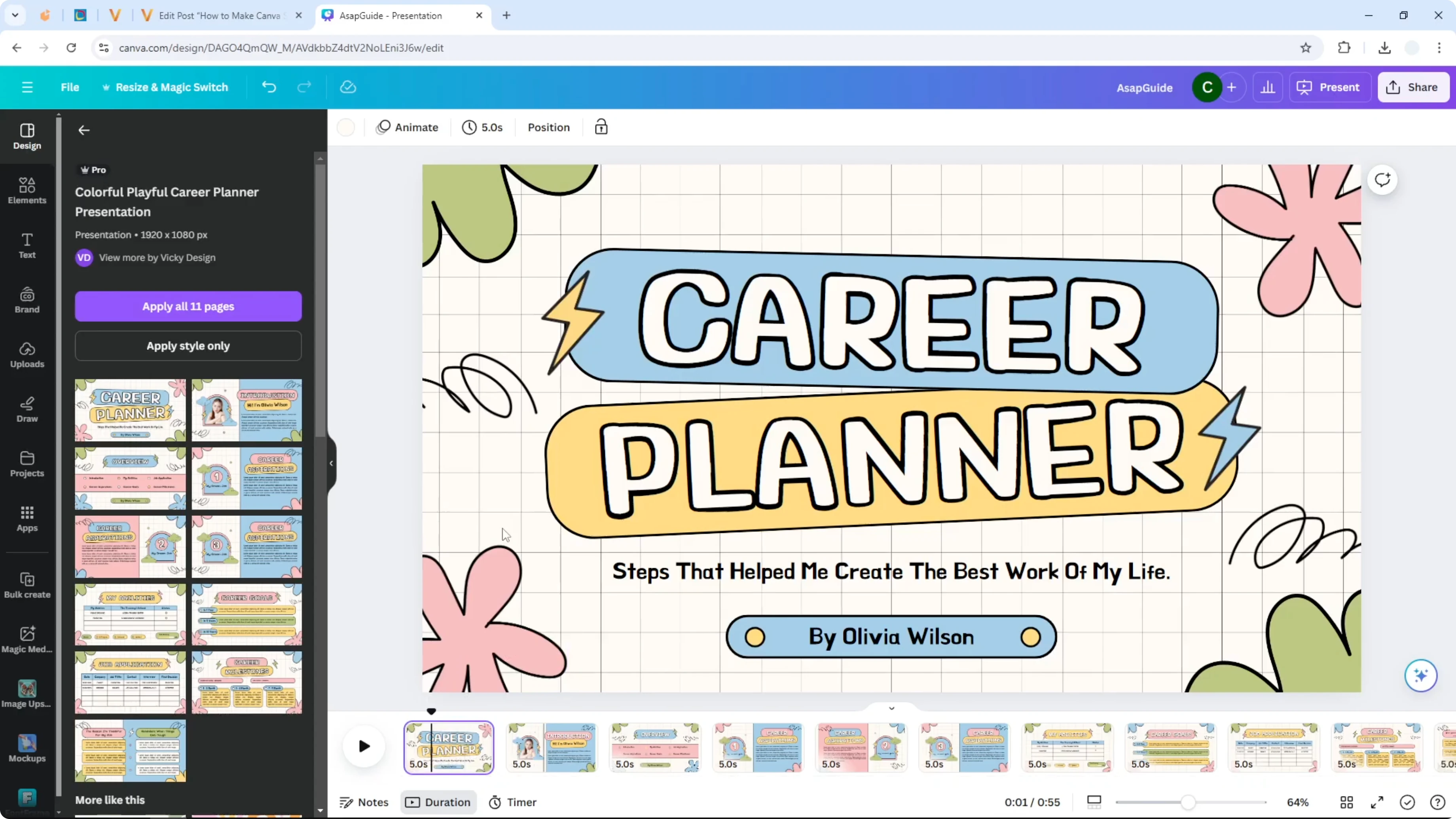
Click any slide. Select all slides using Ctrl + A on Windows or Command + A on Mac. Every slide should now be selected.
Read More: Change A4 Size Canva
Set new duration
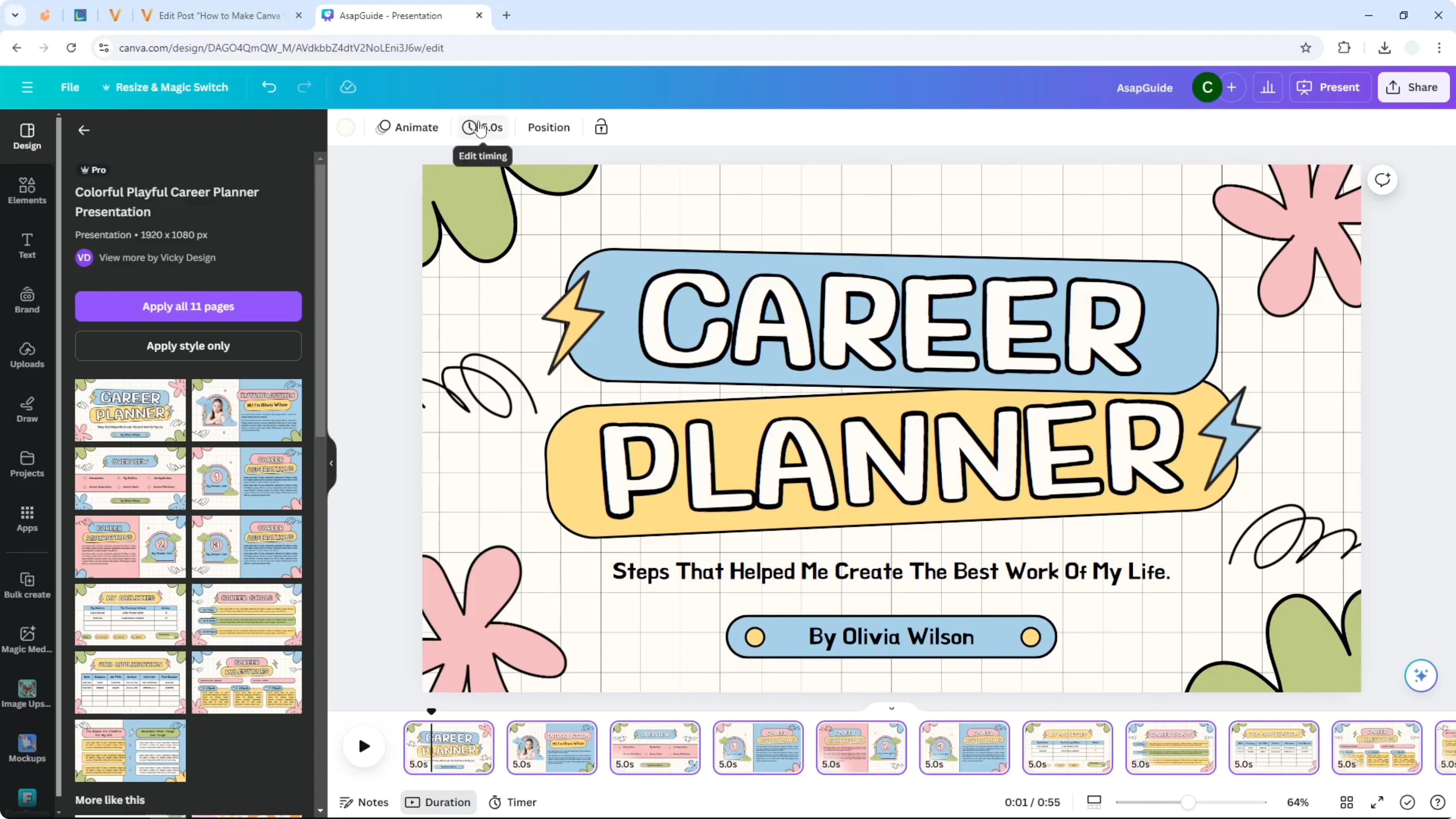
Go to the Edit timing menu. Change the number to 10 seconds, then press Enter. Each selected slide will take the new timing.
Verify
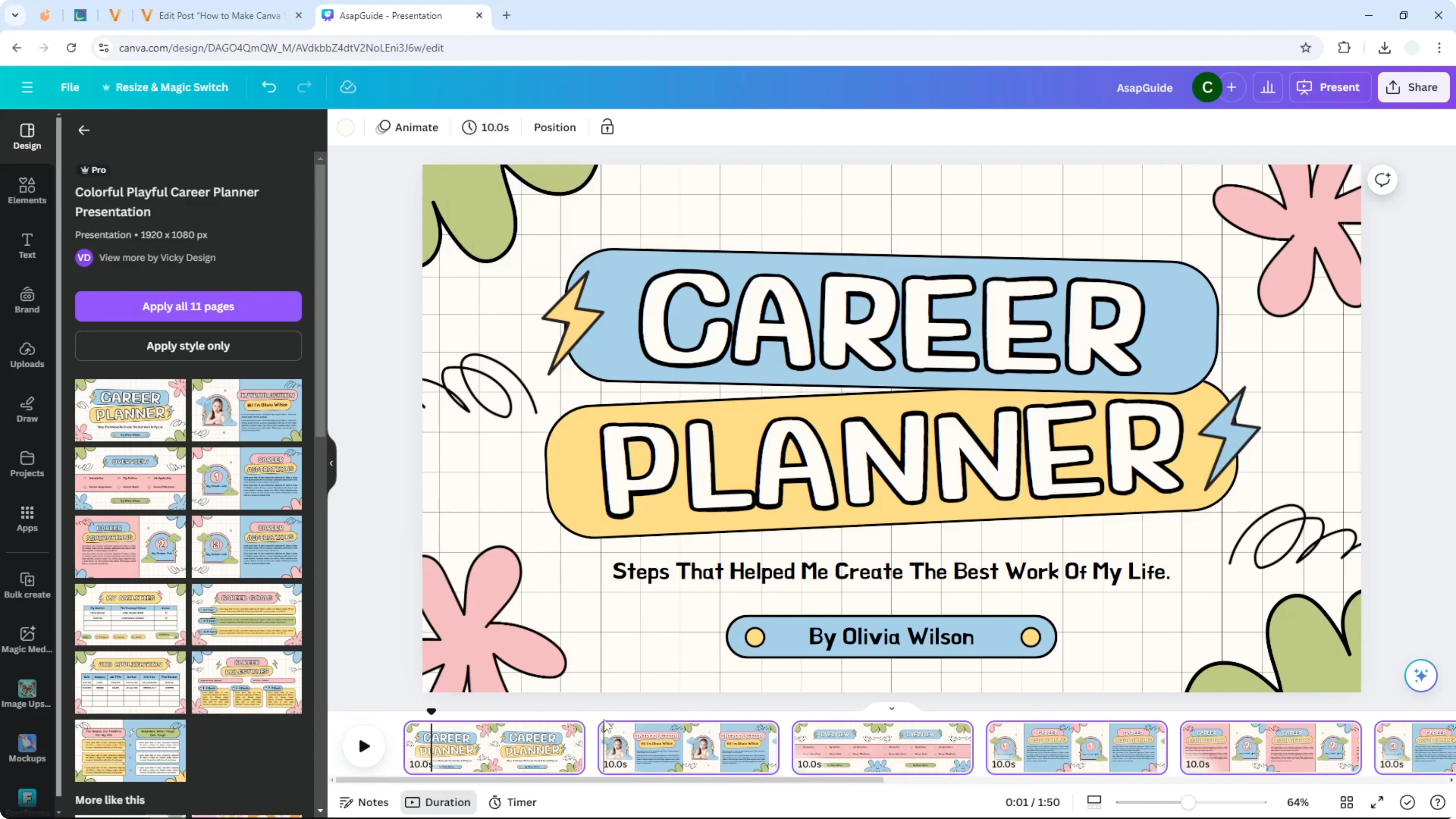
You will see that each slide is now going to spend 10 seconds during playback. That is exactly the result you want.
Final Thoughts
Click the Duration menu to check current timing, select all slides, and set a new value in Edit timing. Press Enter to apply the change to every slide at once. If you are customizing the look too, you can also change the background color in Canva.
Recent Posts

How to Visualize Yourself as a Pixelized Character with AI?
How to Visualize Yourself as a Pixelized Character with AI?

How to Revive Faded Memories and Enhance Image Clarity with AI?
How to Revive Faded Memories and Enhance Image Clarity with AI?

How to Visualize Yourself as an Animal Crossing Character with AI?
How to Visualize Yourself as an Animal Crossing Character with AI?