How to Change the Duration of Slides in Canva Video Projects
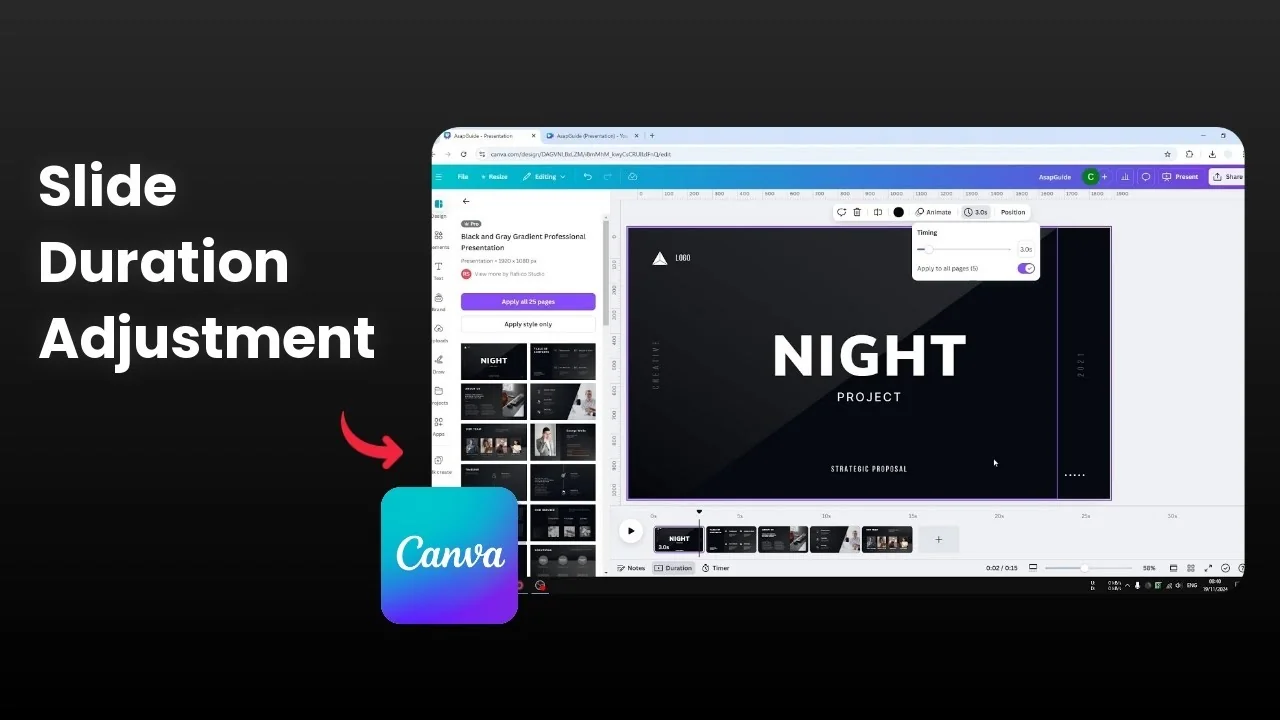
I show you how to change the duration of slides in your Canva video or presentation projects. By default, every page or slide appears for exactly 5 seconds, then it moves to the next page. You can change that number and make it shorter or longer.
Change the Duration of Slides in Canva Video Projects: See and Enable Duration
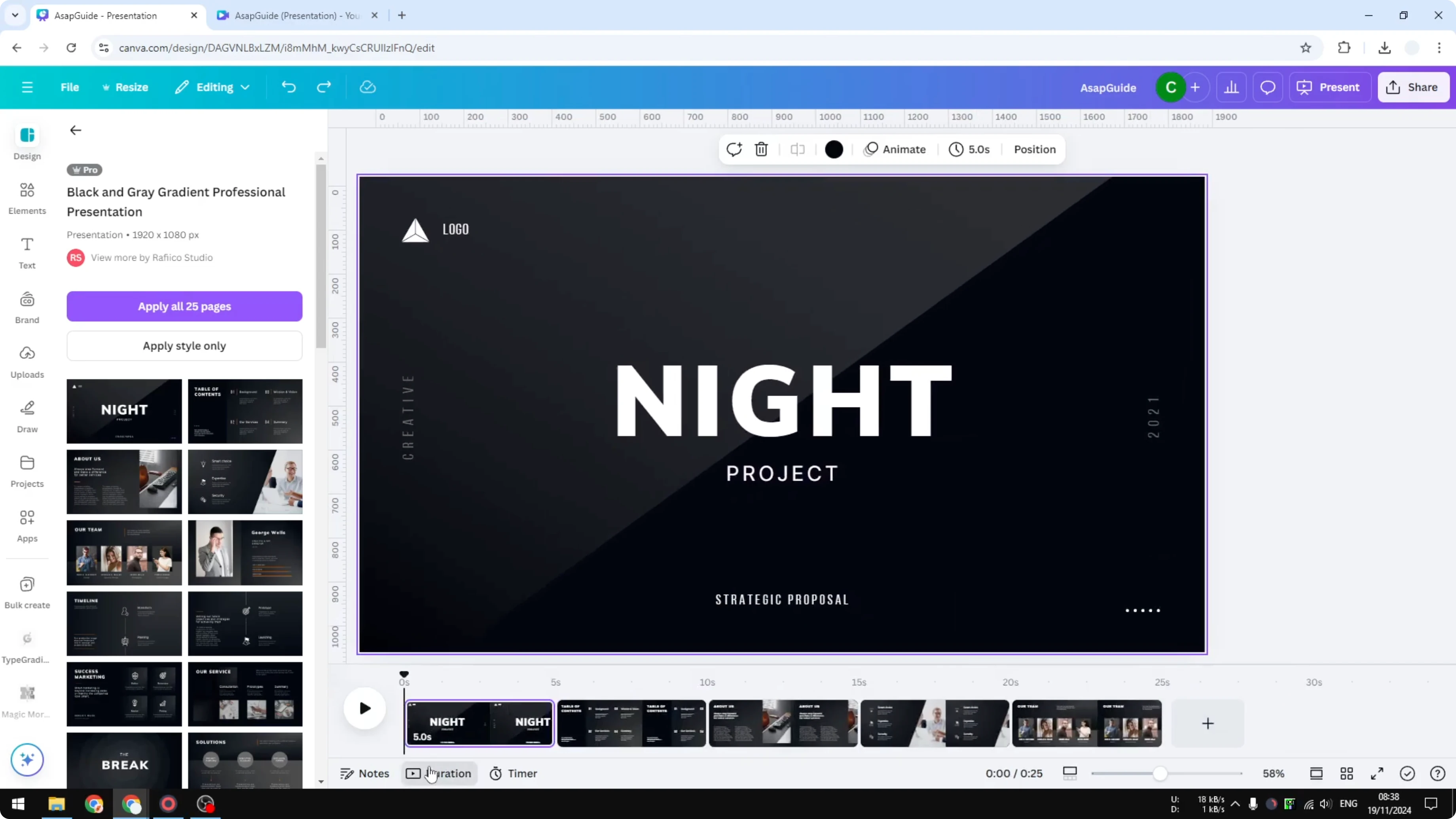
Open the timeline or the thumbnail view. Click the menu that says Thumbnail view, and enable Duration. This is very important.
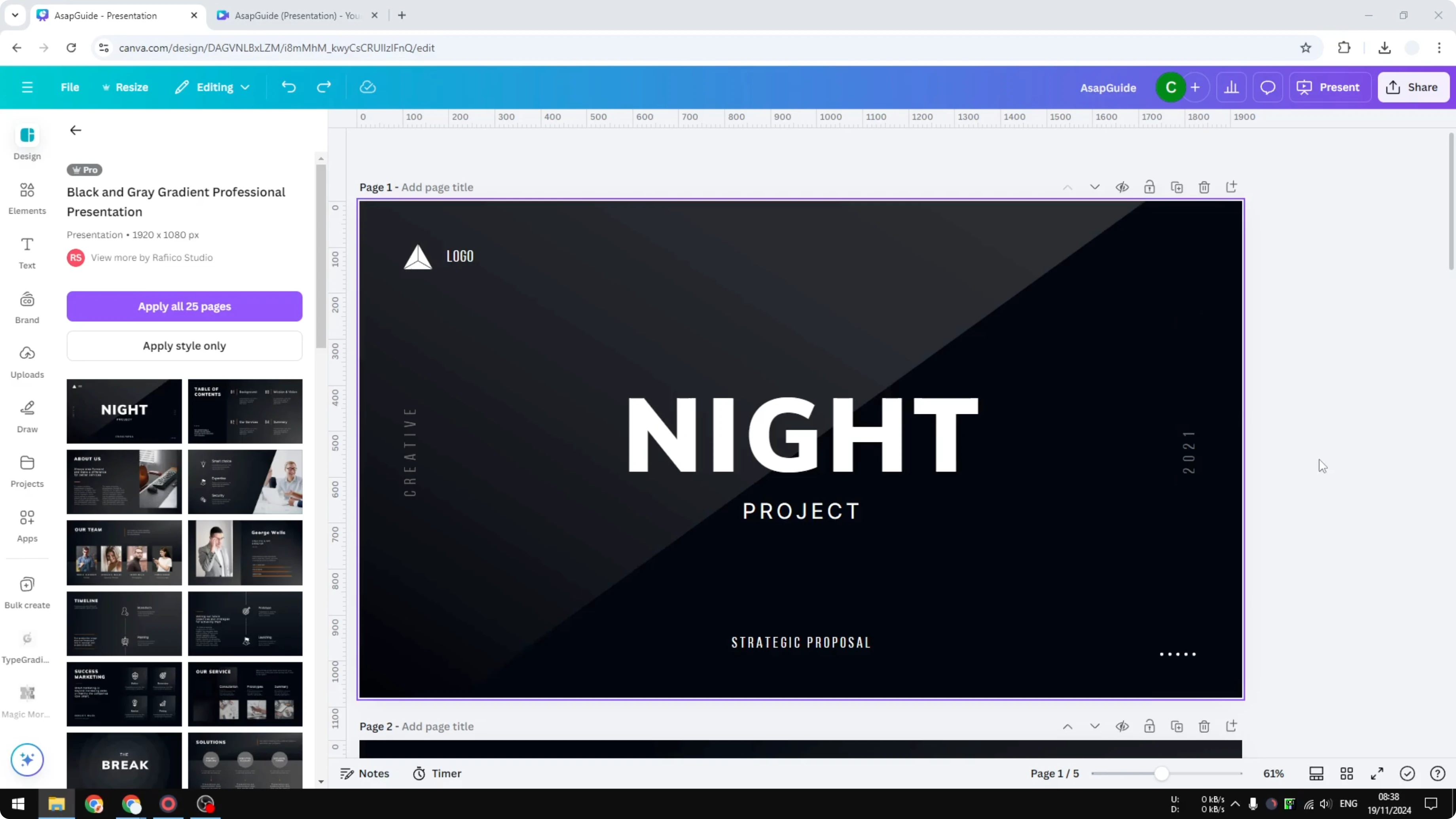
Every slide in the document shows 5 seconds to appear. When converting this into a video or an automated presentation, each slide appears for 5 seconds.
If you are adjusting pacing between scenes, you may also want to add video transitions for smoother flow.
Change the Duration of Slides in Canva Video Projects: Drag to Adjust
Click and drag the control points on the timeline.
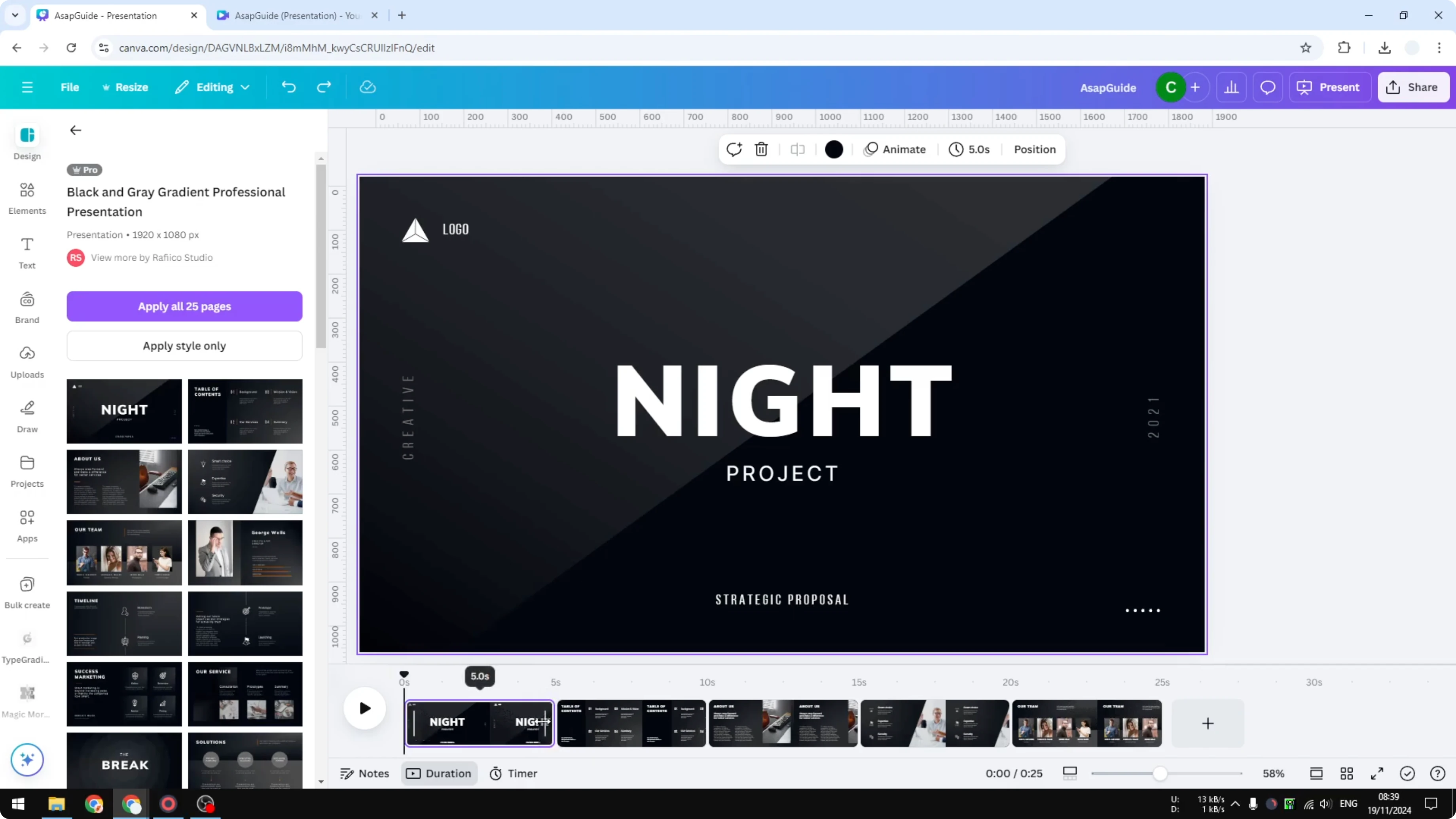
Drag left to make the slide shorter.
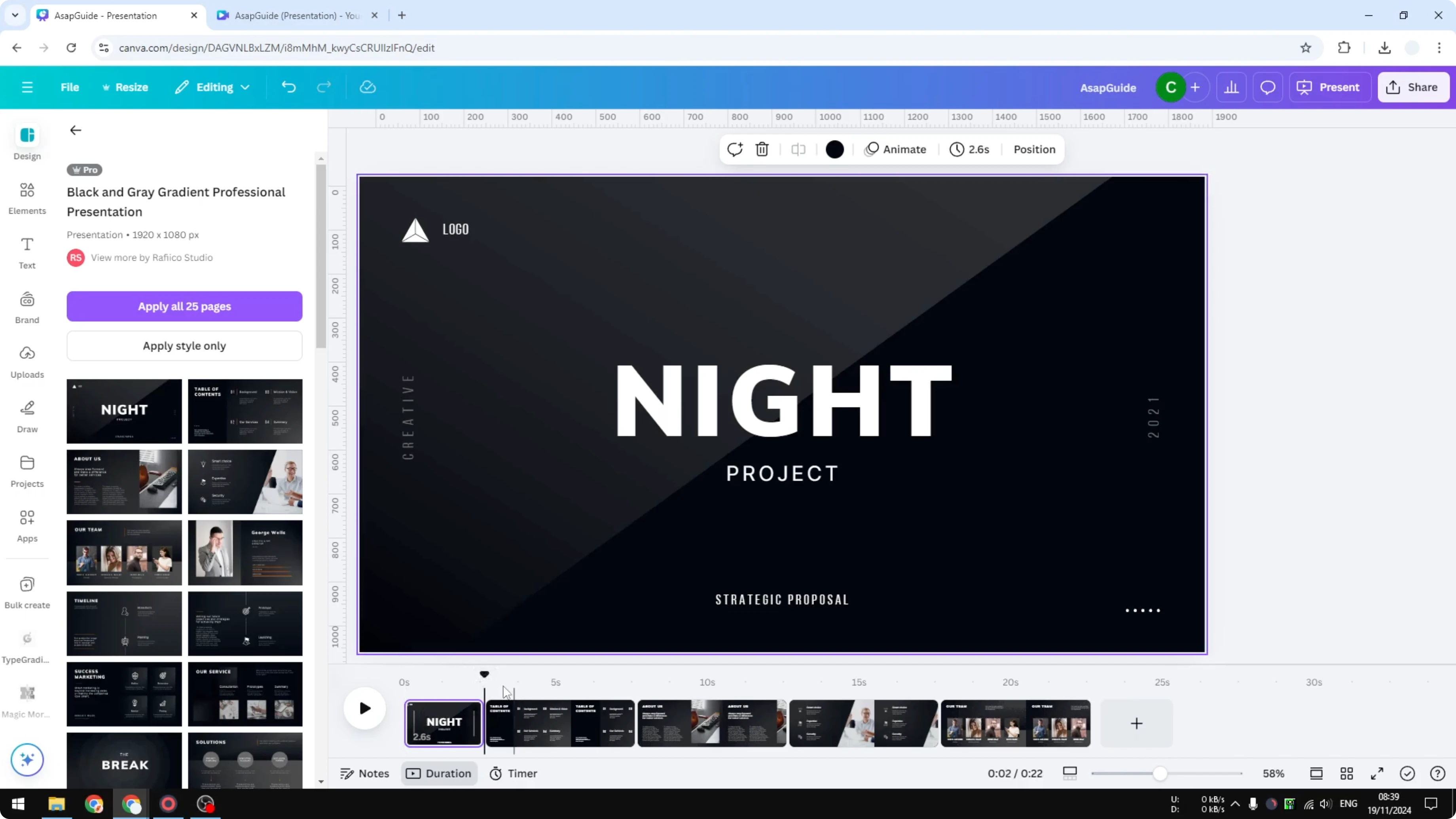
Drag right to make the slide longer, then release to set the new duration.
Read More: How To Change Video Background In Canva Using Ai
Change the Duration of Slides in Canva Video Projects: Edit Timing Button
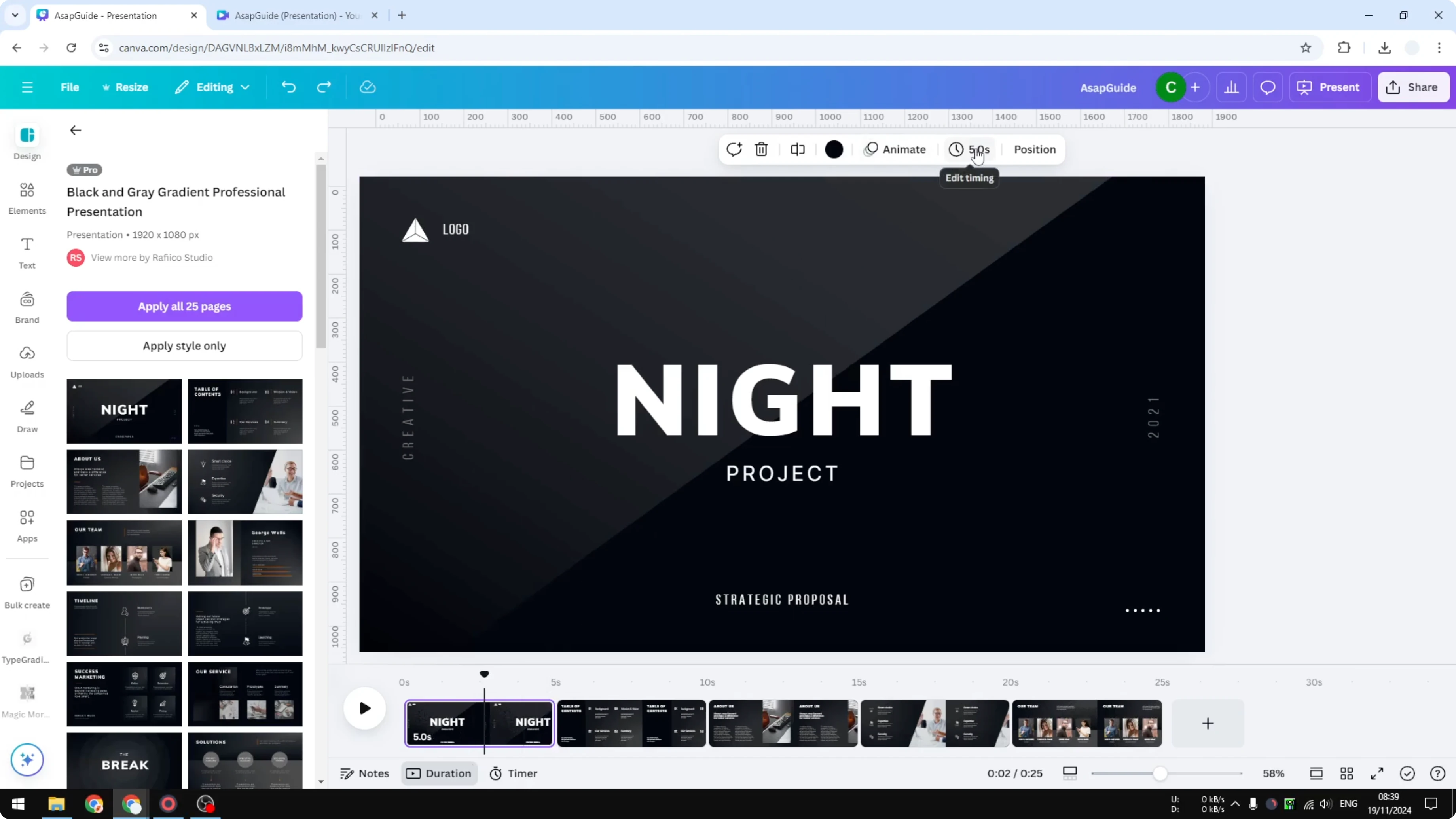
Click the slide you want to adjust.
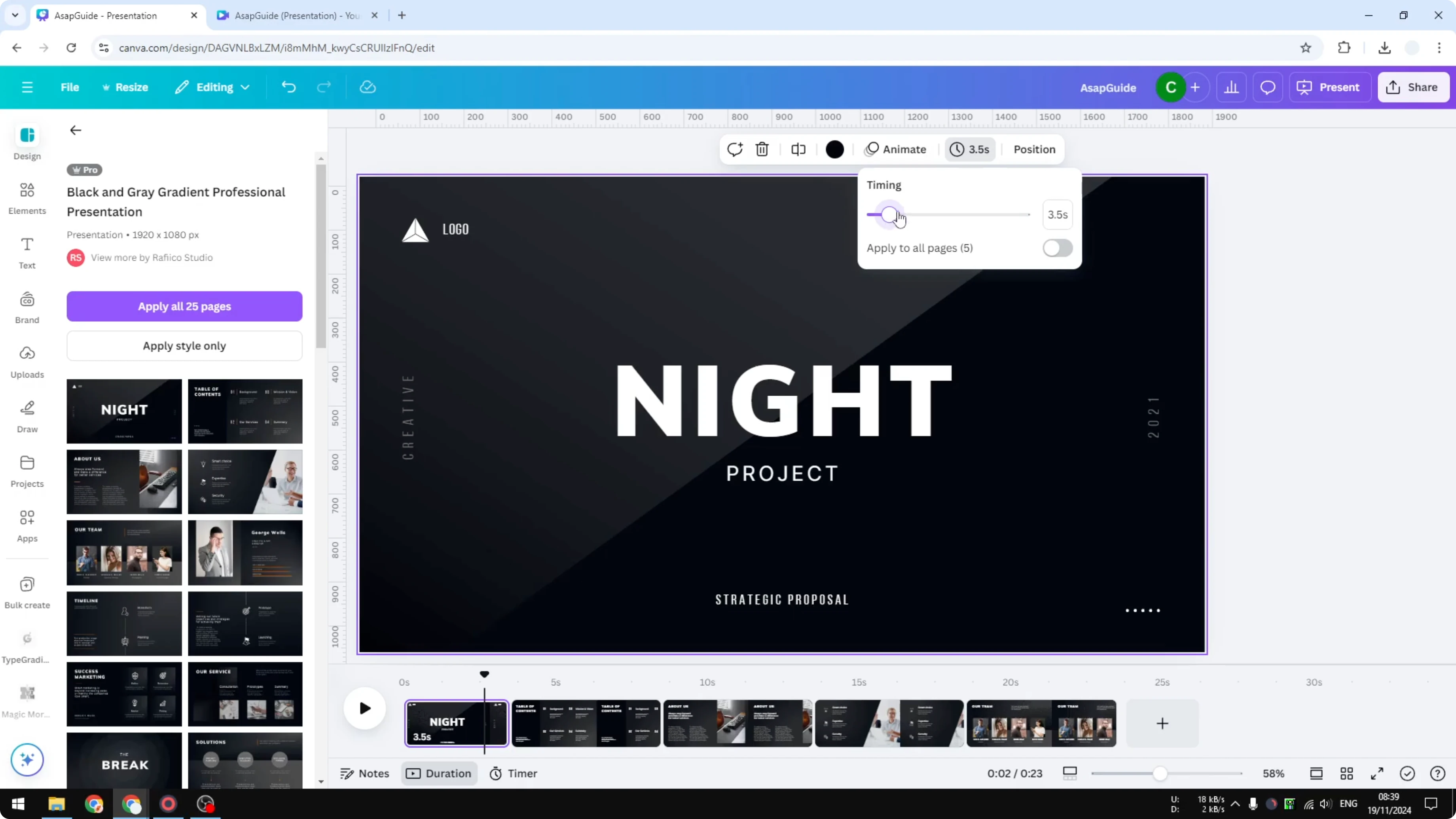
Click Edit timing.
Manually adjust the number to set the exact duration you need.
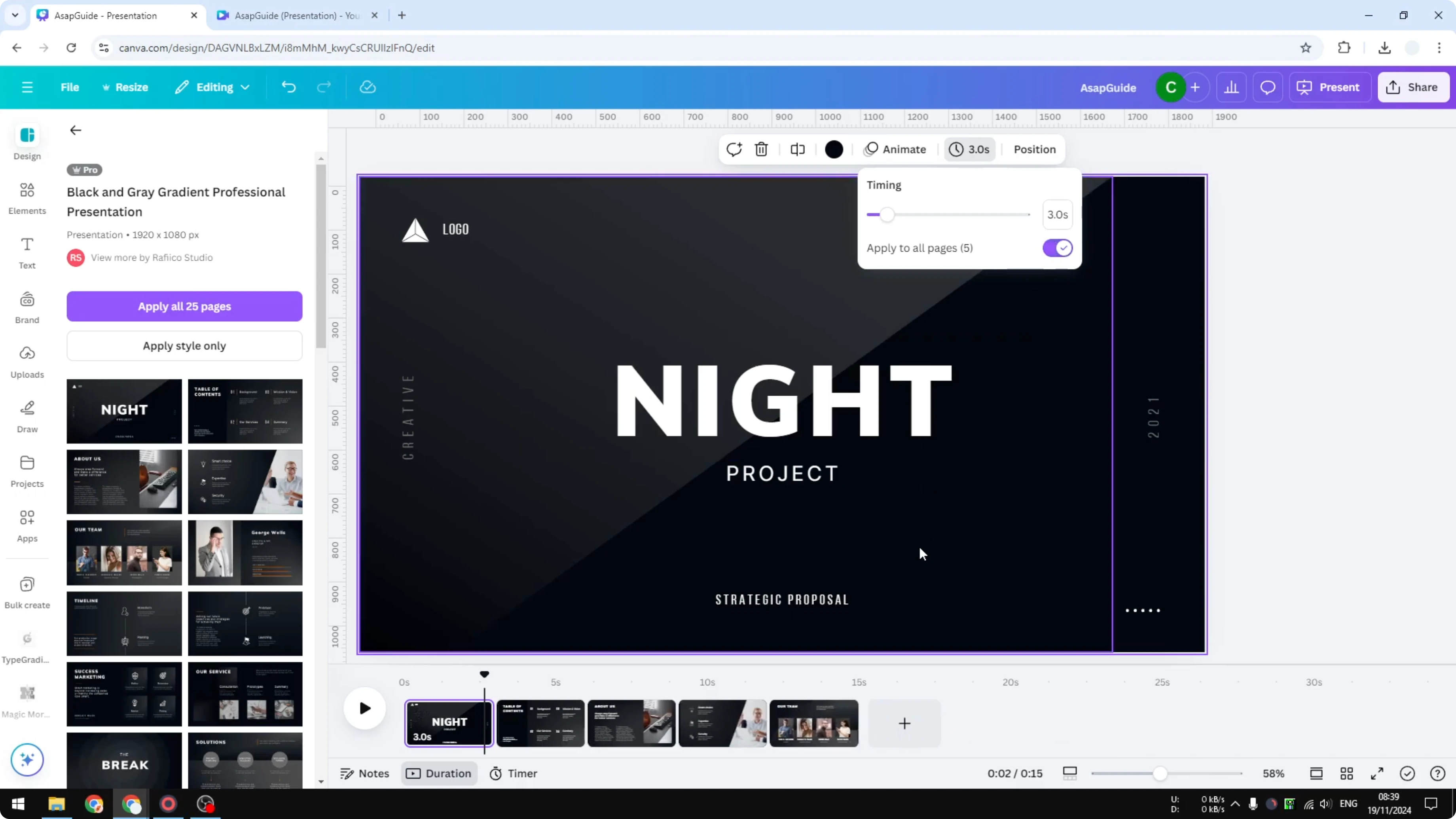
Click Apply to all pages to give every page the same duration, for example, 3 seconds instead of 5.
After setting durations, if you plan to place the video in a deck, see how to insert a Canva video in Google Slides.
Final Thoughts on Change the Duration of Slides in Canva Video Projects
That is a simple way to adjust the duration of a single slide or multiple slides in your document. That is how you can change the duration of slides in your Canva video and presentation projects.
Recent Posts

How to Visualize Yourself as a Pixelized Character with AI?
How to Visualize Yourself as a Pixelized Character with AI?

How to Revive Faded Memories and Enhance Image Clarity with AI?
How to Revive Faded Memories and Enhance Image Clarity with AI?

How to Visualize Yourself as an Animal Crossing Character with AI?
How to Visualize Yourself as an Animal Crossing Character with AI?