How to Change Gradient Colors in Canva
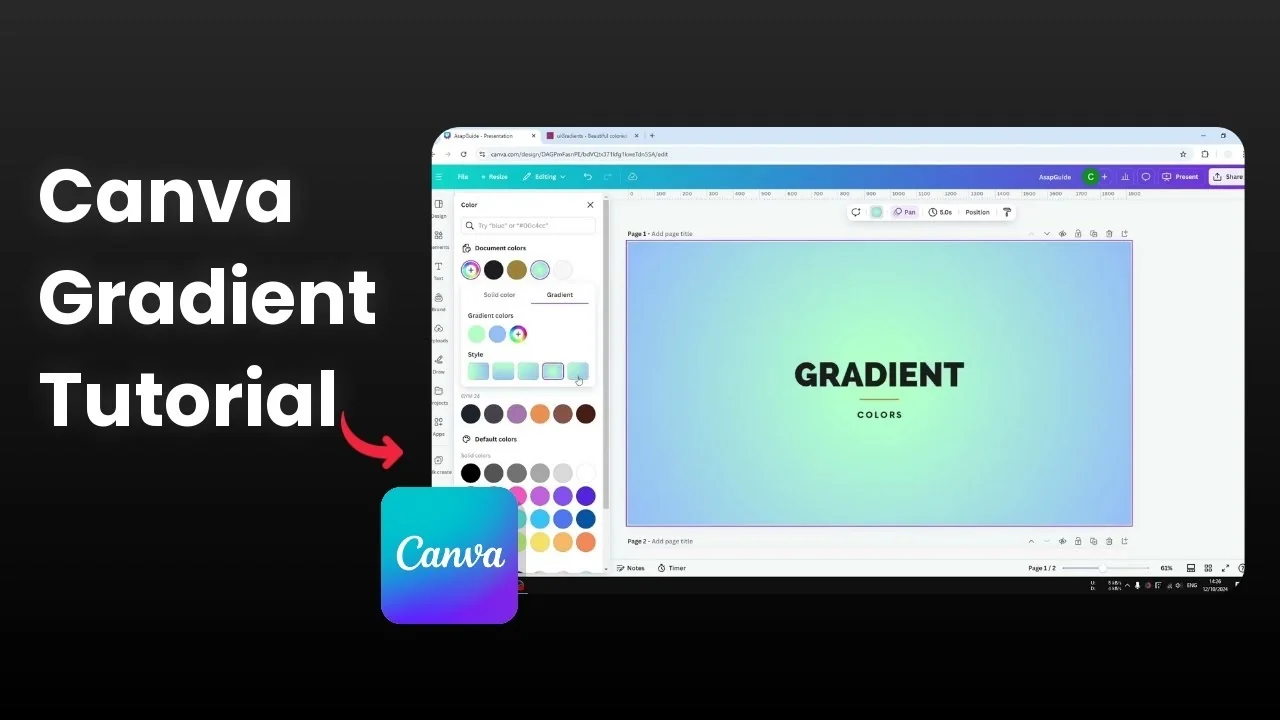
I will show you how you can change the gradient color in Canva. I have a page that has a green to blue gradient from the gradient section in Canva.
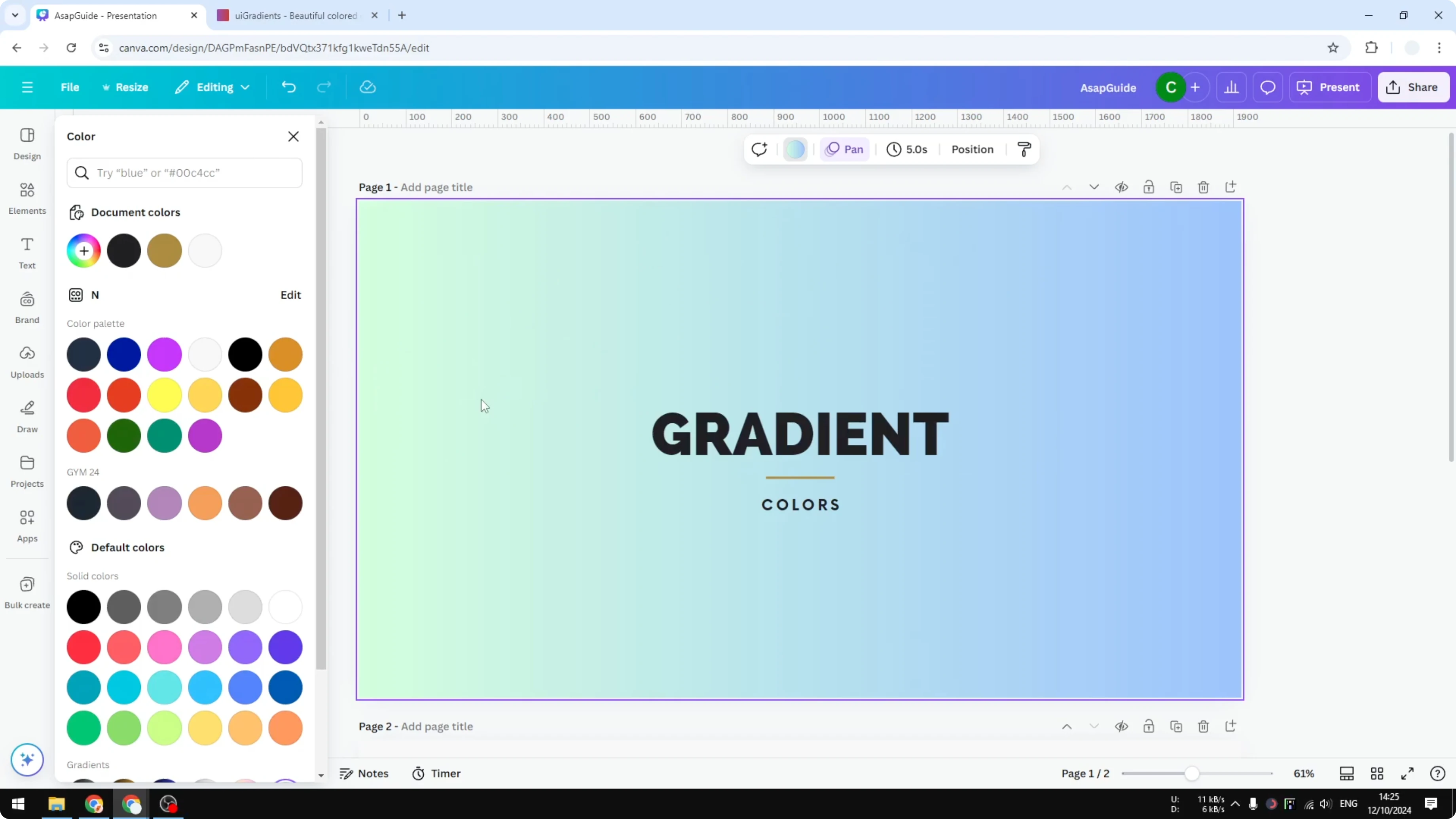
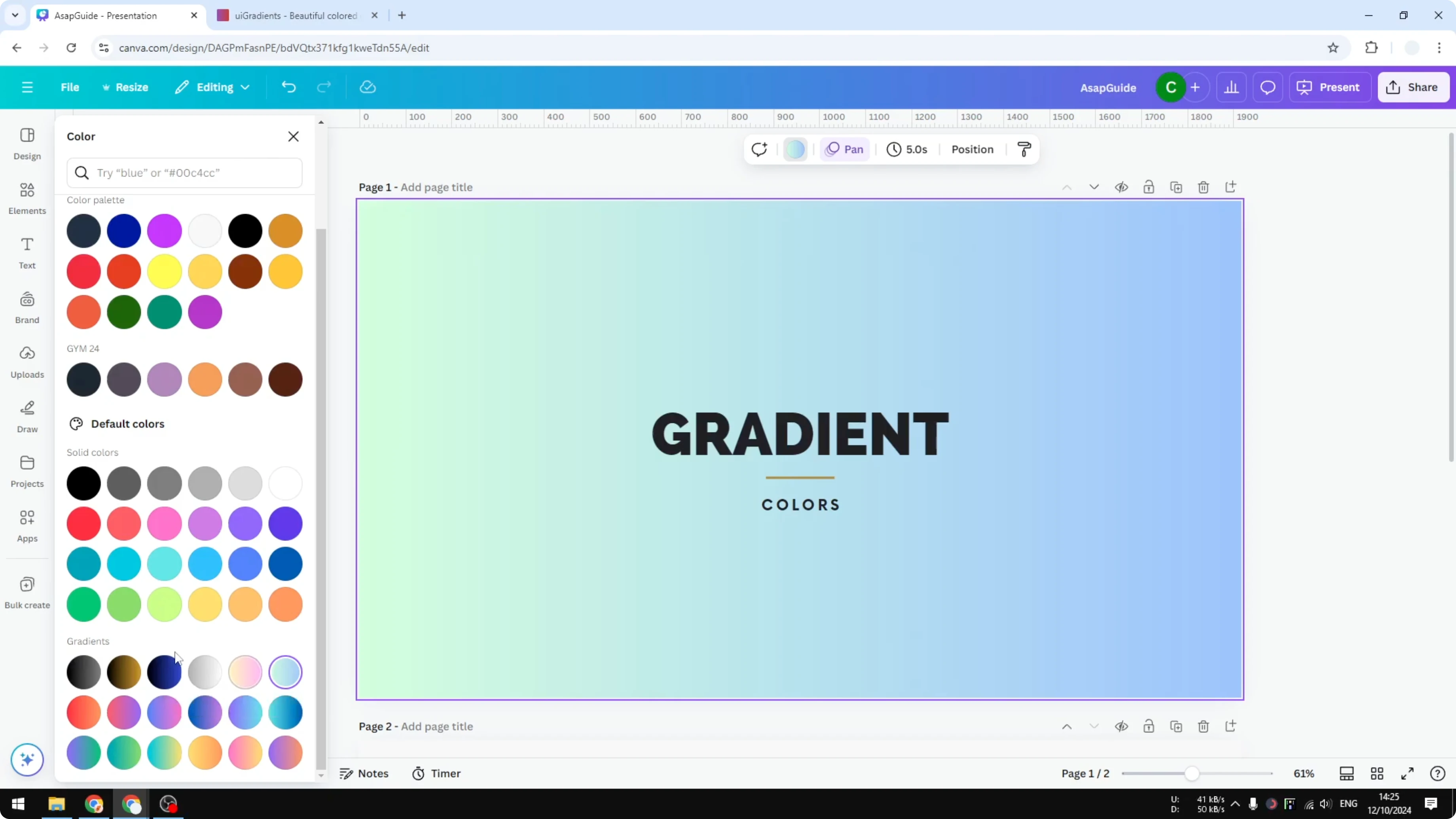
This is one of many presets you can apply to an element or to a background in your Canva design. You can click any of them and the effect will be applied immediately.
Change Gradient Colors in Canva basics
Sometimes you might want to fine tune the color or use a completely different set of colors. For beginners it can be confusing where you can change the setting. For a complete walkthrough, see this guide to changing gradient colors in Canva.
Find the controls for Change Gradient Colors in Canva
Apply a gradient preset from the gradient section. The colors being used will appear at the top in the color panel.
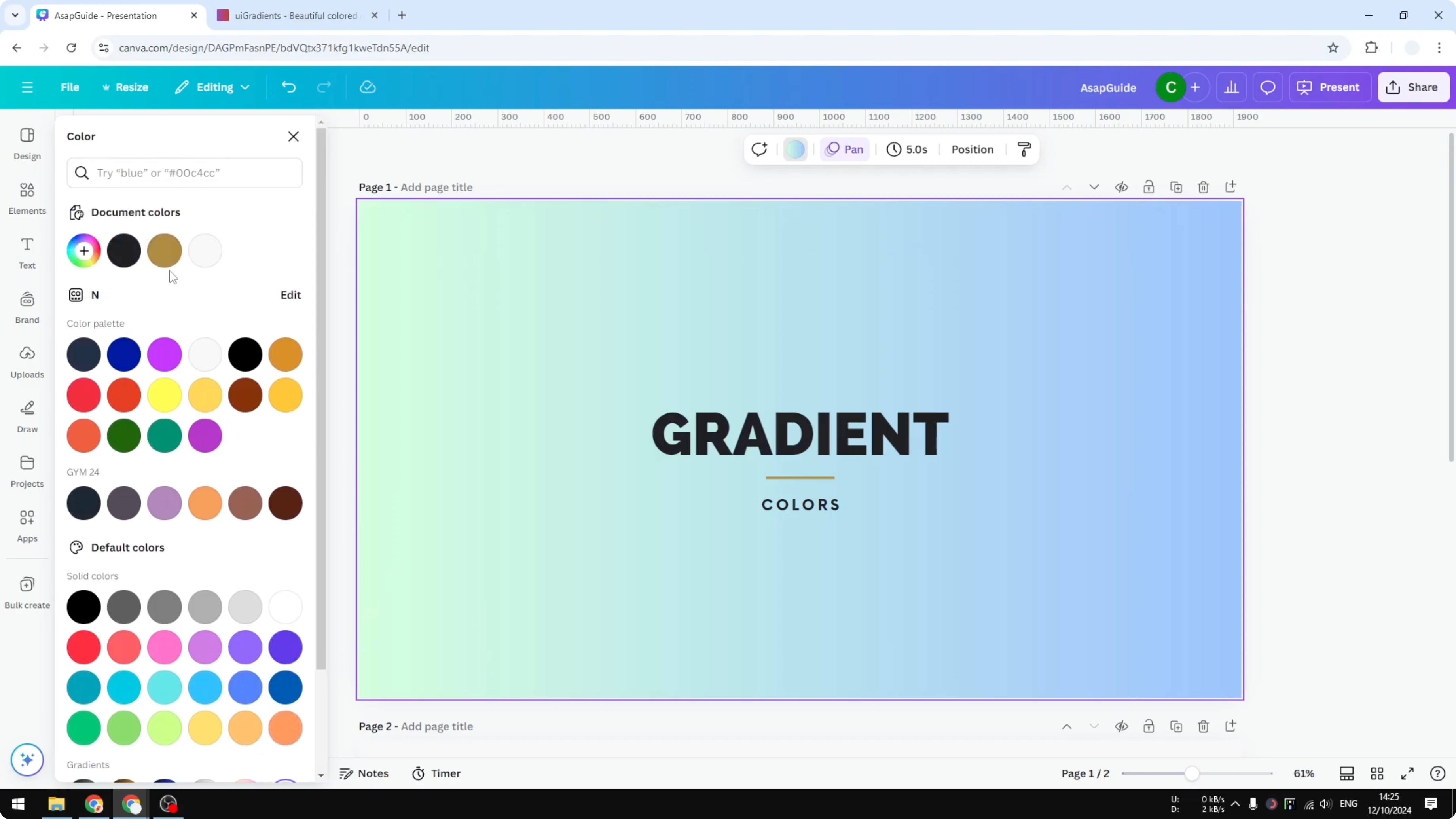
Scroll to the top area and add a new color. You will see the current colors in use. Make sure you are in the editor.
Adjust colors and orientation in Change Gradient Colors in Canva
Drag the control point to the color you want.
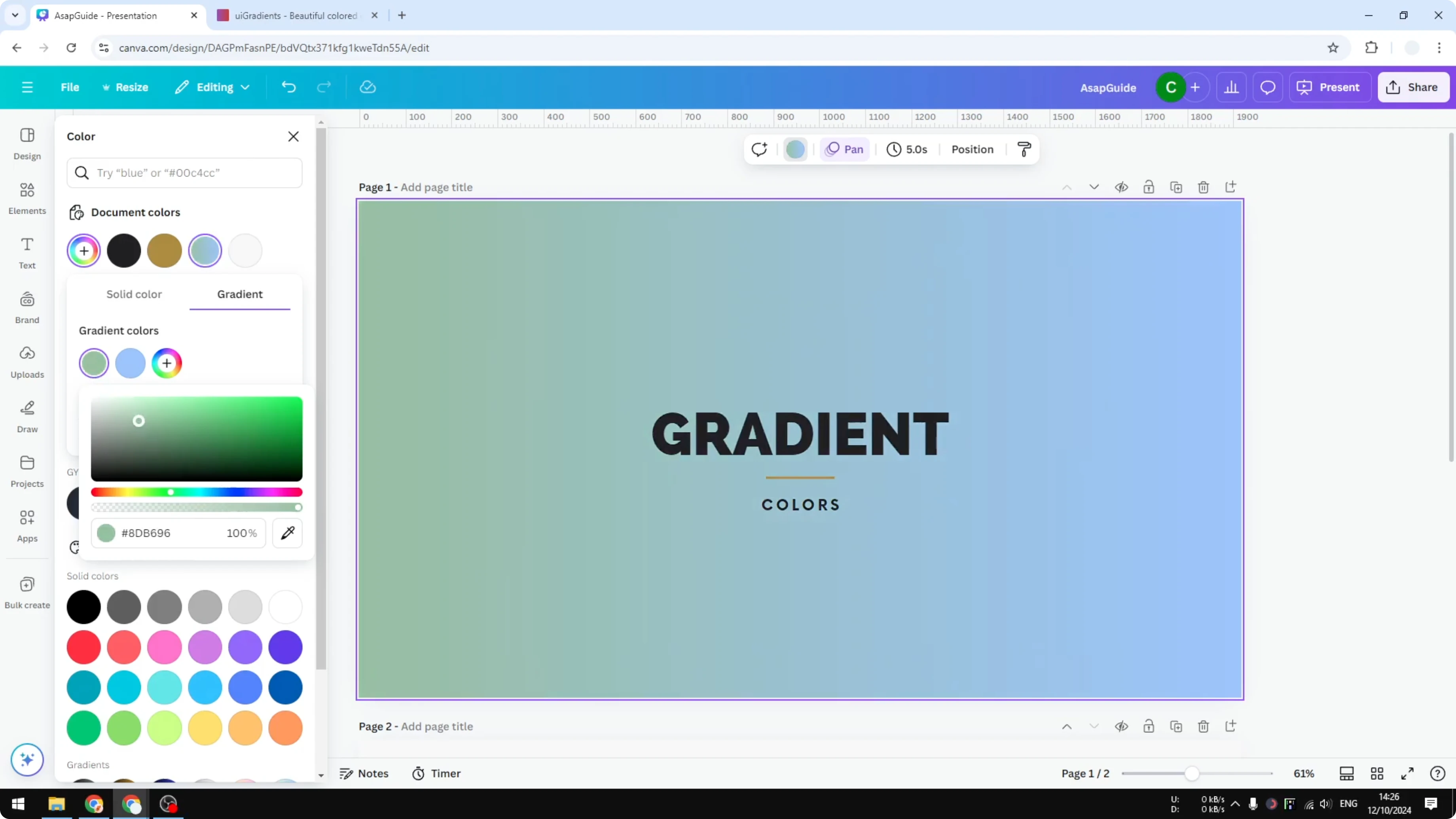
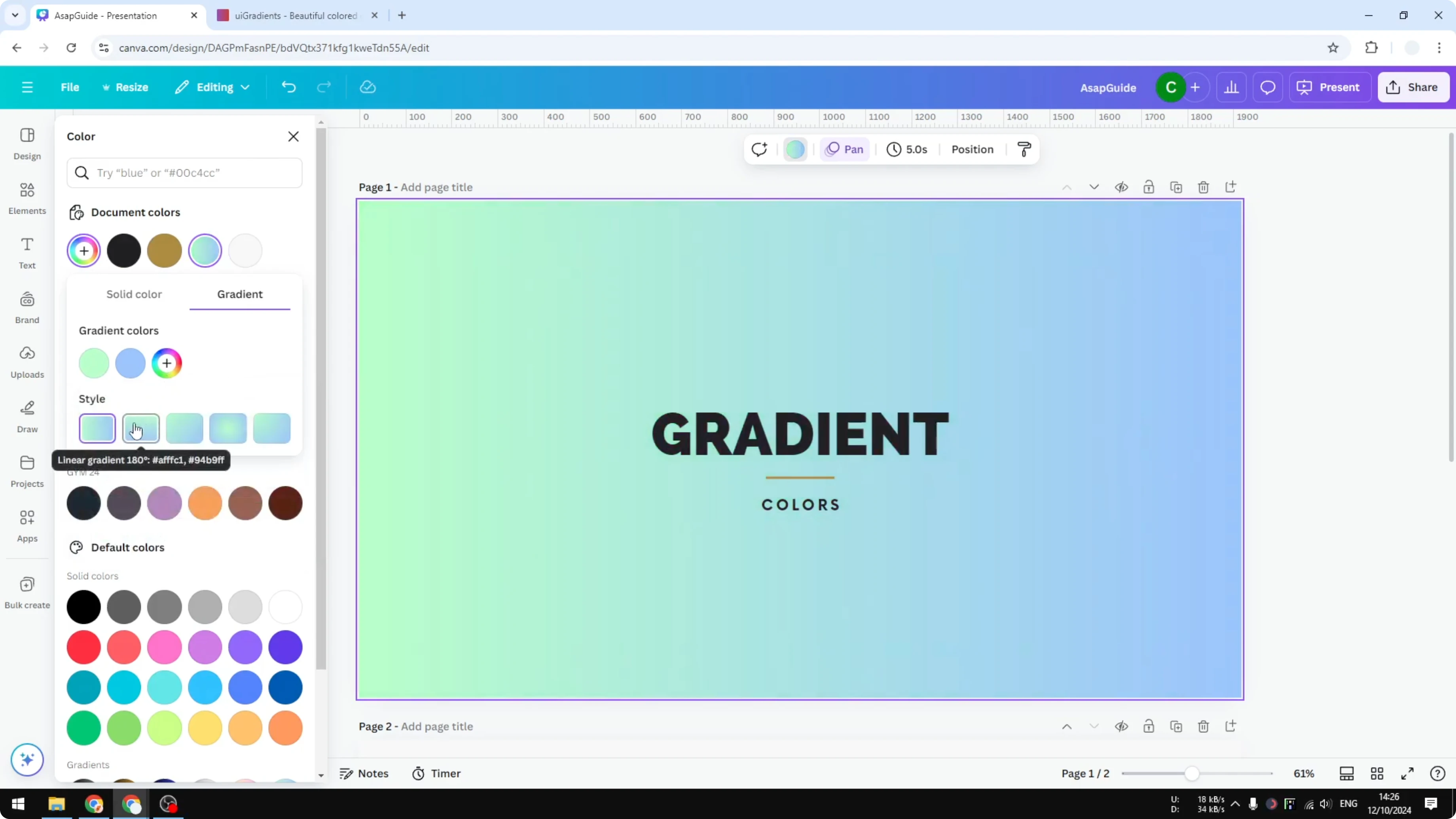
You can also change the style or the orientation of the gradient. There are a few presets here.
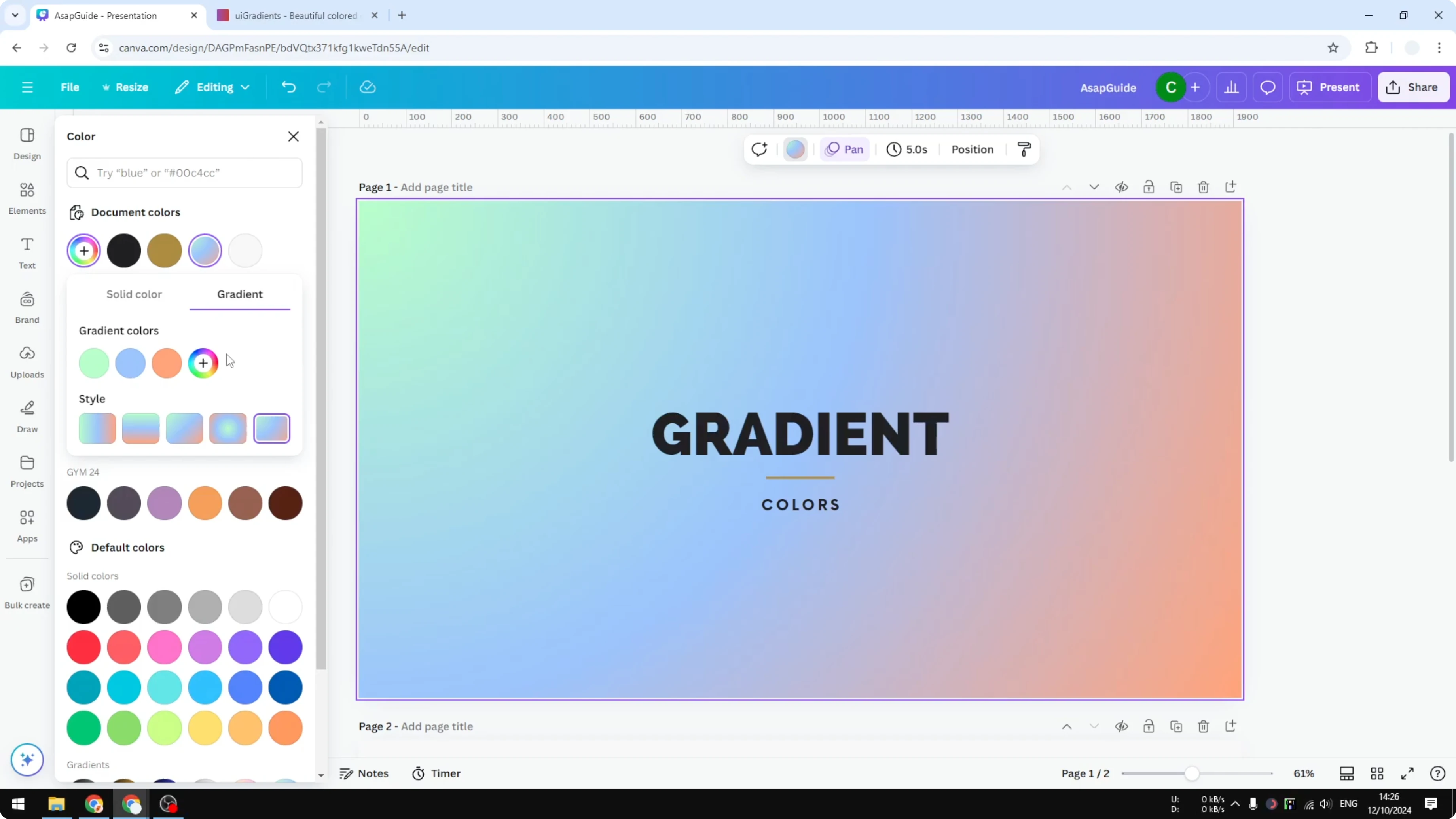
You can add another color and see the result right away. For example I can add a red color and see how it looks.
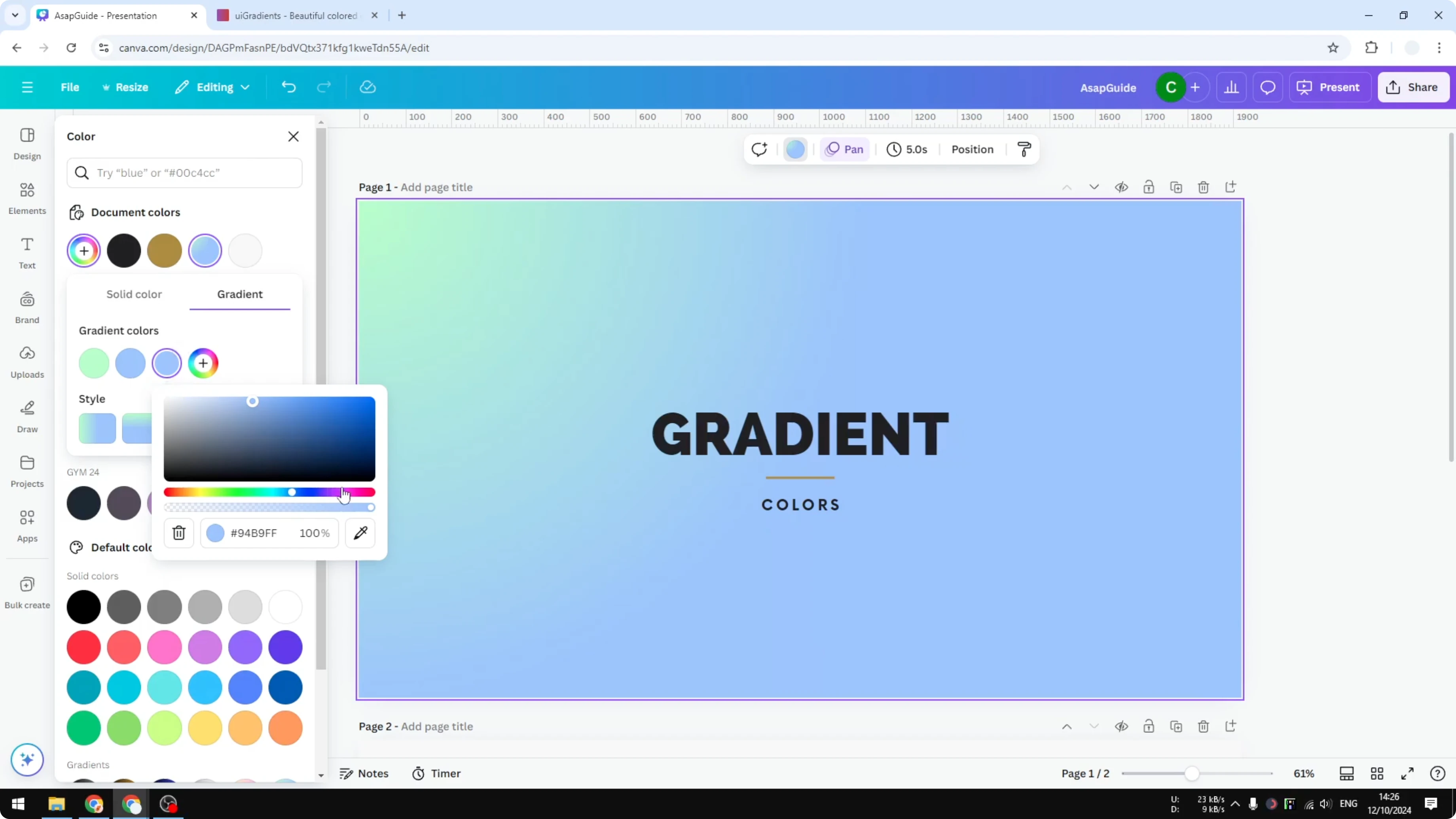
If you need to switch a single stop to a flat tone, see how to change a solid color gradient in Canva.
Choose colors that work for Change Gradient Colors in Canva
Do not choose colors randomly. Gradient color has relationships and you have to choose it wisely.
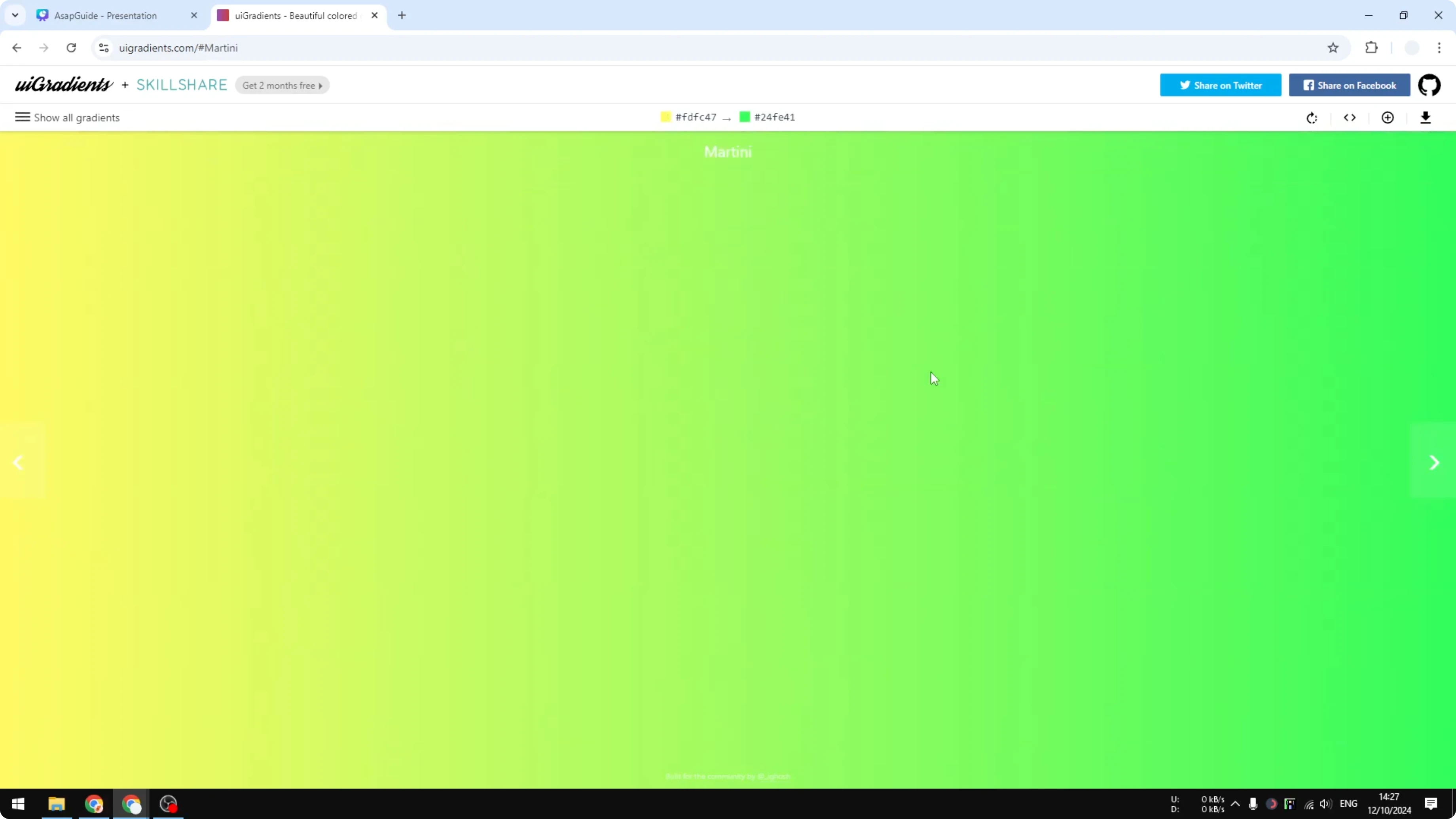
A resource I recommend is uigradient.com with many presets chosen by professionals. If a color set interests you, click it, copy the color code, and apply it to your Canva background.
If you work with brand palettes, learn how to apply brand colors to Canva templates.
Apply color codes
Pick a gradient you like on that resource. In this example I apply an effect from UI Gradients.
Copy the color code from the preset.
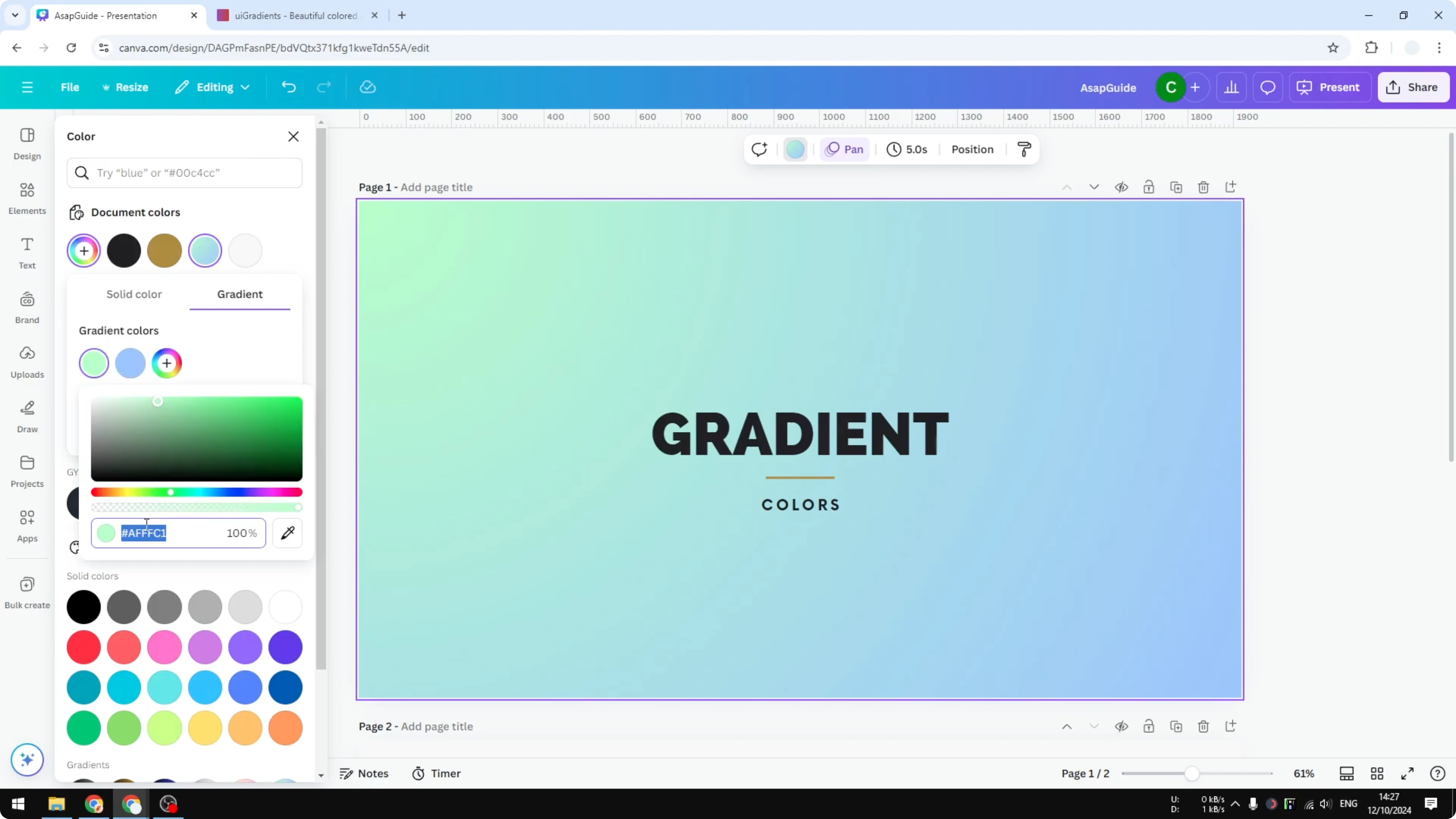
Create your own in Canva if the preset is not available. Apply those codes to your gradient background.
Results with Change Gradient Colors in Canva
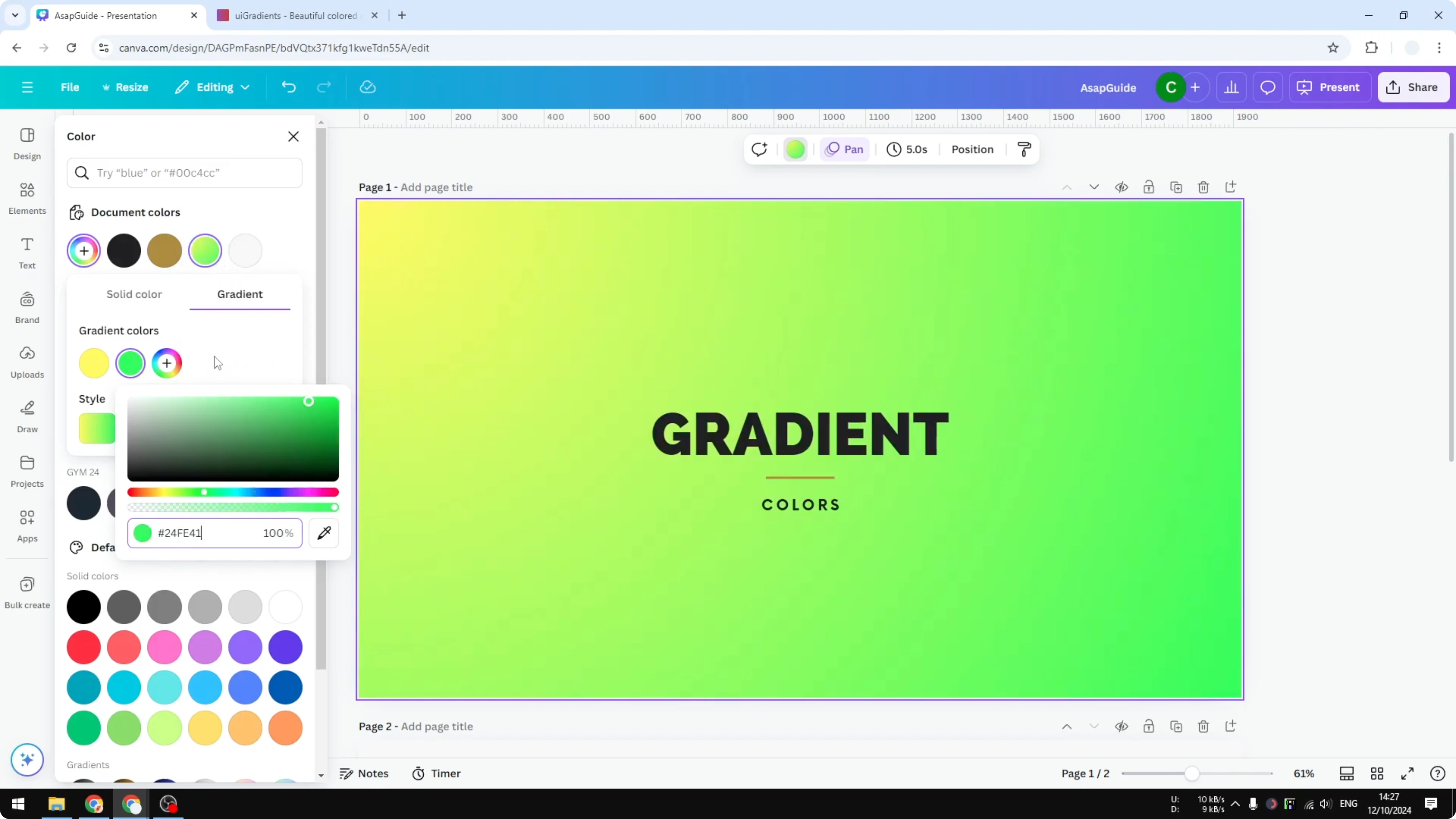
Canva does not have this color, so I create my own. This is the result. I think it looks amazing.
Final thoughts on Change Gradient Colors in Canva
You can change gradient colors by adding colors, adjusting control points, and setting orientation. Choose colors thoughtfully and use curated palettes when you need inspiration. I hope you find this helpful.
Recent Posts

How to Visualize Yourself as a Pixelized Character with AI?
How to Visualize Yourself as a Pixelized Character with AI?

How to Revive Faded Memories and Enhance Image Clarity with AI?
How to Revive Faded Memories and Enhance Image Clarity with AI?

How to Visualize Yourself as an Animal Crossing Character with AI?
How to Visualize Yourself as an Animal Crossing Character with AI?