How to Change GIF Speed in Canva
I’m going to show you how to change the speed of a GIF animation in Canva. You can make a GIF play faster or slower, but the process is not exactly straightforward like speeding up or slowing down a video clip. The process for a GIF file is a little bit different.
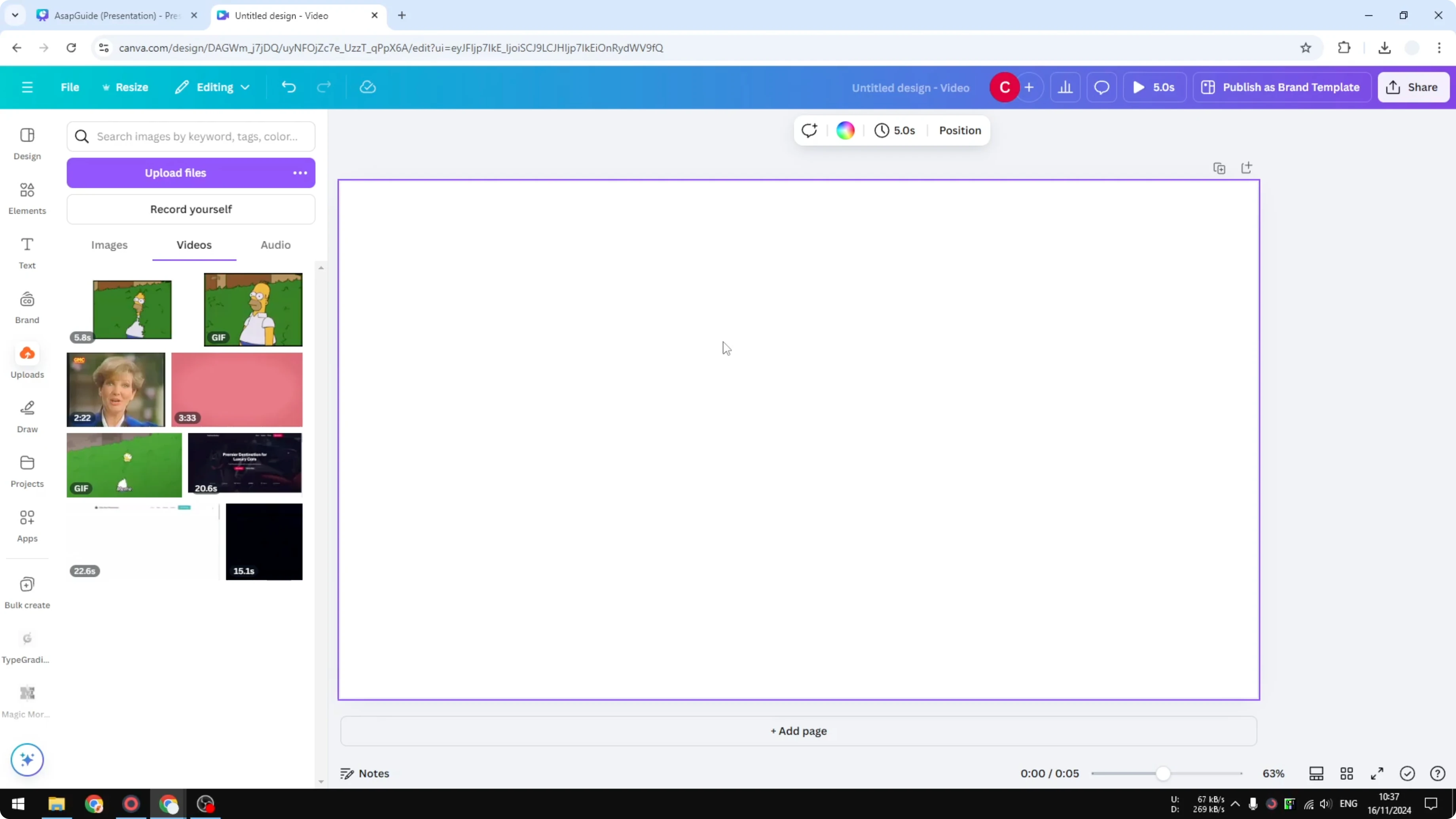
Here’s how you can do it. First, open a document and upload the GIF animation to your Canva account. I’m inserting a GIF into my Canva document and I want to make it play faster.
Change GIF Speed in Canva: why it’s different
Before we get into changing speed, it helps to see the duration of the GIF file. Click the thumbnail view to reveal the playback, and you can see the clip length. For example, this one is 5.8 seconds, and I want it to be less than 3 seconds.
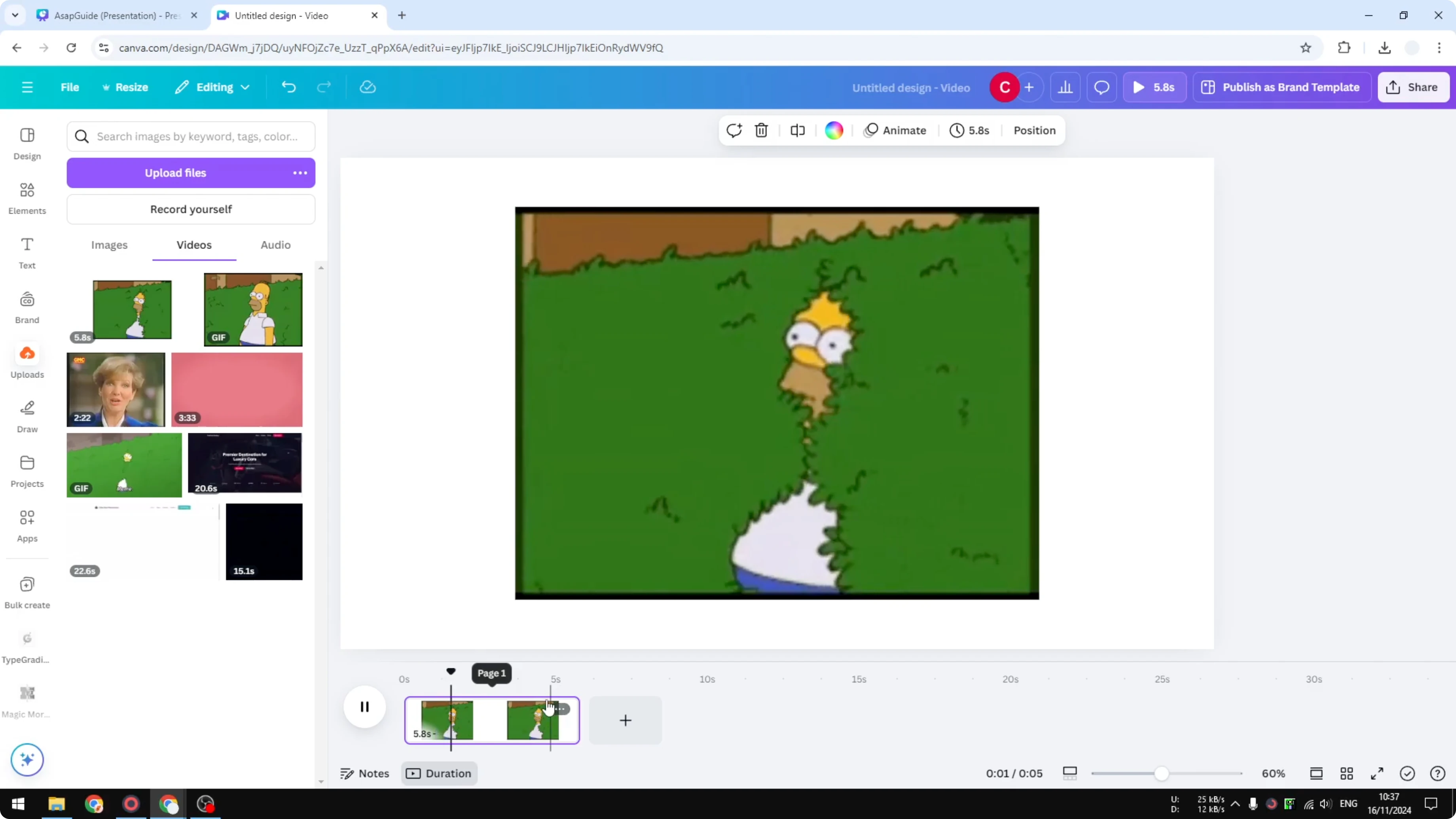
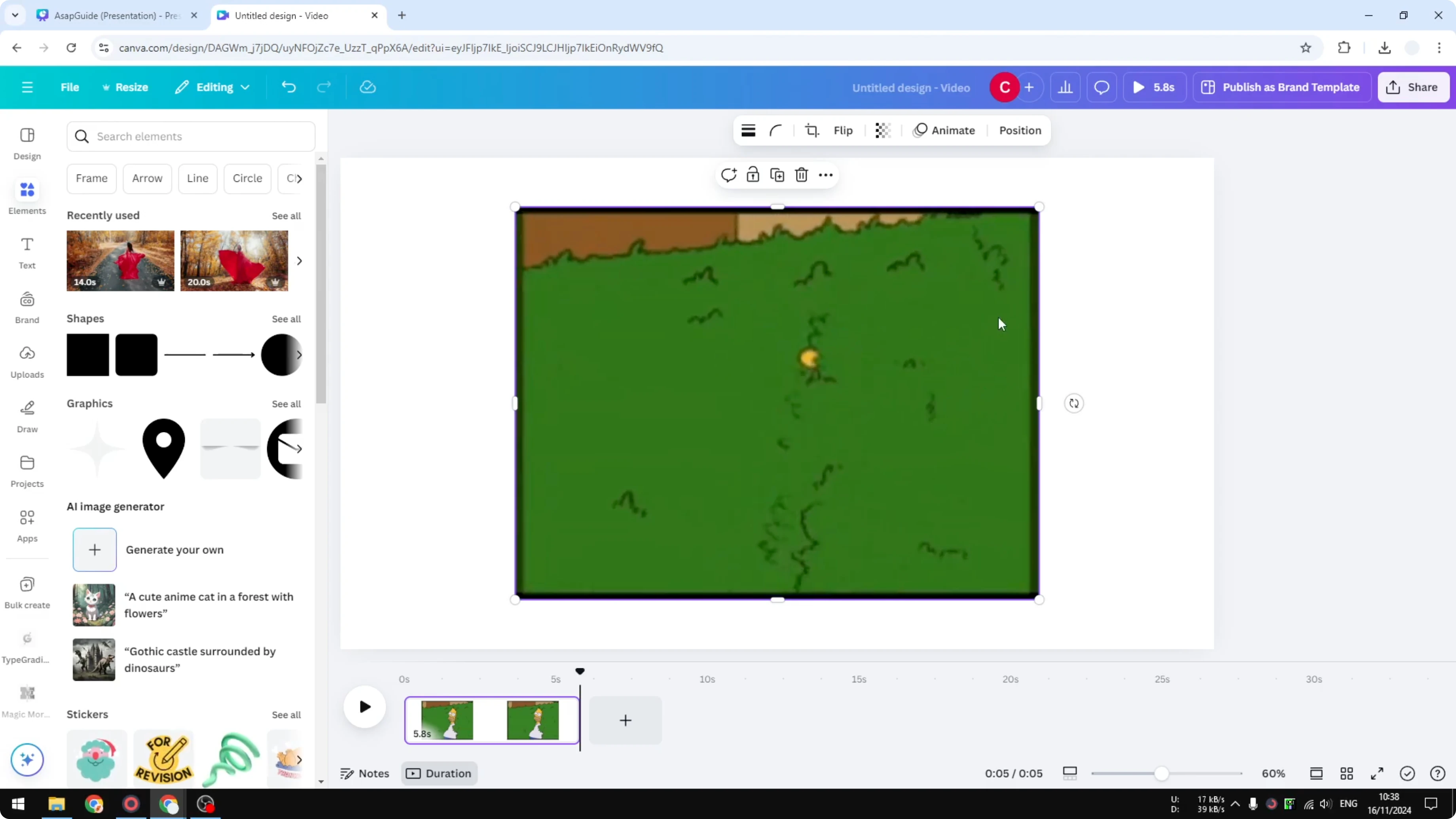
There is no direct speed option for a GIF in Canva. If you insert a normal video, a playback menu appears and you can adjust video speed faster or slower. The same cannot be said for a GIF animation, as there is no playback menu.
Read More: Change Canva Slide Aspect Ratio
Convert to MP4 inside Canva
You can work around this by converting the GIF to a video first. Download the animation as an MP4 file, then upload it back to Canva so you can adjust speed using the video method.
Click Share. Click Download. Select MP4 Video and click Download.
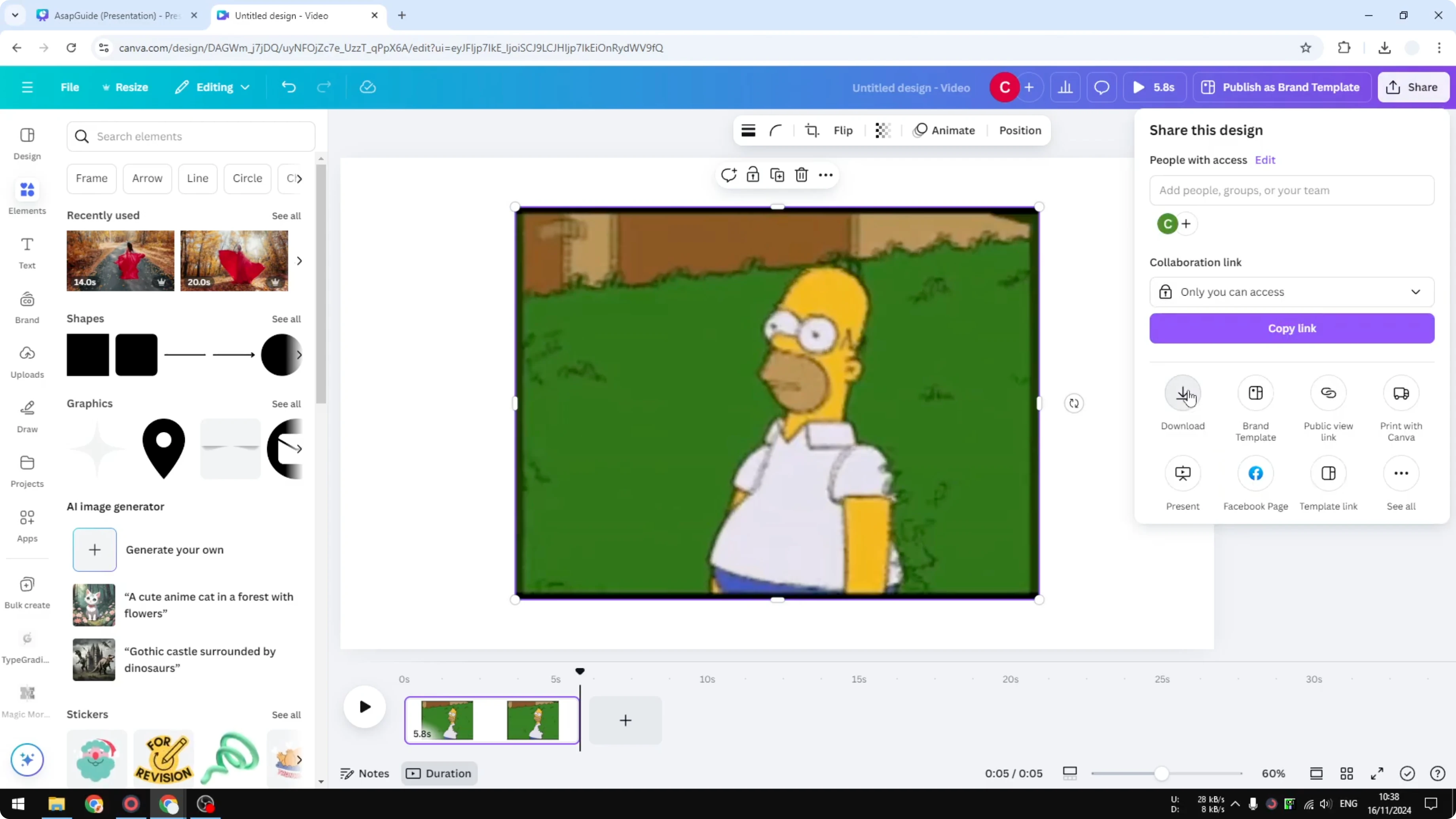
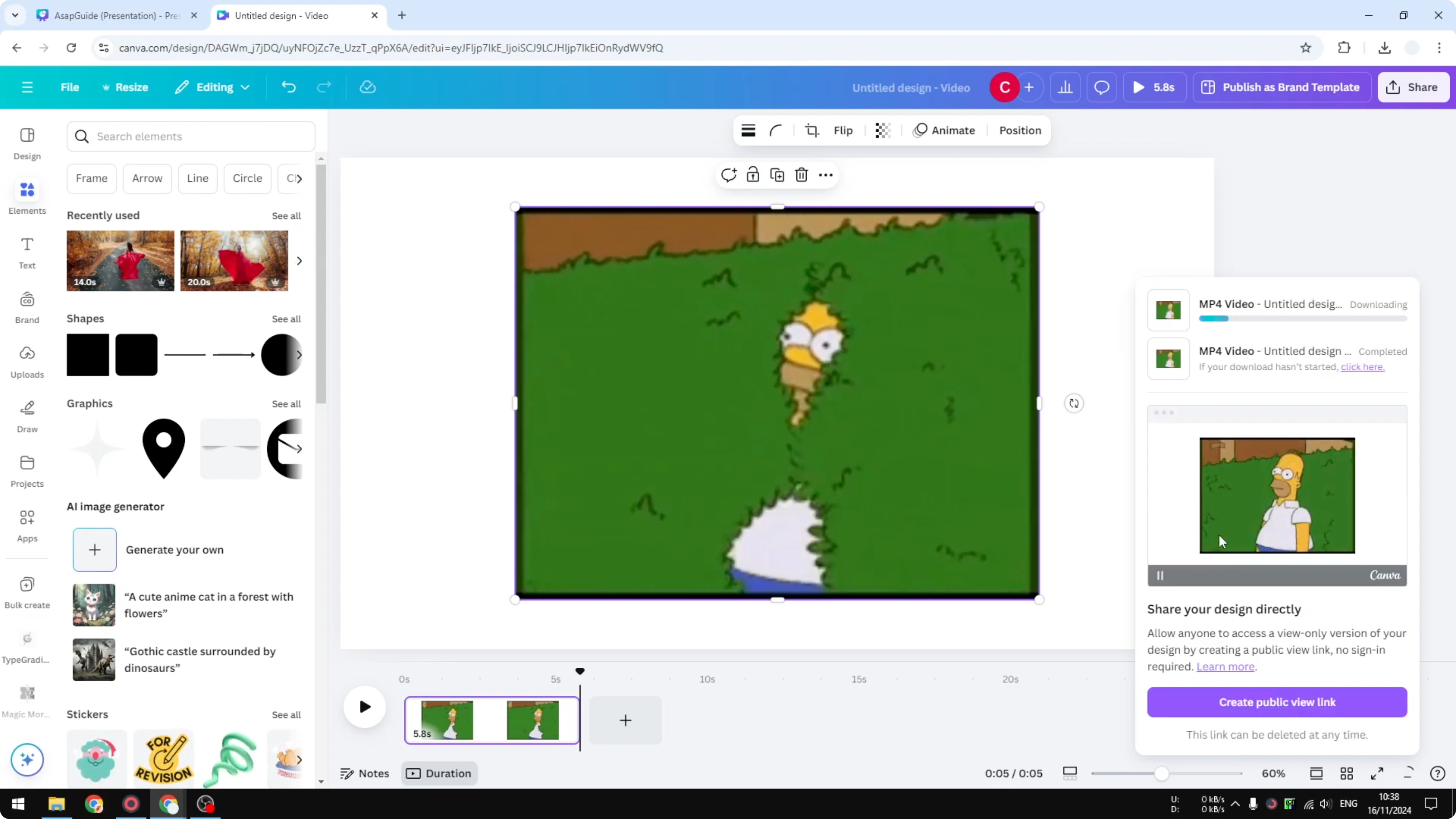
Canva will render the project and download the GIF animation as a video file. Upload the MP4 back to your project. Place it on the page where you want to make the speed change.
Read More: Add Music Gif Canva
Optional: remove a white background
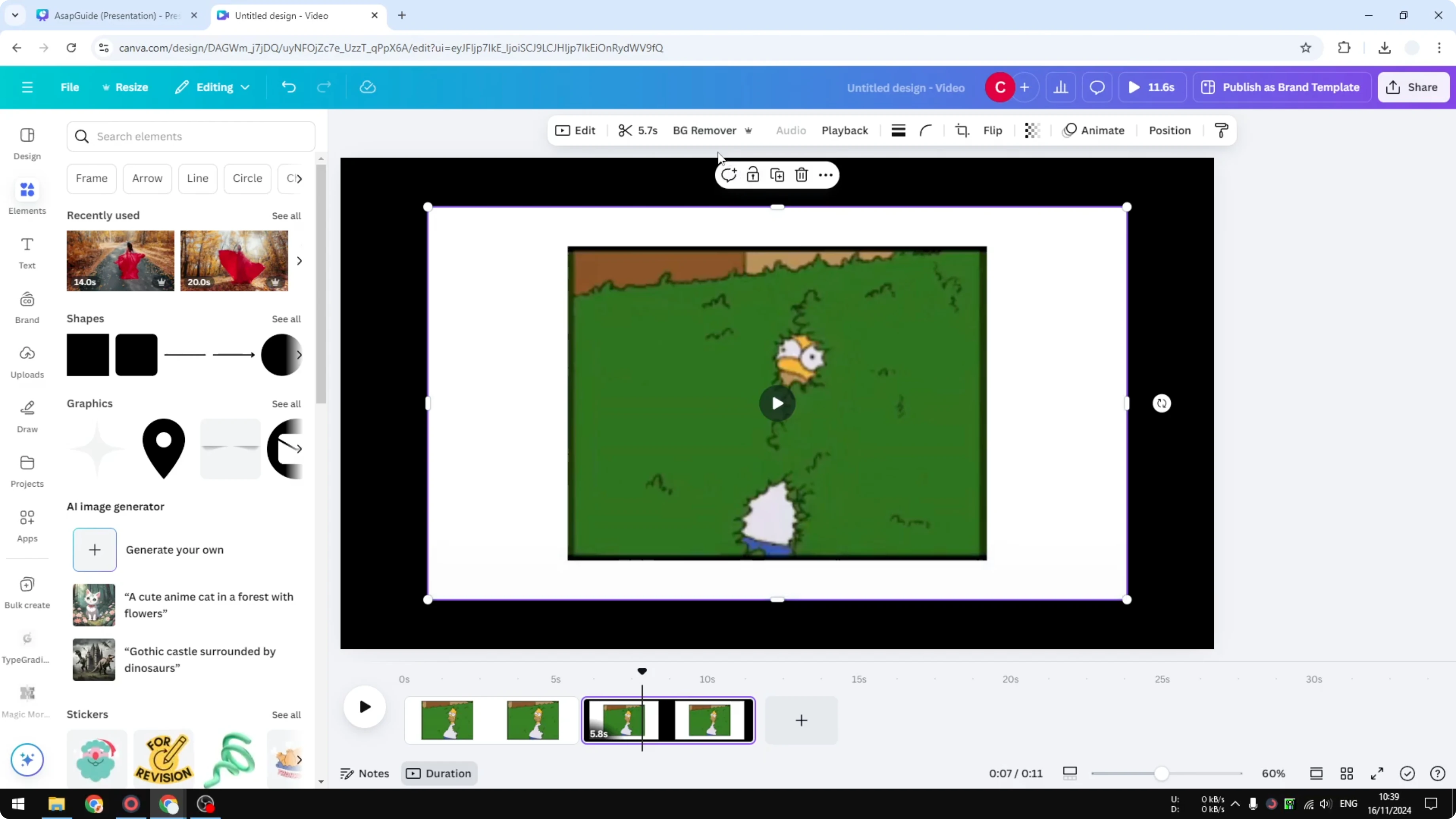
If you see a white background you don’t want, click the video and use Background Remover to remove it. You can also change the page background color to something like black for contrast. Once the background is gone, you’re ready to adjust speed.
Change GIF Speed in Canva: adjust playback
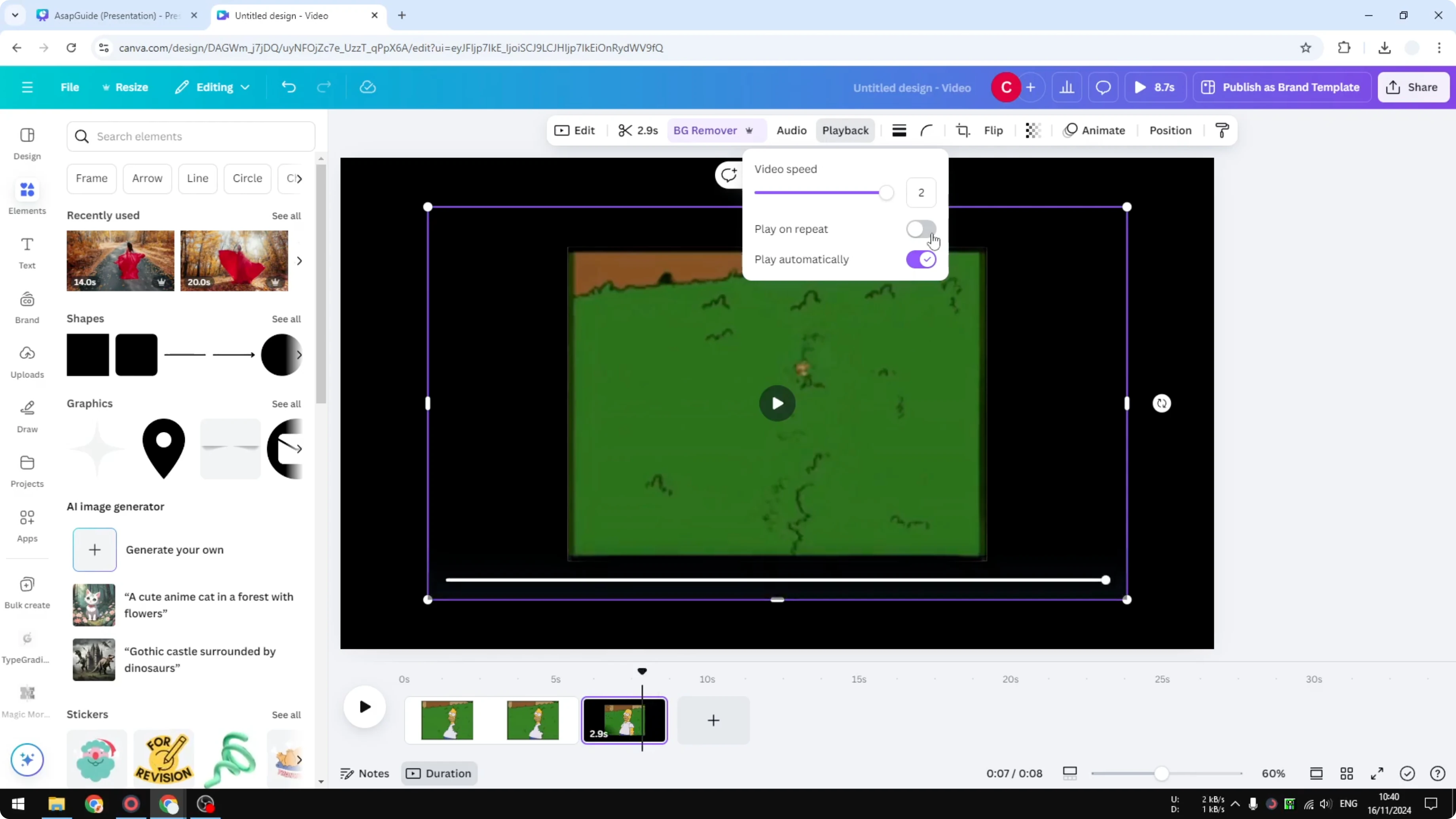
Click the video. Click Playback. Increase the speed to 2x the original speed or any setting that gets you to your target duration.
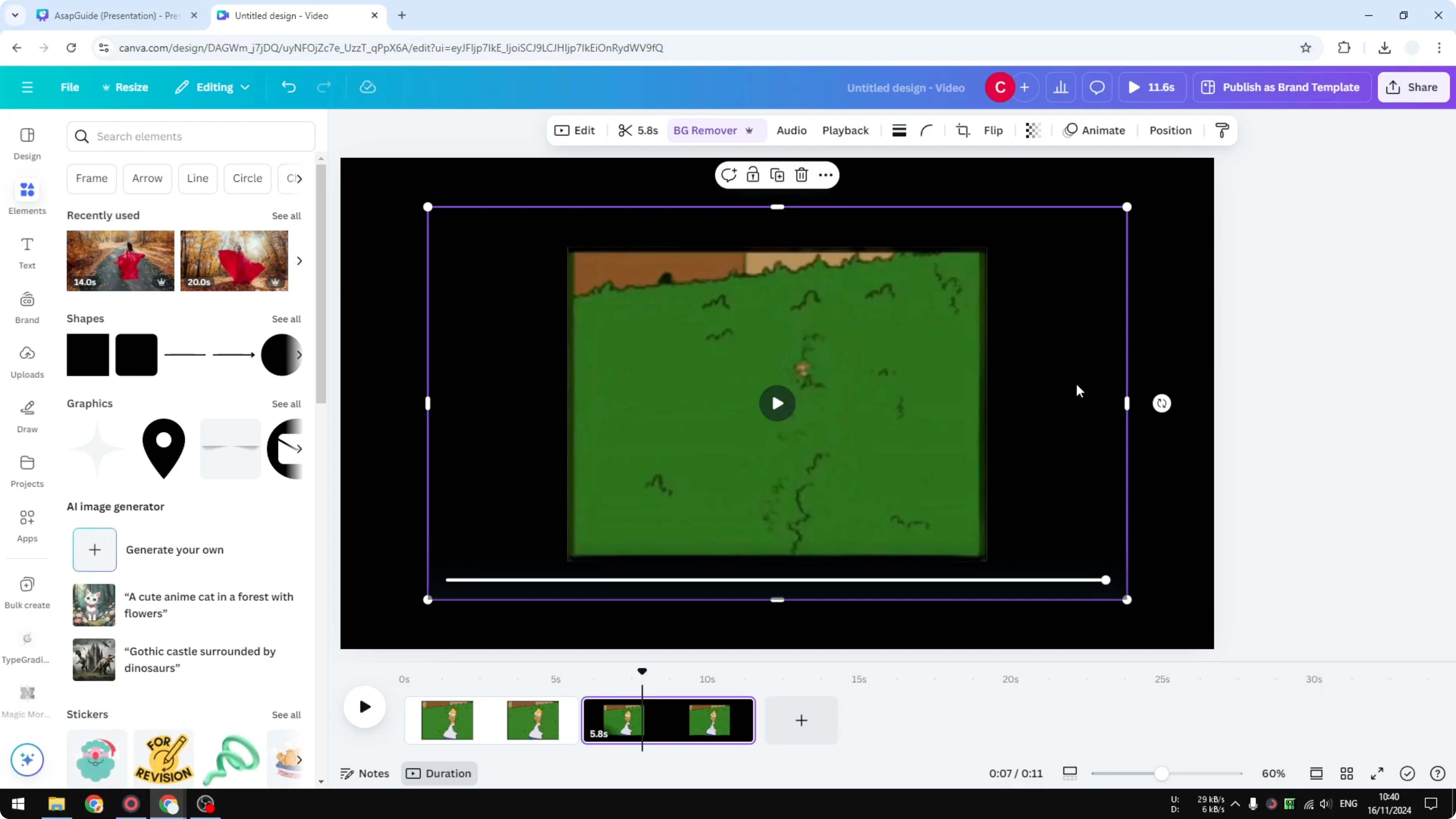
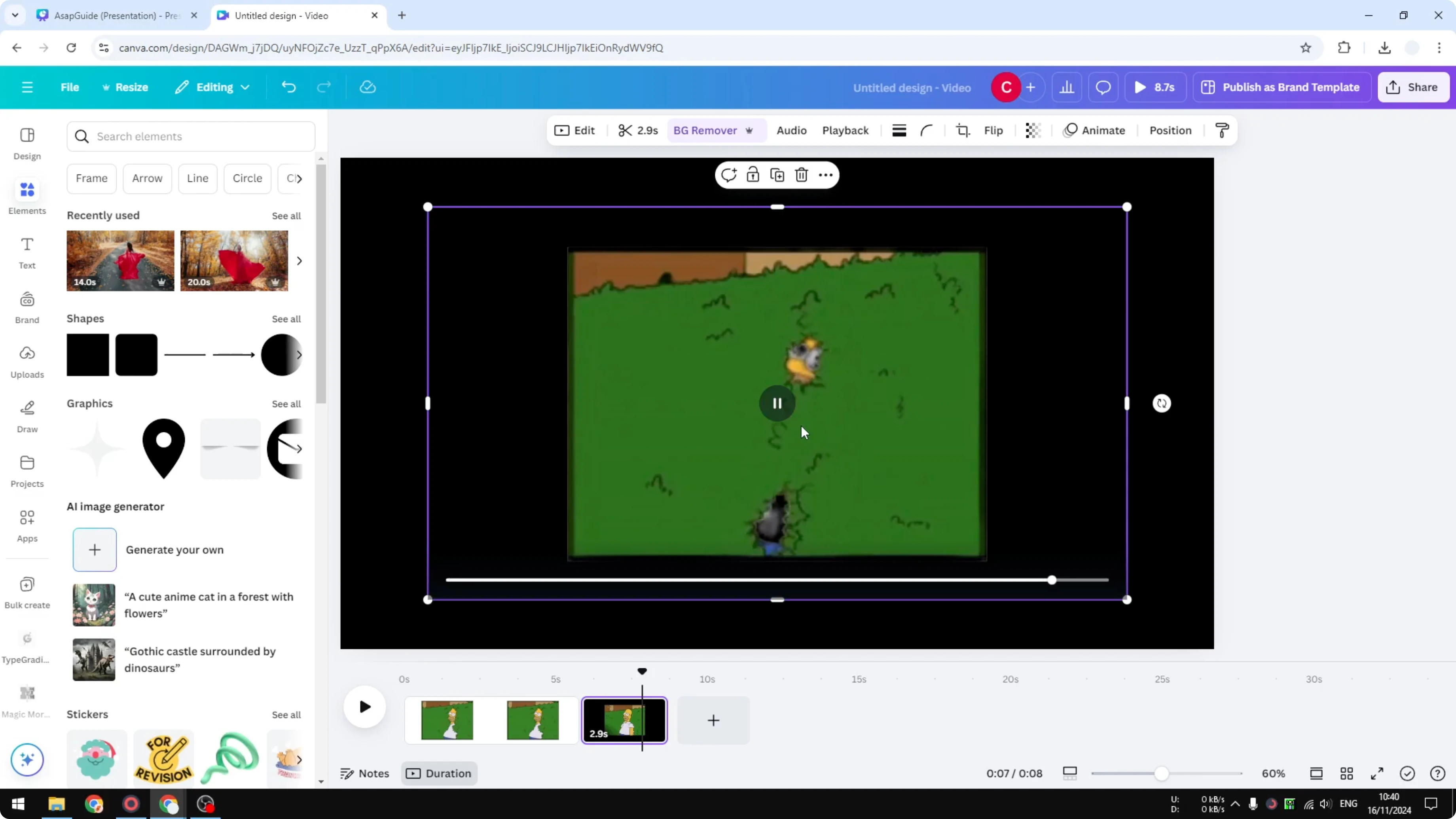
As you increase speed, you’ll see the clip get shorter. In my case, the video is now less than 3 seconds. I recommend enabling Play on repeat and Play automatically, because that’s how a GIF should behave.
Read More: Change Color Image Canva
Final thoughts
Converting the GIF to MP4 is the key to changing speed in Canva. Once it’s a video, the Playback controls let you make it faster or slower, then loop and autoplay it to mimic GIF behavior. This simple workflow gives you precise control over the animation length without leaving Canva.
Recent Posts

How to Visualize Yourself as a Pixelized Character with AI?
How to Visualize Yourself as a Pixelized Character with AI?

How to Revive Faded Memories and Enhance Image Clarity with AI?
How to Revive Faded Memories and Enhance Image Clarity with AI?

How to Visualize Yourself as an Animal Crossing Character with AI?
How to Visualize Yourself as an Animal Crossing Character with AI?