How to Add Music to GIF in Canva
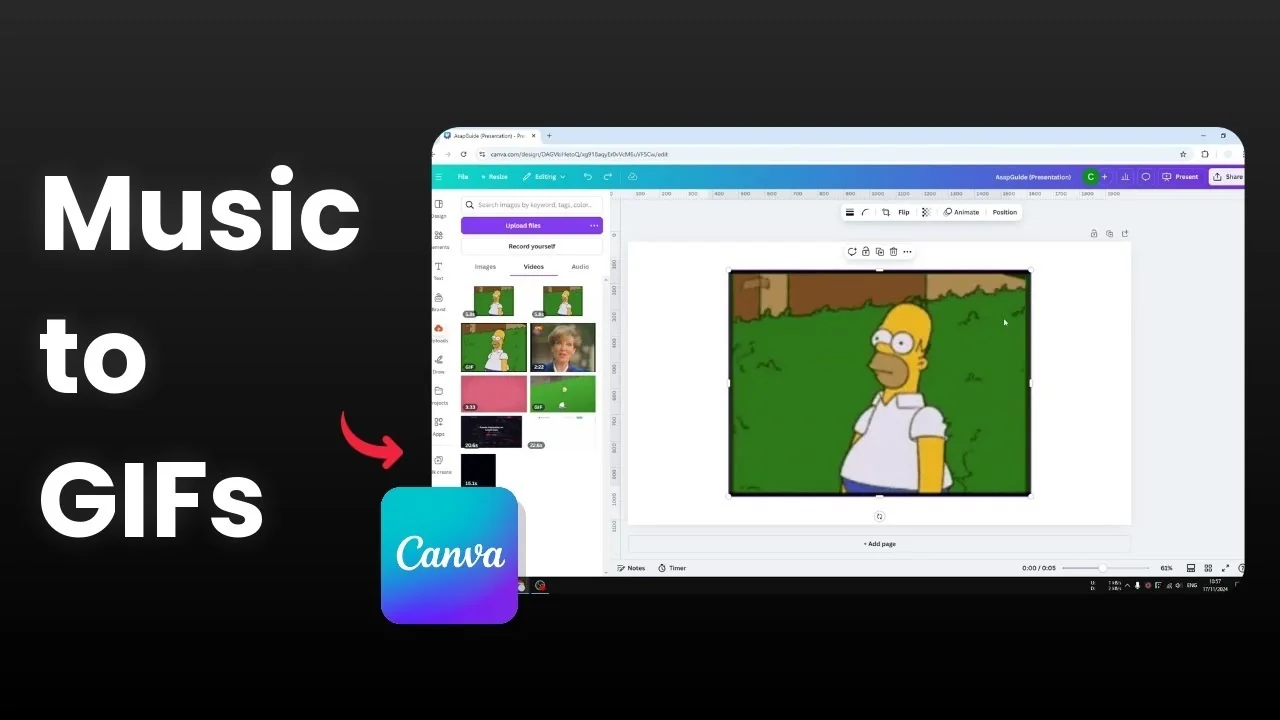
I’m going to show you how you can add music or audio to a GIF animation in Canva. A GIF only contains frames and has no audio data. You can still add background music or sound effects to make it more immersive, but exporting will change it from GIF to MP4.
Here’s exactly how I do it from start to finish in Canva. I’ll use a quick example with the classic Homer Simpson hiding-in-a-bush GIF and layer a subtle grass movement sound on top.
Add Music to GIF in Canva: format basics
A GIF plays images in sequence without any audio track, so adding sound means you will export as a video file. Canva will render your GIF frames together with the audio and output an MP4.
If you need the final file to remain a GIF, you cannot embed audio. Export as MP4 to keep the sound.
Add Music to GIF in Canva: upload
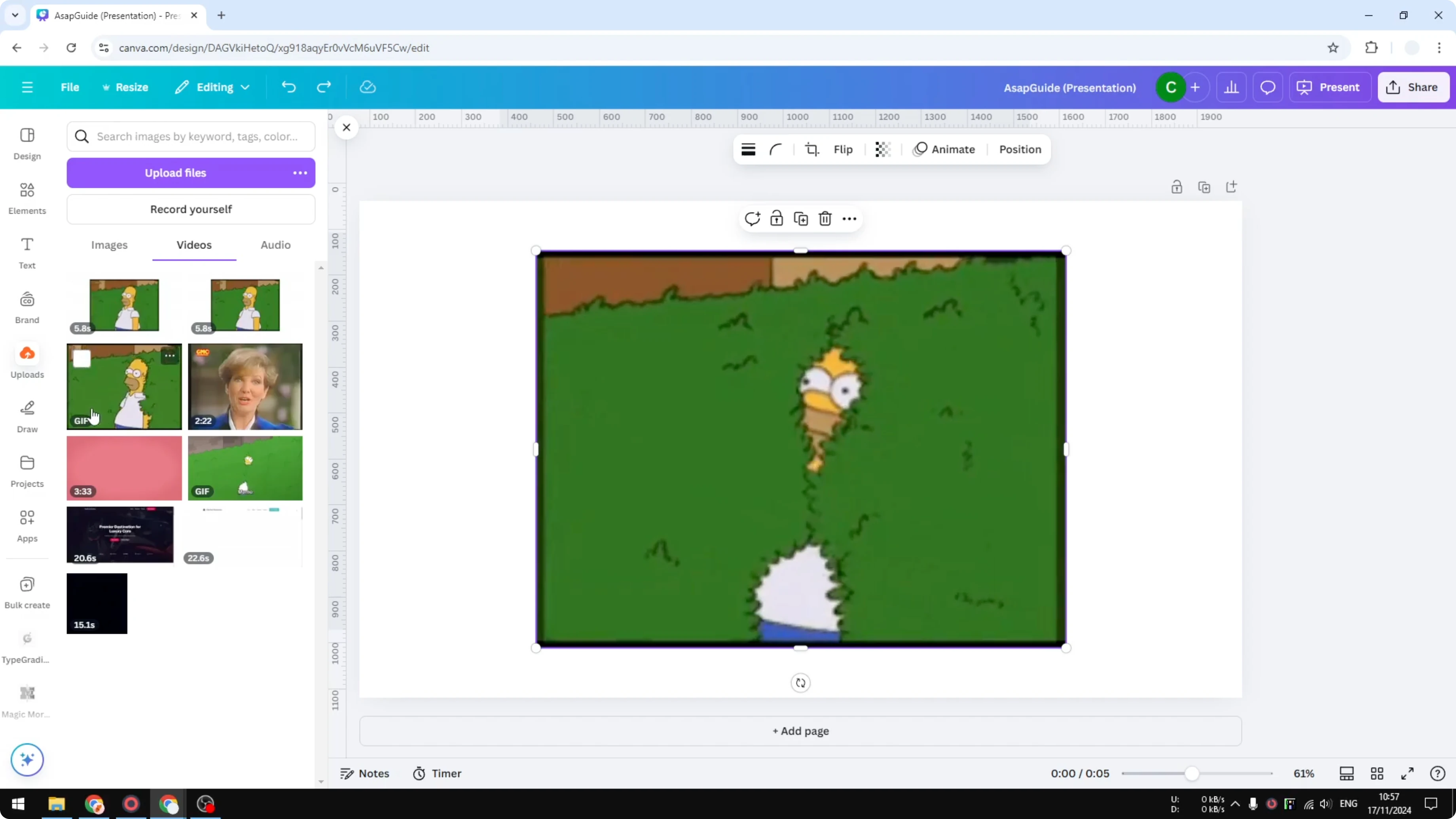
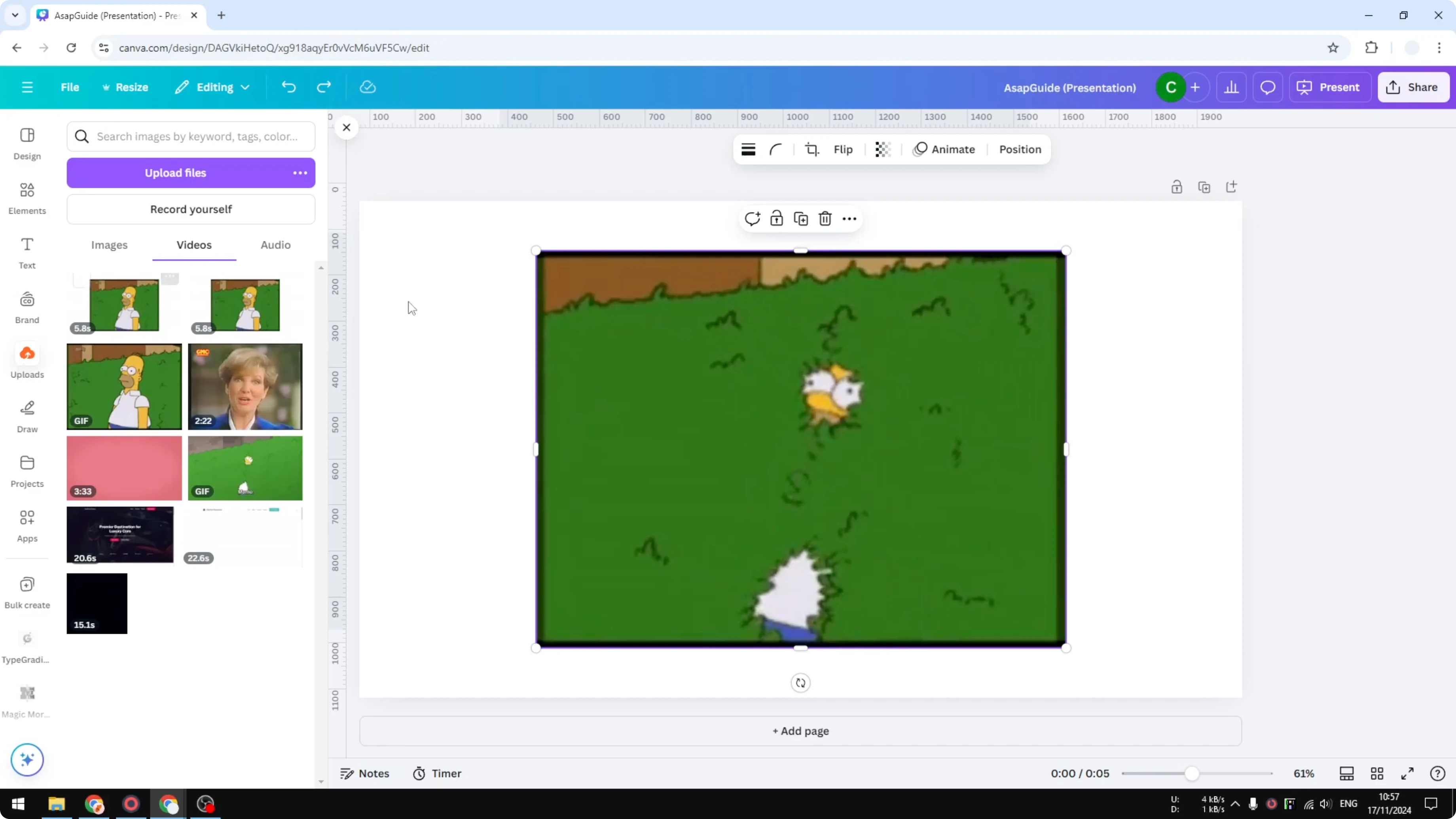
Upload your GIF to Canva by going to Uploads and dragging the GIF file into the panel. You will see the GIF appear under the Videos category, even though it is still a GIF, and you can confirm by the label on the thumbnail. Add it to your page so it sits on the canvas.
If you are styling titles or callouts on the same design, see this quick guide on adding background text in Canva.
Track view and timeline
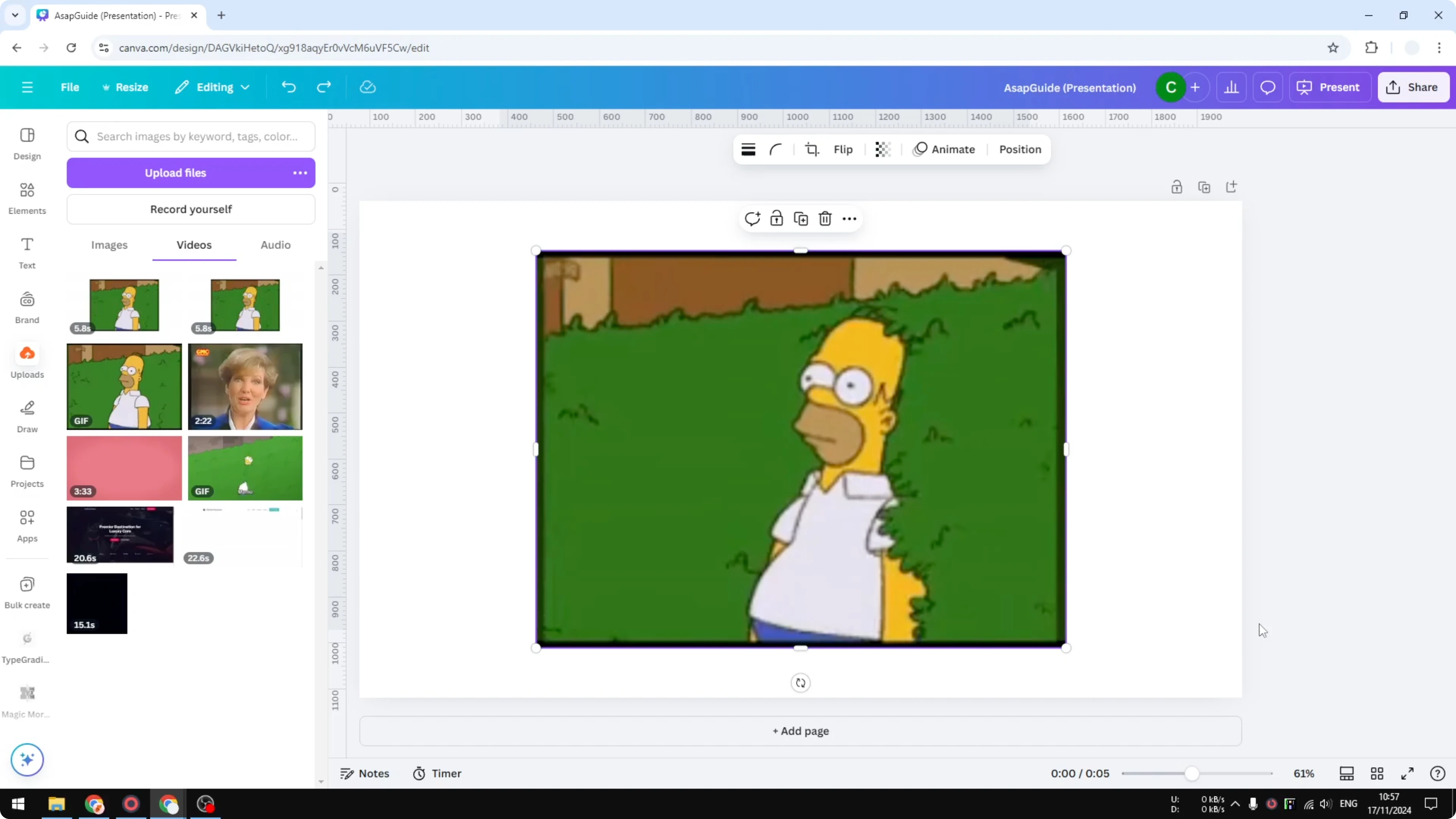
Open the track view. Click Thumbnail View, then enable Duration so you can see multiple tracks or clips for this document.
This makes it easier to line up audio precisely to the length of the GIF.
Add audio
Open Audio and search for a suitable sound effect or music track. I searched for a grass movement sound effect and dragged it onto the timeline beneath the GIF. Play it back to confirm the timing and volume feel right.
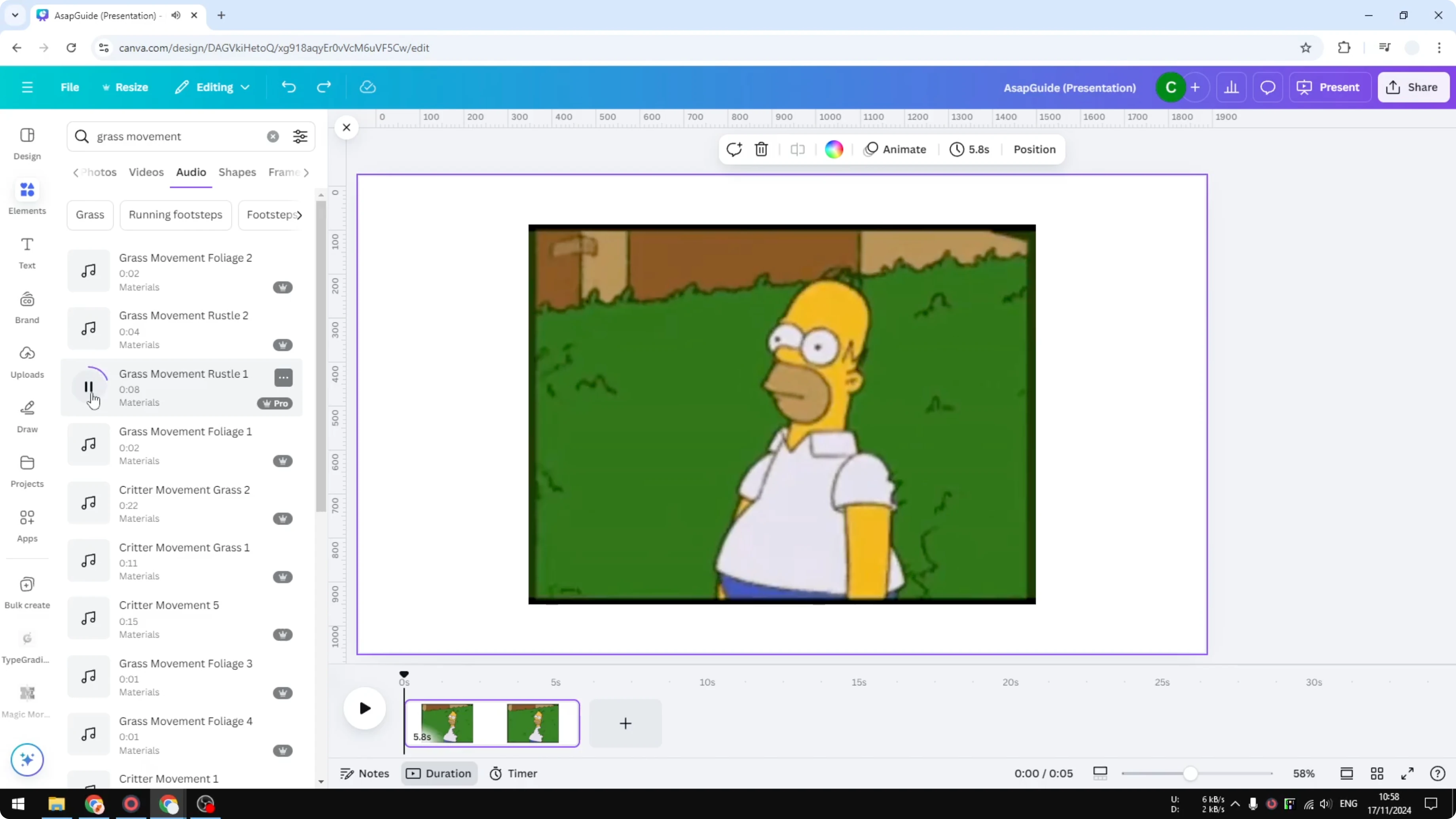
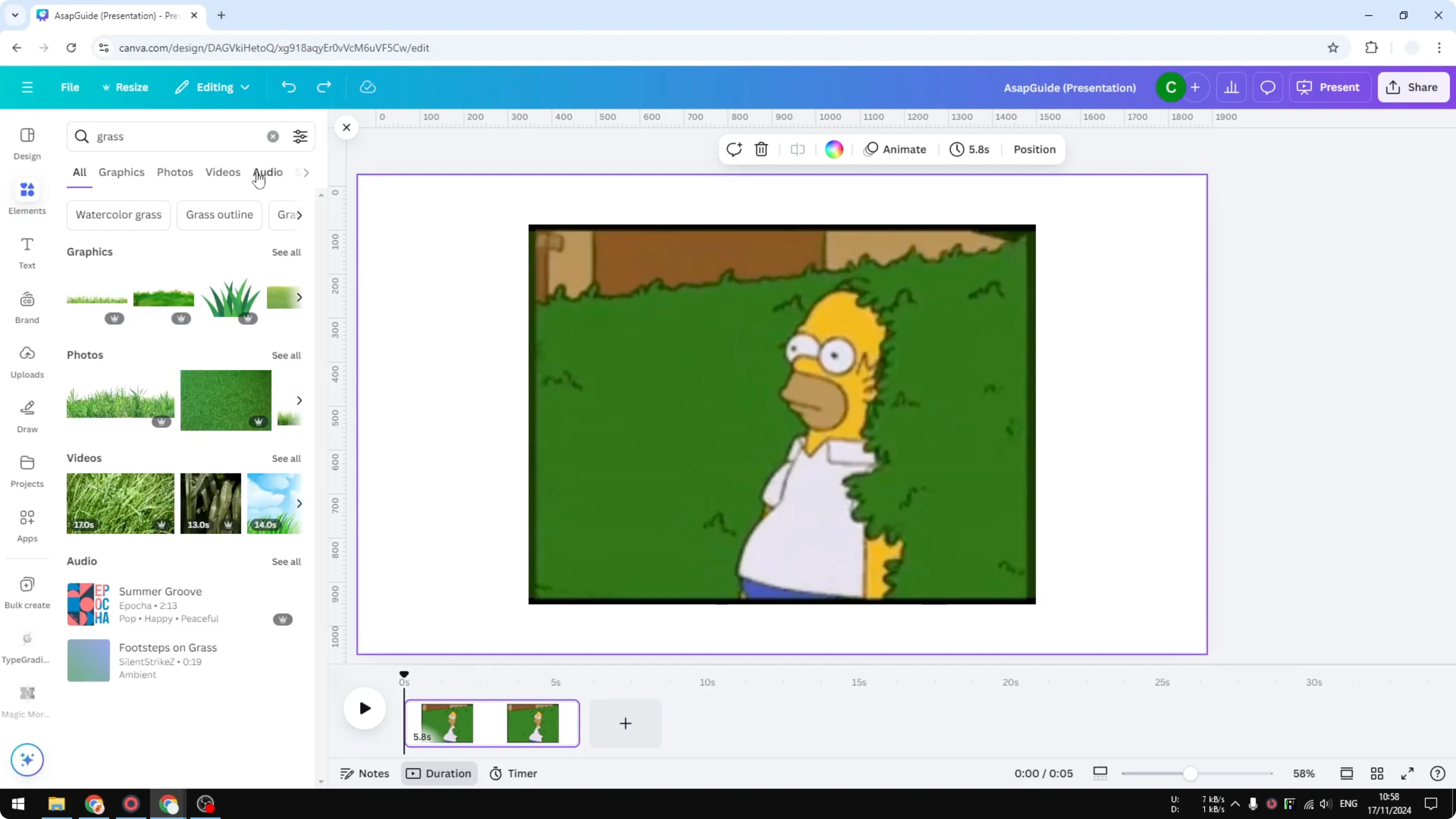
You can replace the effect with a music track or even add a short narration if that suits your GIF.
If you plan to add captions, you might want your text to pop a bit more. Here’s how to add a border to a text box in Canva for clearer on-screen labels.
Fill the canvas
Set the GIF as the background so it fills the entire canvas. This avoids any letterboxing and keeps the framing tight.
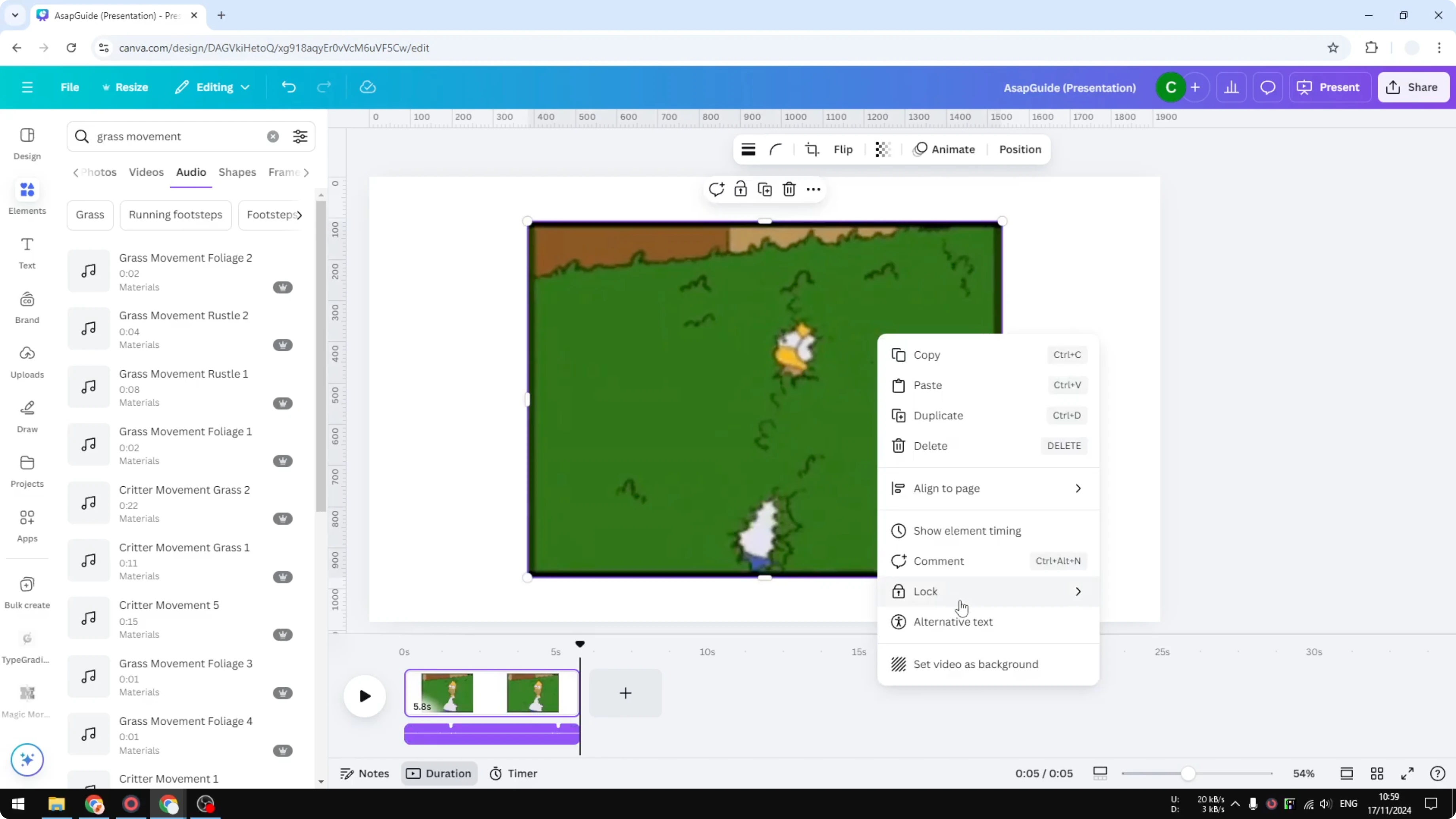
Export to MP4
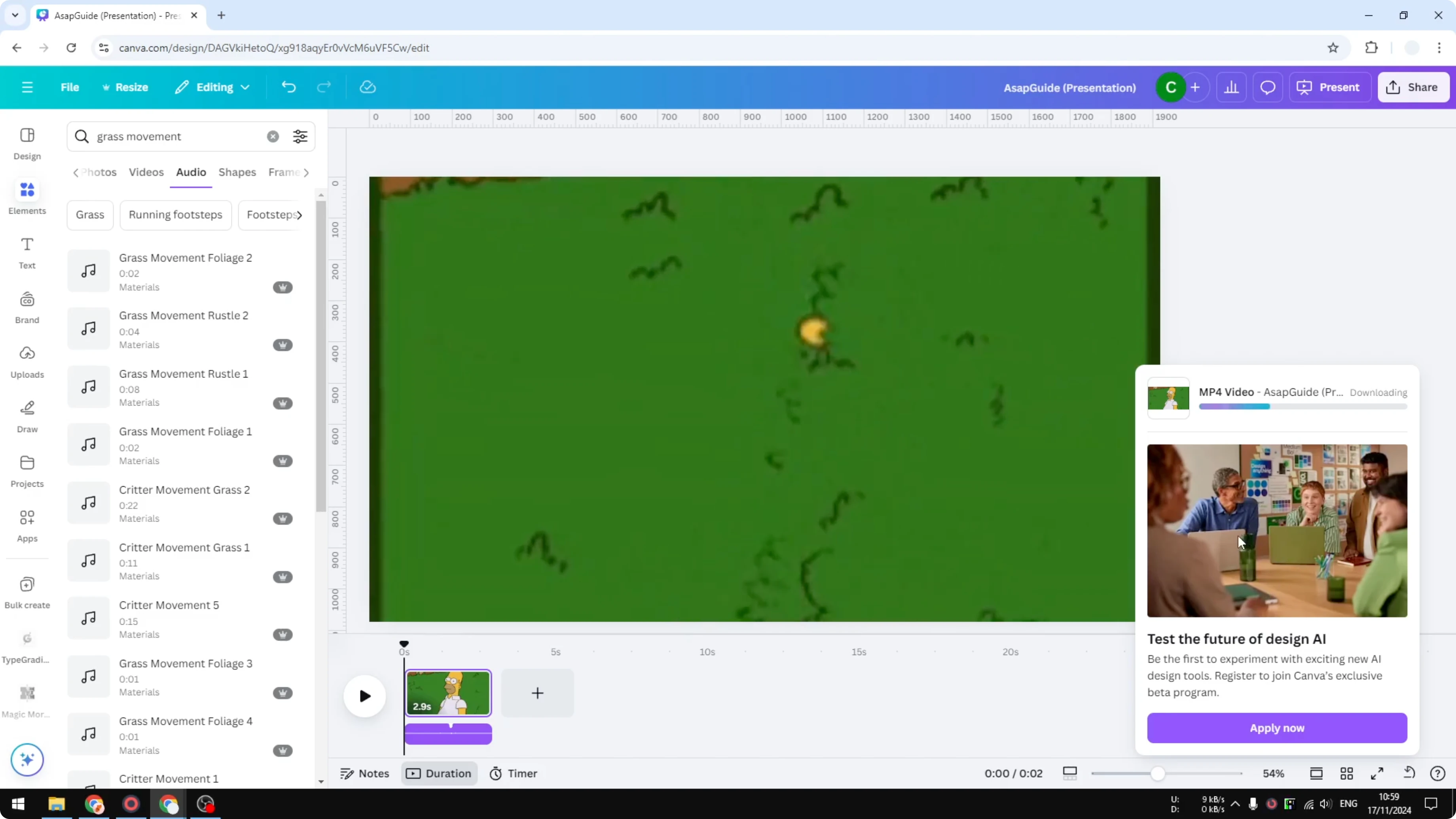
Click Share, then Download. Select MP4, adjust the quality if needed, and click Download. Canva will render the GIF frames with your audio and produce an MP4 you can save and play anywhere.
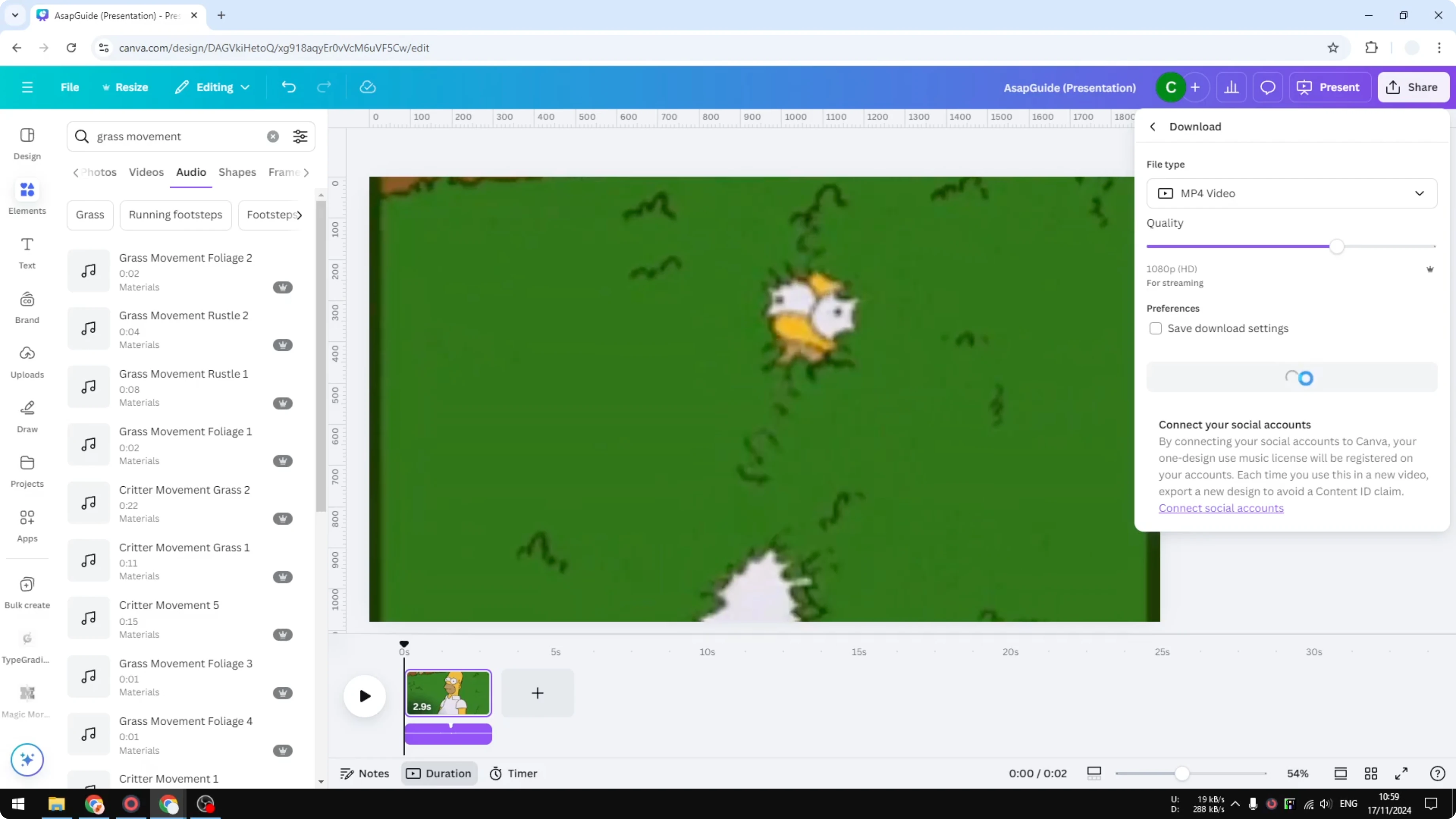
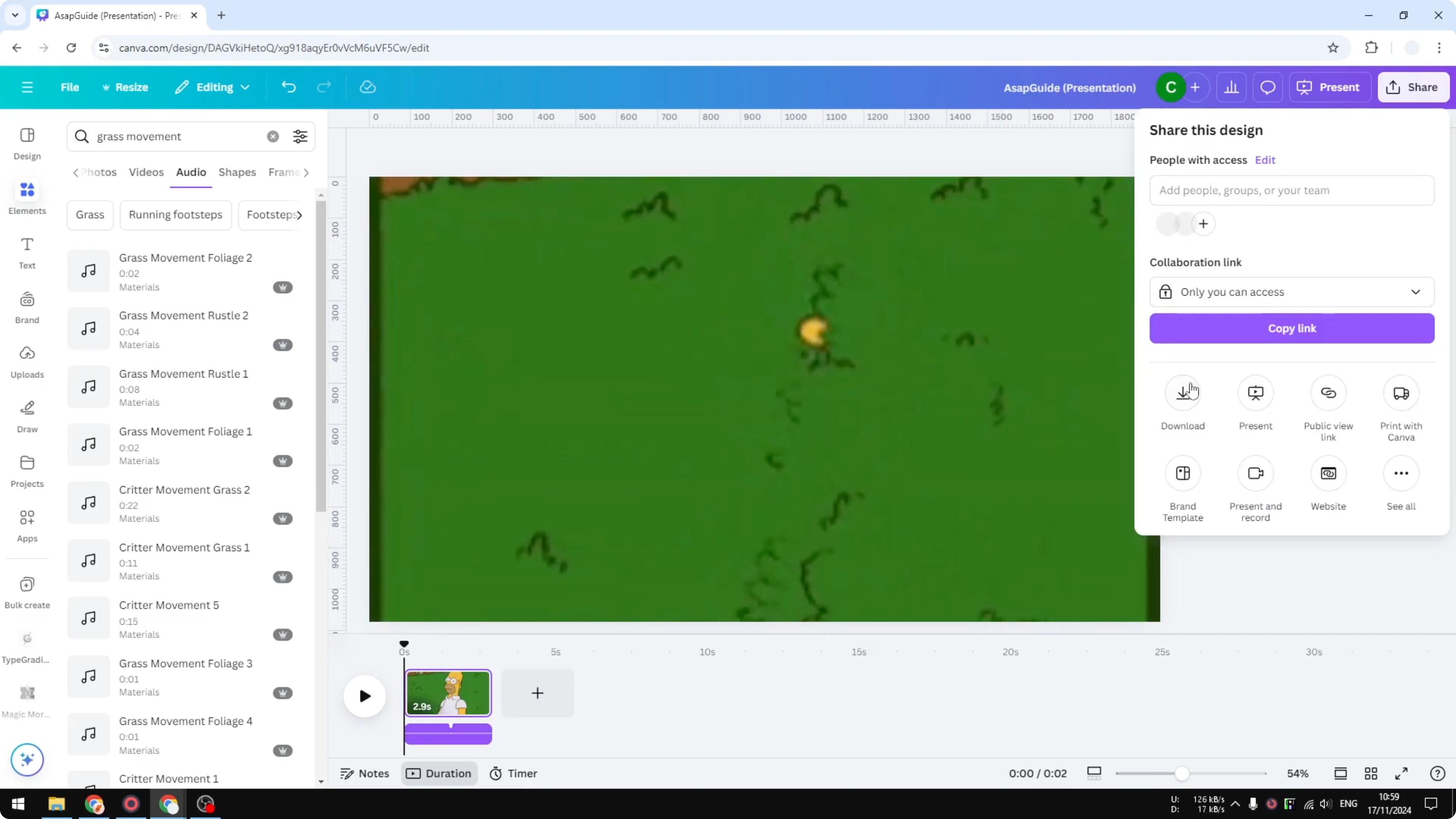
Open the downloaded file to confirm the audio plays correctly with the animation. That’s the complete flow for adding music or audio to a GIF animation in Canva.
If you want to push the visual style further before exporting, try adding a playful toon look to photos with this tutorial on creating a cartoon effect in Canva AI.
Final thoughts
GIFs do not carry audio, so the clean solution is to combine your animation with music or effects in Canva and export as MP4. Upload the GIF, enable the timeline, add and align your audio, set the GIF to fill the canvas, and export. It’s quick, and the result looks and sounds great.
Recent Posts

How to Visualize Yourself as a Pixelized Character with AI?
How to Visualize Yourself as a Pixelized Character with AI?

How to Revive Faded Memories and Enhance Image Clarity with AI?
How to Revive Faded Memories and Enhance Image Clarity with AI?

How to Visualize Yourself as an Animal Crossing Character with AI?
How to Visualize Yourself as an Animal Crossing Character with AI?