How To Blur Photos In Canva
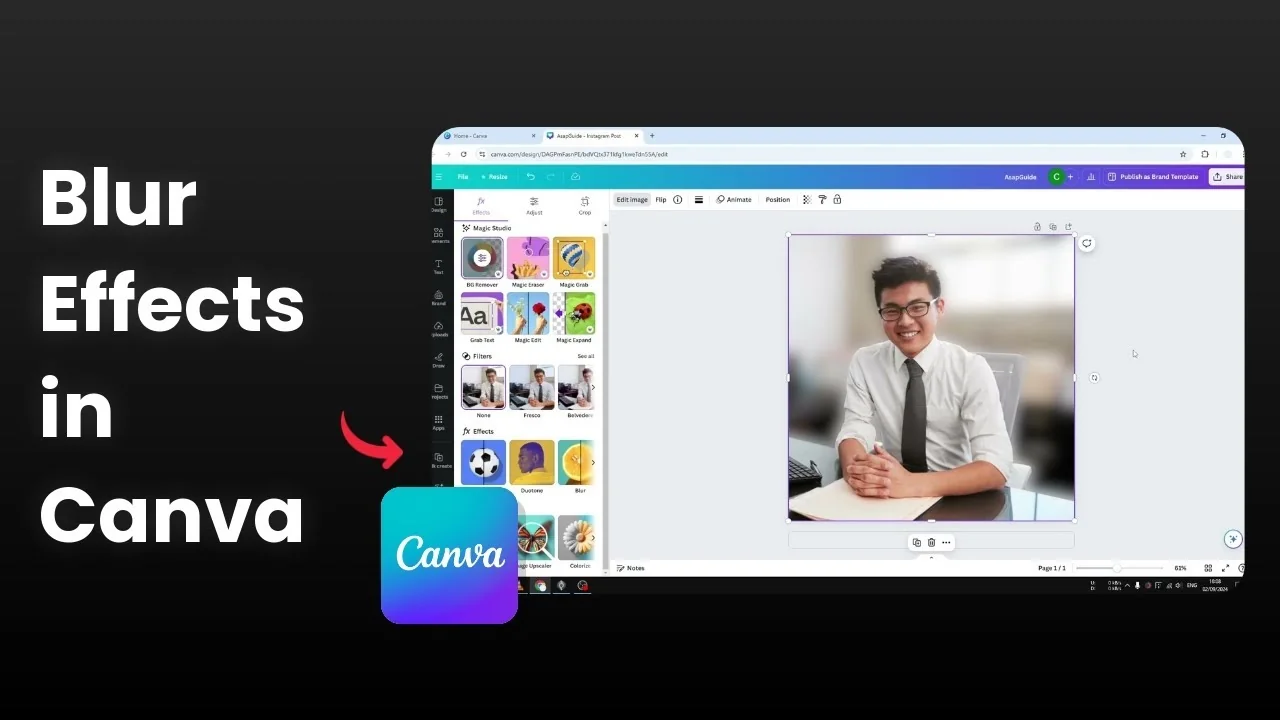
I’m going to show you how to blur the background of a photo in Canva with two easy methods. I’m using a photo from the Canva library. It already has a nice background blur, but I’ll show how to make the blur stronger.
Getting started with Blur Photos In Canva
Blur Photos In Canva using duplicate and background remover
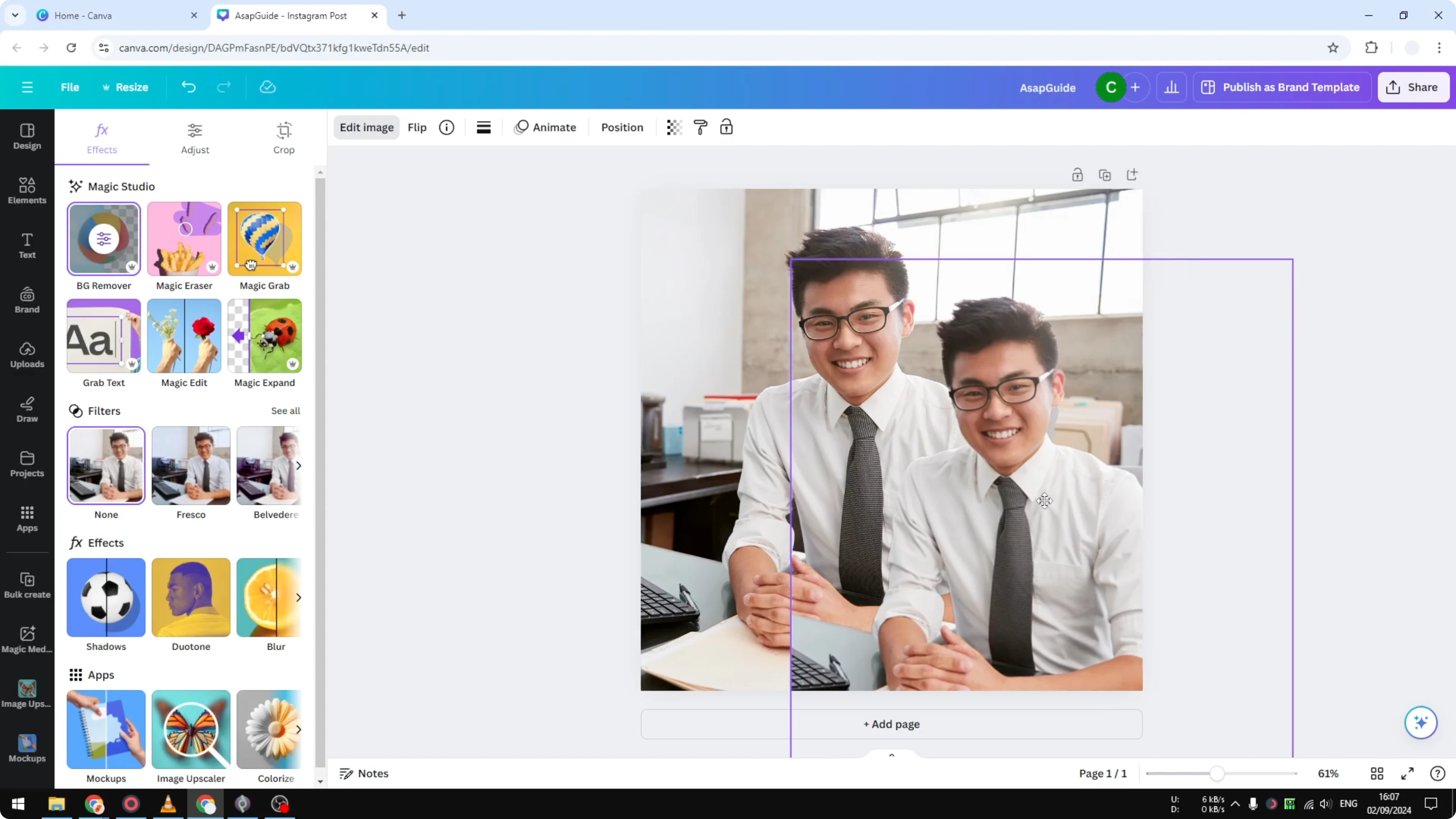
Click the image, right click, and select Duplicate.

You now have a background image and a foreground copy.

Select the foreground copy, open Edit image, and choose Background Remover.

Background Remover is available in the premium version.

Click the background layer, open Edit image, and in Effects select Blur.
Apply the blur to the whole image.
Adjust the intensity. Around 70 percent looks about right.

Drag the foreground cutout back over the background and align it precisely.
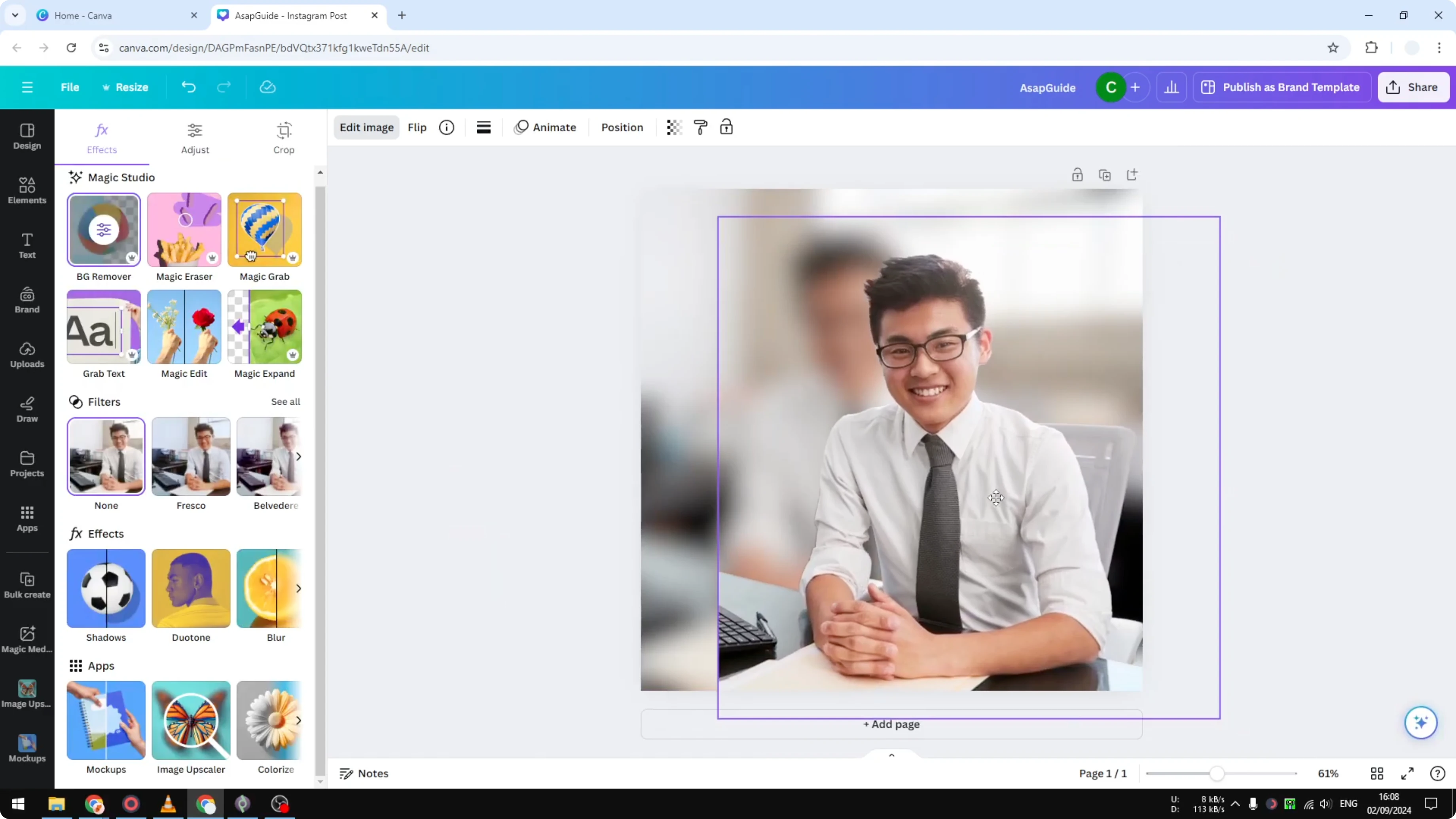
This gives a stronger background blur with a sharp subject.
I personally don’t like this method and recommend the second method.
Read More: Blur Shape Canva
Blur Photos In Canva with Autofocus
Select the image, open Edit image, and in Effects choose Autofocus.
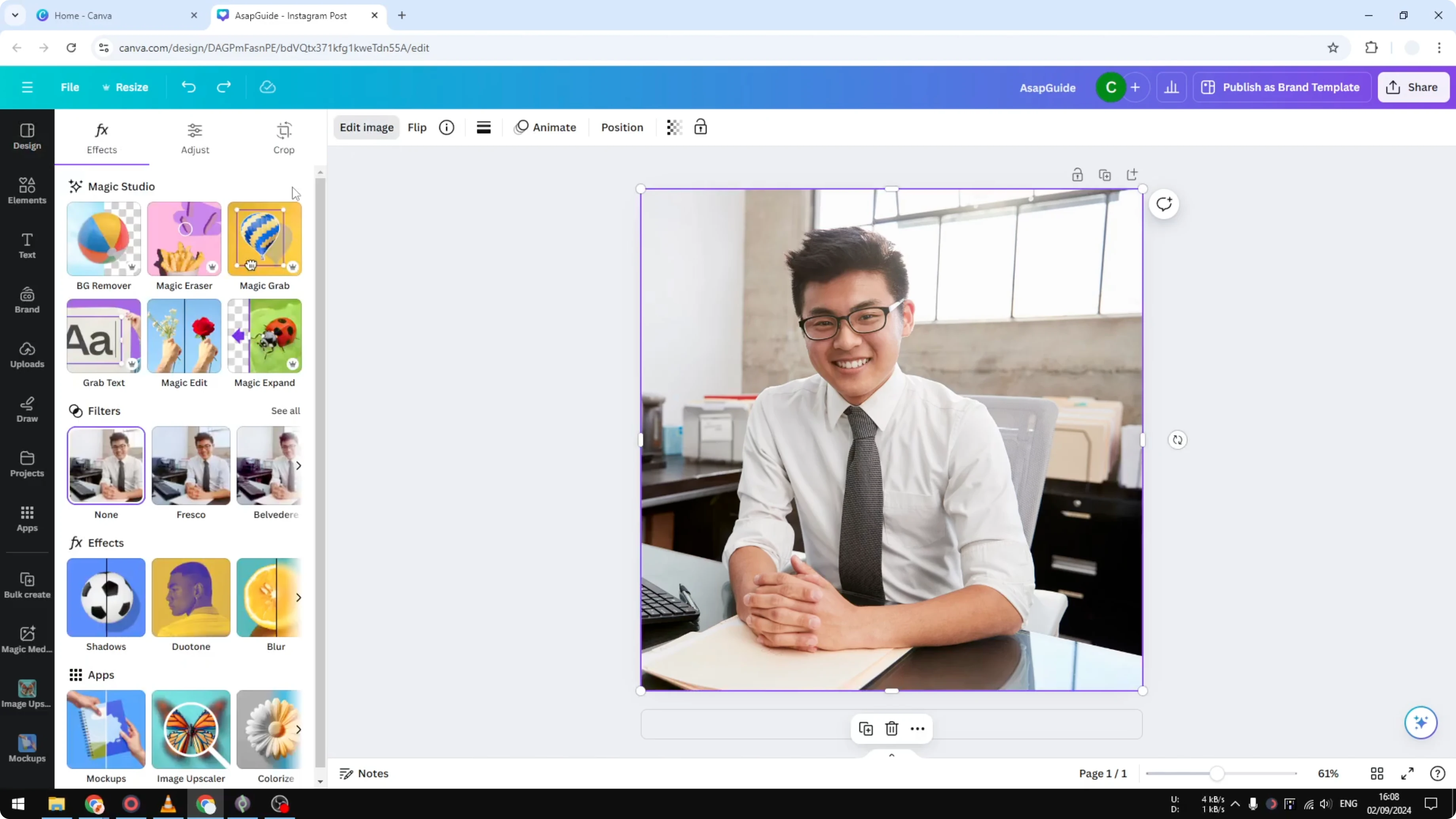
Adjust the focus position so the purple area covers the person.

If you need finer placement, see these blur position tips.
Move the blur intensity slider. At zero it looks normal.

At maximum everything is blurry, and some foreground can blur too because that is how autofocus works.
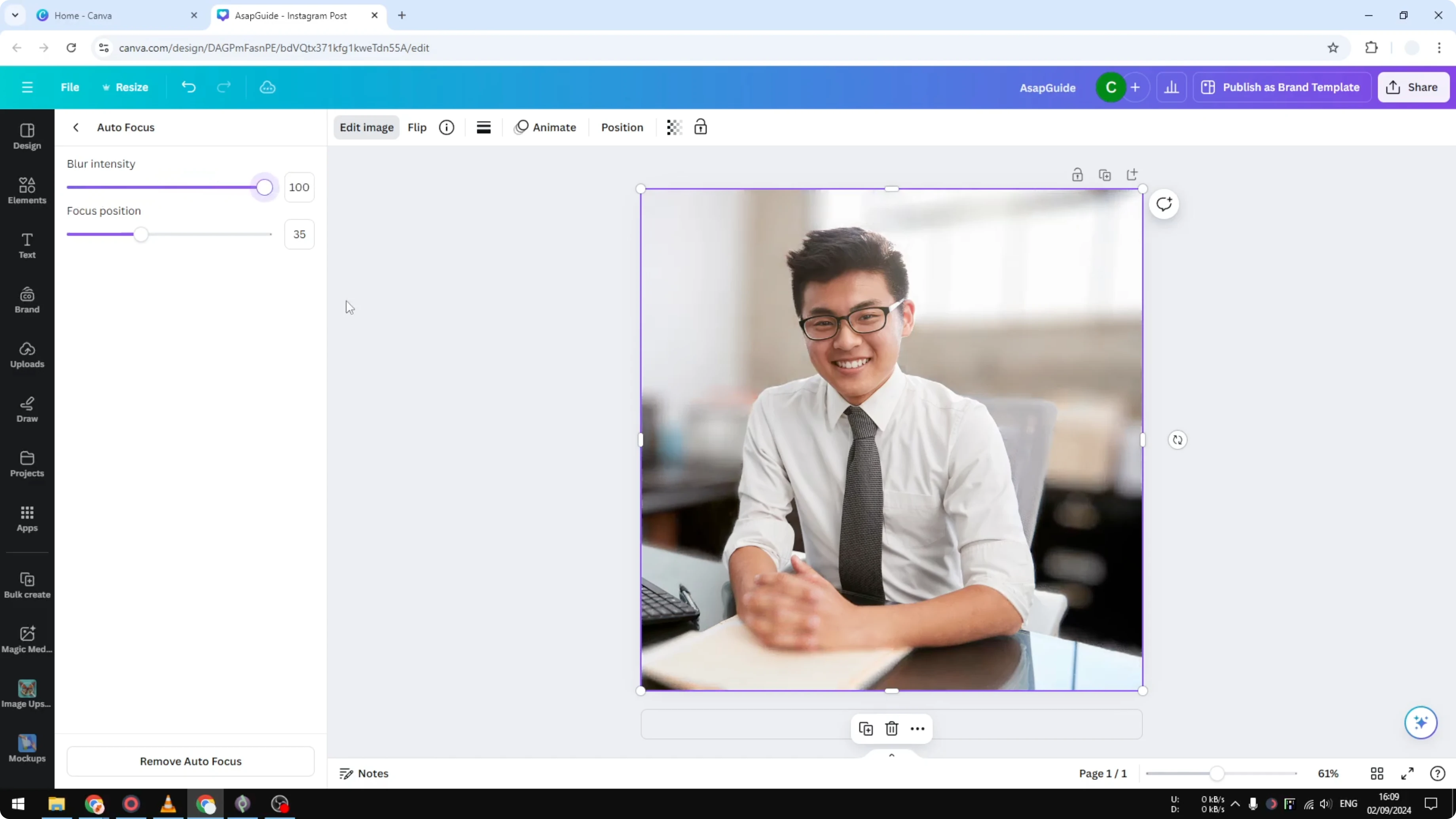
I set it around 60 to 70 percent for a natural result.
Apply the change to confirm the result.
Final thoughts on Blur Photos In Canva
That’s how I blur the background of a photo in Canva. The Autofocus method gives me a better result than the duplicate and mask approach. For blurring letters or headings, check this blur text guide.
Recent Posts

How to Visualize Yourself as a Pixelized Character with AI?
How to Visualize Yourself as a Pixelized Character with AI?

How to Revive Faded Memories and Enhance Image Clarity with AI?
How to Revive Faded Memories and Enhance Image Clarity with AI?

How to Visualize Yourself as an Animal Crossing Character with AI?
How to Visualize Yourself as an Animal Crossing Character with AI?