How to Bend Text in Canva
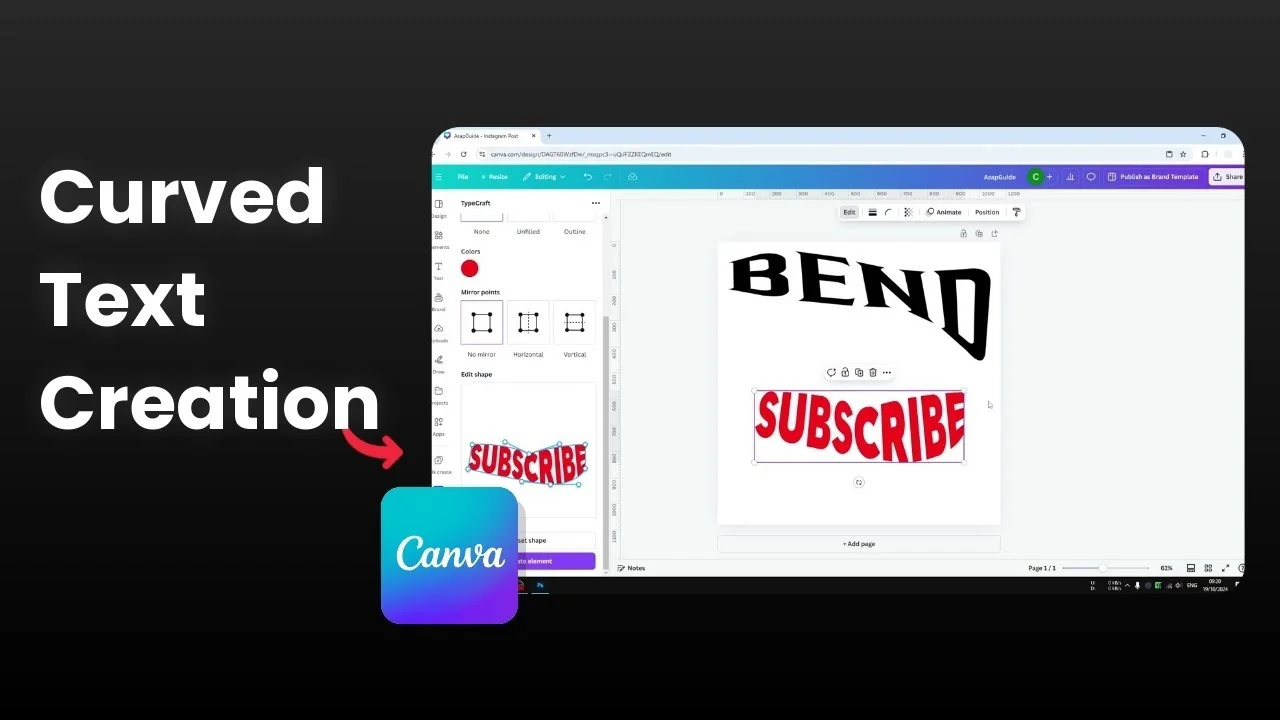
In Canva you cannot bend text to any shape you want.
Text feels a bit rigid, and the style or shape mostly comes from the font type you pick.
To make text that is not straight at all, I use a third party app.
For more context on curved and arched looks, see this bend text guide.
It pairs well with the steps below.
You can follow along inside any Canva design.
Limits of Bend Text in Canva
You only get the shape of the text based on the font type that is being used.
That is why I bring in an external tool for real bending control.
Use Typcraft to Bend Text in Canva
Typcraft is the app I use to create the bend and then bring it back into Canva.
Here is the exact workflow I follow from start to finish.
Set up to Bend Text in Canva
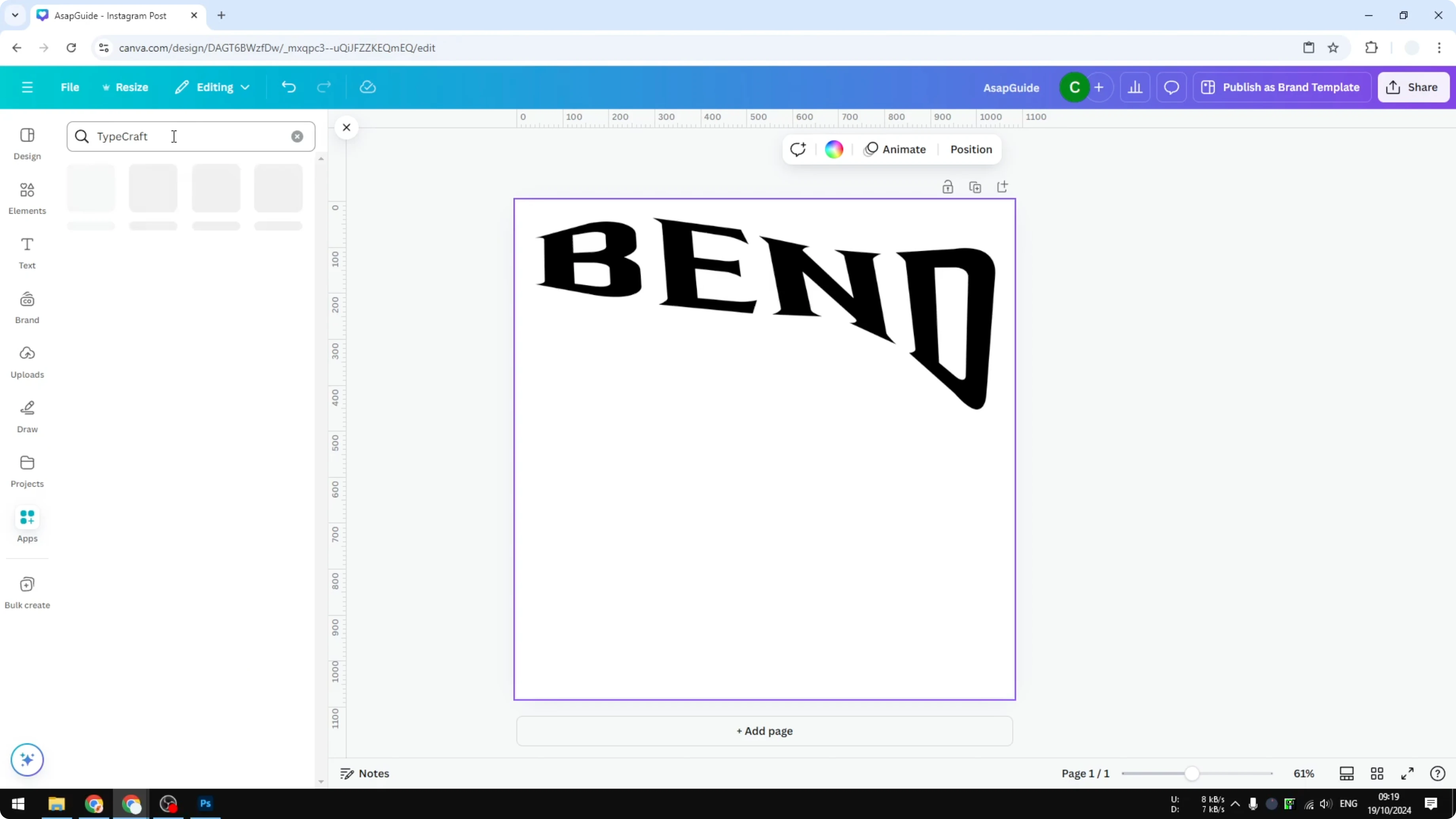
Go to Apps in Canva and search for Typcraft.
Click it, then click Open.
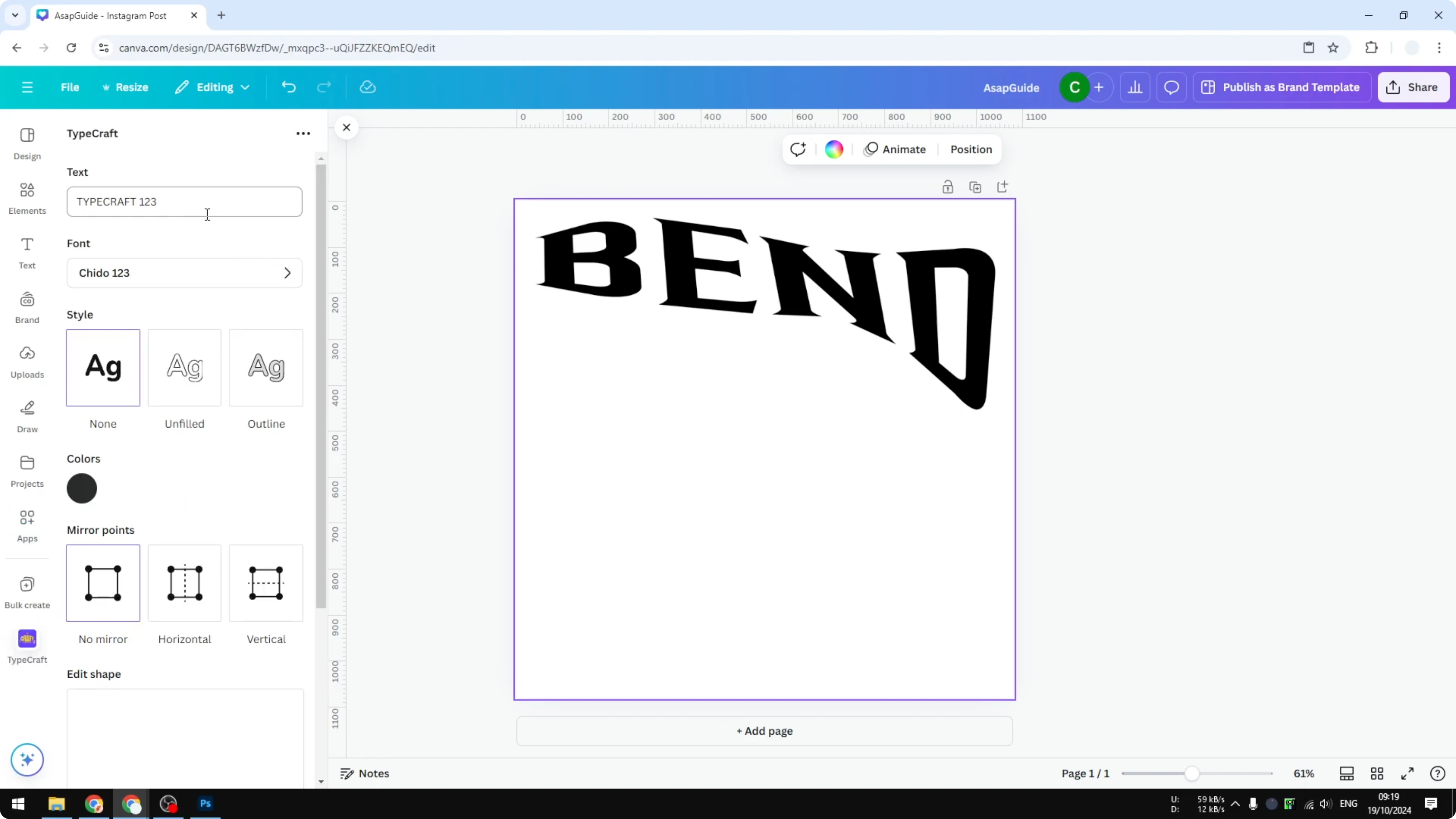
Start typing the content you want to bend later.
For example, I will type Subscribe.
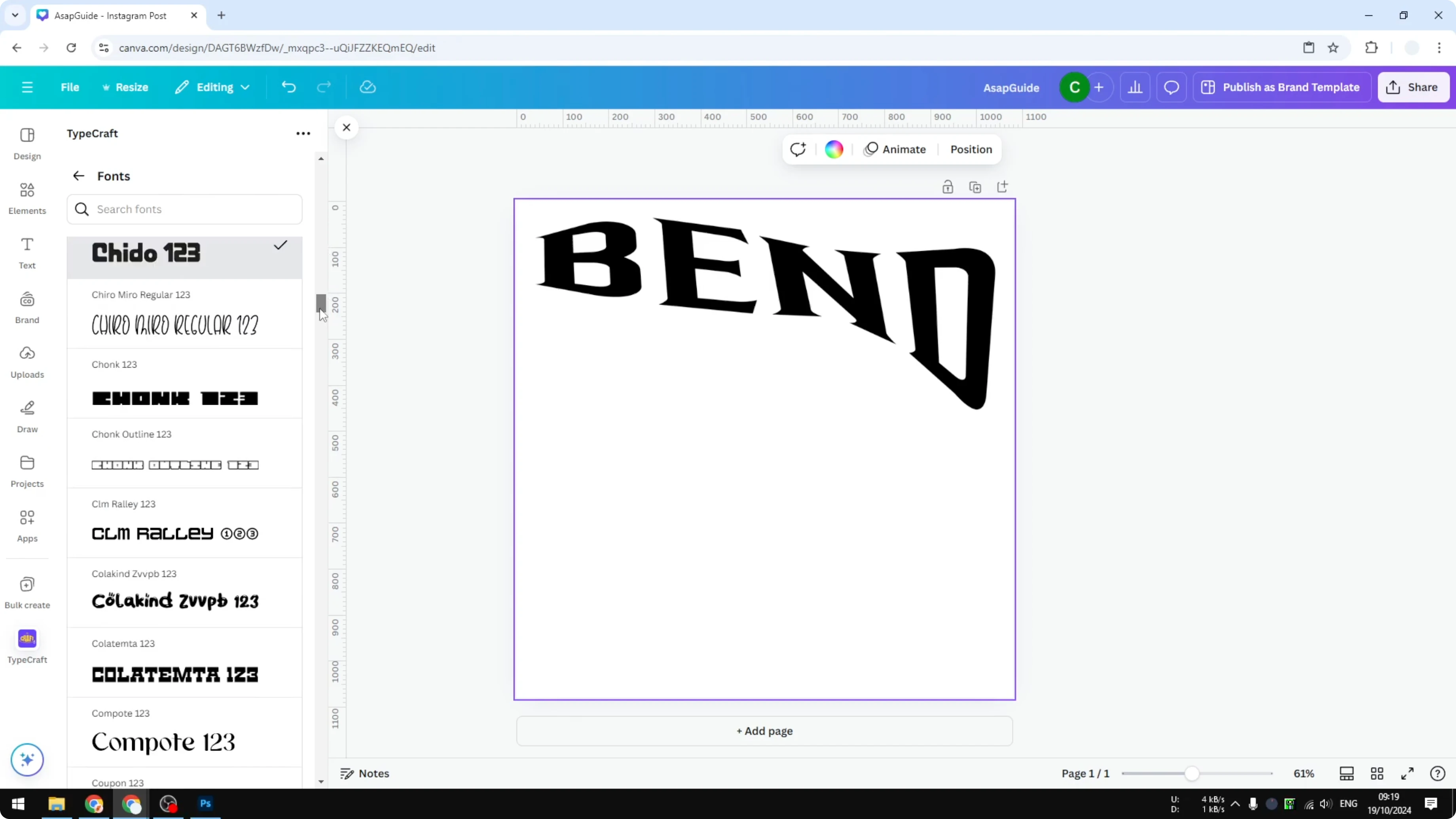
Select the font type.
The options here are very limited, and you will not find many choices at all.
That is a downside of this technique, but it works fine for this effect.
Style before you Bend Text in Canva
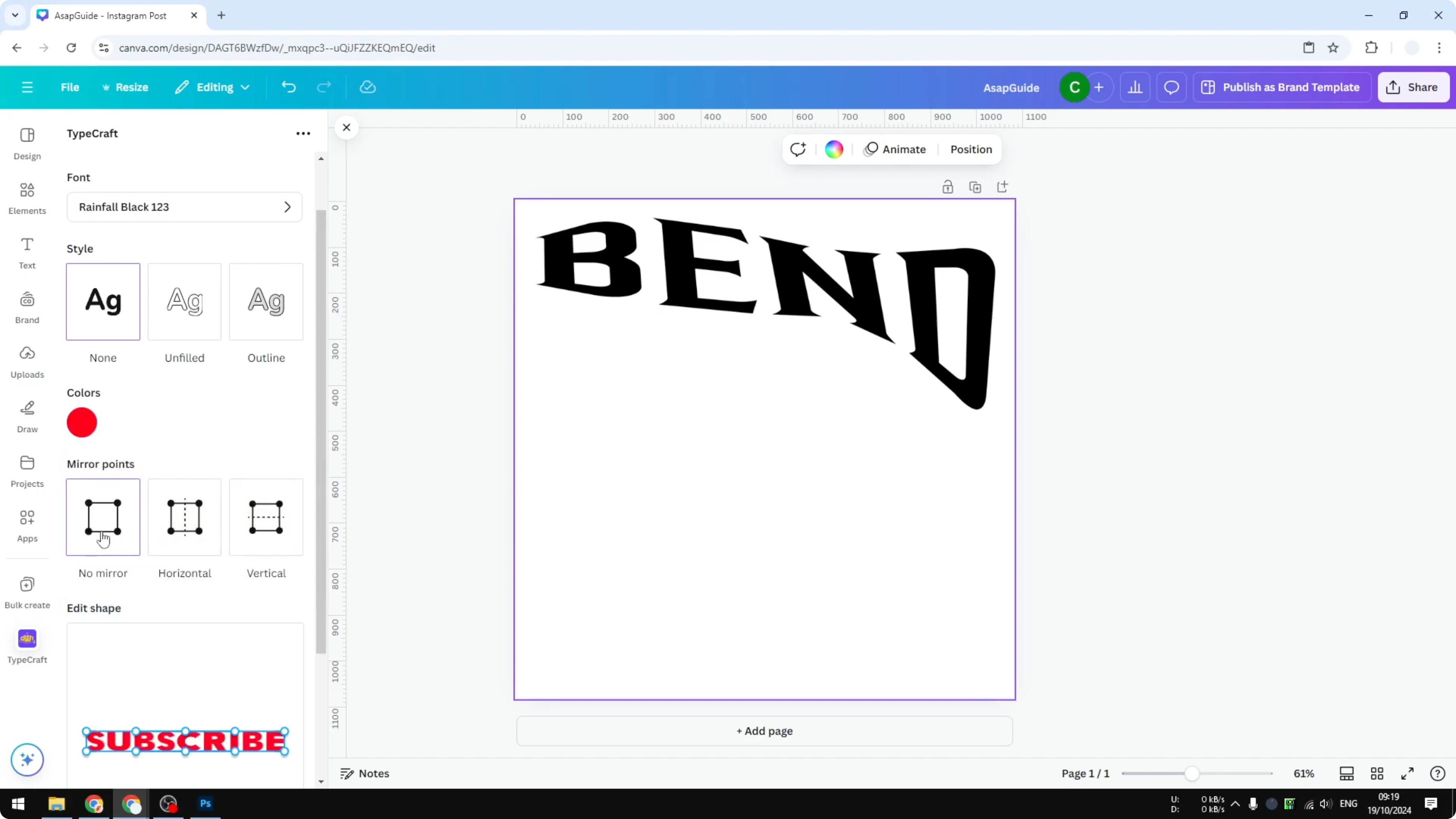
Select the style and the colors.
I will use red because it fits the word.
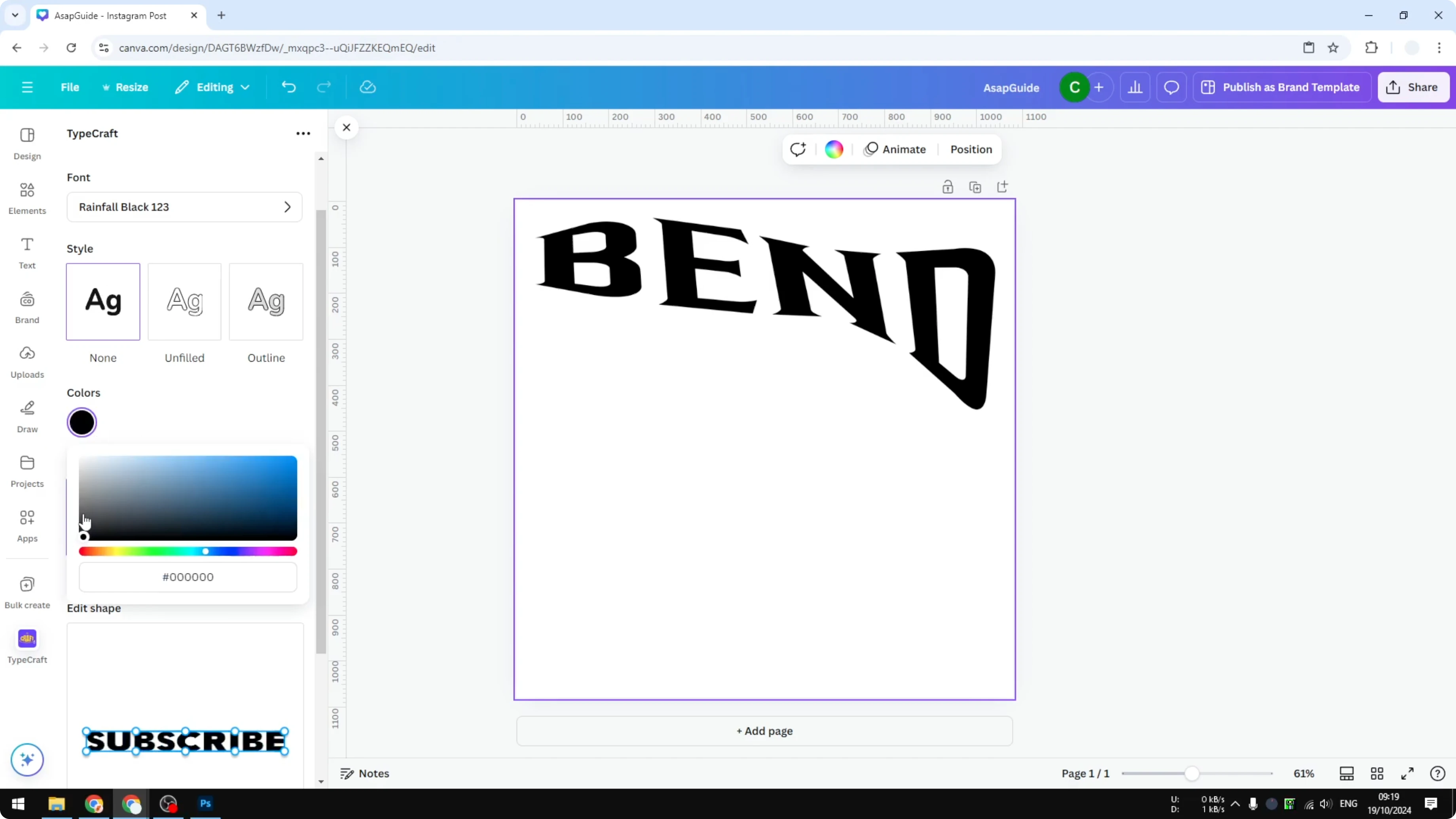
You can mirror the text if you want to flip the direction.
Make your choices before bending to save time.
For a bold title effect that sits behind elements, learn how to add background text in Canva.
It complements bent headlines nicely.
You can combine both looks in one layout.
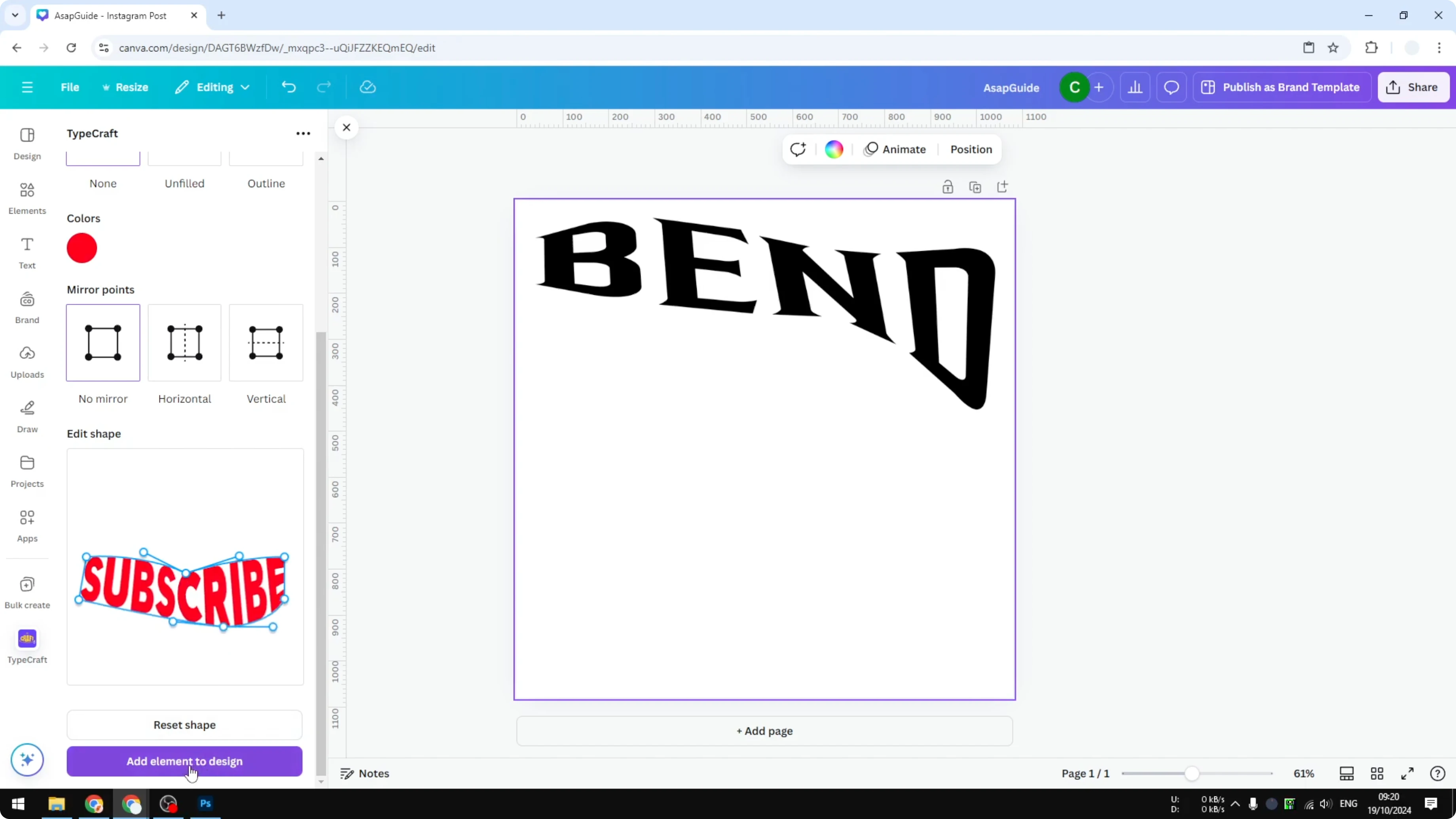
Adjust shape for Bend Text in Canva
You will see control points around the text.
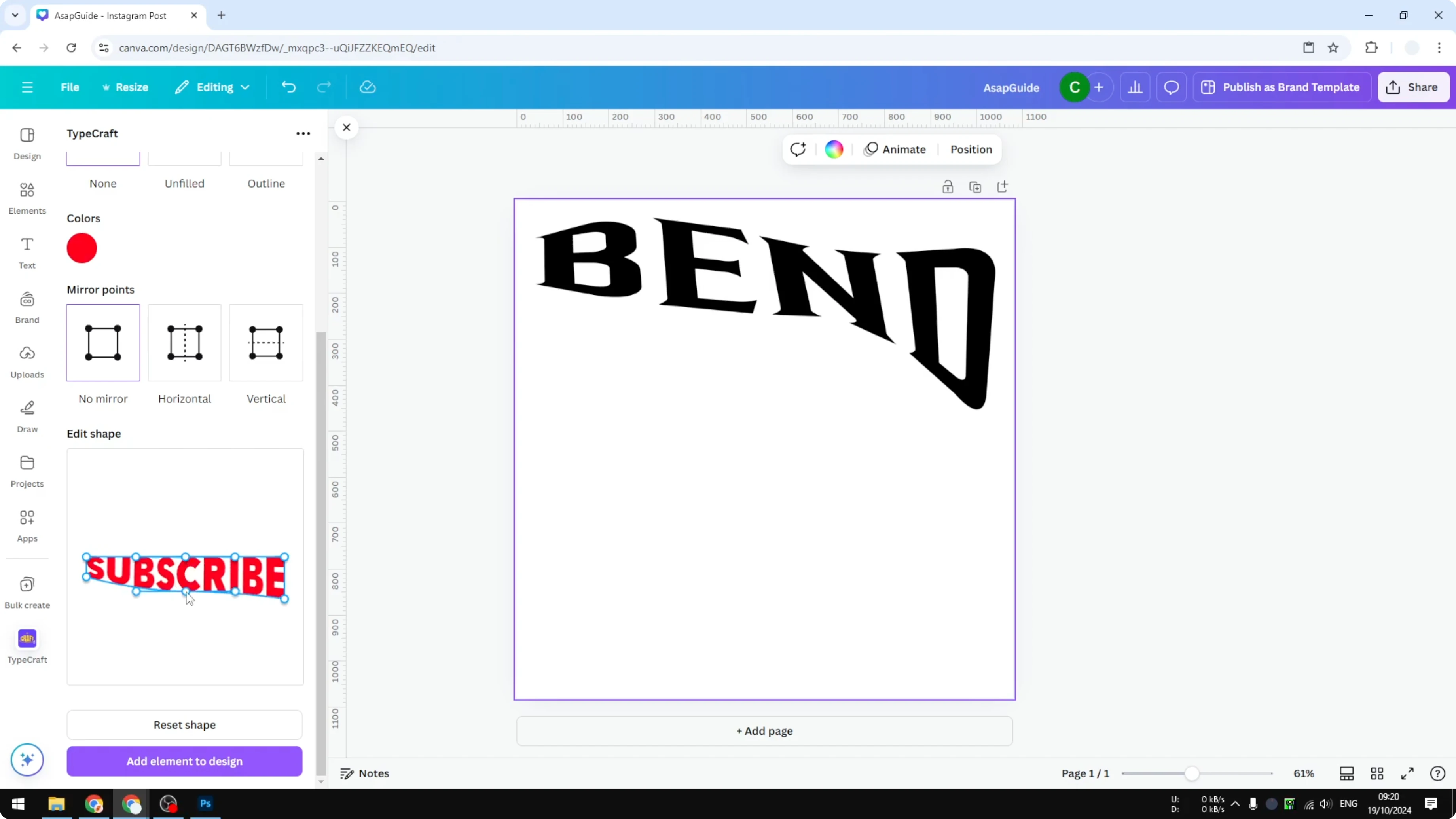
Click any point and drag it in the direction you want, and the text will change its shape.
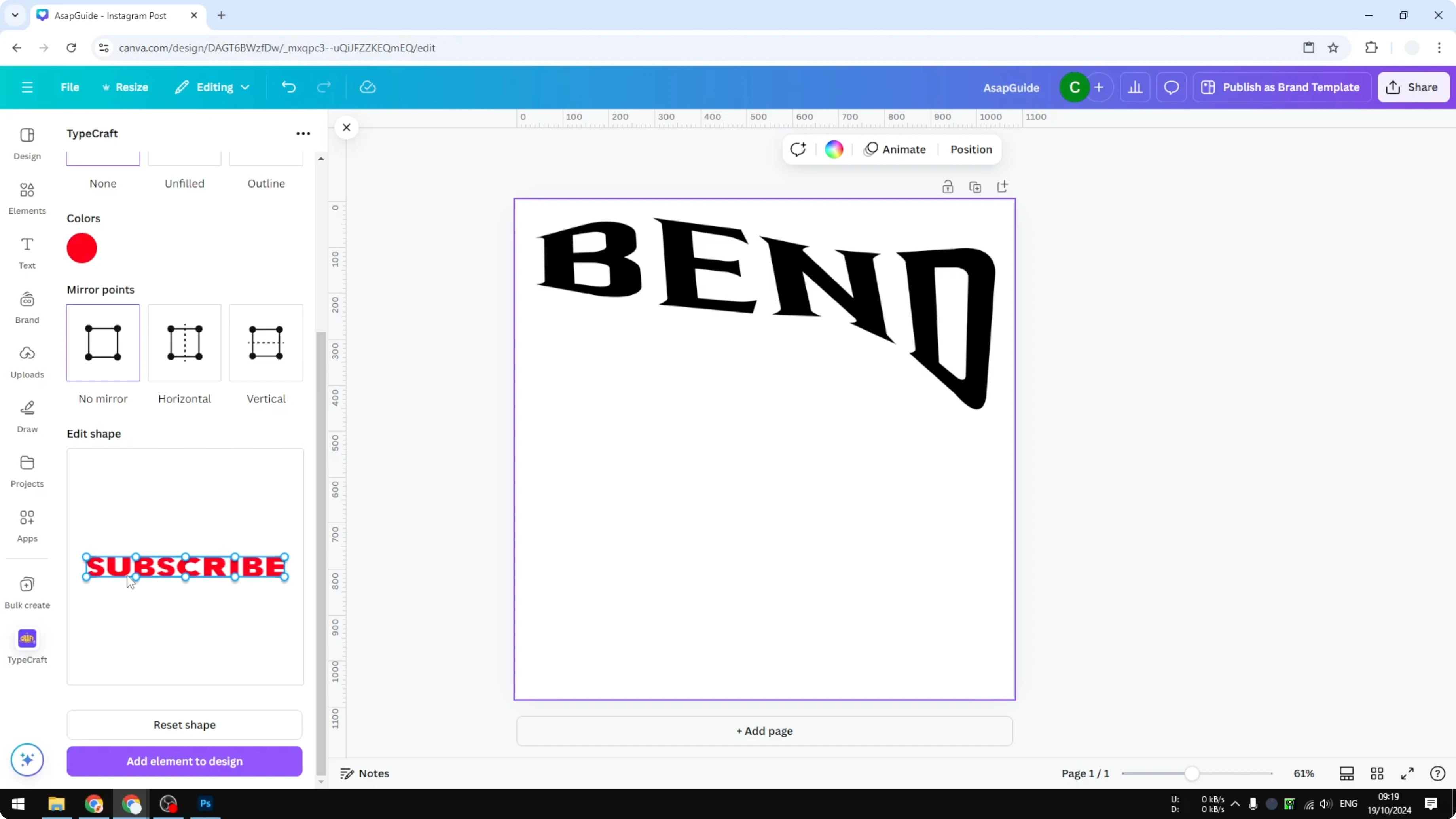
This feels similar to Photoshop, though it is not very advanced.
It is still very useful for quick arcs and playful shapes.
Tweak the handles until the curve and spacing feel right.
Add to your Canva design
When you are done, click Add element to design.
The bent text will be inserted into your Canva design.
From there you can resize, position, and layer it with other elements.
Final Thoughts on Bend Text in Canva
This method gives you flexible bending controls that Canva alone does not provide.
Typcraft handles the curve, and Canva handles layout, color, and composition.
Keep experimenting with small handle moves to refine the shape.
If you plan to publish designs on the web, remember to make them accessible and add alt text to pictures in Canva.
Clean structure plus clear text effects make your design easier to read.
That is the simple way to bend text in Canva and keep your workflow smooth.
Recent Posts

How to Visualize Yourself as a Pixelized Character with AI?
How to Visualize Yourself as a Pixelized Character with AI?

How to Revive Faded Memories and Enhance Image Clarity with AI?
How to Revive Faded Memories and Enhance Image Clarity with AI?

How to Visualize Yourself as an Animal Crossing Character with AI?
How to Visualize Yourself as an Animal Crossing Character with AI?