How to Arch Text in Canva
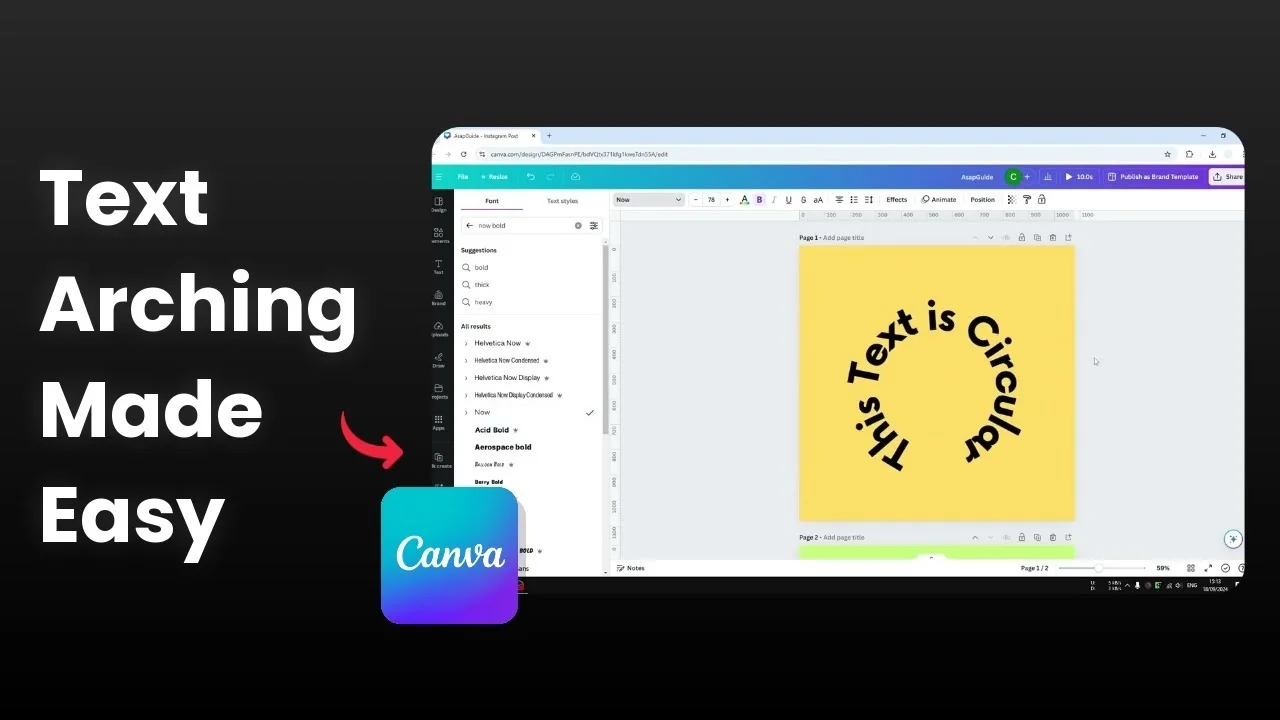
I will show you how you can create curved or circular text in Canva. The Curve feature is available natively, so you do not need any third party app.
Getting started with Arch Text in Canva
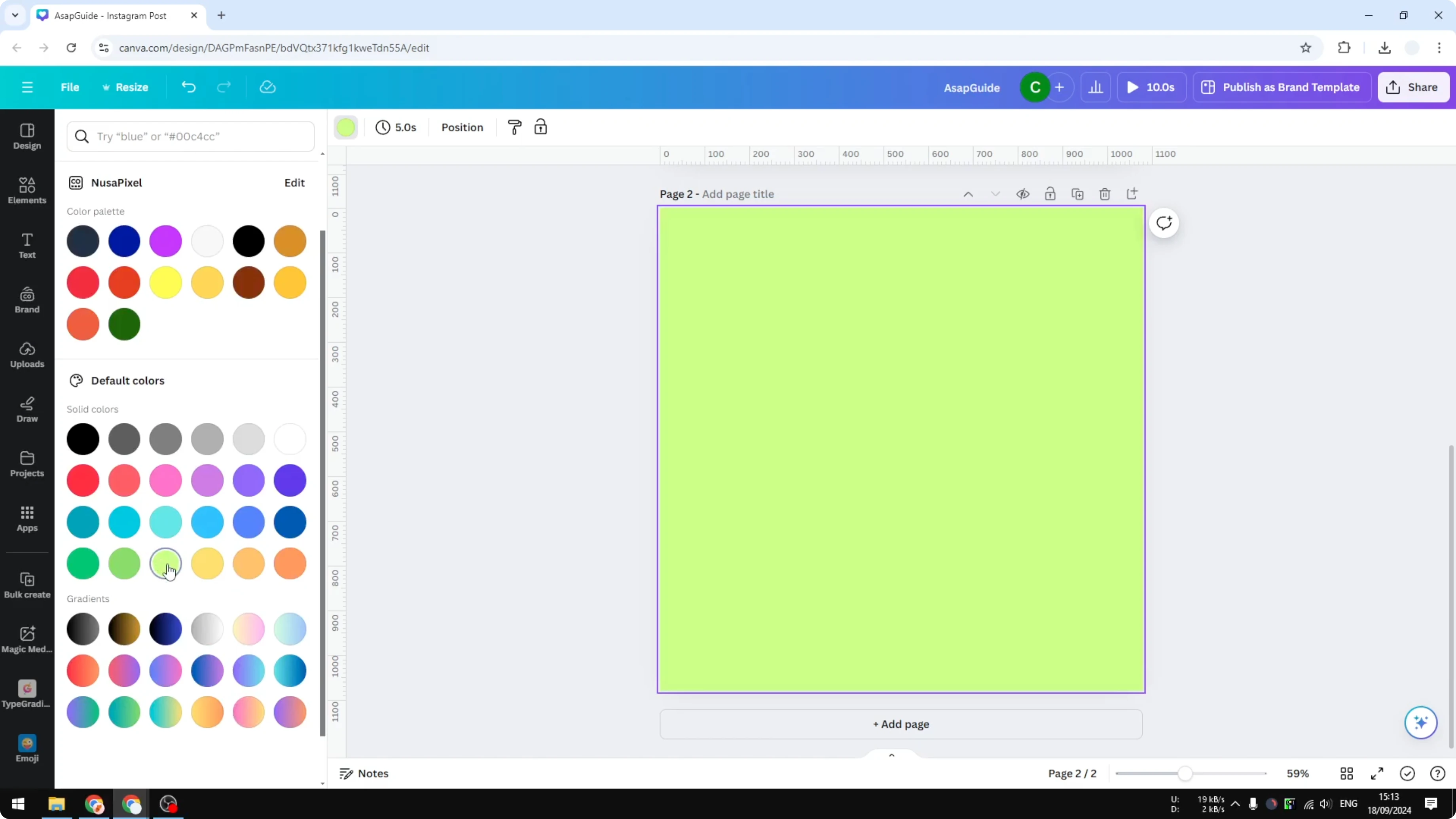
Add a new page. You can choose the background if you want. I used a bright green background.
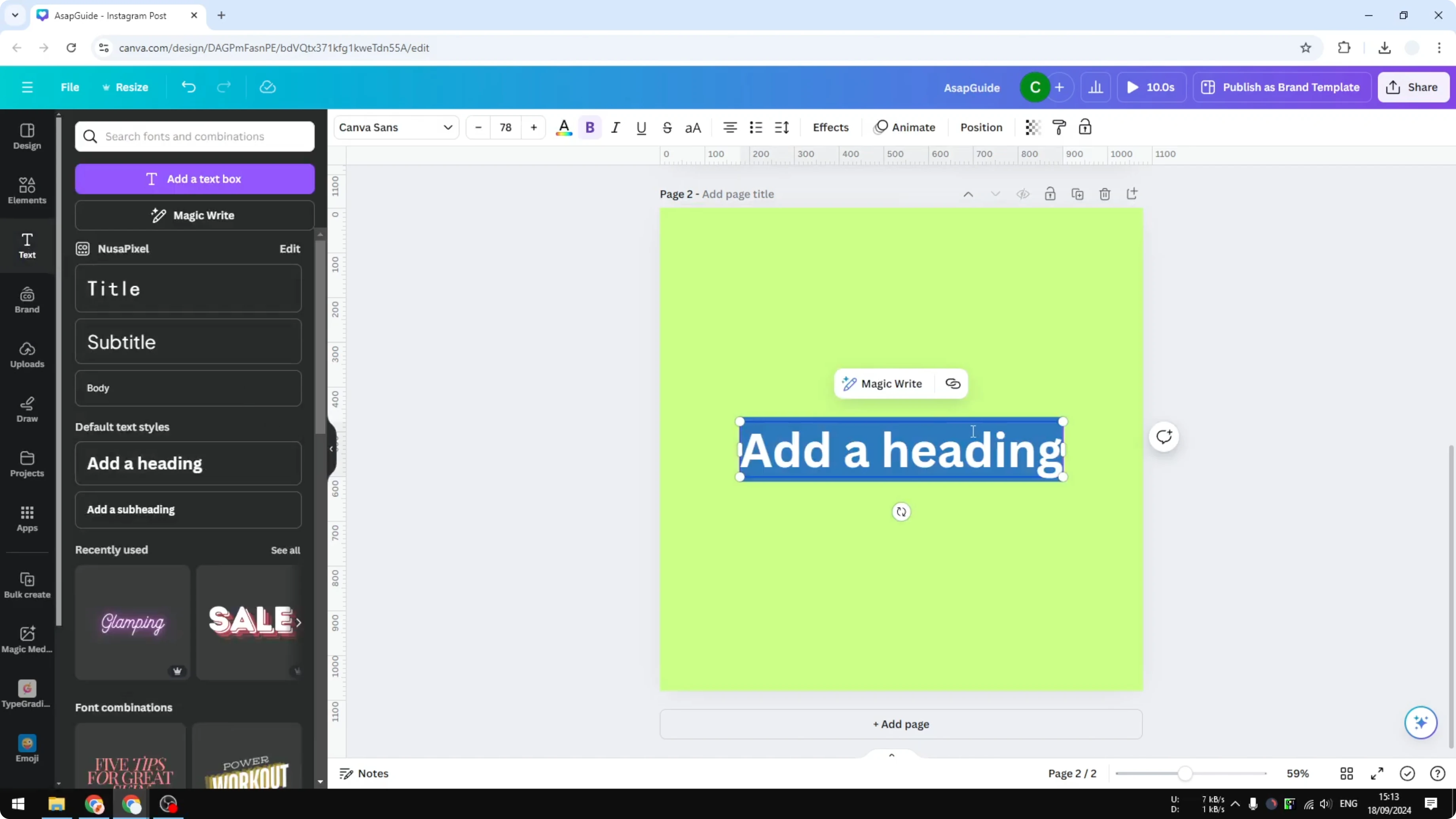
Go to the Text menu and add some text. I typed a few words, the content is not important for the effect.
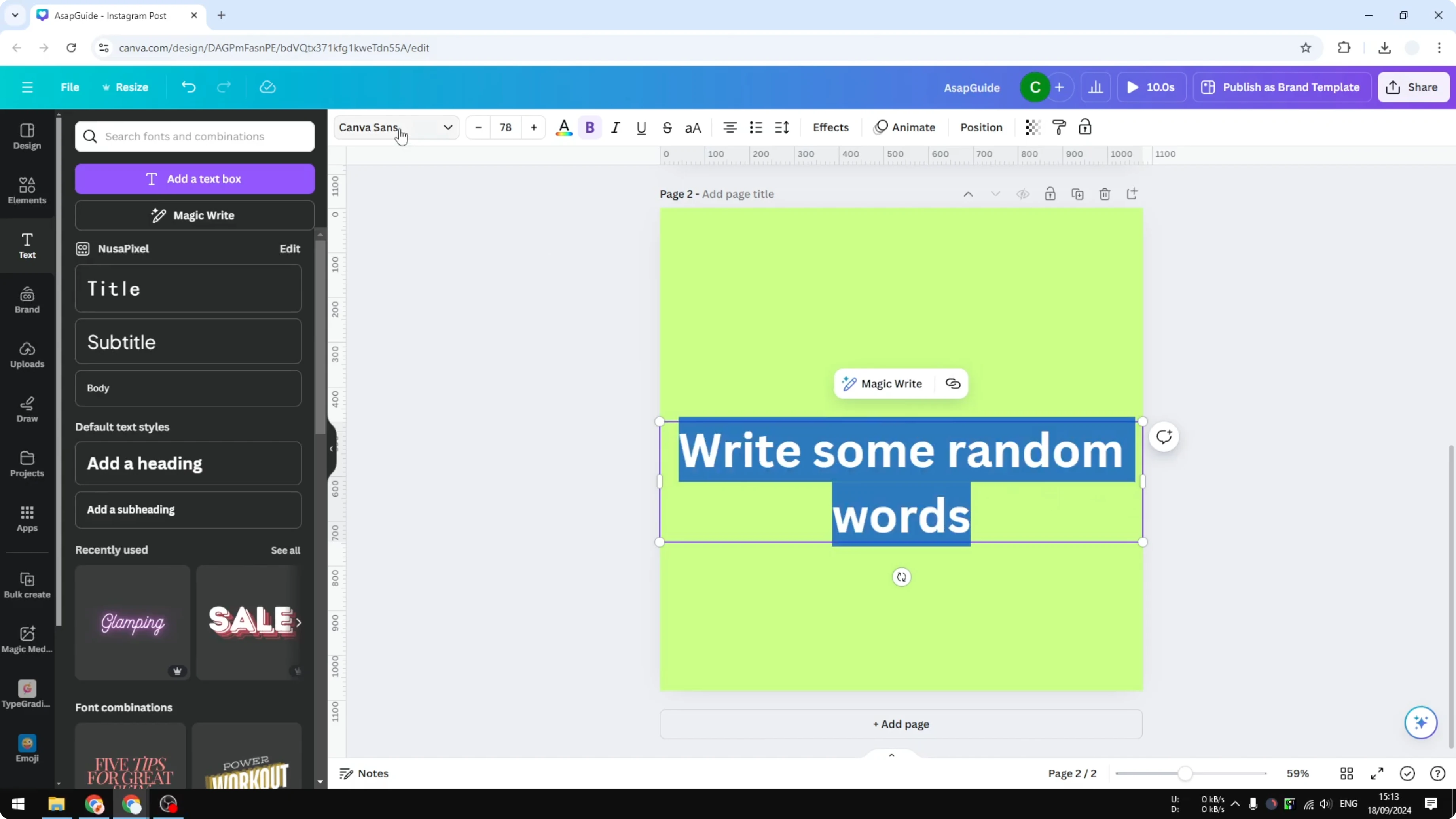
Change the font to the one you prefer. Using the same font as before is fine. If you also want to style big word elements, see how to add background text in Canva.
Read More: Add Border Text Box Canva
Apply the effect for Arch Text in Canva
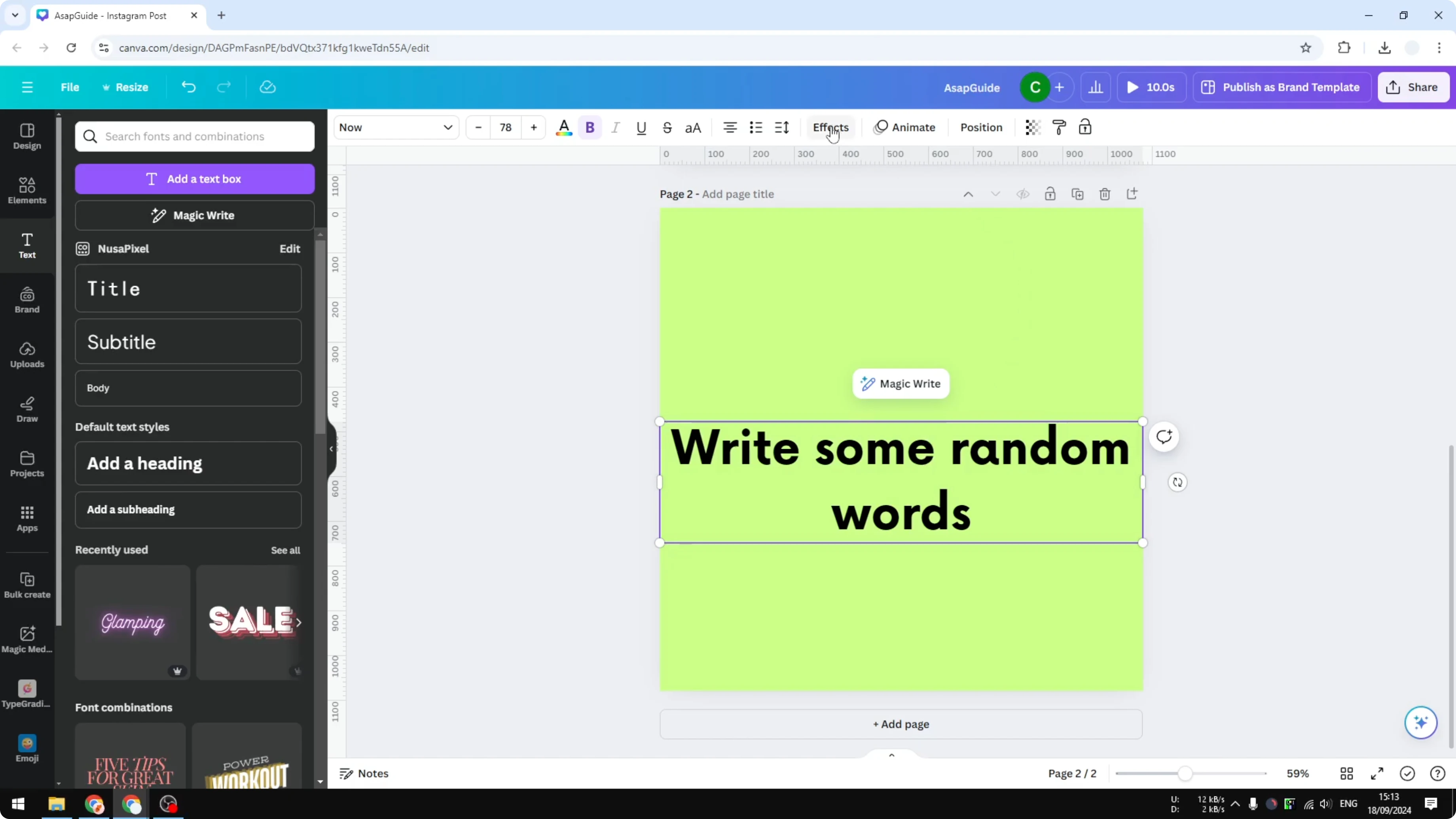
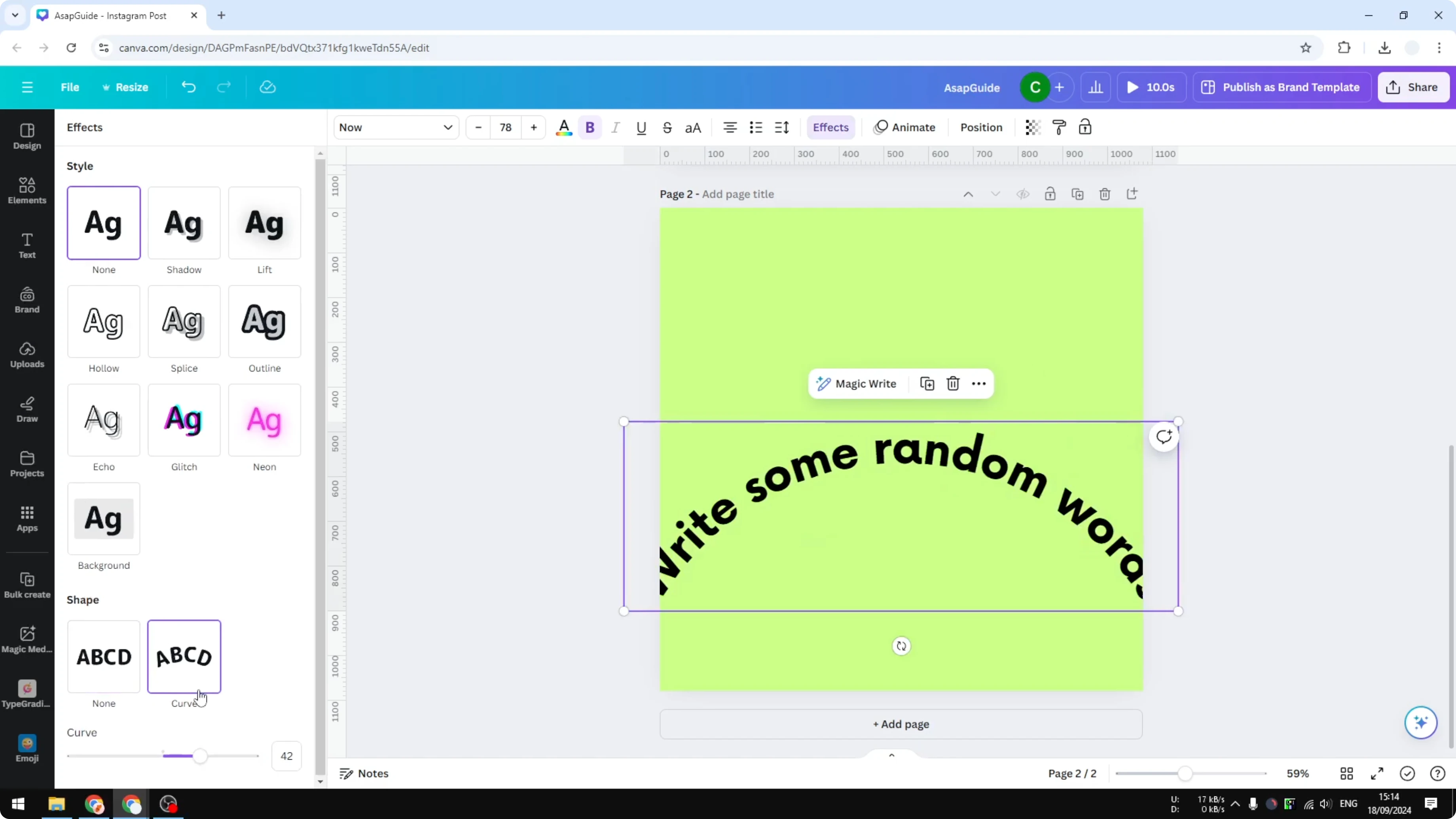
Select the text again and click Effects. Scroll down and under Shape choose Curve.
Adjust curvedness in Arch Text in Canva
Use the curvedness slider to make the text closer to circular or keep it shallow. Drag past zero to go in the opposite direction.
Read More: Add Alt Text Picture Canva
Final thoughts on Arch Text in Canva
That is how you make a curve text in Canva. Adjust the curvedness to get the look you want. It is quick and works well for circular or arched layouts.
Recent Posts
How to Visualize Yourself as a Pixelized Character with AI?
How to Visualize Yourself as a Pixelized Character with AI?
How to Revive Faded Memories and Enhance Image Clarity with AI?
How to Revive Faded Memories and Enhance Image Clarity with AI?
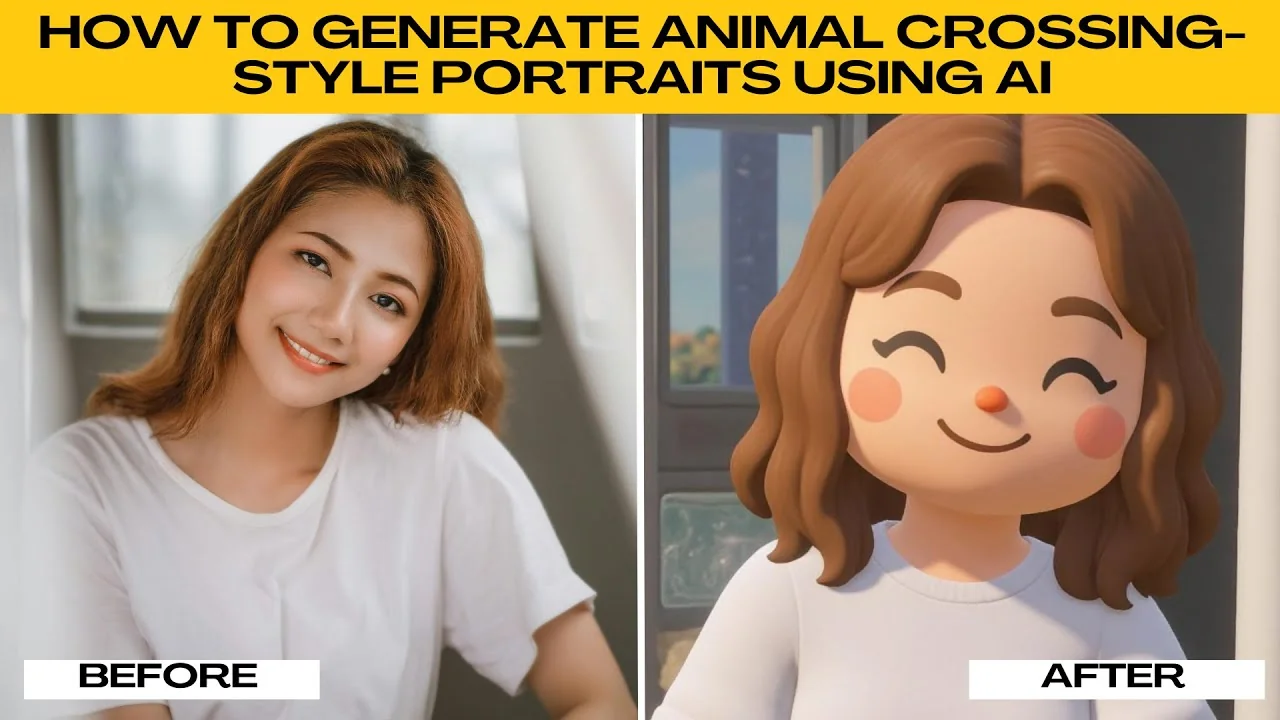
How to Visualize Yourself as an Animal Crossing Character with AI?
How to Visualize Yourself as an Animal Crossing Character with AI?