How to Experiment with Virtual Makeup Looks and Enhance Your Photos with AI?
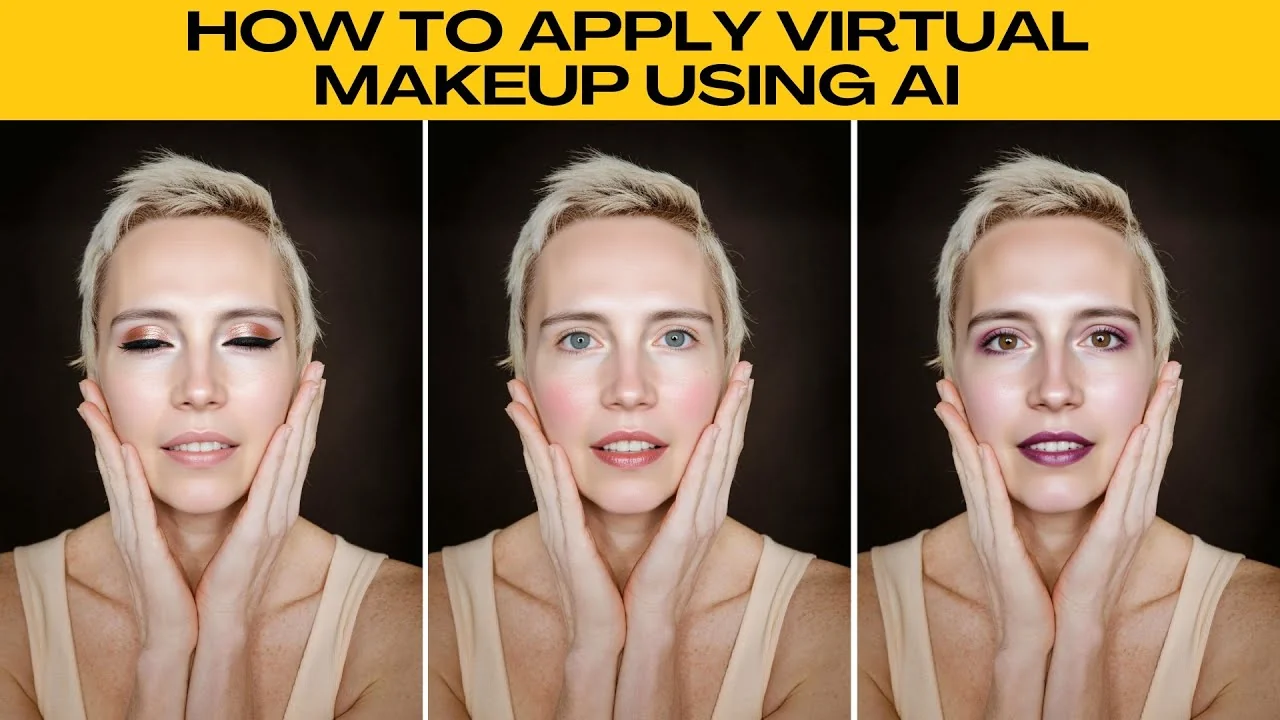
I will teach you how to apply virtual makeup to your photos using AI.
Get started
First, visit the photo AI photo editor.
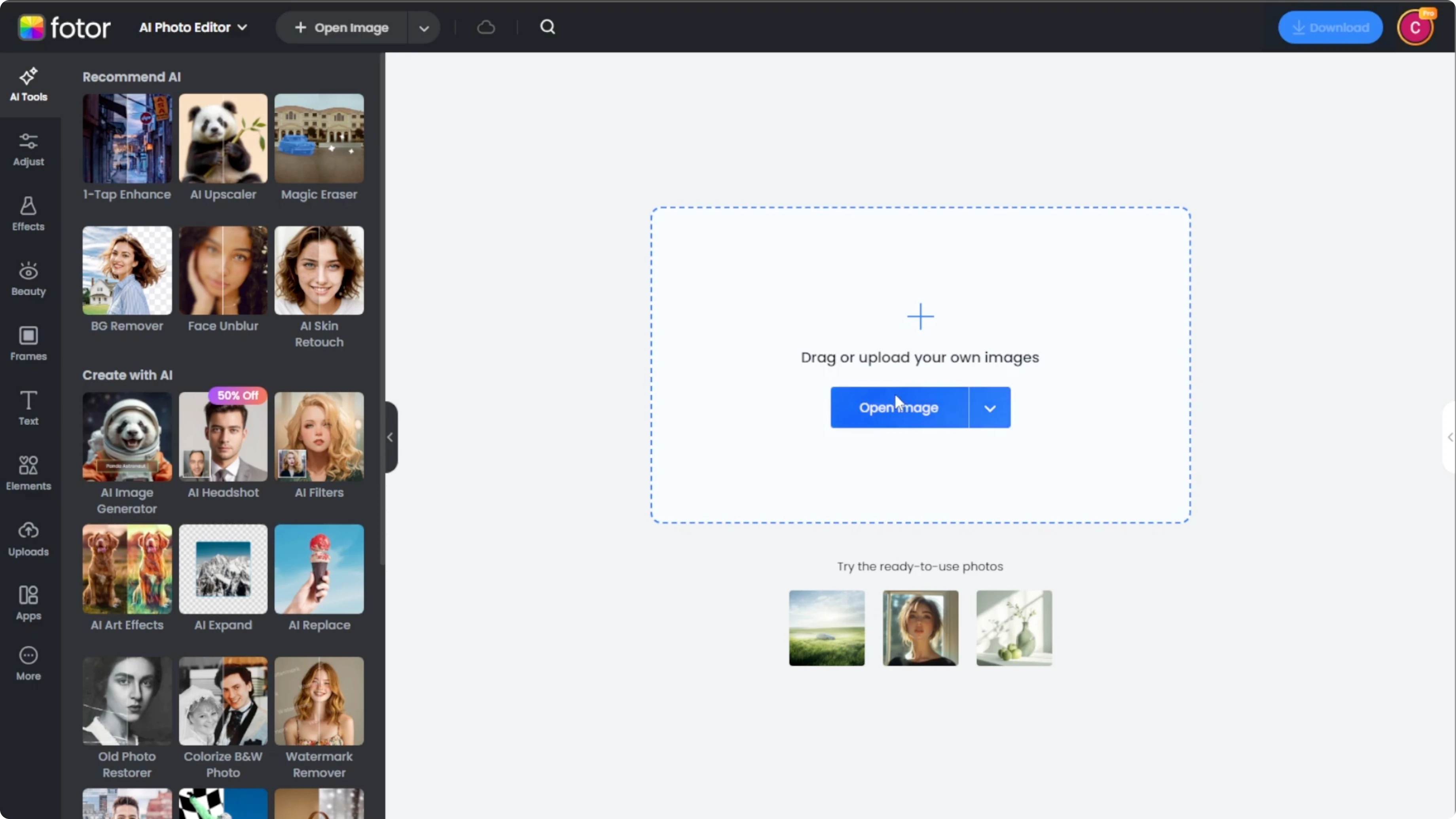
Click upload to either use your own photo or select a sample image.
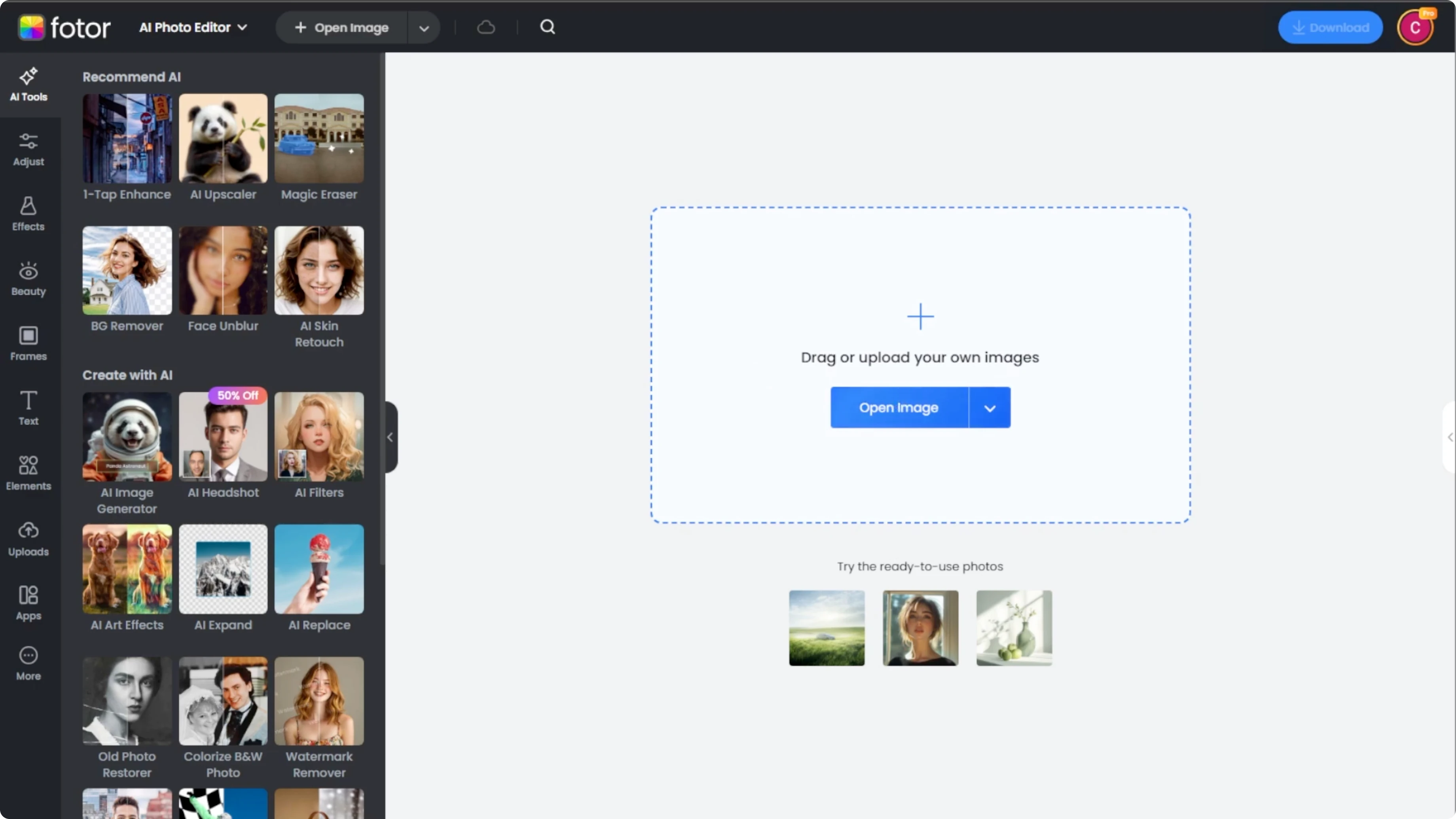
On the left panel, click beauty.
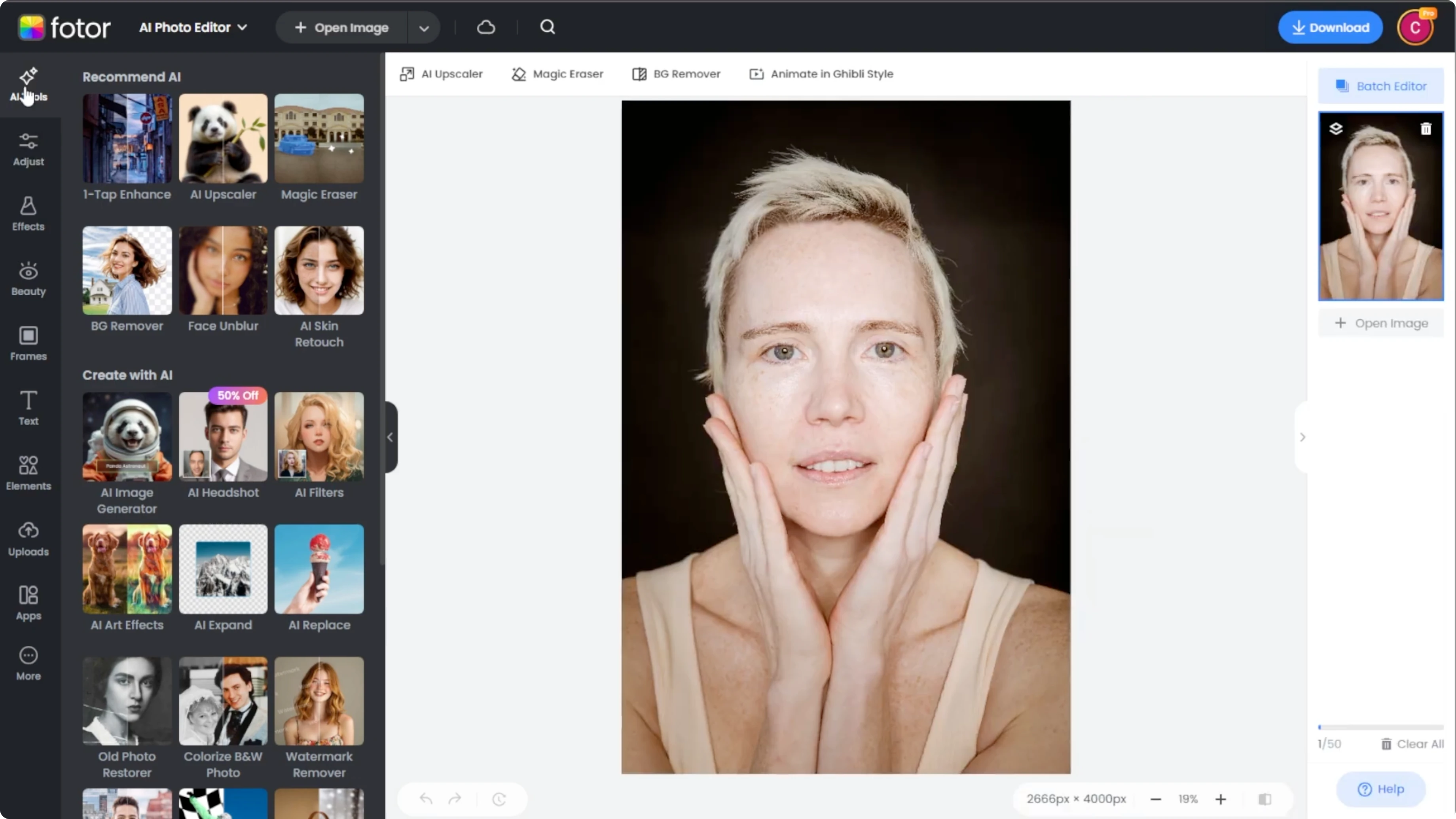
Select AI makeup under smart AI tools.
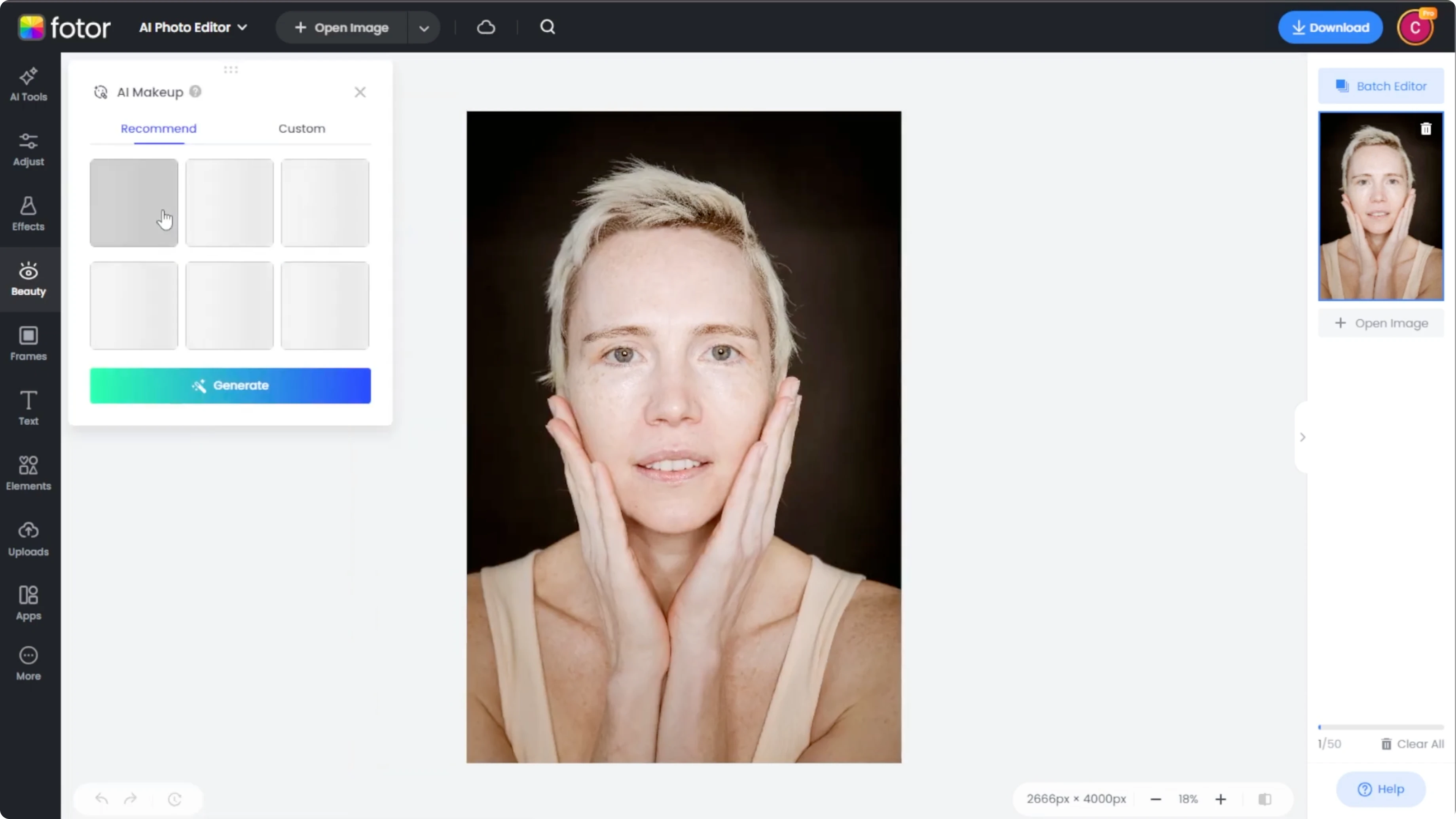
Read More: Change your hairstyle with AI
Choose a style
Here you have two options, recommended and custom.
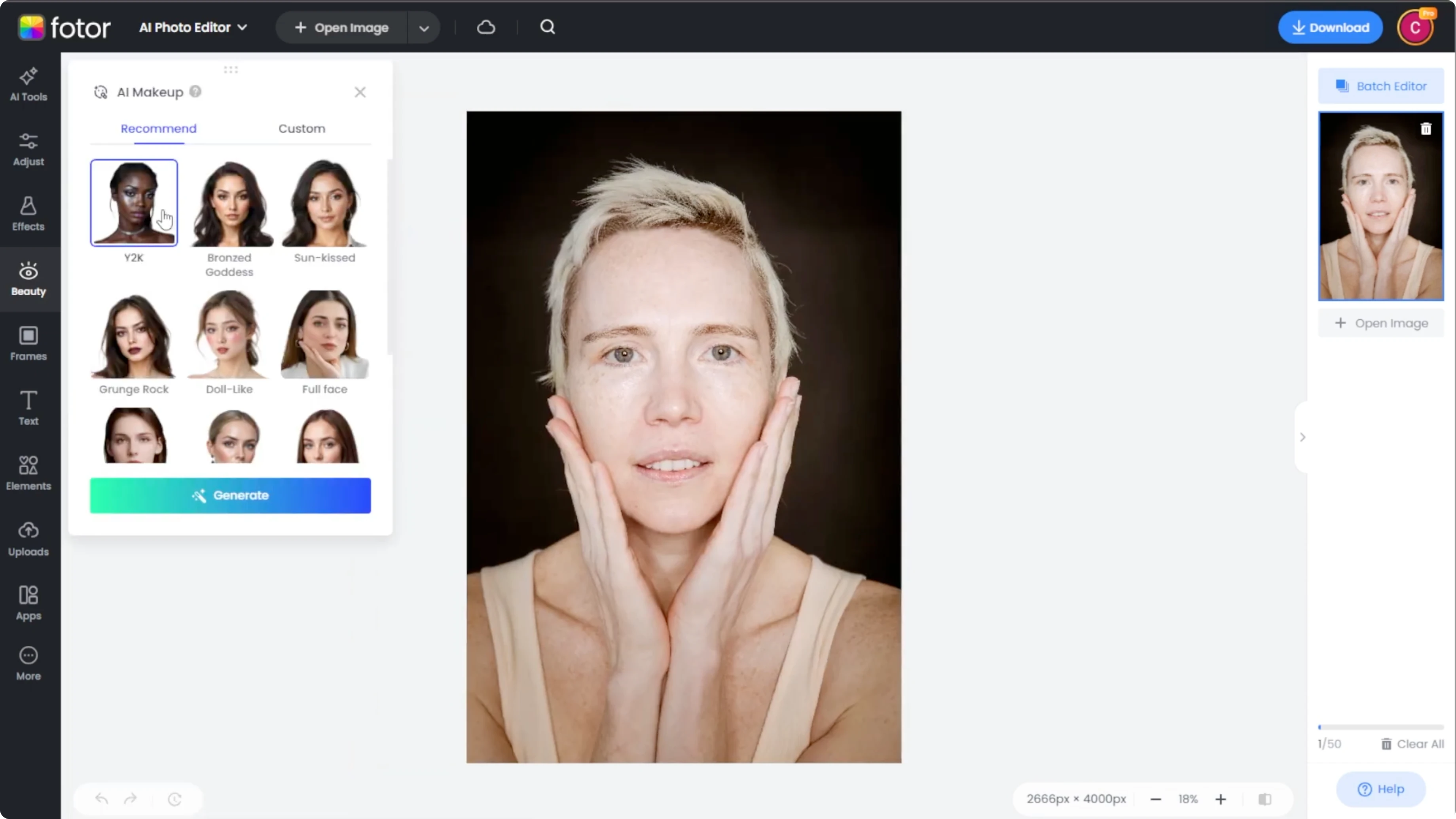
Recommended presets
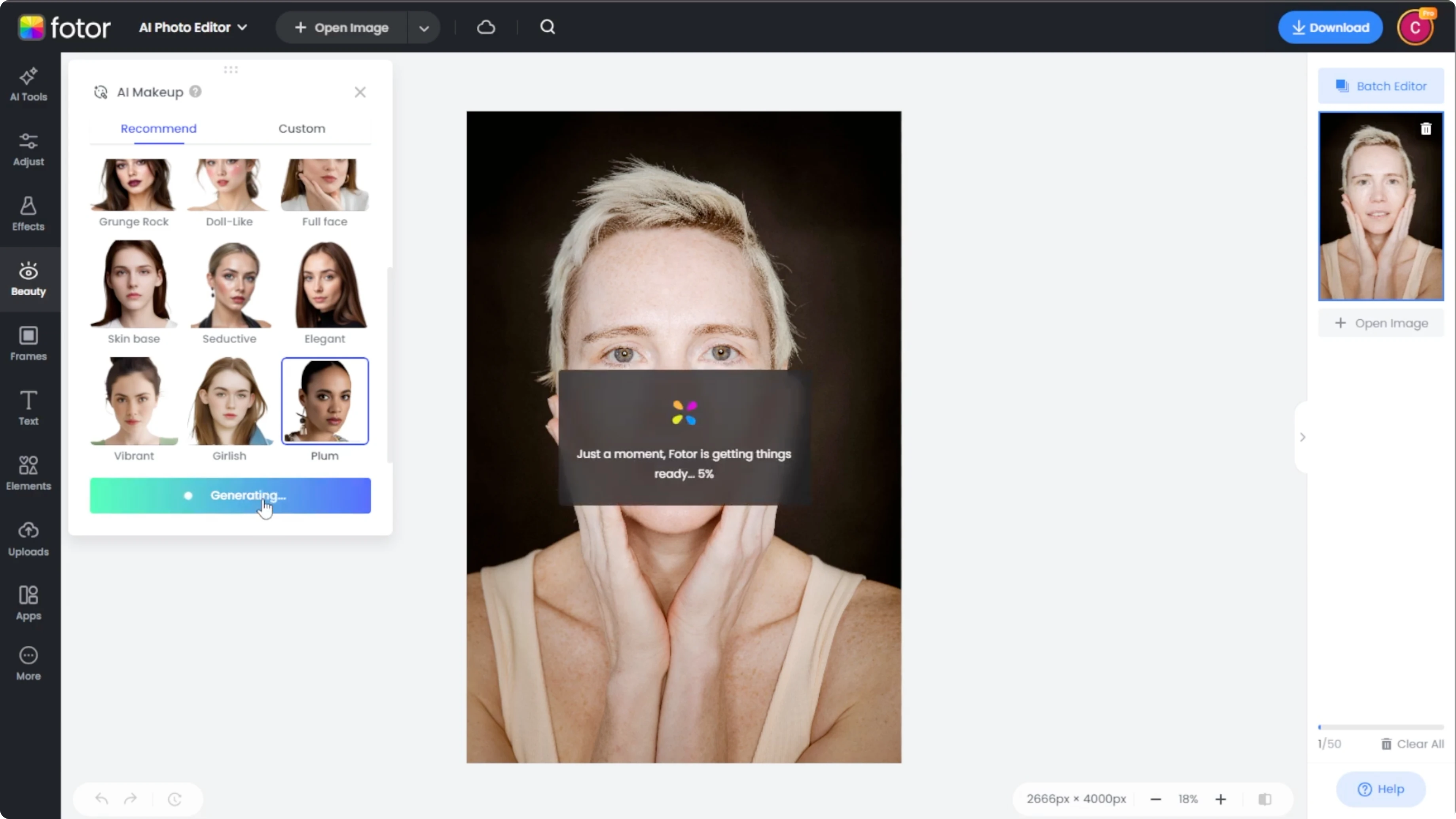
Under the recommended, you can browse a variety of preset looks from elegant to dolllike, grunge rock, and more.
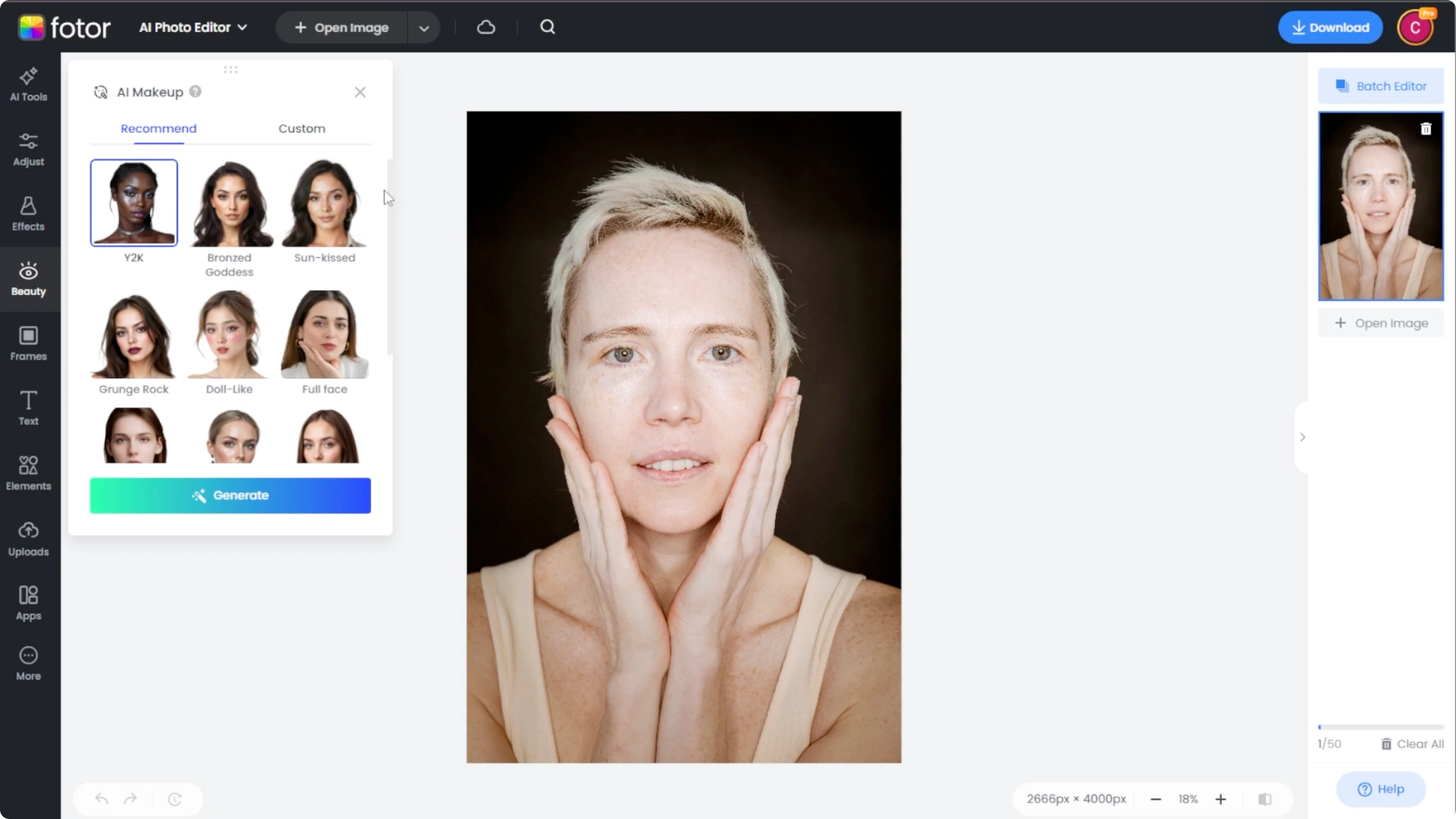
Click a style and hit generate to apply it.
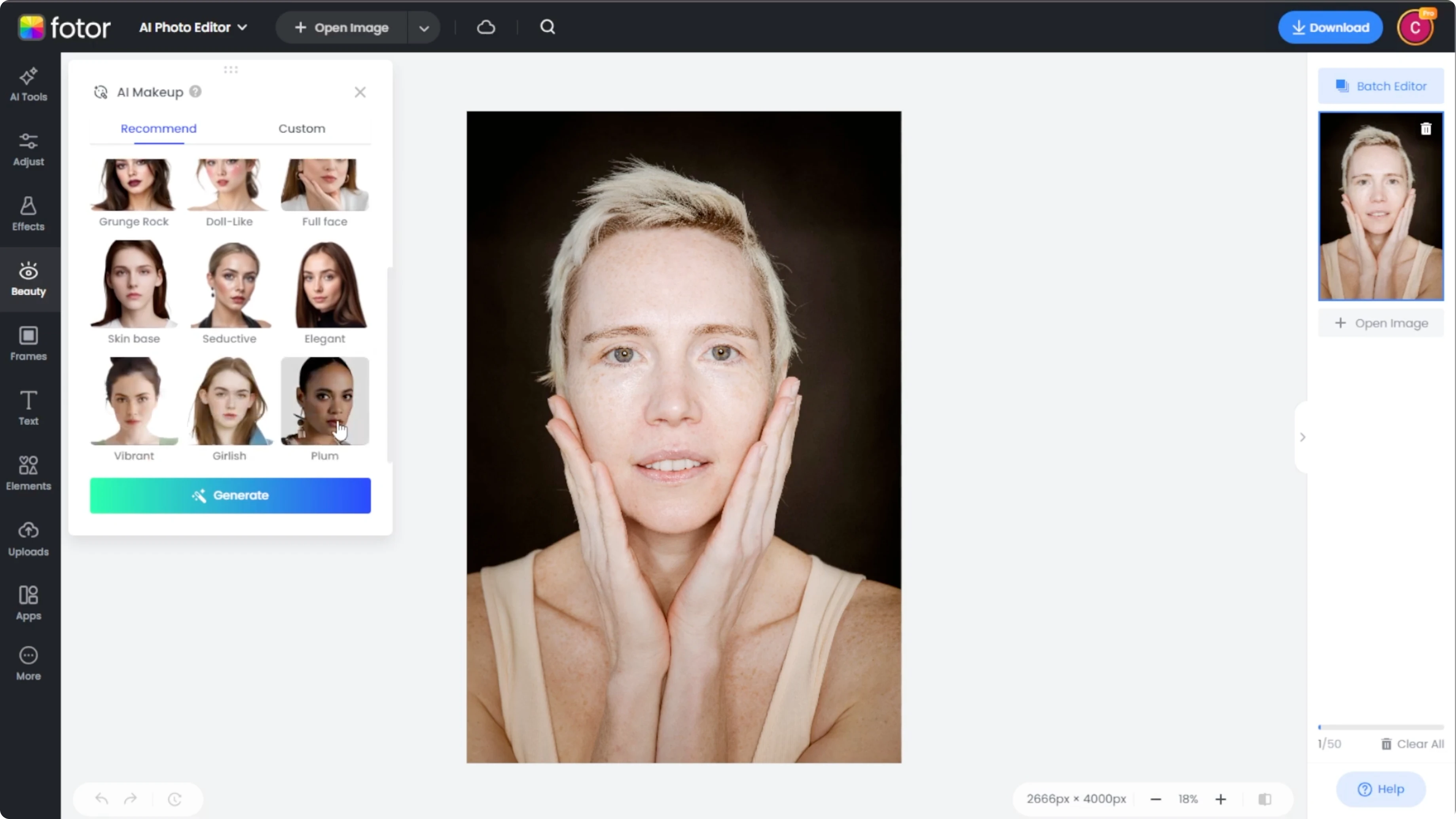
Processing may take 30 seconds to 1 minute depending on the image and effect.
Read More: Convert a daytime photo into a night scene
Custom looks
For more control over the makeup look, you can use the custom option.
For a more personalized style, upload a clear photo of a face with makeup as a reference.
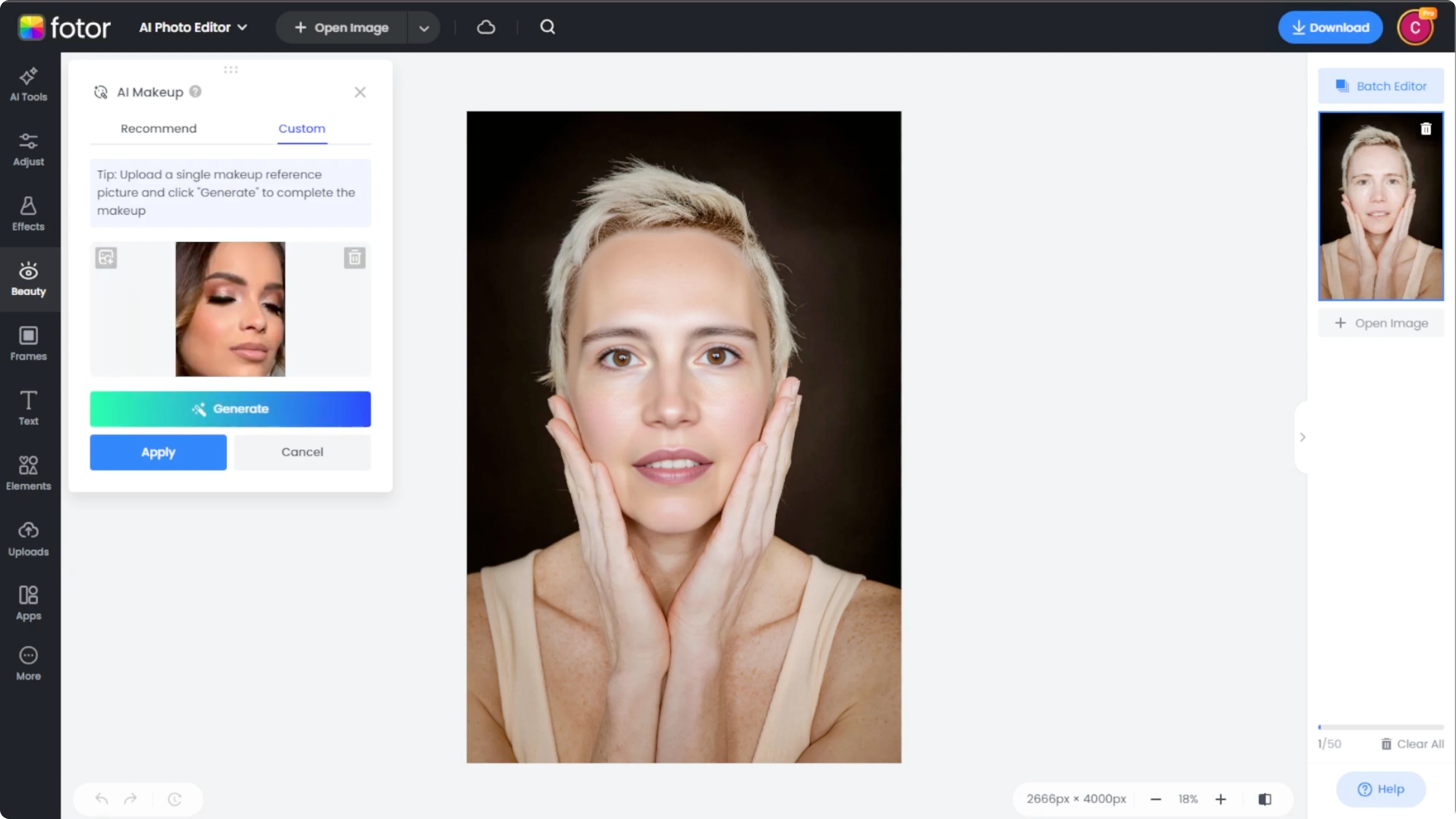
Then click generate to apply a similar look to your uploaded image.
Inspect and compare
Use the zoom control on the bottom right or use your mouse to scroll to check details up close.
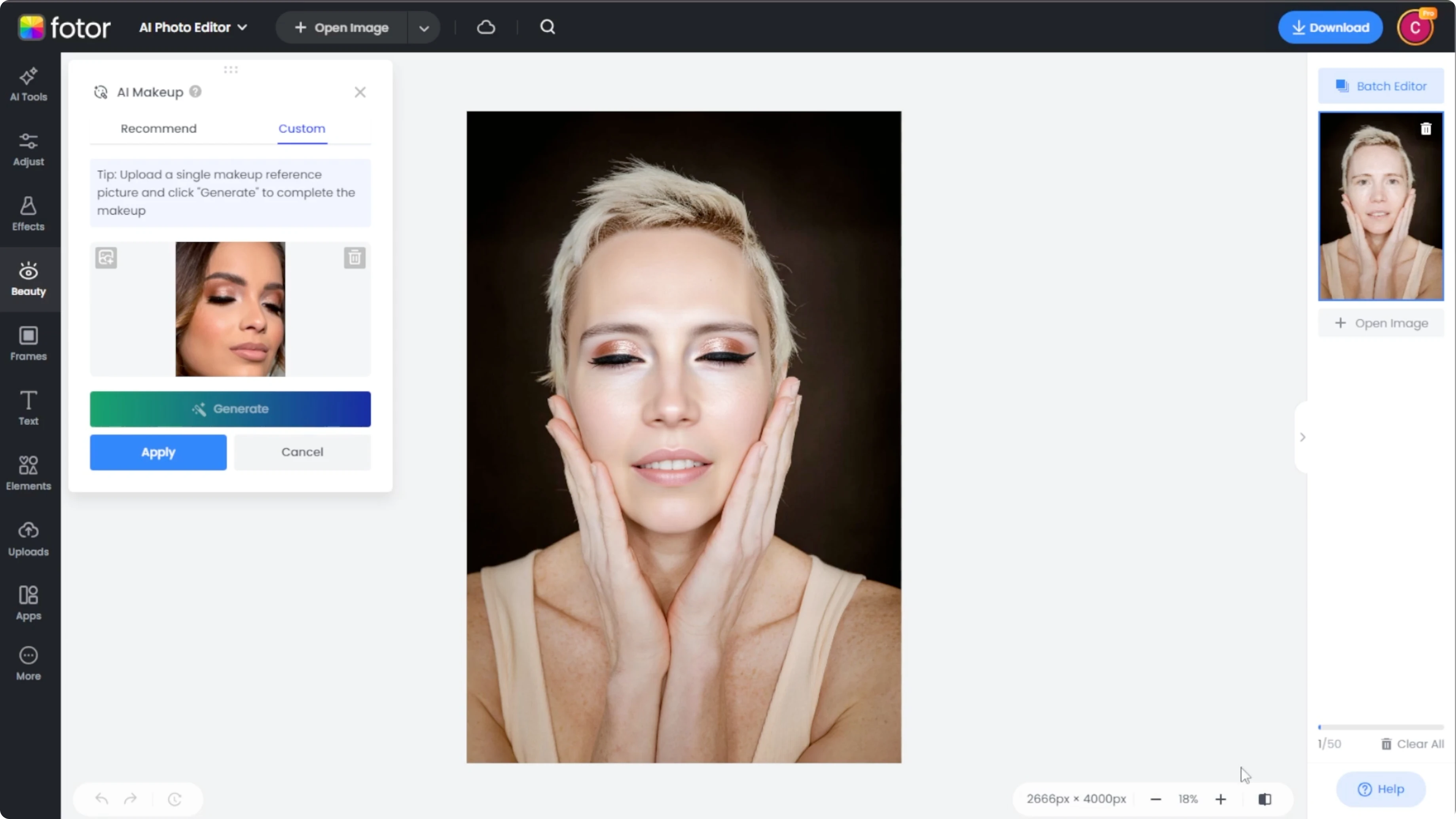
Click the compare button to toggle between the original and the edited version.
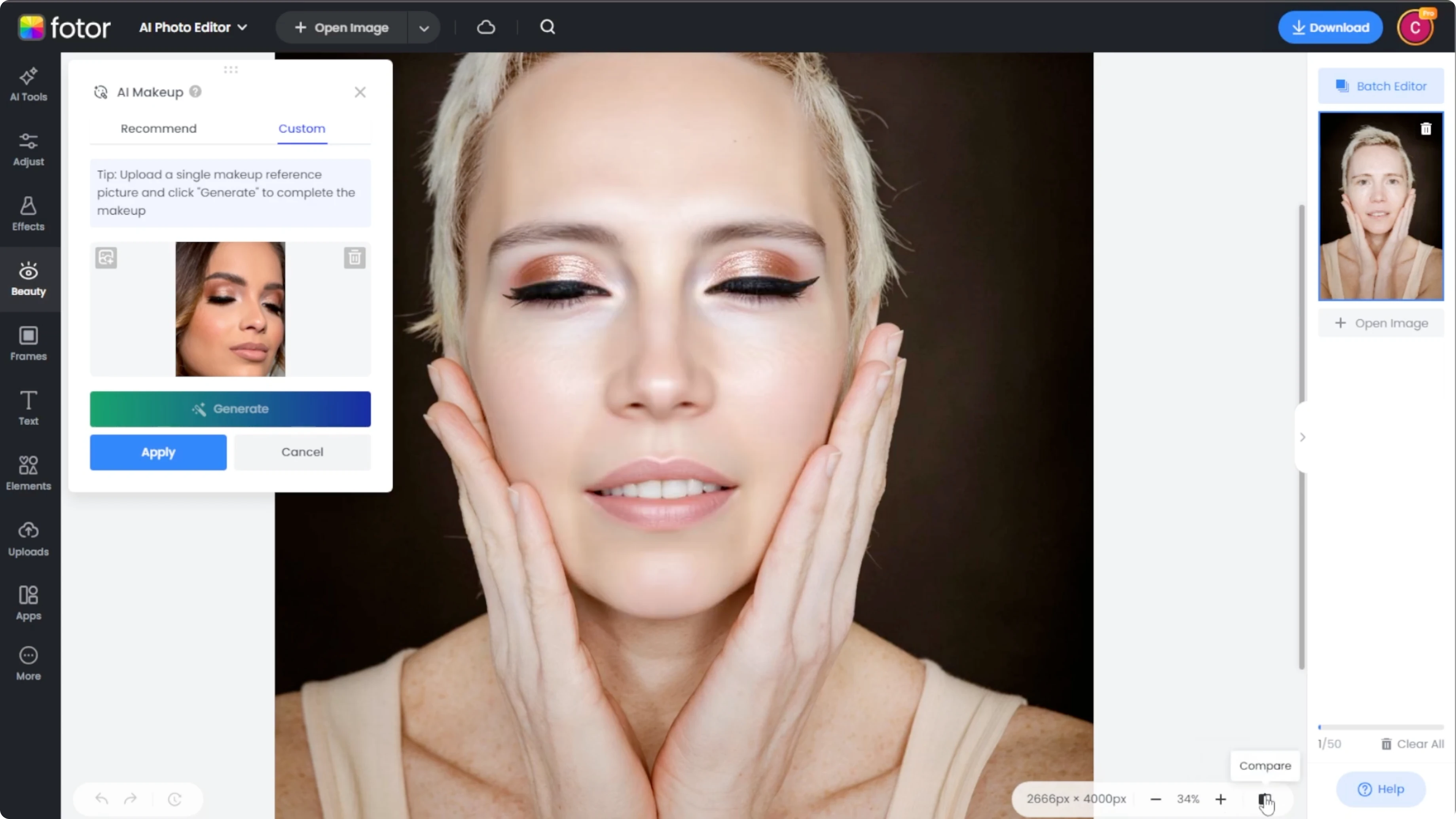
Click apply to finalize the look.
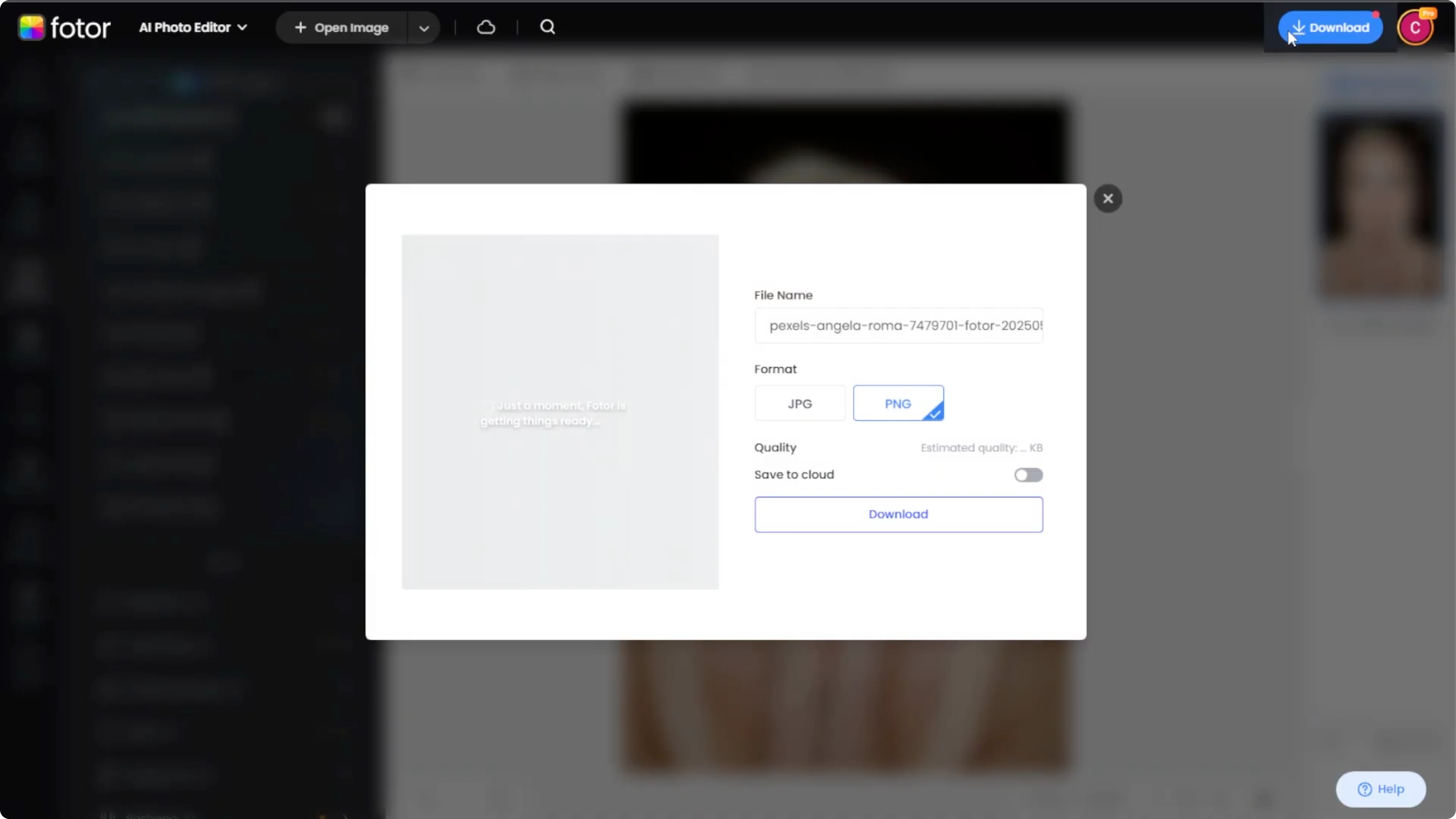
Click download at the top right to save the edited image to your device.
Read More: Generate a virtual model for clothes
Final thoughts
You can quickly try preset makeup looks or create a custom style from a reference photo.
Inspect, compare, and export the result when you are happy.
Save your favorite looks and repeat the steps to build a consistent style across your photos.
Recent Posts

How to Visualize Yourself as a Pixelized Character with AI?
How to Visualize Yourself as a Pixelized Character with AI?

How to Revive Faded Memories and Enhance Image Clarity with AI?
How to Revive Faded Memories and Enhance Image Clarity with AI?

How to Visualize Yourself as an Animal Crossing Character with AI?
How to Visualize Yourself as an Animal Crossing Character with AI?