How to Add Video to Canva Presentation
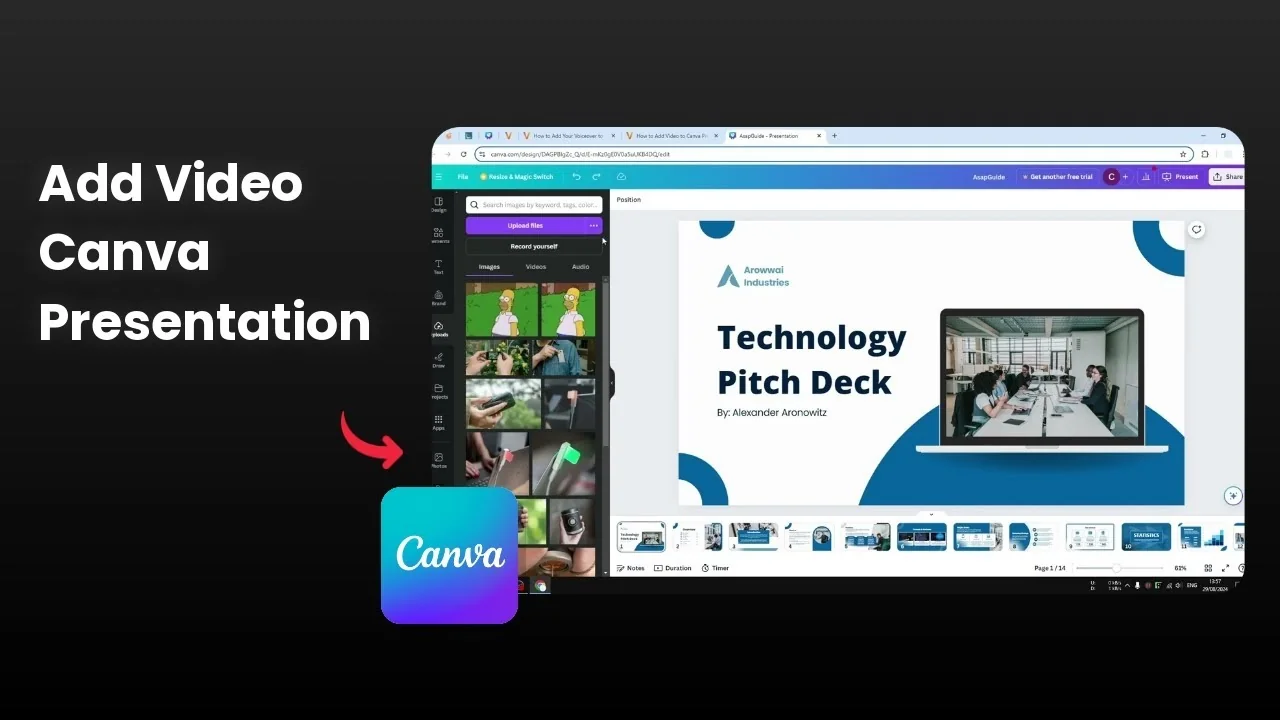
I want to show you how to add a video to your Canva presentation. Video grabs attention because it is a moving picture. Sometimes it is better to explain an idea with a video when voice or a picture is not enough.
Add Video to Canva Presentation
You have two options. You can upload a video from your computer, or select one from the Canva library. There are many videos available, and with the Pro version you will see more high quality options.
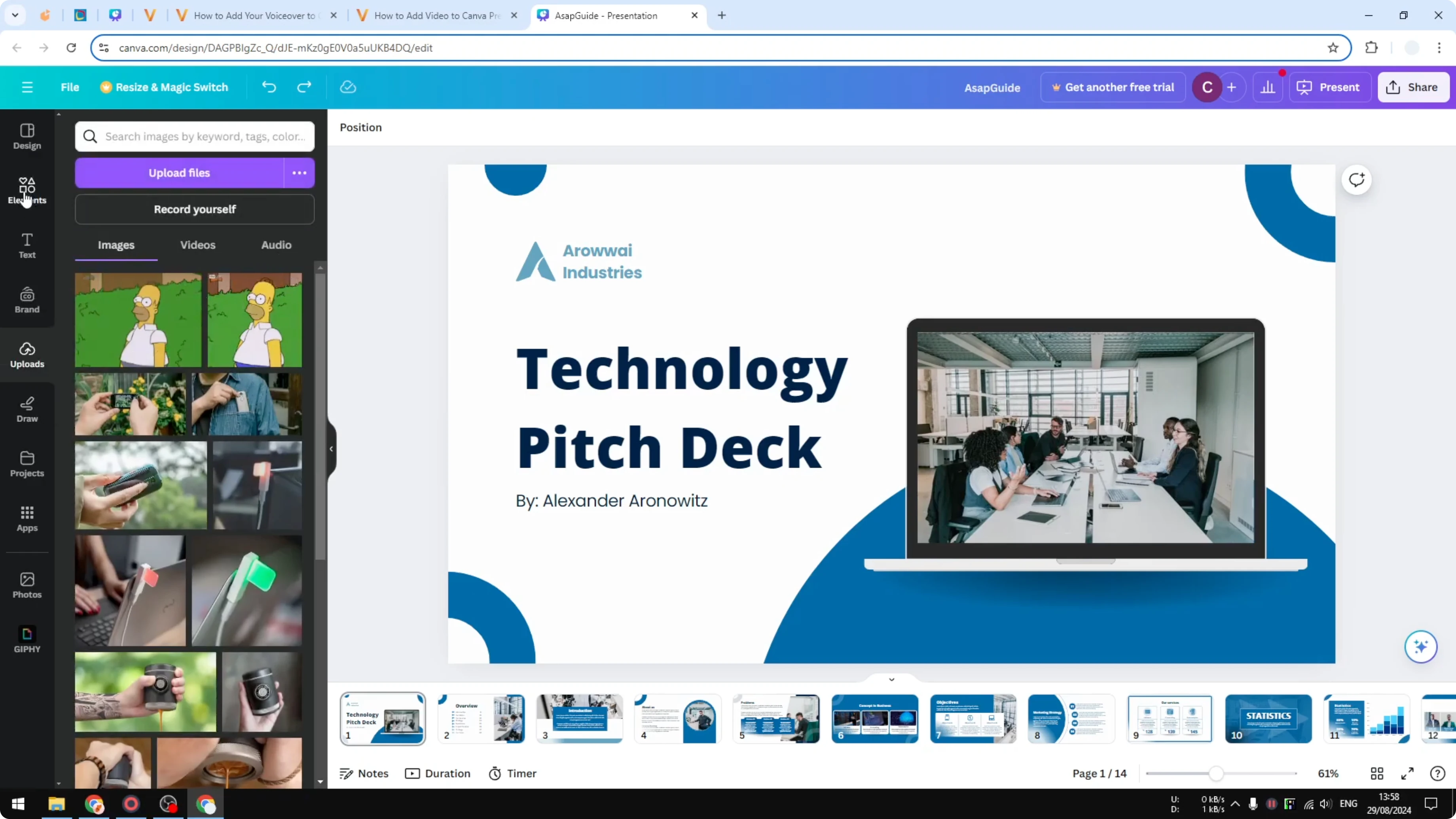
Upload option
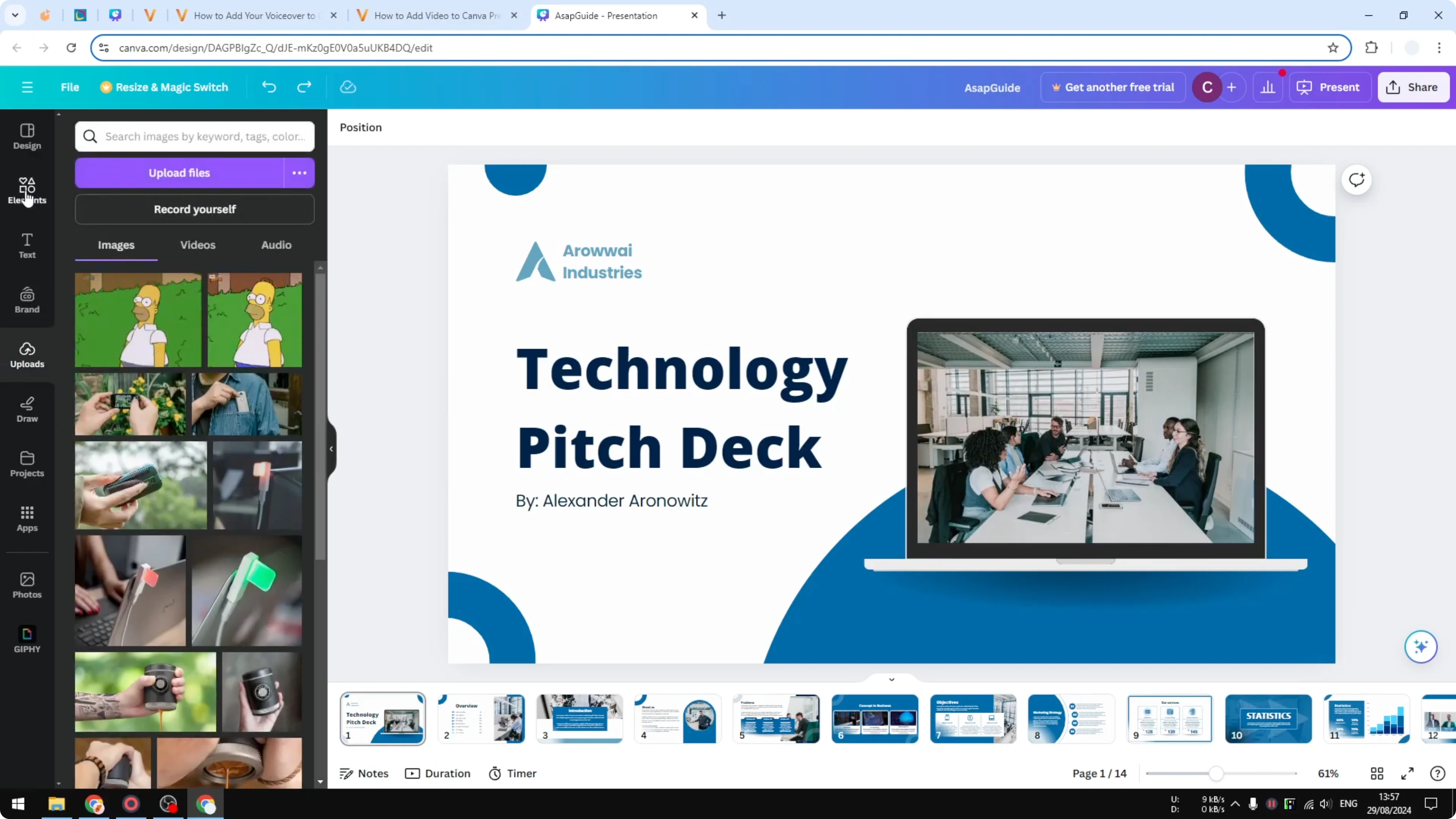
Upload a video from your computer. Go to the menu and upload your file. The video will be added to the slide when you click it.
For a stronger mood and pacing once the video is placed, you can also add background music to your presentation. It works well alongside short clips that set context.
Library option
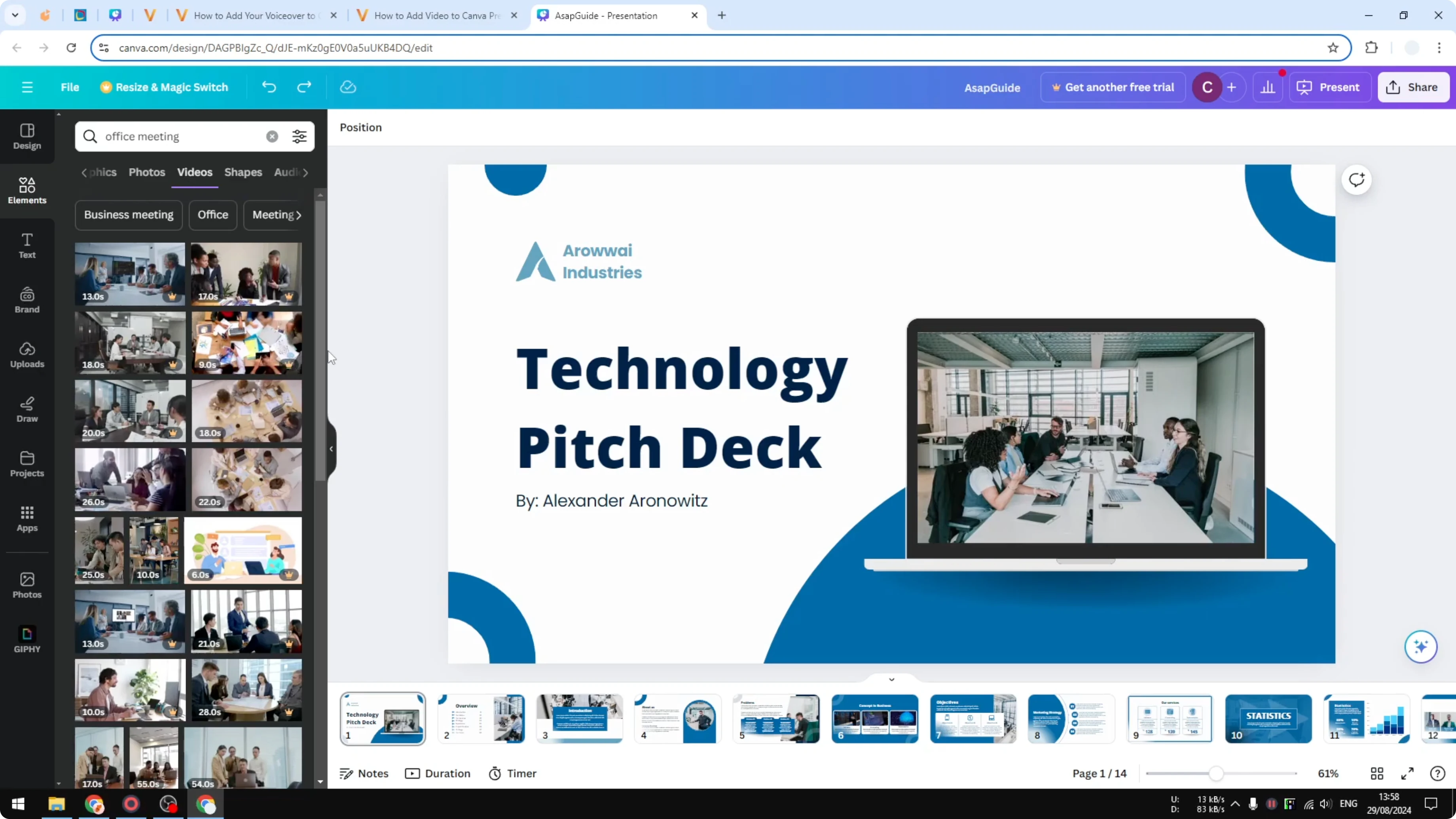
Search the Videos tab for a topic like “office meeting.” I pick a video that is free because I am using the free version, and you can do the same. Click the video and it will be inserted into the slide.
If you want to change the feel of the clip after inserting it, you can apply a filter to your video. Small adjustments can match your presentation style.
Place inside a mockup
Drag and drop the video into a frame or a laptop mockup element. The video snaps into that element, and it looks beautiful. This is exactly what I do with a laptop mockup.
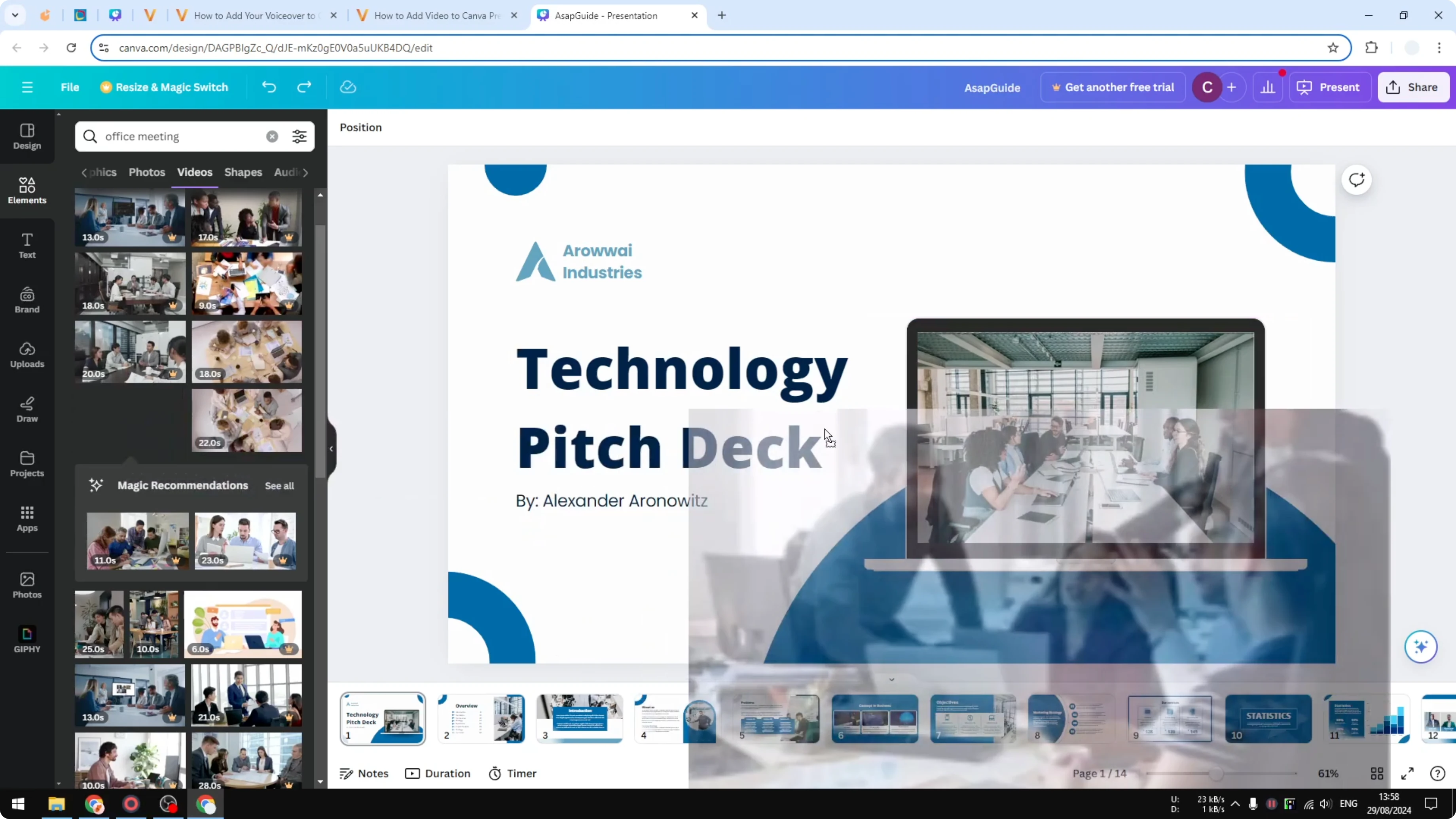
To polish the overall flow, you can also add transitions between slides. Smooth timing makes the auto-playing clip feel natural inside your deck.
Playback behavior
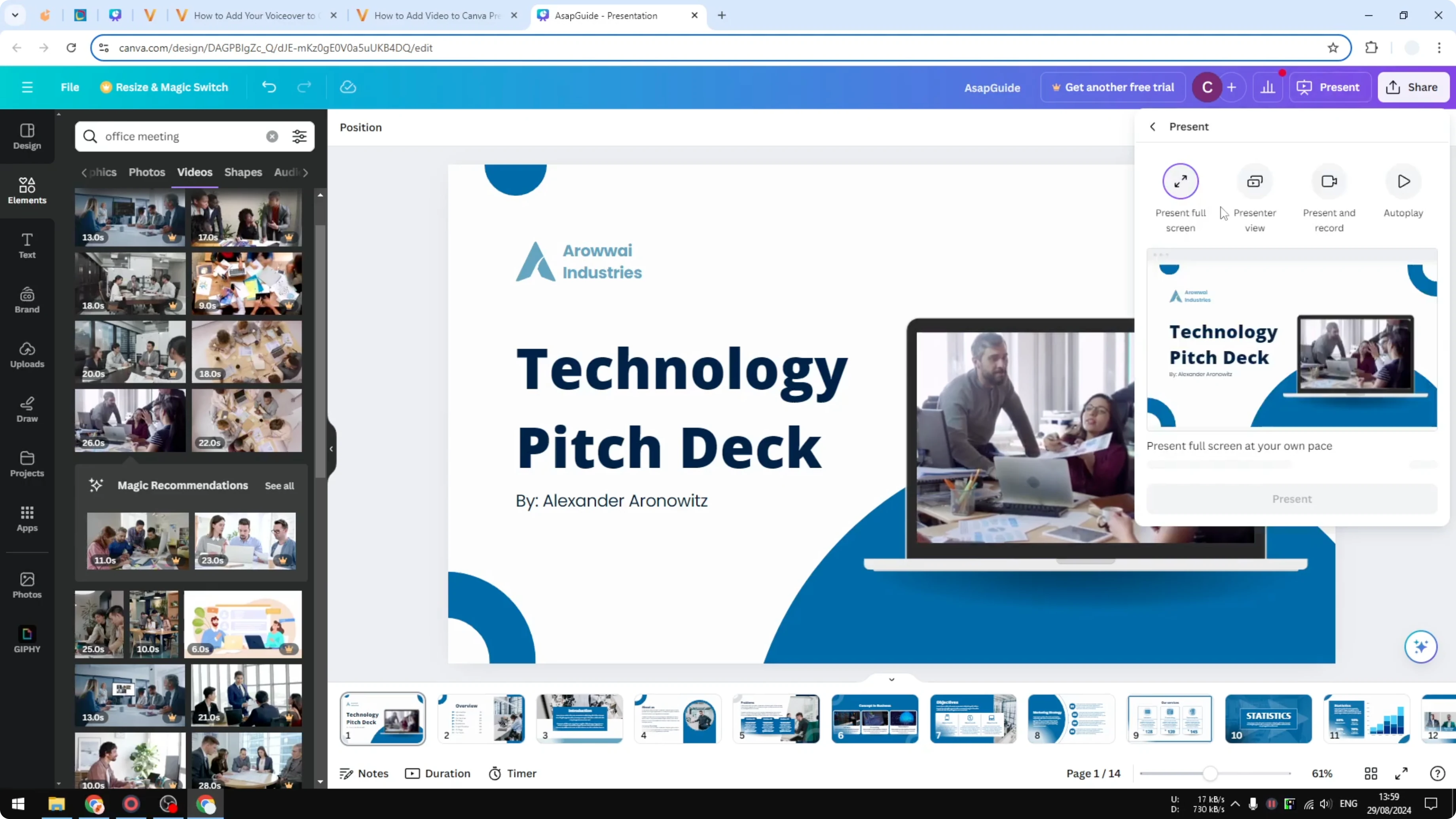
When you present, the video plays automatically by default. That is exactly what we want for a quick visual demonstration.
Final Thoughts
Adding a video to a Canva presentation is quick and effective. Upload your own clip or choose one from the library, then click to insert or drag it into a mockup. Auto-play during the presentation makes your point clear without extra steps.
Recent Posts

How to Visualize Yourself as a Pixelized Character with AI?
How to Visualize Yourself as a Pixelized Character with AI?

How to Revive Faded Memories and Enhance Image Clarity with AI?
How to Revive Faded Memories and Enhance Image Clarity with AI?

How to Visualize Yourself as an Animal Crossing Character with AI?
How to Visualize Yourself as an Animal Crossing Character with AI?