How to Add Site Description to Your Canva Website
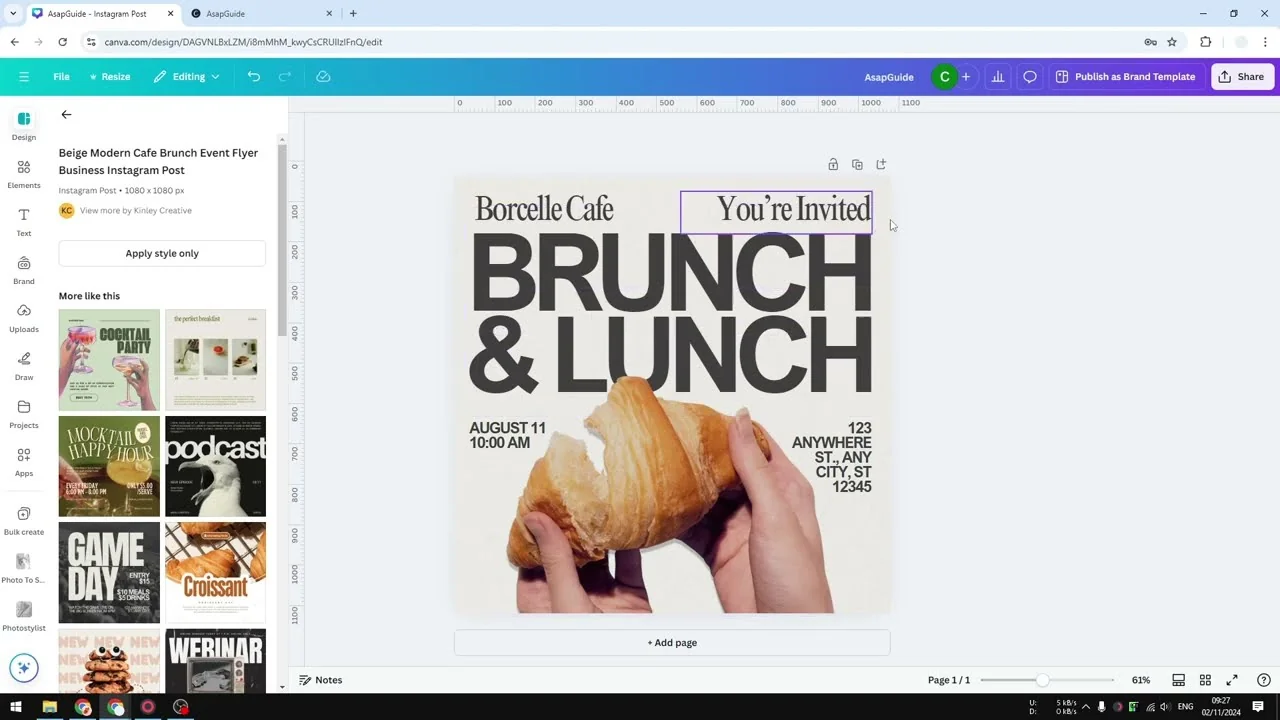
I will show you how to add a description to your Canva website. This description is used by search engines to understand the content of your page or site. It is useful if you care about search visibility and want people to find your website easily.
I have a document that has been published as a Canva website. I will add a short description and confirm where it appears in the code. If you are also improving your visuals, see how to add background text in Canva to make key phrases stand out.
Why Add Site Description to Your Canva Website
The site description is a meta description that search engines read to display a short summary in results. Visitors usually see it on search result pages, not on your website itself.
If you refresh your site after adding it, you will not see a new field or section on the page. That is expected, because the description is reserved for search engines.
Steps to Add Site Description to Your Canva Website
Open your Canva design that has been published as a website.
Click Share.
Select Website.
Click Public settings.
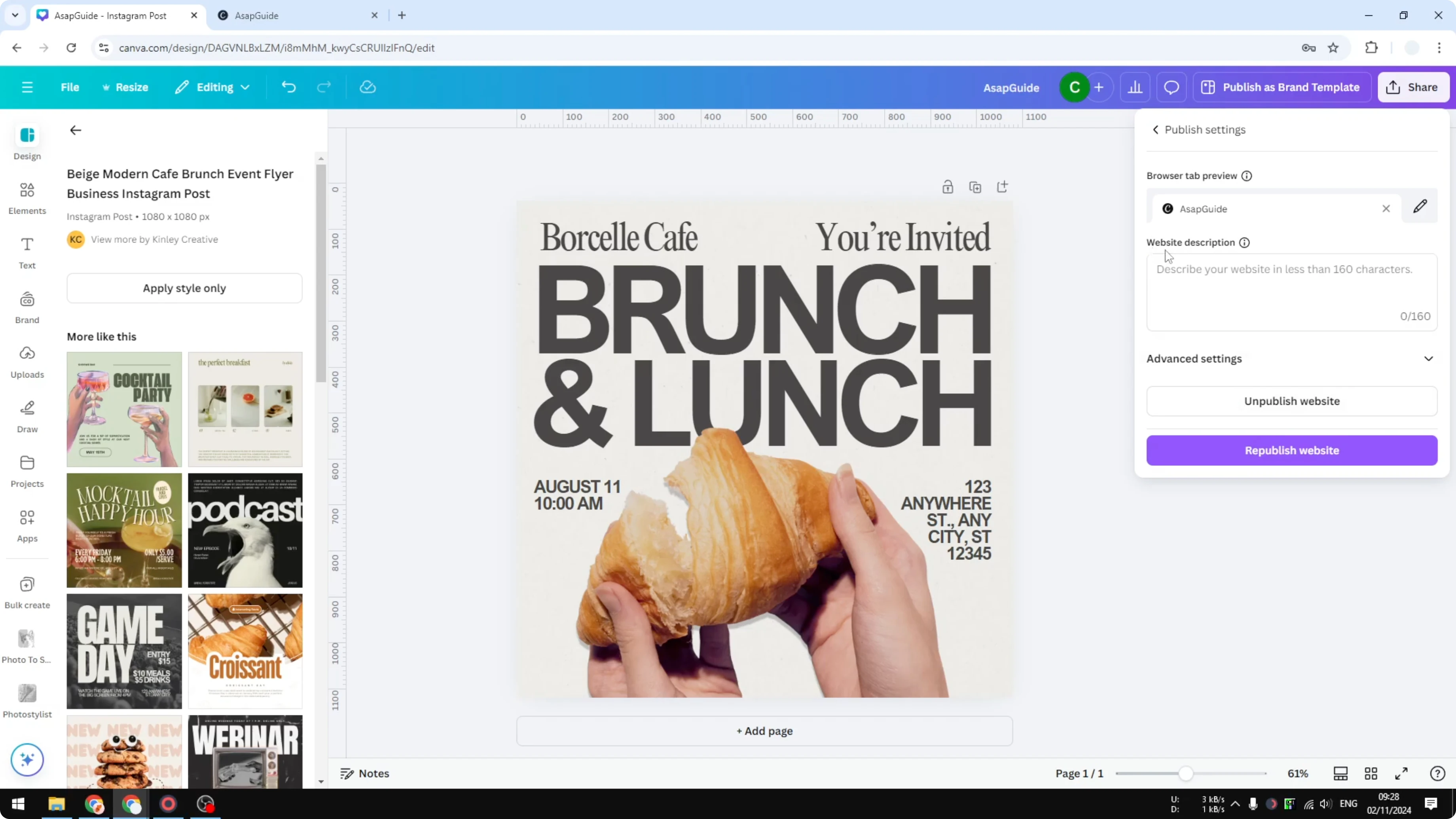
Find Website description and write a short summary, slogan, or anything that encourages visitors to click.
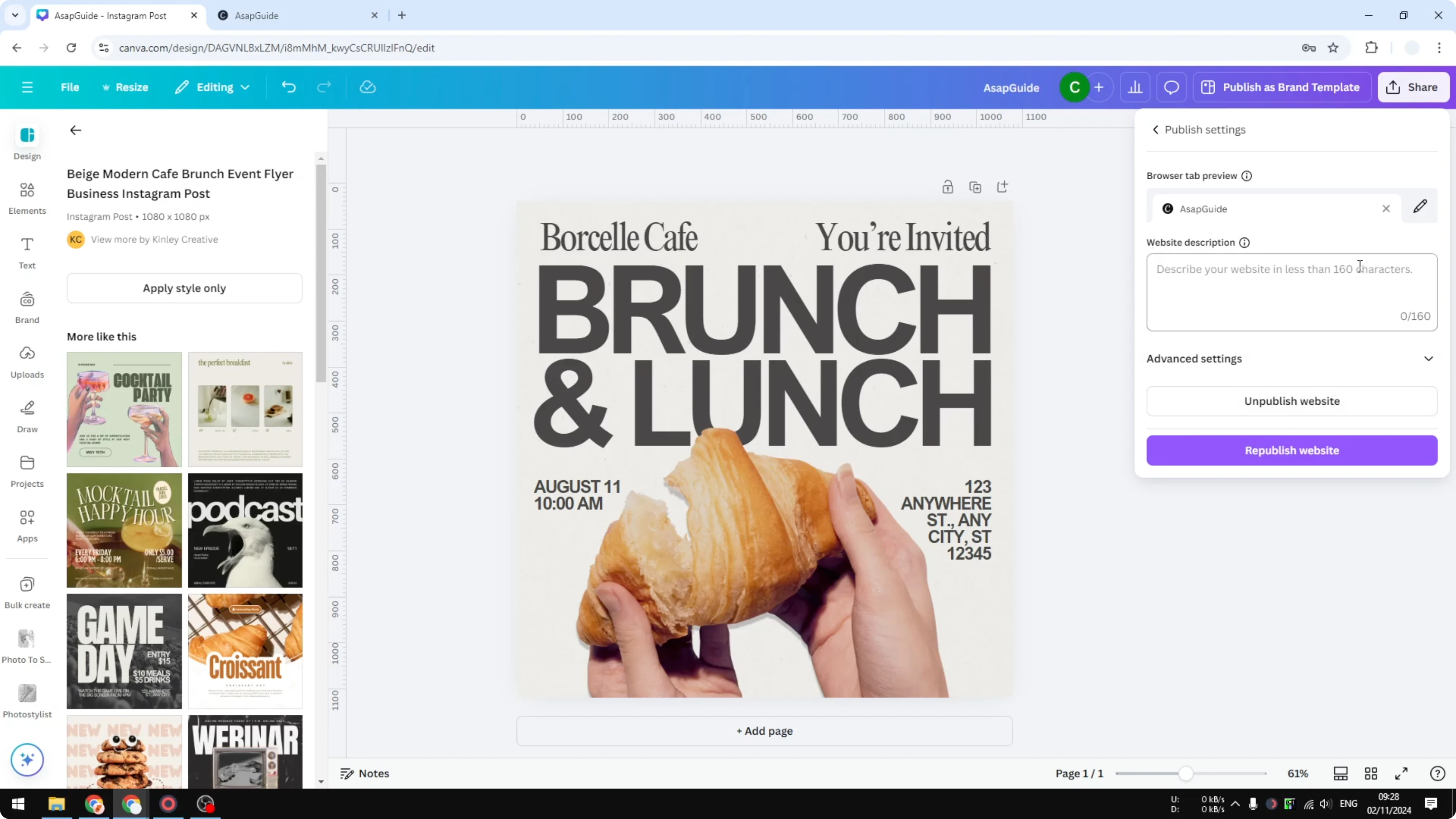
Keep it under 160 characters so it does not get cut off.
Click Republish website.

Wait a few seconds for the change to apply.
If you are refining your images while you work, you can also create blended edges for a photo in Canva to get a softer look.
What You Will See on the Page
After republishing, refresh the page. You will not see the description on the top menu or anywhere on the page. The content stays the same because the description is a meta tag for search engines.

Verify the Meta Description on Your Canva Website
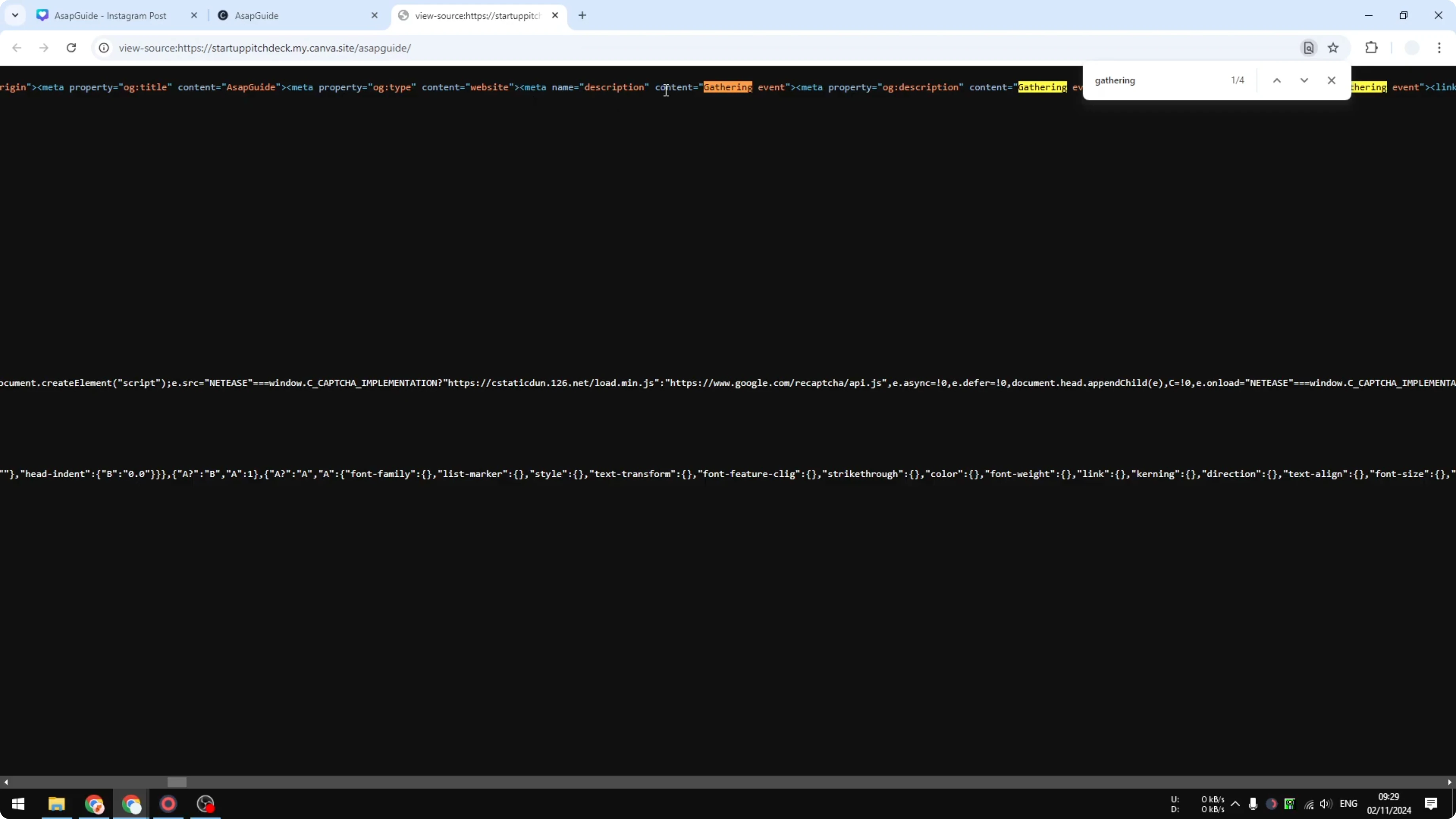
Right click anywhere on the page and click View page source.

Search for a unique word from your description, such as Gathering.
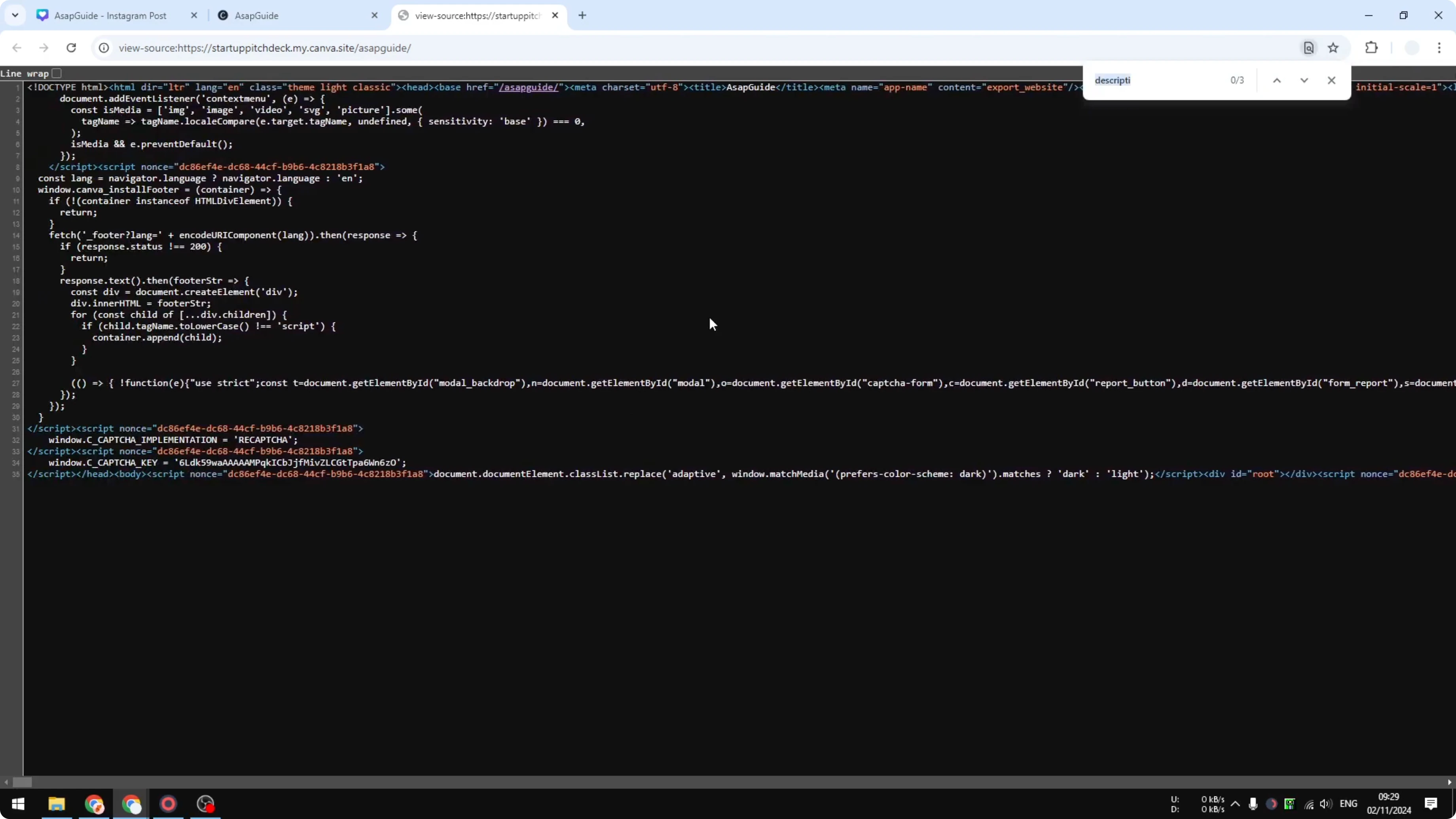
You should see a meta tag similar to this:
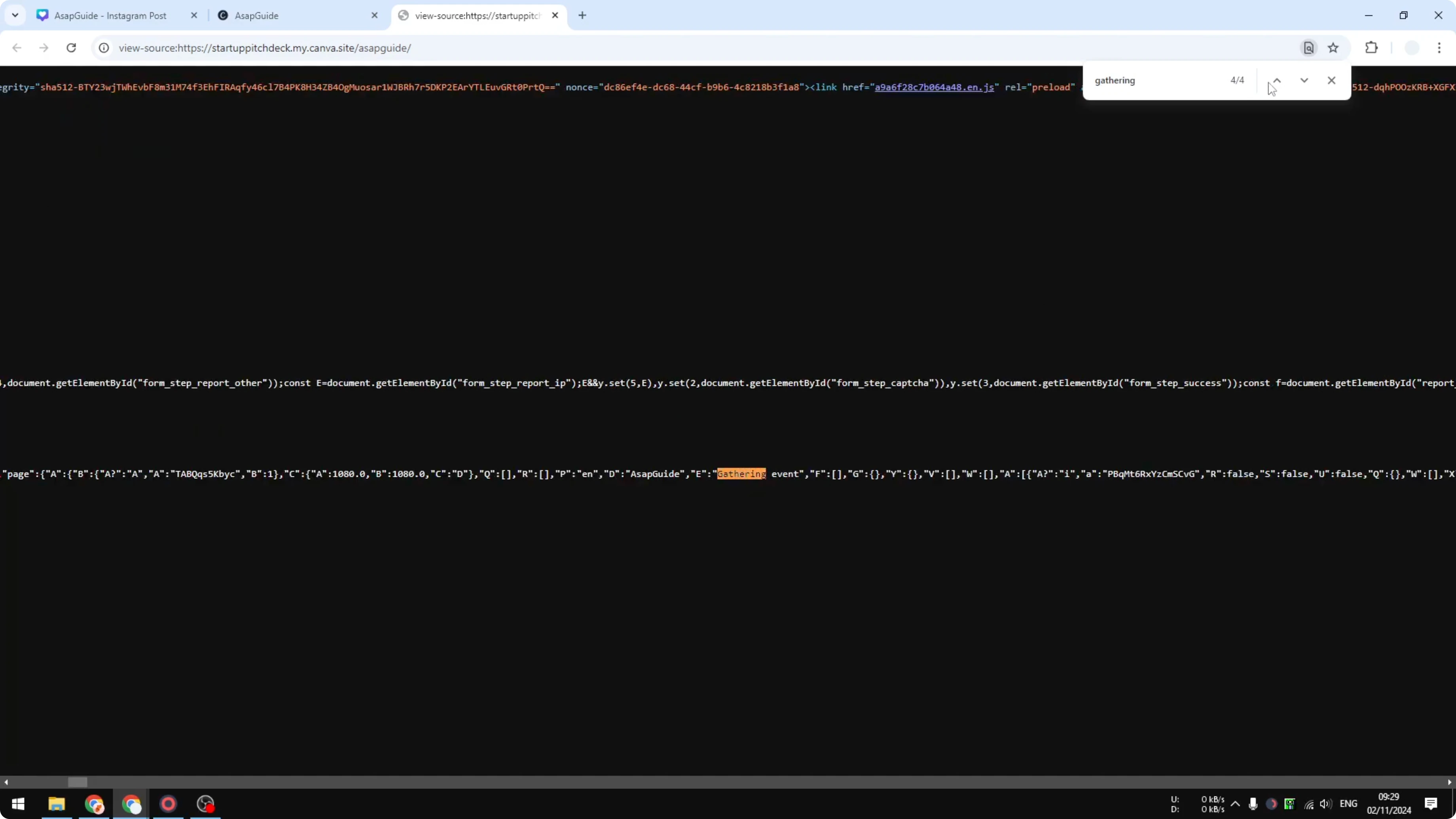
<meta name="description" content="gathering event" />
If the meta description is there, you can be confident it has been applied to your website. Search engines should be able to discover and index it correctly. If you are also polishing typography, you can add a border to a text box in Canva for clearer emphasis.
Add Site Description to Your Canva Website: Final Thoughts
Adding a site description in Canva is quick, and it helps search engines understand your page. Publish the change, then confirm it in the page source by locating the meta description tag. Once you see it in the code, your description is set for search engines to pick up.

Recent Posts

How to Visualize Yourself as a Pixelized Character with AI?
How to Visualize Yourself as a Pixelized Character with AI?

How to Revive Faded Memories and Enhance Image Clarity with AI?
How to Revive Faded Memories and Enhance Image Clarity with AI?

How to Visualize Yourself as an Animal Crossing Character with AI?
How to Visualize Yourself as an Animal Crossing Character with AI?