How to Add Panning Animation in Canva
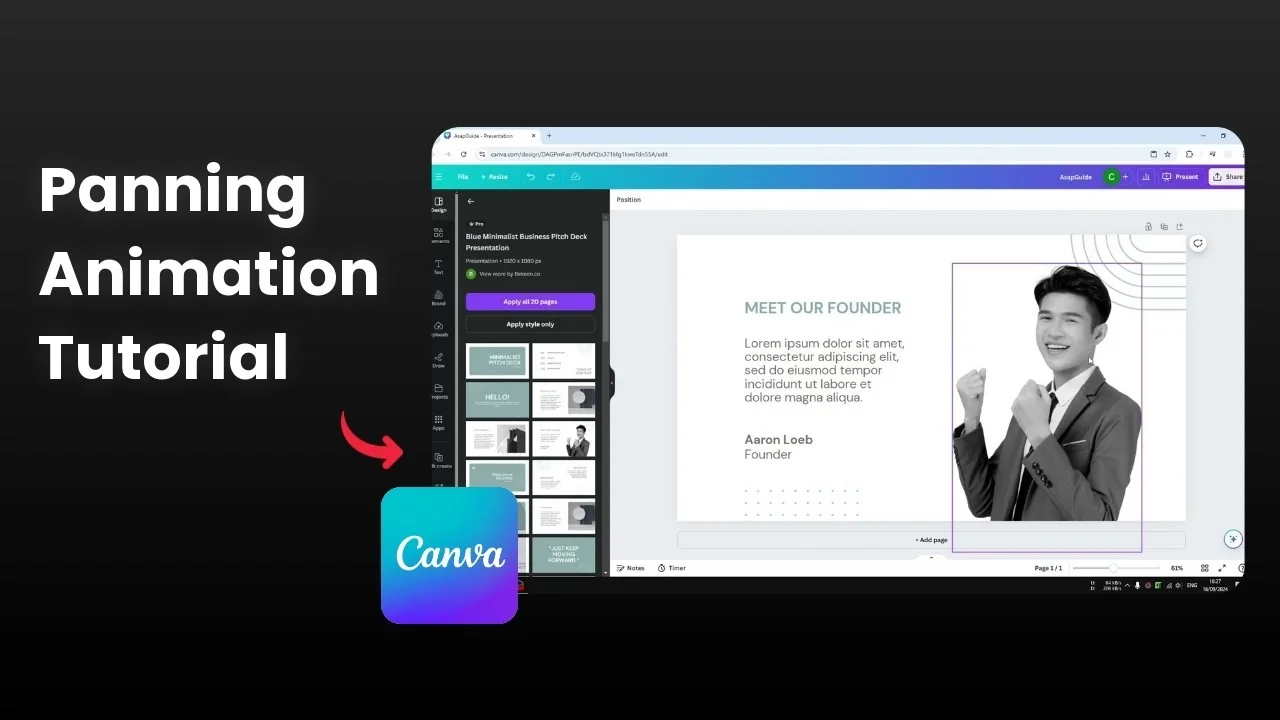
This quick guide shows how I add the panning animation effect to a Canva presentation slide. I have text, a picture, and a few decorative elements. I want each element to move toward the center to focus attention.
The general rule when applying panning is to set every animated element to move toward the center of the slide. A picture on the right should pan from right to left, and text on the left should pan from left to right. Elements at the bottom should rise, and elements at the top should move downward to meet in the middle.
If you use arrows to guide the eye, you can create them and animate them with the same center focused rule. For that design step, see how to add an arrow line. It fits nicely with this panning approach.
Add Panning Animation in Canva
Direction rule
I apply panning so everything moves toward the center. Right side elements move right to left, and left side elements move left to right. Bottom elements move up, and top elements move down.
Animate the picture
Click the picture.
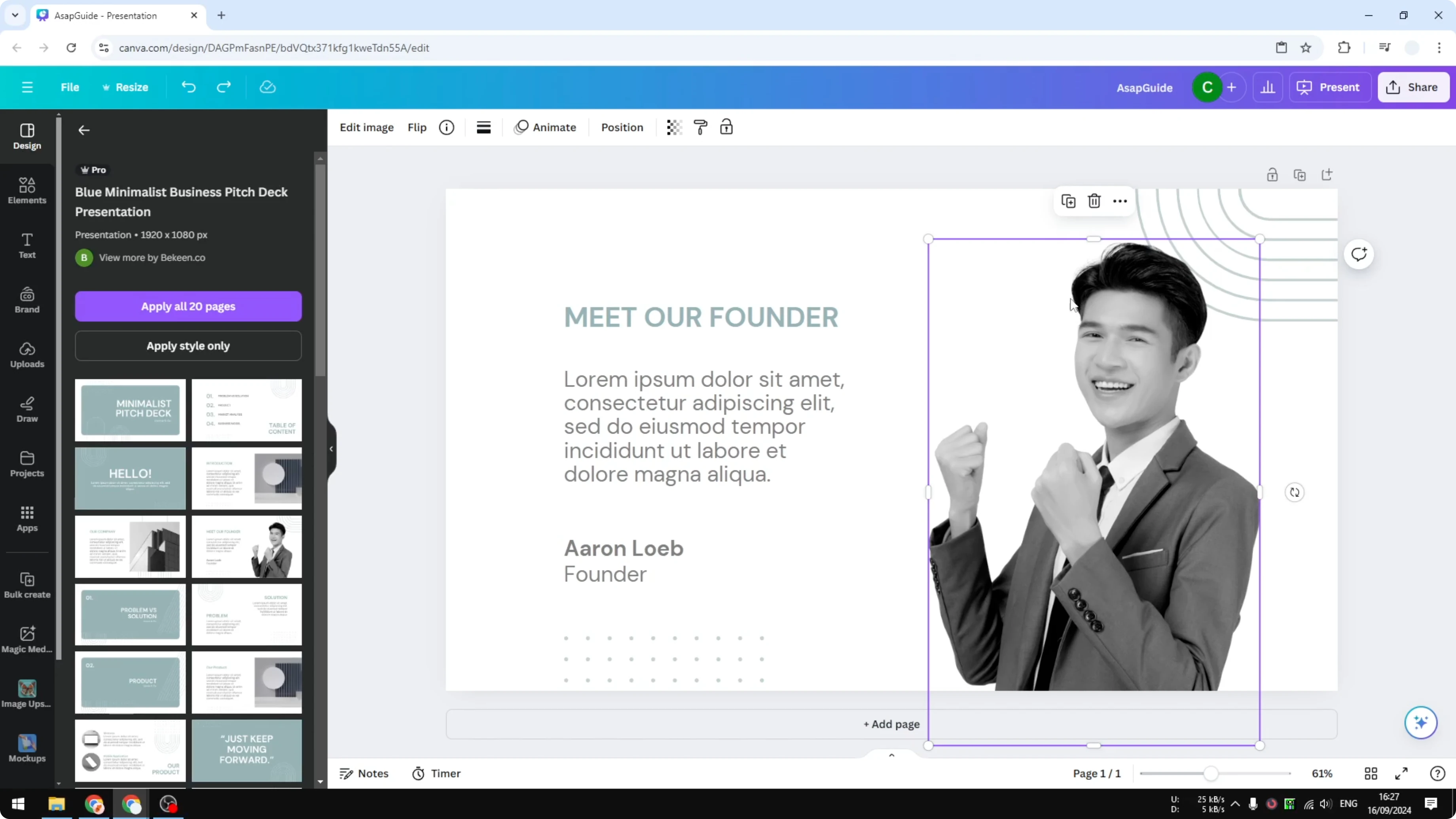
Click Animate.
Choose Pan.
Pick the right to left direction so it travels toward the center.
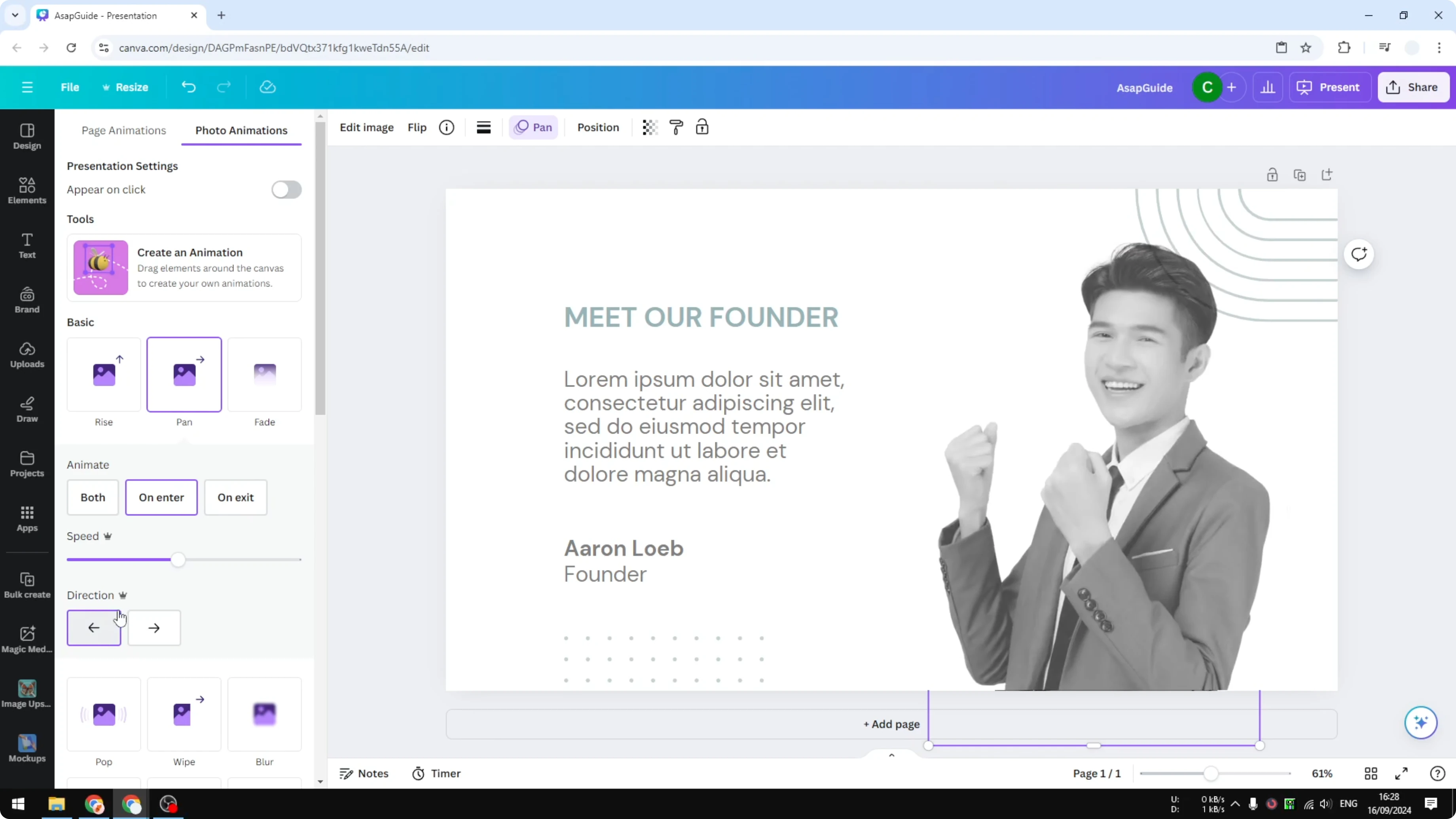
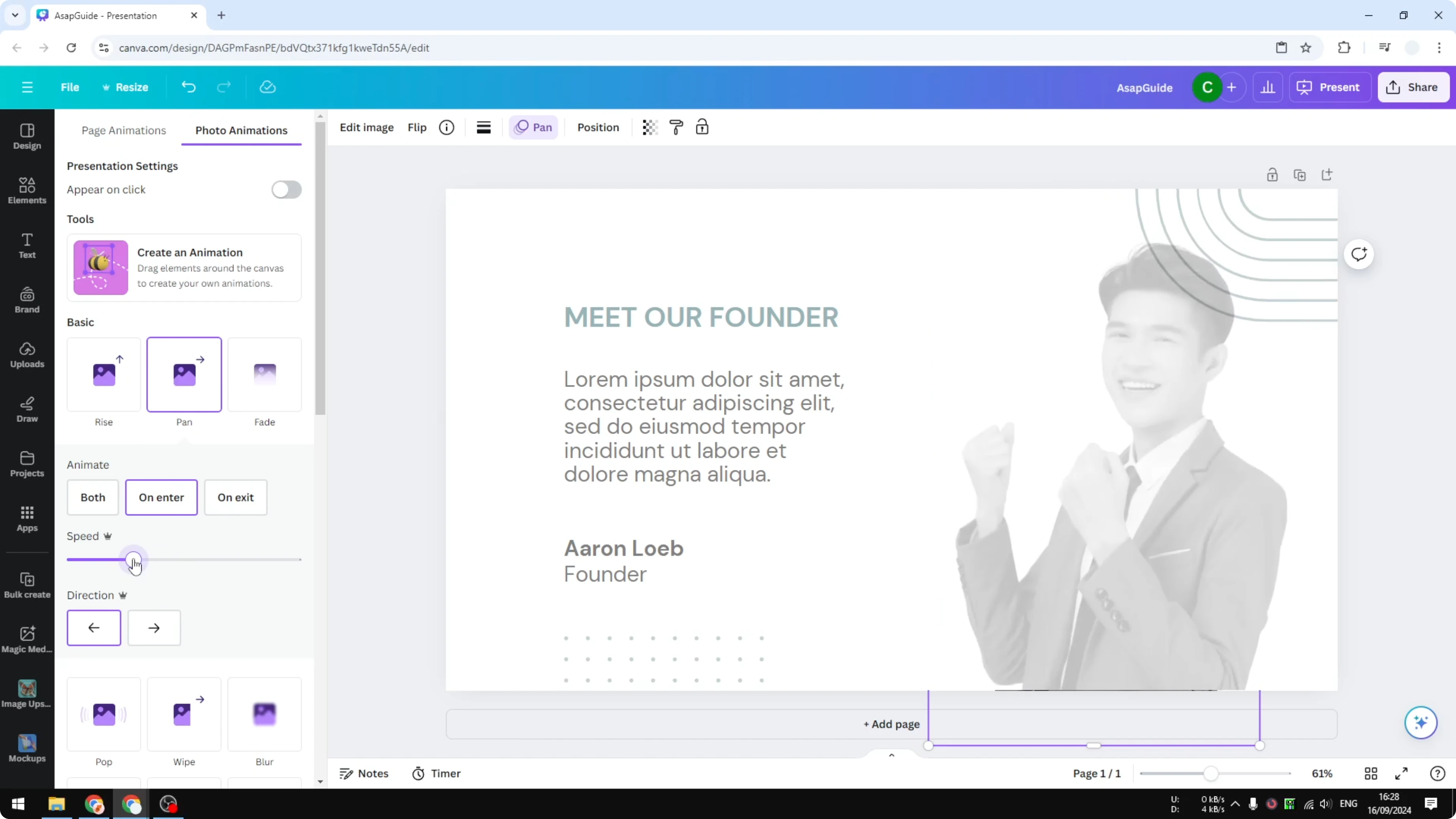
Adjust Speed if you like it slower or faster, though I keep the default.
For accessibility as you polish the slide, remember to add alt text to pictures in Canva. It helps screen readers describe your content.
Animate the text
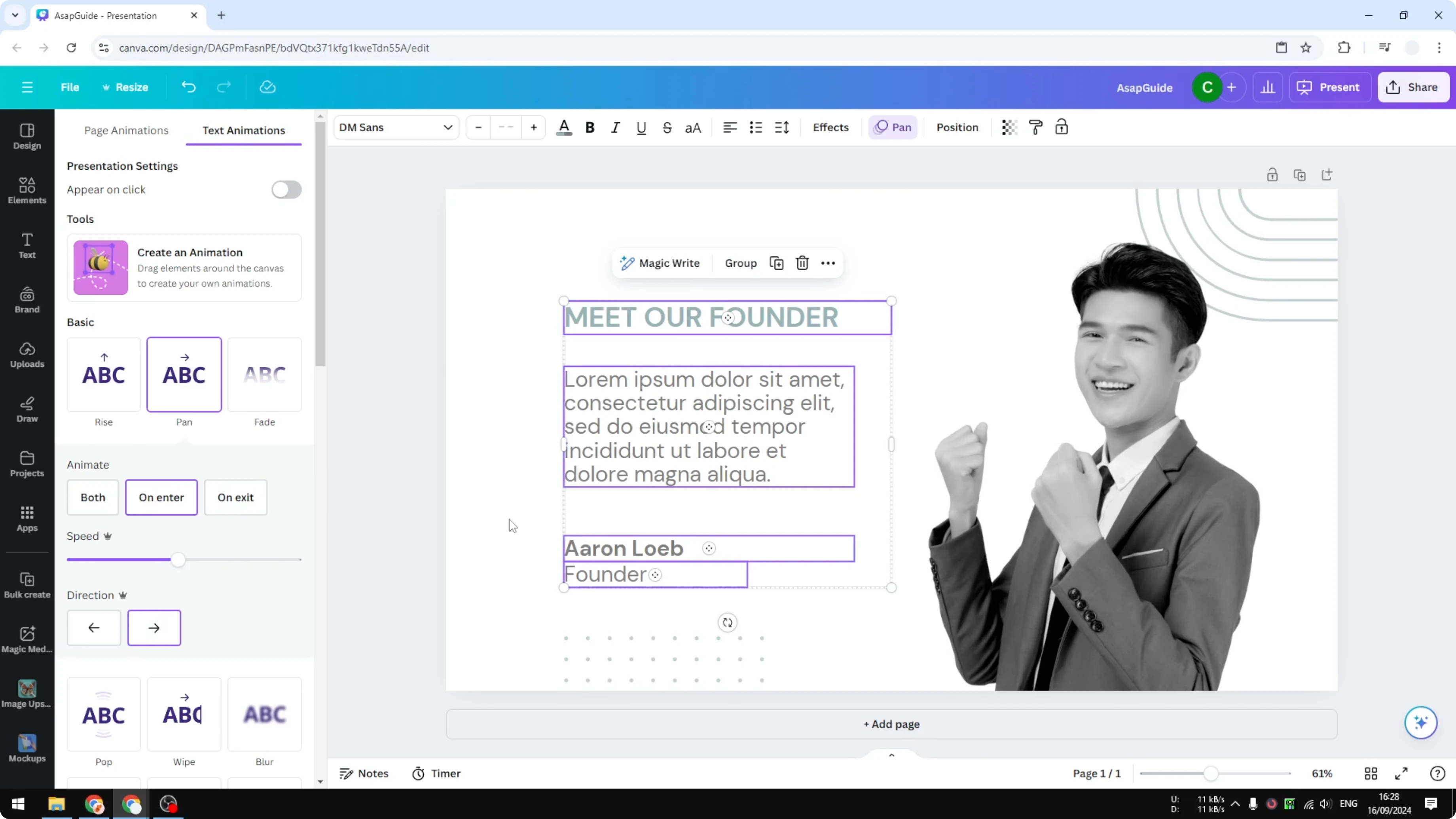
Select the entire text box.
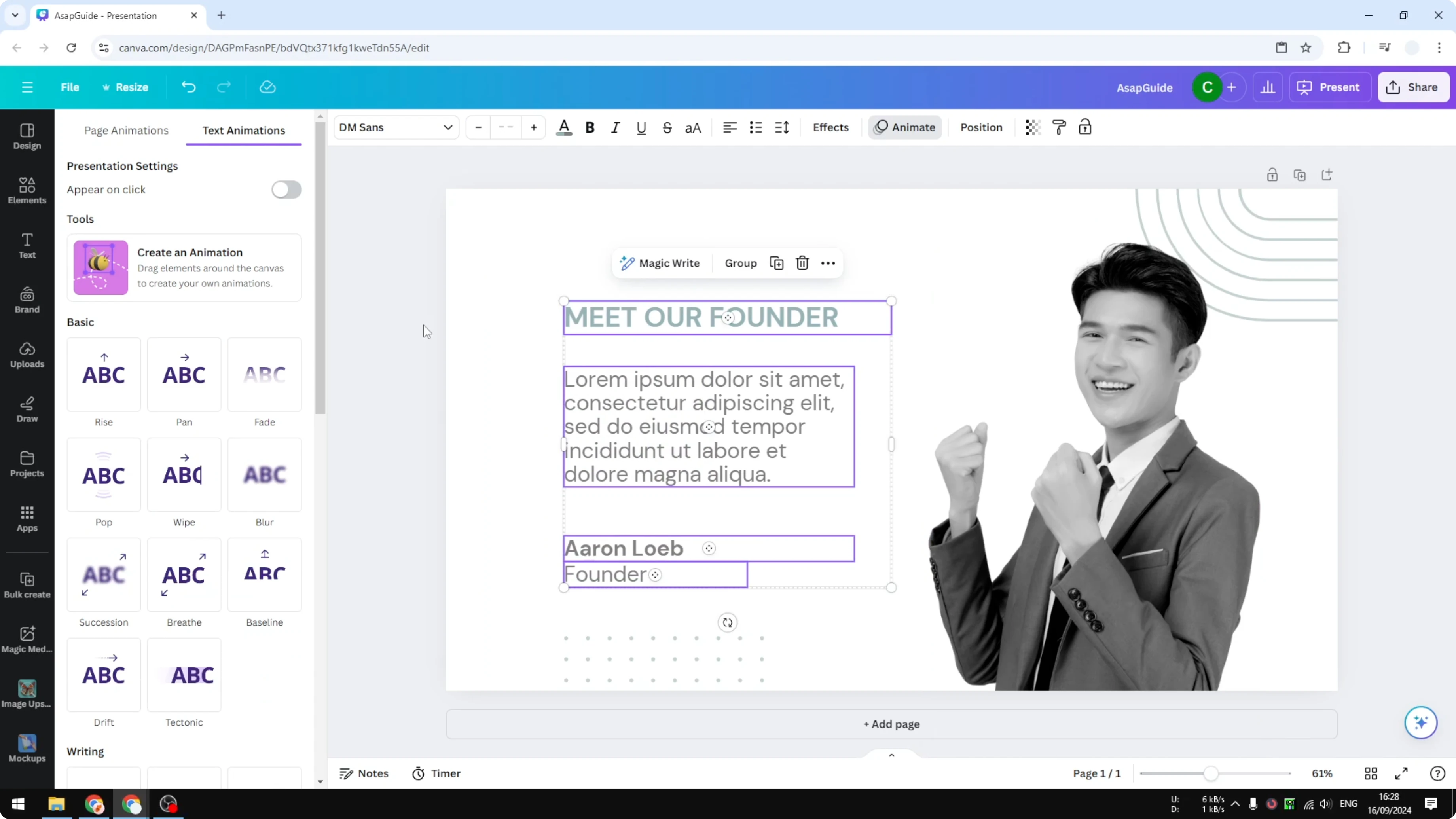
Click Animate.
Choose Pan.
Pick the left to right direction so it heads toward the center.
If your heading needs special characters, see how to add accent marks in Canva. It keeps your typography accurate.
Animate decorative elements
Bottom element
Select the decorative element near the bottom.
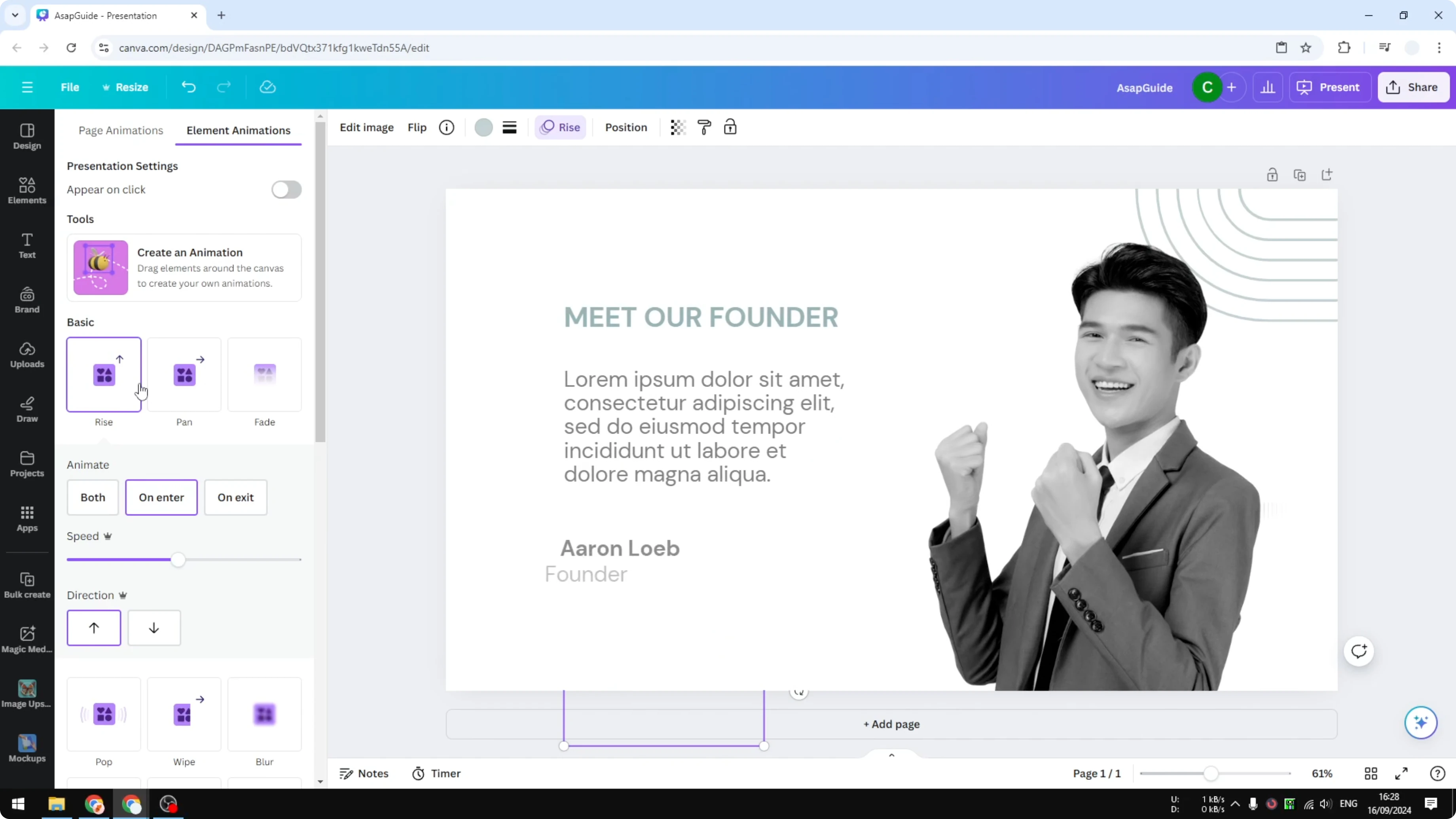
Click Animate.
Choose Pan.
Set direction bottom to top to lift it toward the middle.
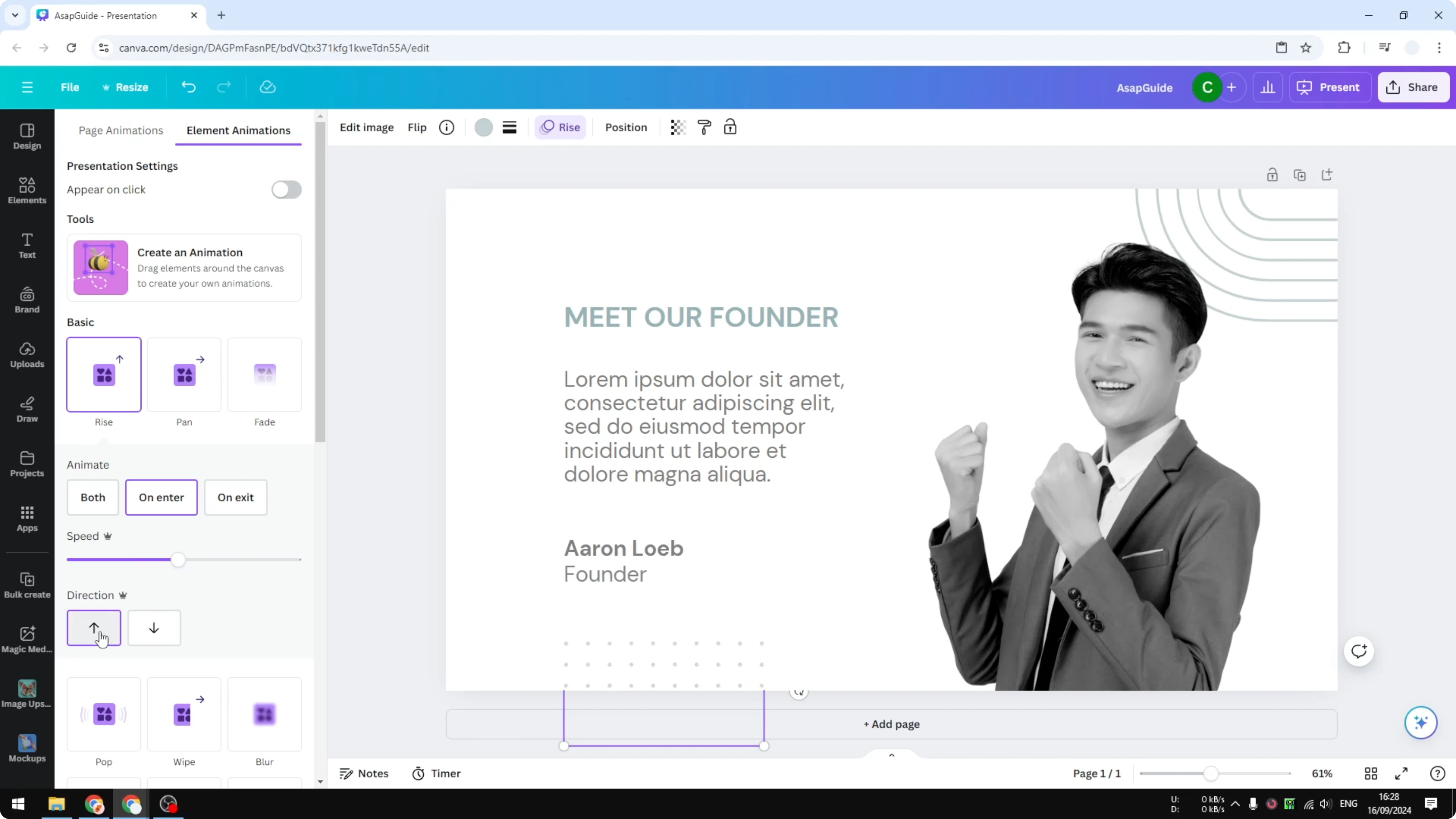
Top element
Select the decorative element near the top.
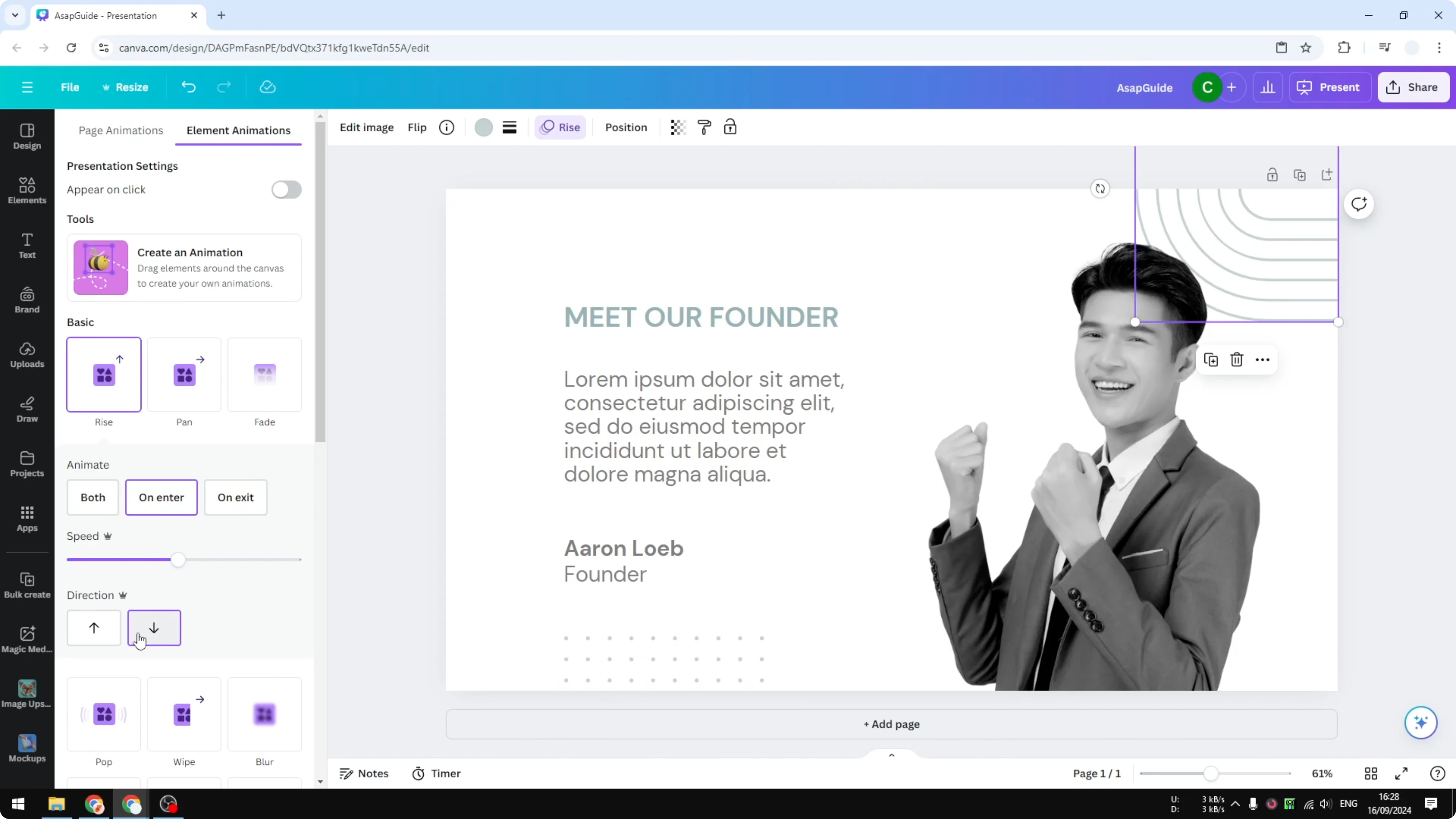
Click Animate.
Choose Pan.
Set direction top to bottom to bring it into the center.
Preview the slide
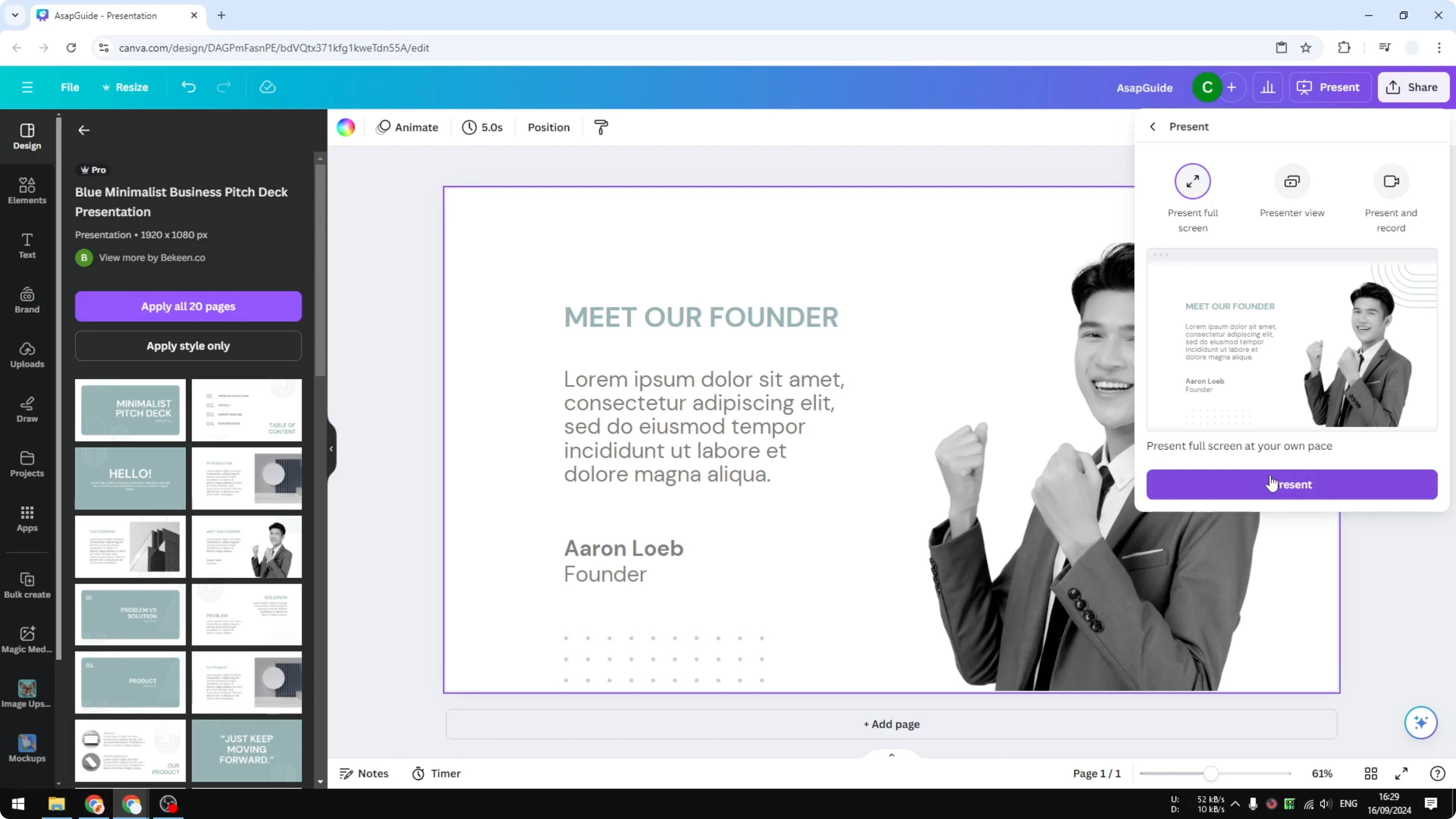
Present the slide to see every object animate toward the middle. The motion focuses attention and looks much better than a static layout. If needed, exit the preview, tweak directions or speed, then preview again.
Final thoughts
Applying panning toward the center on each element creates a clear focal point. Pictures move in from the sides, text meets them from the opposite side, and decorative pieces travel from top and bottom. The result is a cleaner, more engaging slide without complicated setup.
Recent Posts
How to Visualize Yourself as a Pixelized Character with AI?
How to Visualize Yourself as a Pixelized Character with AI?
How to Revive Faded Memories and Enhance Image Clarity with AI?
How to Revive Faded Memories and Enhance Image Clarity with AI?
How to Visualize Yourself as an Animal Crossing Character with AI?
How to Visualize Yourself as an Animal Crossing Character with AI?