How to Add MP3 to Canva Presentation
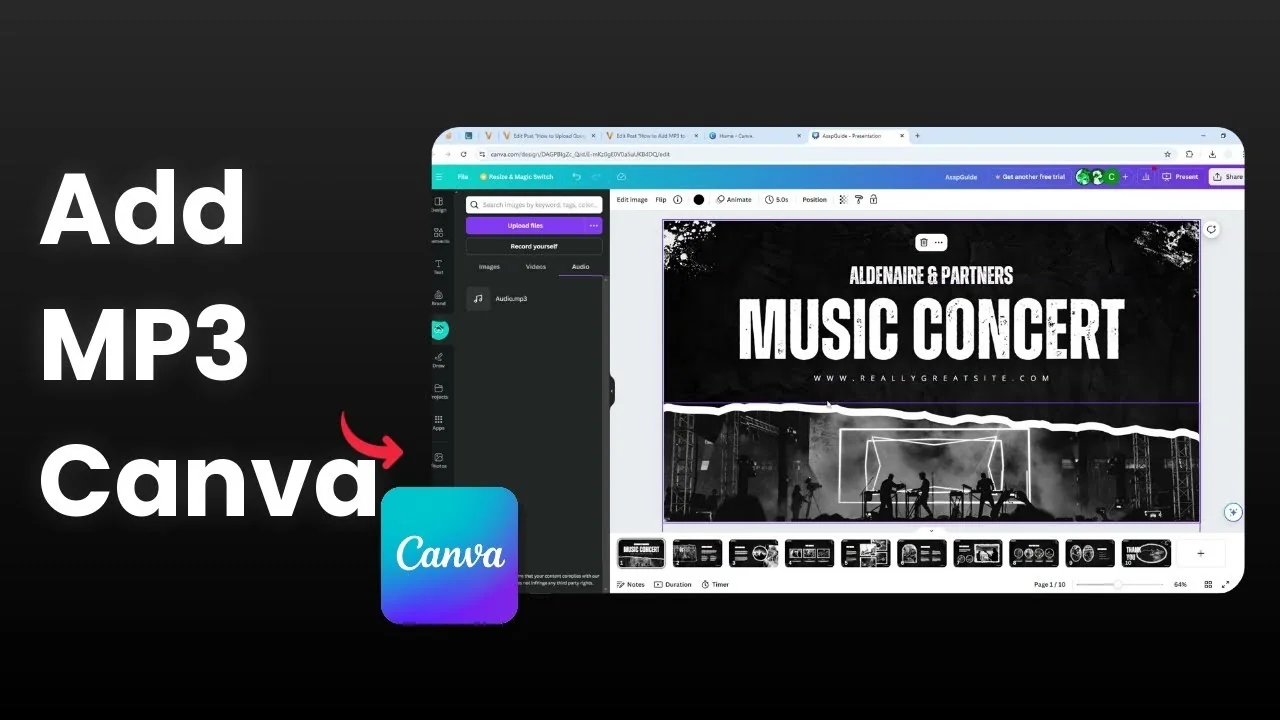
I show you how to upload an MP3 file as background music for your Canva presentation.
For slide visuals, see this guide on backgrounds: add a background in a Canva presentation.
Add MP3 to Canva Presentation: Upload
Open your document.
Go to the Uploads menu.
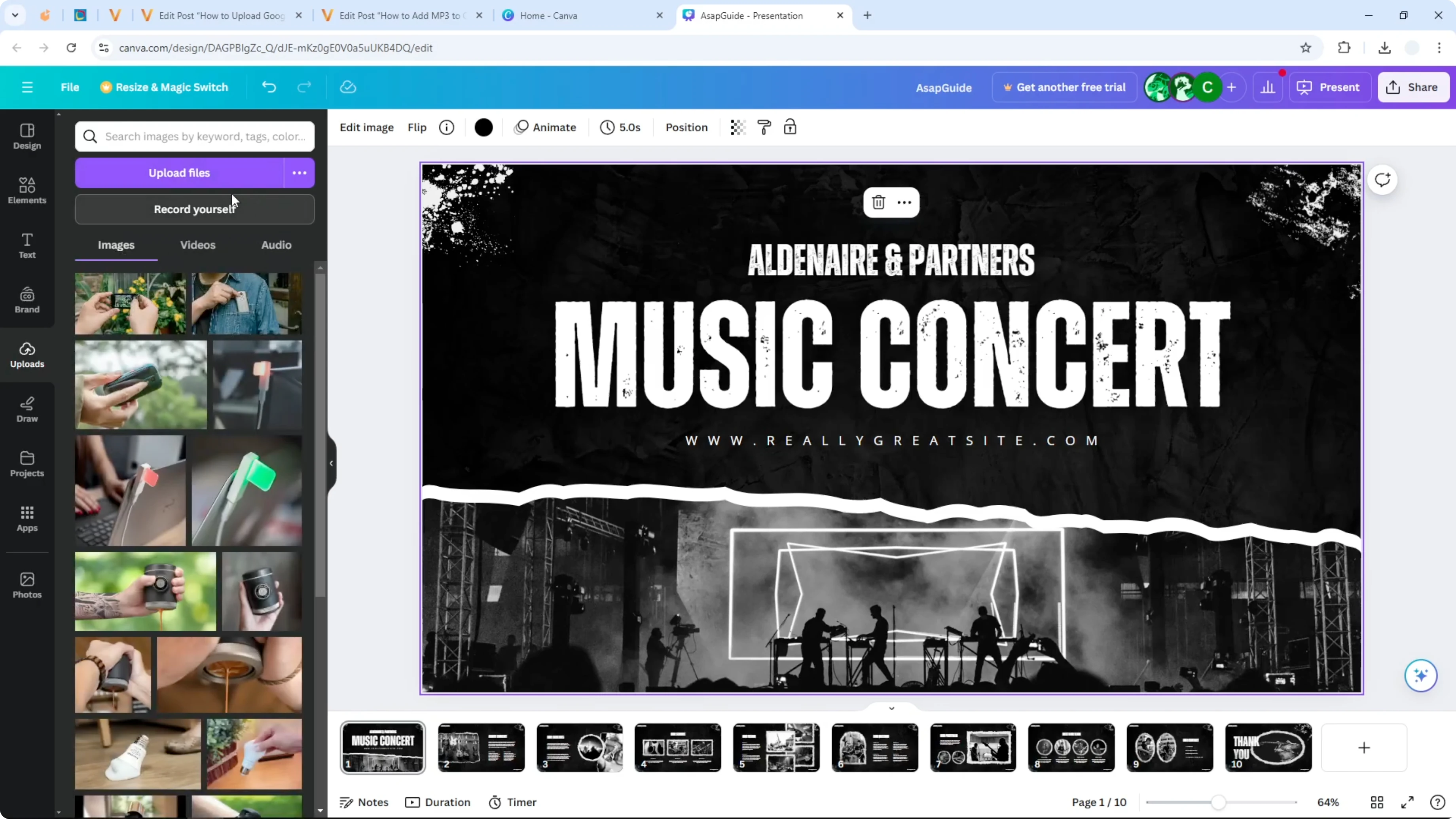
Click Upload files, or drag and drop the MP3 from your file explorer into the upload area.
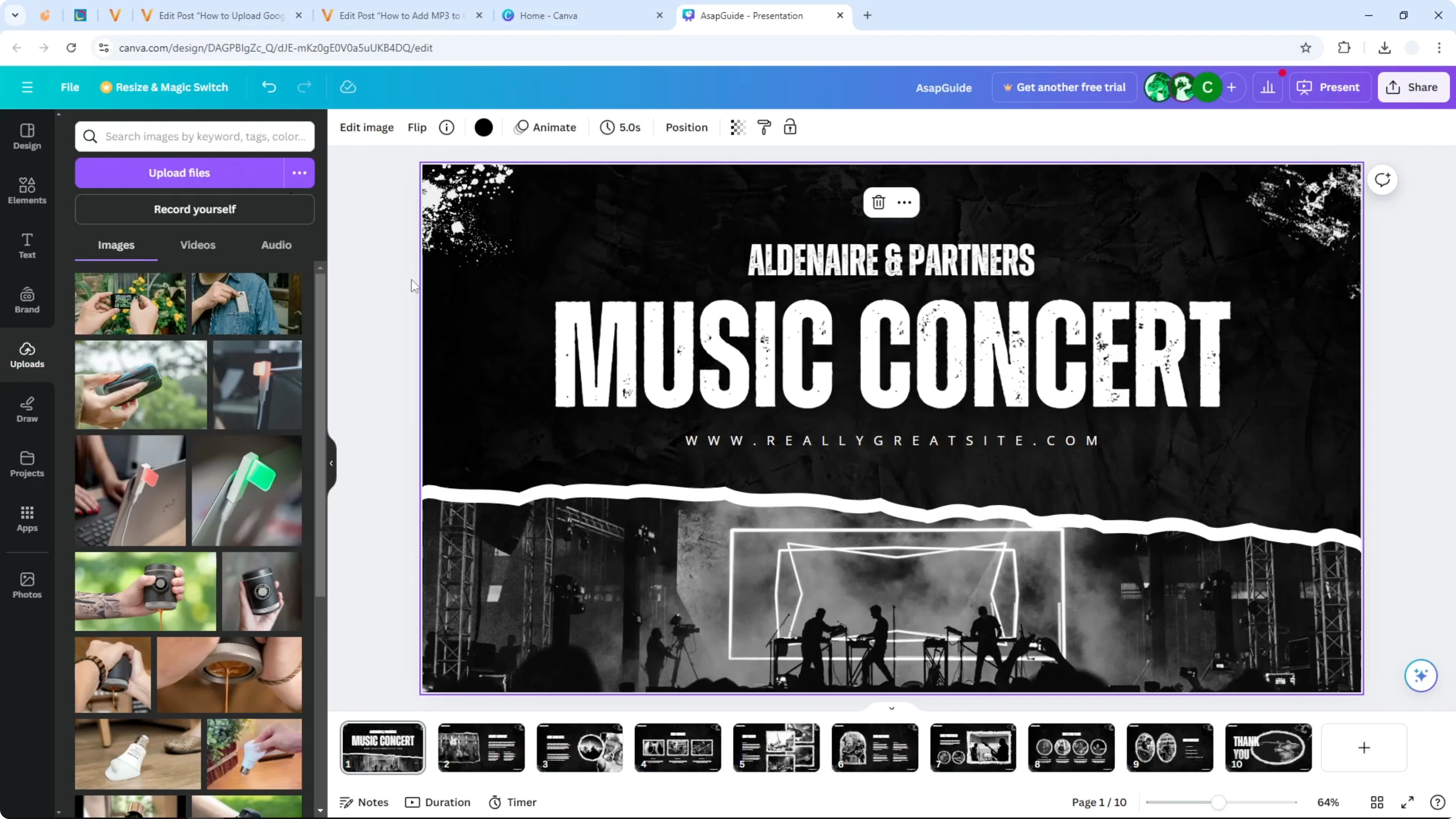
Canva identifies the file and uploads it immediately.
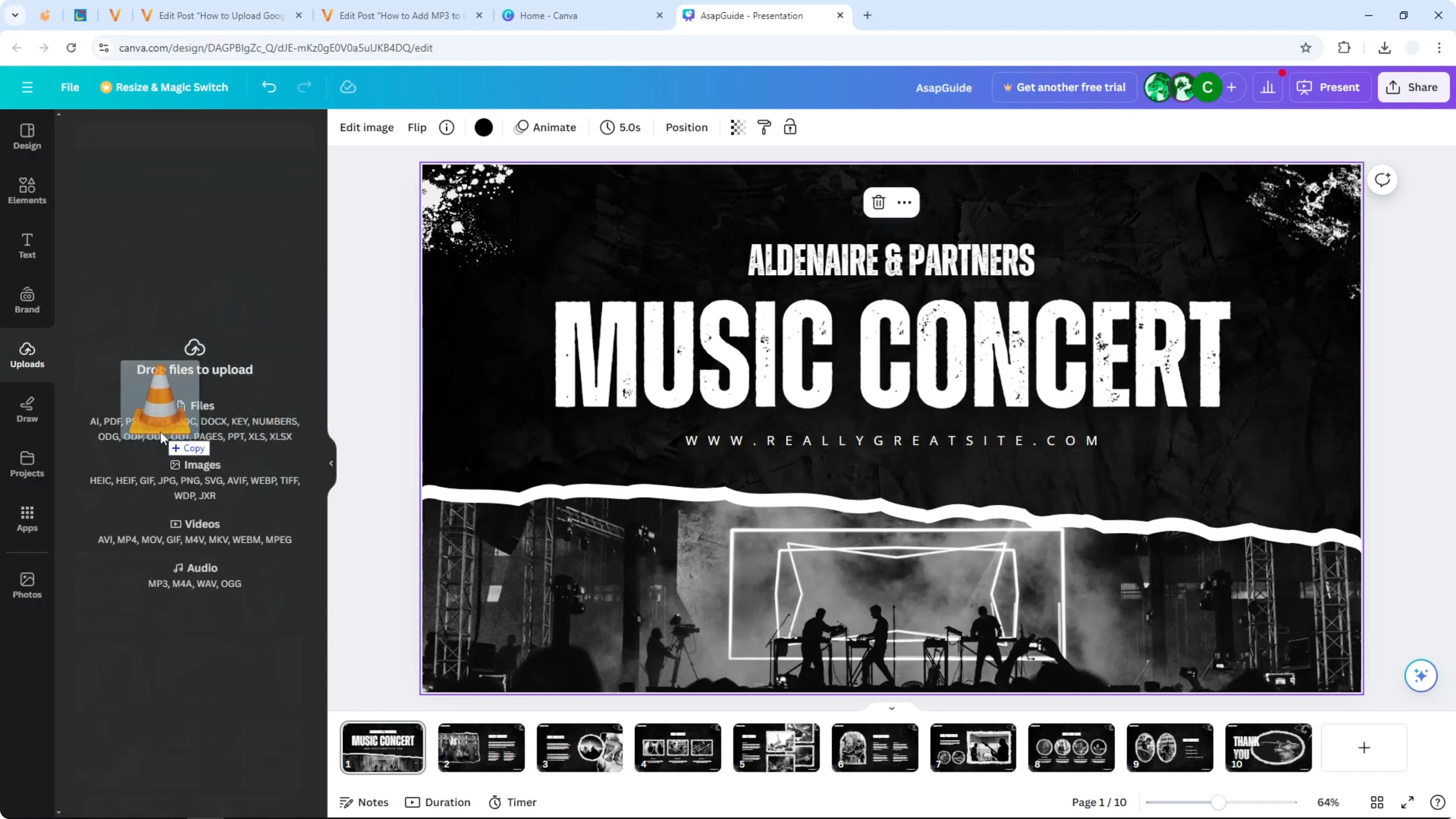
Wait until it finishes.
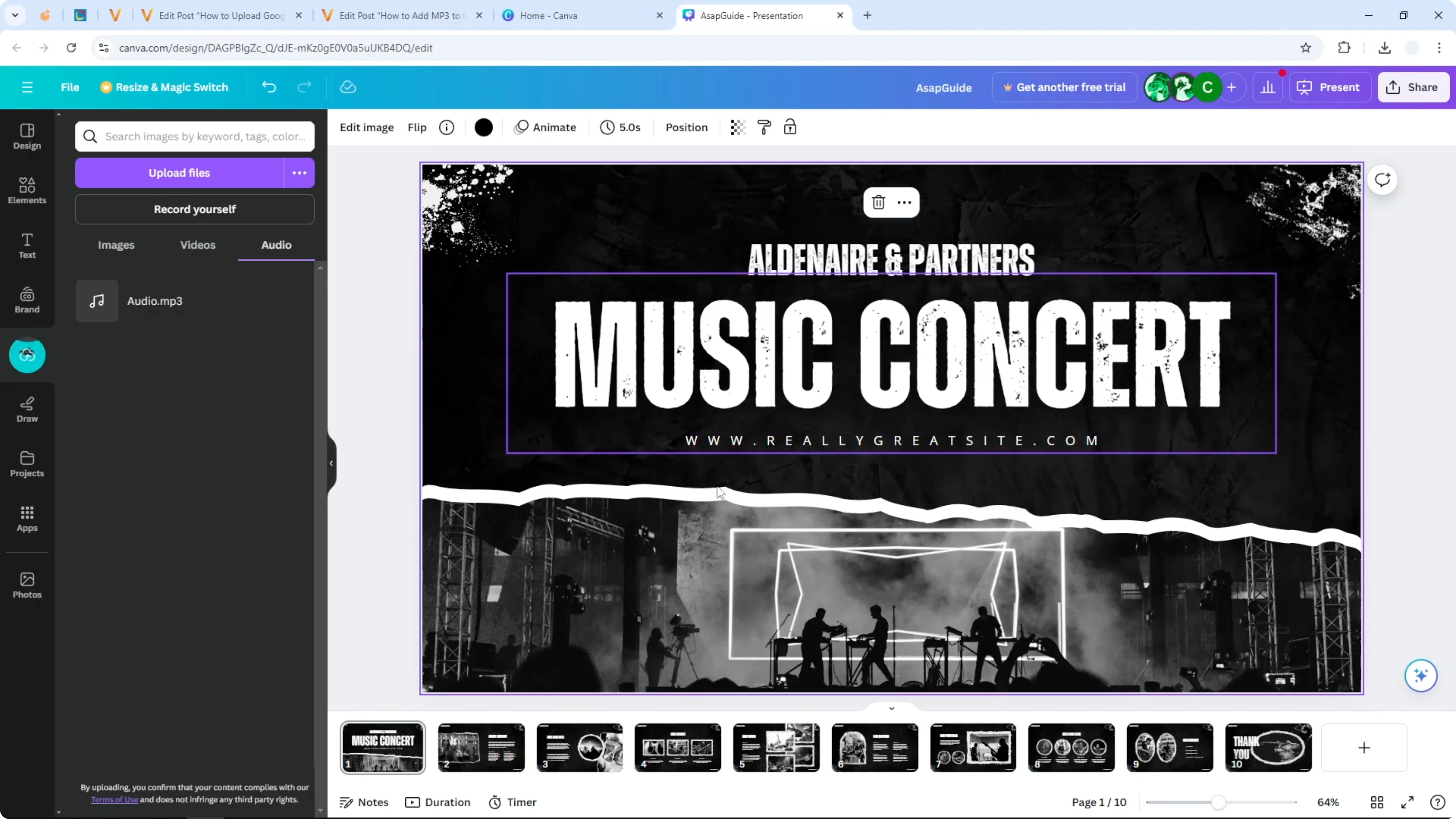
Add MP3 to Canva Presentation: Insert and preview
Click the audio file once and it will be inserted into your document.
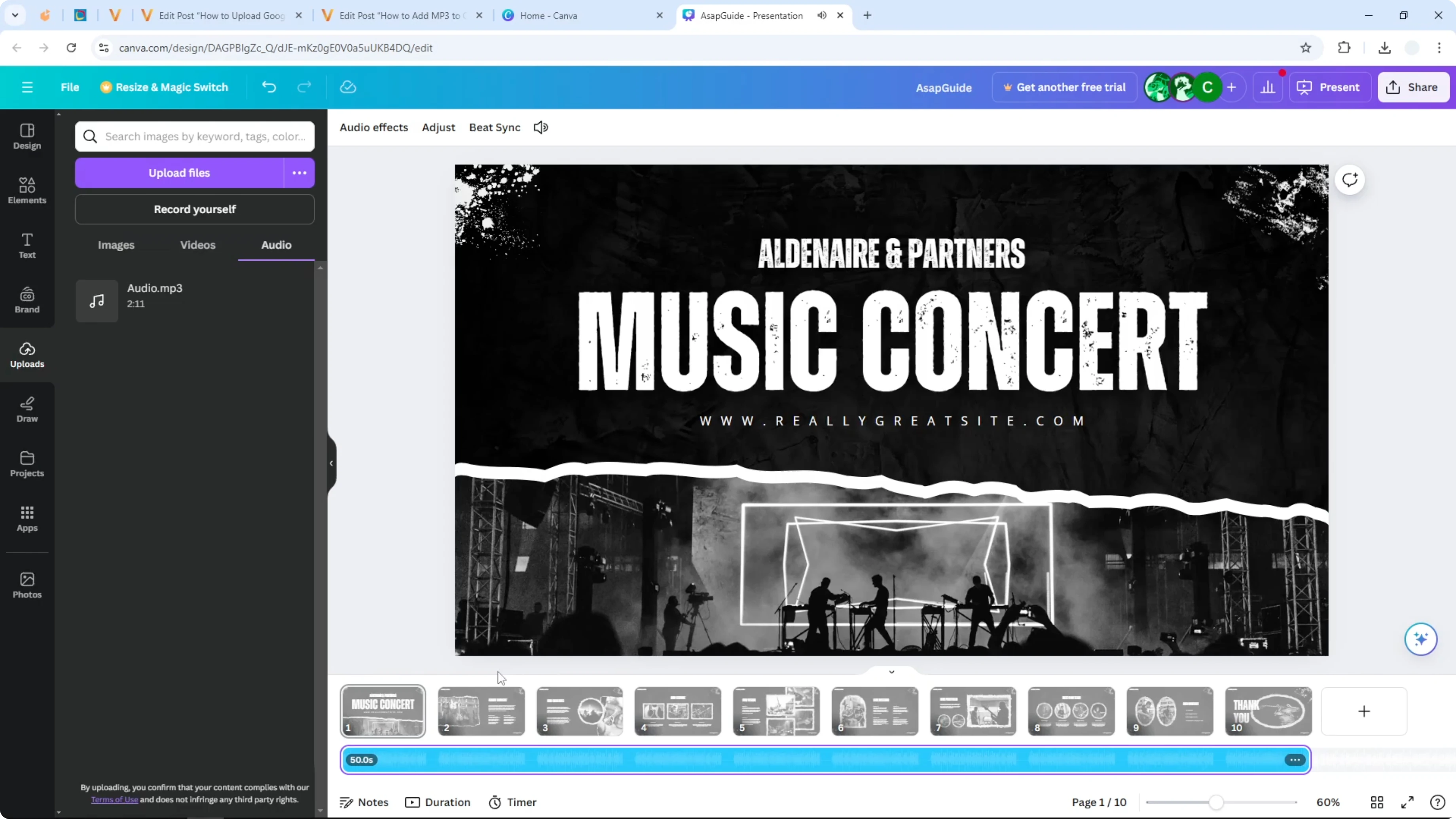
Open the preview and listen to how it sounds.
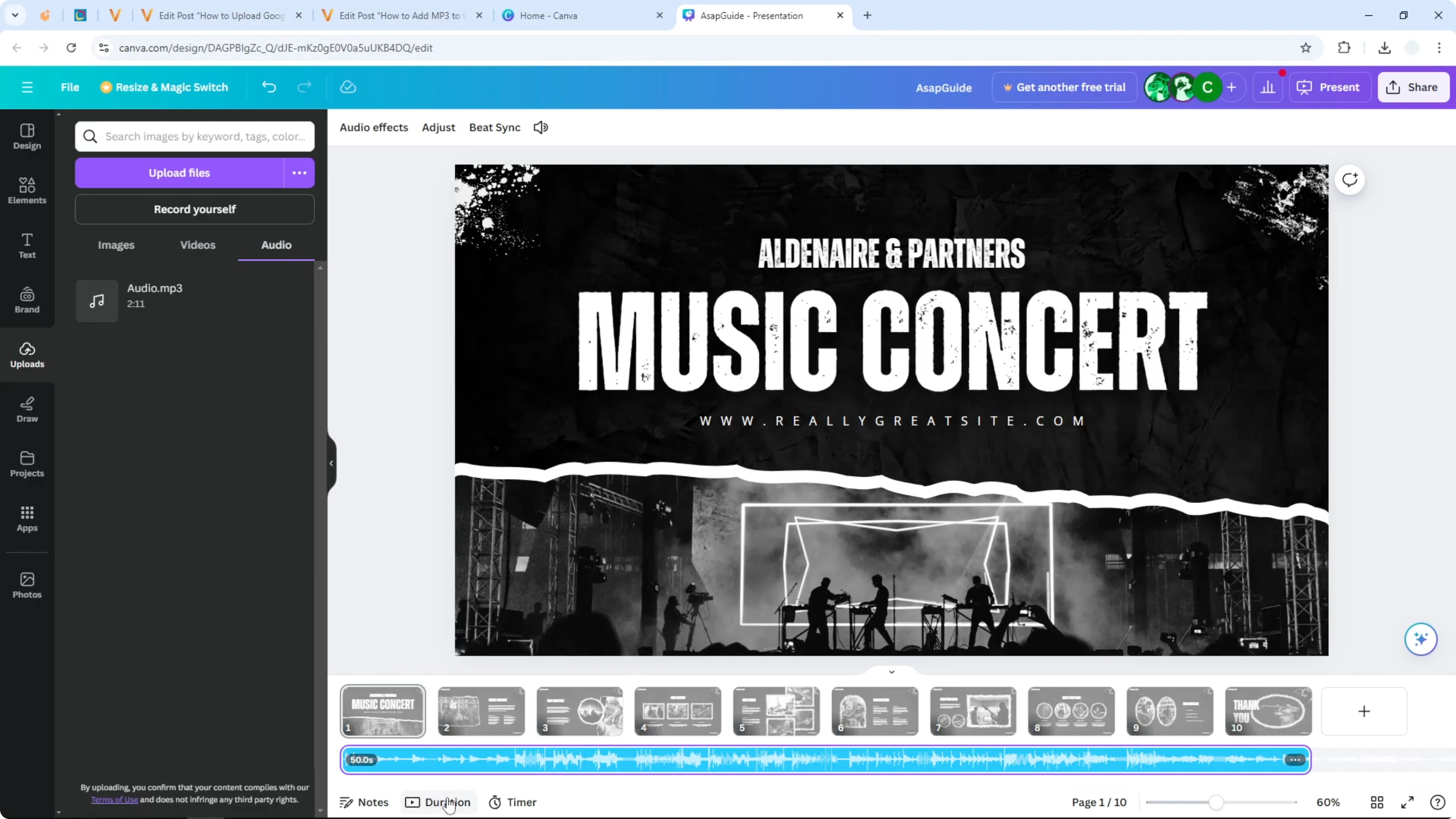
I think it looks great.
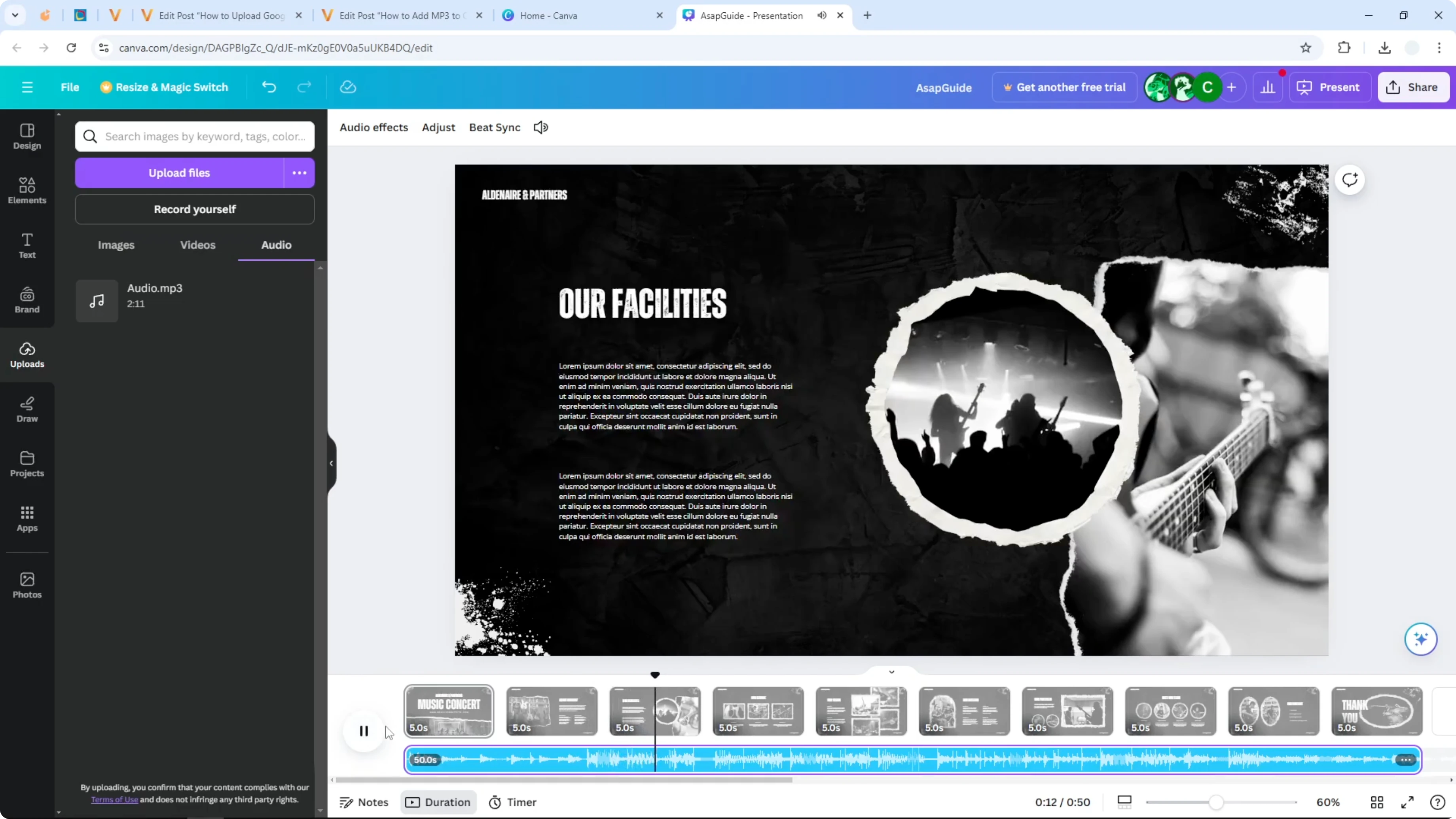
For more ways to work with audio, see this tutorial on background music: add background music in Canva presentations.
Volume control
Click the audio track, then open the options.
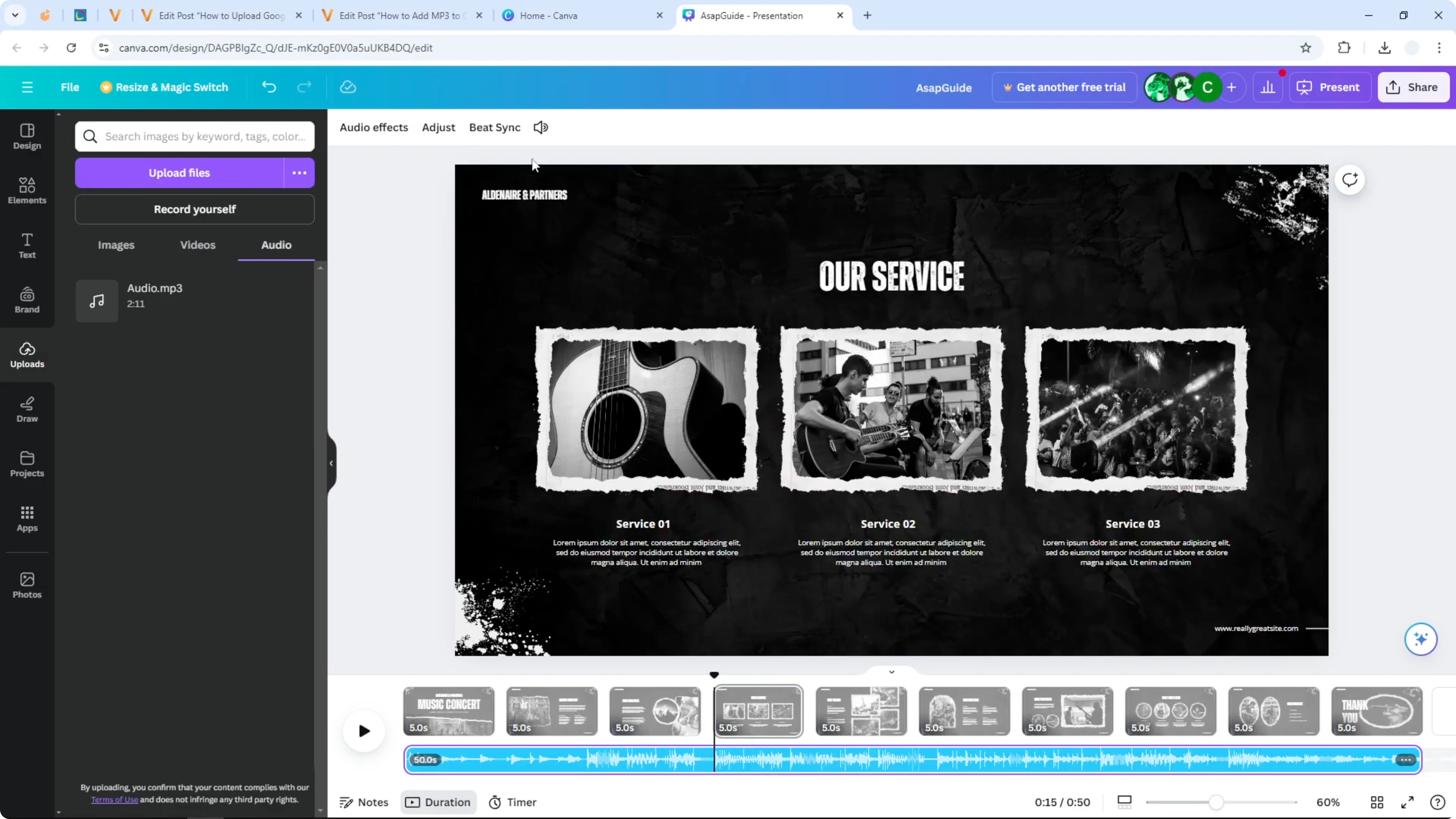
Adjust the volume. The default is 100 percent, and you can set it lower or higher.
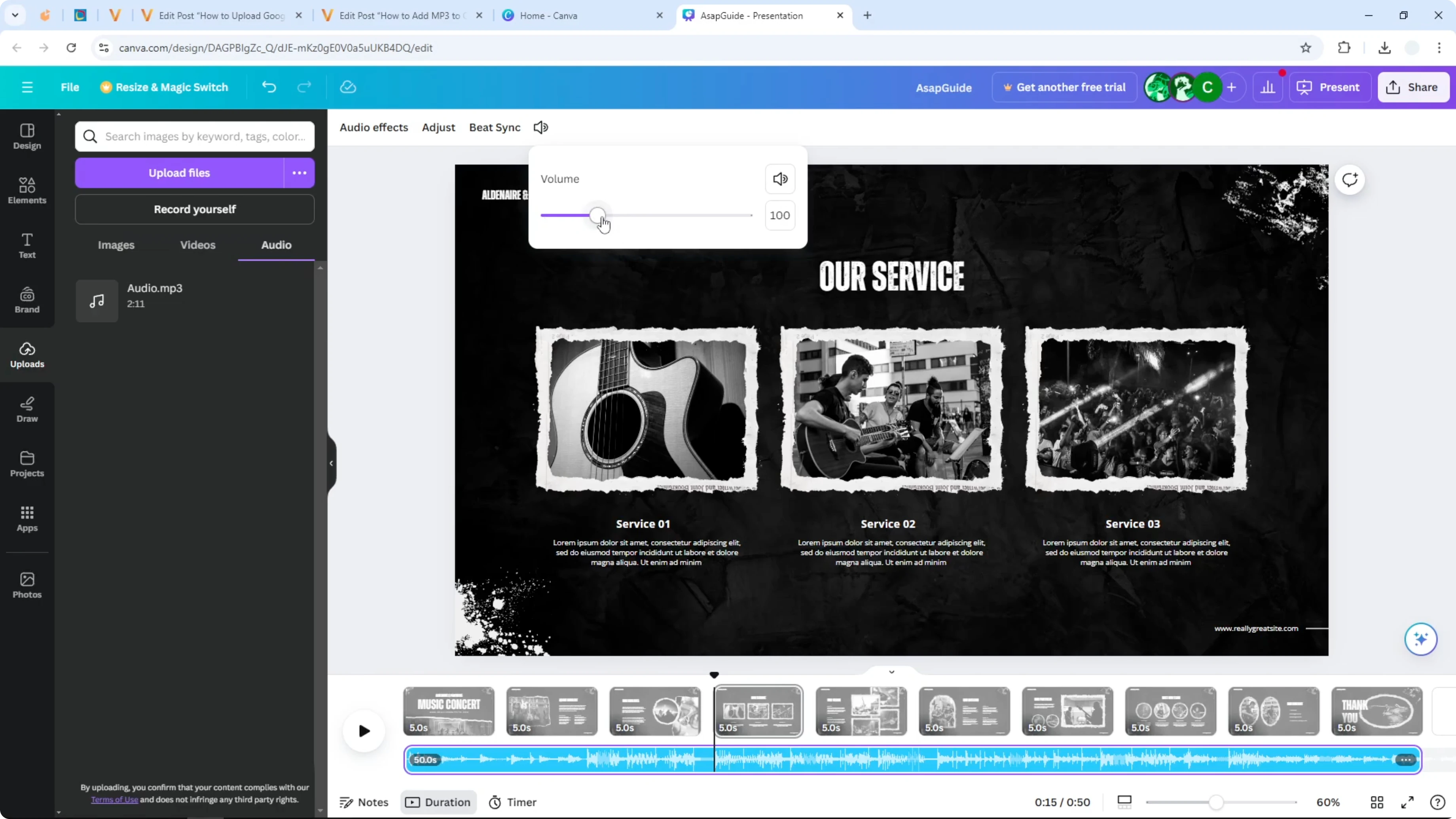
You can mute it completely if you want to.
To add motion alongside your audio, see this quick guide: add a GIF to a Canva presentation.
Final Thoughts
That is how you can insert an MP3 file into your Canva presentation as background music.
Upload, insert, preview, and adjust the volume to fit your slides.
Recent Posts

How to Visualize Yourself as a Pixelized Character with AI?
How to Visualize Yourself as a Pixelized Character with AI?

How to Revive Faded Memories and Enhance Image Clarity with AI?
How to Revive Faded Memories and Enhance Image Clarity with AI?

How to Visualize Yourself as an Animal Crossing Character with AI?
How to Visualize Yourself as an Animal Crossing Character with AI?