How to Add Link to Canva Presentation
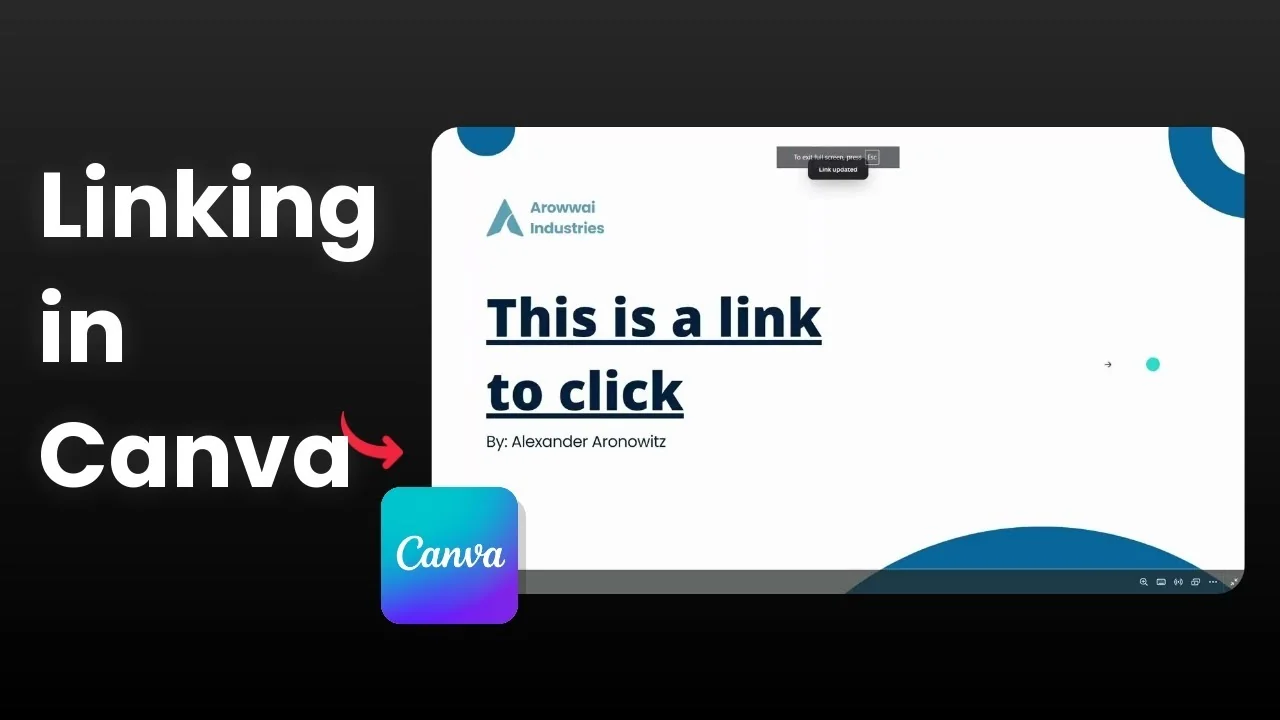
Adding a link to your Canva presentation lets you turn text or an element into something you can click. When you click it, it can take you to a web page or even another slide in the same presentation. Canva supports this the same way you might have seen in Google Slides or Microsoft PowerPoint.
I will show how to add a link to text first, then remove the underline if you prefer a cleaner look. The same method works for a logo or a picture, so you can make images clickable too.
Add Link to Canva Presentation
Text links
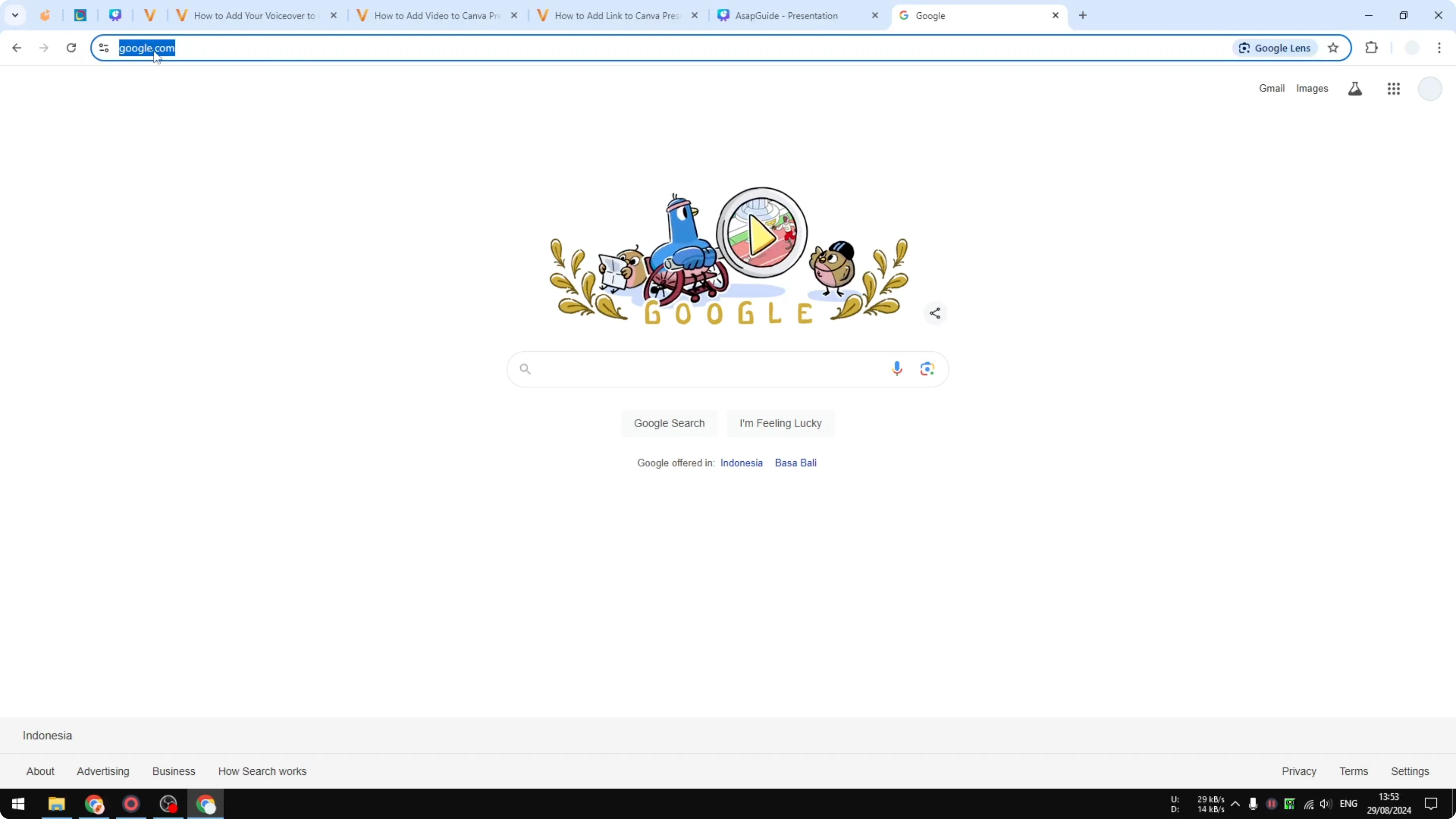
I am going to add a link to a text box. I will use the Google homepage as the example target.
Steps
Copy the URL of the Google homepage. Right click and click Copy. Go back to Canva.
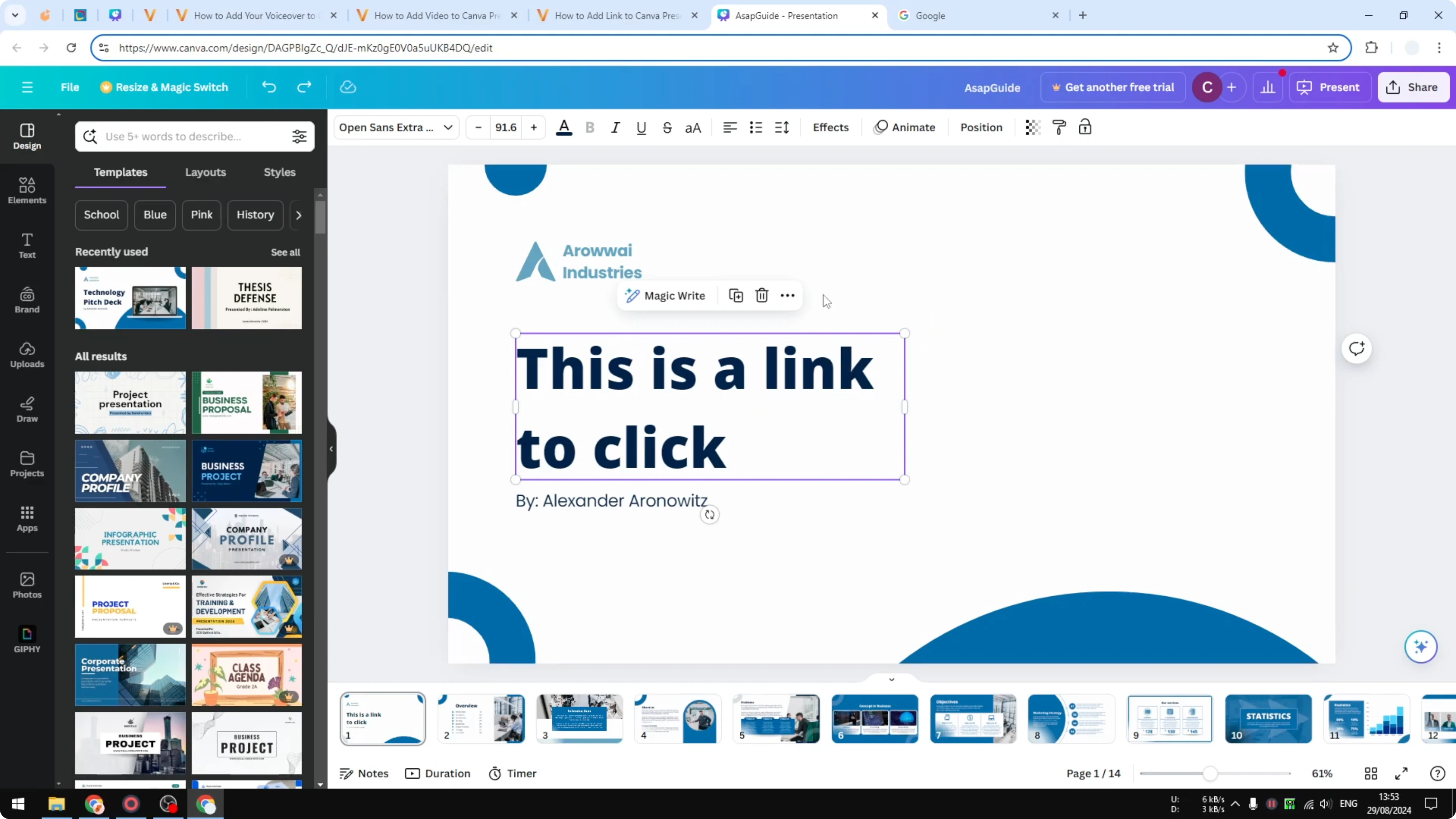
There is no link menu at the top because the link option lives in the context menu. Right click the text box and select Link, or press the keyboard shortcut.
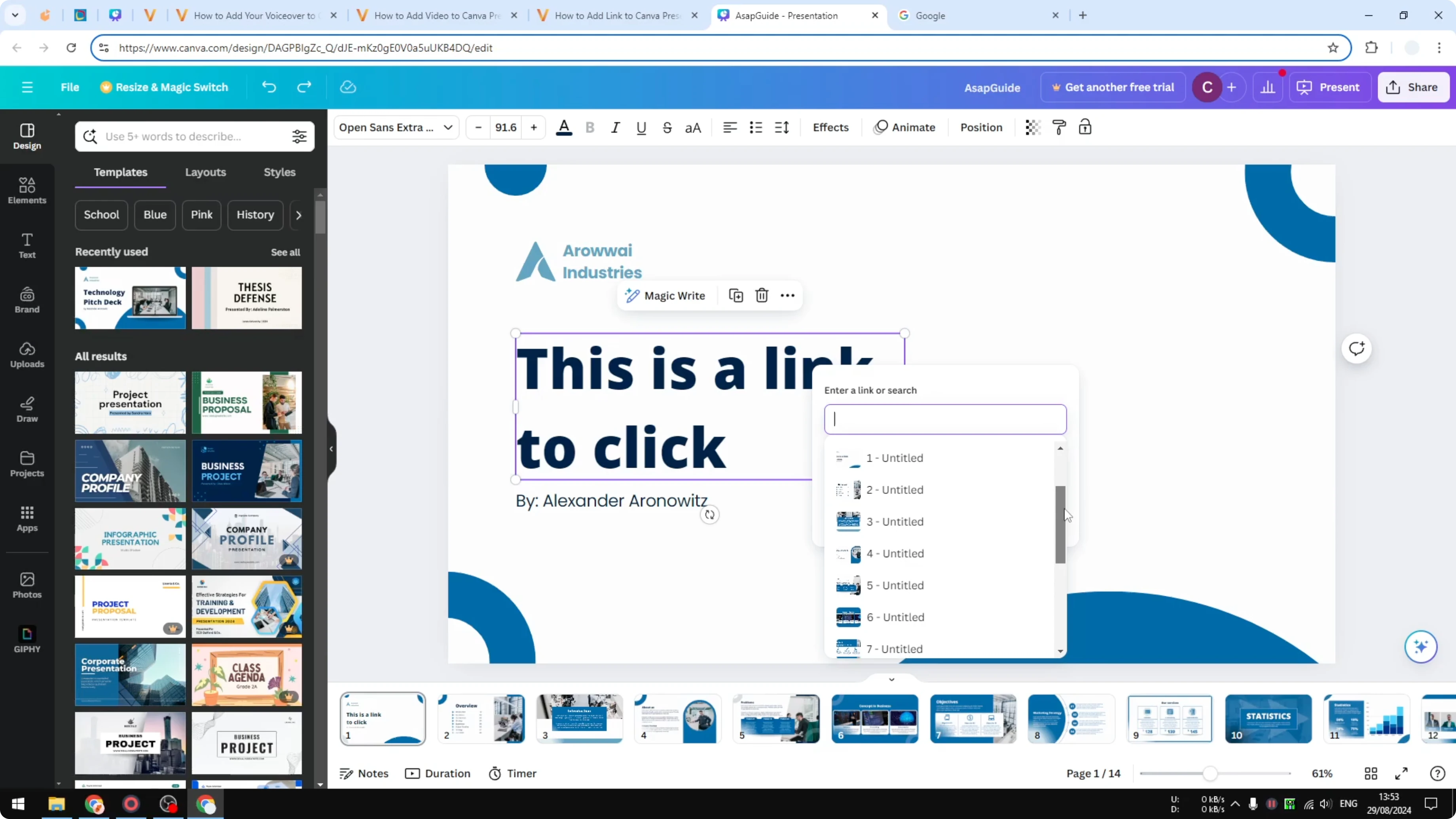
Choose Link to a slide in this document or paste the URL you copied earlier. Click Done, then click Done again.
Present the presentation and click the element. The cursor changes to show it is clickable. It should open the Google homepage.
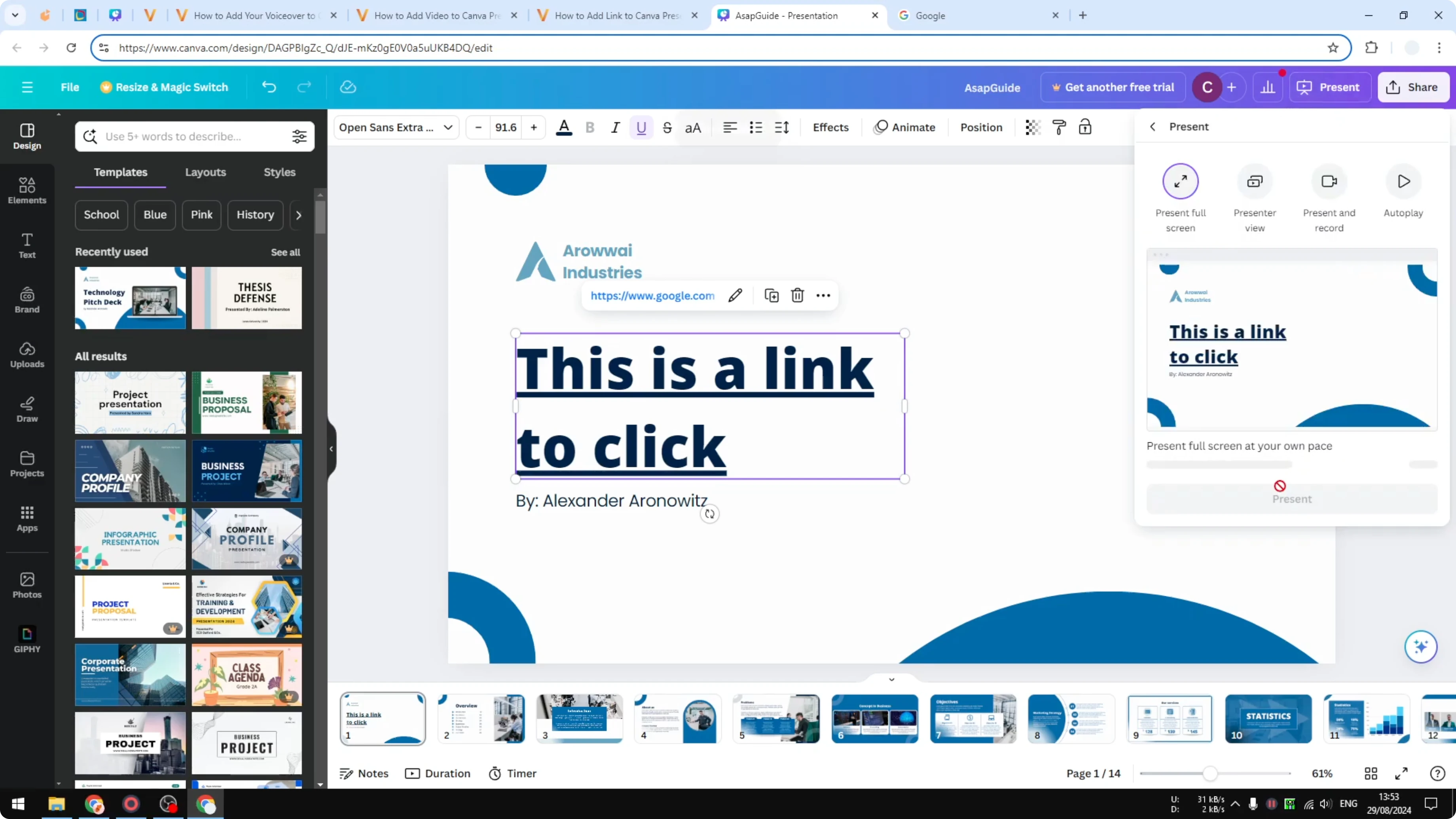
Read More: Add a custom background in Canva
Remove the underline
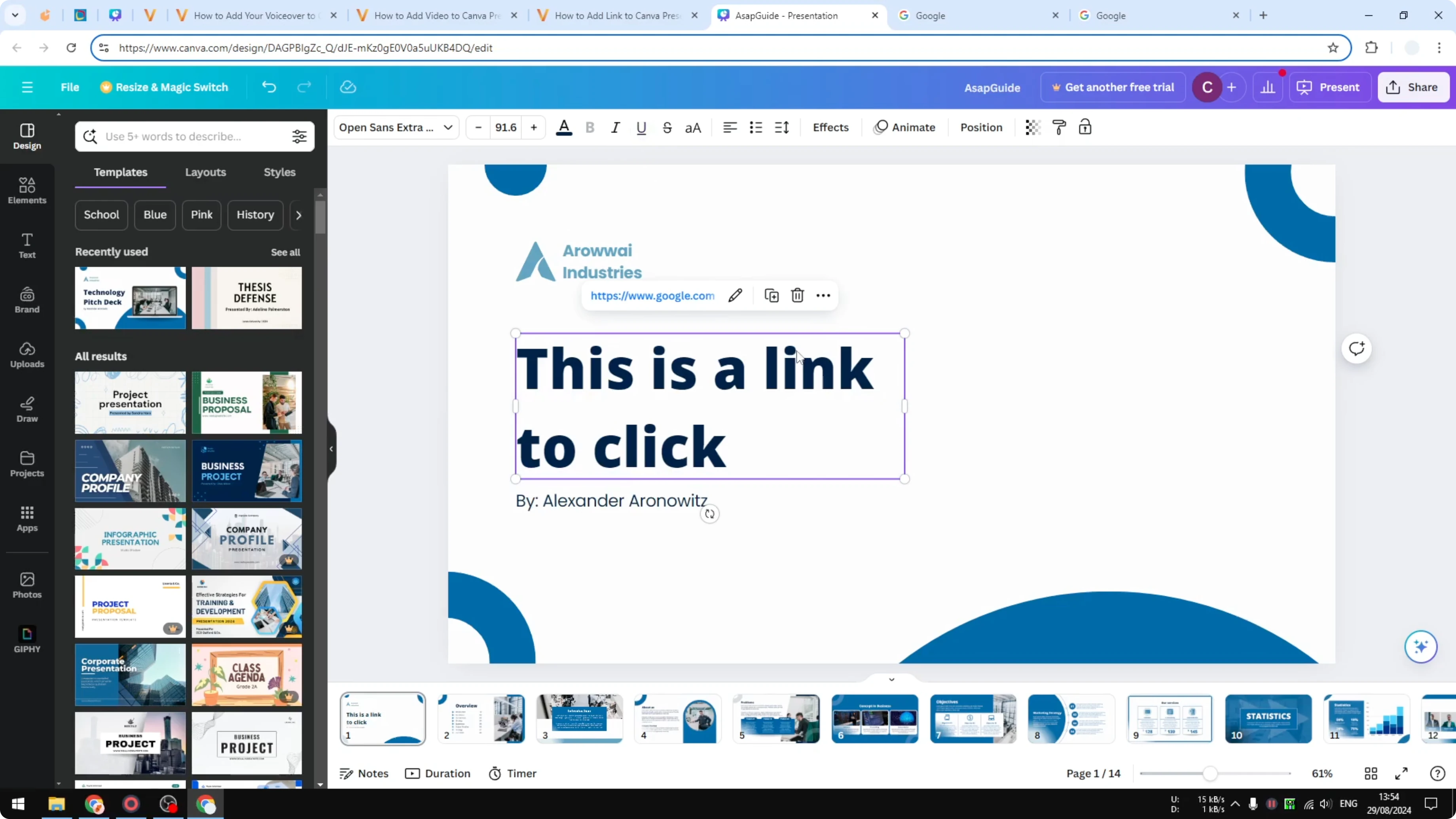
I do not like the underline, so I remove it by clicking the formatting option for underline. It becomes regular text again but still keeps the hyperlink function. The link continues to work when you present.
Read More: Add background music to your slides
Logo or picture links
The same method works for a logo or a picture. You can make the image clickable with a link.
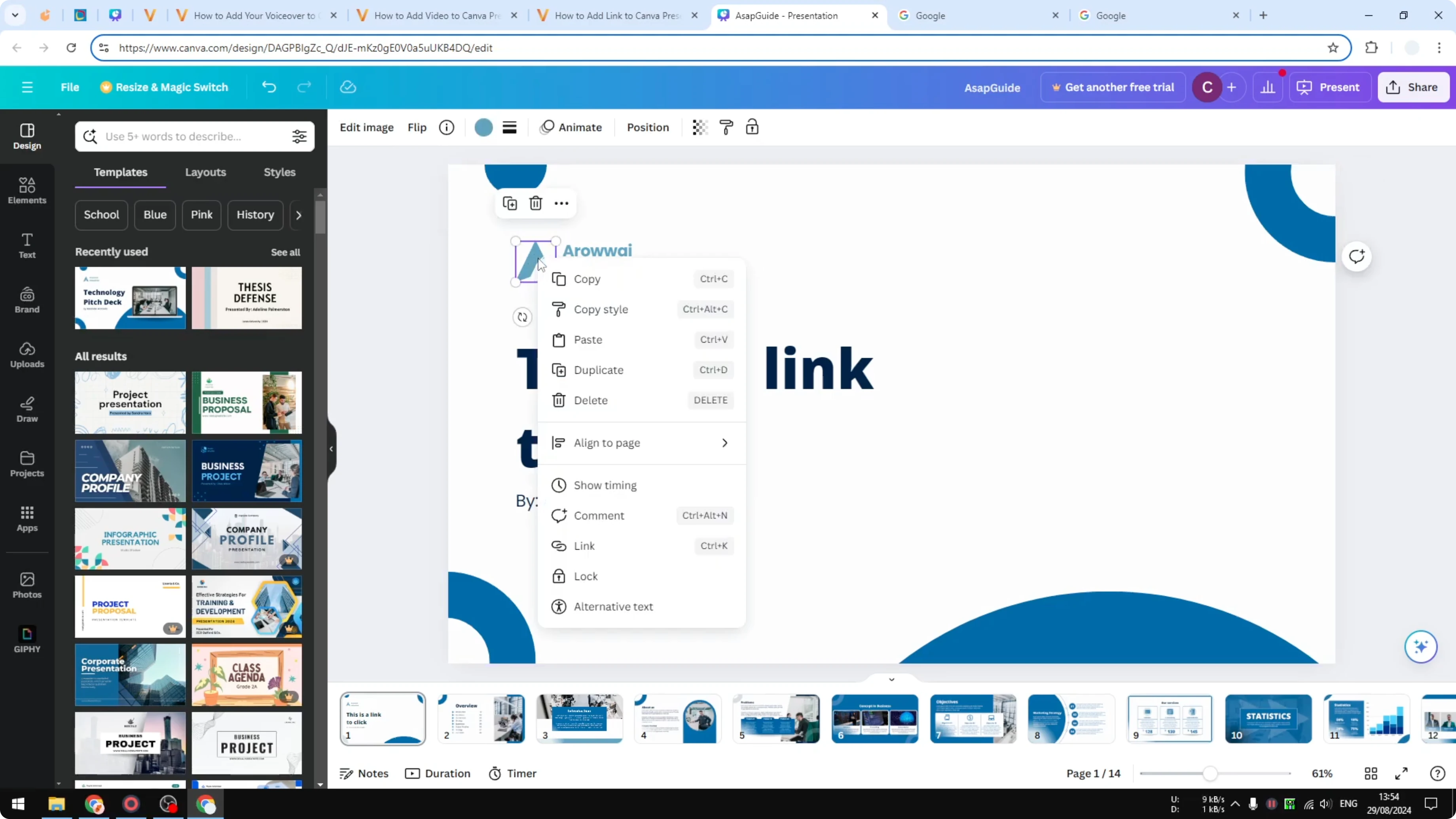
Right click the image and click Link. Paste the URL. Click Done, then click Done again.
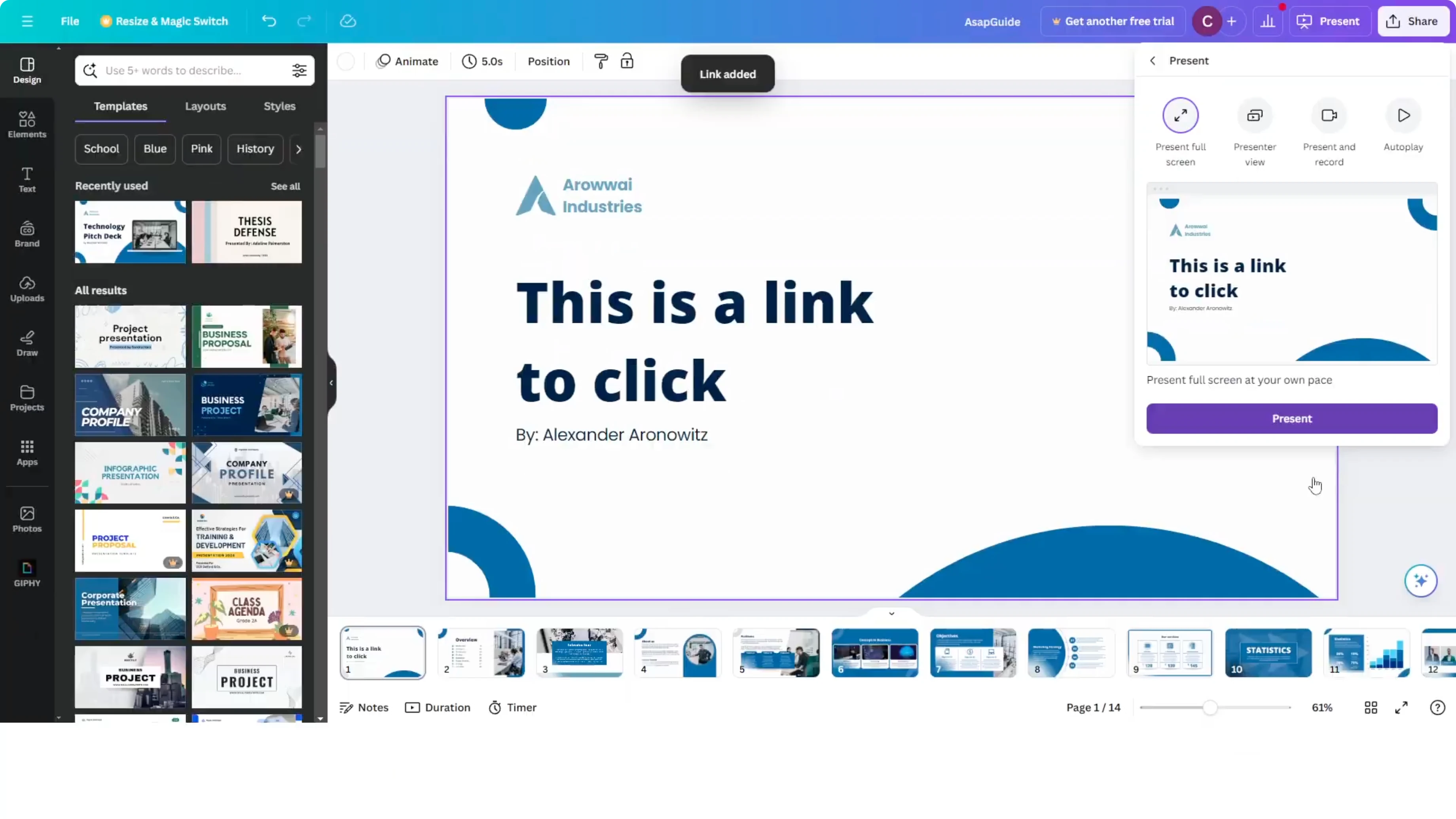
Present the document and click the logo. It will open the Google homepage. That is exactly what we want.
Read More: Insert a GIF into your presentation
Final Thoughts
You can link text, logos, or pictures in Canva using the context menu. Choose to link to a specific slide in the document or paste any URL, then click Done and test it in Present mode. If you prefer a cleaner look, remove the underline while keeping the link active.
Recent Posts

How to Visualize Yourself as a Pixelized Character with AI?
How to Visualize Yourself as a Pixelized Character with AI?

How to Revive Faded Memories and Enhance Image Clarity with AI?
How to Revive Faded Memories and Enhance Image Clarity with AI?

How to Visualize Yourself as an Animal Crossing Character with AI?
How to Visualize Yourself as an Animal Crossing Character with AI?