How To Add A Gradient To Text In Canva
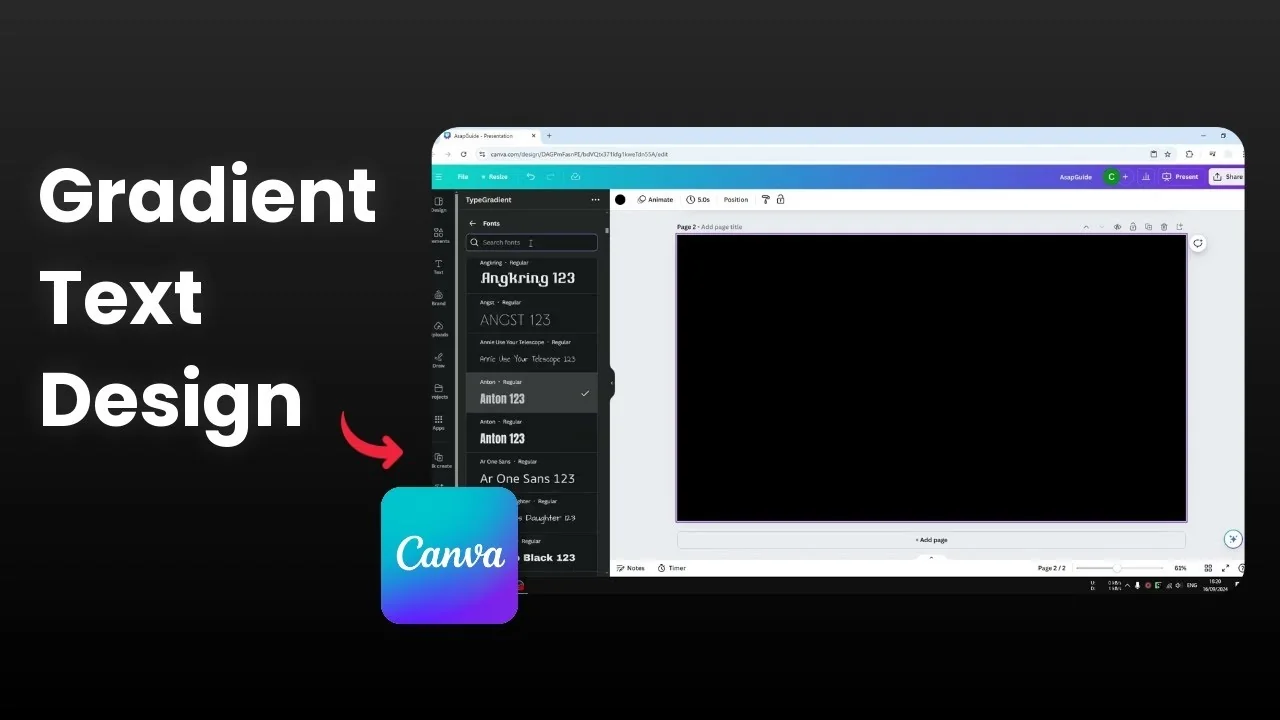
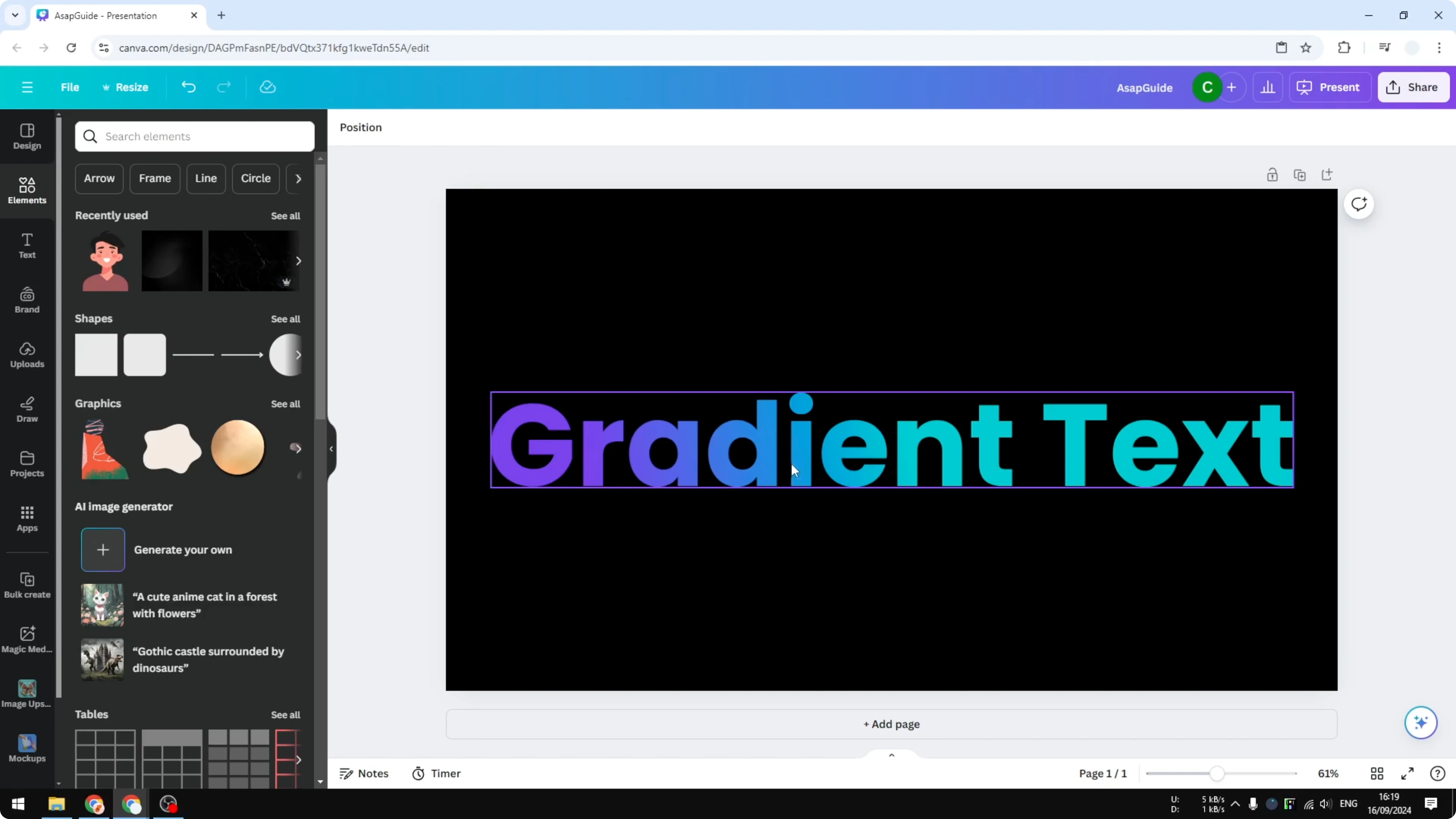
I will show you how you can apply a gradient color effect to text in Canva. This is one of the most requested features from Canva users that is yet to be realized. Until today there is no native feature to add a gradient color effect to a piece of text in the platform.
However, you can use a third party app that allows you to apply a gradient effect to text in your design. The tool you need is called Type Gradient. Let me show you how to get this effect in your own document or design.
Add A Gradient To Text In Canva: prepare your design
I am going to add a new page. The first thing that you have to prepare is the background color.
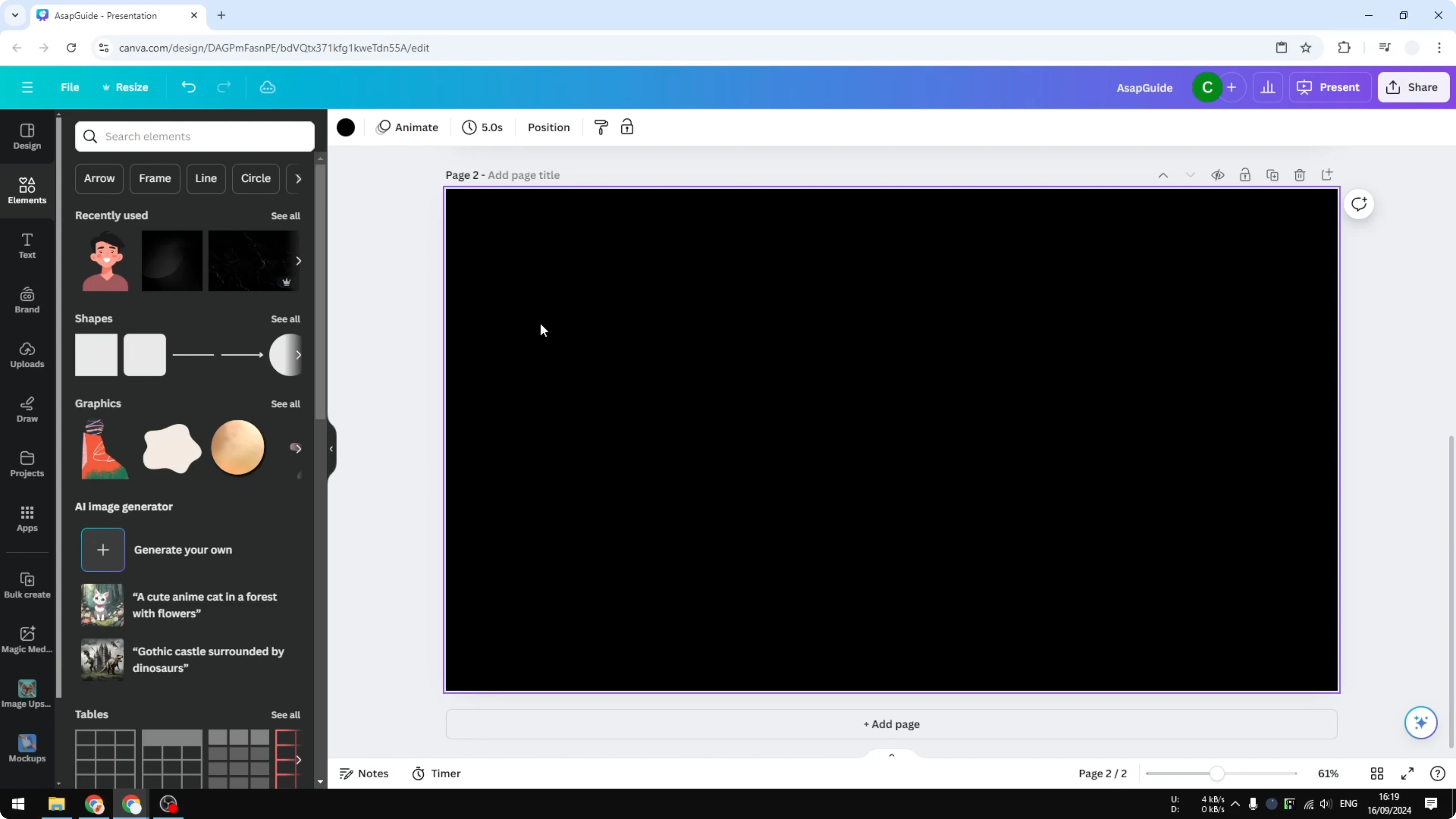
A gradient will have multiple colors, so consider the background of the text and make sure the text is visible regardless of the multiple colors it has. If you prefer a simple contrast boost with background styling, see these background text effects.
Add A Gradient To Text In Canva: open the app
Visit the Apps menu. Type Type Gradient and select it.
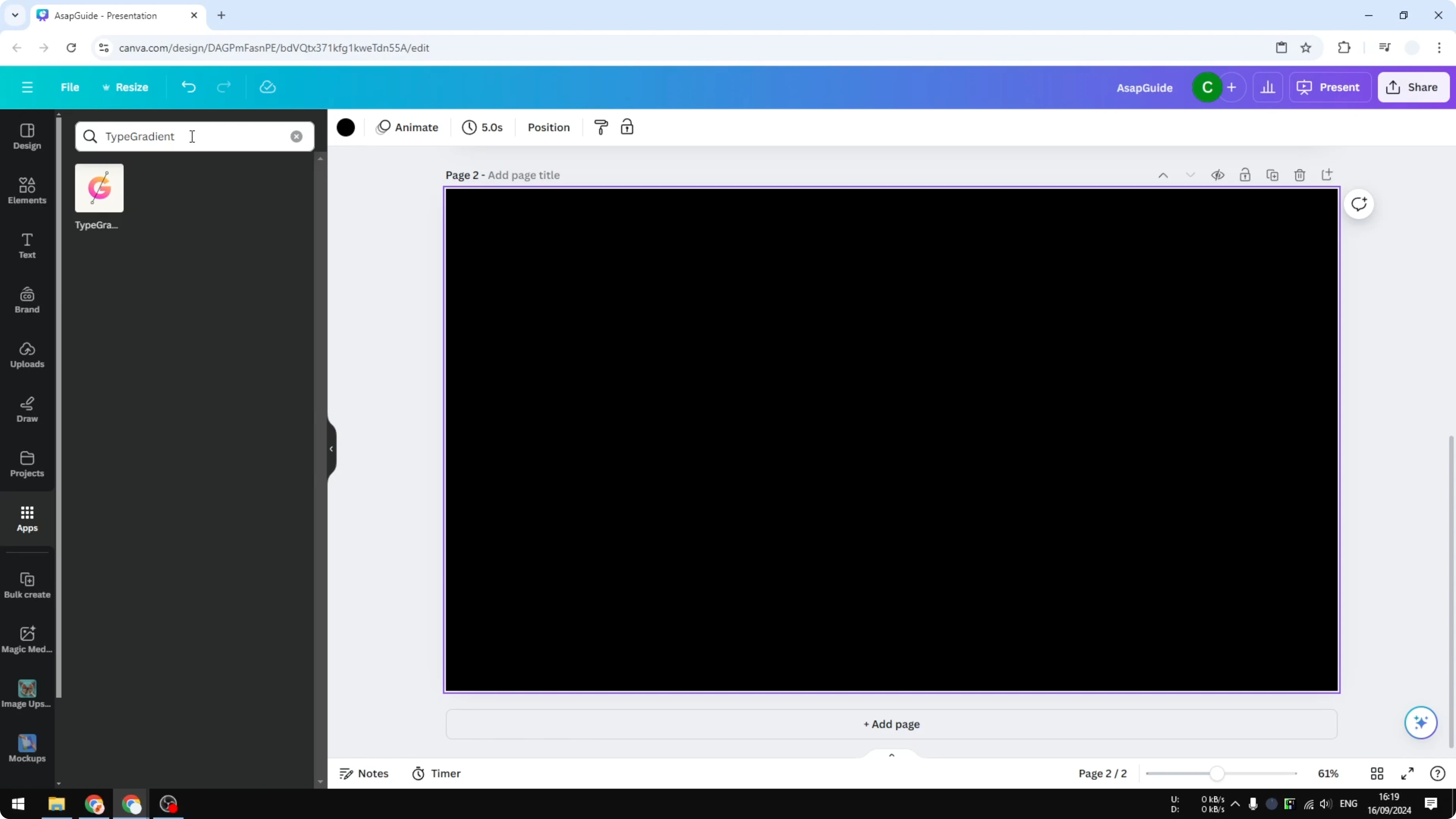
Open Type Gradient and allow the app to access your Canva account. You will see a preview where you can change the text.
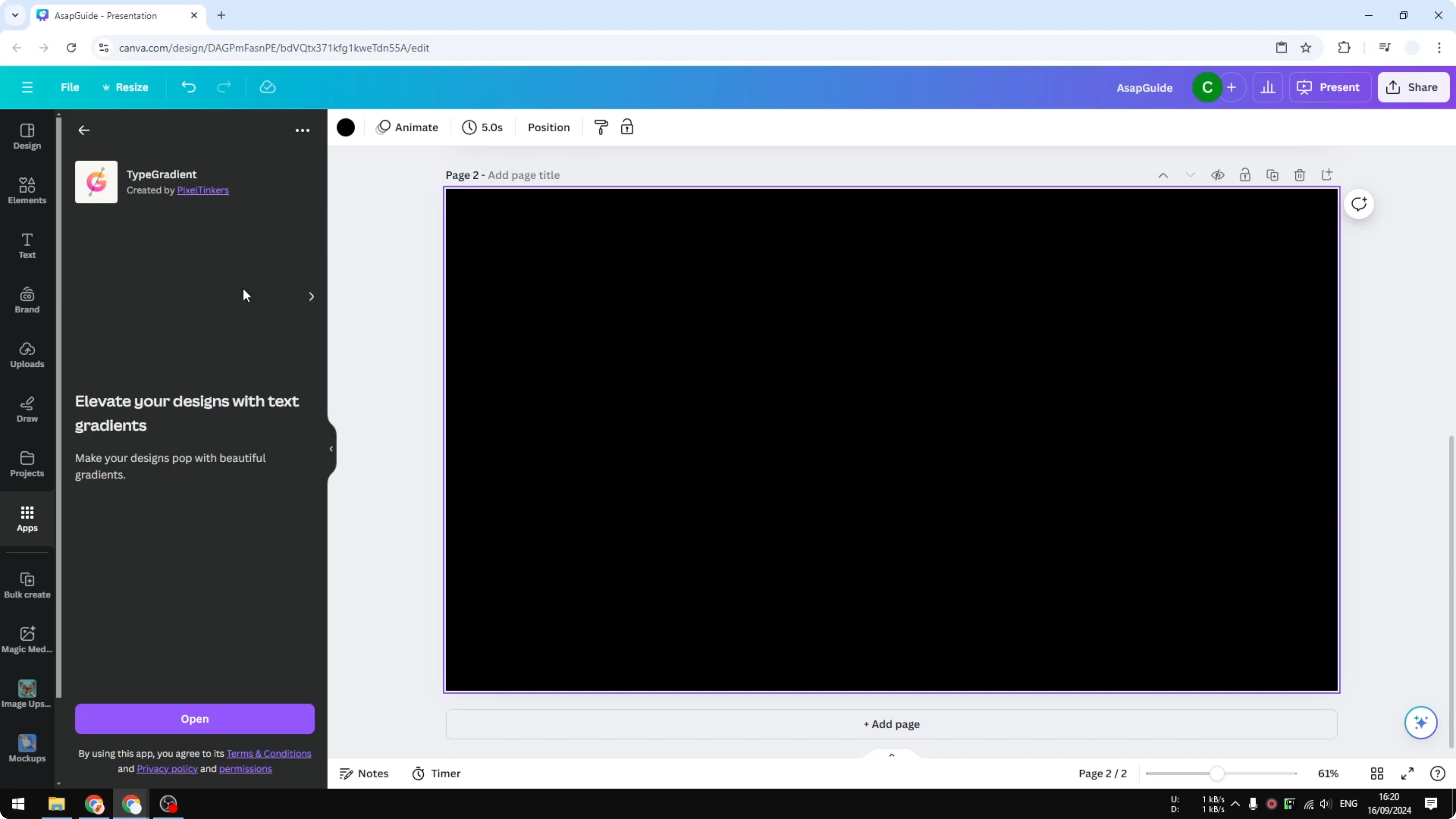
You can modify the text to anything you need. I am going to change the font to something else, and I like the font Poppins. Unfortunately there are not many options in this app, but some modern and popular fonts are still available.
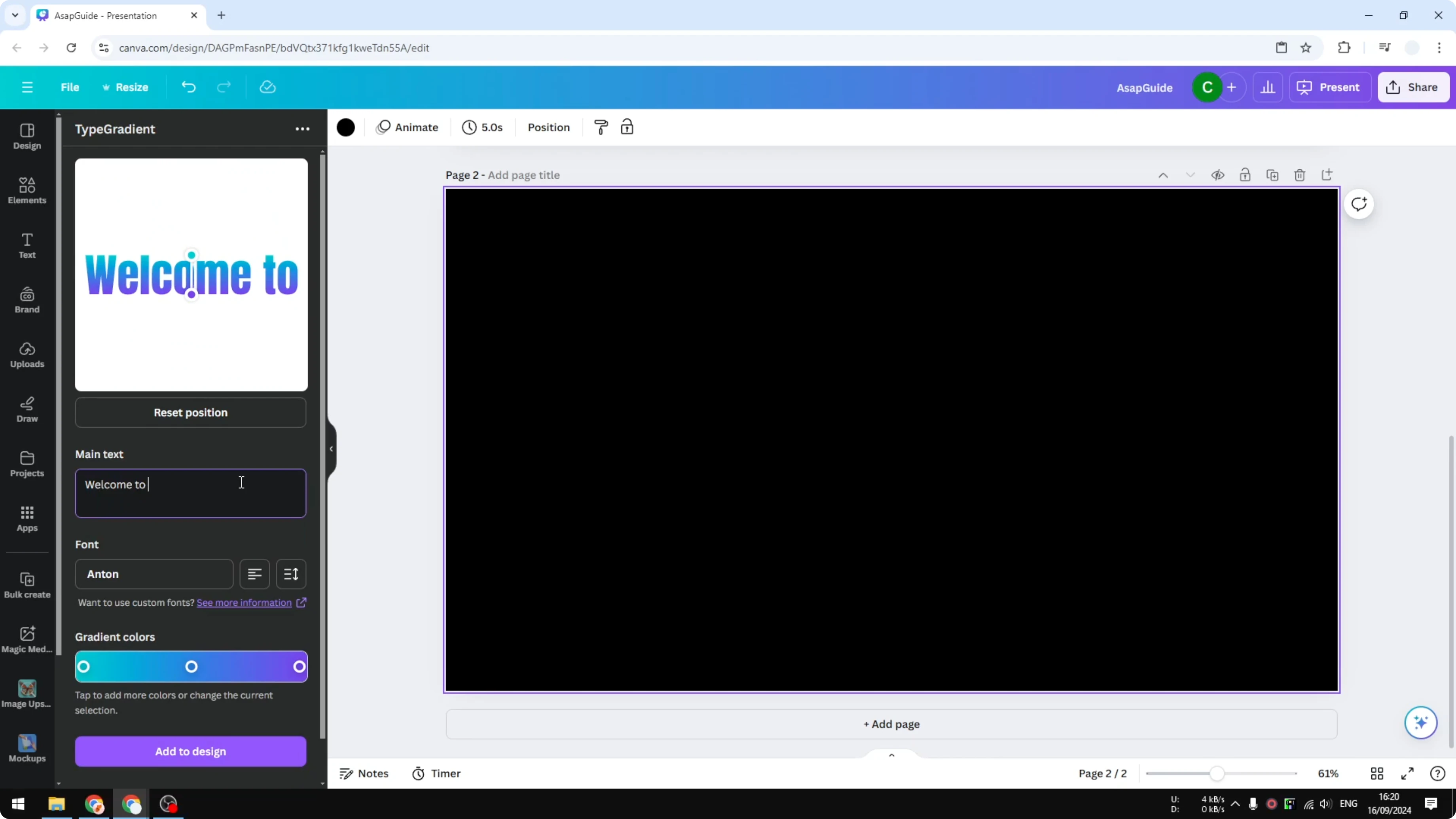
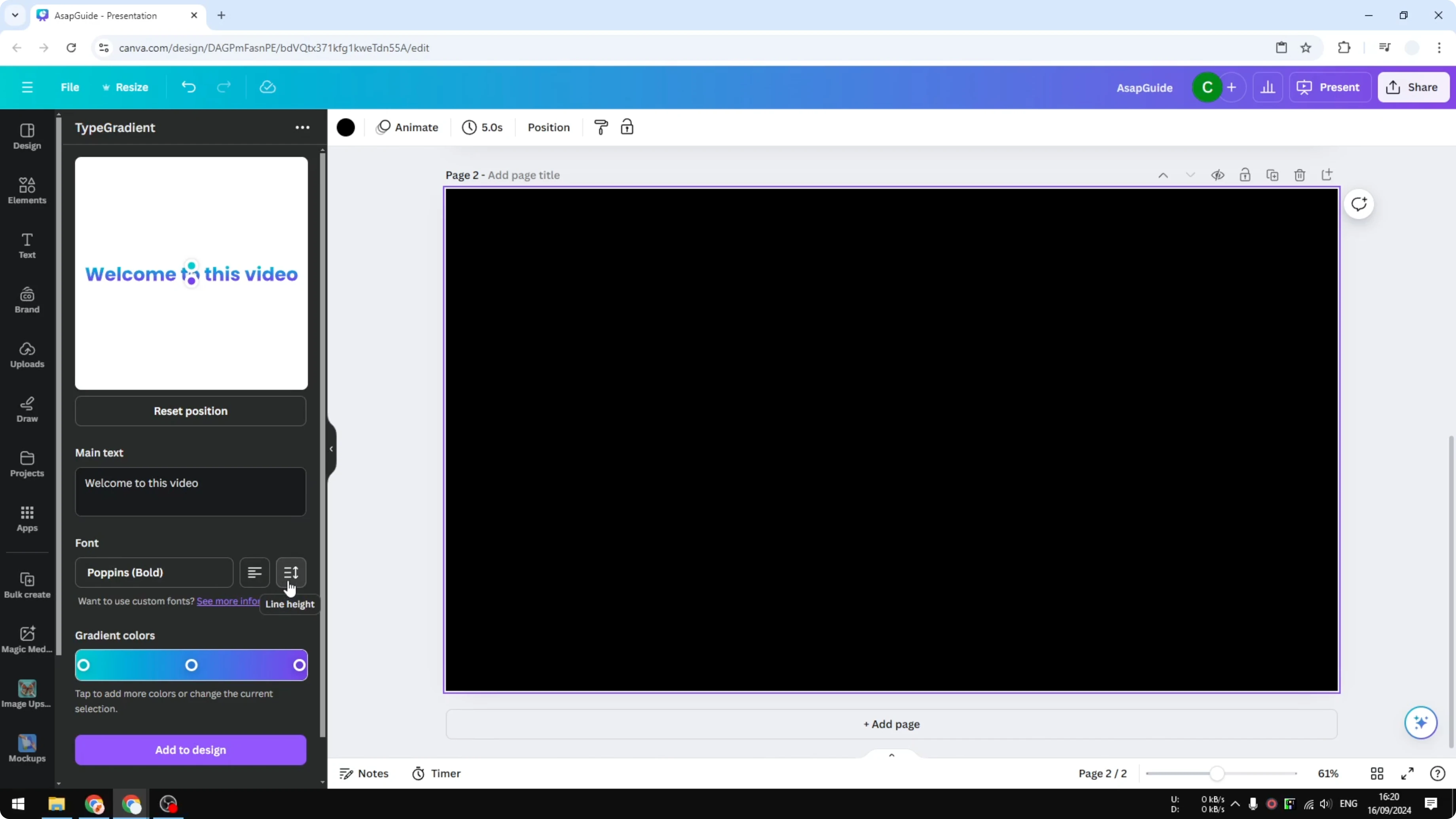
Add A Gradient To Text In Canva: customize text and colors
You can change the alignment and the line height of the text. You can also change the color stops.
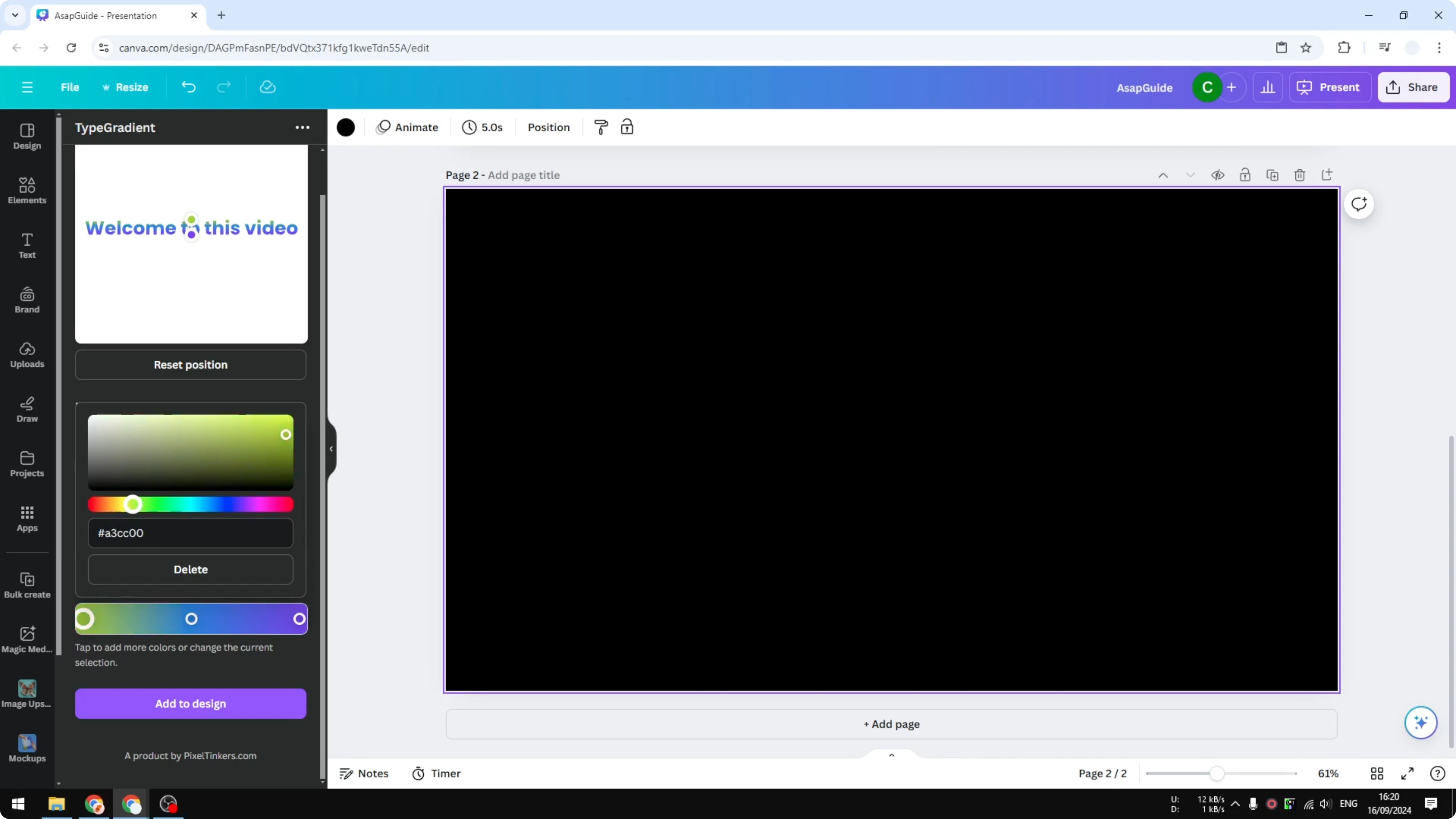
For this example I am going to select orange, then yellow, then a color closer to red. Of course you should also adjust the direction of the color so the blend looks right.
If legibility is still an issue, you can add contrast by placing the gradient word inside a framed container. Here is a quick guide to add a border to a text box that pairs well with colorful type.
Add A Gradient To Text In Canva: insert into your design
When you are done, click Add to design. The generated gradient text will be placed on your page.
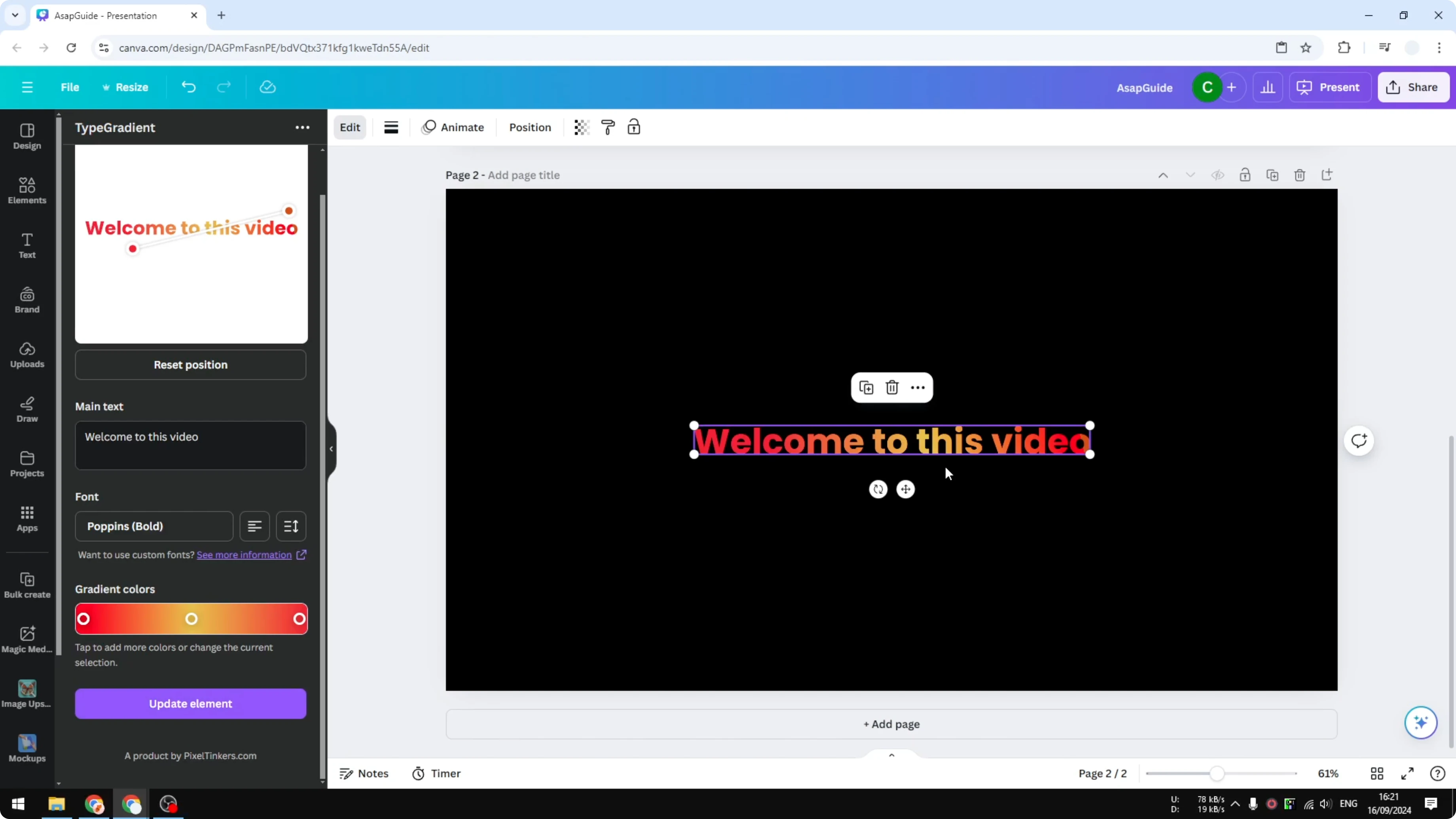
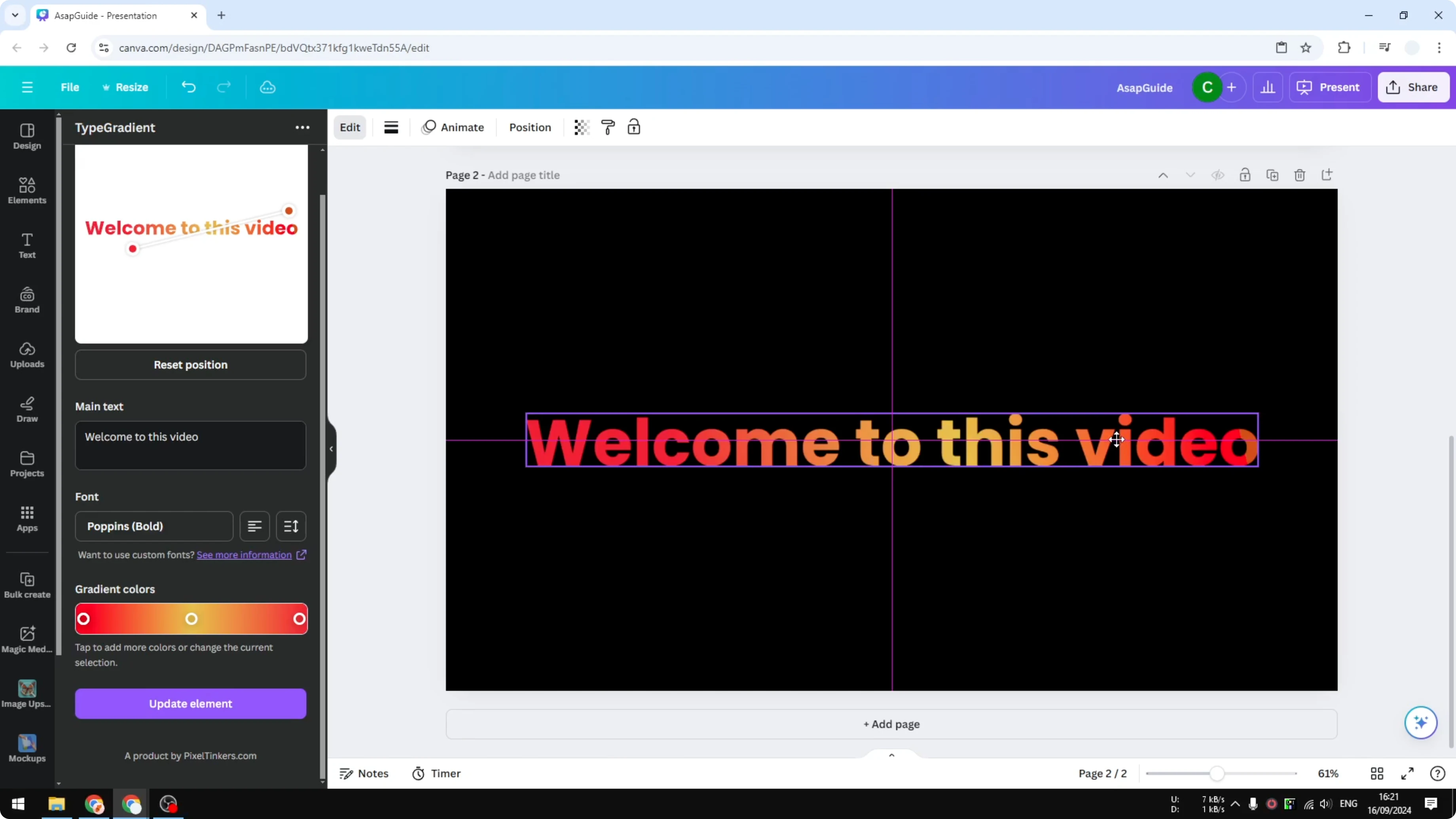
Make it bigger to fit your layout. I am going to put this text in the middle of the canvas.
Add A Gradient To Text In Canva: limitations
Now we have text with multiple gradient colors, but this object is not treated as regular editable text. If you need to change the wording, you have to do it through the Type Gradient app. It is not perfect, but that is the option we have right now.
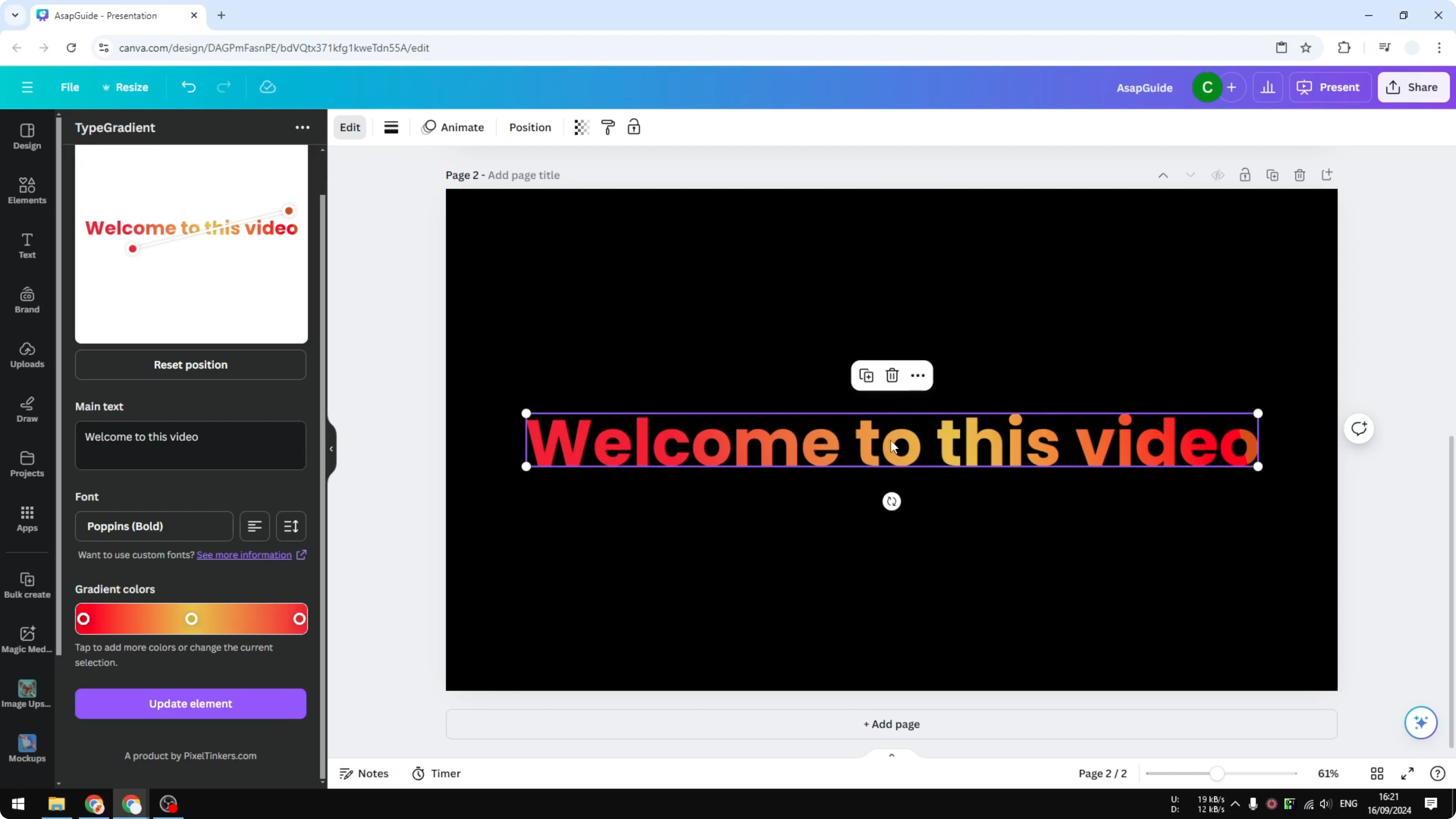
Hopefully we will get a native gradient feature for text in the future. If you export the gradient text as an image for sharing or a site, remember to improve accessibility by adding descriptive alt text. Here is how to add alt text in Canva.
Final thoughts
You can add a gradient to text in Canva by using the Type Gradient app in the Apps menu. Prepare a background that keeps your text readable, customize the font, colors, and direction, then add the result to your design.
The text will not be editable directly on the canvas, and changes must be made inside the app. This workaround gets you colorful gradient type today while we wait for a native option.
Recent Posts
How to Visualize Yourself as a Pixelized Character with AI?
How to Visualize Yourself as a Pixelized Character with AI?
How to Revive Faded Memories and Enhance Image Clarity with AI?
How to Revive Faded Memories and Enhance Image Clarity with AI?
How to Visualize Yourself as an Animal Crossing Character with AI?
How to Visualize Yourself as an Animal Crossing Character with AI?