How to Add Glitter Background in Canva
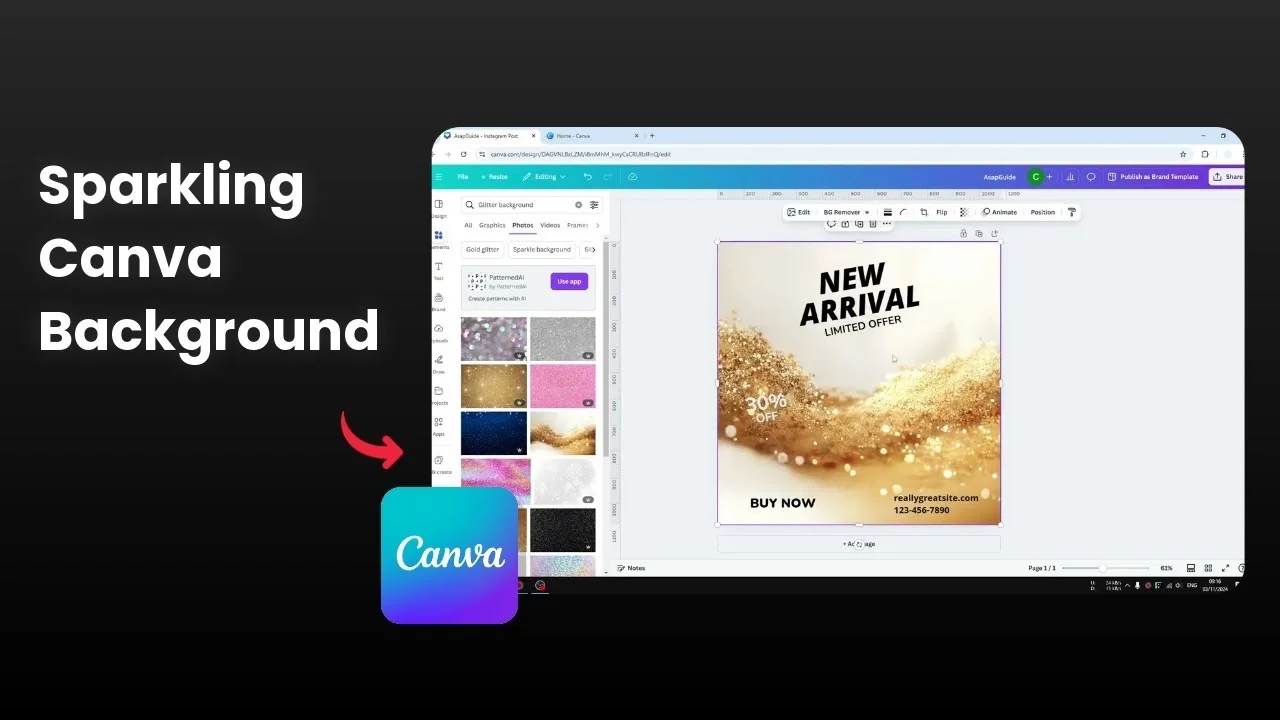
I will show you how to add a glitter background to your design in Canva. Canva cannot generate a glitter photo from scratch because glitter is a photo texture. You need a real photo for that effect.
Fortunately, Canva has stock libraries with a lot of different glitter backgrounds you can use for your document or design. I want to apply a glitter background to this design, and this is how I'm doing it.
Add Glitter Background in Canva
Find textures
Go to Elements and search for glitter texture. That keyword gives me the best results.

Open the Photos section and you will see many glitter textures you can apply to your design. Another keyword to try is glitter background. It is very similar, but it does not always give you a flat glitter background.


You will get a lot of variety, so use this if you want more options. You can add other terms like the color of the glitter or other effects to the keyword. Canva should return relevant results.
Read More: Add Background Text Canva
Insert and replace background
Insert the photo into your design.
Click and drag it to your document.
Right-click and choose Replace background.
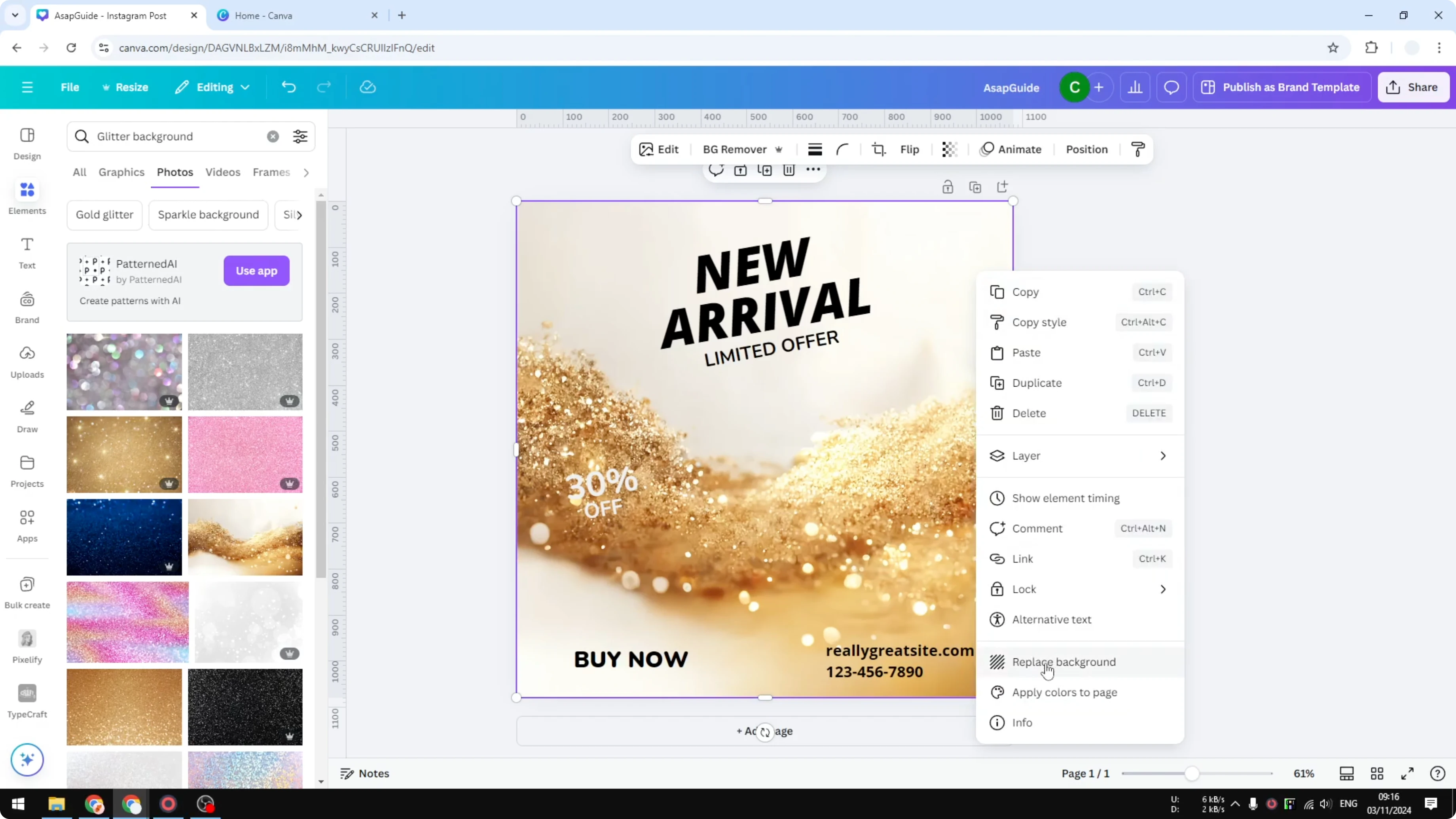
Now I have a nice glitter background on my design. That is exactly how you can do that in Canva. If you want your headline to pop on top of the glitter, you can also add a border to your text box.

Final thoughts
Search for glitter texture first for the best results, then try glitter background if you want more variety. Add color keywords to narrow down the style you need, and use Replace background to apply it instantly.
Read More: Add Cartoon Effect Photo Canva Ai
Recent Posts

How to Visualize Yourself as a Pixelized Character with AI?
How to Visualize Yourself as a Pixelized Character with AI?

How to Revive Faded Memories and Enhance Image Clarity with AI?
How to Revive Faded Memories and Enhance Image Clarity with AI?

How to Visualize Yourself as an Animal Crossing Character with AI?
How to Visualize Yourself as an Animal Crossing Character with AI?