How to Add a Drop Shadow in Canva
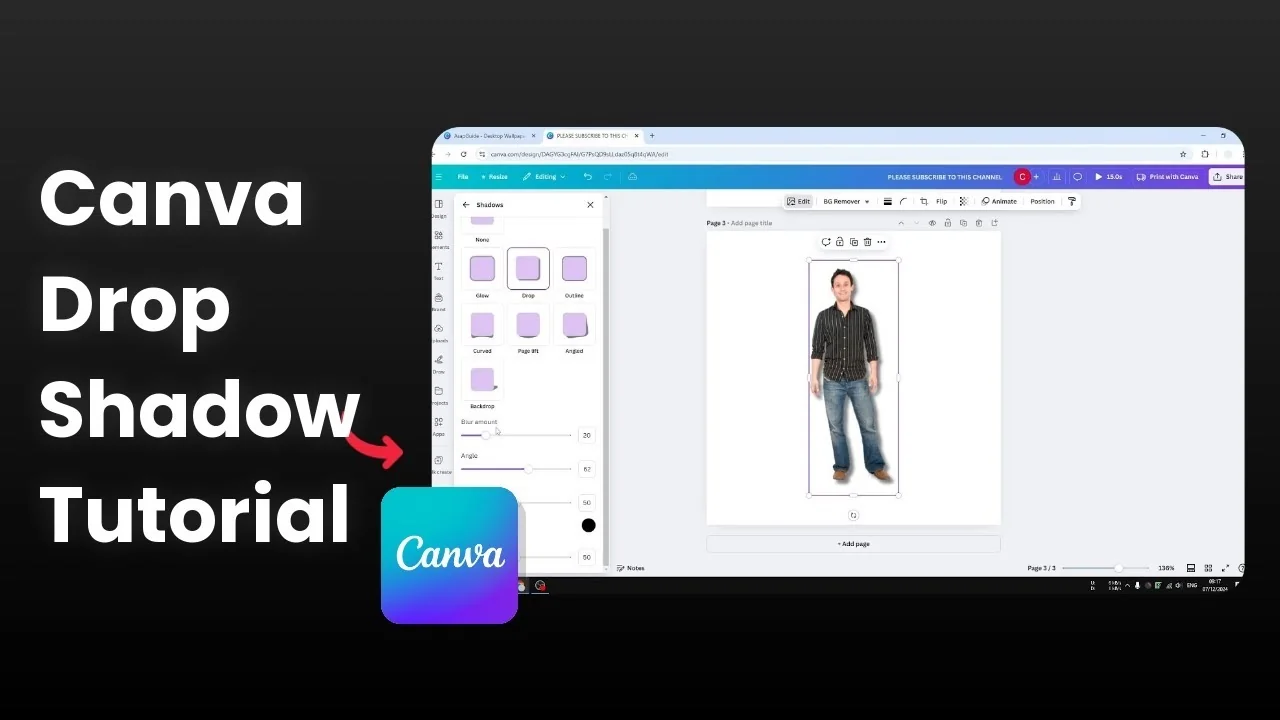
I’m going to show you how you can add a drop shadow to an object in Canva. A drop shadow effect helps the content or object appear more striking and attracts attention. I will demonstrate how you can add a drop shadow for both text and for a picture or a video.
A simple text can look flat until you apply a shadow. Once the effect is on, you will notice a clear border separating the text from the background. That contrast makes the whole design easier to read.
Add a Drop Shadow in Canva for Text
I like to start with a new page and a short phrase. I often use text from previous tutorials and apply a shadow to make it more attractive. You can do the same in a few clicks.
Add a new page.
Go to Text and add your text.
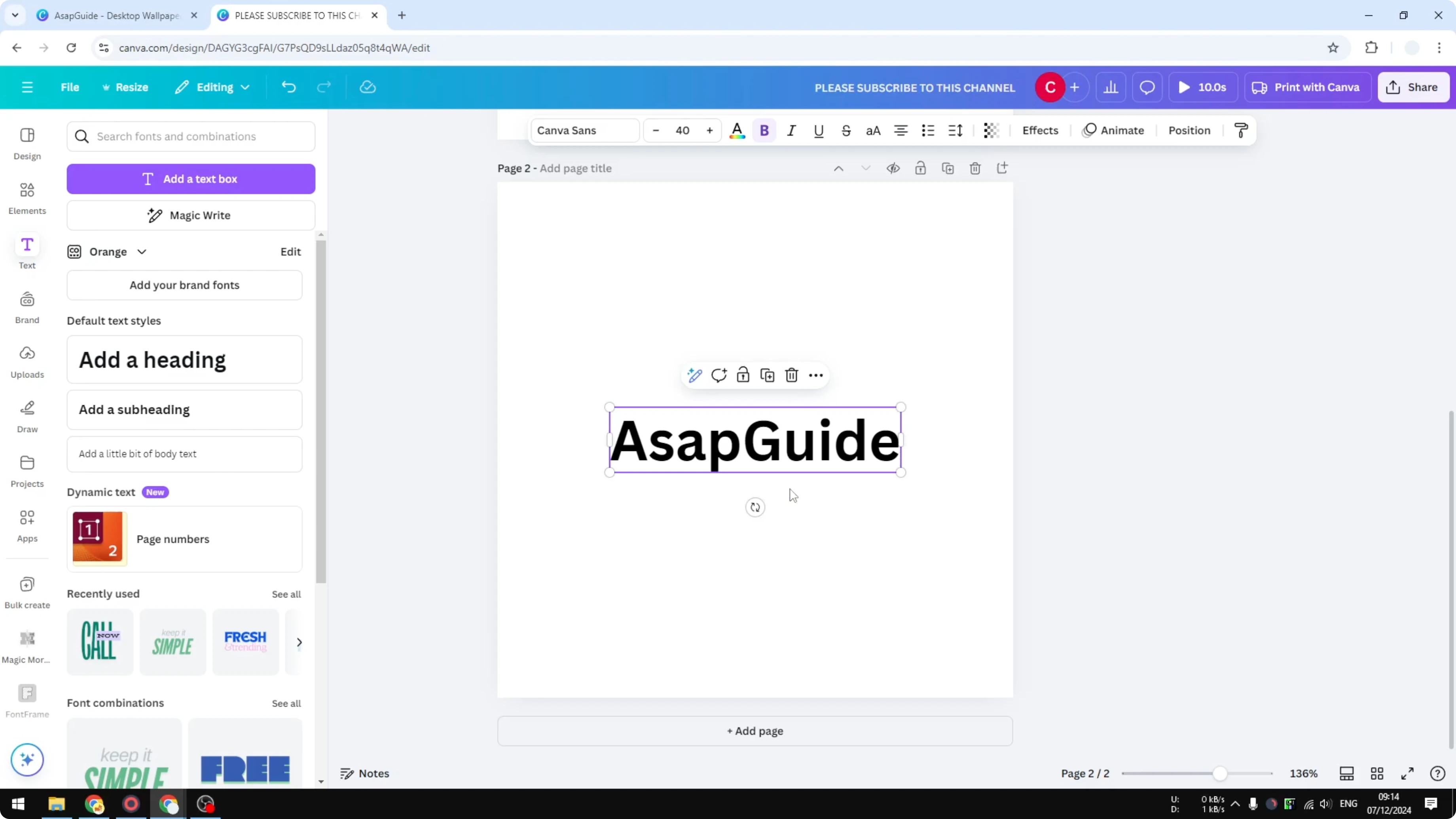
Click the text to select it. You can also select multiple text boxes.
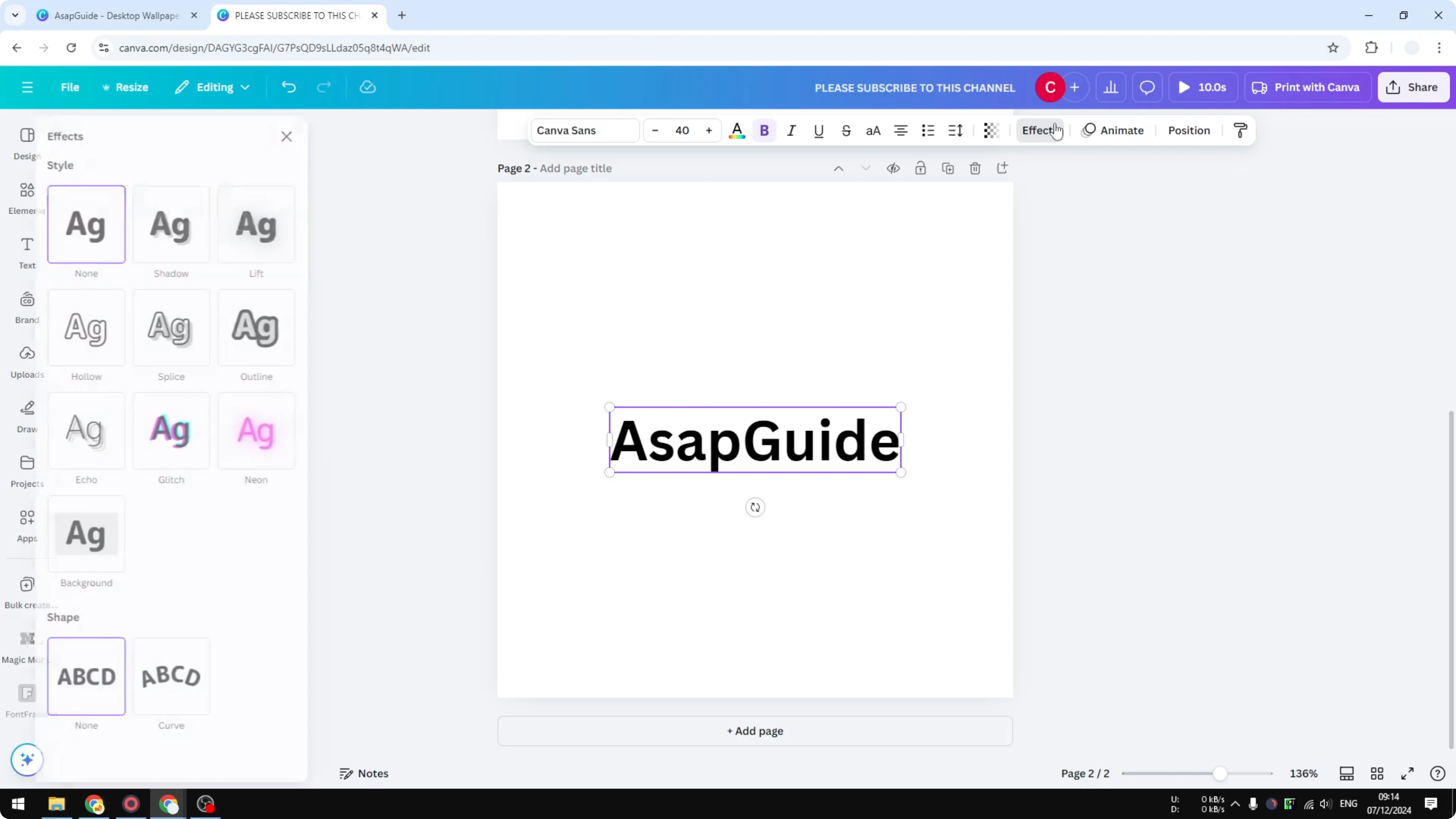
Click Effects.
Click Shadow.
Settings for Add a Drop Shadow in Canva
Adjust Offset to control the distance between the shadow and the actual text. Small values keep it tight, larger values push it farther away. This is the quickest way to tune separation.
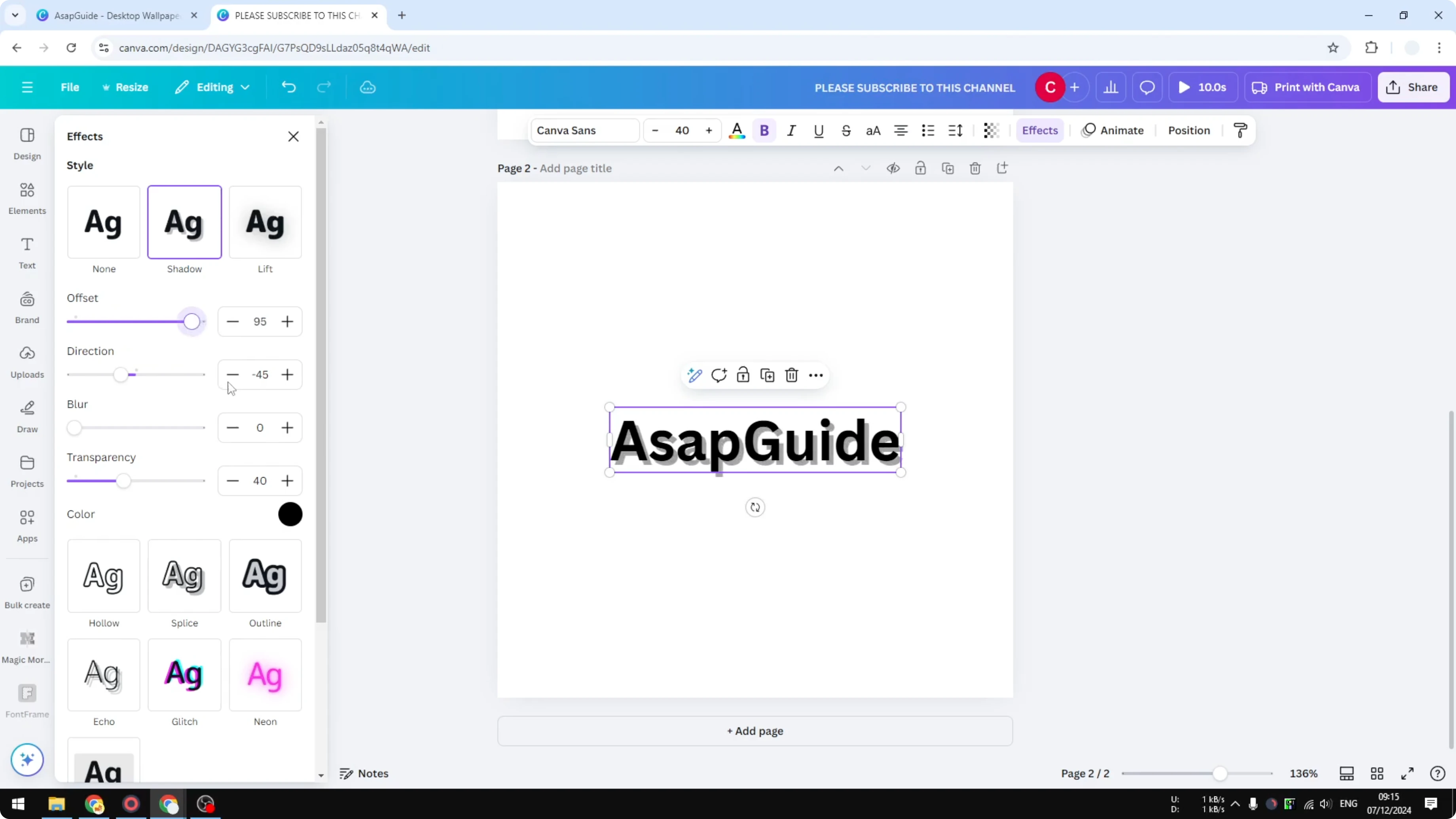
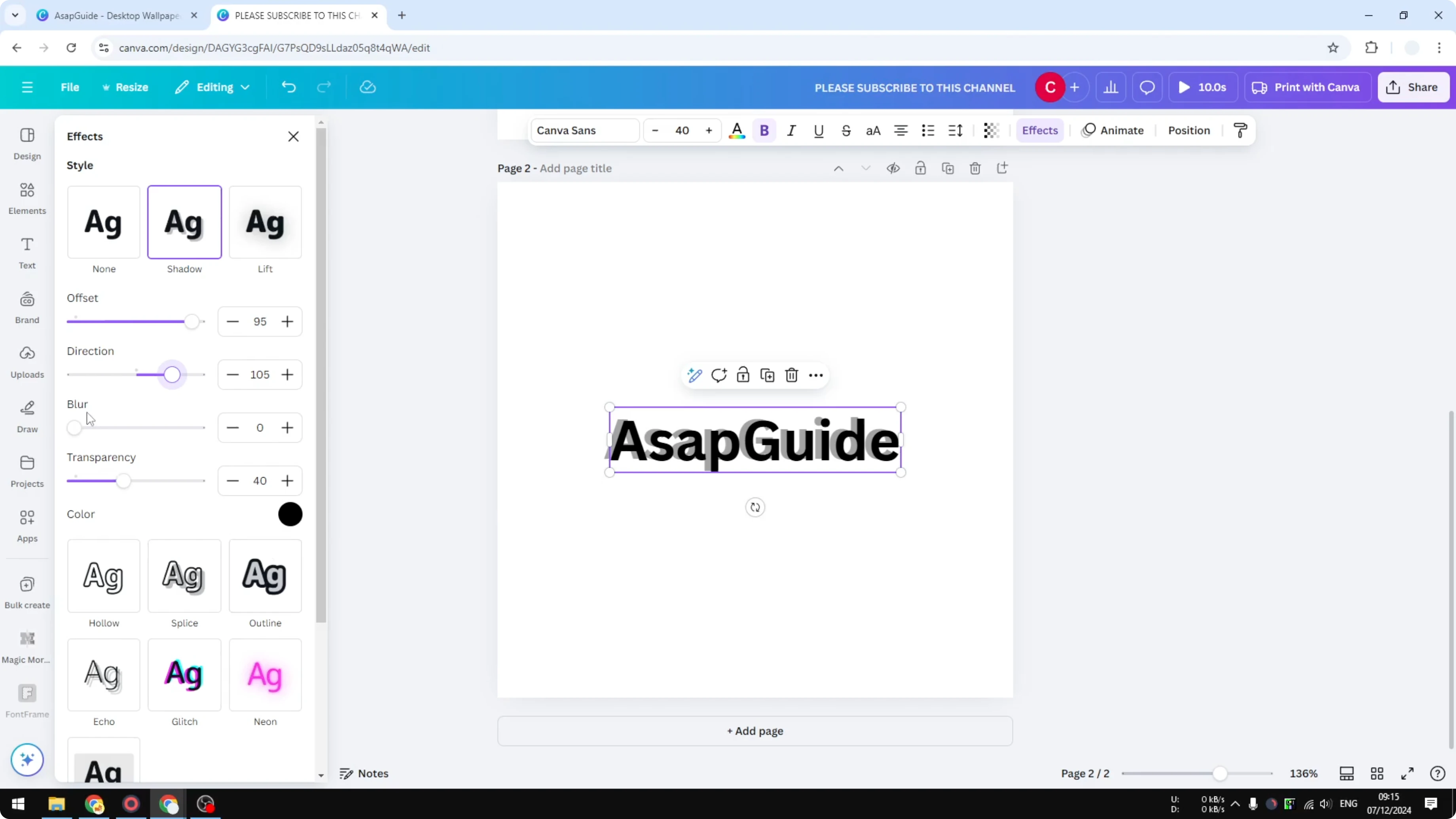
Set the Direction to define where the light is coming from. The shadow appears on the opposite side of your chosen angle. A consistent direction helps the layout feel cohesive.
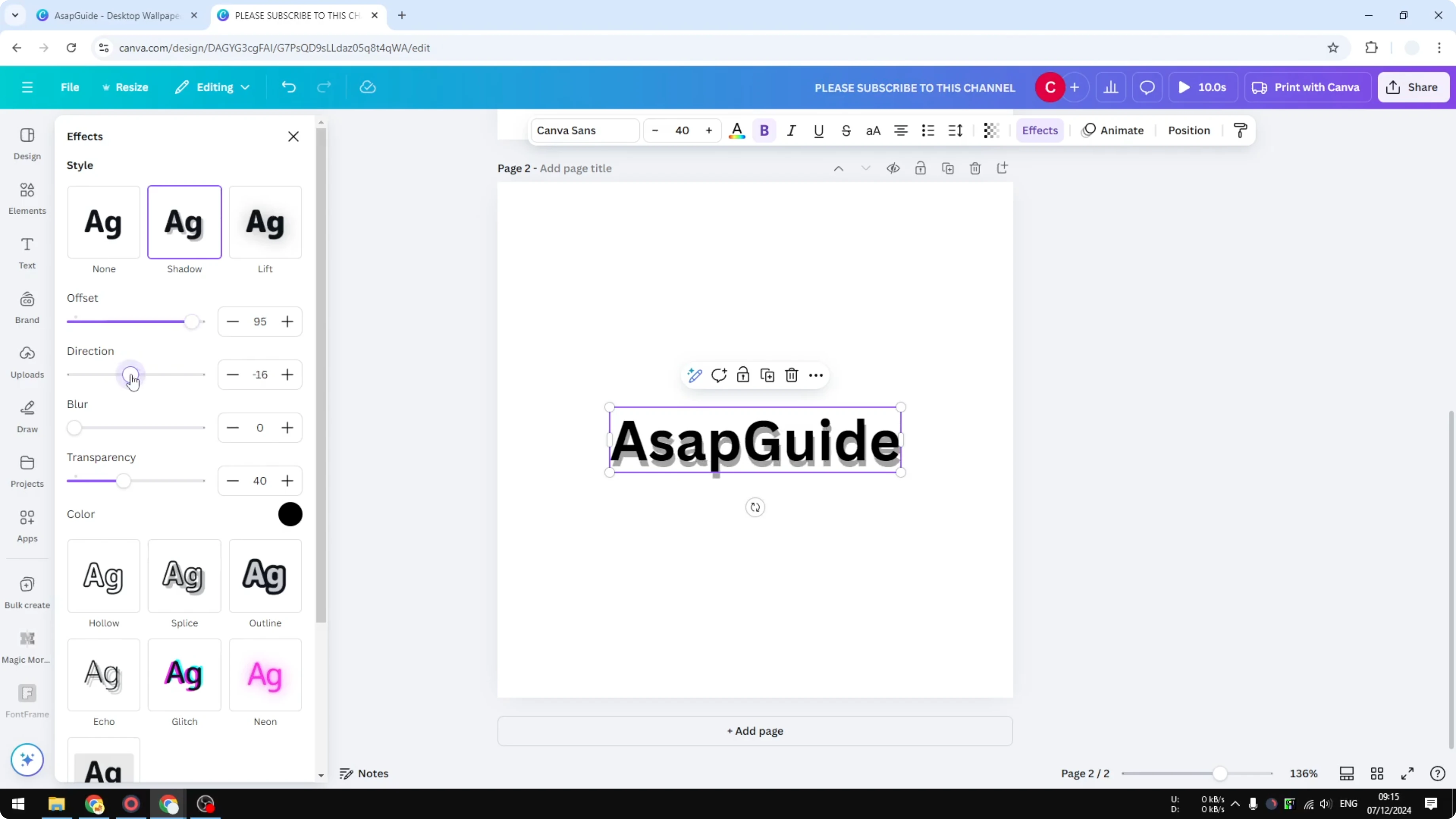
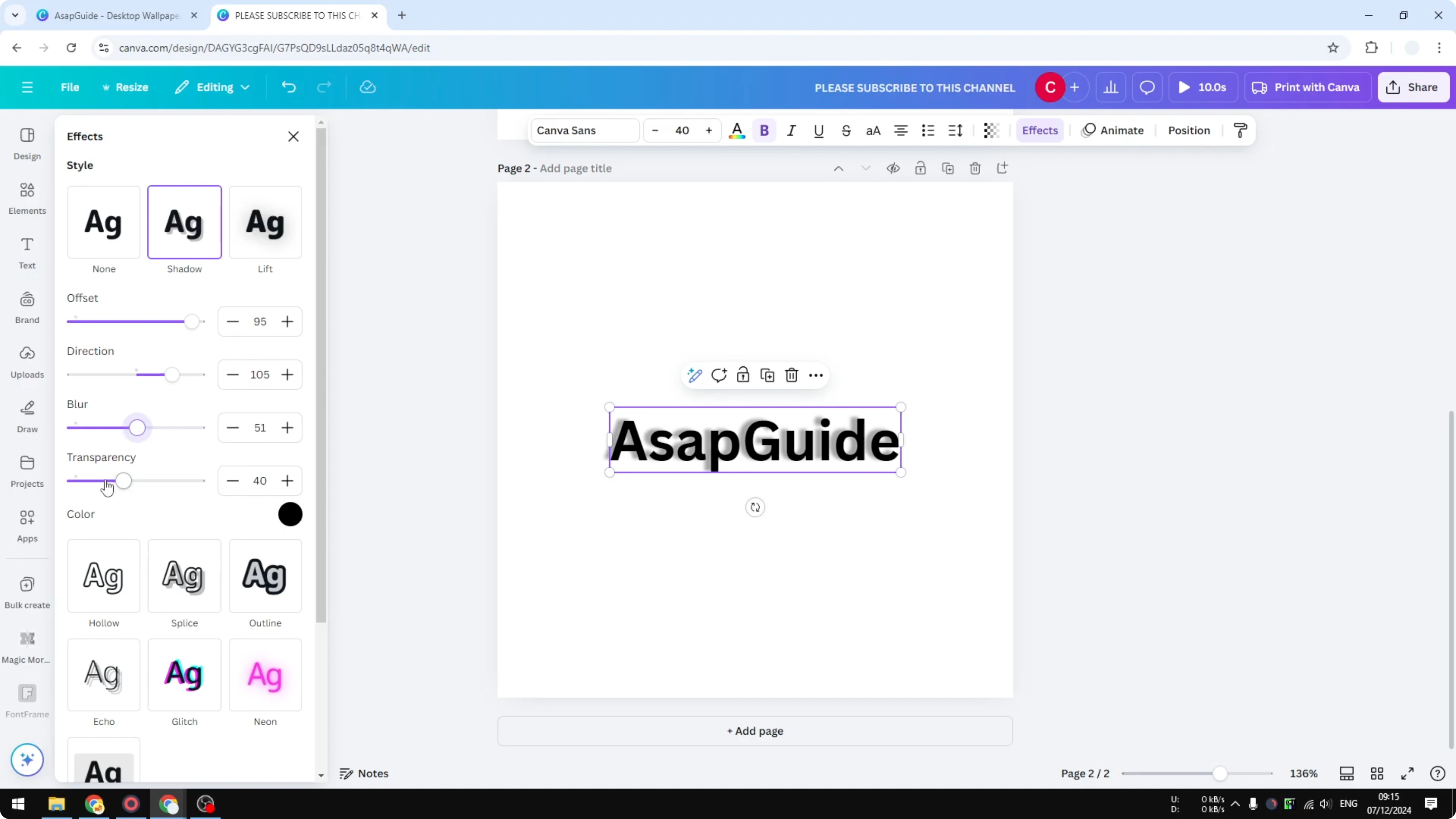
Increase Blur to soften the edges of the shadow. This is useful if you want the shadow to look more realistic. For extra realism tips, see realistic shadow techniques in Canva.
Adjust Transparency to control intensity. You can keep it subtle or make the shadow very visible. Pick what fits the style you are trying to achieve.
Lift with Add a Drop Shadow in Canva
There is another option I use a lot called Lift. It is not the same as a drop shadow, because it adds a soft shadow around each individual letter and applies it uniformly. It helps the whole text pop.
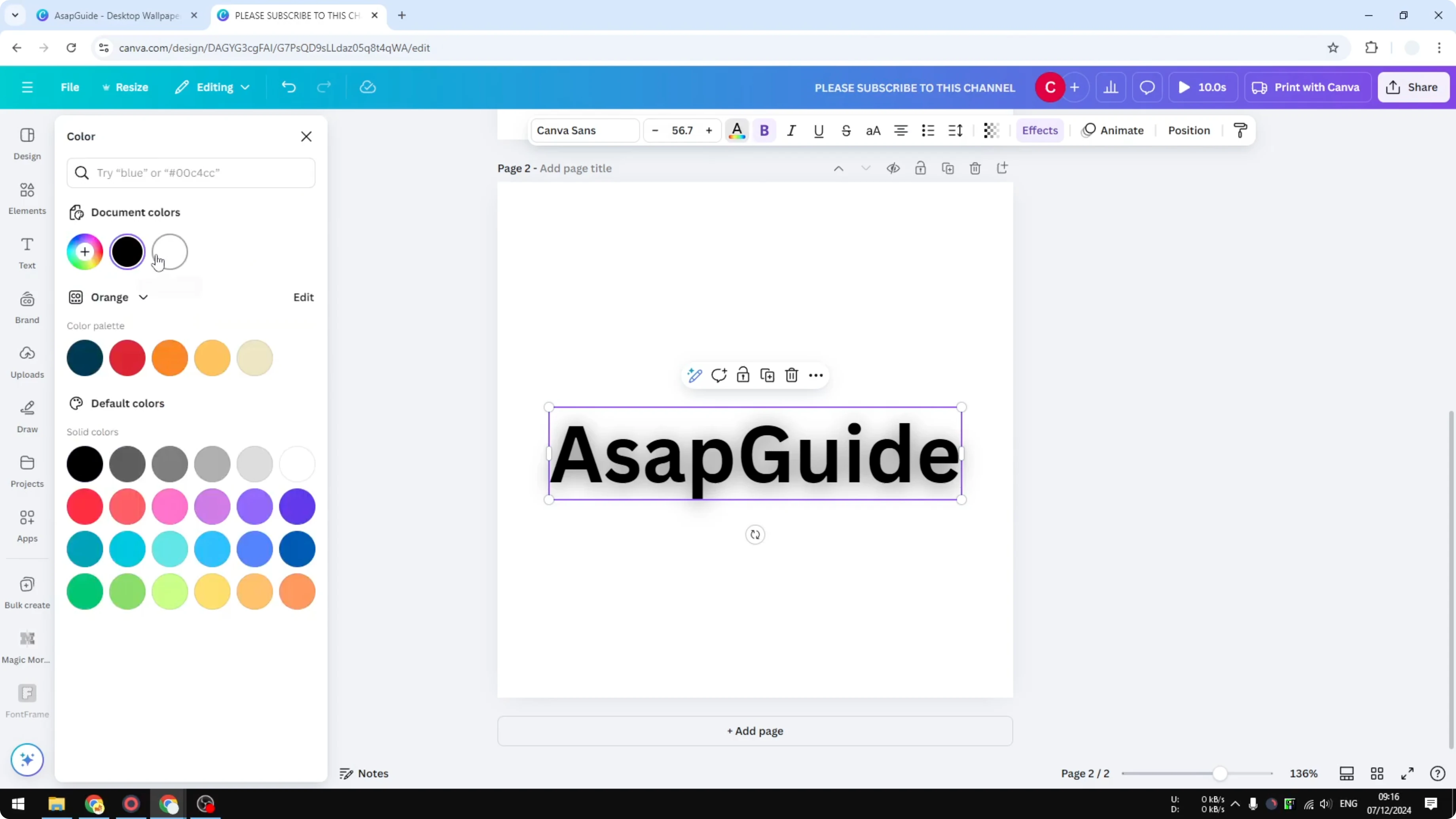
If you change the text color to white, the subtle dark edge from Lift or Shadow can help the letters stay visible. This is an easy fix for low contrast backgrounds.
Read More: Add Accent Marks Canva
Add a Drop Shadow in Canva for Pictures and Video
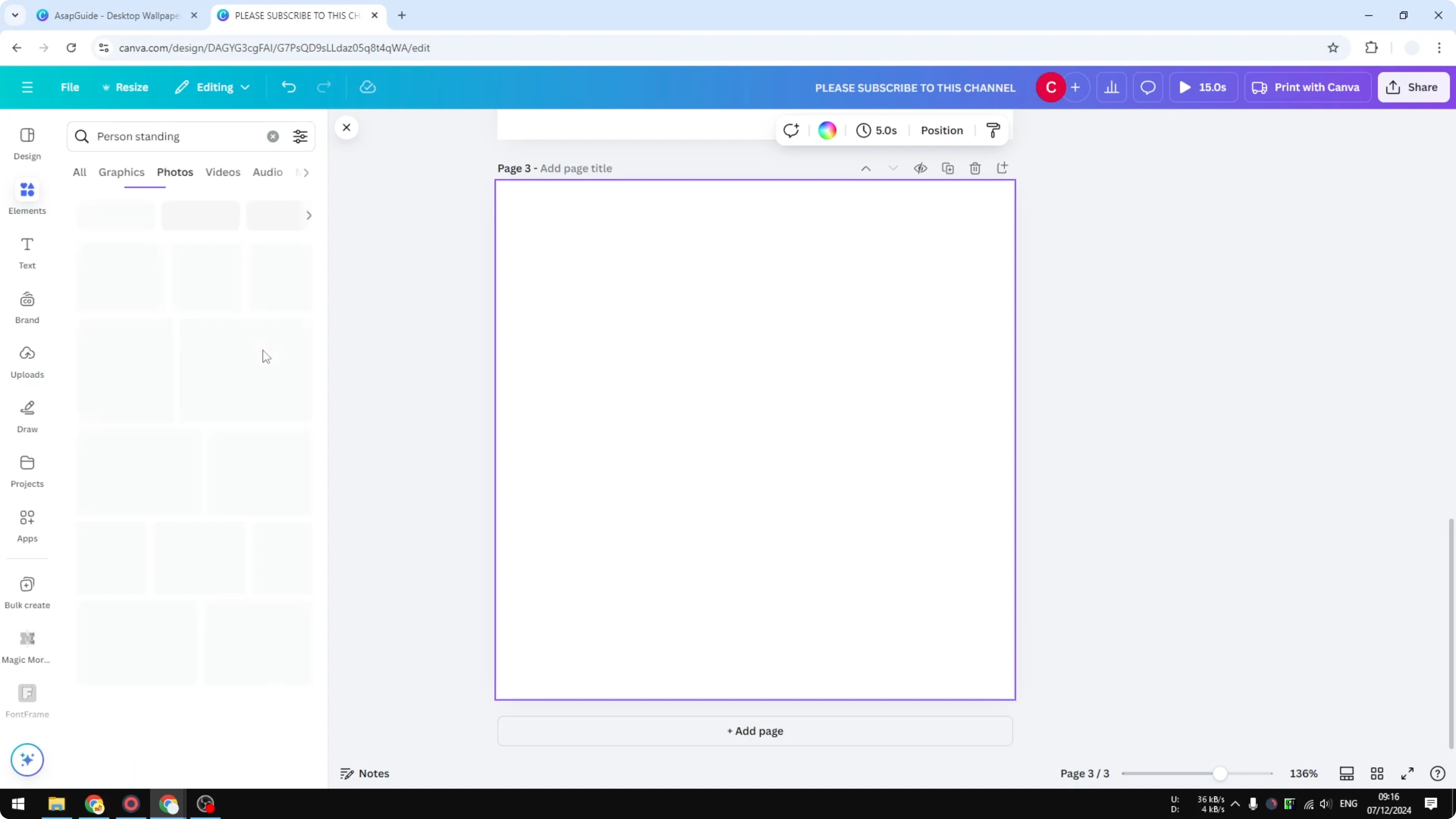
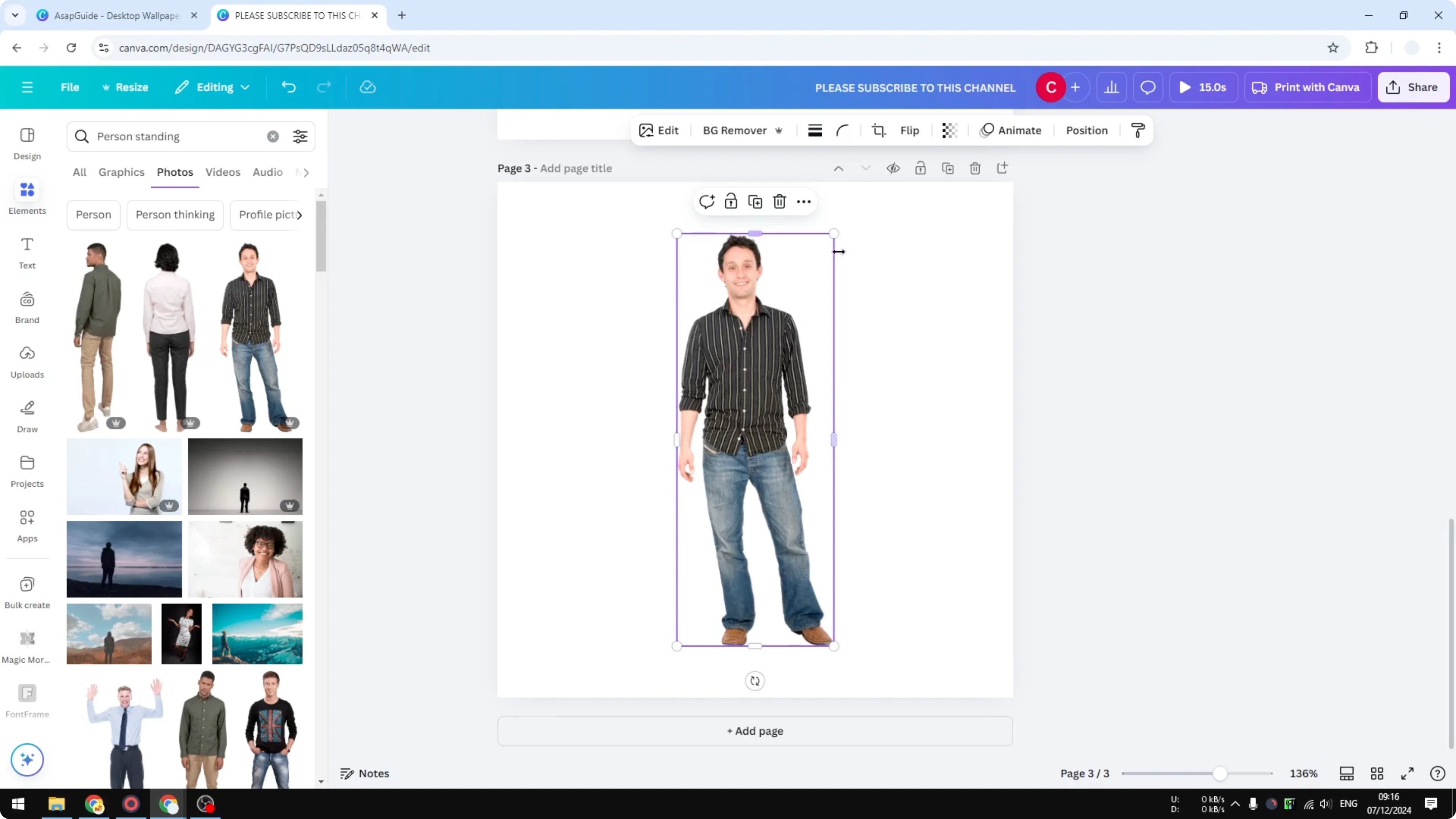
Pick a picture you want to enhance. I like to work with a subject that stands clearly in the frame. The process is straightforward once you know where the controls are.
Click the picture to select it, then click Edit image.
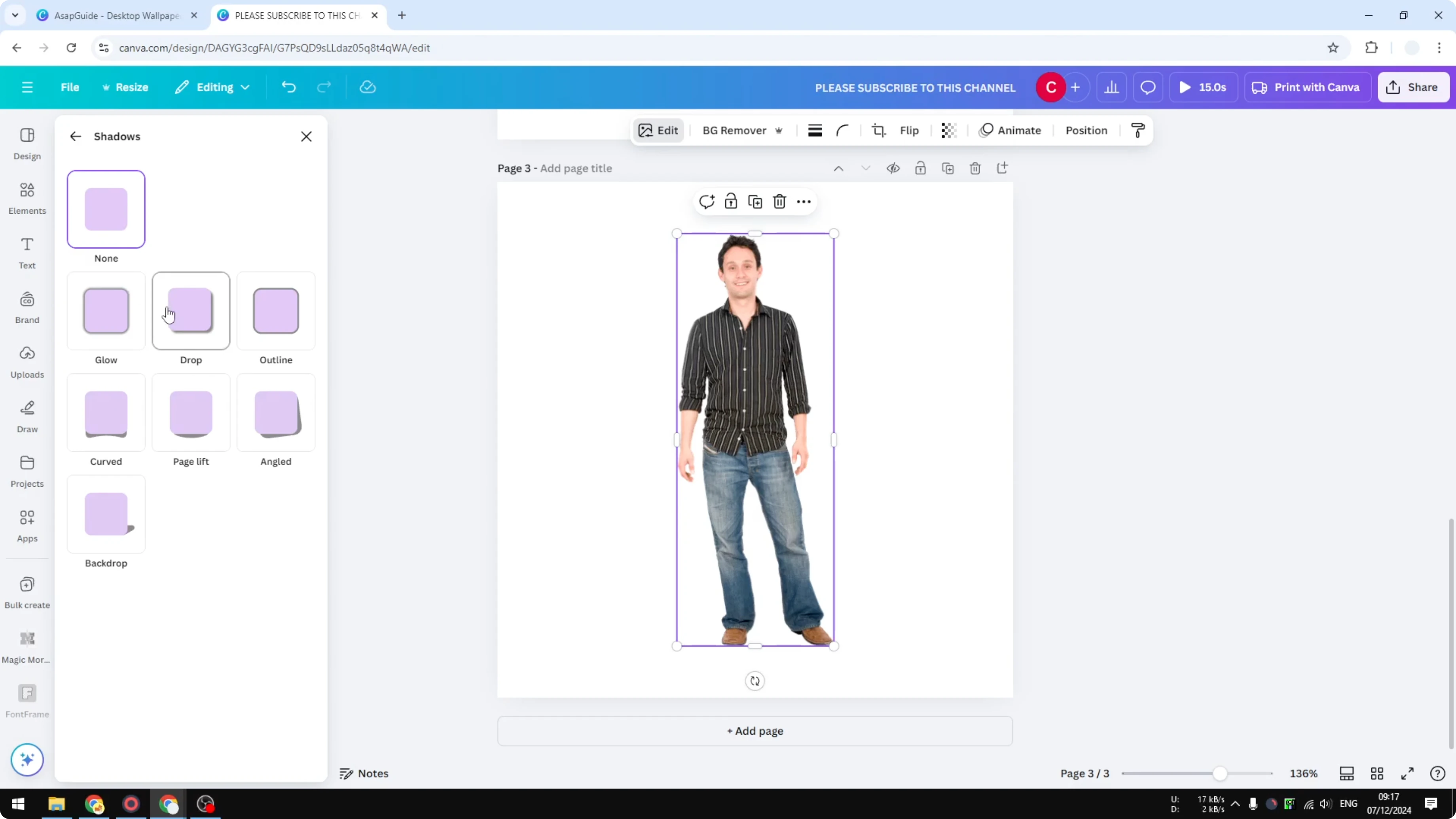
Open Shadows.
Choose Drop Shadow.
Settings for Add a Drop Shadow in Canva on Images
Use Blur amount to soften or sharpen the shadow edge. Set the Angle to place the shadow relative to a light source. Adjust Distance and Intensity to tune separation and strength.
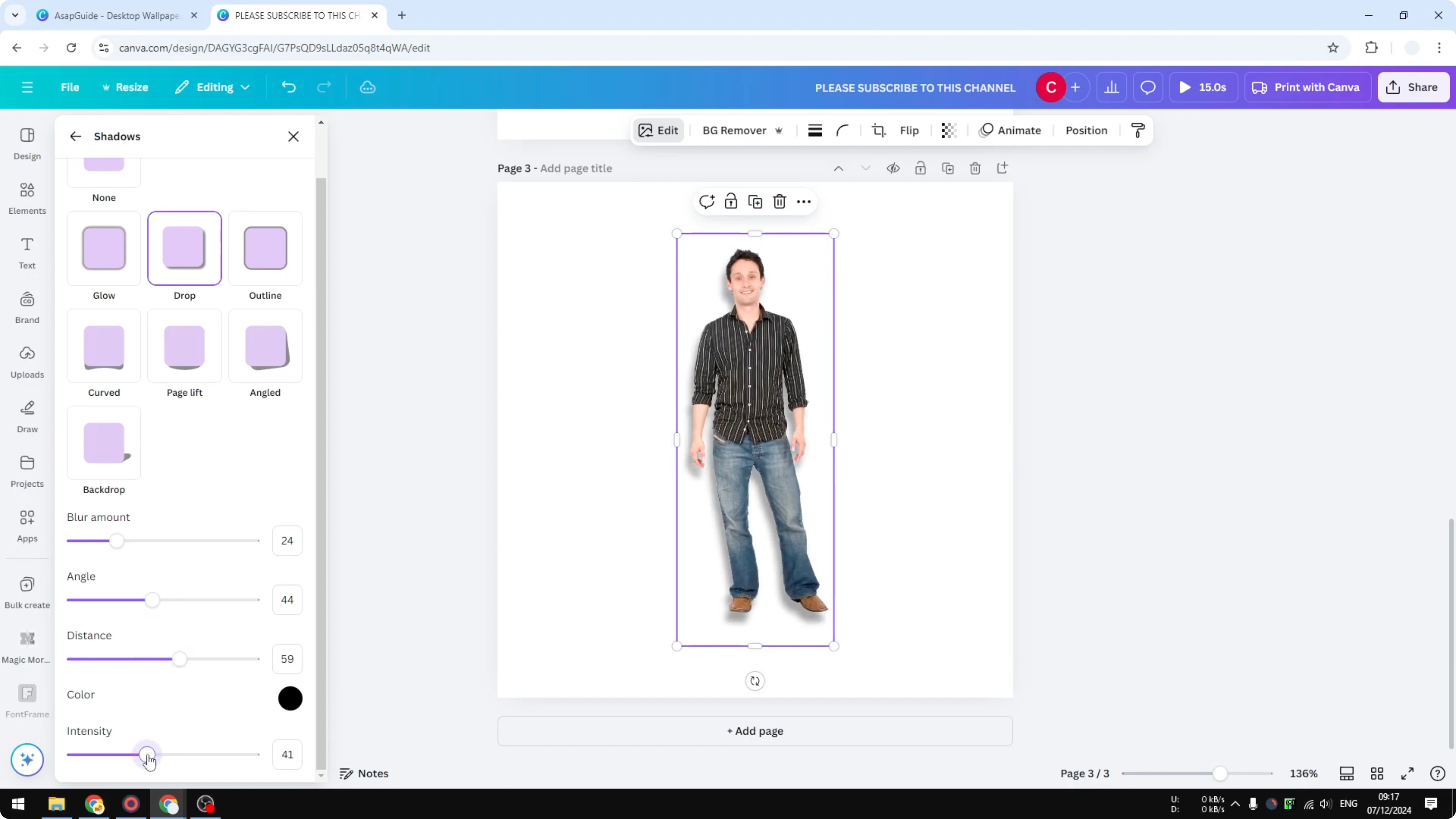
You can also change the Color of the shadow. If you push the color to bright tones, it turns into a glow rather than a shadow. This is handy for creative thumbnails or bold posters.
If your image is a full rectangle, the shadow applies to the entire picture frame. It will not follow the subject’s silhouette by default. That is why isolating the subject makes a big difference.
Isolate the Subject for Add a Drop Shadow in Canva
Remove the background to separate the subject from the rest. You can also use Magic Grab so Canva isolates the object for you. Once the subject is isolated, apply the shadow effect and it will only affect the person or object.
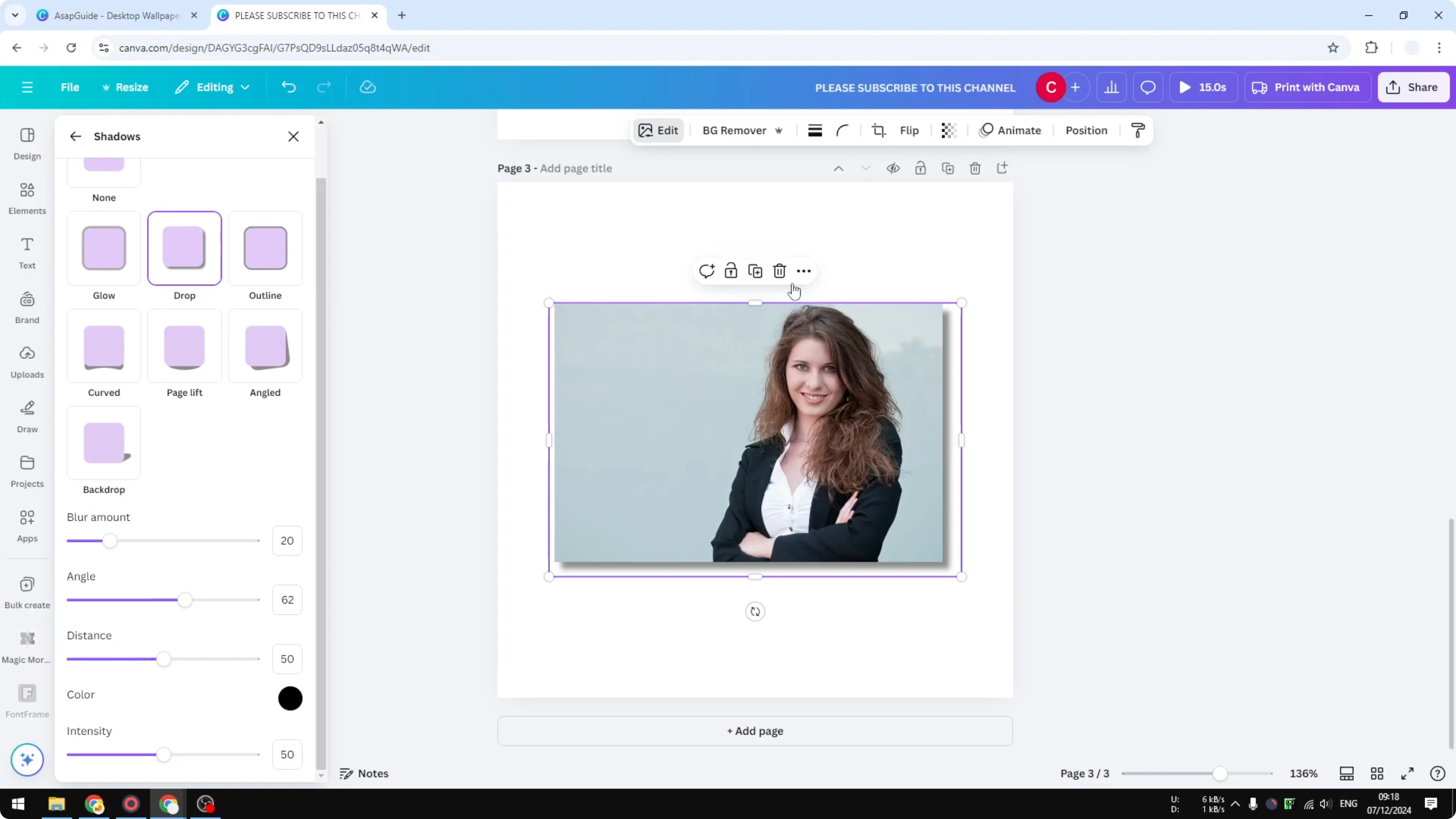
This approach adds depth and makes the subject feel grounded in the scene. I use it a lot when I want extra realism without affecting the background. The result looks clean and controlled.
Read More: Add Shadow Product Images Canva
Final Thoughts on Add a Drop Shadow in Canva
A drop shadow in Canva is quick to set up and instantly improves clarity. Dial in Offset, Direction, Blur, and Transparency, and isolate the subject when you want the effect to follow the real shape. For more refined depth, explore realistic shadow techniques to push the effect even further.
Recent Posts
How to Visualize Yourself as a Pixelized Character with AI?
How to Visualize Yourself as a Pixelized Character with AI?
How to Revive Faded Memories and Enhance Image Clarity with AI?
How to Revive Faded Memories and Enhance Image Clarity with AI?
How to Visualize Yourself as an Animal Crossing Character with AI?
How to Visualize Yourself as an Animal Crossing Character with AI?