How to Visualize Different Outfits and Fashion Styles with AI?
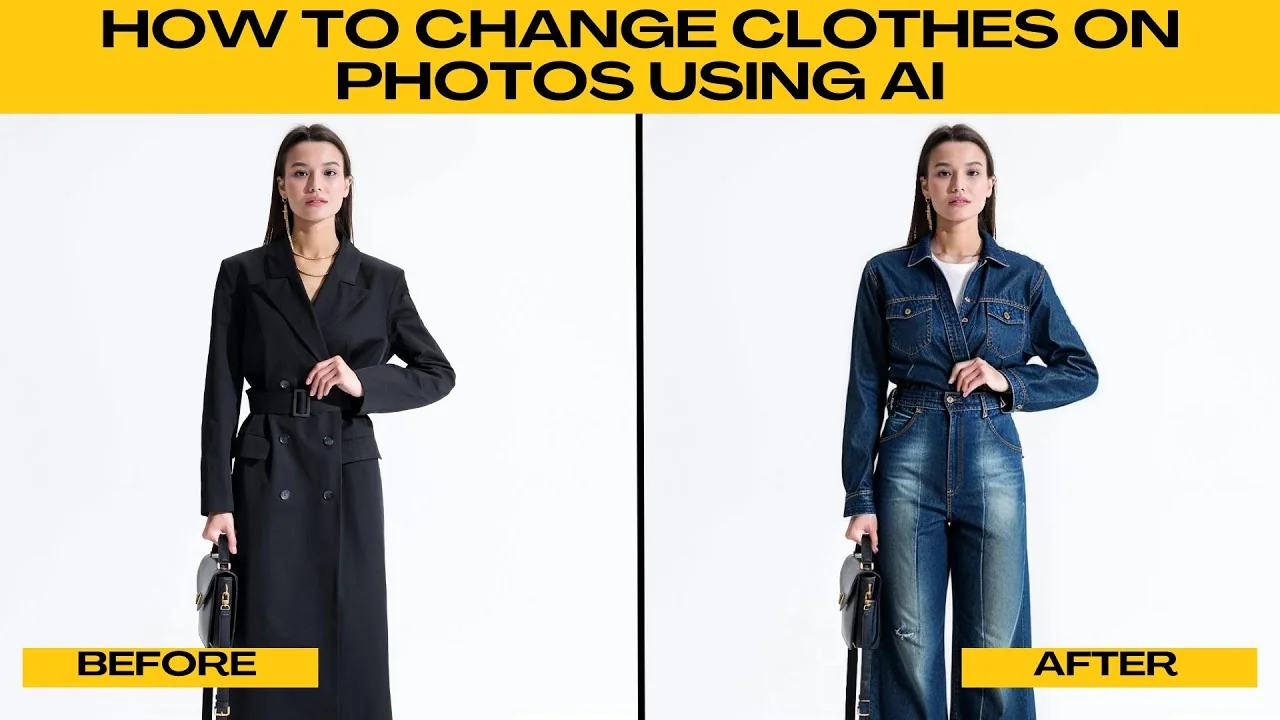
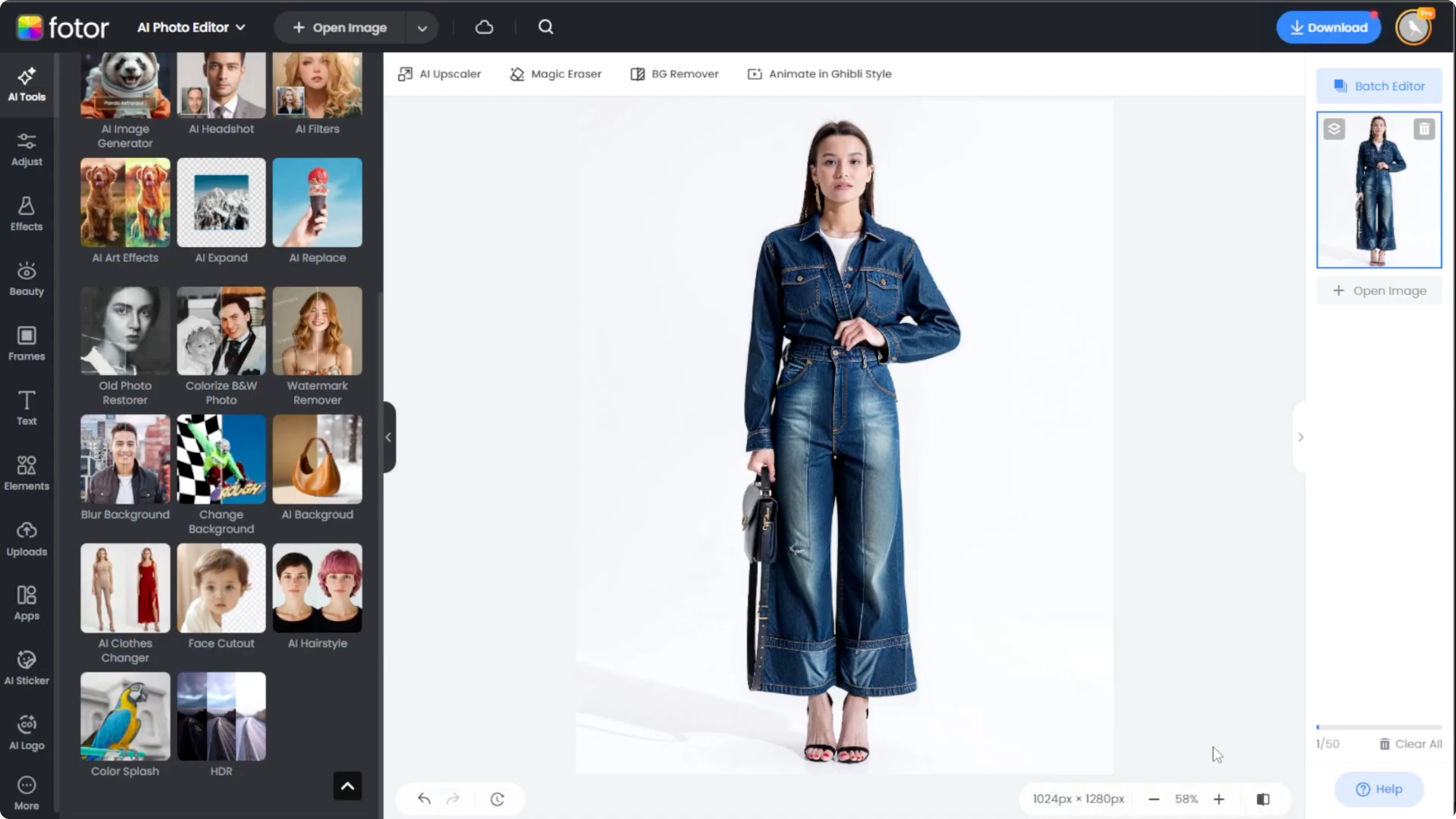
I will teach you how to change clothes in photos using AI. We will use Fotor's AI photo editor to swap tops, bottoms, or full outfits with realistic results. Follow these steps to generate and refine outfits without manual retouching.
For a broader set of photo enhancement ideas, check out this helpful AI guide. You can combine those techniques with the workflow below for even better outcomes. Keep your original image handy for quick comparisons.
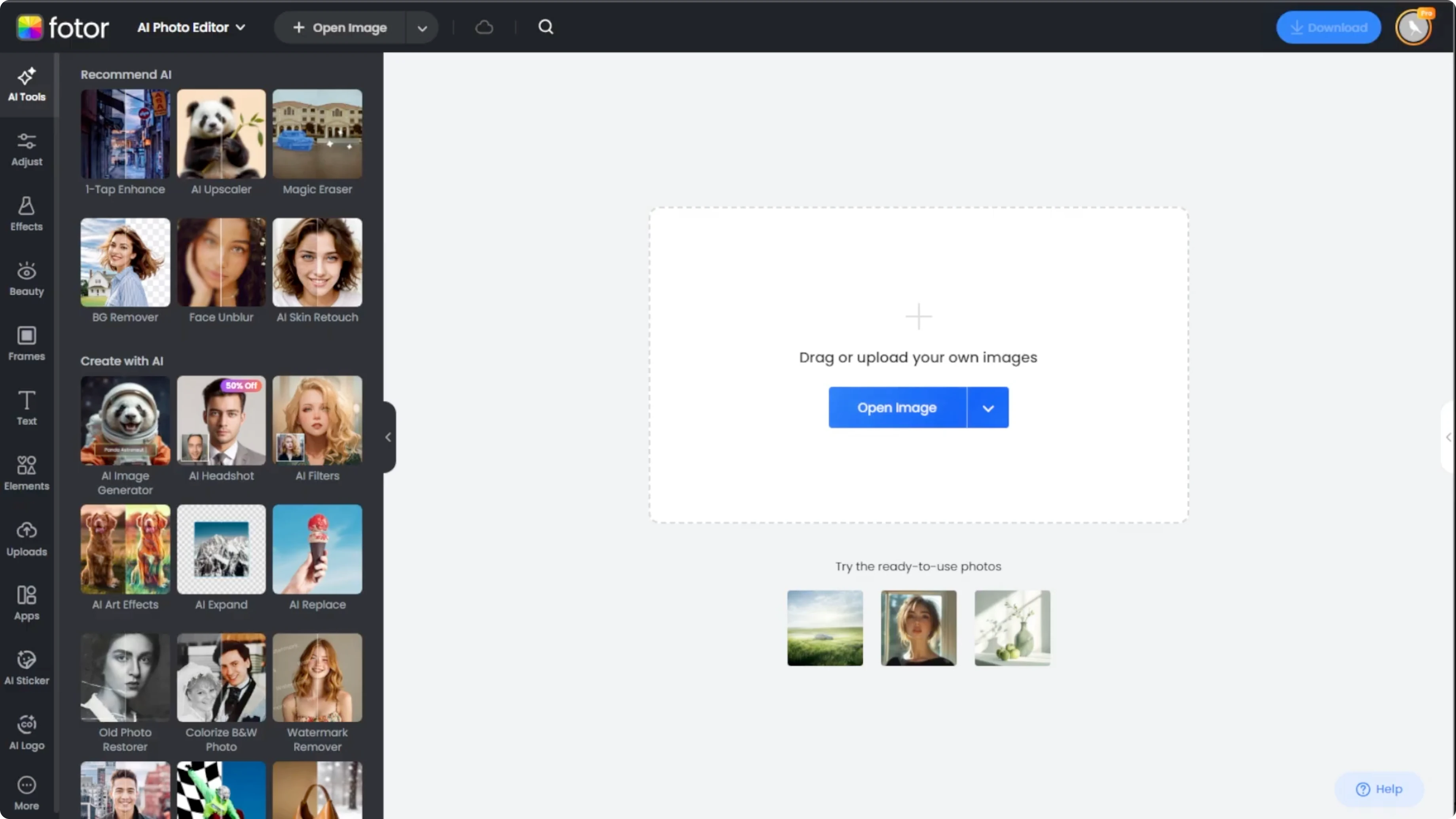
Upload your photo
Open your browser and visit the Fotor AI photo editor. Drag and drop your image into the workspace, or click Open Image to browse and upload from your device. Wait for the editor to load your photo.
Open AI clothes changer
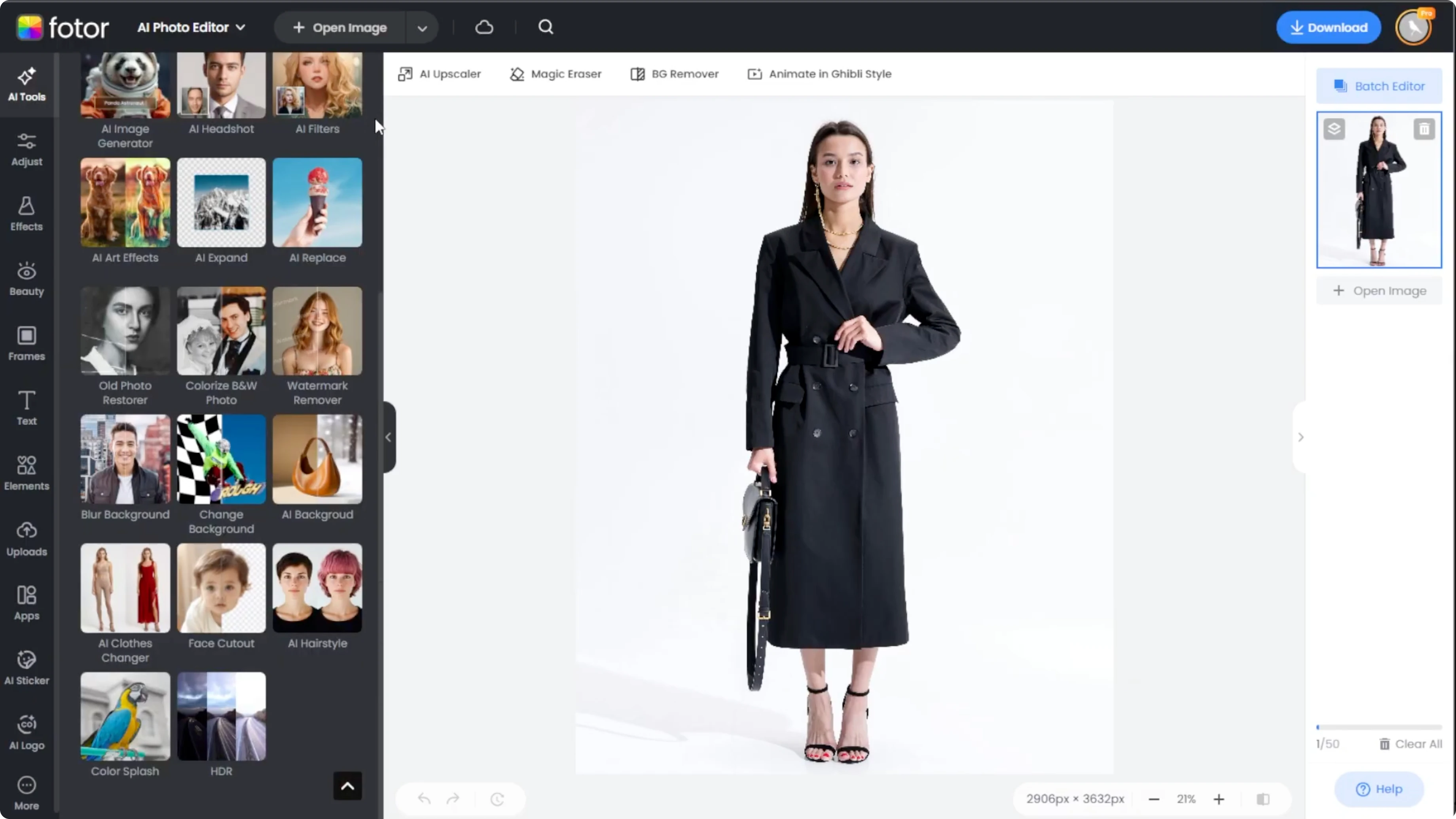
In the left panel, click AI tools. Scroll down to AI clothes changer and open it.
Choose clothing type
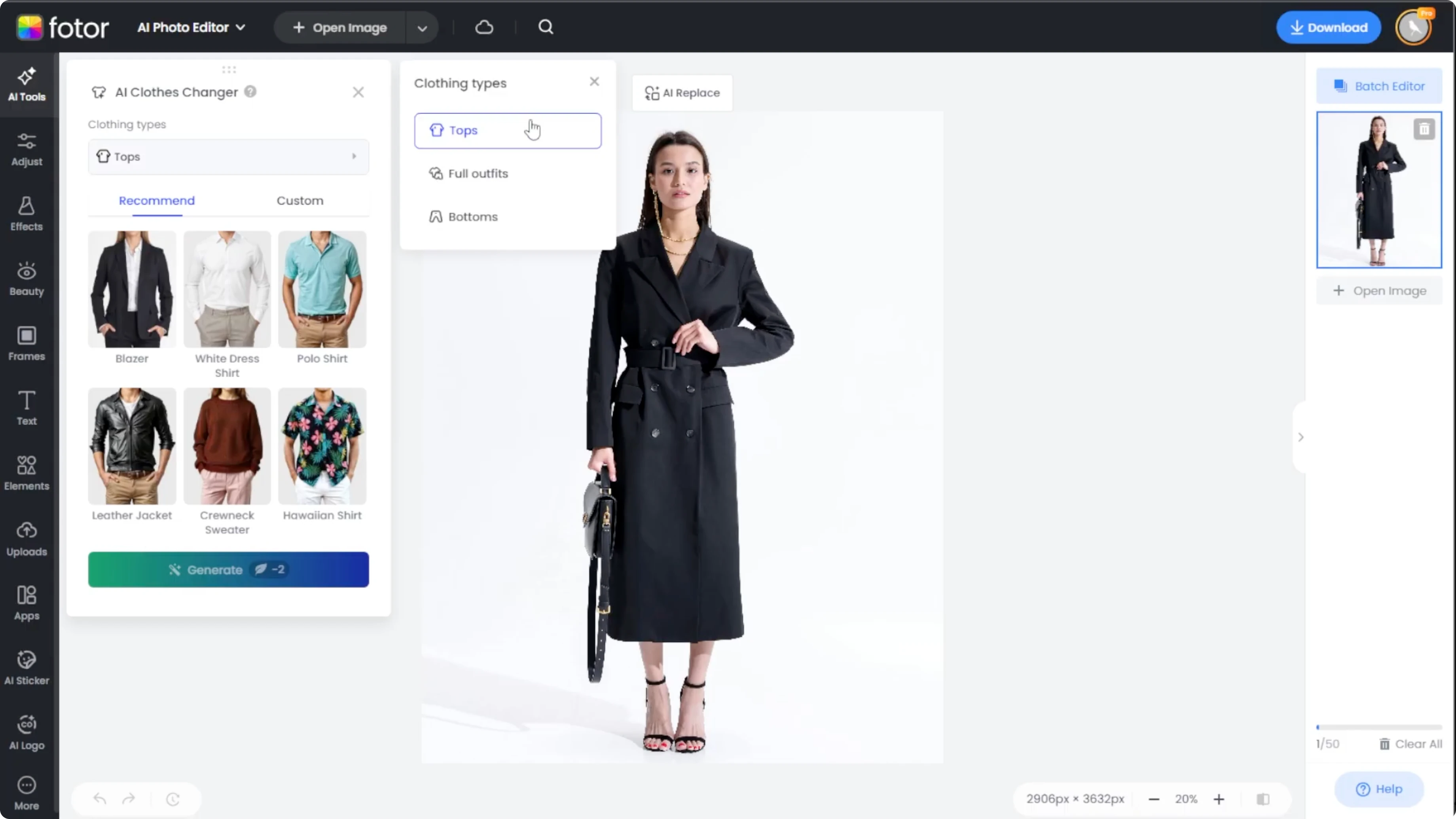
Choose the clothing area you want to replace. Pick tops, bottoms, or full outfits to target the correct part of your outfit. Confirm the selection so the tool knows where to apply changes.
Pick a mode
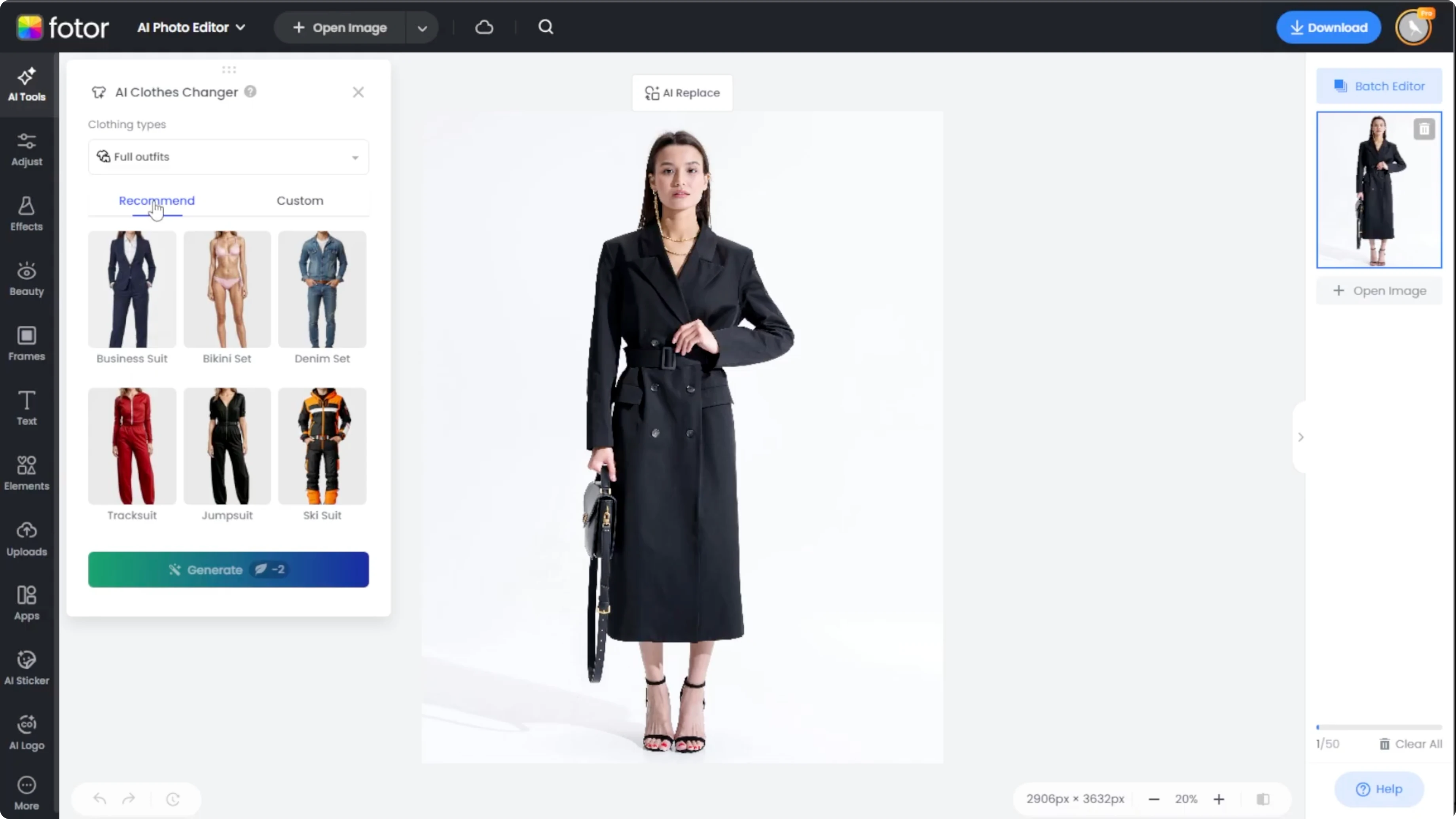
Recommended mode
Select from predefined clothing styles provided by Fotor. Pick your favorite and preview how it fits your selected area.
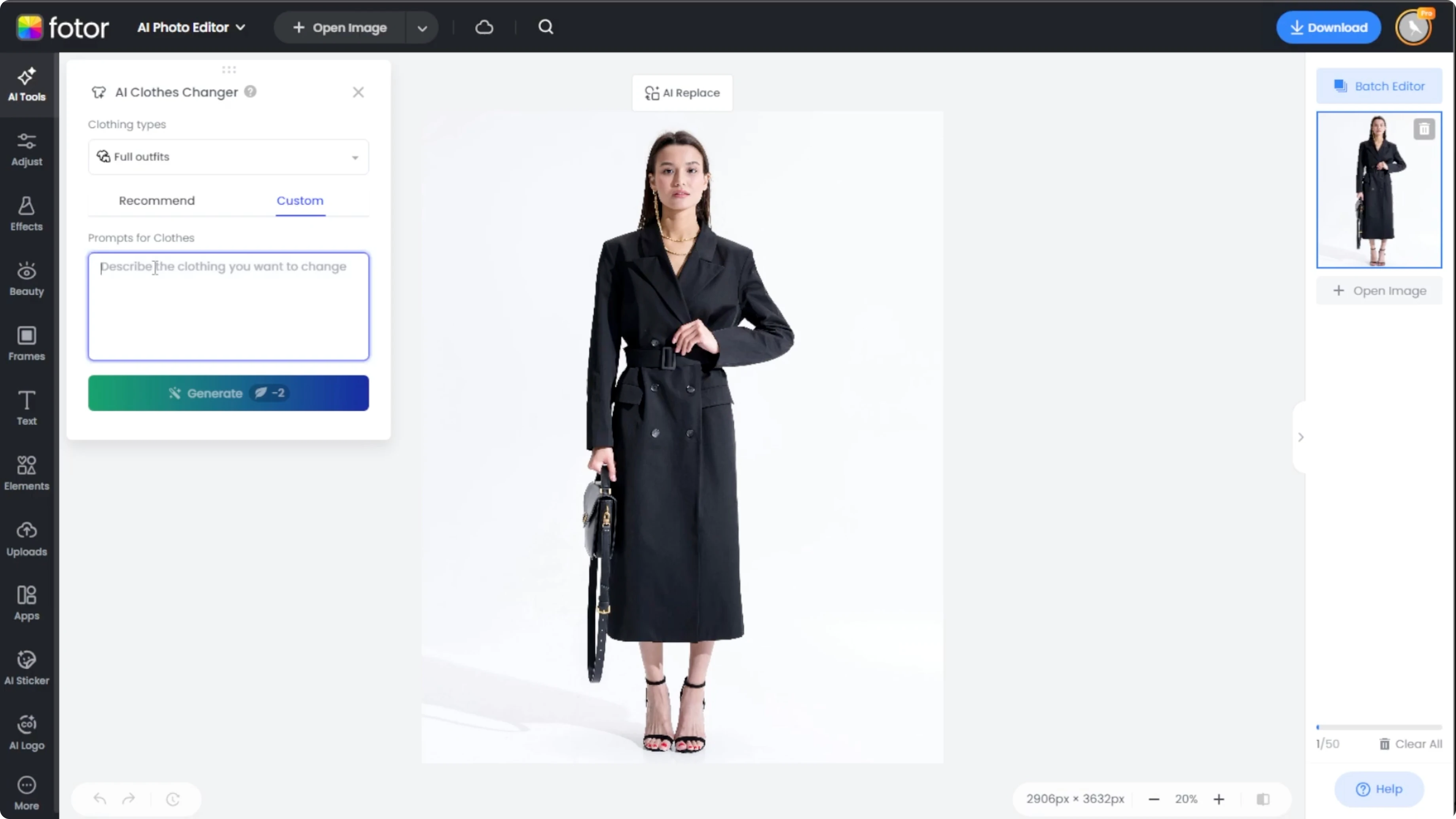
Custom mode
Write a specific and creative prompt describing the clothing you want. The more detailed the prompt, the better the result. For inspiration on stylized edits beyond outfit changes, explore how to add a cartoon effect with Canva.
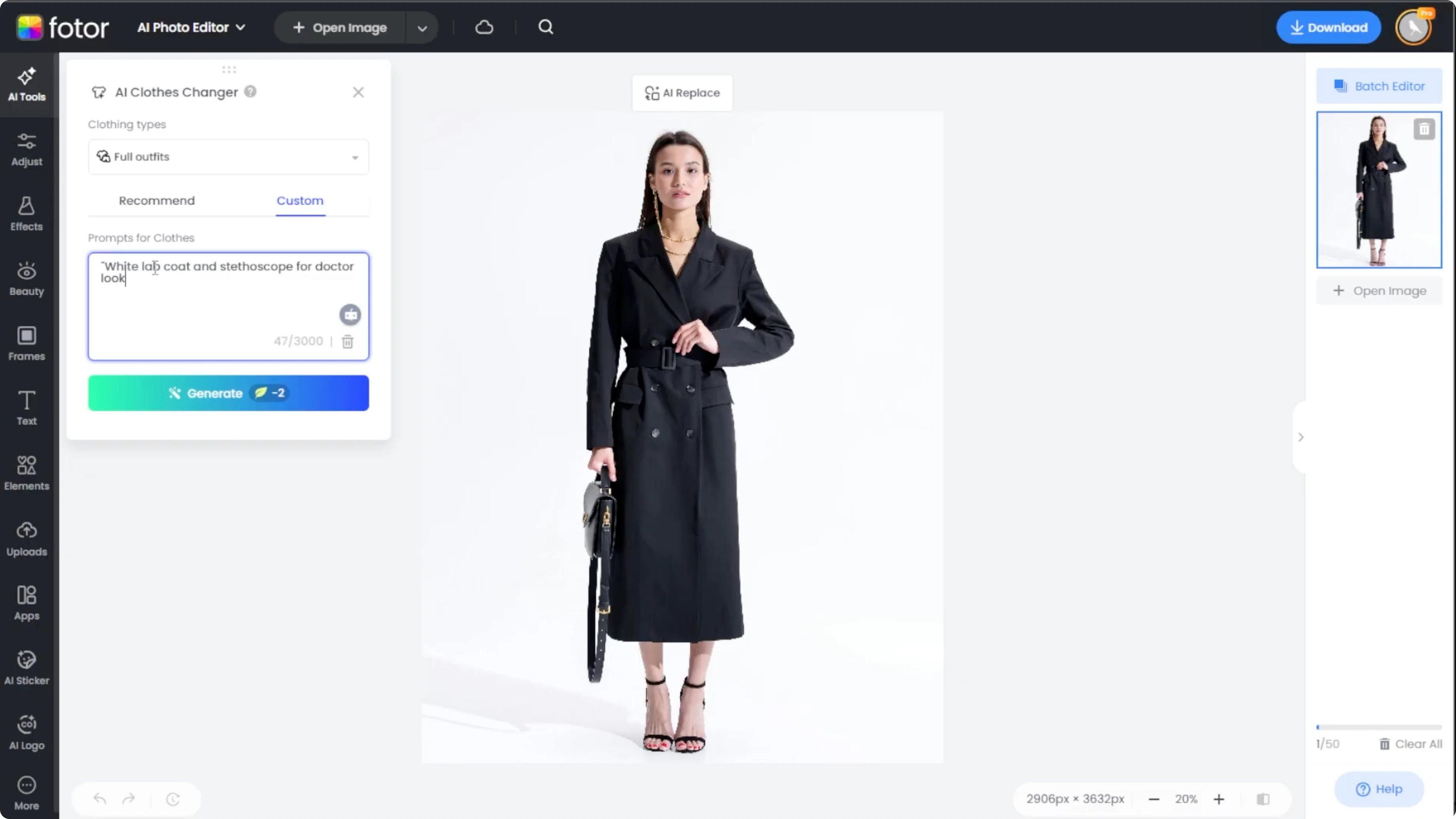
Generate and refine
Click Generate to create the new outfit. This process takes about 20 seconds to a minute and costs two credits per generation. If the first try is not right, click Generate more to produce new variations with the same input.
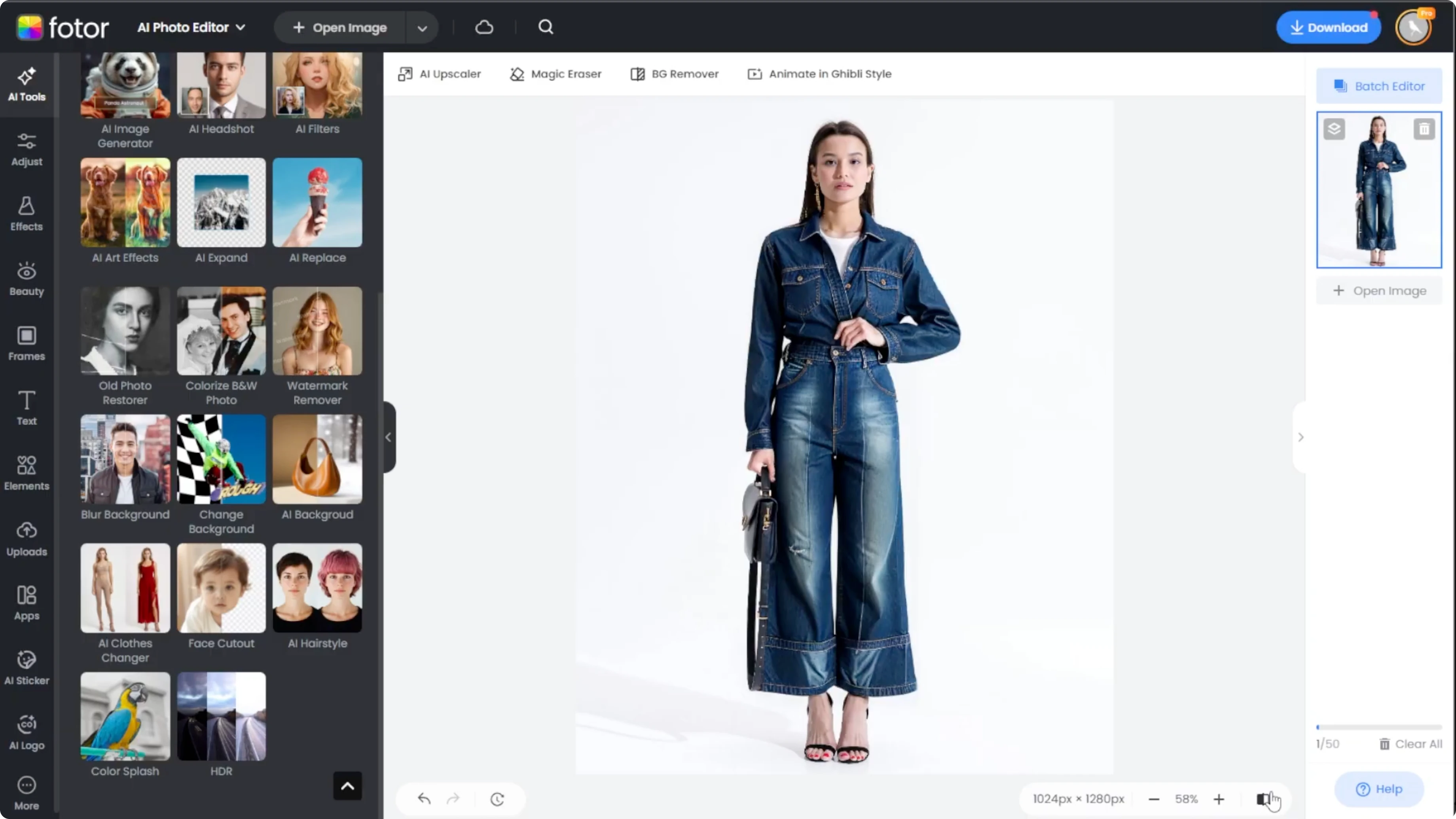
Compare and download
Use the Compare button at the bottom right to view the new outfit against the original. When you are satisfied, click Download to save your updated look. For creative styling beyond clothing, you can also add realistic tattoos with AI to complete the aesthetic.
Final thoughts
This AI clothes changer makes it easy to visualize different fashion looks on any photo. Experiment with recommended styles or write detailed prompts to fine tune the result. No Photoshop skills required.
Recent Posts

How to Visualize Yourself as a Pixelized Character with AI?
How to Visualize Yourself as a Pixelized Character with AI?

How to Revive Faded Memories and Enhance Image Clarity with AI?
How to Revive Faded Memories and Enhance Image Clarity with AI?

How to Visualize Yourself as an Animal Crossing Character with AI?
How to Visualize Yourself as an Animal Crossing Character with AI?