How to Make Text Animate Line by Line in Canva
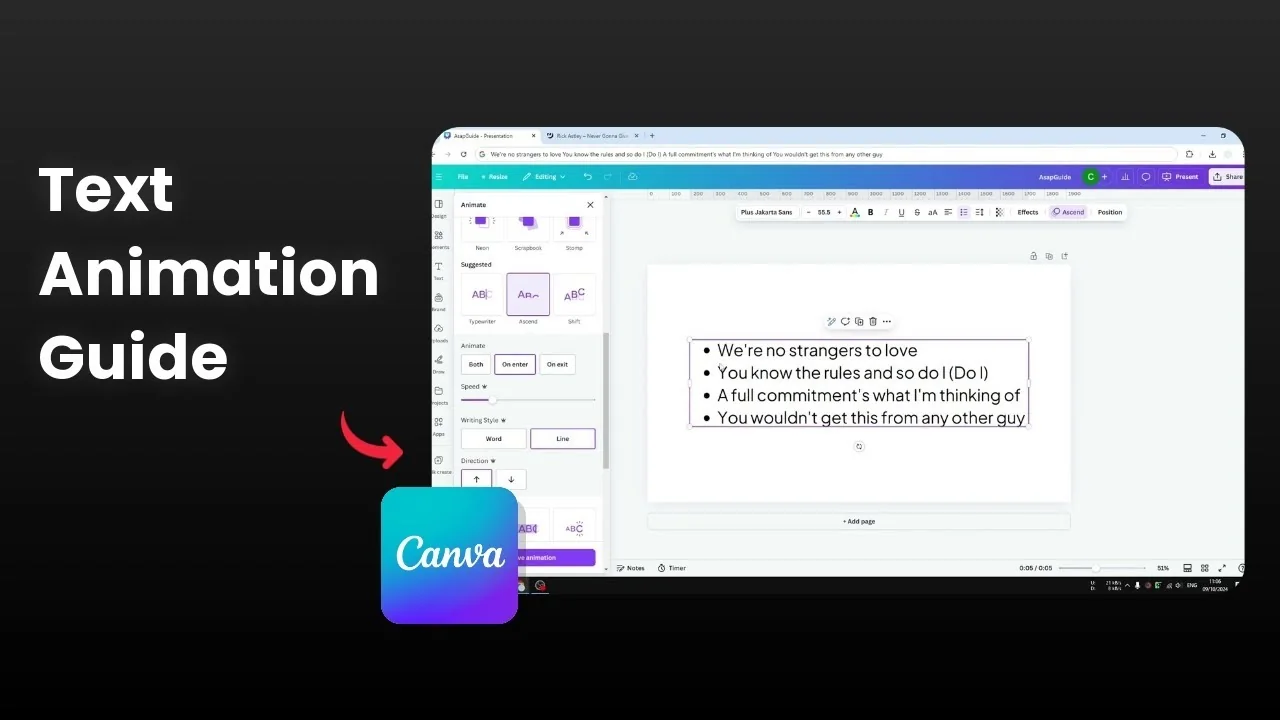
I will show you how to add a text animation sequence in Canva, especially making the text appear one line at a time. This is very useful if you want to make your text more attractive and gain attention from viewers. Instead of having the text appear all at once on the entrance or on the exit, you can make it appear one line or one word or one letter at a time.
For a deeper walkthrough on line by line timing, see how to animate text line by line in Canva for more layout ideas and timing tips.
Why Make Text Animate Line by Line in Canva
Making text appear one line at a time lets each message land clearly. It keeps the rhythm focused and avoids visual overload.
You can start from the first line, then the second line, third line, and so on. This pacing makes long text blocks easier to read.
Apply Make Text Animate Line by Line in Canva
Click the text box you want to animate.
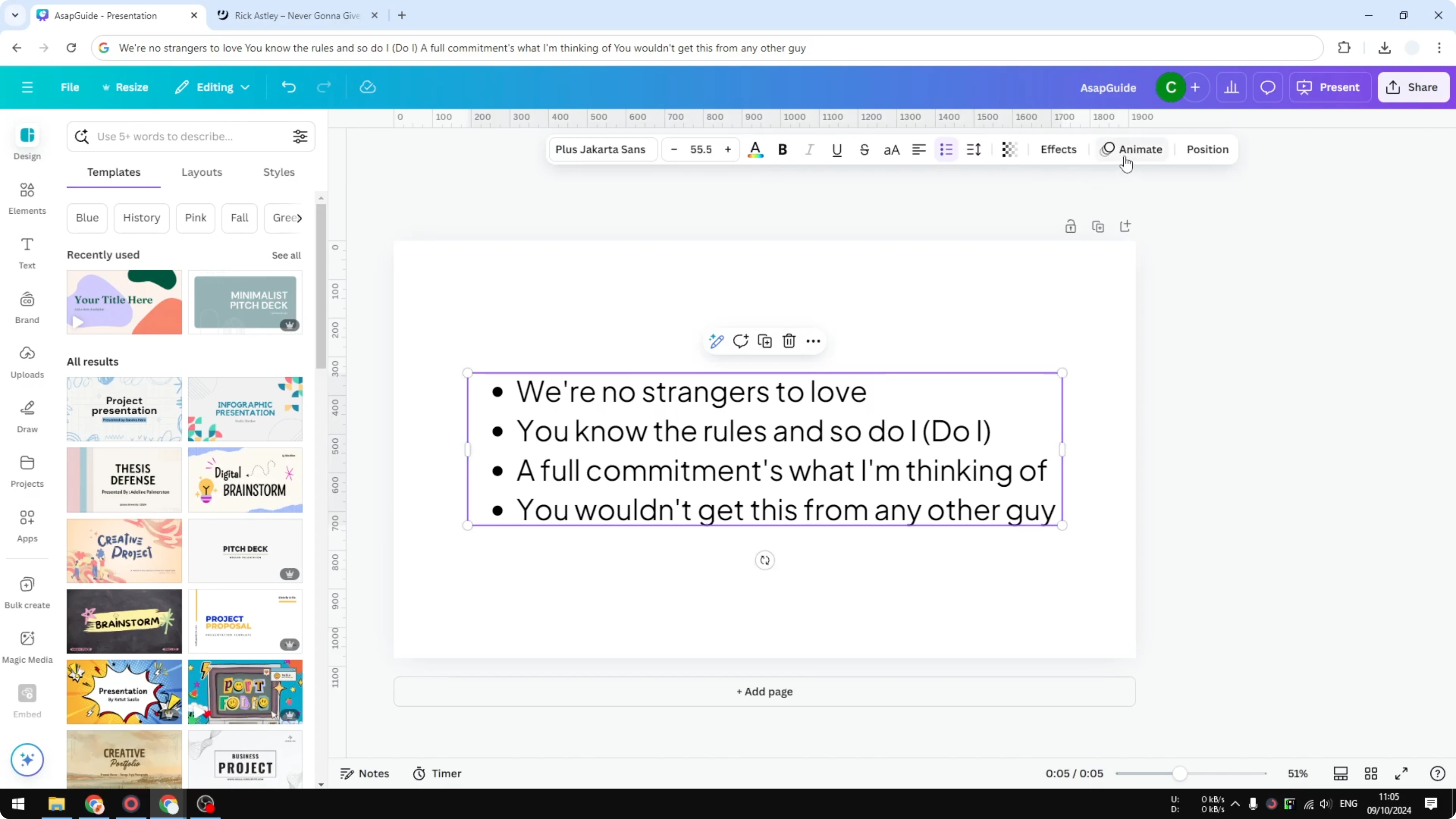
Open Animate.
Select the Text section, not Page animation.
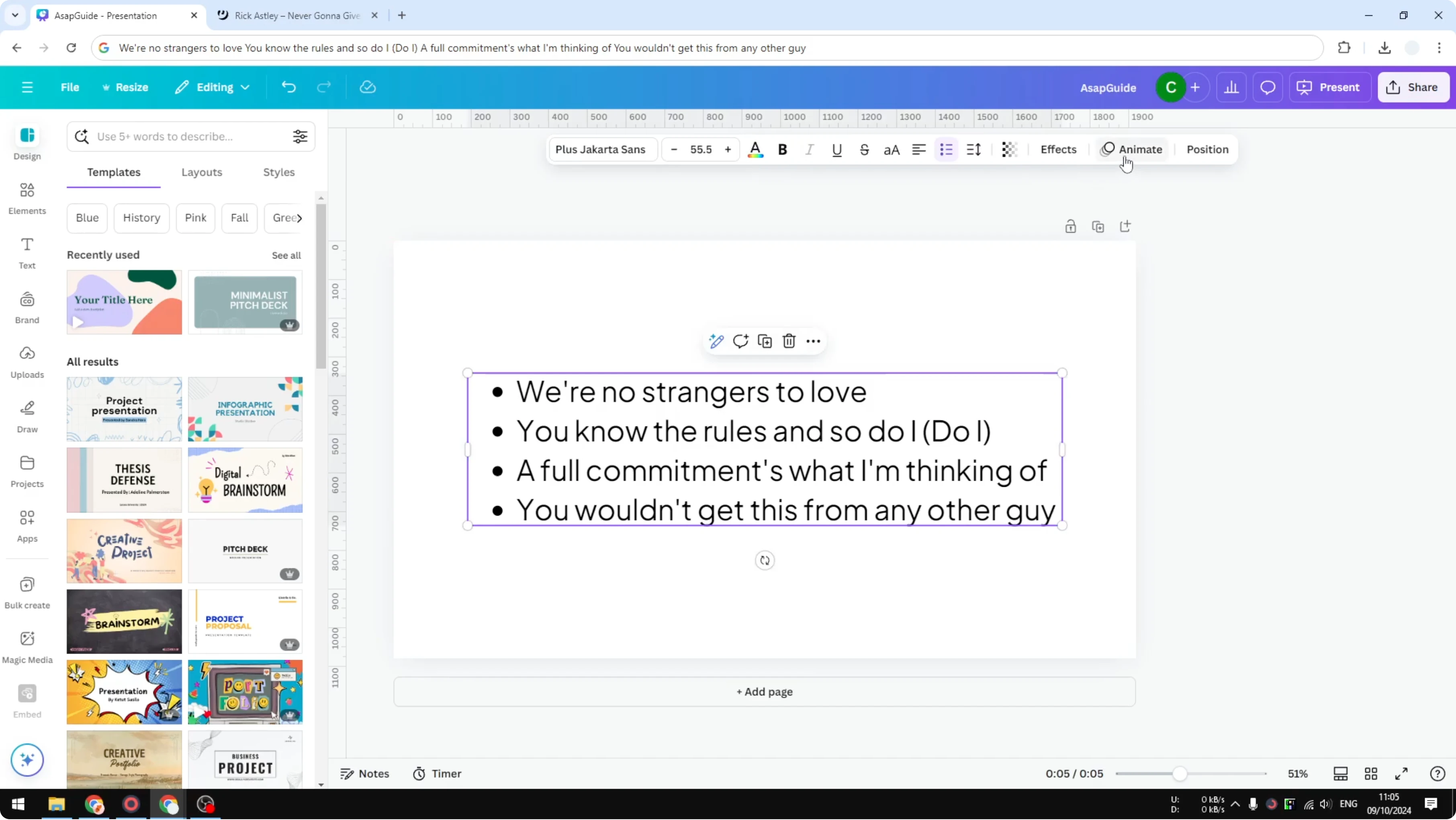
Skip the General option that applies effects to the entire object.
Open the Suggested options designed for text content.
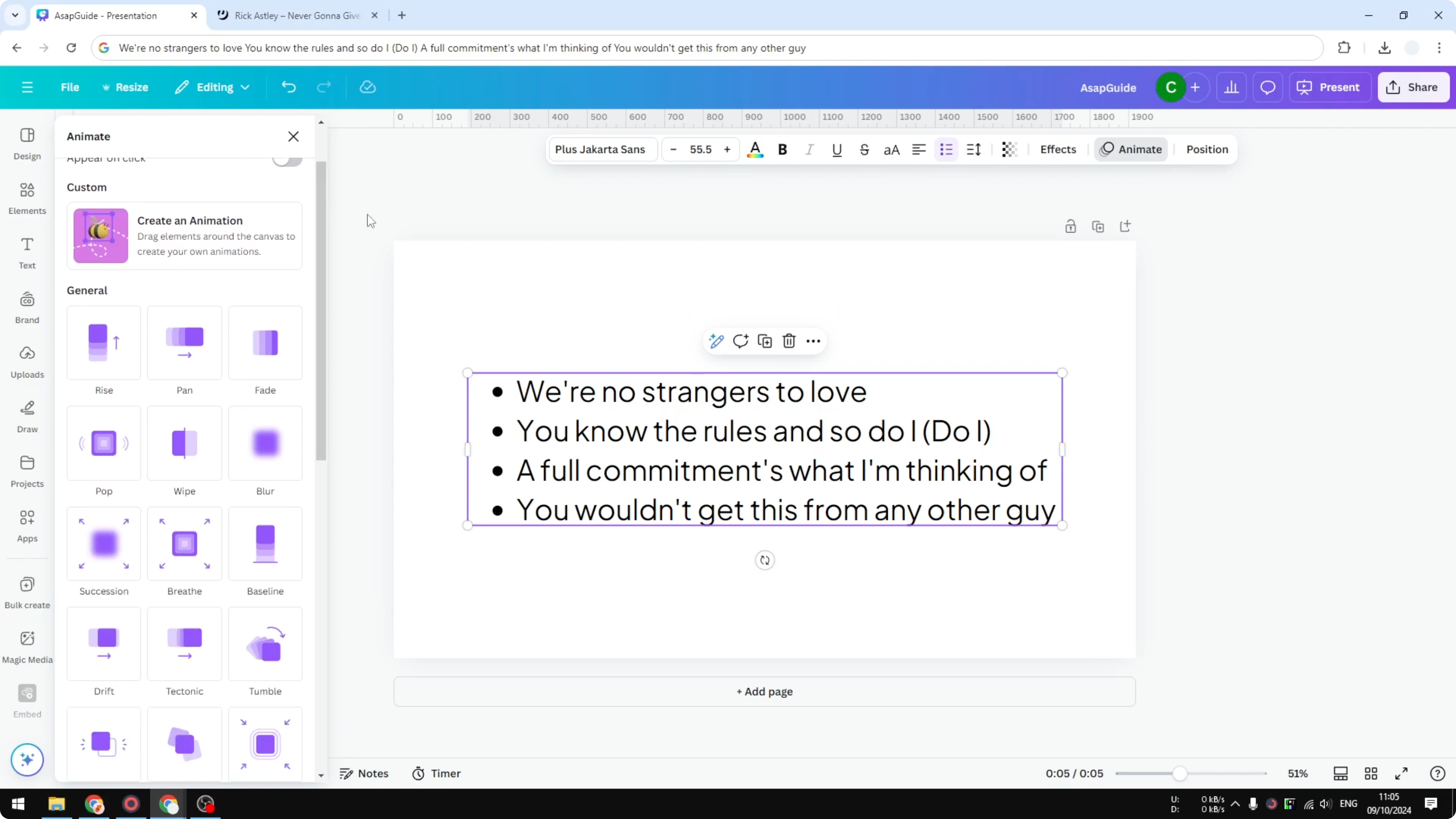
Hover any style to preview how the animation plays on your text.
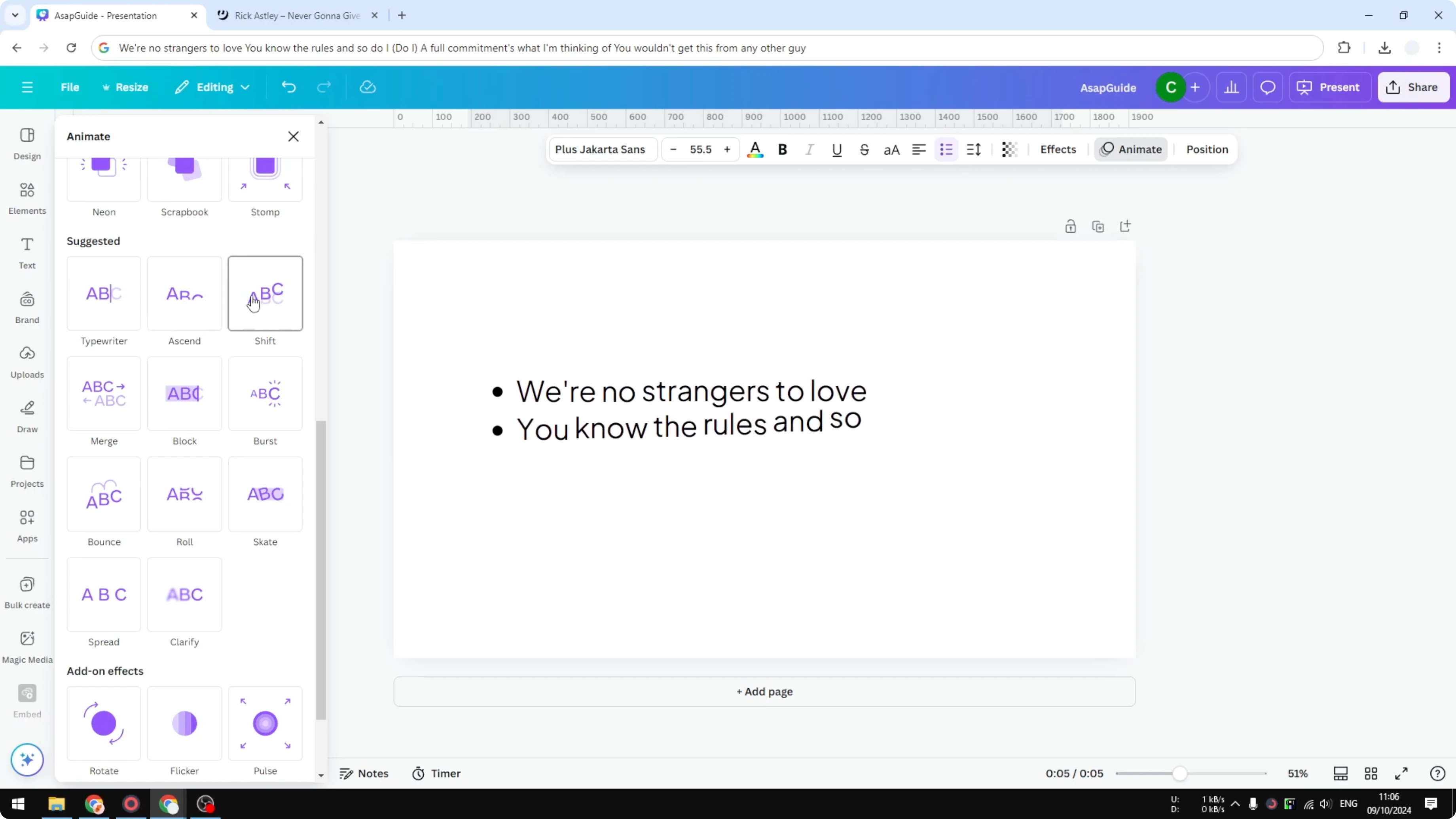
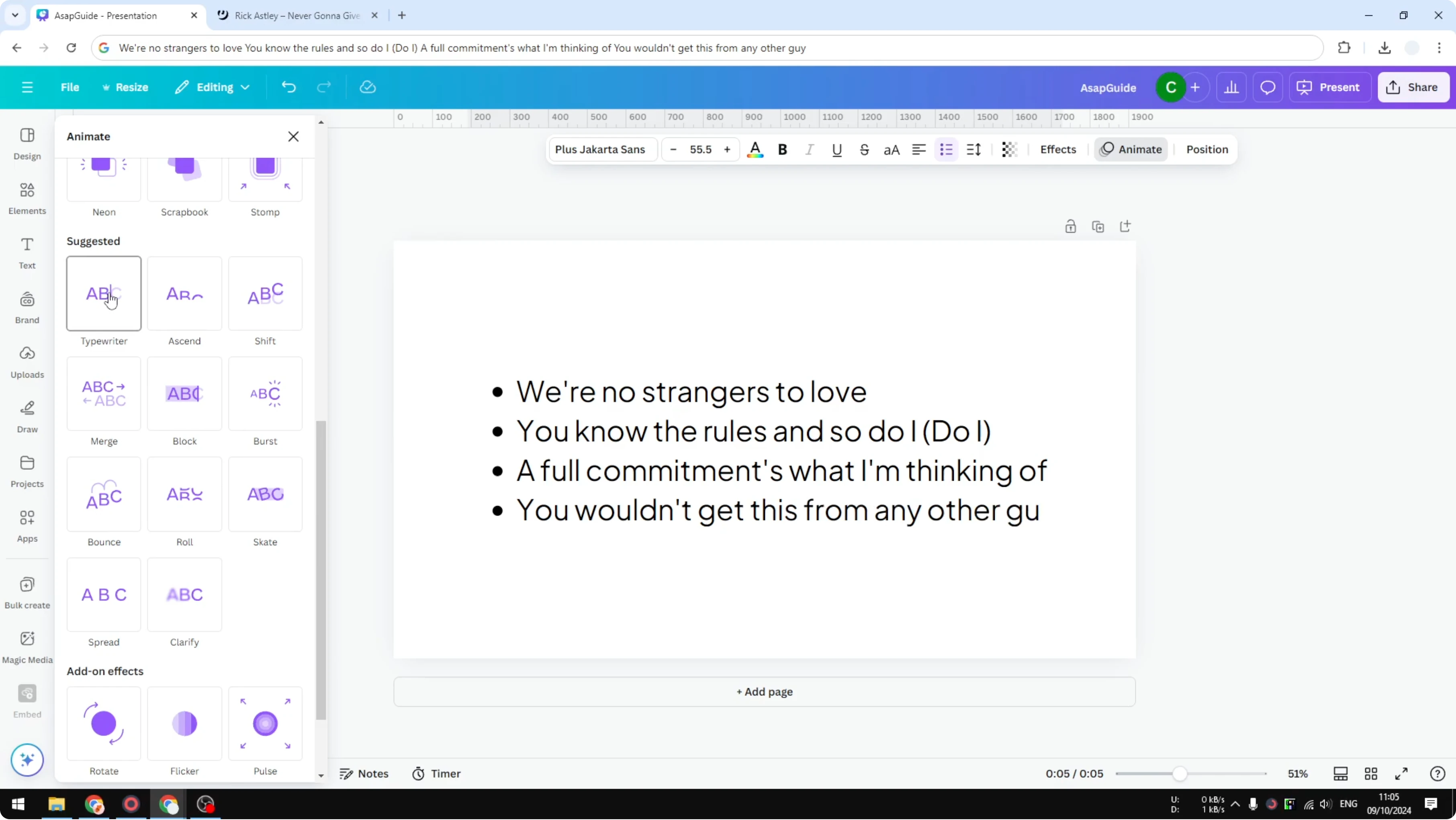
Choose a style that fits your design. You will see options like Typewriter and Ascend.
If your layout involves shaped type, you can also make circular text in Canva to pair animated lines with curved composition.
Styles for Make Text Animate Line by Line in Canva
Typewriter makes it feel like someone is typing the whole text. Ascend is a clean entrance that builds lines or words with gentle motion.
Preview first, then pick the one that supports your message best.
Fine tune Make Text Animate Line by Line in Canva
Adjust the speed to make the animation slower or faster.
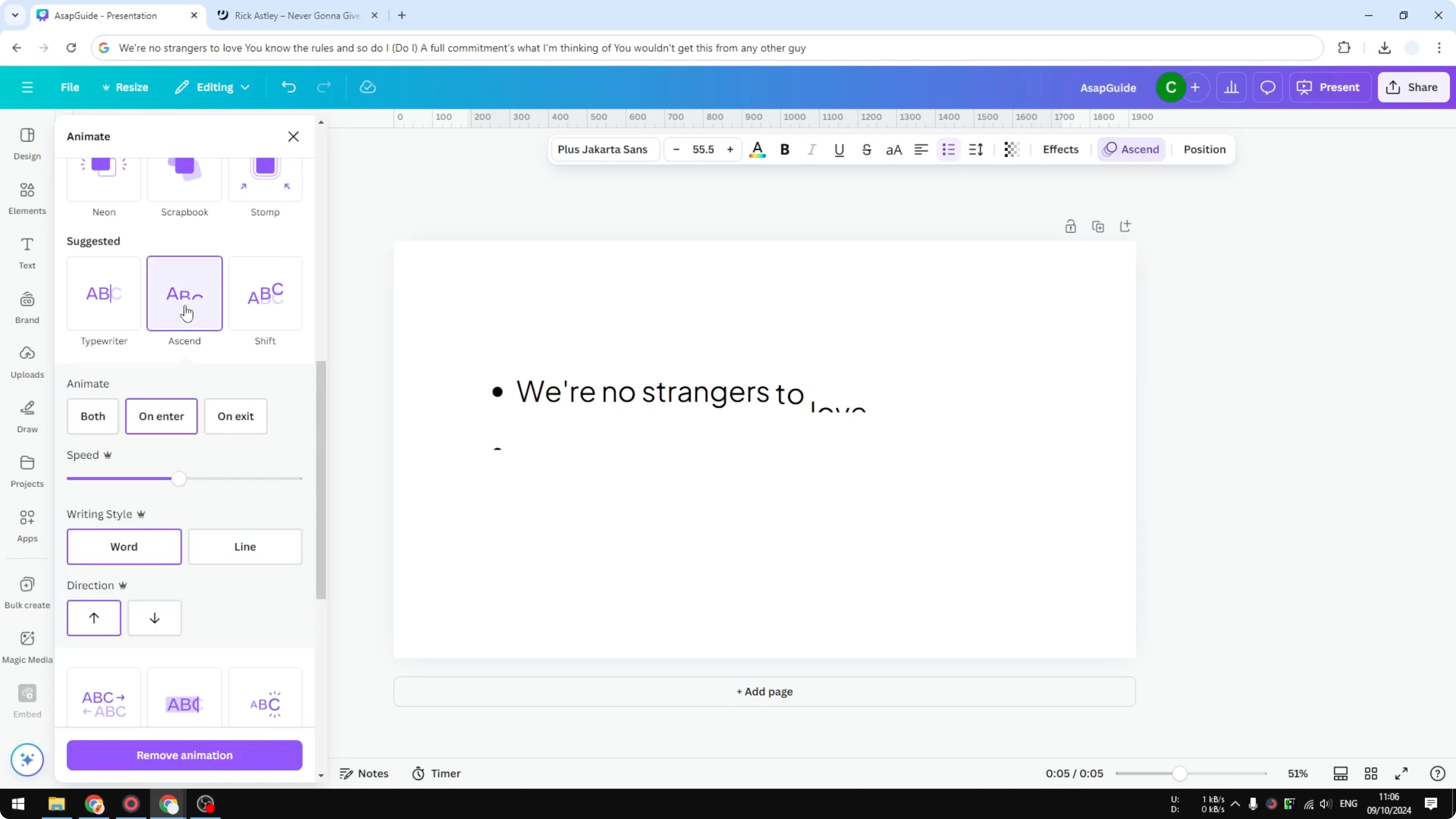
Choose when the animation plays: on enter, on exit, or both.
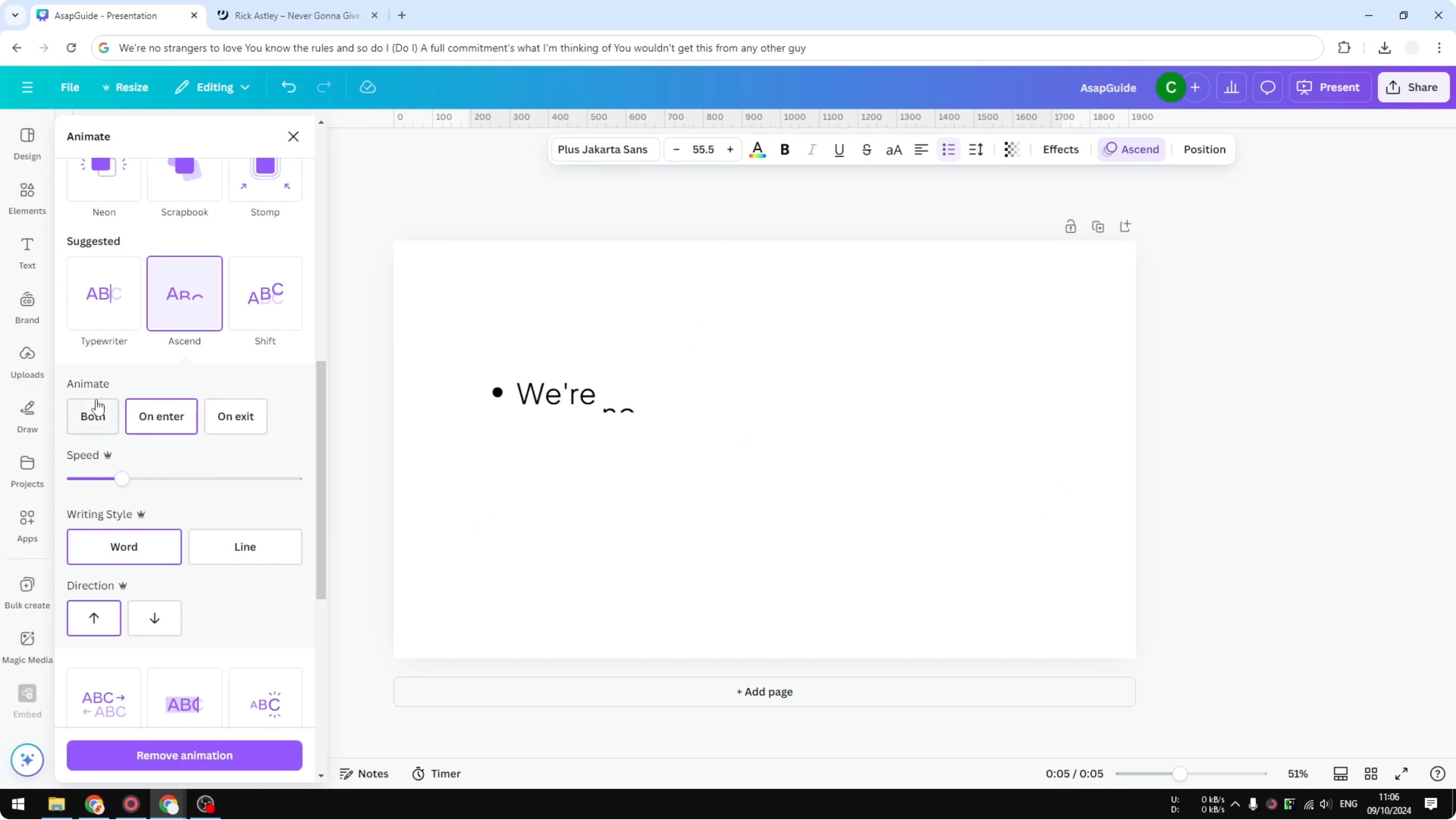
Open Writing Style. By default, this animation will make the text appear one word at a time.
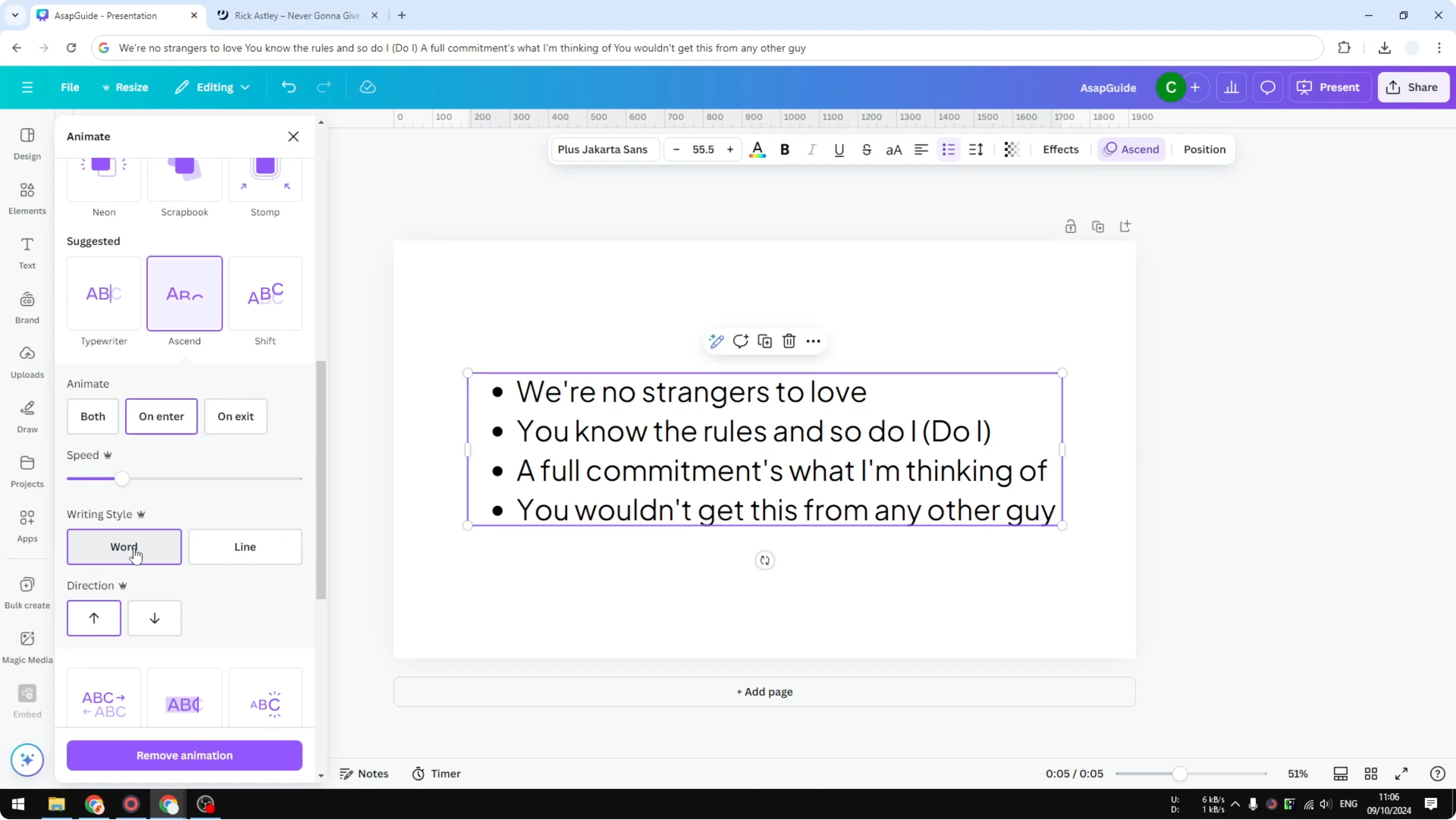
Change Writing Style to Line so the whole line appears, then it moves on to the second line and the next lines.
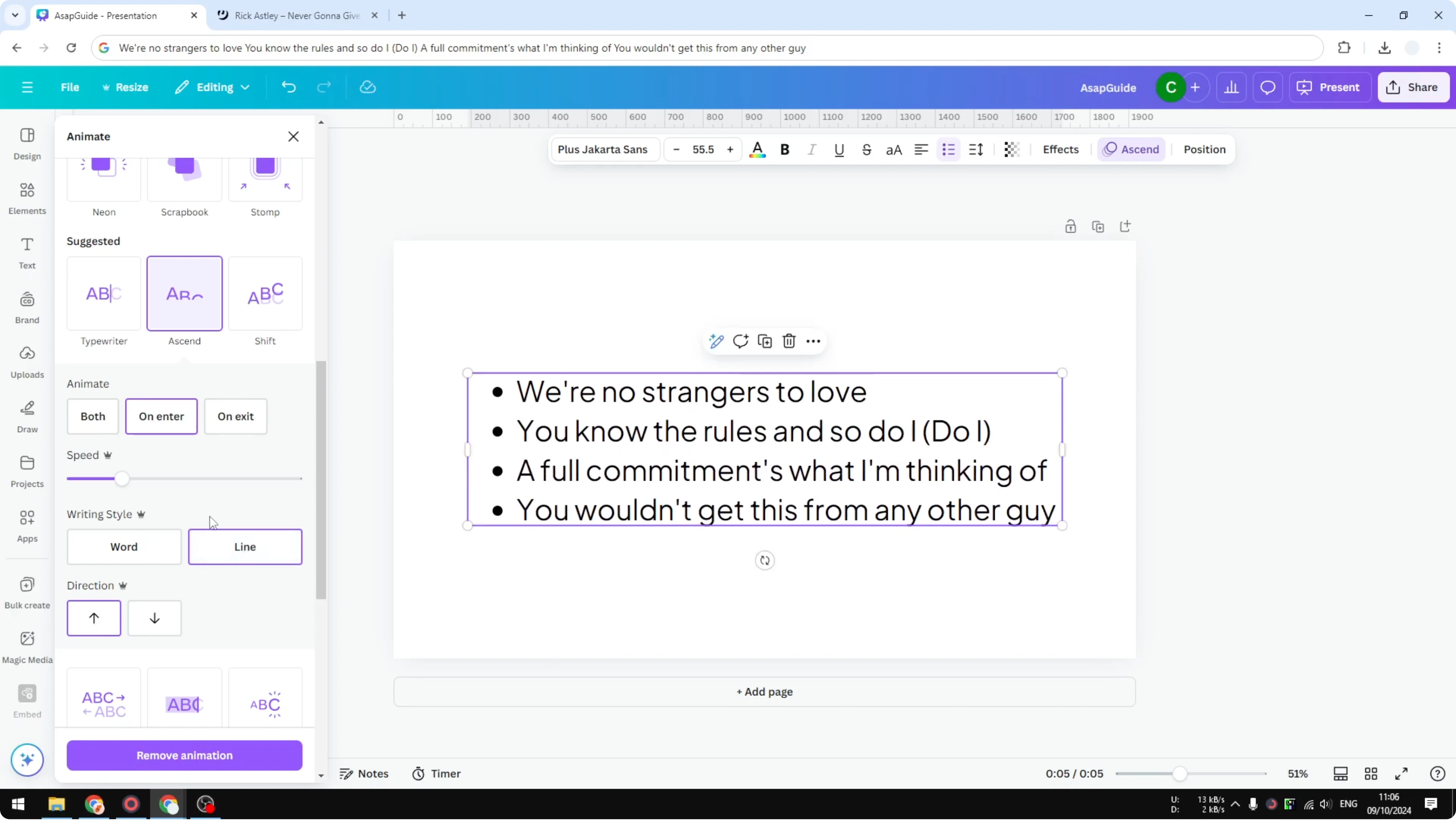
Set Direction to control where the motion comes from. You can choose from the bottom or from the top.
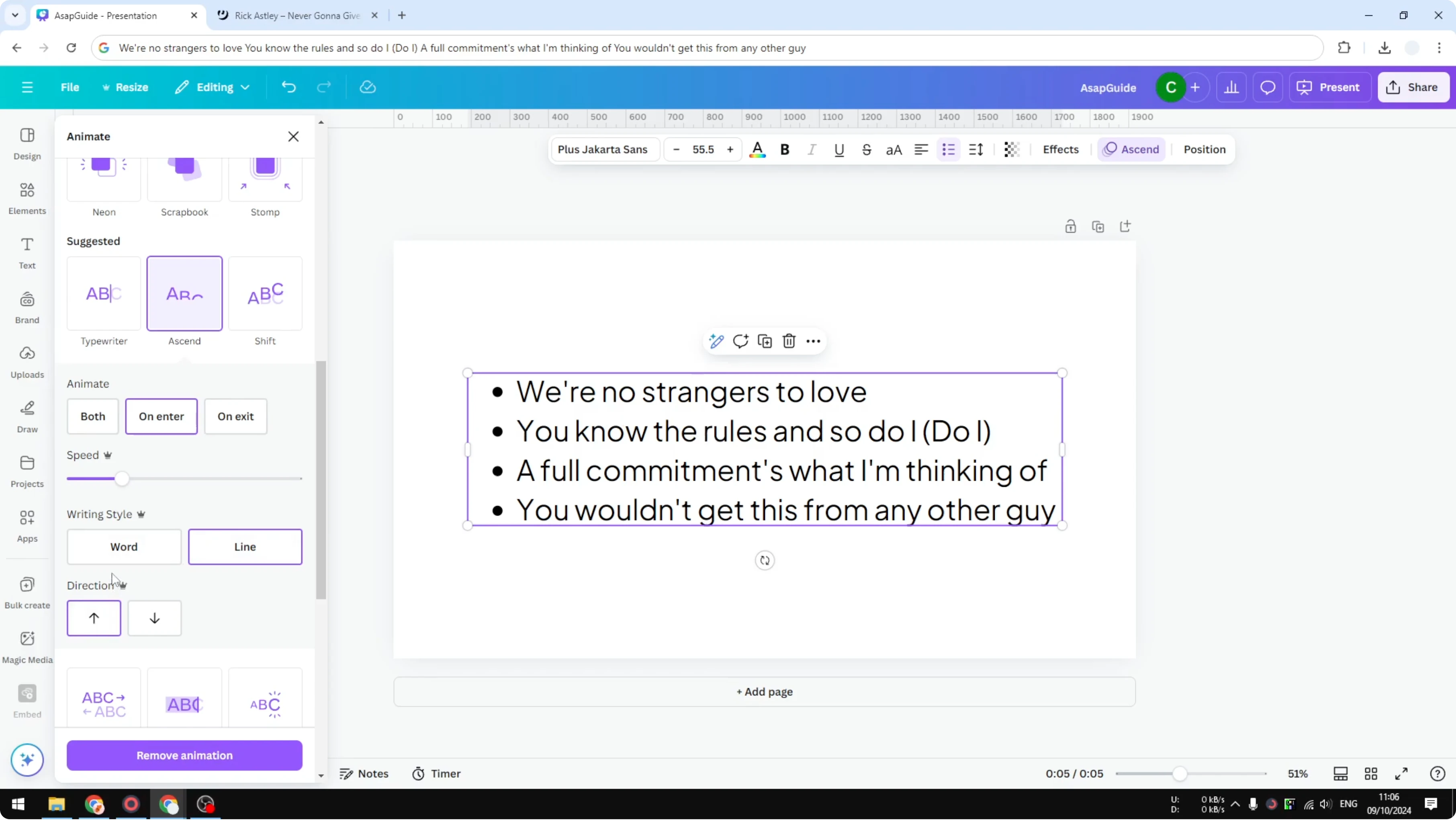
Pick the direction that looks best for your layout. The default setting works well for most titles and paragraphs.
Final thoughts on Make Text Animate Line by Line in Canva
That is how you can apply a text animation sequence in Canva and shift the reveal from words to full lines. Explore other styles and find the one that looks best for your design.
If you are building more creative motion layouts, try patterned type by learning how to make spiral text in Canva and then animate each line for a dynamic result.
Recent Posts

How to Visualize Yourself as a Pixelized Character with AI?
How to Visualize Yourself as a Pixelized Character with AI?

How to Revive Faded Memories and Enhance Image Clarity with AI?
How to Revive Faded Memories and Enhance Image Clarity with AI?

How to Visualize Yourself as an Animal Crossing Character with AI?
How to Visualize Yourself as an Animal Crossing Character with AI?