How to Use Rewrite Text Using AI in Canva
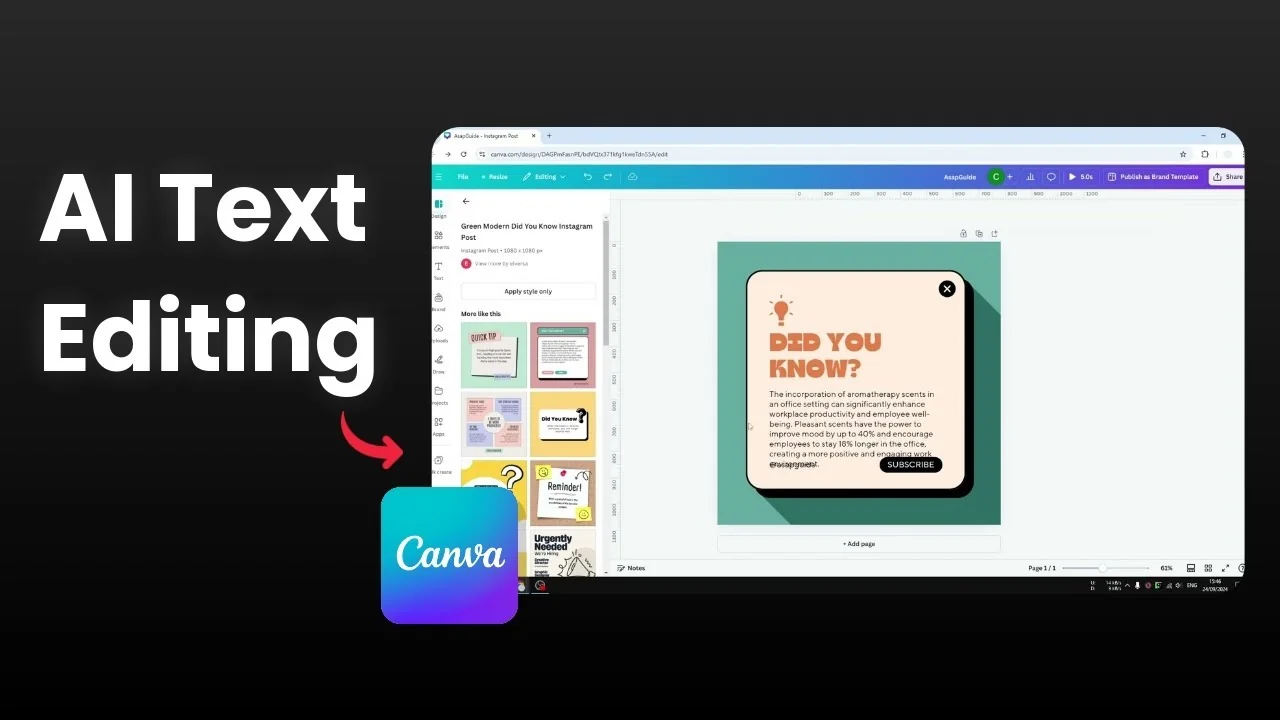
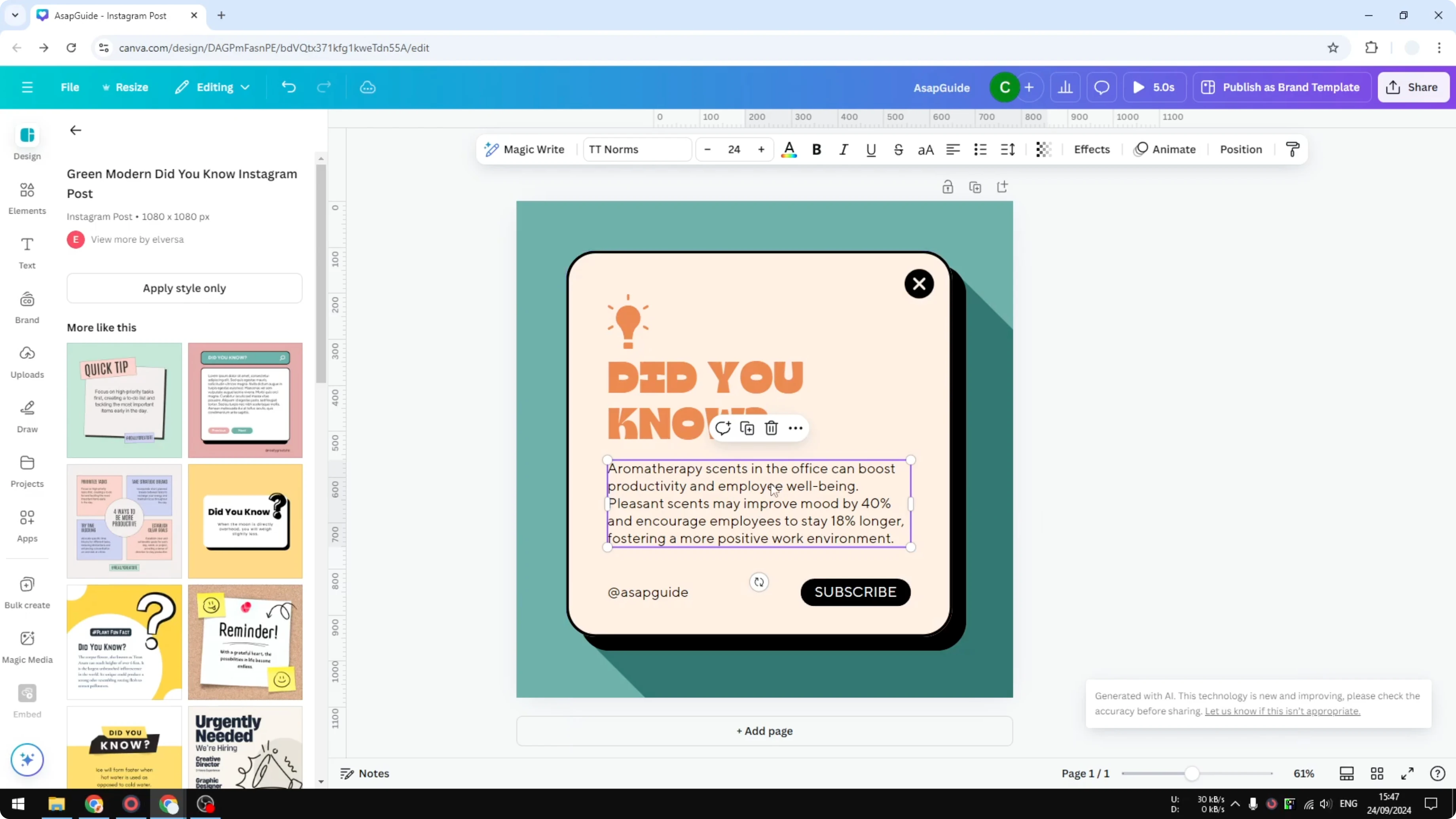
I will show you how to rewrite text in Canva using the Magic Write feature. In this example I have a design for a social media post that shares a fun fact. This paragraph is the main content, but it is too long and overlaps other text, and it does not look great.
If you are exploring Canva AI tools, you can also change a video background with AI in Canva.
Use Rewrite Text Using AI in Canva
I am going to use an AI feature like ChatGPT, but it is available directly in Canva.
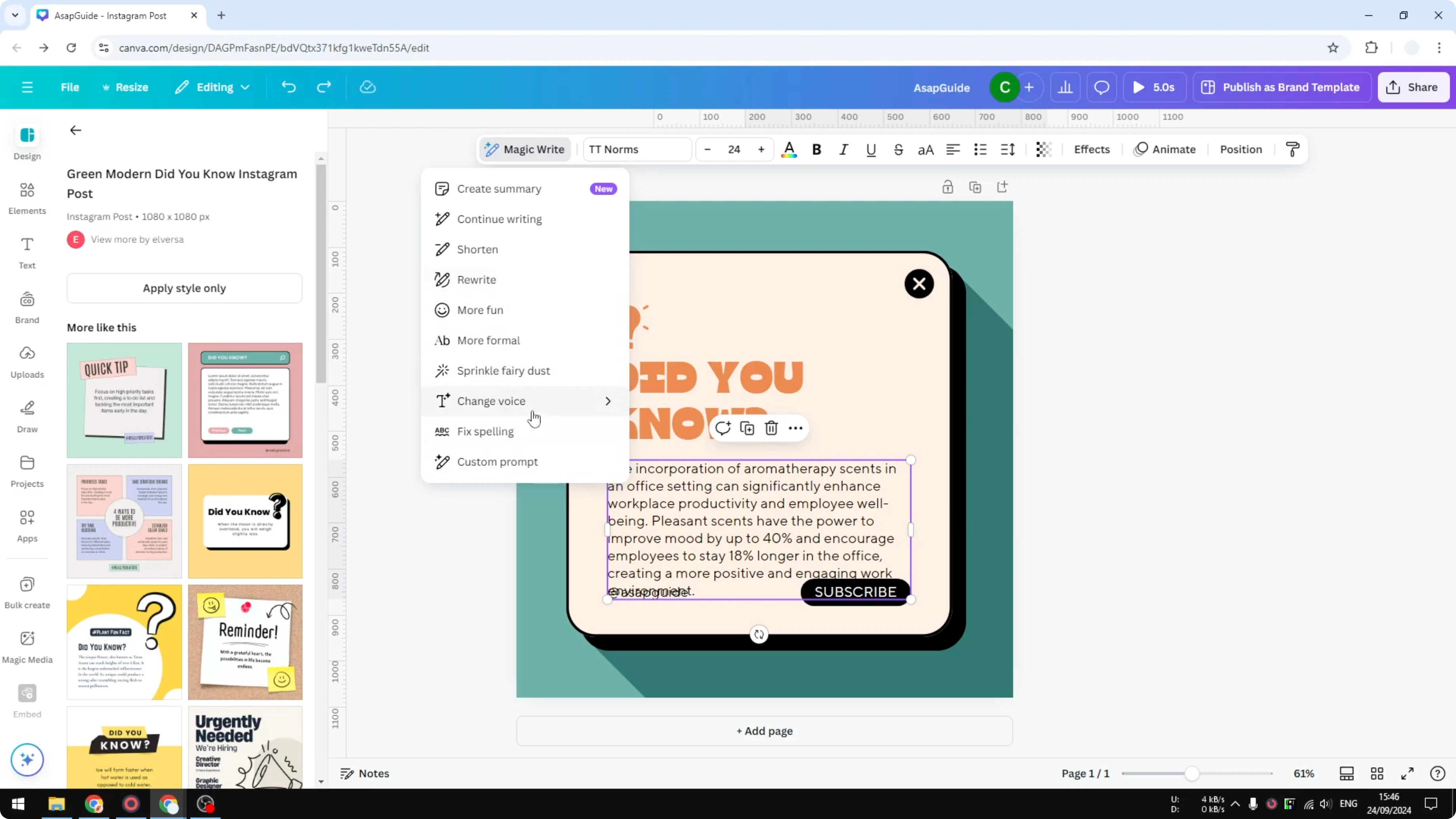
Select the text box you want to rewrite.
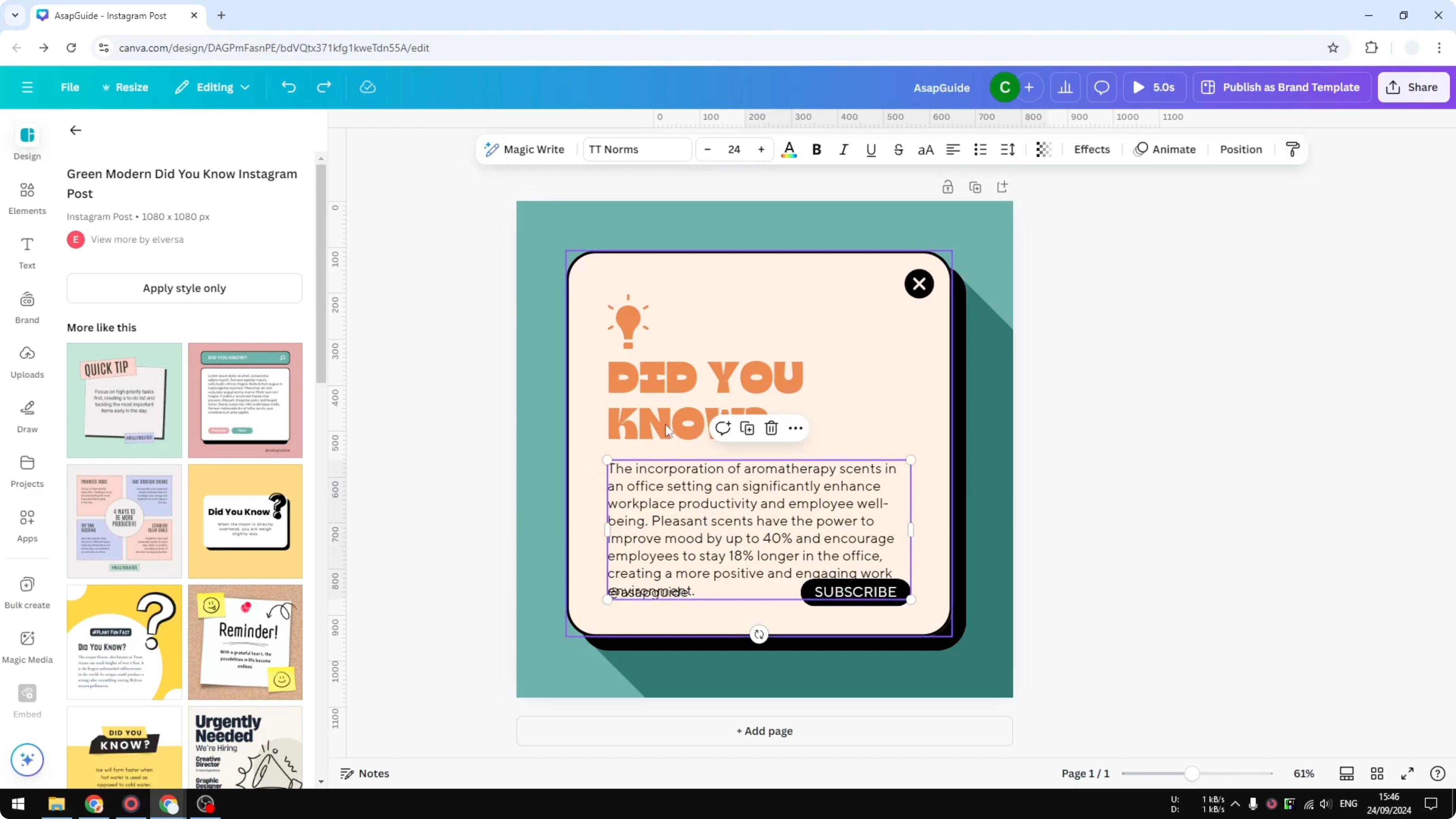
Navigate to the Magic Write option.
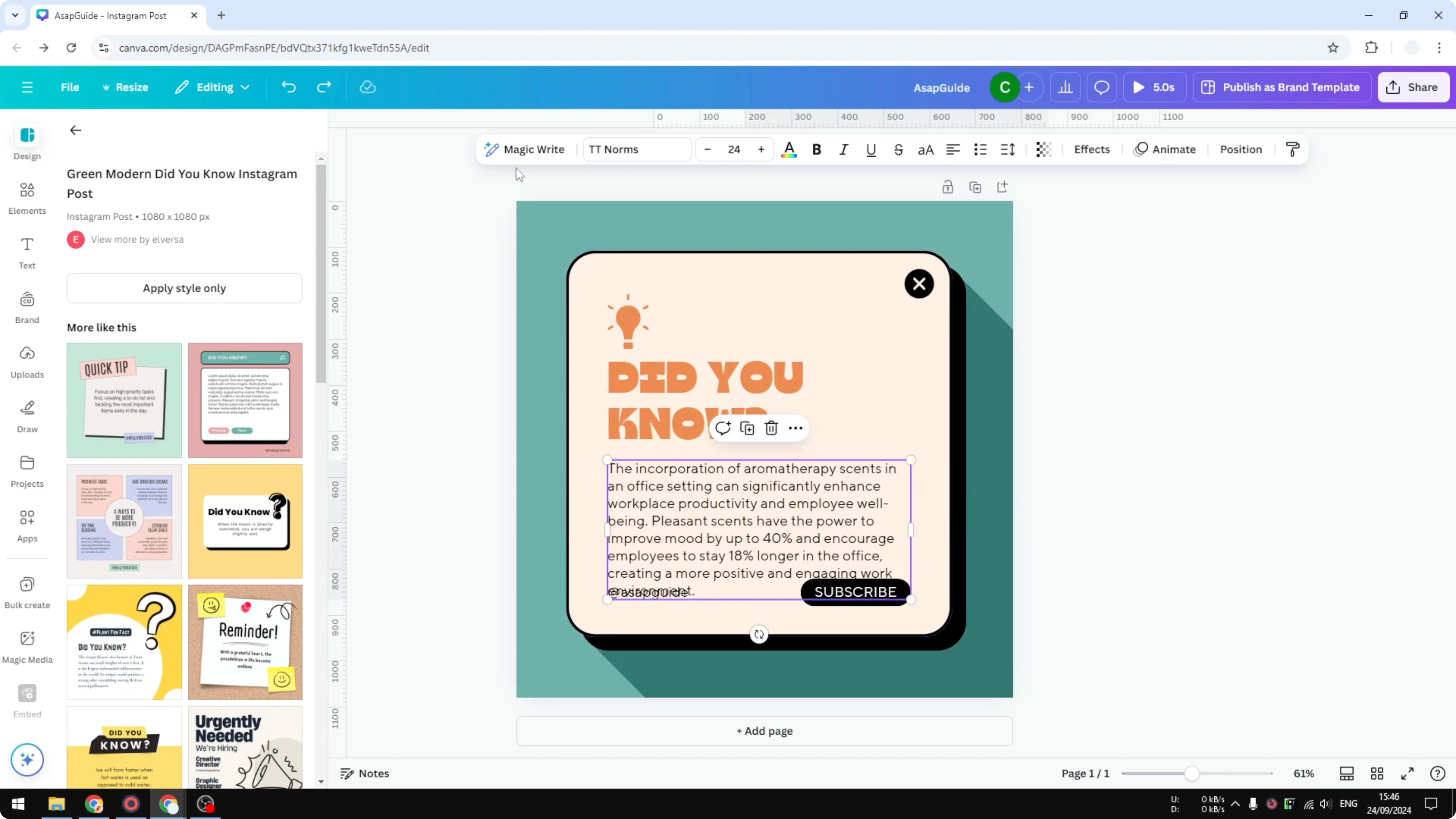
Here you will see presets you can choose, including Continue the writing, Shorten, Rewrite, Make it more fun, Make it more formal, Brand Voice, and a custom prompt.
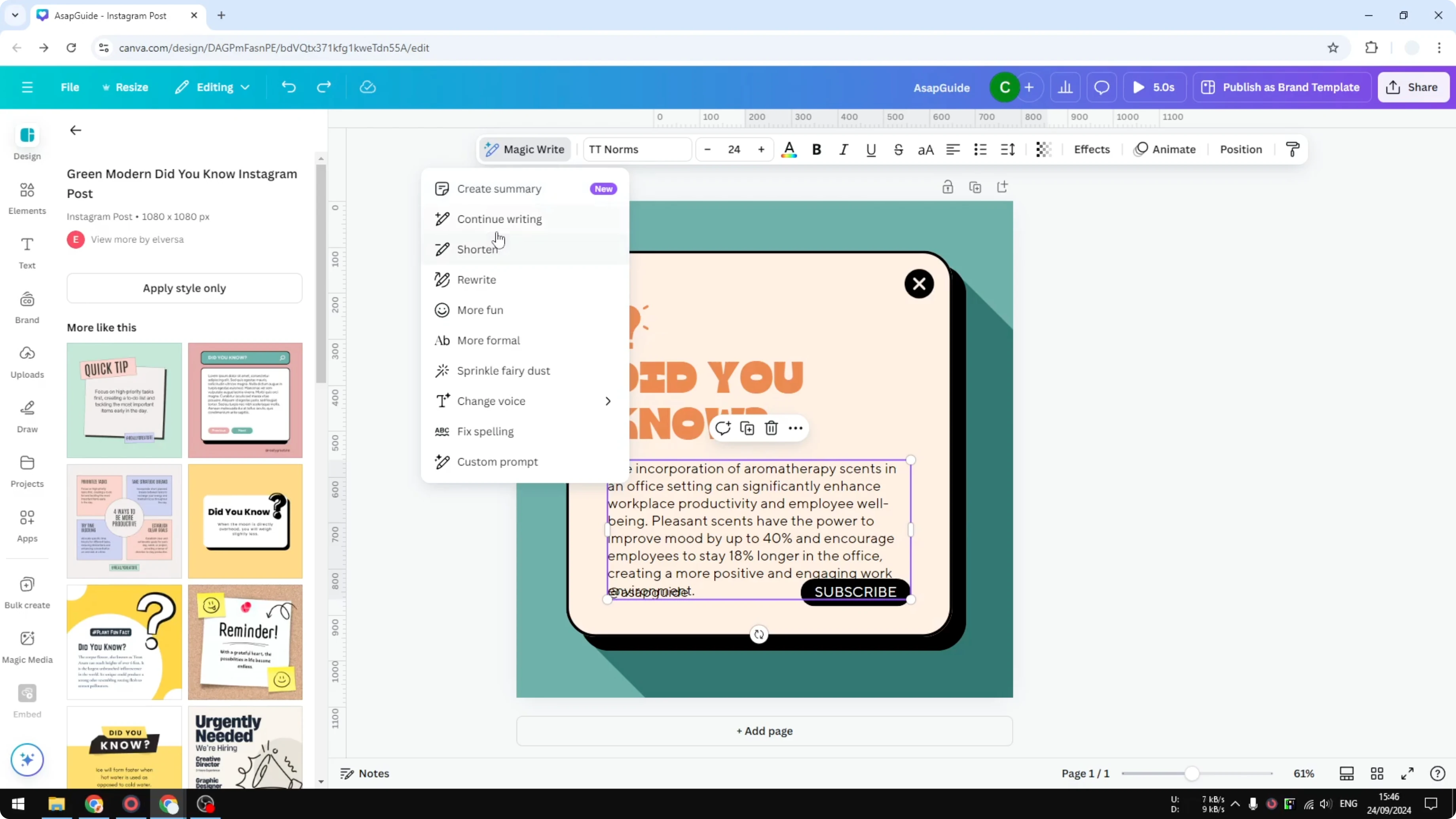
I just want to use one preset here, my goal is simple, I want to rewrite this and make it a bit shorter, so I select Shorten.
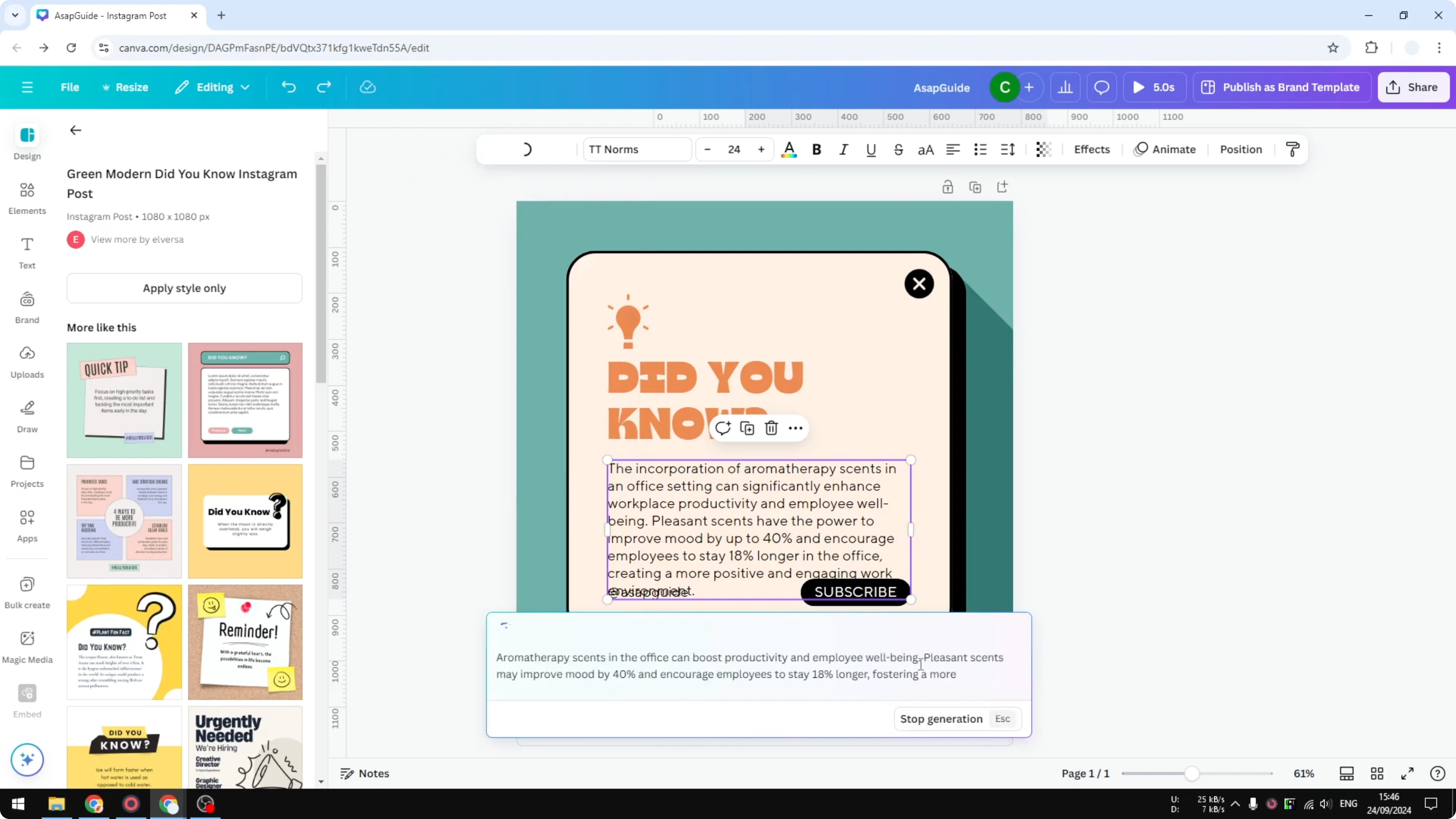
Wait and it will generate text.
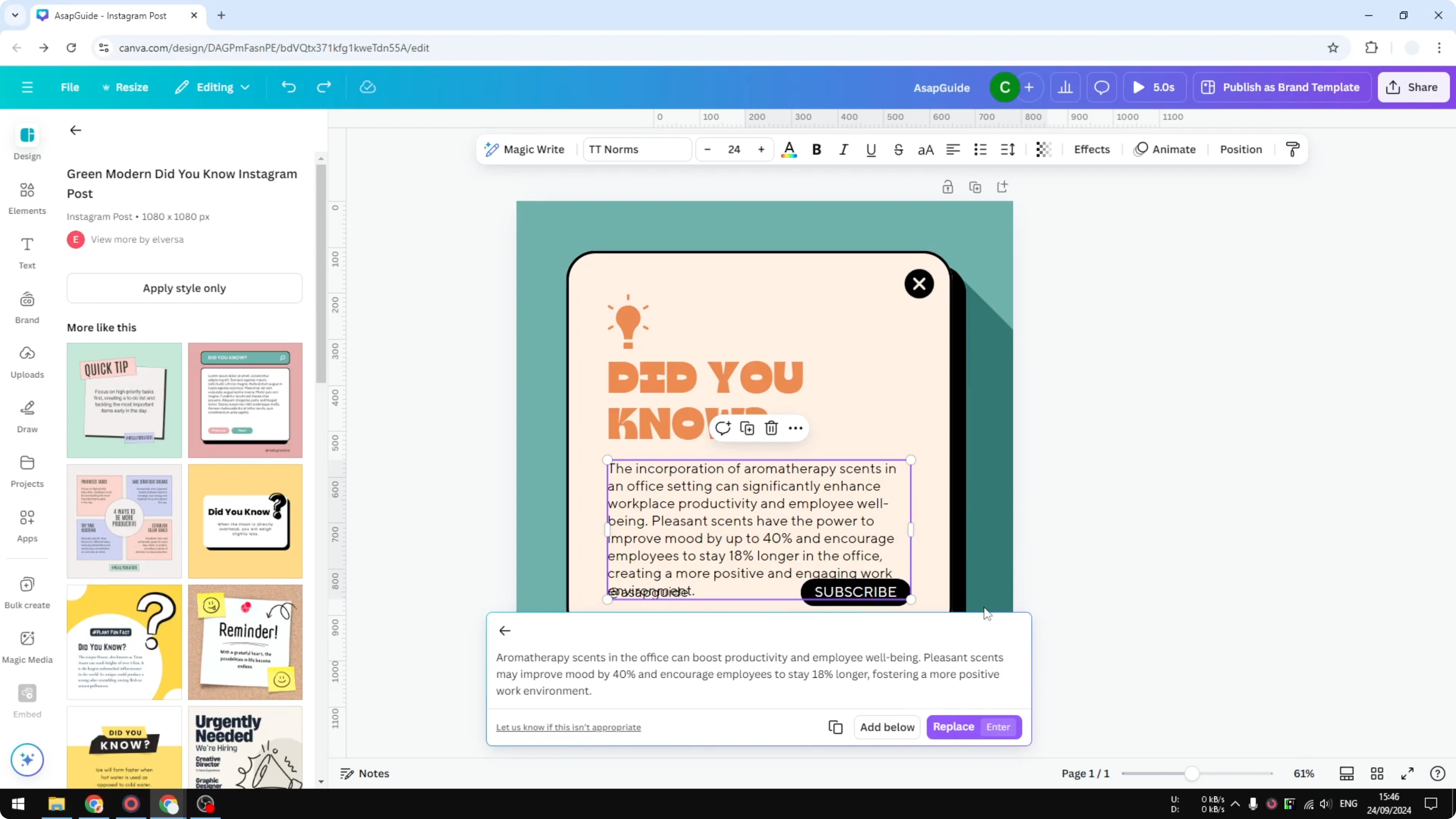
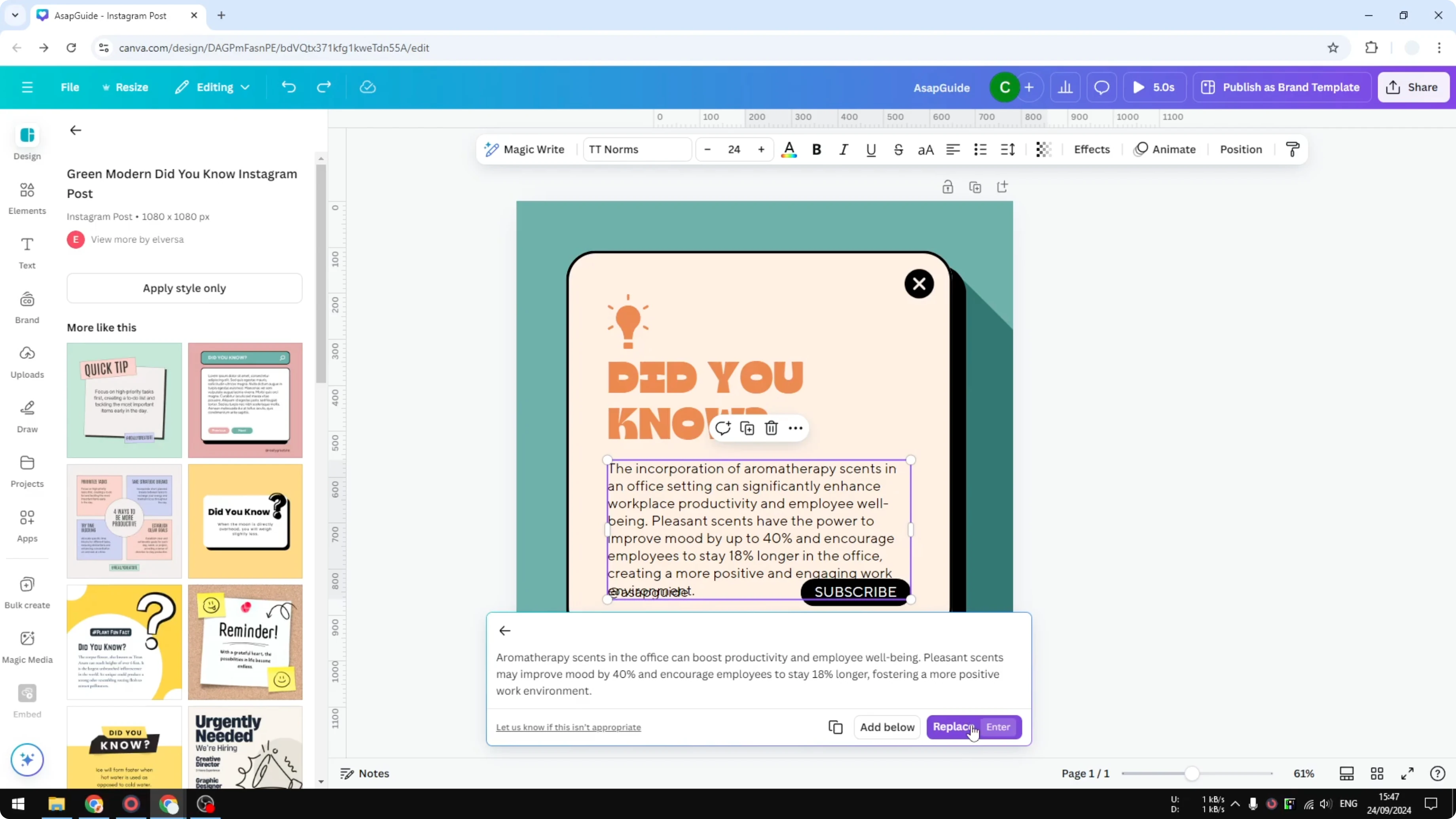
When it is done you can add the new text below the original, or replace the whole text.
Click the button or press Enter.
For another quick AI task, you can trace a photo in Canva with AI.
Result
There you have it, the text is much shorter, which is exactly what I want for this design. It is no longer overlapping other elements on the page.
If you want more creative edits outside Canva, see image editing with Icedit AI.
Final thoughts
That is how you can use the Magic Write feature in Canva. I hope you find this helpful.
Recent Posts

How to Visualize Yourself as a Pixelized Character with AI?
How to Visualize Yourself as a Pixelized Character with AI?

How to Revive Faded Memories and Enhance Image Clarity with AI?
How to Revive Faded Memories and Enhance Image Clarity with AI?

How to Visualize Yourself as an Animal Crossing Character with AI?
How to Visualize Yourself as an Animal Crossing Character with AI?