How to Increase Image Size and Resolution Without Losing Quality Using AI?
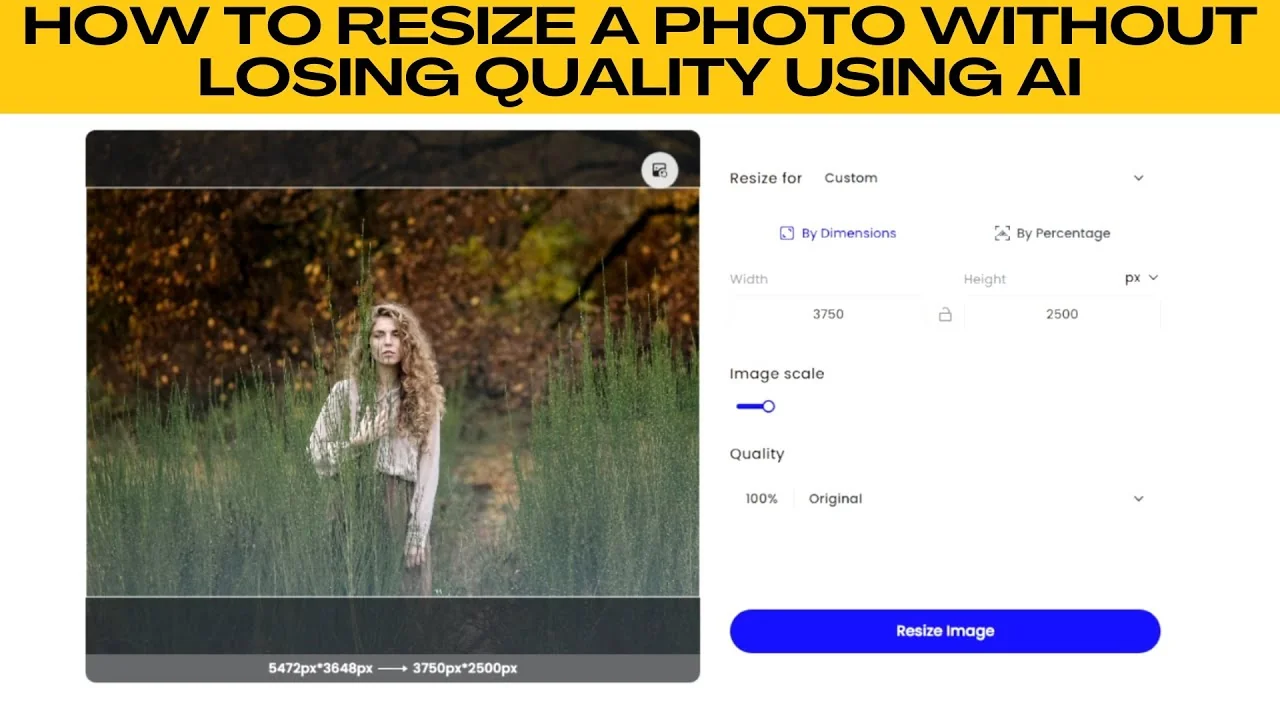
I will teach you how to resize a photo without losing quality using AI. If you are preparing images for a website, social media, a portfolio, or printing, resizing your photos without sacrificing quality is crucial. With Photos AI powered image resizer, you do not need professional software like Photoshop to get clean high quality results.
Open your browser and go to Photos Image Resizer. This tool works on desktop and mobile browsers with no installation required. You will be greeted with the upload screen.
Upload
Drag and drop your photo into the designated area or click the upload image button and browse your computer for the file. Supported formats include JPG, JPEG, PNG, HIF, HEIC, and WEBP.
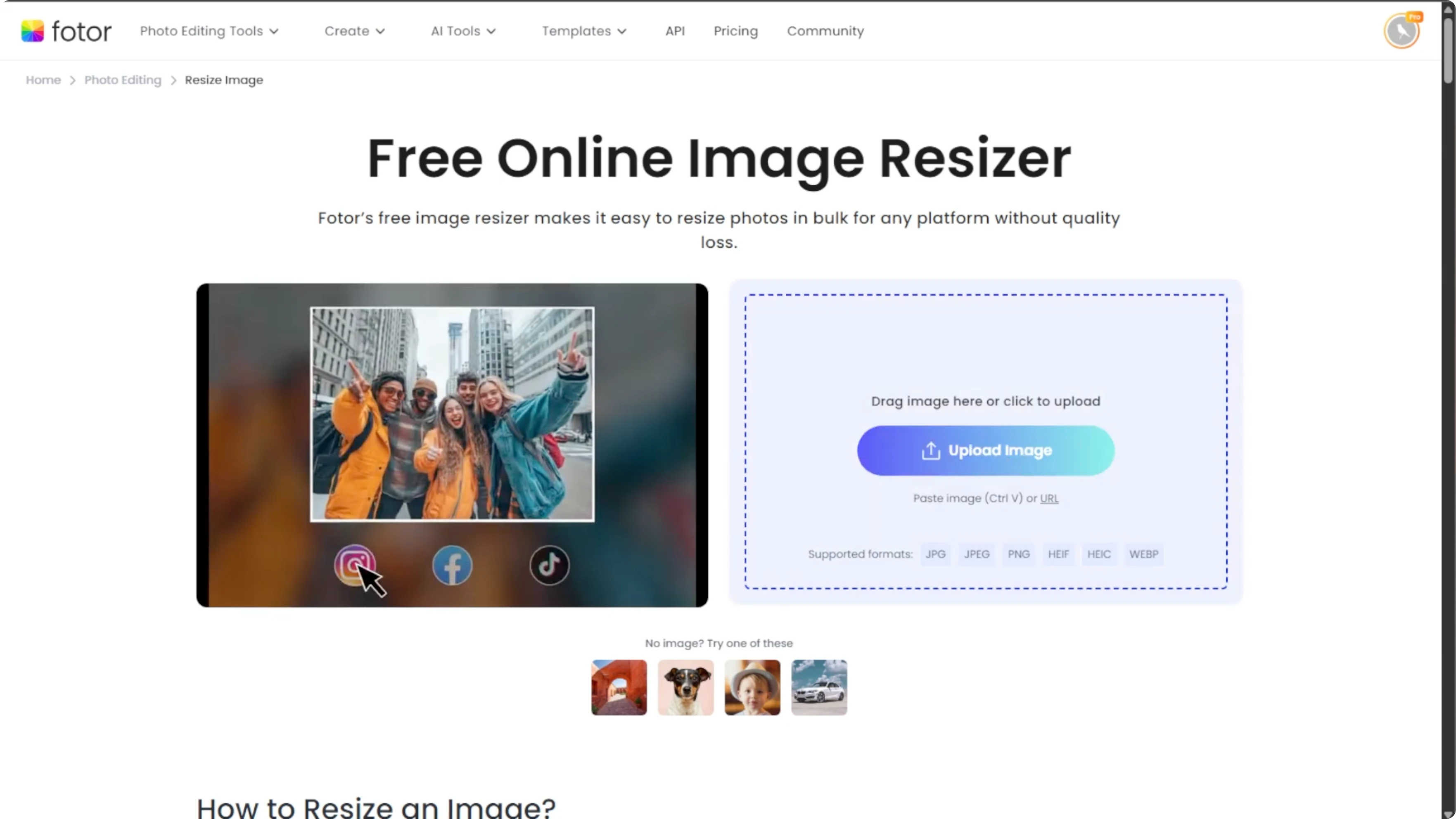
Avoid uploading blurry or low resolution photos if you plan to scale up. If you are just experimenting, the tool provides sample images that you can try first.
For a broader overview of AI based editing, see this AI image editing guide. It pairs well with resizing workflows.
Resize options
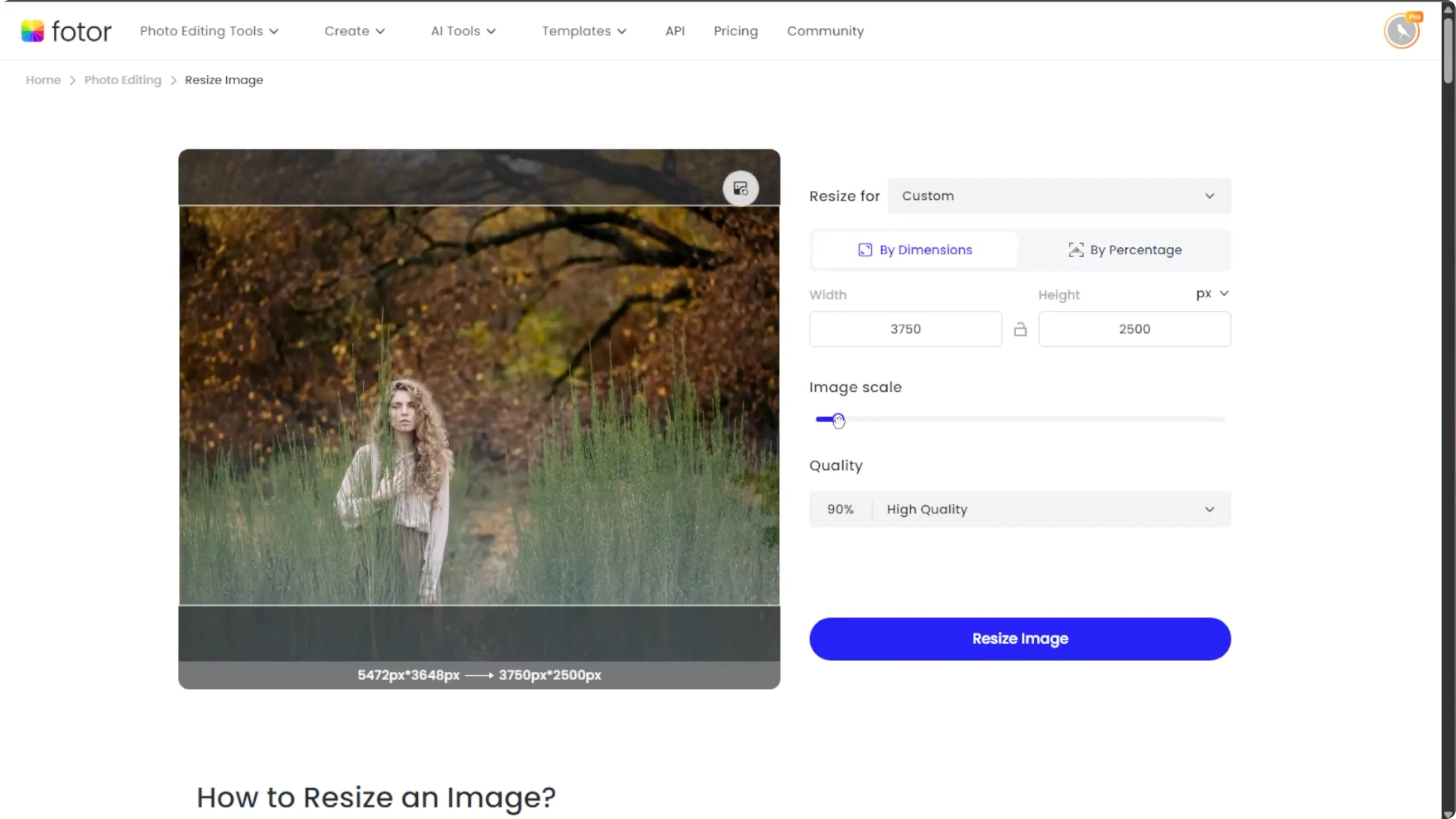
By dimensions
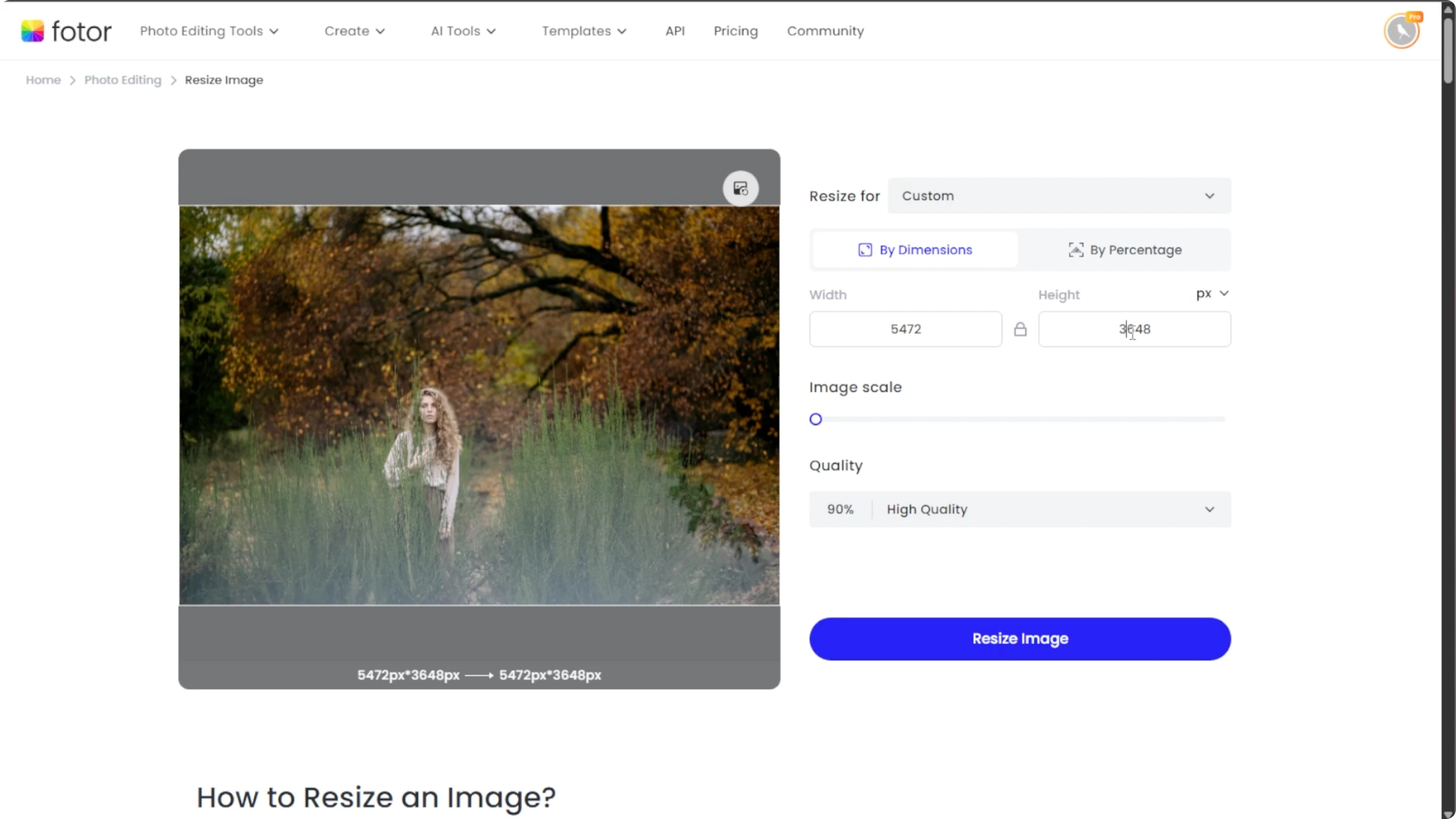
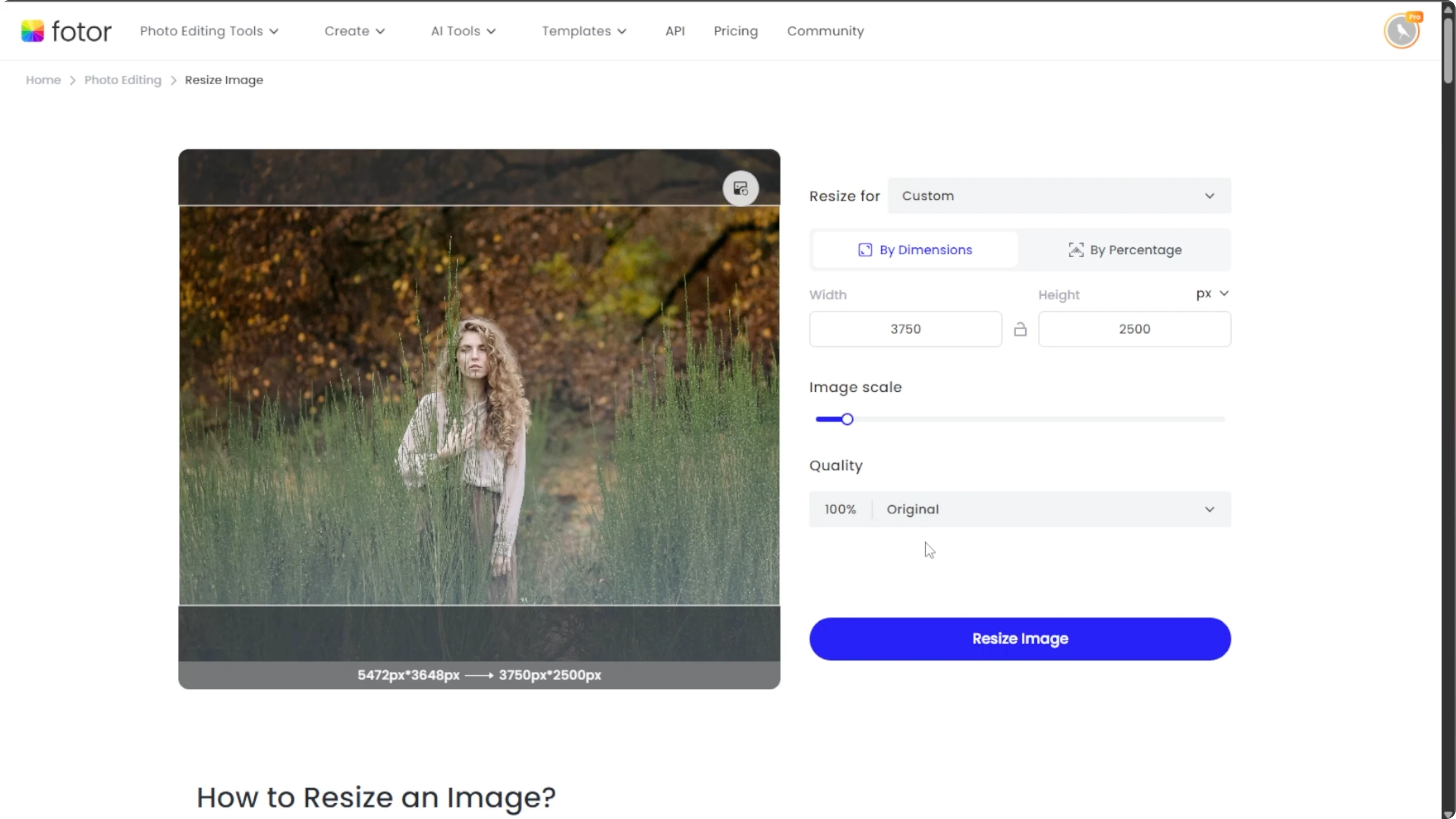
Enter width and height in pixels. Enable the lock aspect ratio option if you want the image to maintain its original proportions.
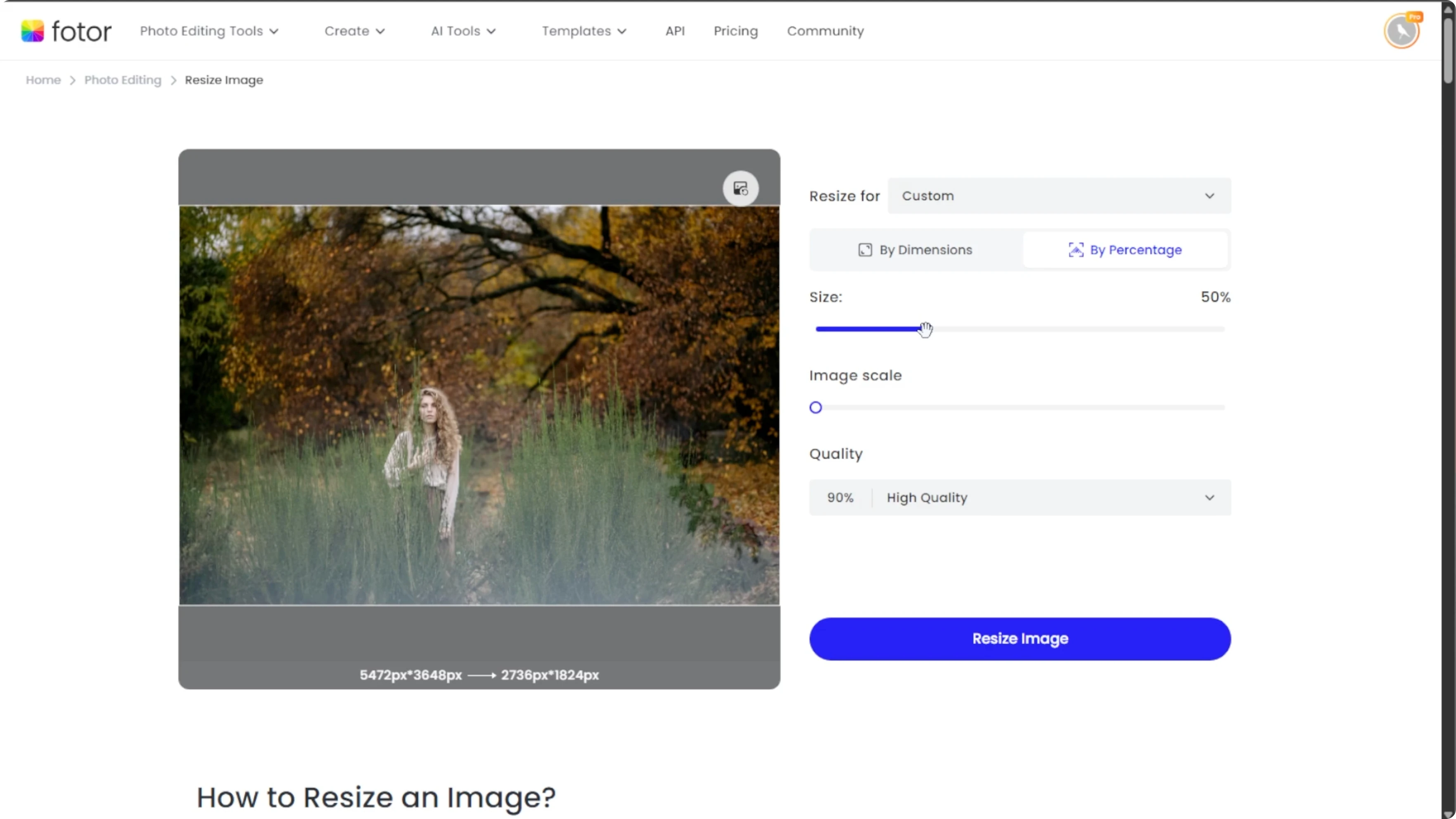
By percentage
Choose a percentage scale like 50 percent or 200 percent to shrink or enlarge the image proportionally. This keeps the aspect ratio intact.
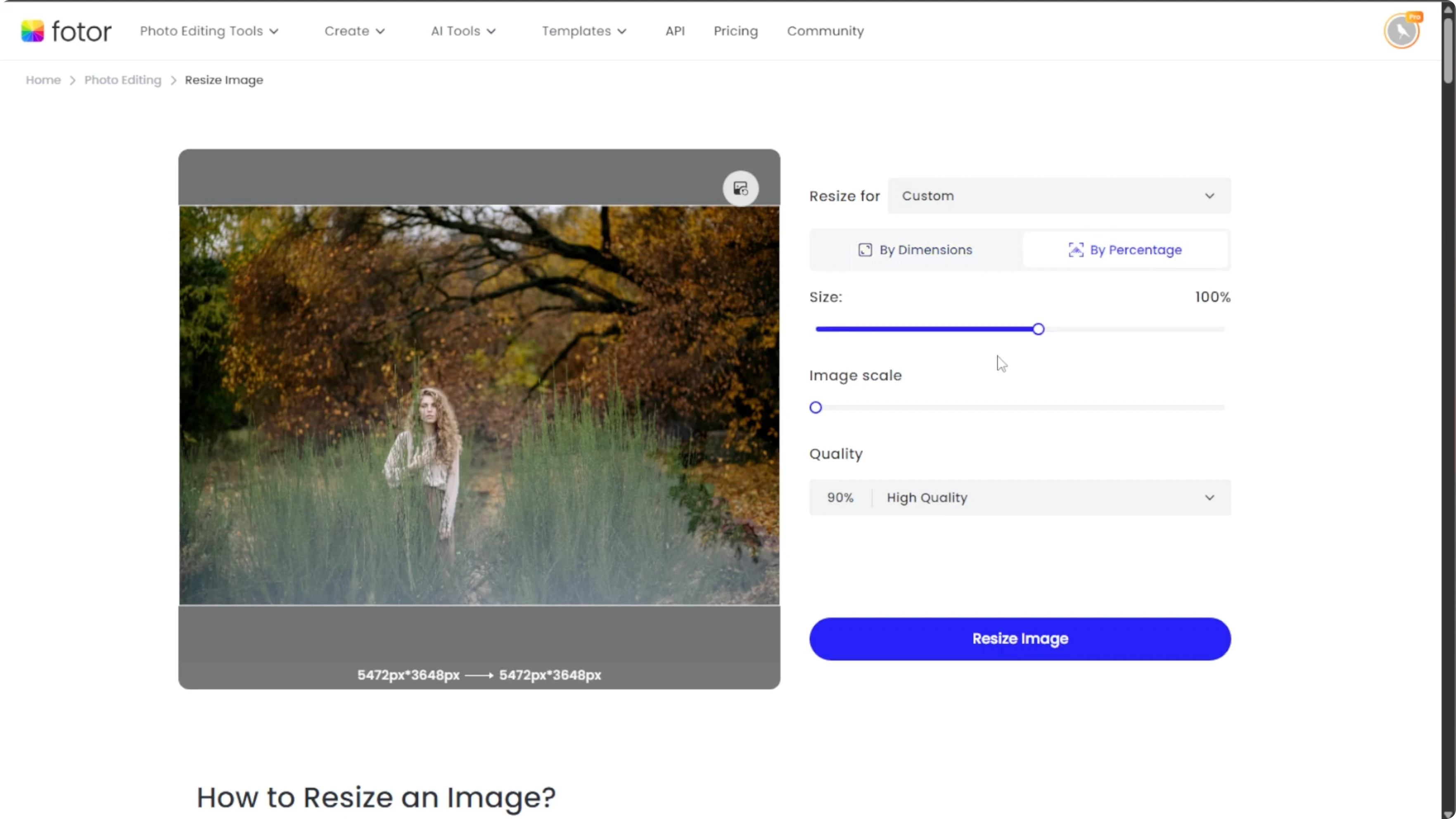
Presets
If you are resizing for social media, select from predefined templates like Instagram post, Facebook cover, YouTube thumbnail, and more.
Custom scale and reposition
Drag the corners to resize freely or center the image within the frame for better balance.
Quality and file size
Adjust quality or file size using the quality slider to resize the file size while preserving visual clarity. This is ideal for websites or emails.
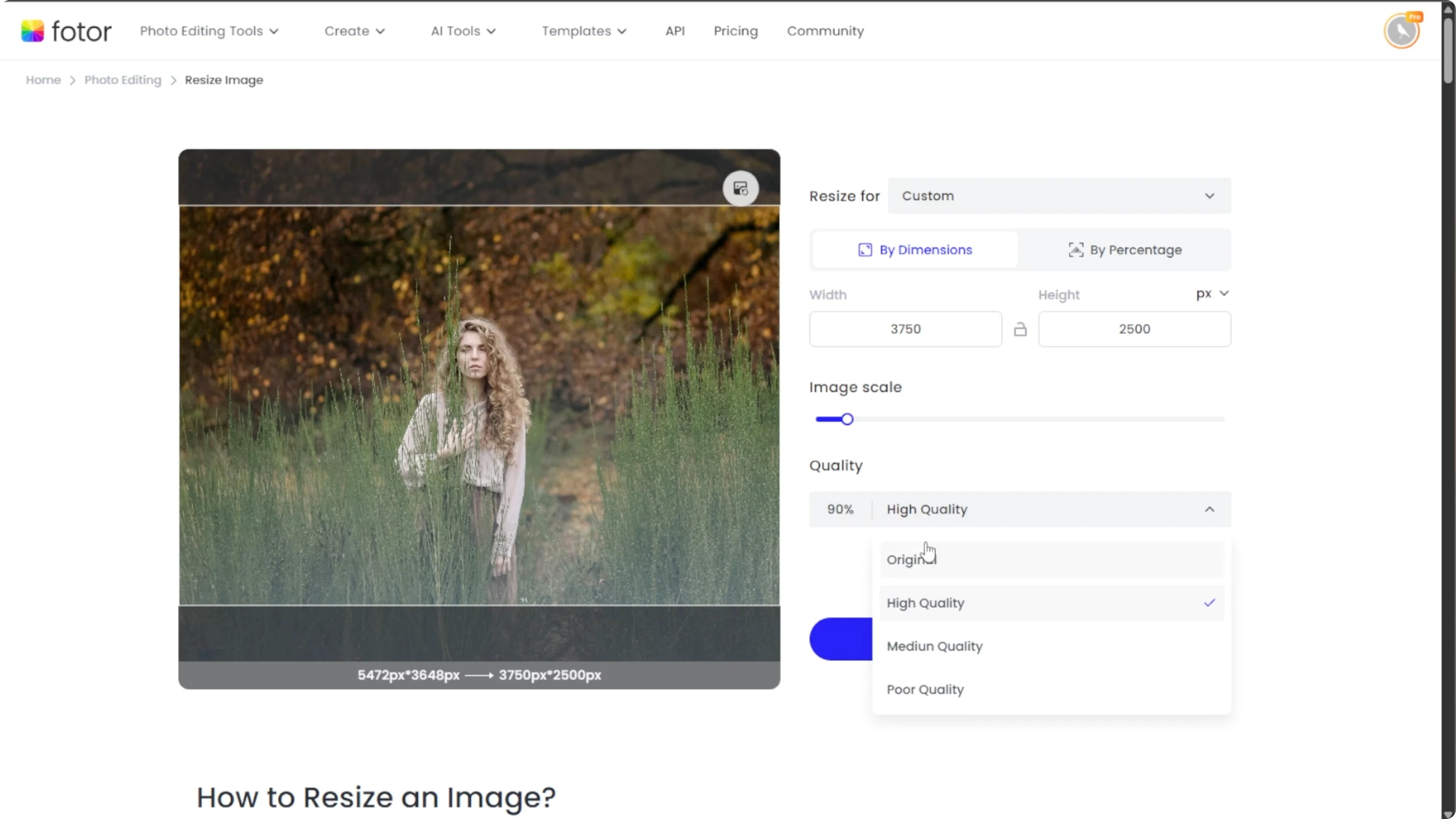
If you want to expand your edit after resizing, you can add objects with AI generative fill to enhance the final image.
Apply and download
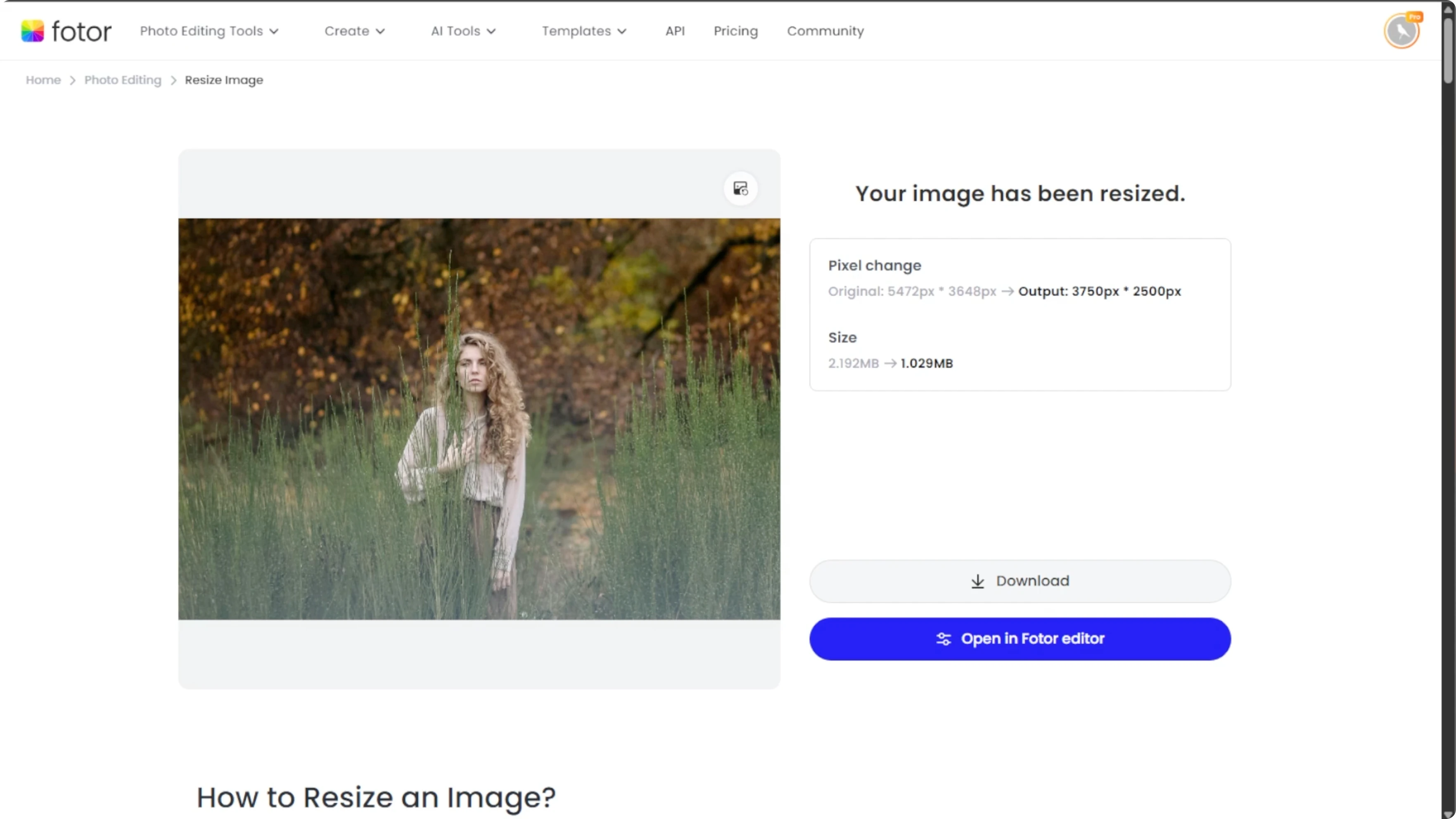
Click the resize image button and the tool will apply the changes instantly and show you the new dimensions and file size.
If you are happy with the result, click the download button to save your image. To keep editing, like cropping or adding text or filters, click continue editing in Photos Editor.
To place the resized image on a webpage, reference the saved file with standard HTML.
<img src="images/resized_photo_1200.jpg" width="1200" height="800" alt="Resized photo" />
Final thoughts
An AI powered resizer lets you keep sharp detail while changing dimensions or file size. Upload, pick the right resizing mode, adjust quality, then apply and download for clean results across web, social, and print.
For creative motion after you export, try this tutorial to animate a face from a photo using AI.
Recent Posts

How to Visualize Yourself as a Pixelized Character with AI?
How to Visualize Yourself as a Pixelized Character with AI?

How to Revive Faded Memories and Enhance Image Clarity with AI?
How to Revive Faded Memories and Enhance Image Clarity with AI?

How to Visualize Yourself as an Animal Crossing Character with AI?
How to Visualize Yourself as an Animal Crossing Character with AI?