How to Password Protect Your Canva Website
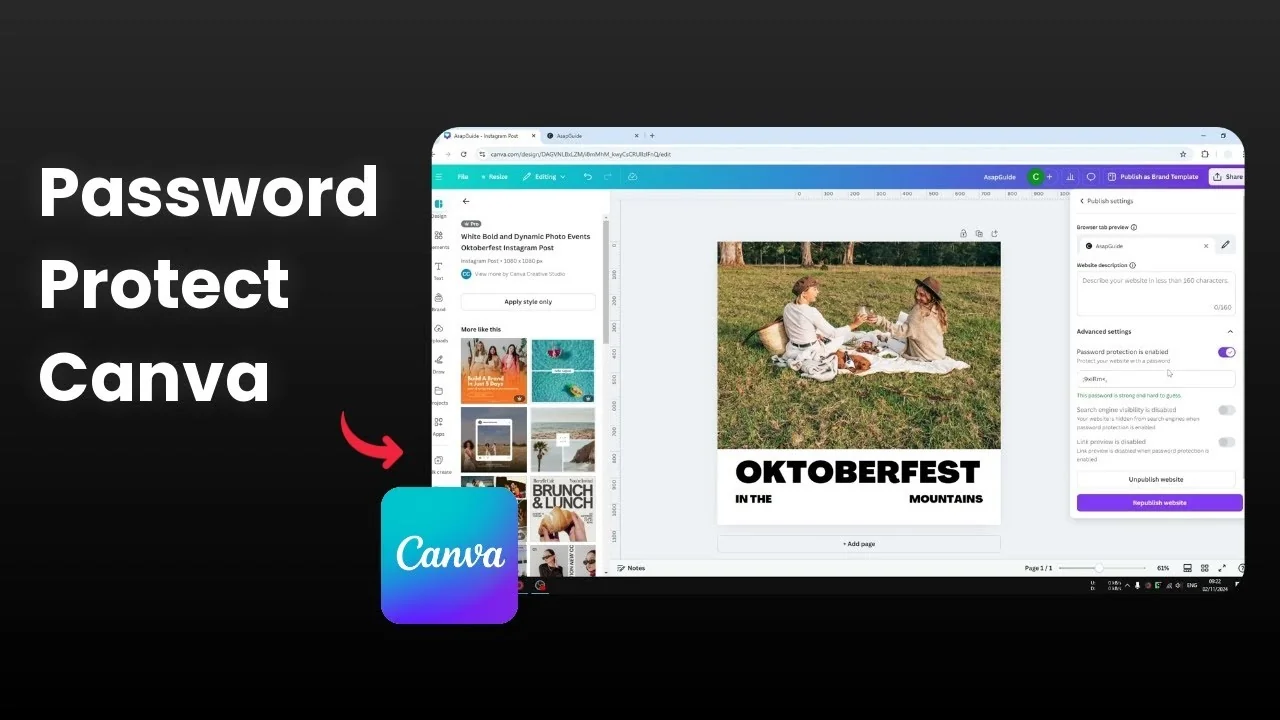
I am going to show you how you can password protect your Canva website. This is probably the best measure to prevent anyone from accessing the document or seeing the content that you put into your design. It is particularly useful if you have a document that you only want to share with your internal group or internal company.
Read More: Build Website Using Canva
Steps to Password Protect Your Canva Website
Make sure you have published your Canva design as a website.
Go to Share.
Click Website.
Click Publish settings.
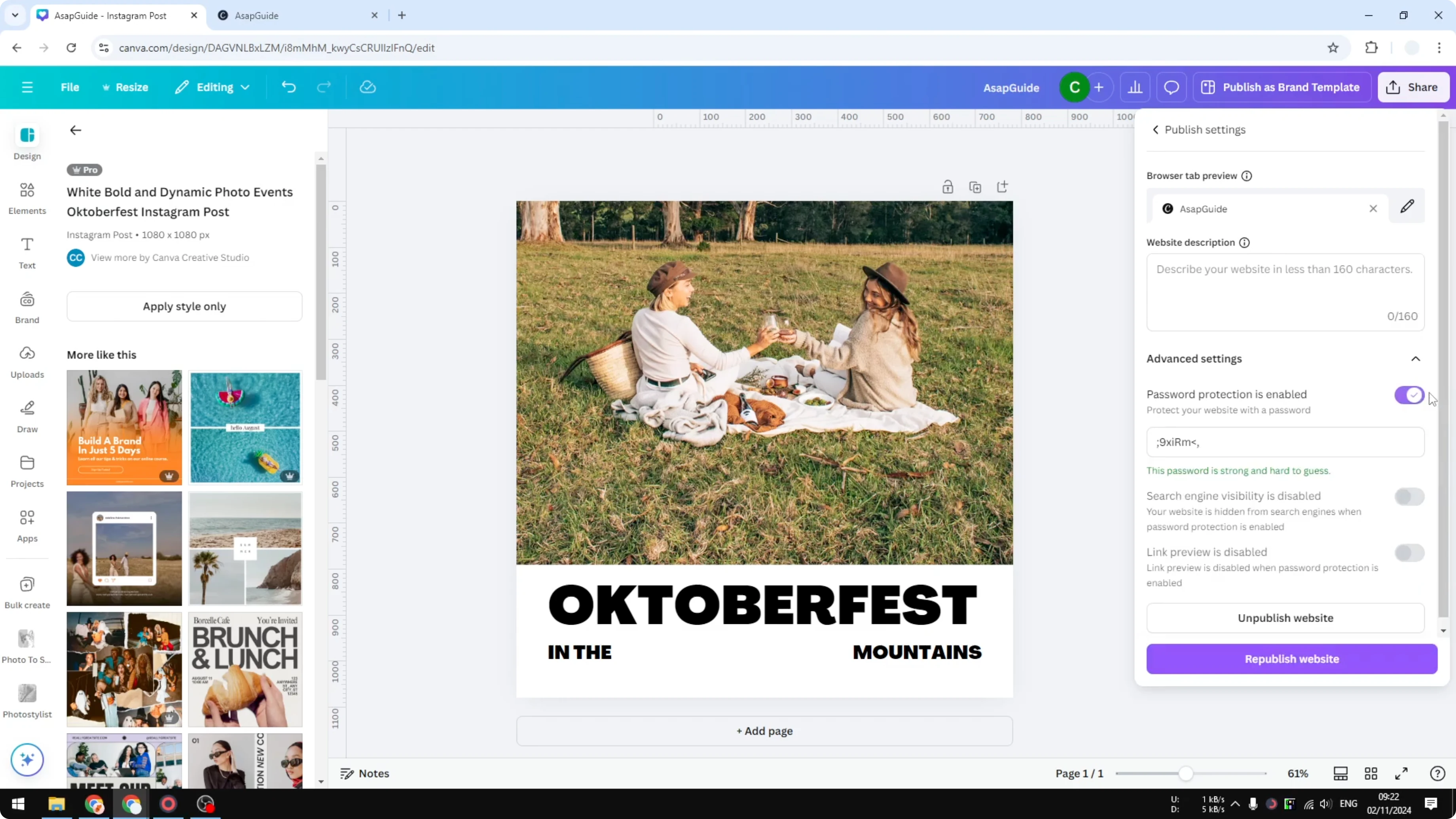
Go to Advanced settings.
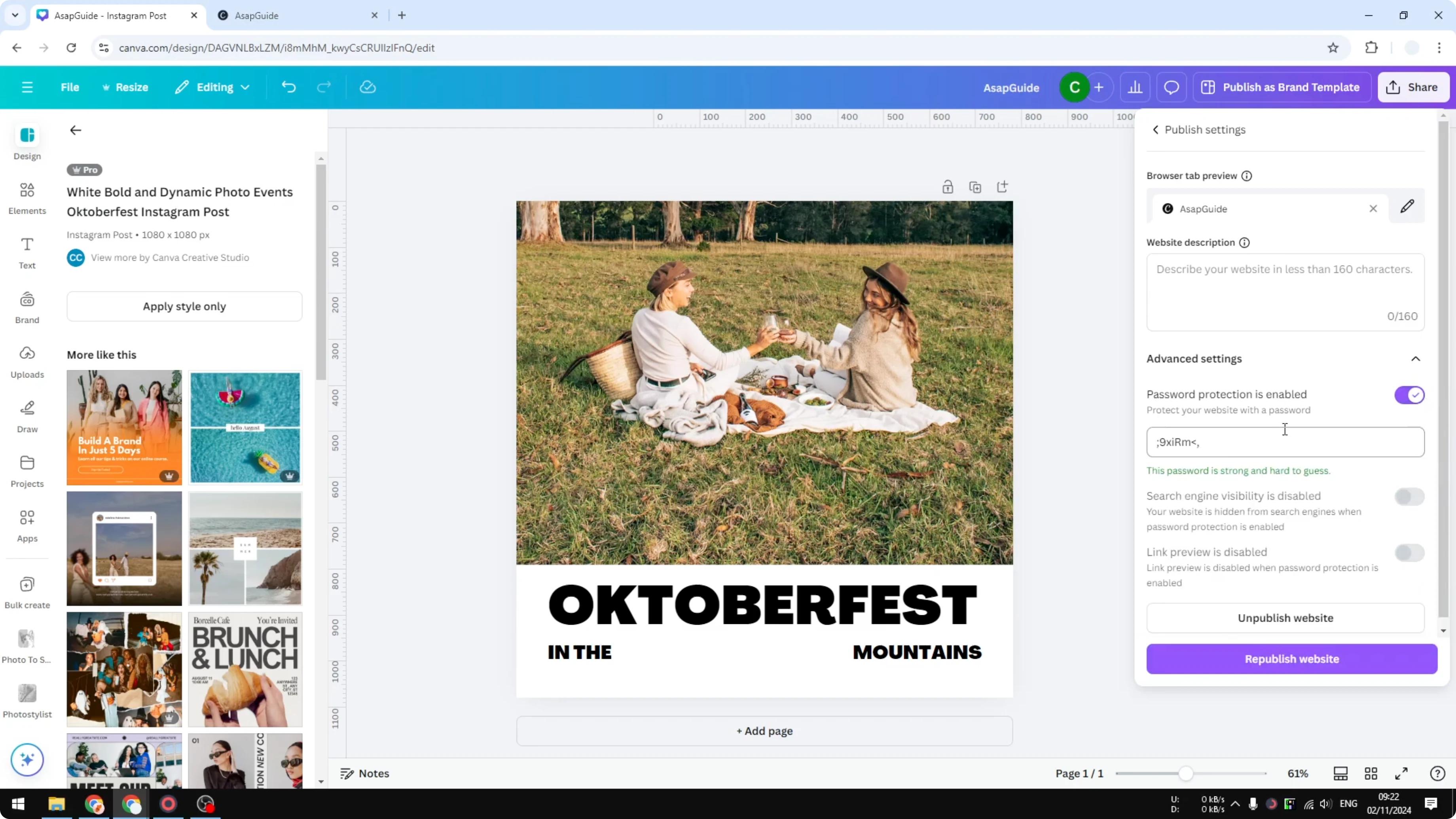
Enable password protection.
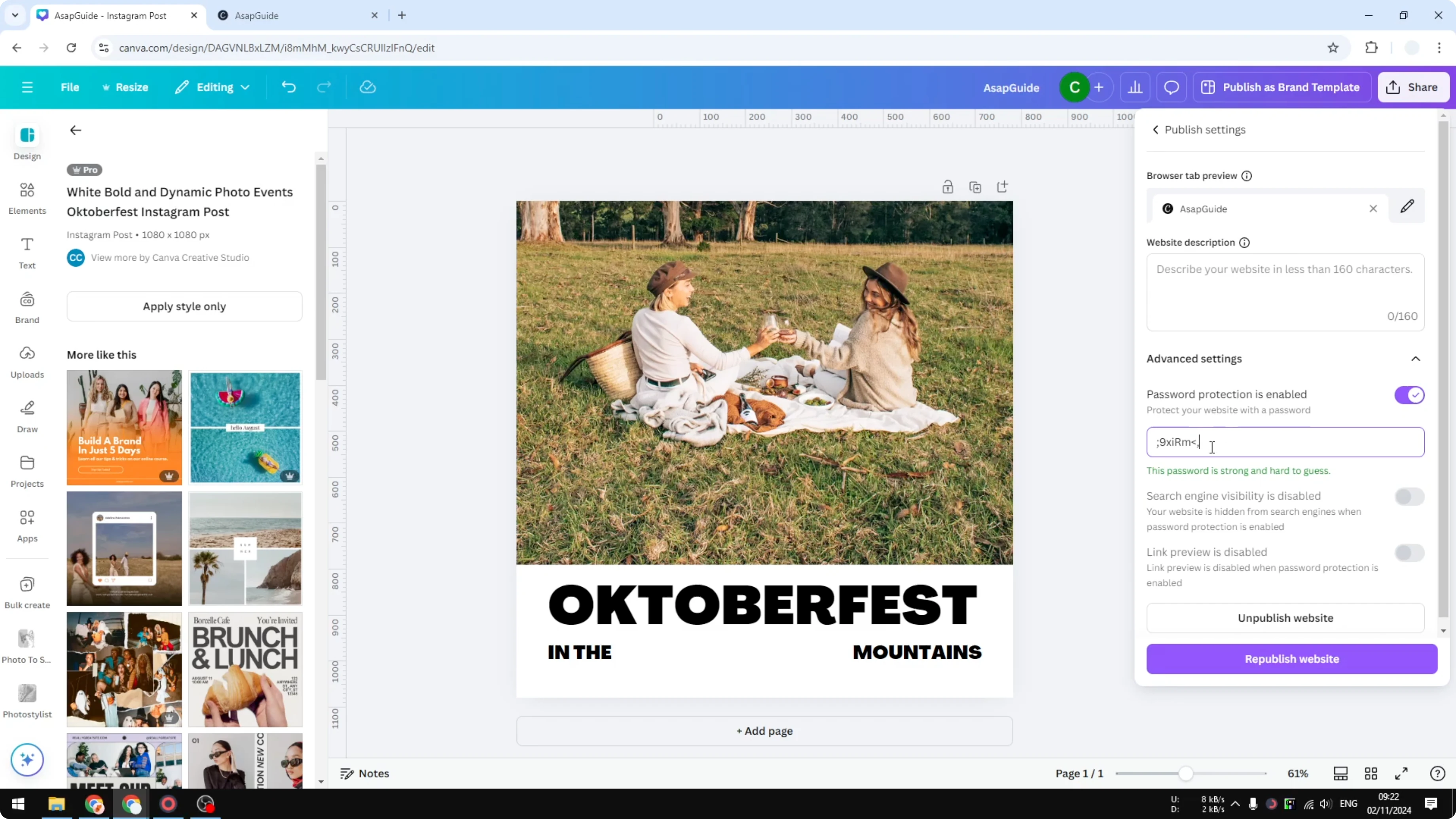
Canva will automatically generate a password, but you can write your own.
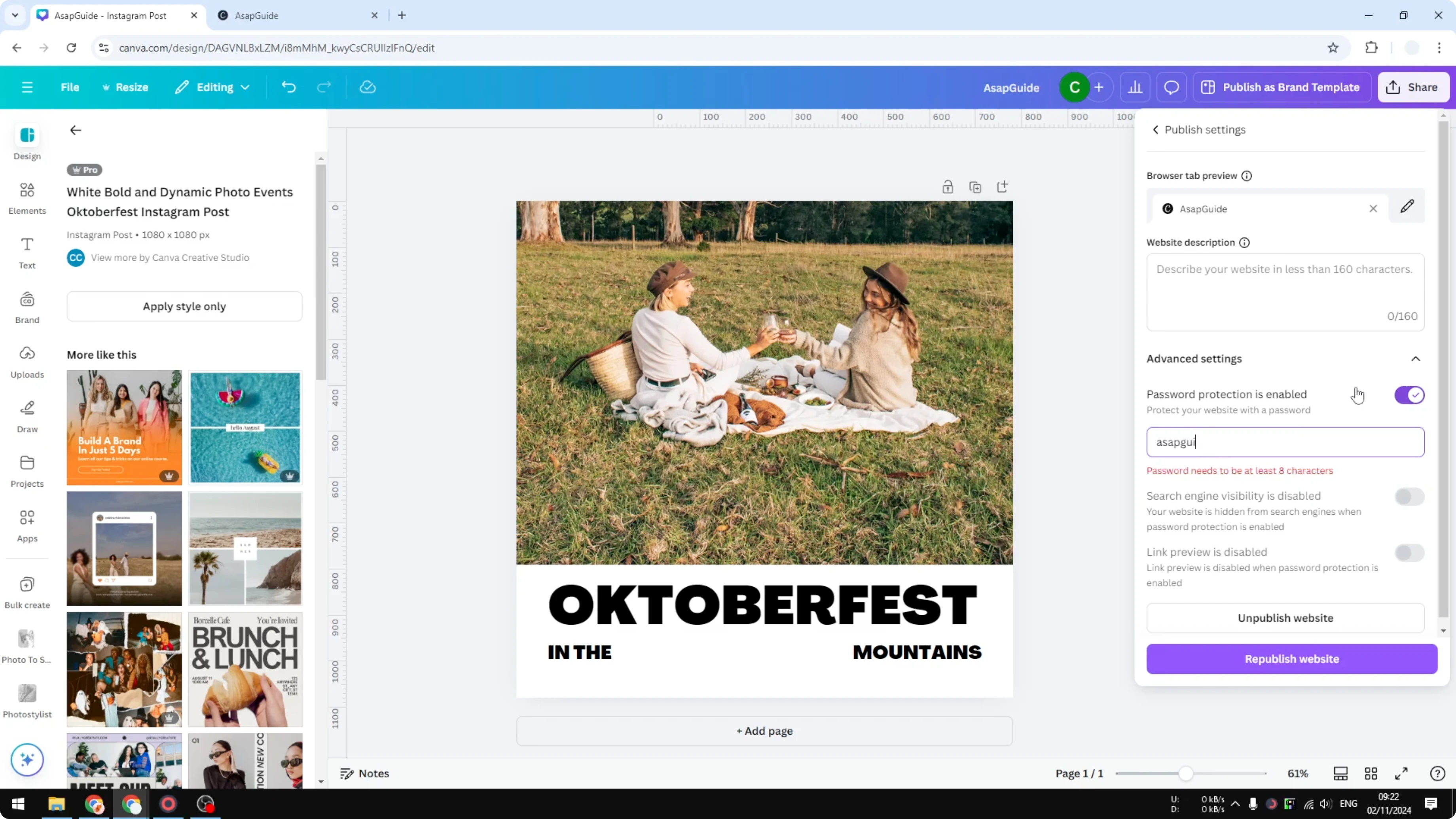
For example, I am going to use the password ASP guide. This is not the best password. Make sure it is unique, long, and contains multiple characters.
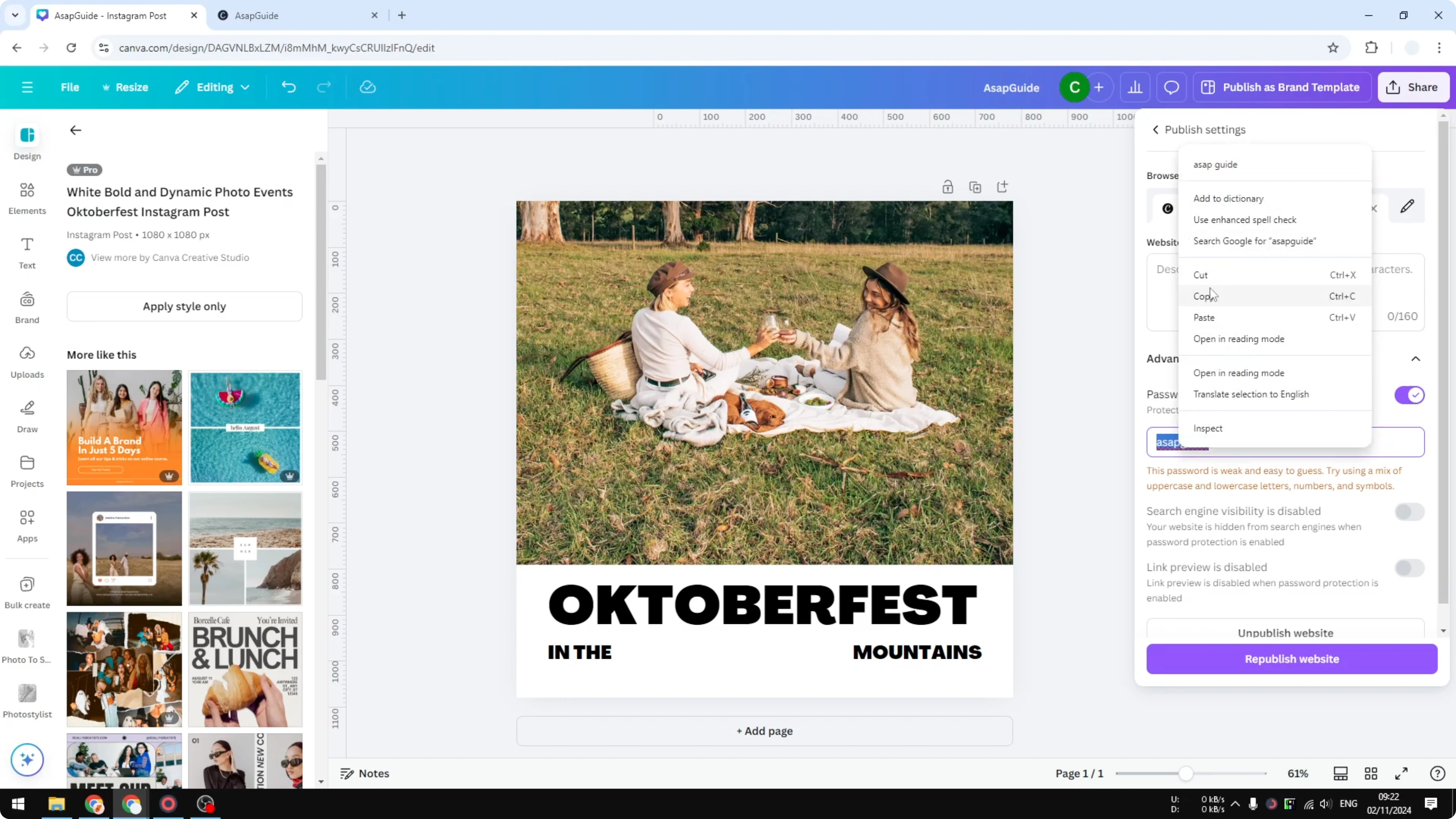
Click Republish the website.
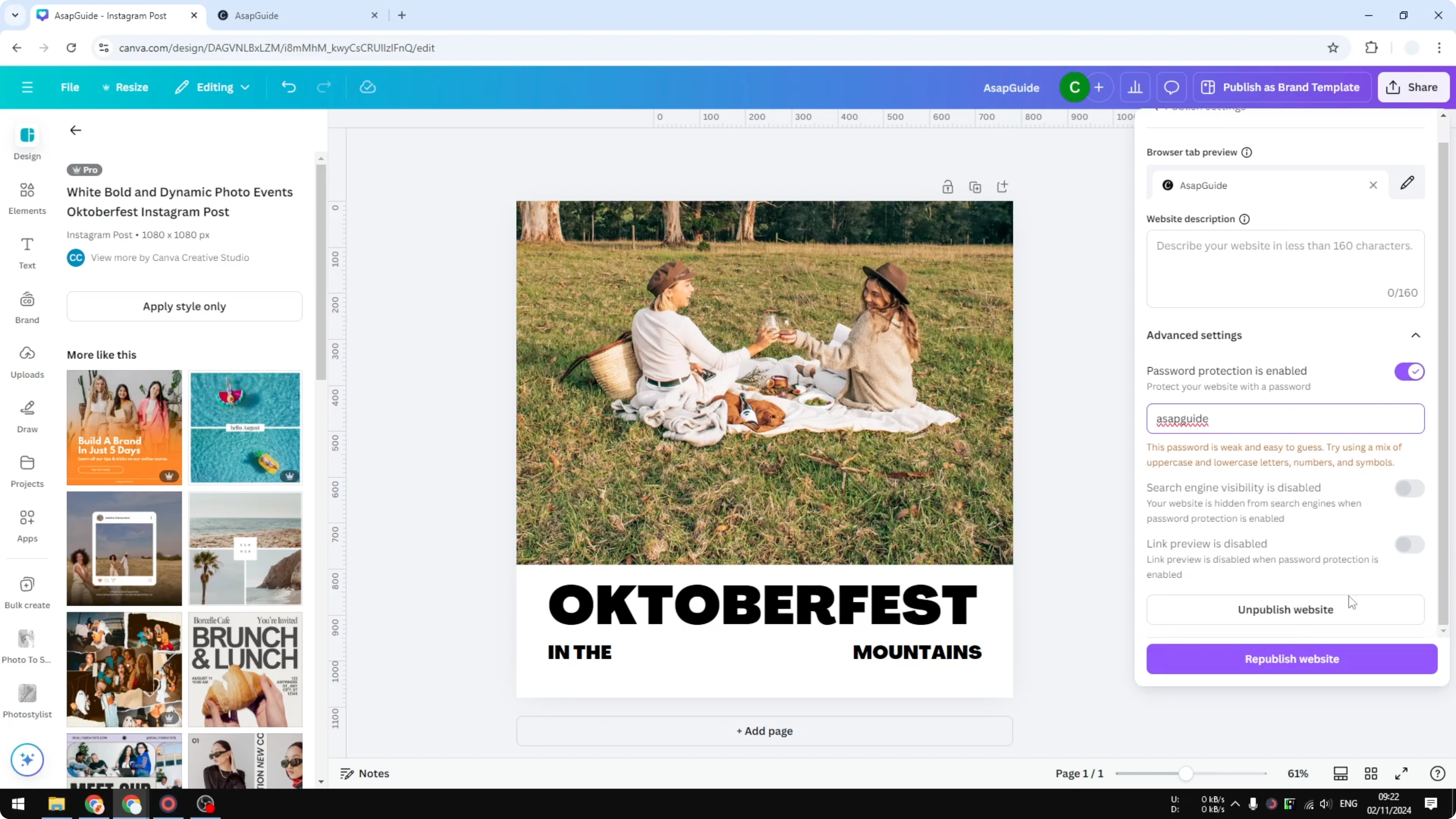
Wait while the setting is applied.
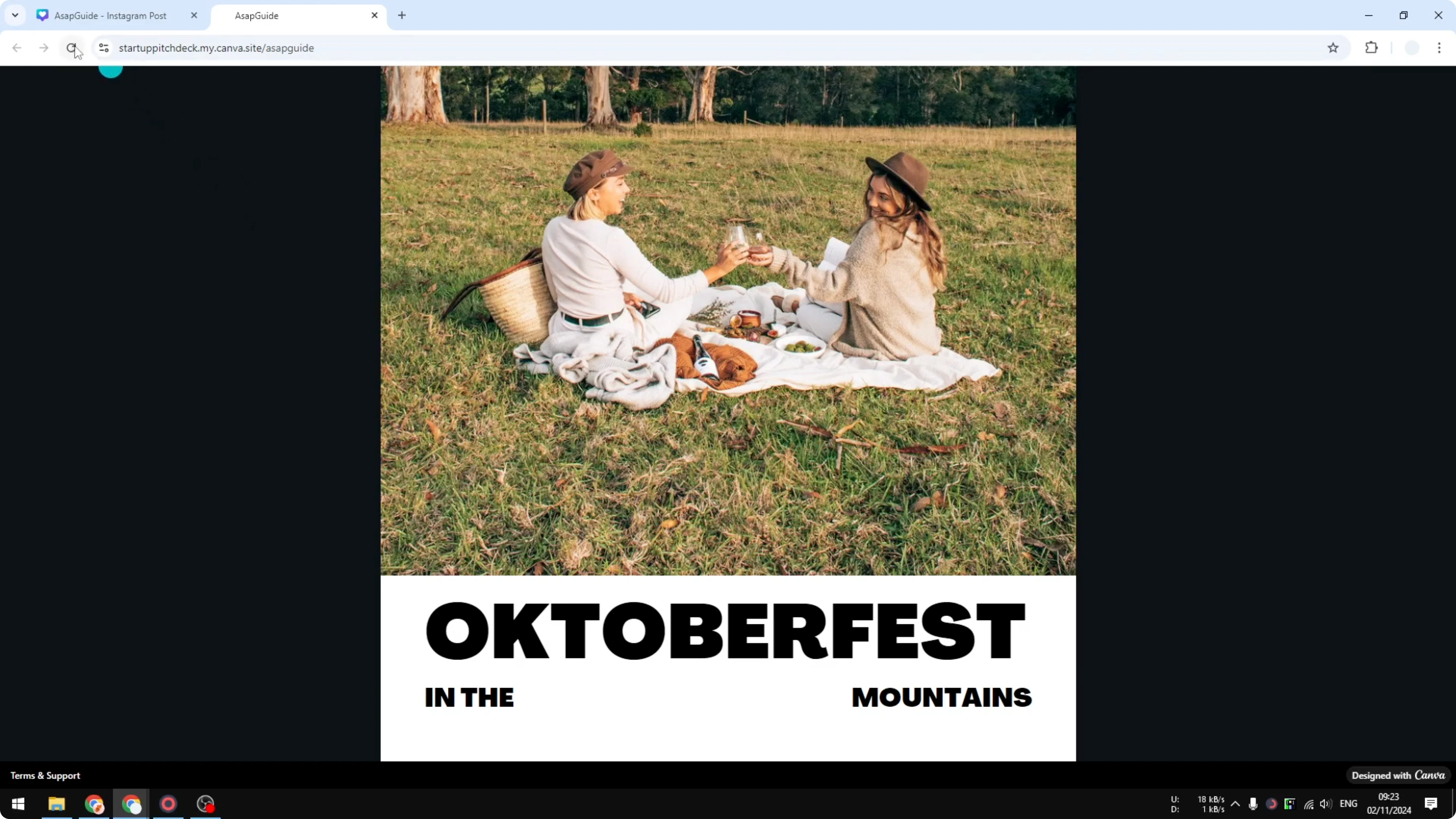
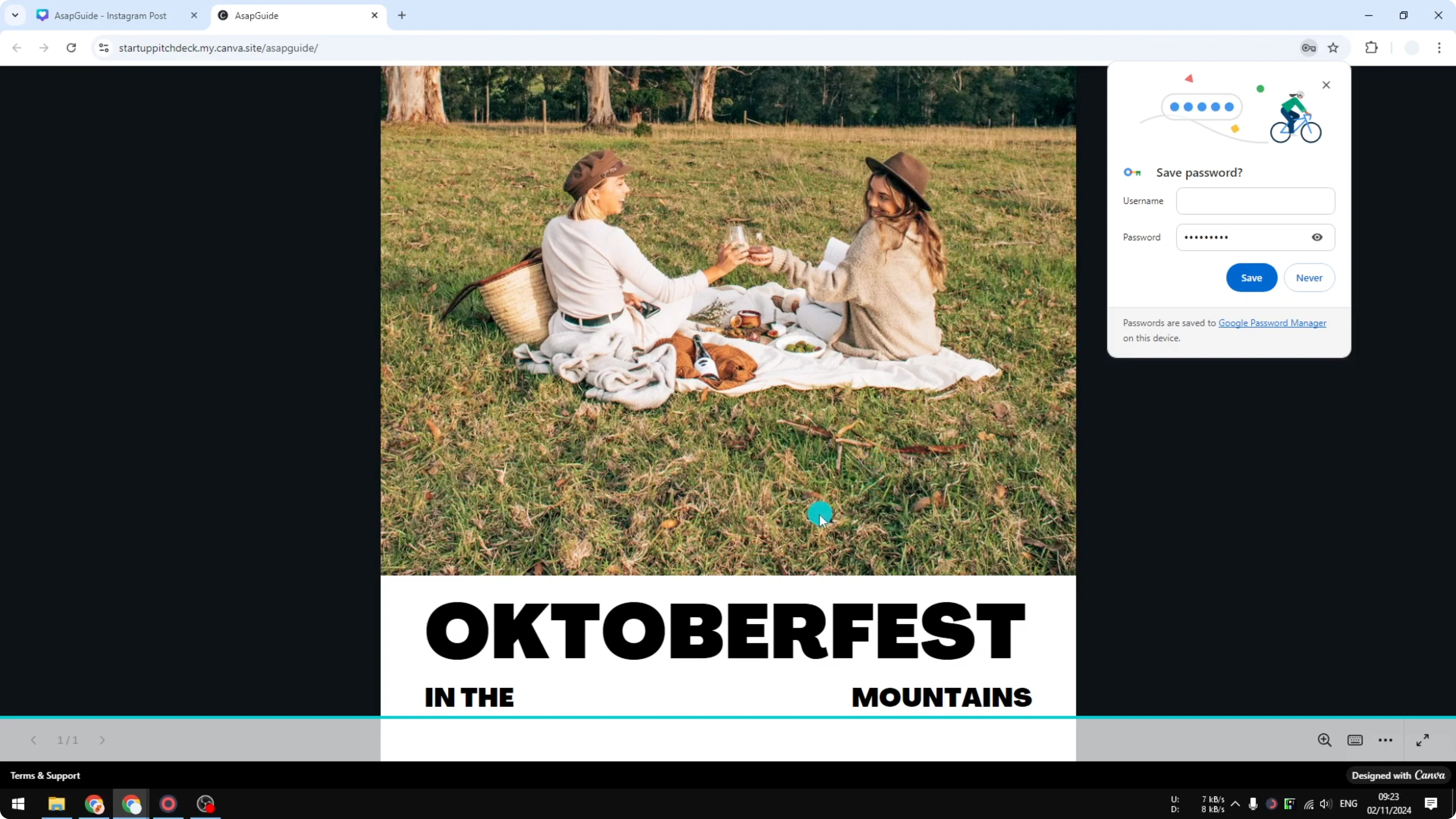
The website is updated, and the password prevents anyone from seeing the content. If you refresh the page, it will ask for a password before you can see the content. Enter the password, click I am not a robot, and continue.
Password Protect Your Canva Website and Search Engines
This will automatically prevent search engines from accessing the content because search engines do not know the password. It also helps prevent anyone from accidentally discovering your Canva website through search engines.
Read More: Hide Canva Website From Search Engines
Final Thoughts on Password Protect Your Canva Website
That is exactly how you can password protect your Canva website. Publish your design as a website, enable password protection in Advanced settings, set a strong password, and republish to lock it down.
Read More: How To Upload Your Own Font To Canva
Recent Posts

How to Visualize Yourself as a Pixelized Character with AI?
How to Visualize Yourself as a Pixelized Character with AI?

How to Revive Faded Memories and Enhance Image Clarity with AI?
How to Revive Faded Memories and Enhance Image Clarity with AI?

How to Visualize Yourself as an Animal Crossing Character with AI?
How to Visualize Yourself as an Animal Crossing Character with AI?