How to Make Text Taller in Canva
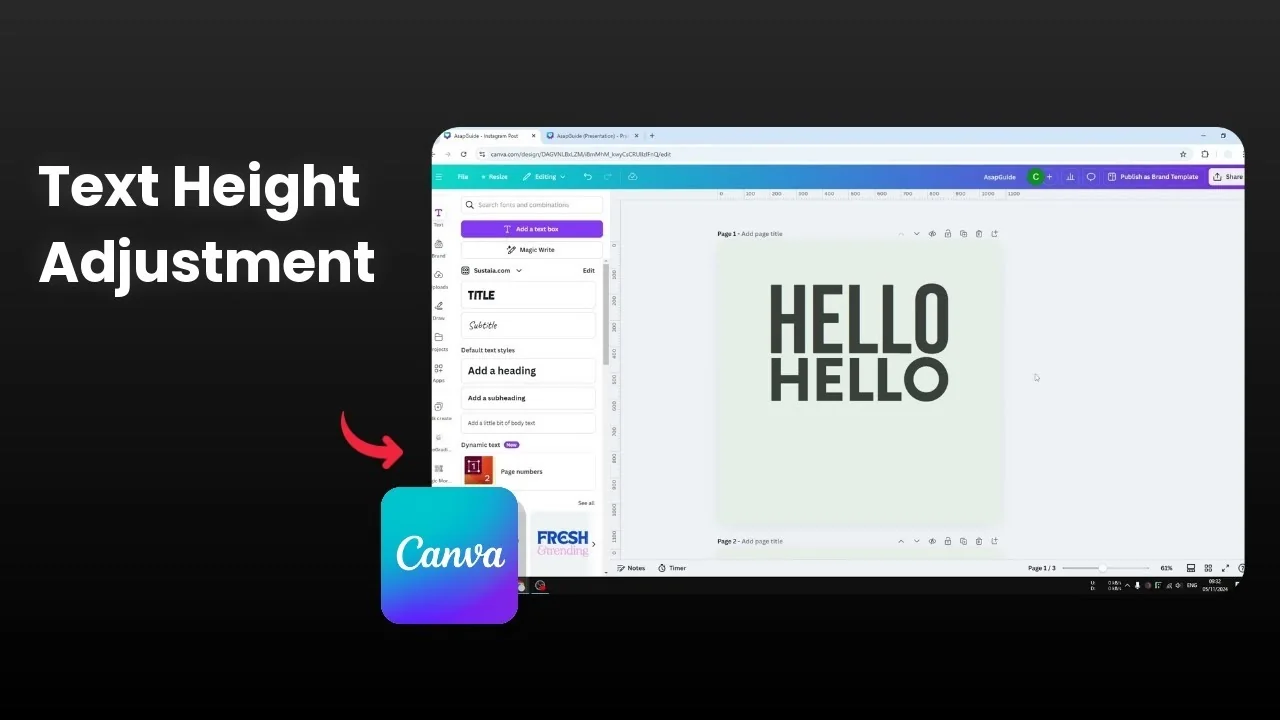
I’m going to show you how you can make text taller in Canva. There are three methods, and you can decide which one fits your design best.
Let’s start with the easiest approach, then move into options that give you more control over the final look.
Make Text Taller in Canva: Three Methods
Make Text Taller in Canva: Taller Font
I have this text, and the font is already pretty tall, but you can make the text taller by using a different font. The font I’m recommending here is Bas.
Duplicate your text box to compare the results side by side.
Click the font menu and search for “Bas.”
Use the Bas Neue option.
Match the length of the text with your previous font to compare. You’ll see this font is taller than the one I was using before. It’s noticeably taller at the same overall width.
If you also want your type to follow a curve for logos or badges, see how to make circle text in Canva and combine that with a tall font for a bold effect.
Make Text Taller in Canva: Typecraft
The second method is different. We’ll use a third-party app available inside Canva to stretch letters with more control.
Steps to Make Text Taller in Canva
Go to Apps inside Canva, search for “Typecraft,” and open it.
Type the text you want to make taller.
Change the font, style, and colors if you want.
Under Mirror points, enable Vertical to make height adjustments easier.
Adjust the shape, then click a control point at the top and drag it upward.
Do the same for the other control point, keeping both sides more or less equal.
Adjust the middle control point so the height looks consistent.
Click Add element to design to send the taller text back to your canvas.
If you want more contrast behind stretched letters for readability, you can add background text in Canva to create bold poster-style headings.
Make Text Taller in Canva: Stretch an Image
The third method is easier compared to the second because we are not going to be using a third-party app at all. We’ll convert the text to an image, then stretch it.
Steps to Make Text Taller in Canva
Select your text, then go to Share and click Download.
Set the File type to PNG and enable Transparent background.
On Pages, include only the page that contains this text.
I recommend isolating this text on its own page so the export has nothing else on it.
Click Download to get the image version of the text.
Drag the downloaded PNG back into your document.
This looks the same, but it’s now an image instead of editable text.
Double click the image to enter crop and transform mode.
Press and hold Shift, then grab a corner handle and drag upward to stretch vertically.
Click Done to apply the change.
To frame your taller headline or callout, it helps to add a border to the text box in Canva for clean, structured layouts.
Final Thoughts
You can make text taller in Canva by picking a naturally tall font, by shaping letters with Typecraft for precise control, or by exporting text as a PNG and stretching it as an image. The font swap is the quickest, Typecraft gives you custom height shaping, and the PNG method is simple and doesn’t require extra tools. Choose the method that matches your design and how much control you need.
Recent Posts

How to Visualize Yourself as a Pixelized Character with AI?
How to Visualize Yourself as a Pixelized Character with AI?

How to Revive Faded Memories and Enhance Image Clarity with AI?
How to Revive Faded Memories and Enhance Image Clarity with AI?

How to Visualize Yourself as an Animal Crossing Character with AI?
How to Visualize Yourself as an Animal Crossing Character with AI?