How to Make Someone Look Older or Younger Using AI?
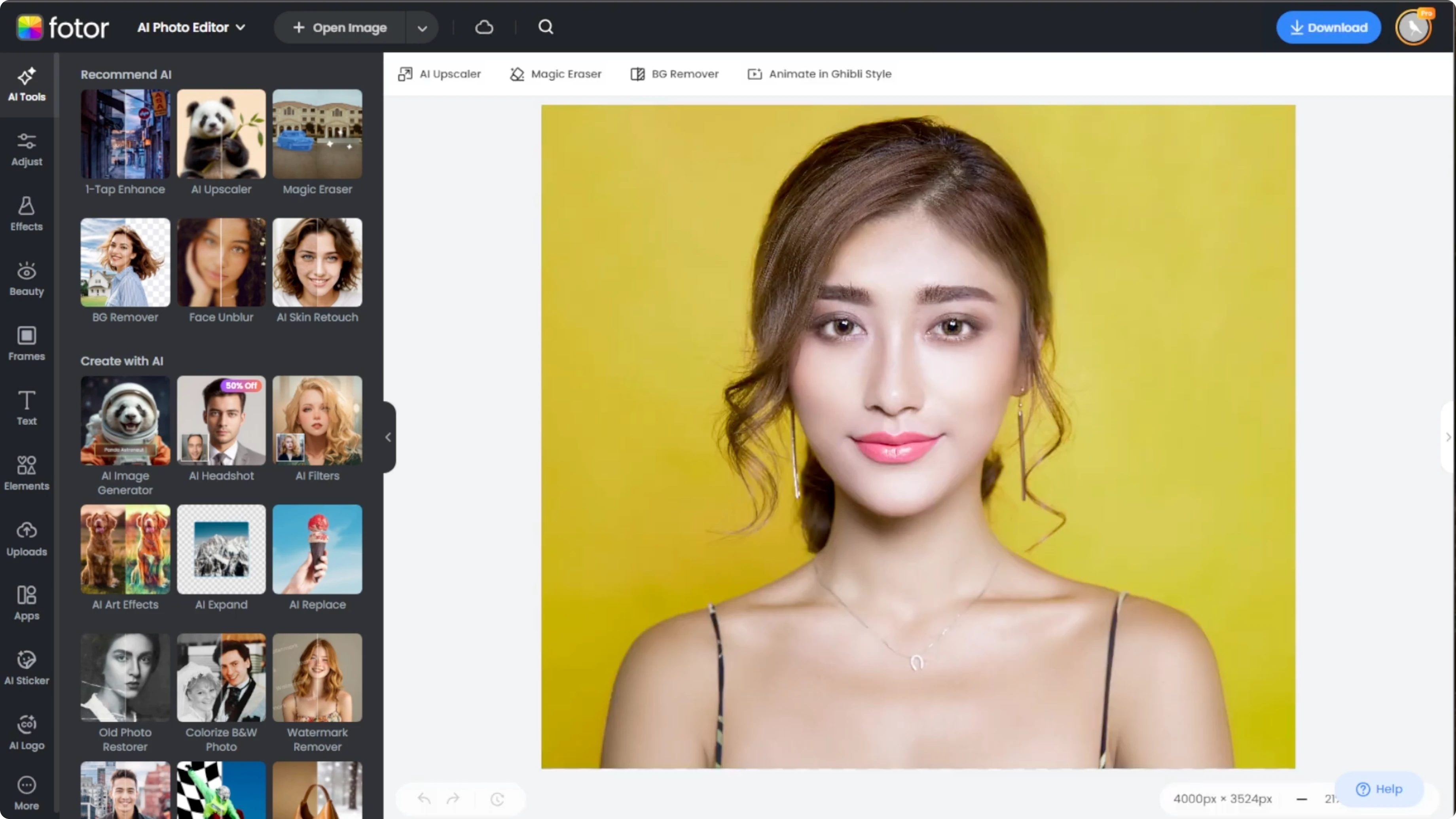
I will teach you how to make someone look older or younger using AI. You might be just having fun exploring how you'd look as an elder or a kid, or creating concept art for stories or character design. The ability to age or deage a photo using AI is both entertaining and surprisingly powerful.
Photos AI age changer lets you instantly transform someone's appearance to look older or younger with surprisingly realistic results. The output is a newly generated image based on your original input. It is not just a retouched version of the photo.
For more editing ideas across different tools, see our tips in this Icedit AI image editing guide.
Make Someone Look Older or Younger Using AI? Overview
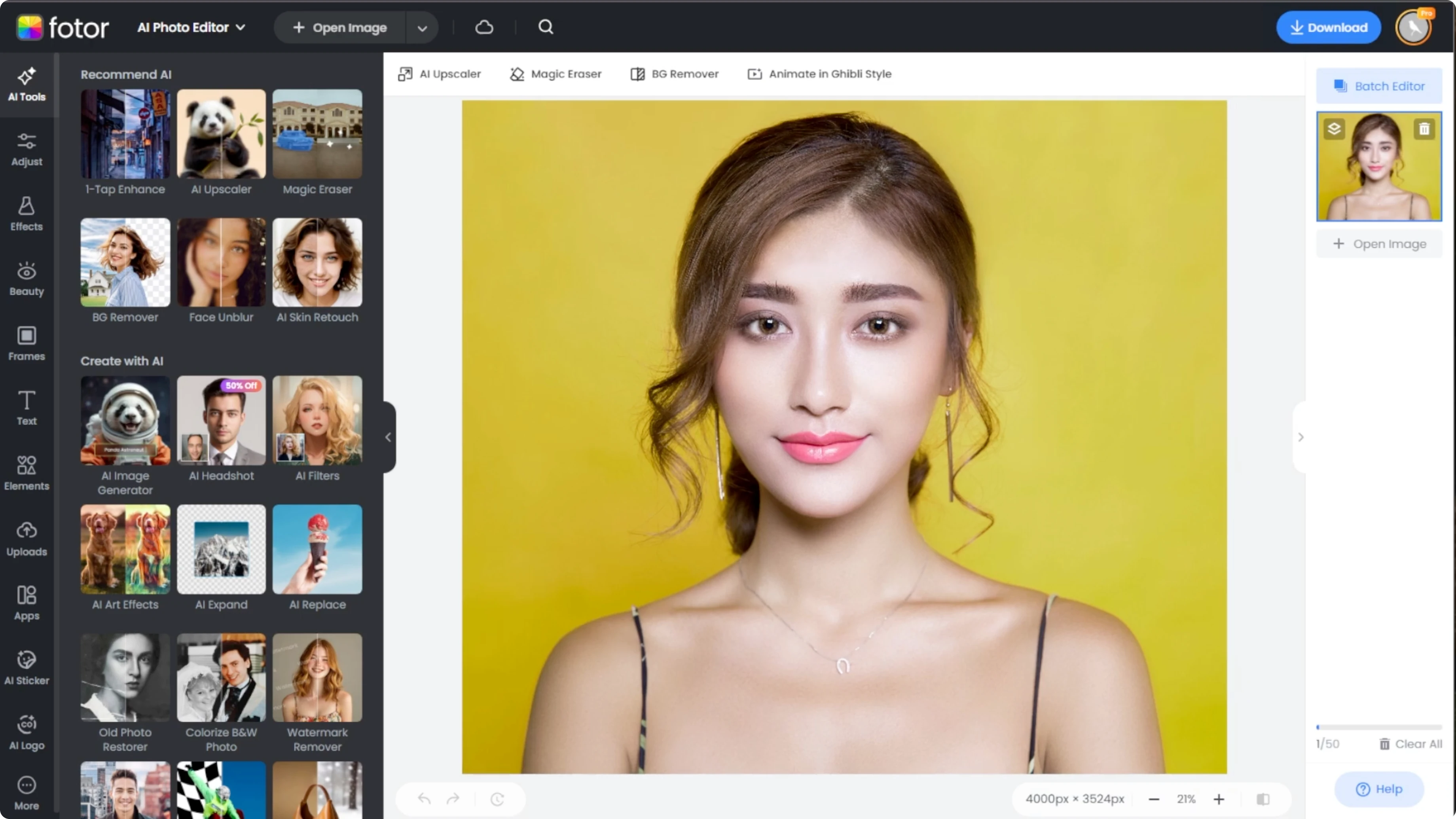
Open the Photo AI editor.
Click Upload to add your own image.
You can also choose one of the sample images to test the tool first.
Supported formats include JPG, PNG, and WEBP.
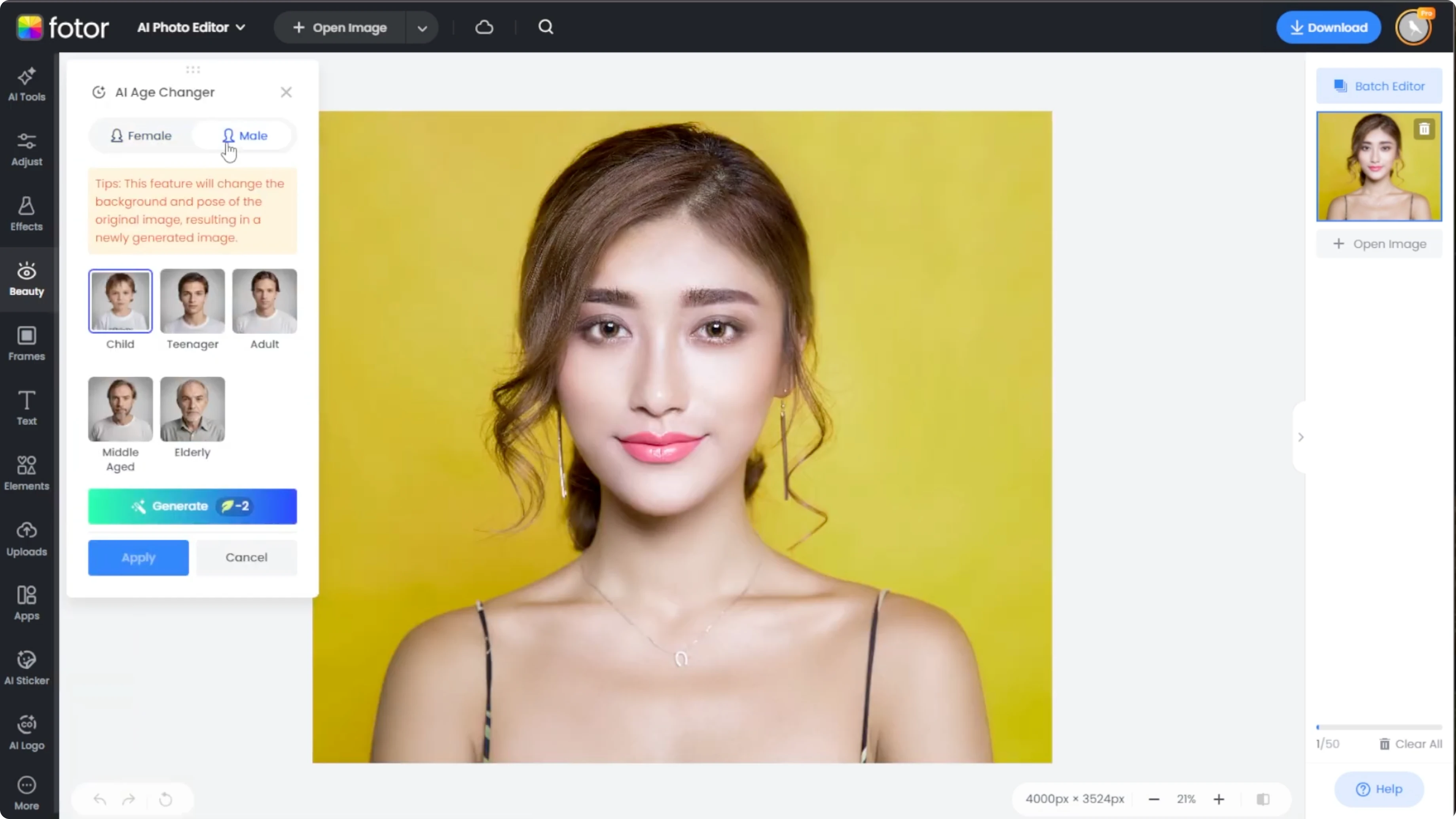
On the left sidebar, switch to the Beauty tab.
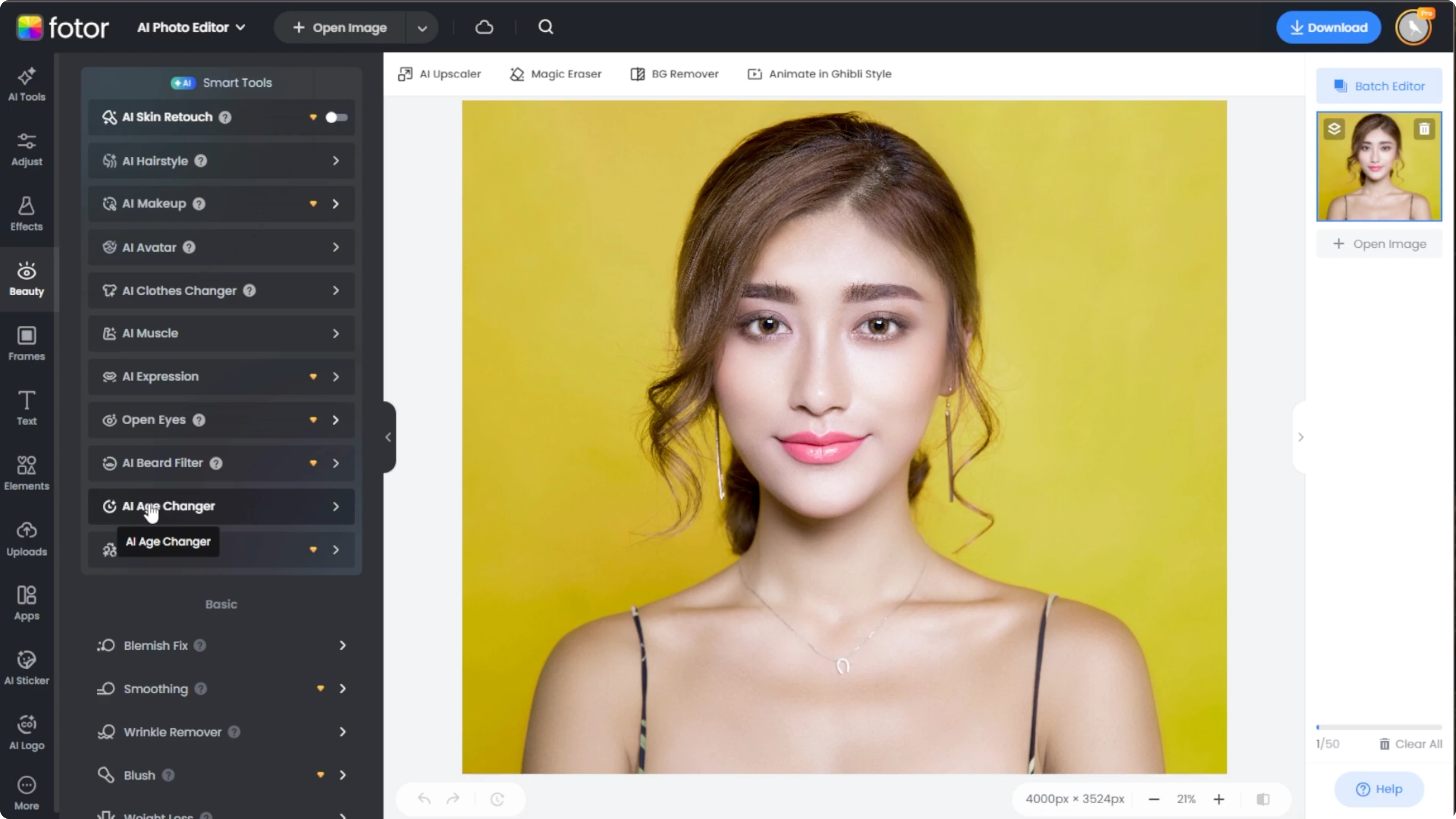
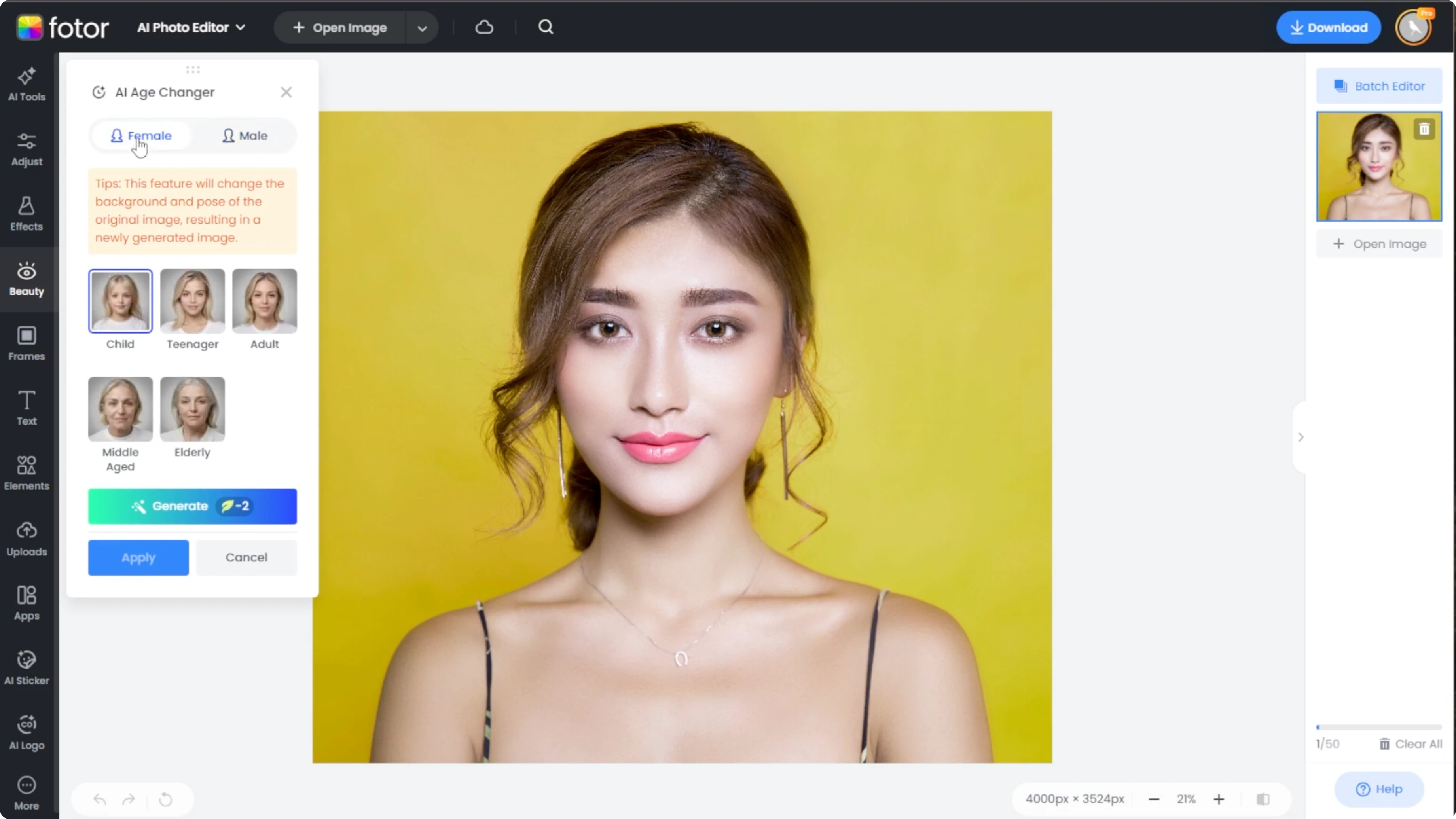
Under Smart AI Tools, click AI age changer and select the gender of the subject.
This tool uses AI generated transformation. The background and pose of the photo may change based on your input. Keep this in mind before proceeding.
Steps to make Someone Look Older or Younger Using AI:
Prepare your image
Choose the photo you want to transform and make sure the face is clear and well lit. Upload the file or pick a sample image to try the effect. Confirm the format is JPG, PNG, or WEBP.
Switch to the Beauty tab on the left. In Smart AI Tools, select AI age changer. Choose the appropriate gender for the subject.
Run the transformation
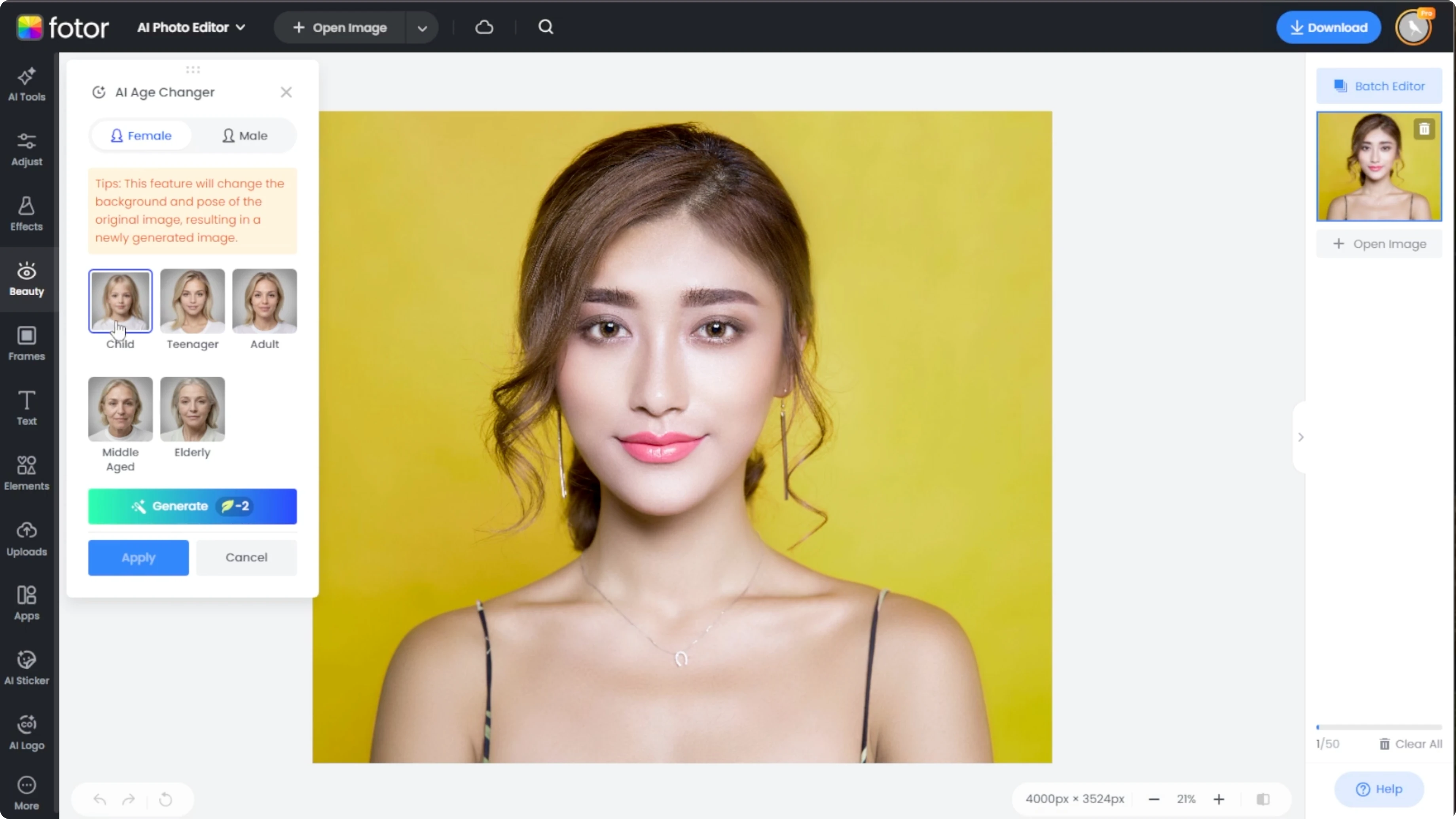
Pick an age range: child, teenager, adult, middle aged, or elderly.
Click Generate and wait a few moments for the AI to process.
Each generation costs two credits.
If your project includes video, you can edit scenes later with AI.
For background changes in footage, see how it works in this Canva background swapping tutorial. It pairs well with AI aged character shots.
Review and save
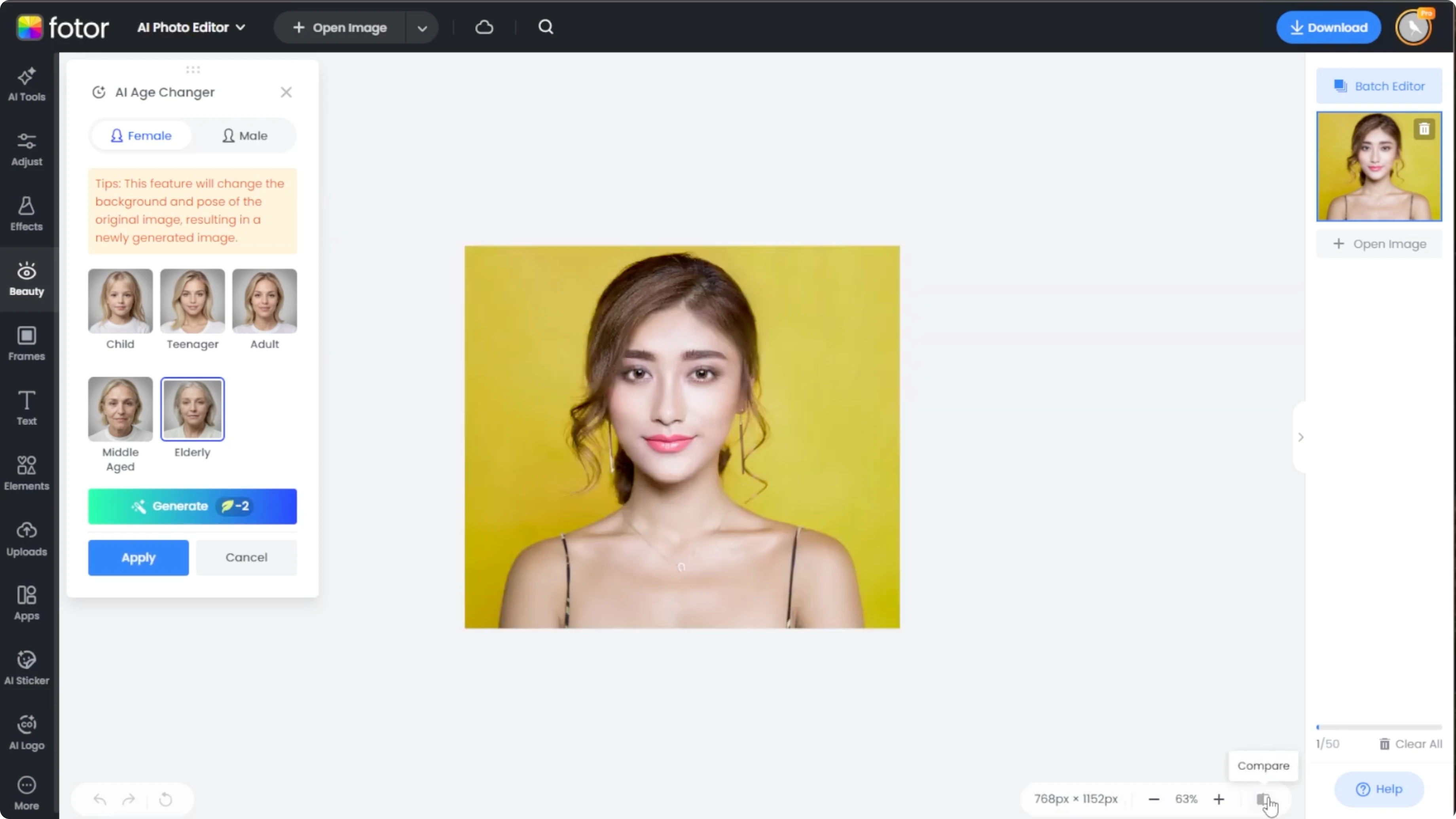
Use the comparison button at the bottom to view the before and after side by side.
If you are happy with the result, click Apply to save the changes inside the editor.
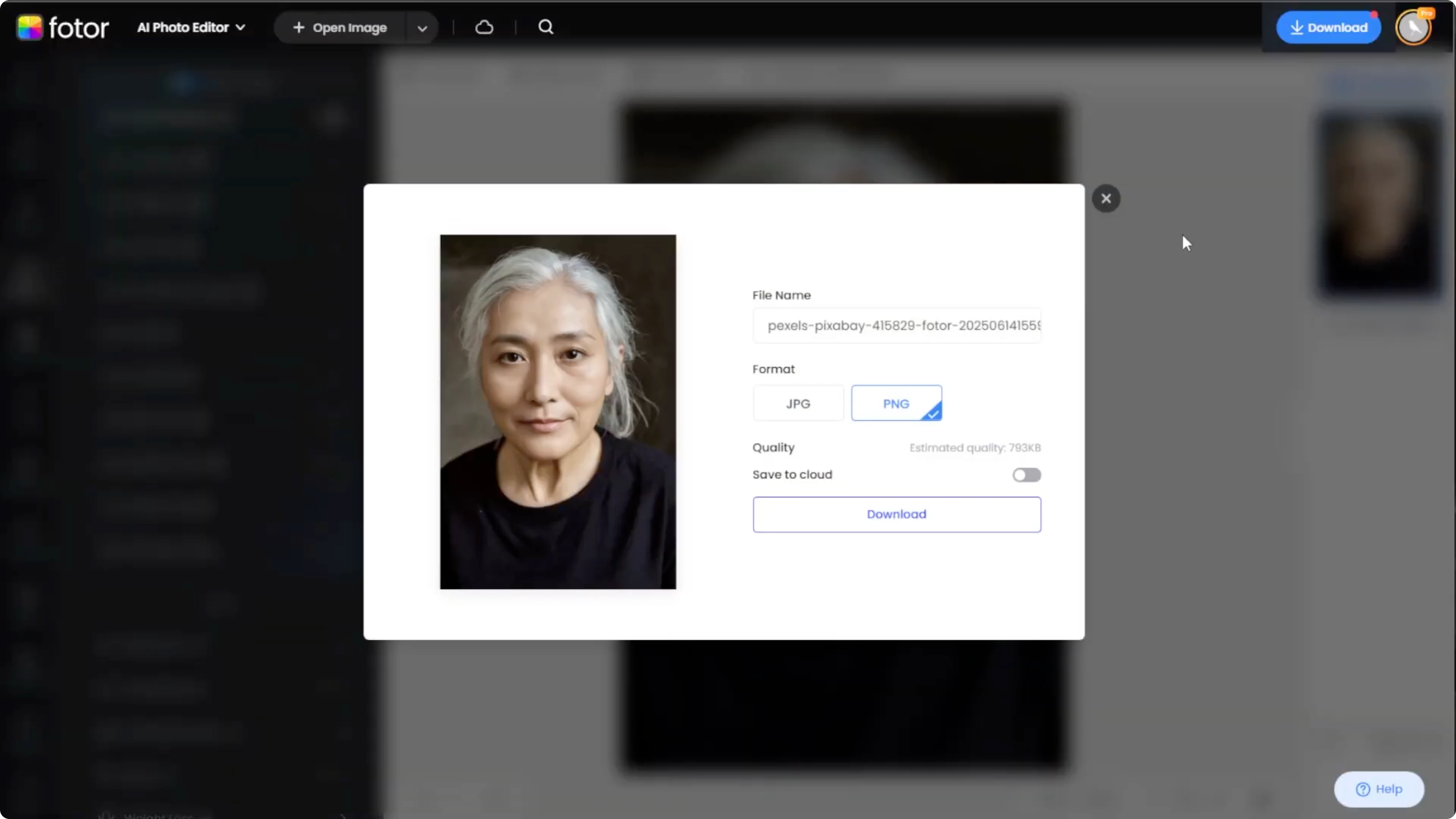
Click Download at the top to save the final image to your device.
If you plan to turn your images into a simple slideshow or montage, check out this quick guide to making a video from photos in Canva. It is a handy way to present multiple age variations. Your AI edits can become a polished clip in minutes.
Final Thoughts
AI age edits are fast and fun, and they can help with character design, concept art, and playful portraits. Remember that the background and pose may change, since the tool generates a new image from your original input. Use the comparison view to evaluate the result, then apply and download when satisfied.
Recent Posts

How to Visualize Yourself as a Pixelized Character with AI?
How to Visualize Yourself as a Pixelized Character with AI?

How to Revive Faded Memories and Enhance Image Clarity with AI?
How to Revive Faded Memories and Enhance Image Clarity with AI?

How to Visualize Yourself as an Animal Crossing Character with AI?
How to Visualize Yourself as an Animal Crossing Character with AI?