How to Transform Your Photos into Artistic Sketch Portraits with AI?
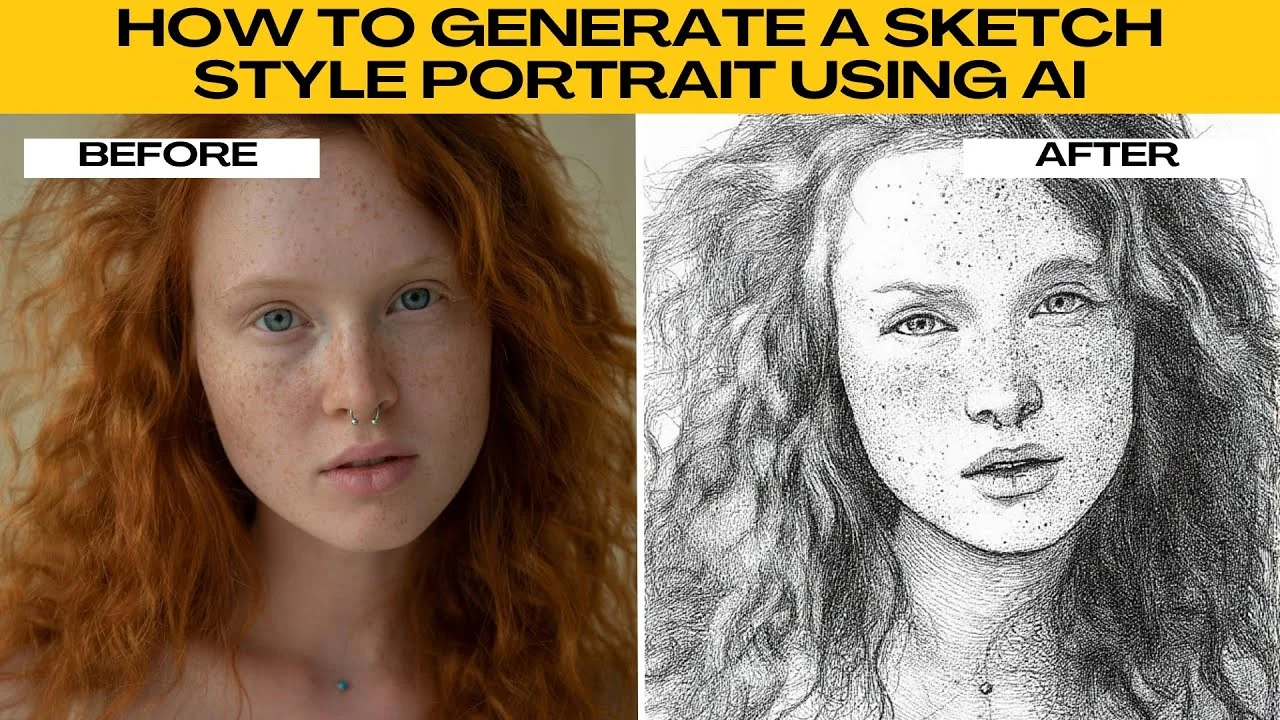
I will teach you how to generate a sketch style portrait using AI. Boar gives you a variety of sketch styles to choose from. This tutorial is perfect for beginners and requires no prior editing experience.
You can aim for a soft pencil look, cross hatch detail, or ink style rendering. Head shot or upper body portraits with clear outlines and neutral backgrounds work best for sketch transformations. With this tool, your portraits can instantly become timeless pencil drawings.
For another creative transformation, see how to turn yourself into a cartoon with our step by step guide here: cartoon effect tutorial.
Prepare
Make sure your image has good lighting or a clear subject for the best sketch results. Neutral backgrounds help the AI define edges and shading more cleanly.
Choose a head shot or an upper body photo where the face and outlines are clear. Avoid cluttered backgrounds and low resolution images.
Upload
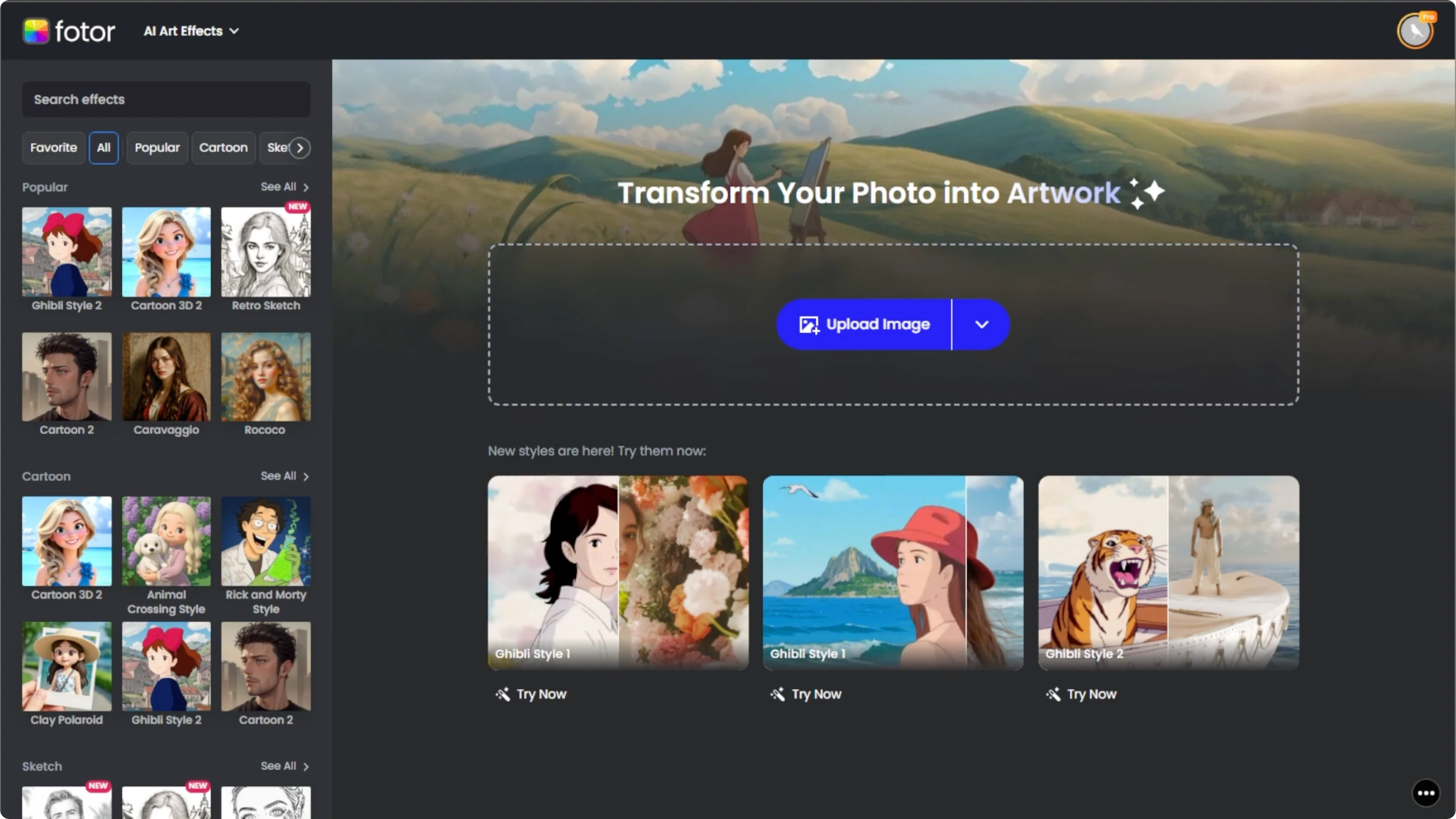
Go to your web browser and navigate to photos AI artifacts.
Click the Upload image button or drag your image onto the upload section.
After uploading your photo, check the left panel of the editor.
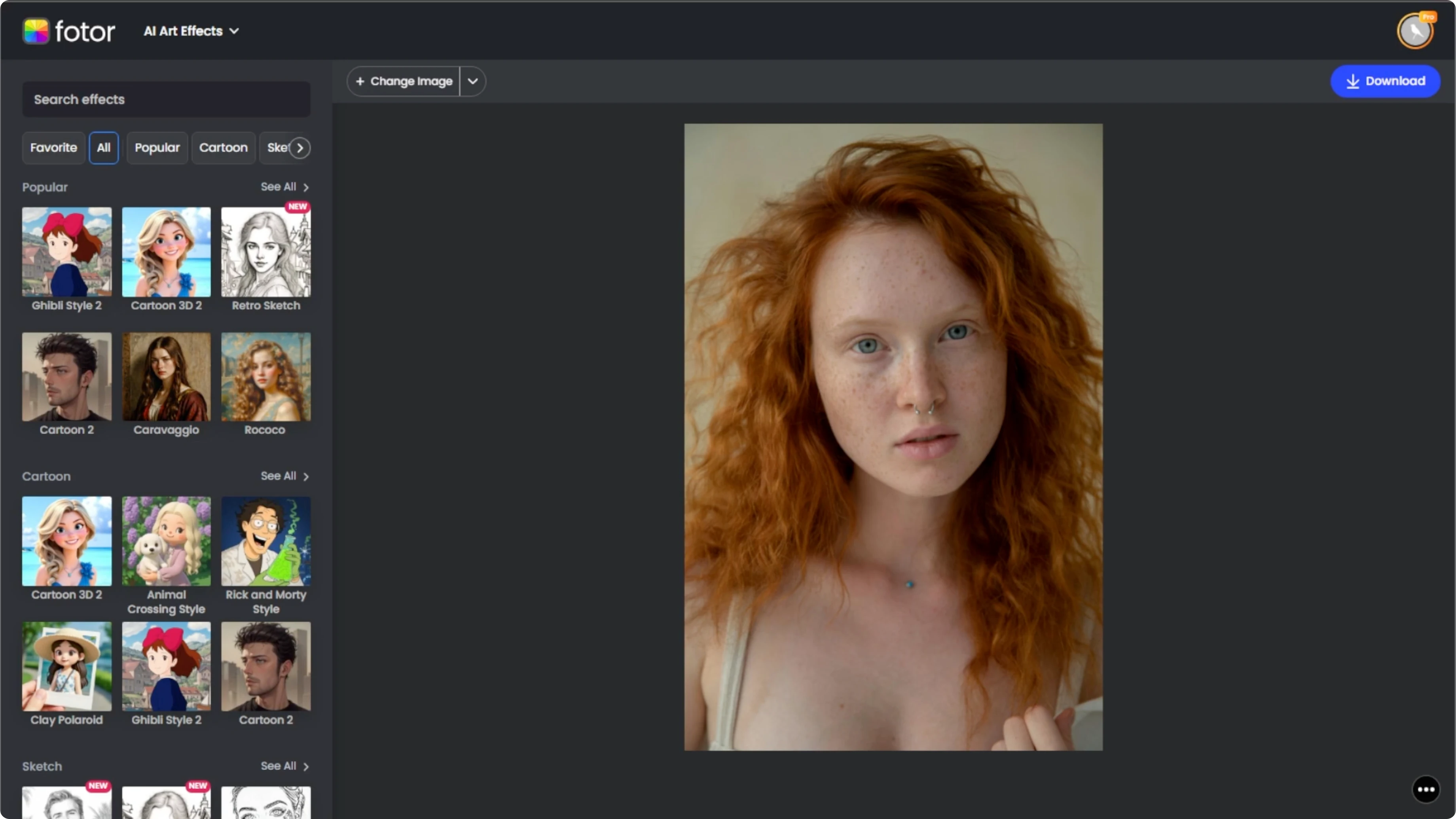
Scroll down until you find the Sketch section.
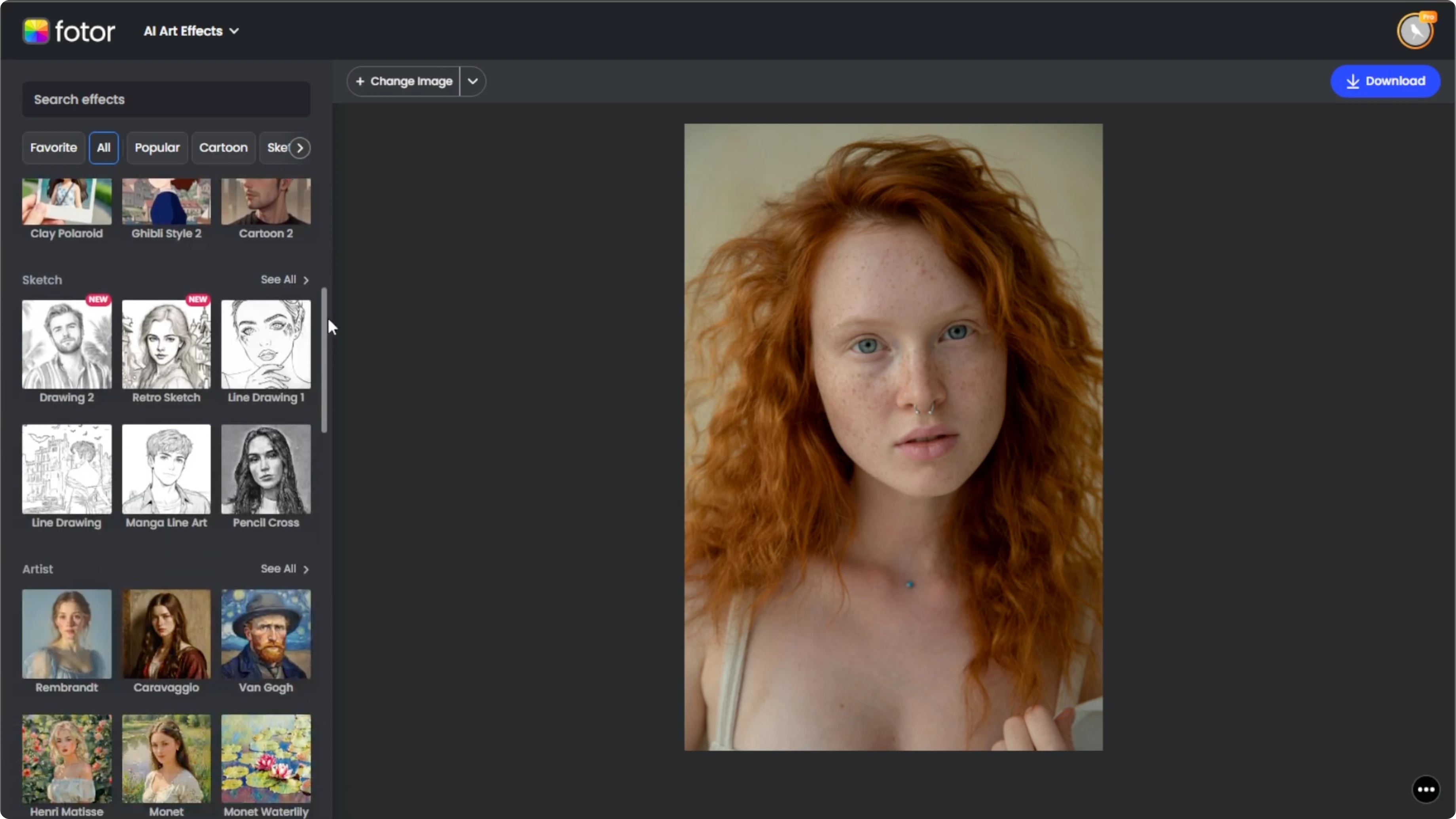
Here you will see several different sketch filters. Some resemble pencil drawings, others have a more ink or charcoal look.
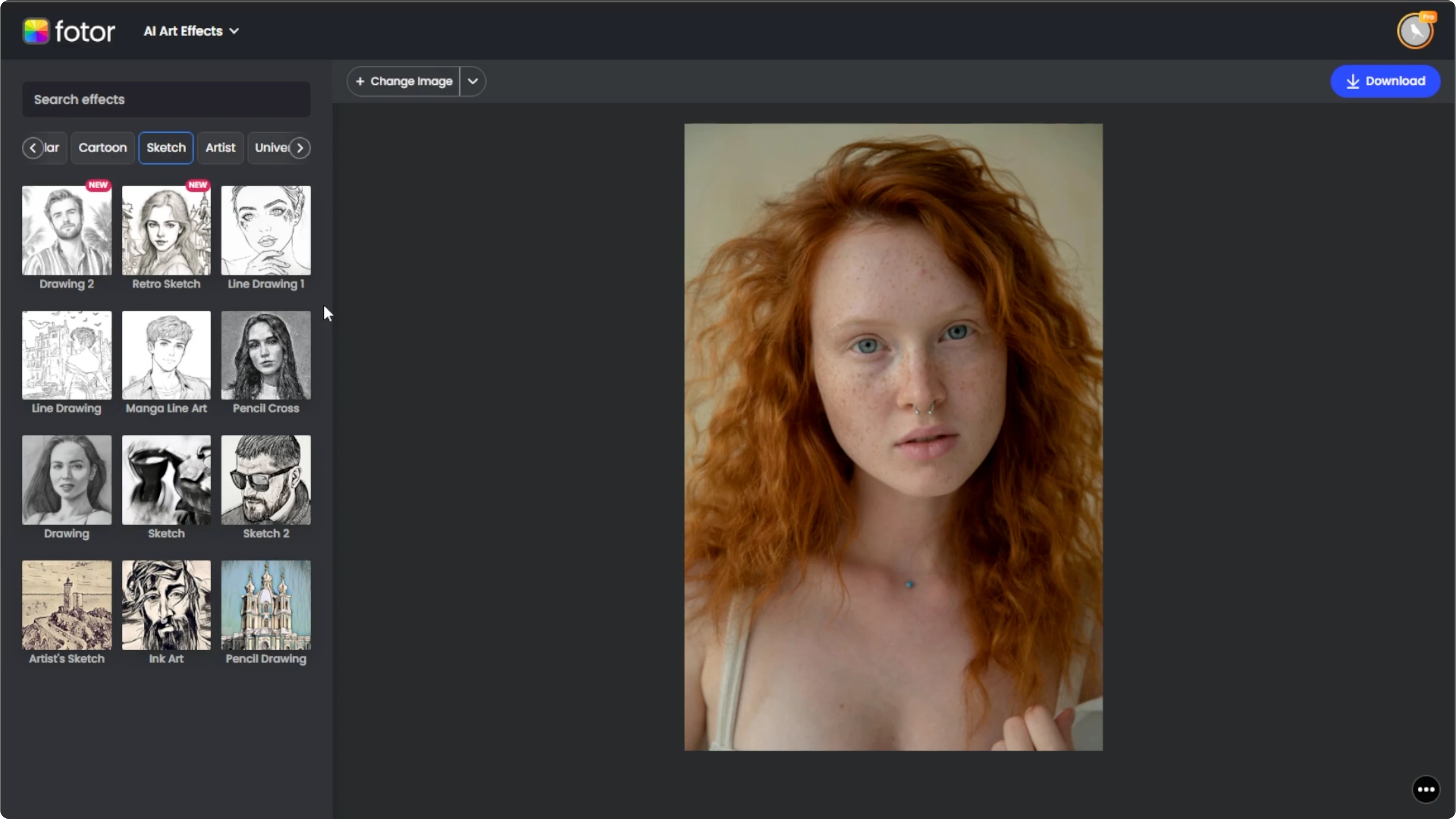
Choose a style
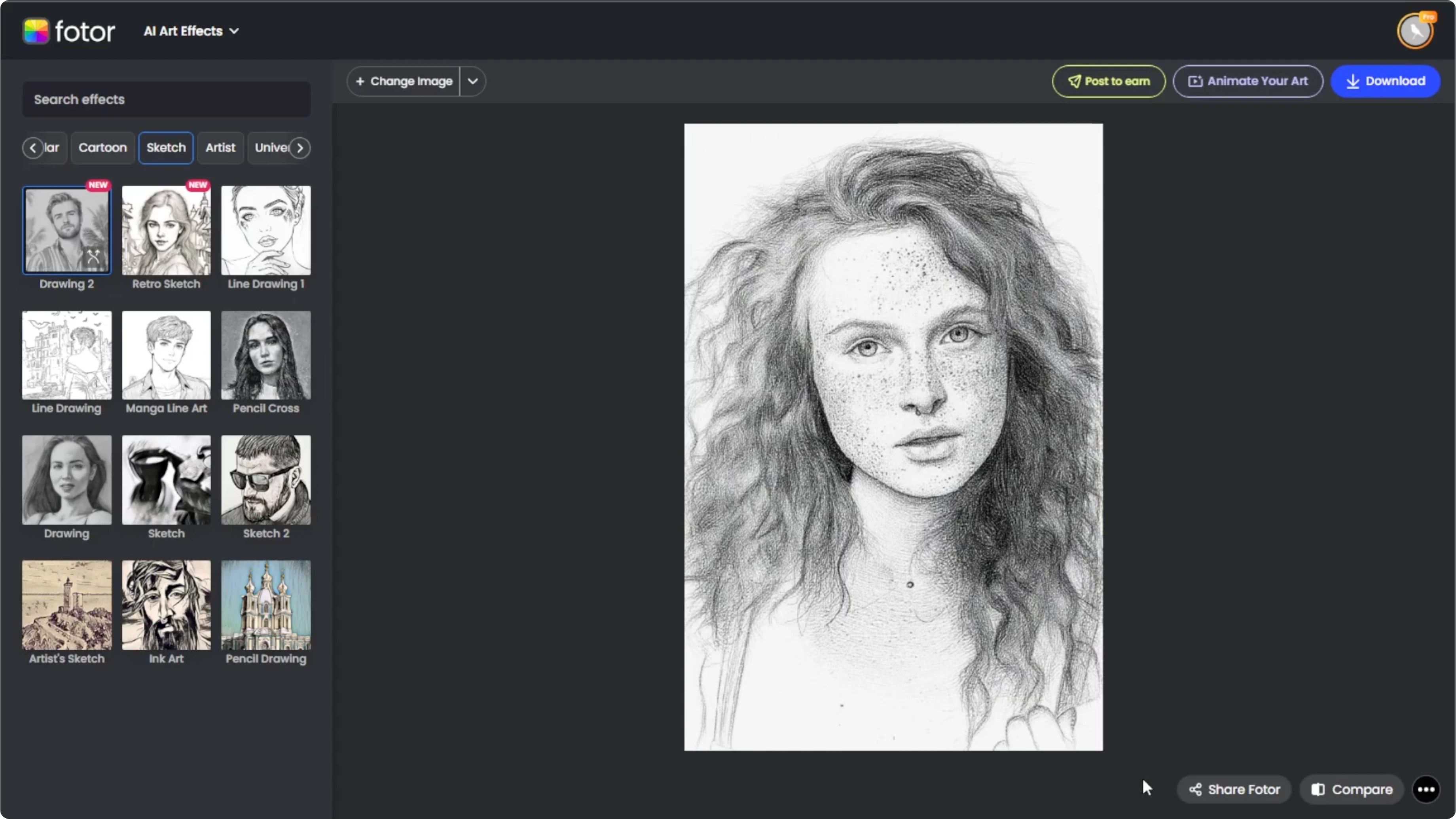
Click on the sketch style that appeals to you. The AI will begin rendering your photo with the selected effect. This process takes around 10 seconds.
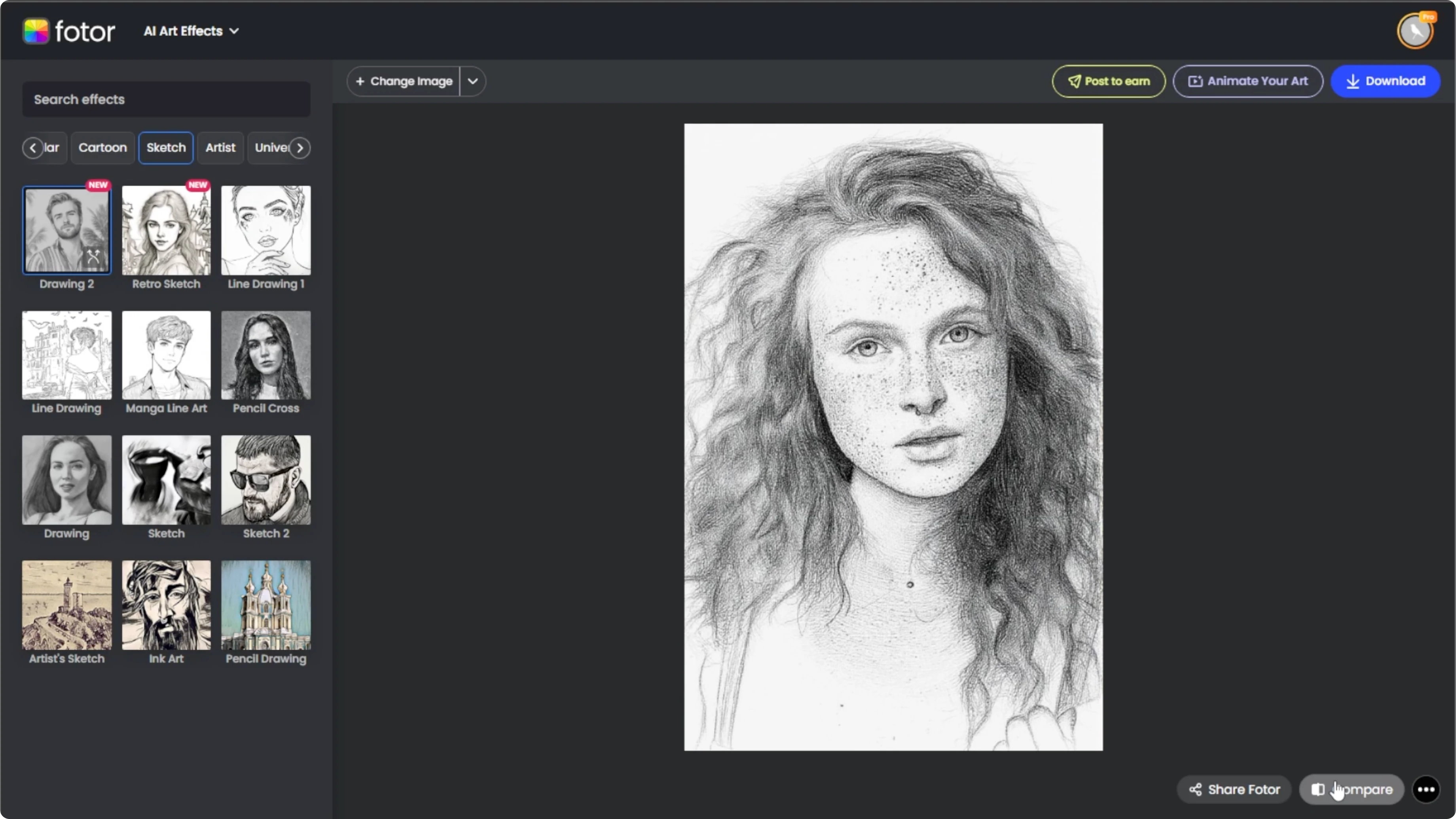
Click the Compare button at the bottom right corner of the editor. This allows you to view a side by side before and after of your image.
If you want to experiment with portraits even more, you can also change your hairstyle with AI to match a specific sketch vibe: change your hairstyle in photos.
Refine
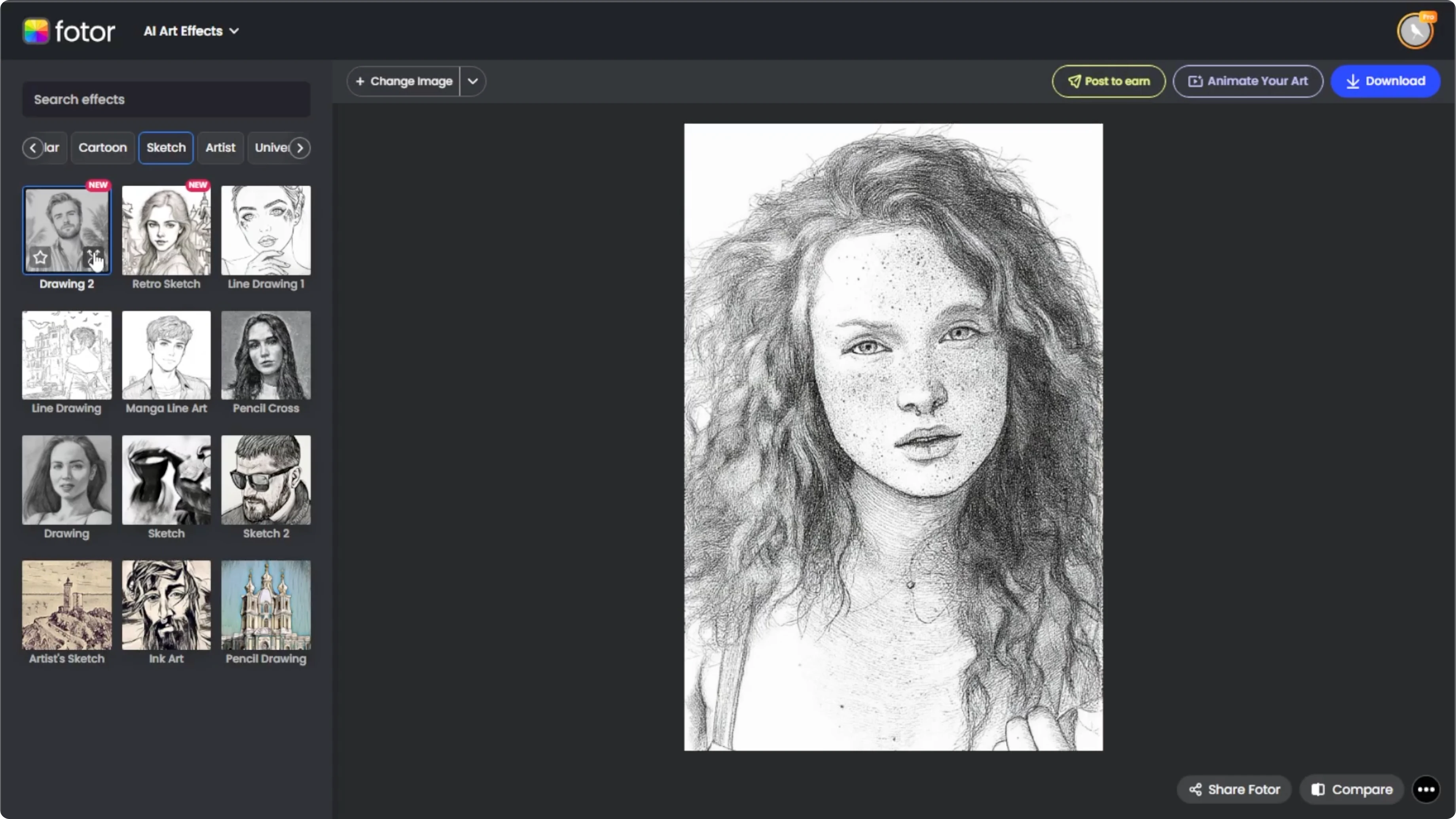
If you are not satisfied with the initial result, click Regenerate on the effect thumbnail to try a new variation of the same style. Or select a different sketch style to see other interpretations of your image. Each regeneration gives slightly different shading and line work.
Save favorites
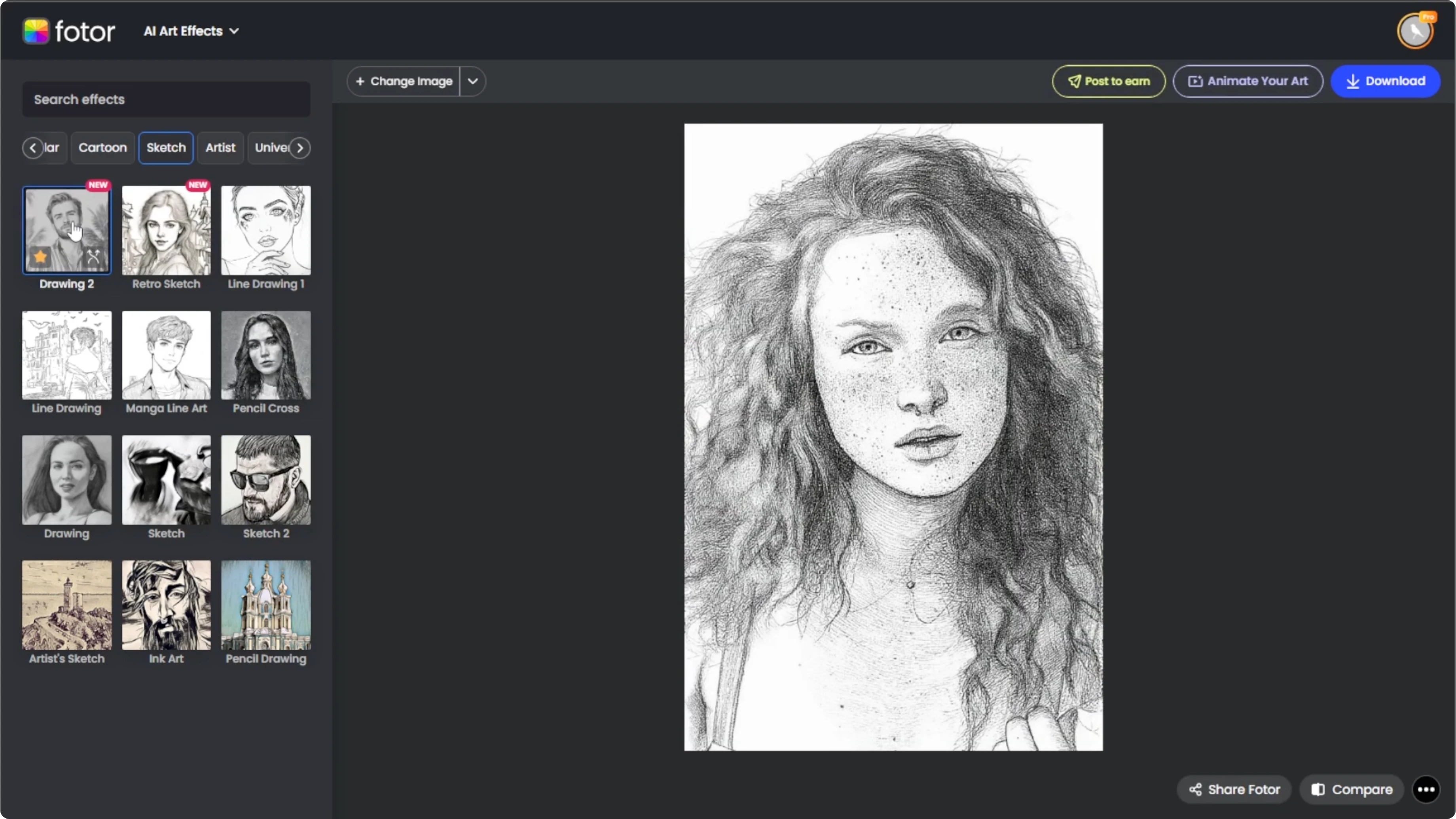
If you plan to use the same sketch style again in the future, hover over the effect thumbnail and click the star icon to add it to your Favorites. You can access all saved styles easily in the Favorites section next time.
Download
Once you are happy with your sketch style portrait, click the Download button at the top to save the image to your computer.
Ideas
These sketch portraits are ideal for gifts, social media, creative projects, or just for fun. No drawing experience required and no software to install.
For dramatic scene transformations to pair with your portraits, learn how to convert daytime photos into night scenes here: turn day into night with AI.
Final thoughts
Choose a clear, well lit portrait and let the AI apply a pencil, ink, or charcoal aesthetic with one click. Use Compare, Regenerate, and Favorites to refine and save your preferred looks. Download your finished portrait and share a classic sketch style result in minutes.
Recent Posts

How to Visualize Yourself as a Pixelized Character with AI?
How to Visualize Yourself as a Pixelized Character with AI?

How to Revive Faded Memories and Enhance Image Clarity with AI?
How to Revive Faded Memories and Enhance Image Clarity with AI?

How to Visualize Yourself as an Animal Crossing Character with AI?
How to Visualize Yourself as an Animal Crossing Character with AI?