How to Extend and Expand Image Borders Seamlessly with AI?
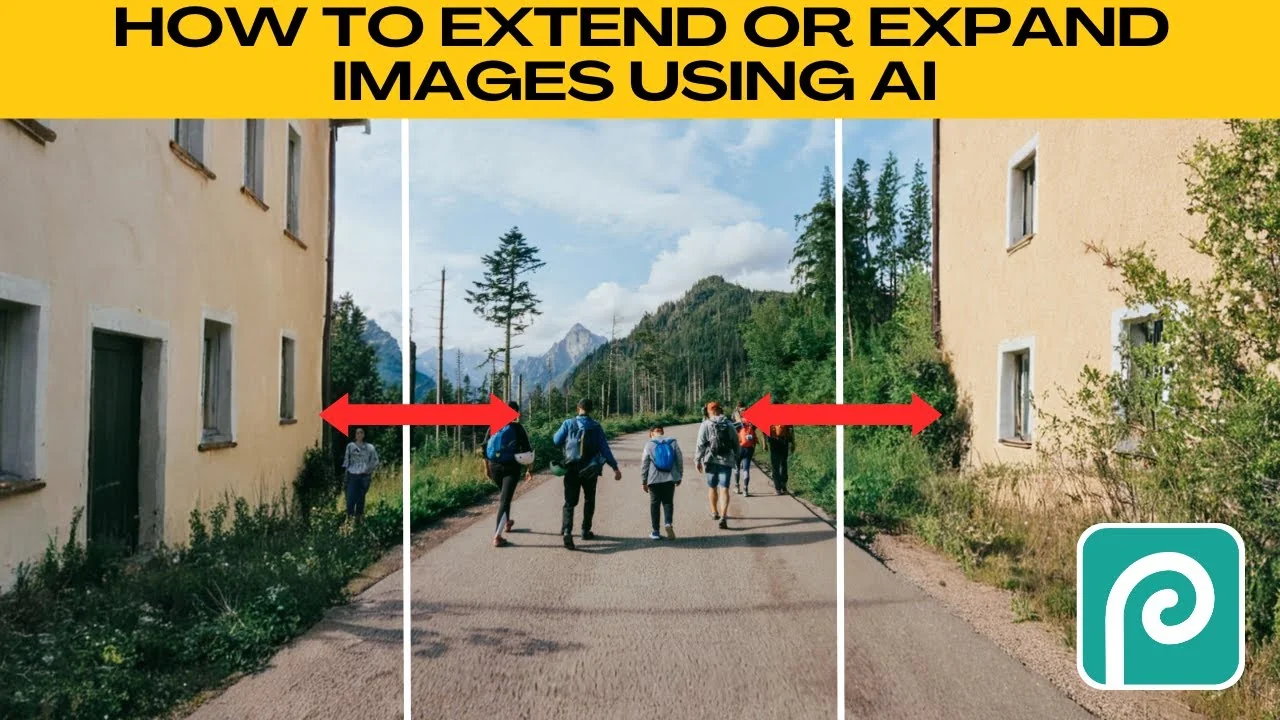
I will teach you how to extend or expand images using AI. With the AI image extender, you can automatically expand your images with natural looking results. Perfect for Instagram posts, YouTube thumbnails, or widescreen wallpapers.
For broader AI editing tips and workflows, check out this guide to smart image editing.
Get started
Open your browser and go to the AI image extender. Click Upload to choose an image from your computer, or pick a sample. Supported formats include JPG, JPEG, PNG, PMP, and WEBP.
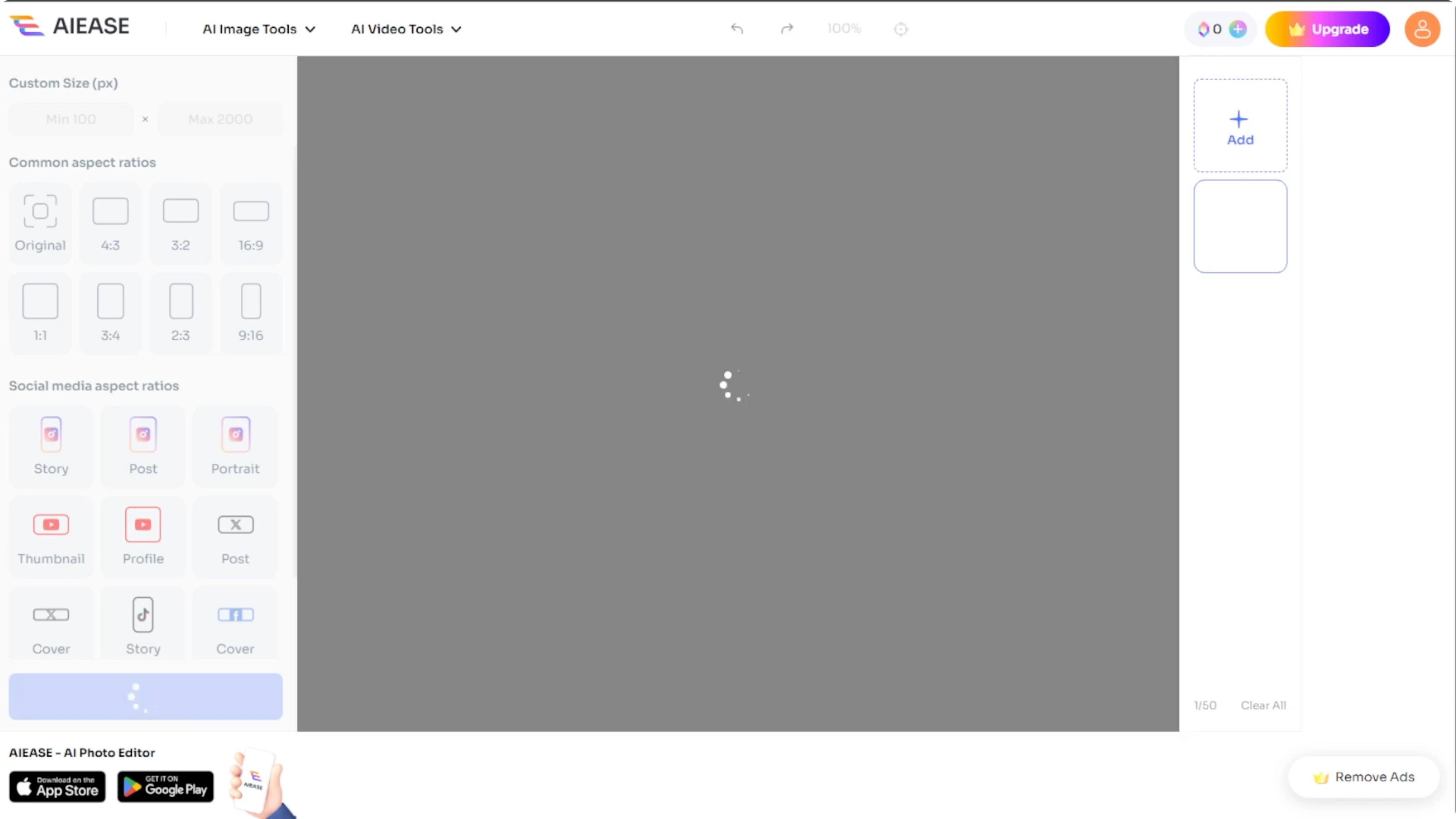
Choose size
In the left panel, open the size options. Enter a custom size manually. You can also choose from preset aspect ratios like 1x1, 16x9, or 4x3.
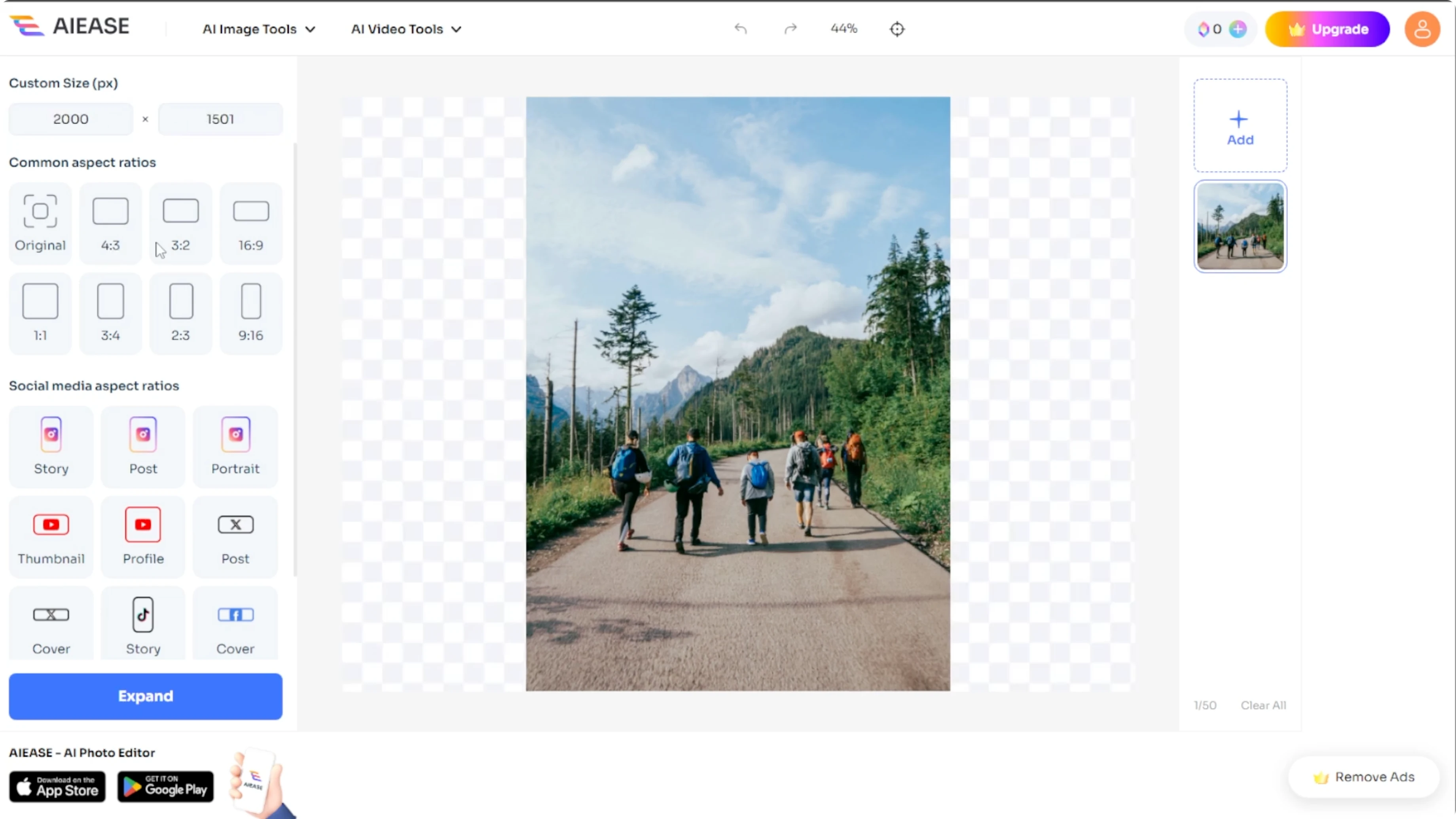
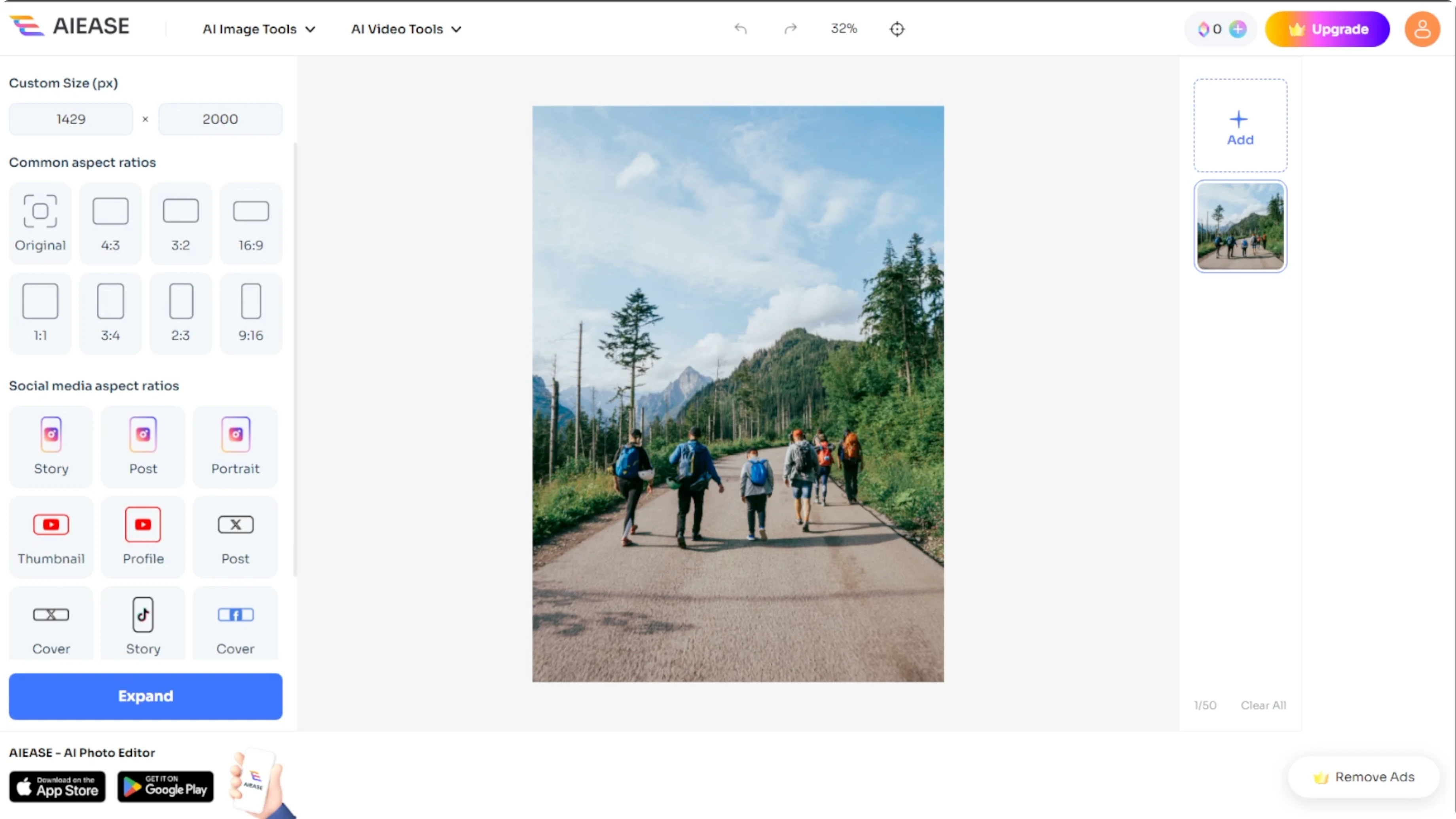
Or pick from popular social media sizes, which is great for Instagram, Facebook, YouTube, and more. You can reposition and resize your original image within the canvas to your liking before generating the final result.
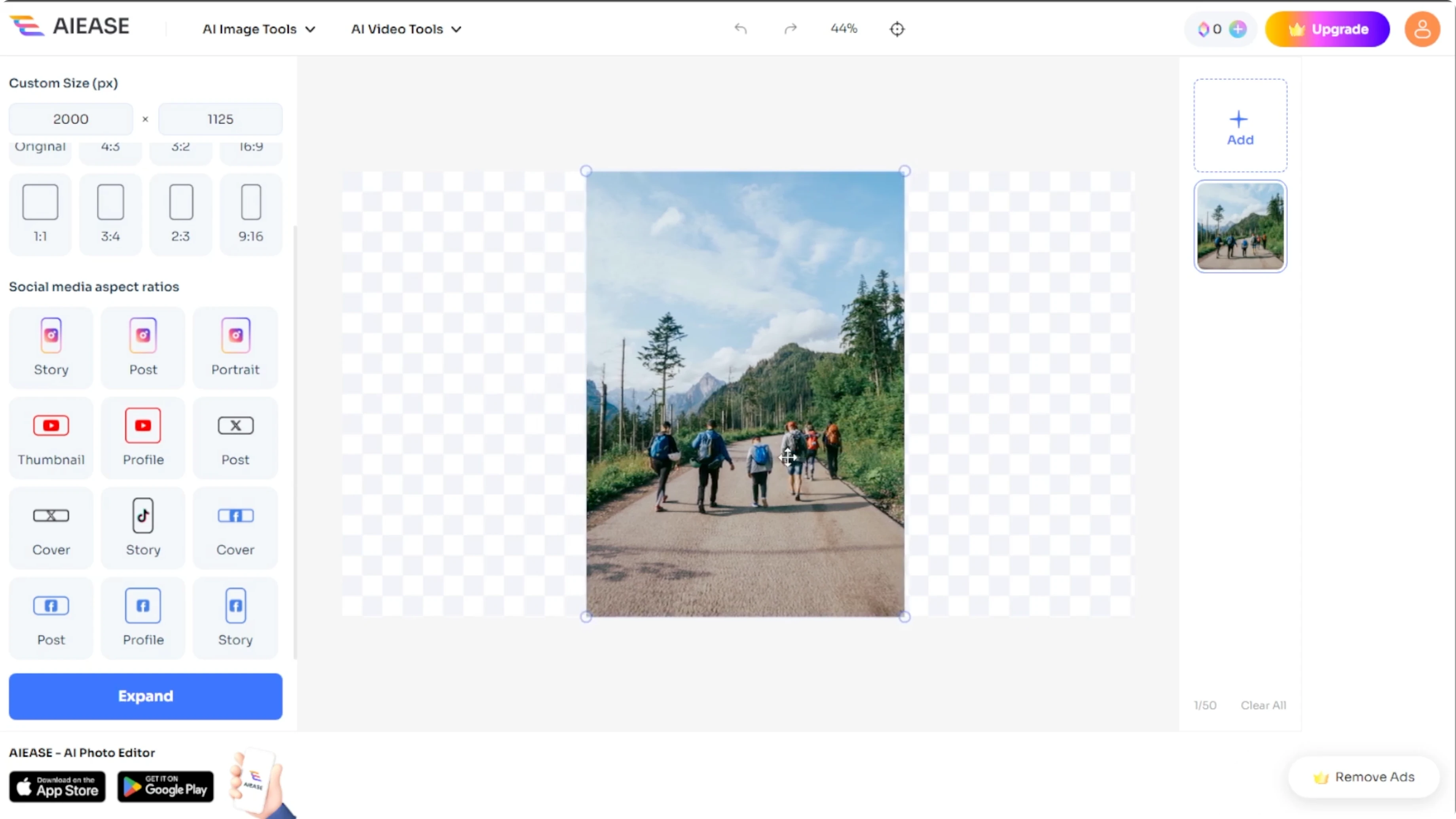
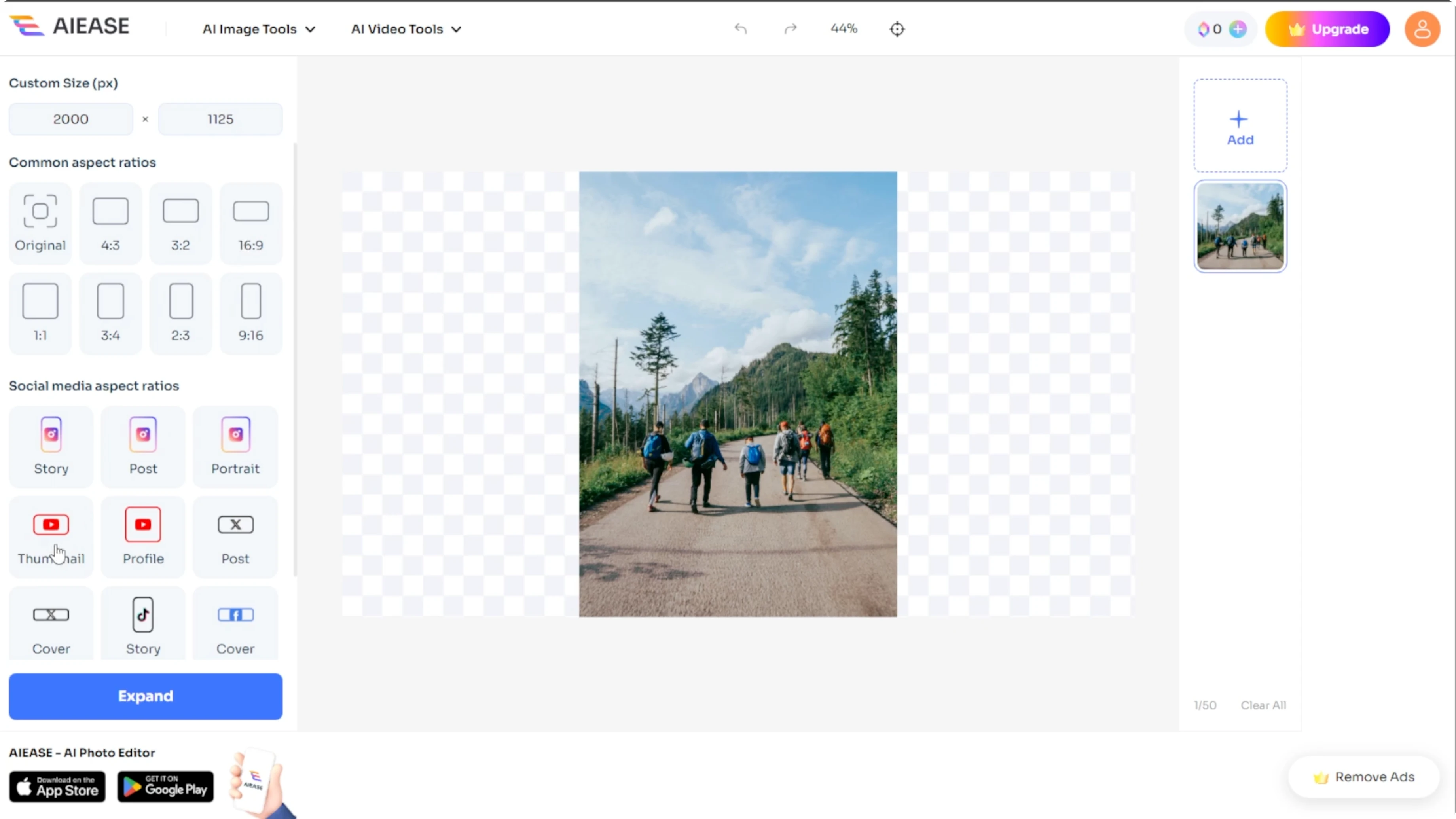
If you plan to drop the result into a Canva layout, see how to add placeholder image frames for quick placement.
Generate
Once you finalize the canvas size and image placement, click the Expand button. The AI will automatically generate a natural looking extension that matches your original image. To expand further, choose another aspect ratio to keep going.
You only get one free expansion per image. Upgrading unlocks unlimited expansions.
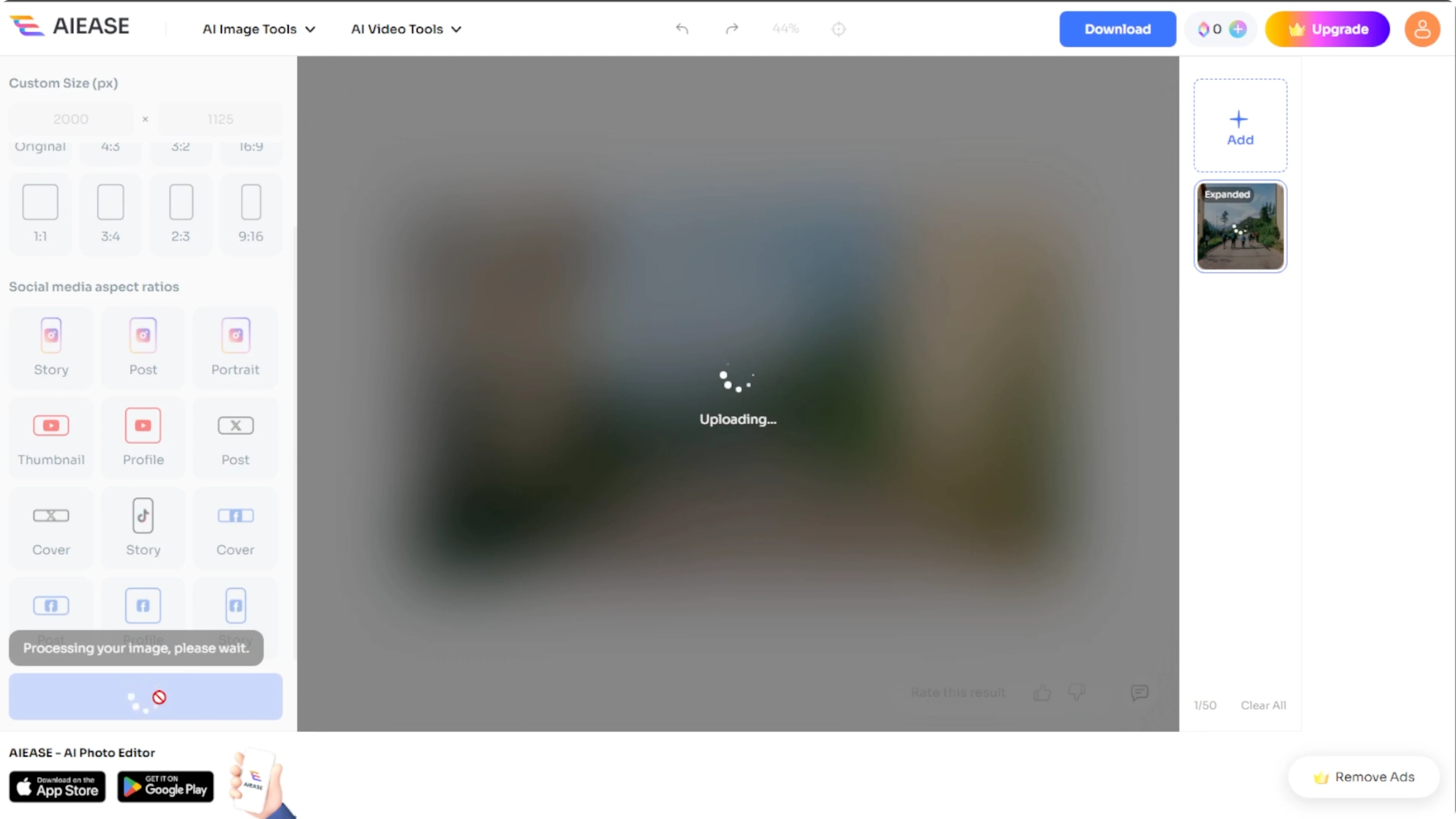
Download and use
Once the image is generated, click Download to save it to your computer. You can now use it in any project or post right away.
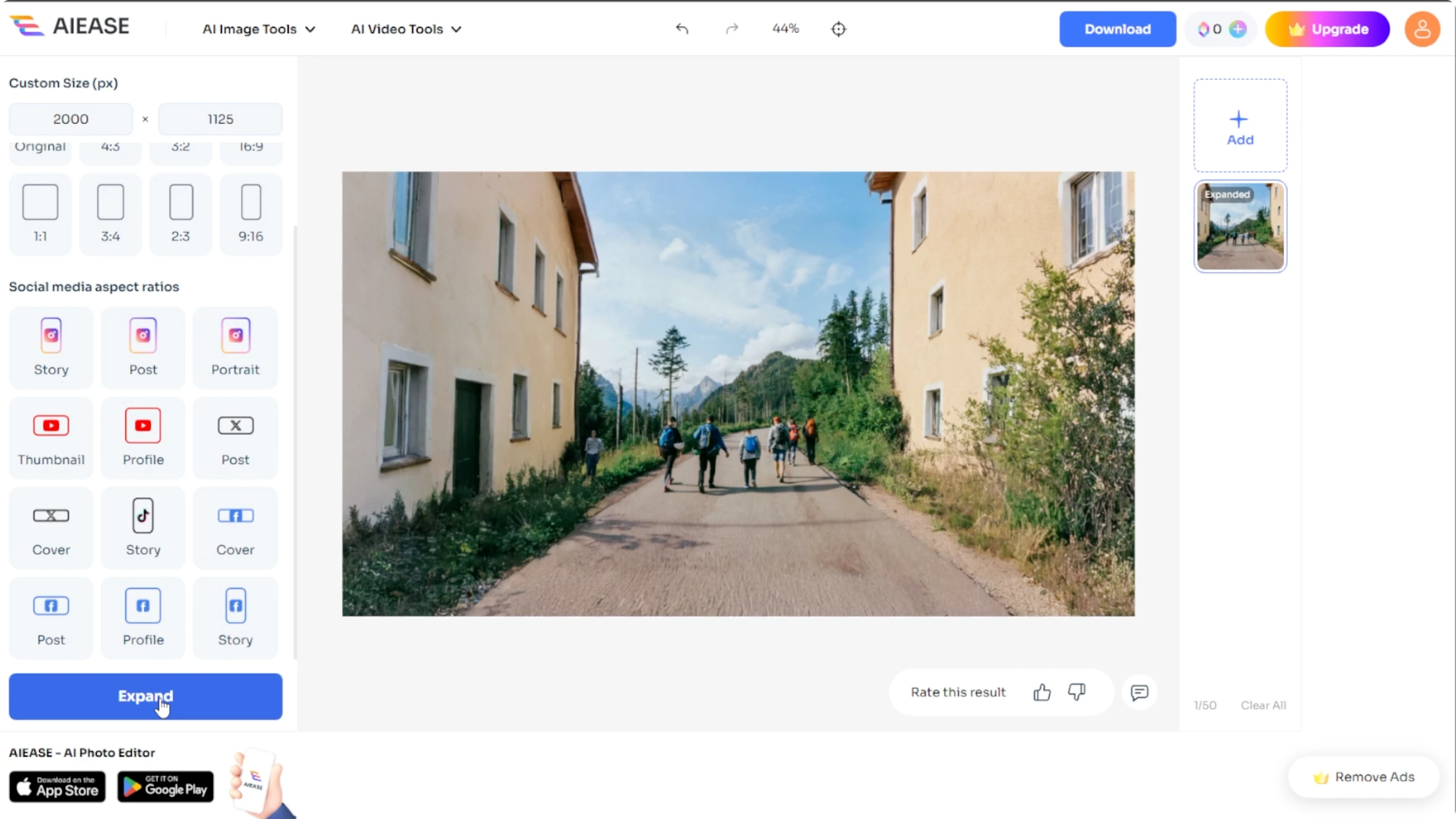
To stylize the final image inside Canva, try an AI effect and add a cartoon look in Canva.
You might be adding a space for text, creating wide versions, or making your image social media ready.
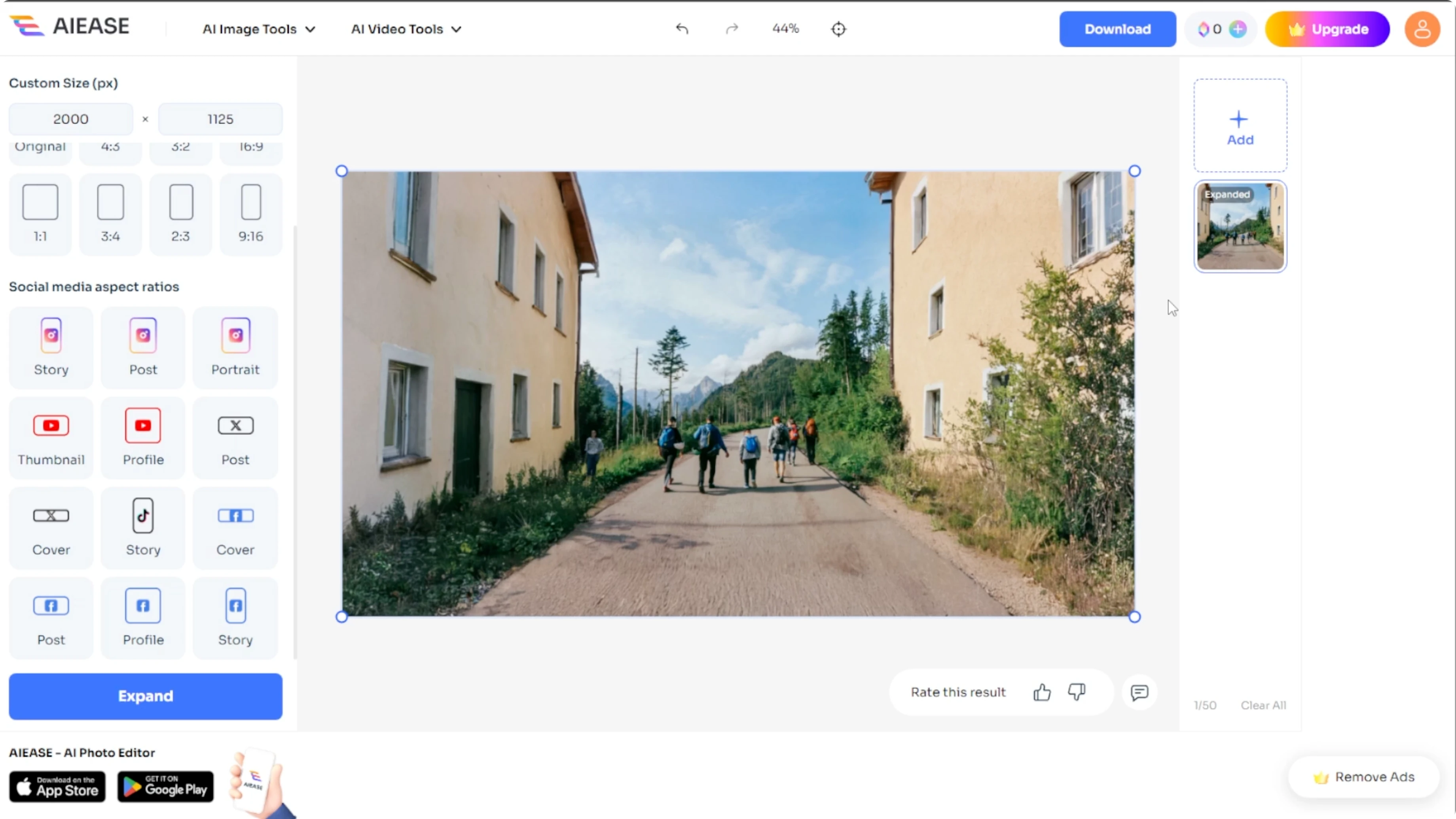
The AI image extender by Aie Ease makes it fast.
No editing skills needed. Just upload, customize, and download.
Final thoughts
Upload, set your size, place the subject, then expand. Download the result and keep going if you need more room. It is a quick way to make images fit posts, thumbnails, and wallpapers.
Recent Posts

How to Visualize Yourself as a Pixelized Character with AI?
How to Visualize Yourself as a Pixelized Character with AI?

How to Revive Faded Memories and Enhance Image Clarity with AI?
How to Revive Faded Memories and Enhance Image Clarity with AI?

How to Visualize Yourself as an Animal Crossing Character with AI?
How to Visualize Yourself as an Animal Crossing Character with AI?