How to Create a Seamless Transparent Logo Using AI?
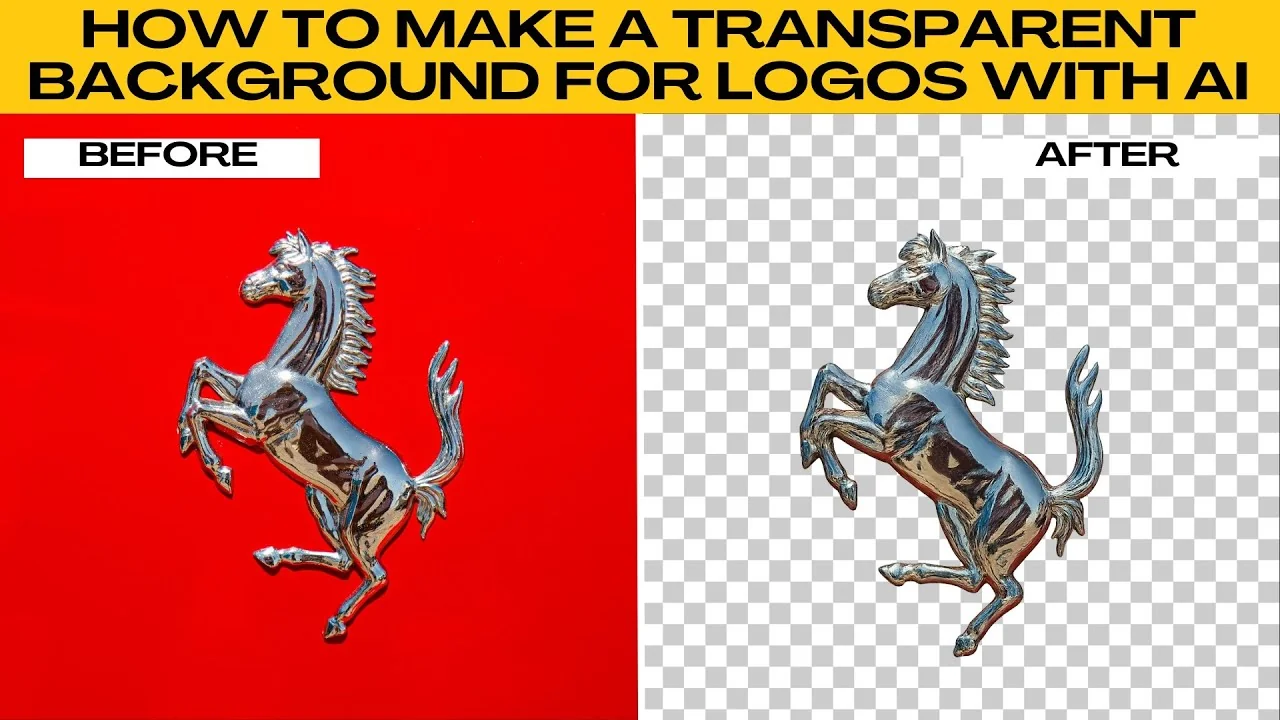
I will teach you how to make a transparent background for logos with AI. Logos are meant to be versatile. Placed on websites, business cards, or social media, they need to look clean and professional.
A common problem is when a logo comes with a solid background like white, black, or colored, which makes it hard to overlay on different designs. Traditionally, removing a background required manual editing with Photoshop or other tools. With Chat GPT image editing, you can remove backgrounds in seconds and make your logo transparent, even if you are a complete beginner.
If you prefer a Canva workflow for PNG transparency, check this guide for an easy alternative: create a transparent PNG logo in Canva. Both paths get you a clean logo that drops into any layout. Choose the one that fits your tools.
Quick setup
Sign in
Open your browser and go to Chat GPT. Sign in or create a free account.
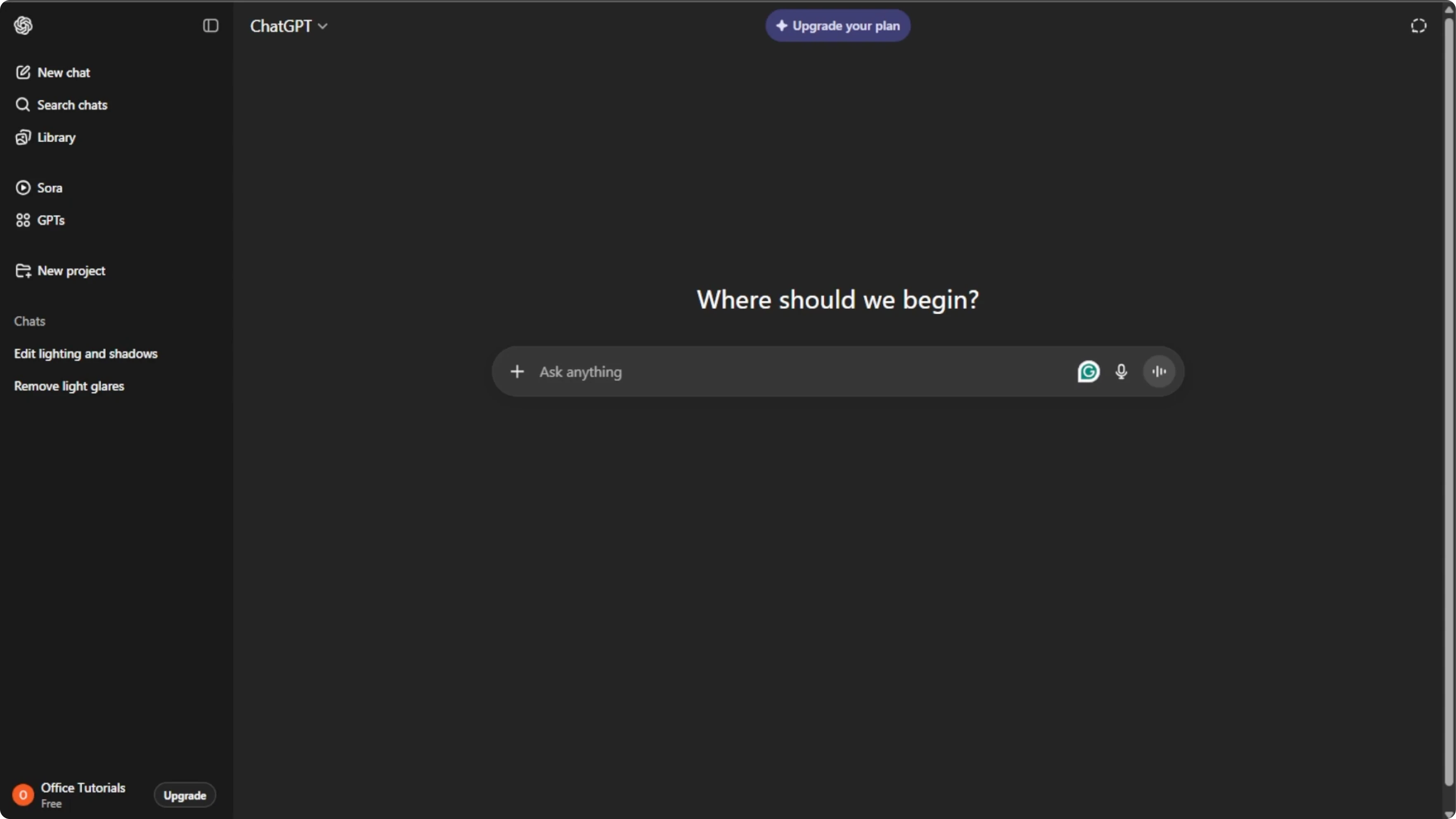
Enter image editing
In the chat box, click the plus icon. Select Create image to enter image editing mode.
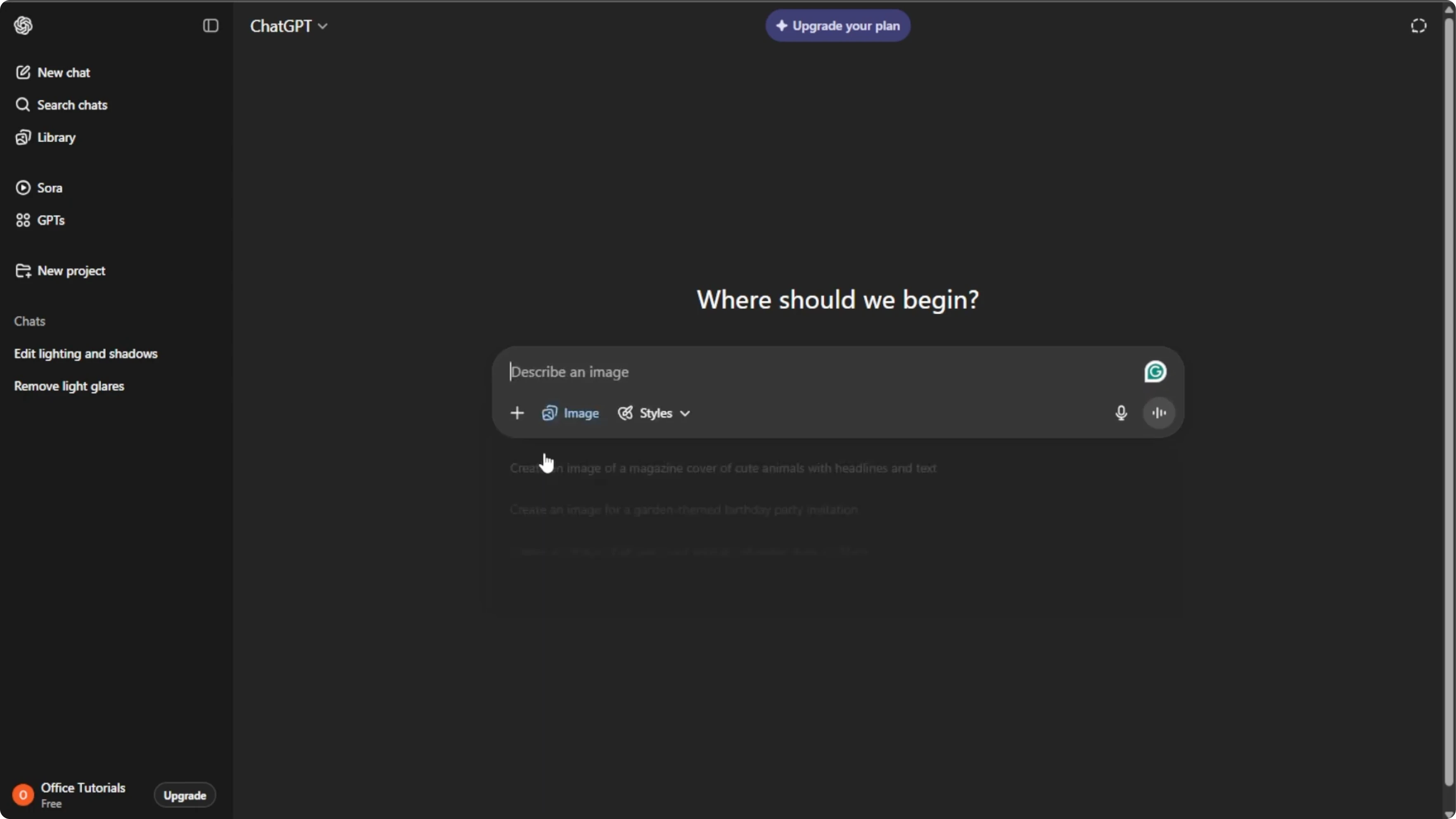
Upload the logo
Click the plus icon again and choose Add photos or files. You can press Control U on Windows or Command U on Mac. Select the logo you want to edit from your computer.
Write a clear prompt
In the prompt box, tell the AI exactly what you want it to do. For best result, be as specific with the description as possible. Press Enter and let the AI process your request.
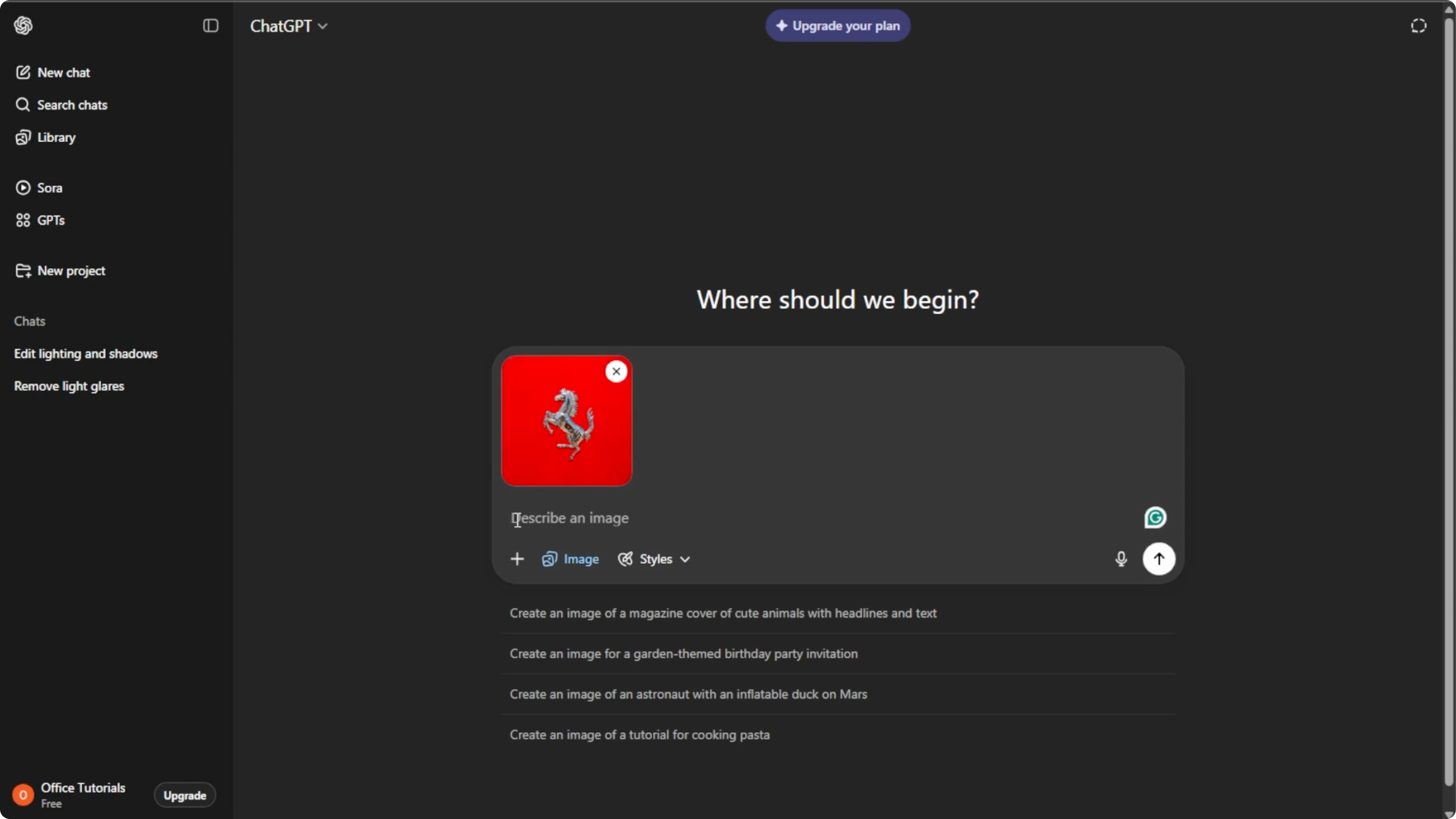
Remove the background from this logo and return a PNG with transparency.
Keep edges crisp and preserve the original colors.
Do not add shadows, outlines, or effects.
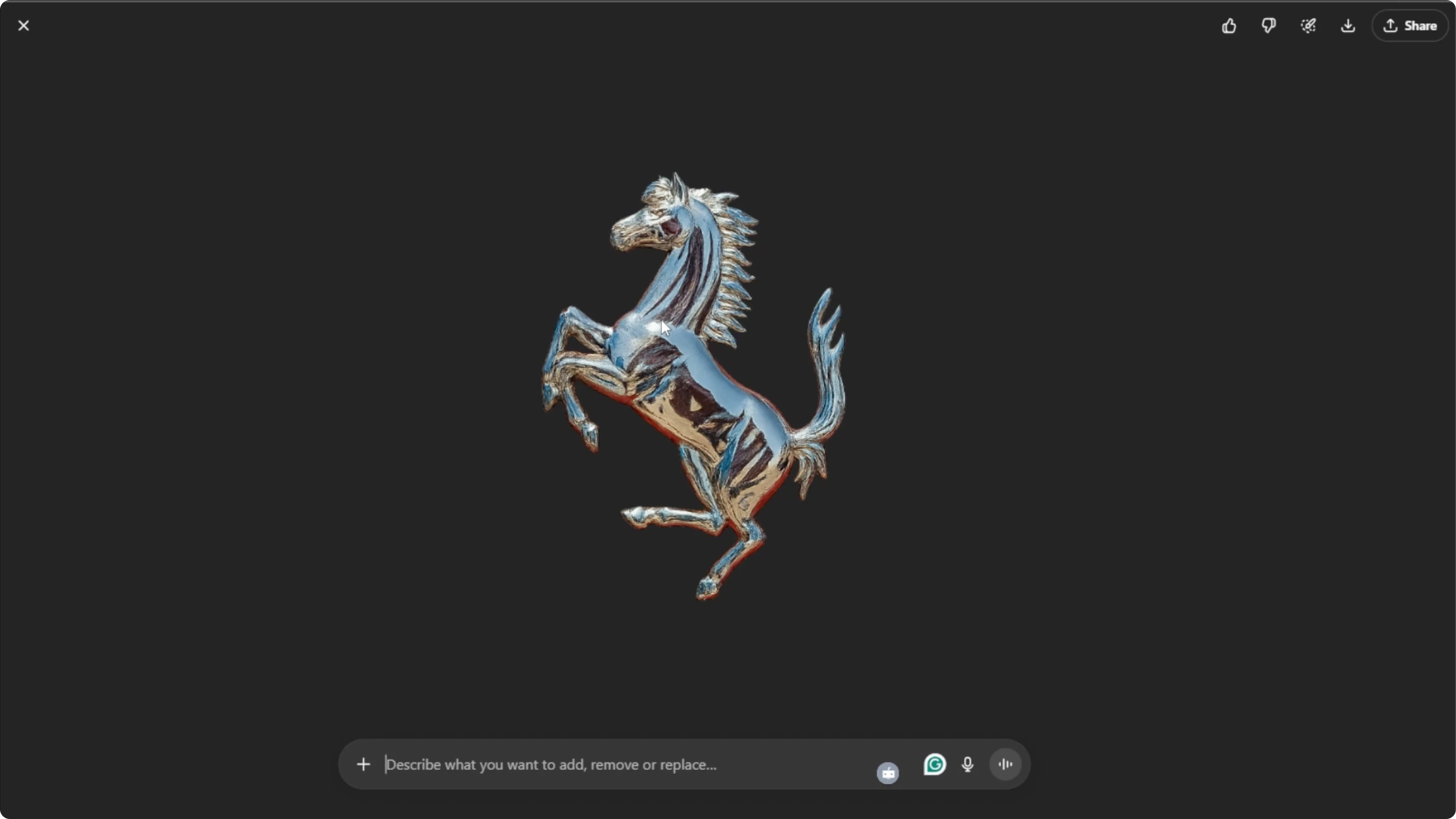
Within seconds, you will see your logo with a transparent background. You can repeat the process for other assets as needed. For more on AI photo edits beyond logos, see this walkthrough: AI image editing with ICEdit.
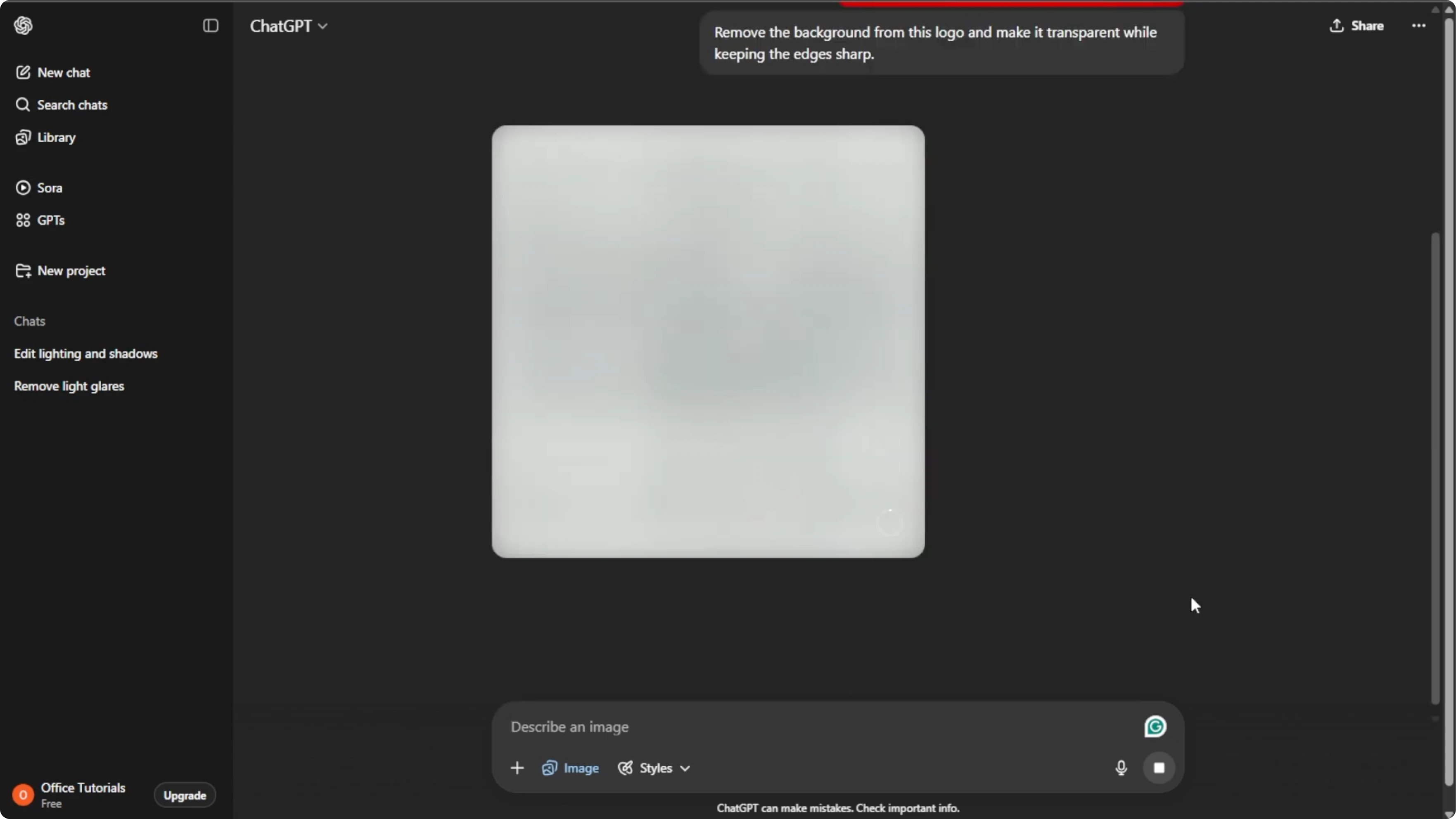
Refine and export
If parts of your logo look uneven, click the generated image. Add a follow up instruction and enter the prompt again. Small tweaks usually fix edges or color fringing.
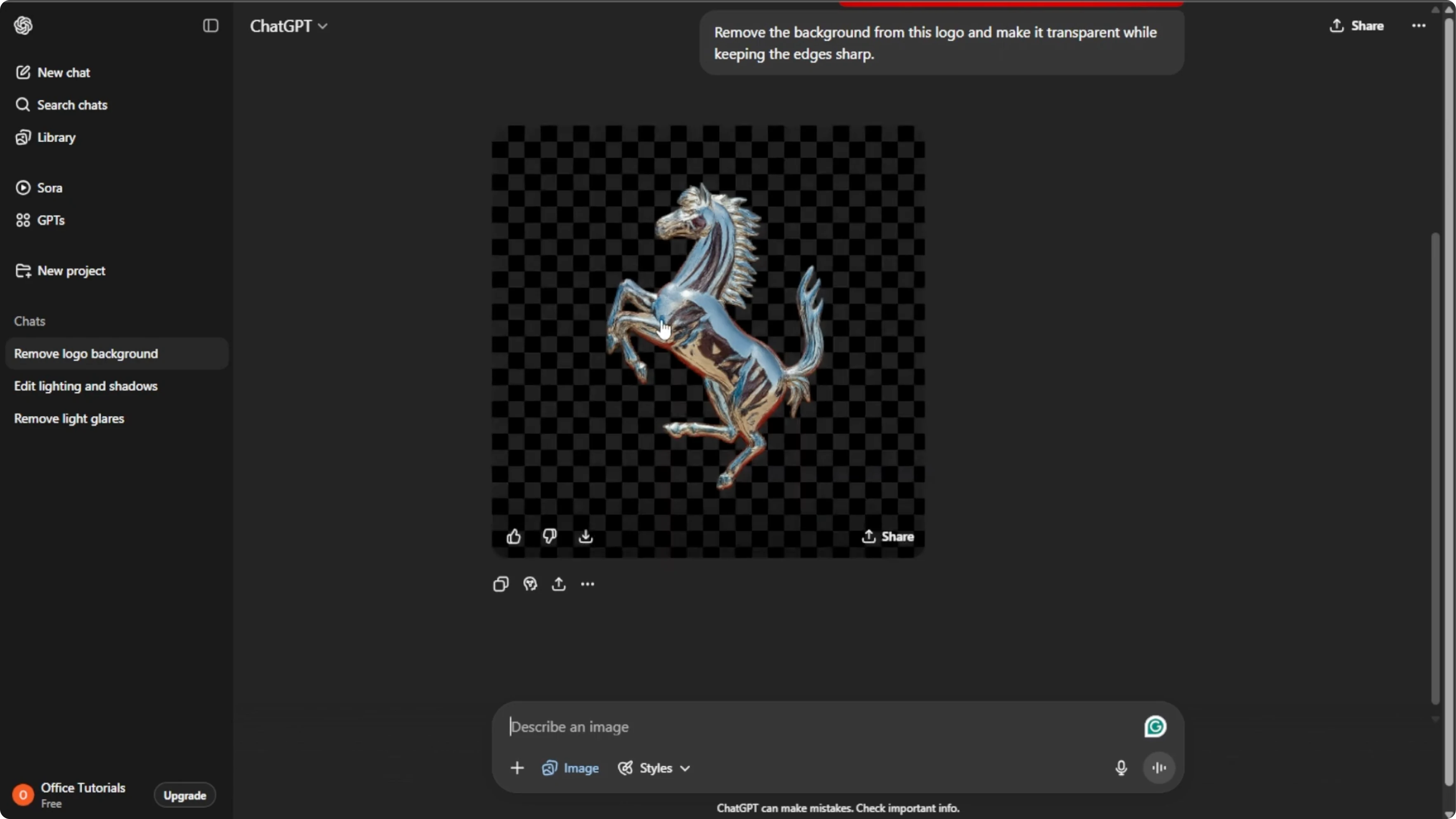
Hover over the final image, then click Download to save it to your computer. You can also click Share to send it to social profiles or your team. Keep a PNG copy for the transparency.
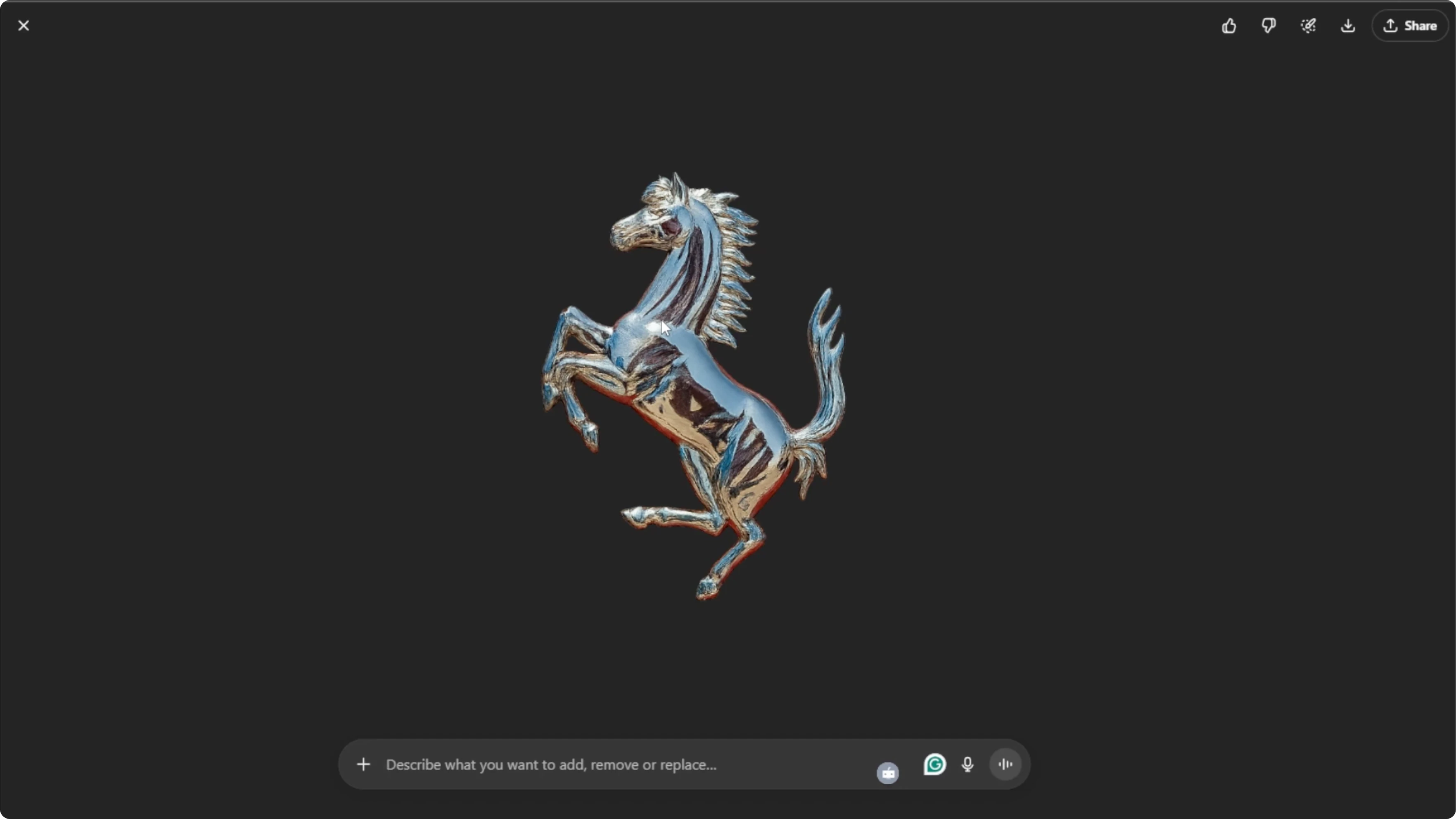
More uses
You can repeat the same process for product photos, icons, social media graphics, or any object you want on a transparent background. It works well for quick mockups and brand kits. If you are exploring creative outputs too, learn how to create realistic animals with AI here: realistic AI animals tutorial.
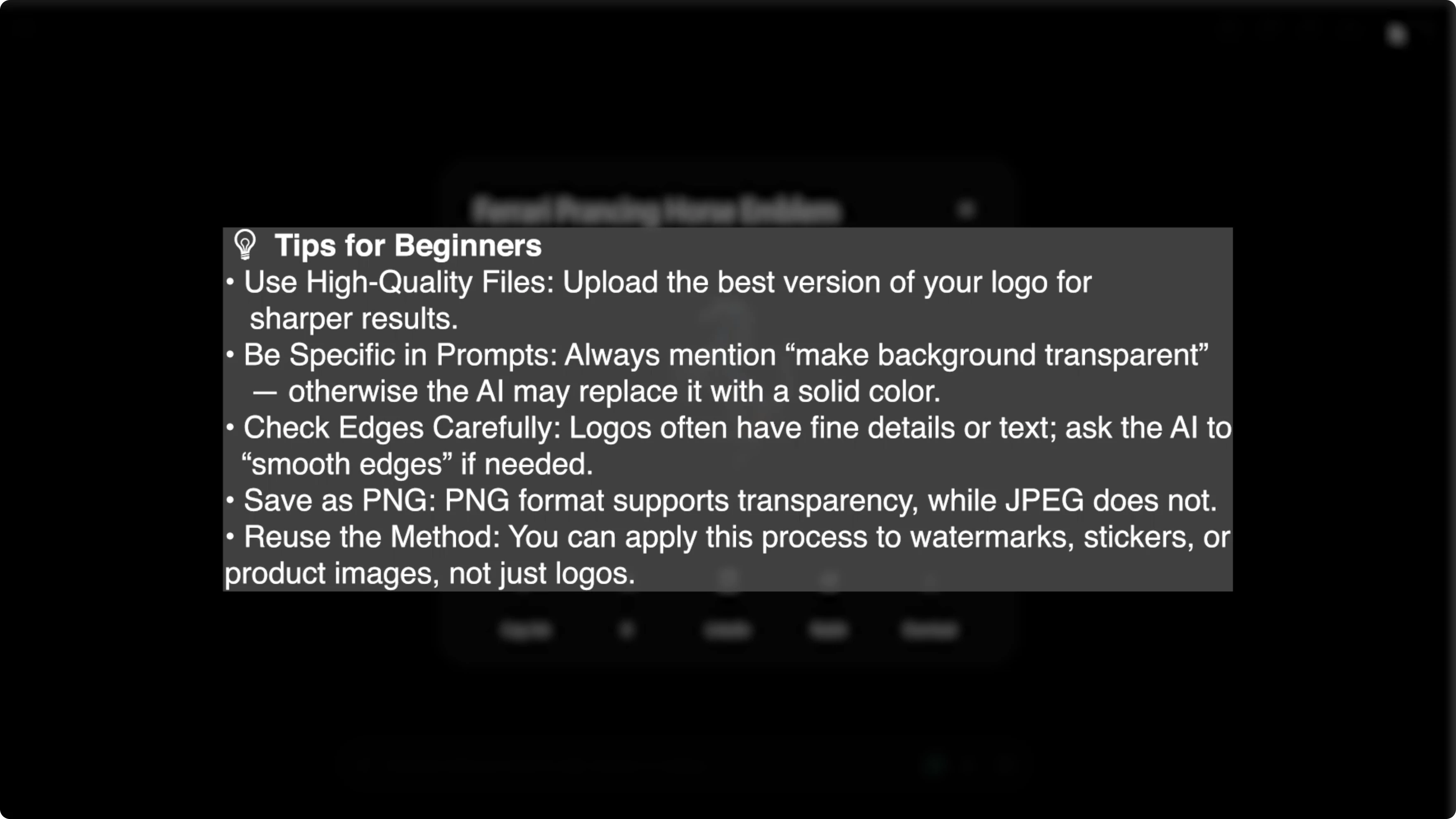
Tips for beginners
Be specific in your description to get the best result. Mention edges, colors, and any elements to keep or remove. If needed, run a second pass with a short correction note.
Final thoughts
With these simple steps, you can quickly turn any logo into a transparent background version. It is perfect for professional branding, design projects, and online use. A clean transparent PNG makes your logo fit any design without extra editing.
Recent Posts

How to Visualize Yourself as a Pixelized Character with AI?
How to Visualize Yourself as a Pixelized Character with AI?

How to Revive Faded Memories and Enhance Image Clarity with AI?
How to Revive Faded Memories and Enhance Image Clarity with AI?

How to Visualize Yourself as an Animal Crossing Character with AI?
How to Visualize Yourself as an Animal Crossing Character with AI?