How to Design Eye-Catching Posters Quickly and Easily with AI?
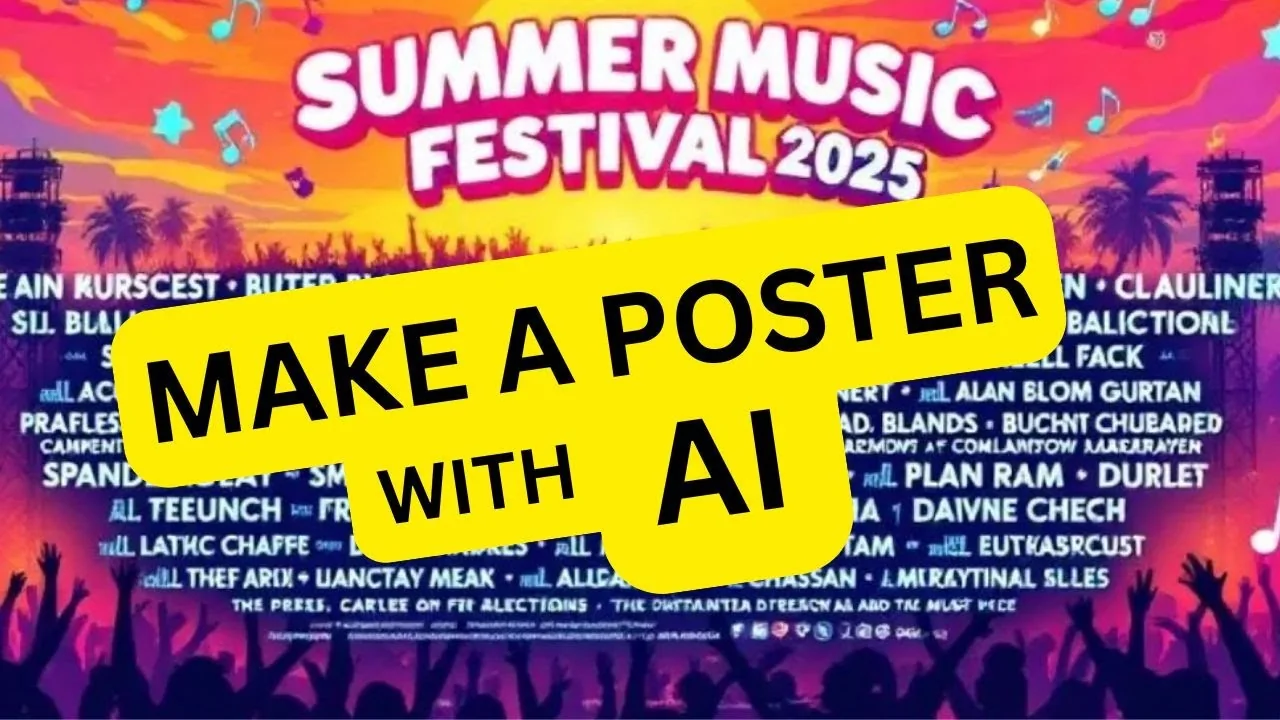
I will teach you how to generate posters using AI.
Posters are powerful tools for sharing information, promoting events, or creating visually impactful statements.
If you are making a poster for a business, social media campaign, school project, or home decor, AI powered tools can now simplify the process.
If you want broader design automation, check our guide to Canva AI design.
Get started
Open your web browser and go to Photo Room.
On the homepage, locate the left sidebar and click AI tools to access Photo Room's full range of AI powered features.
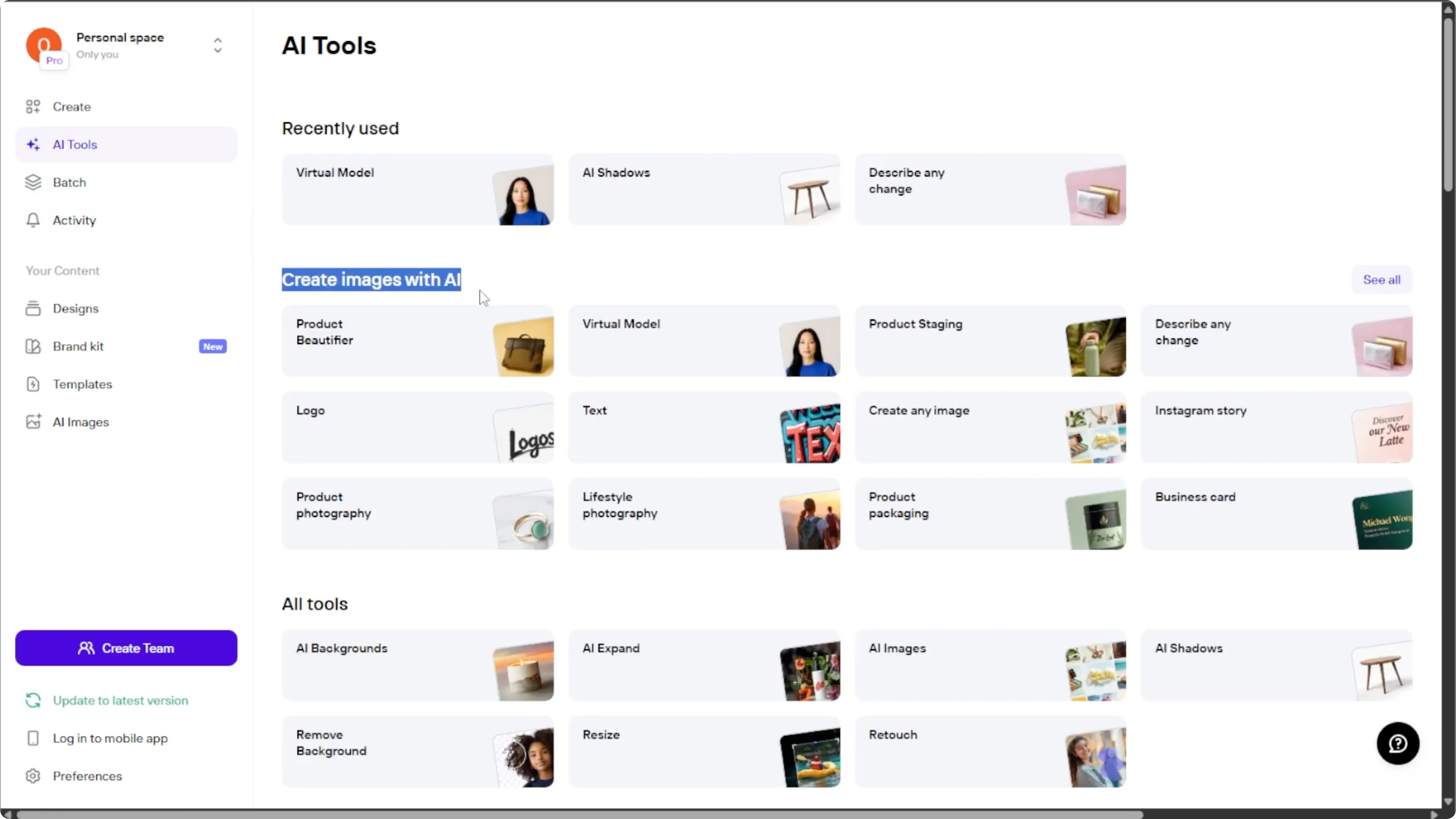
Create with AI
Scroll down to the create images with AI section.
Click see all to view the full list of creative tools, then find the select a poster option.
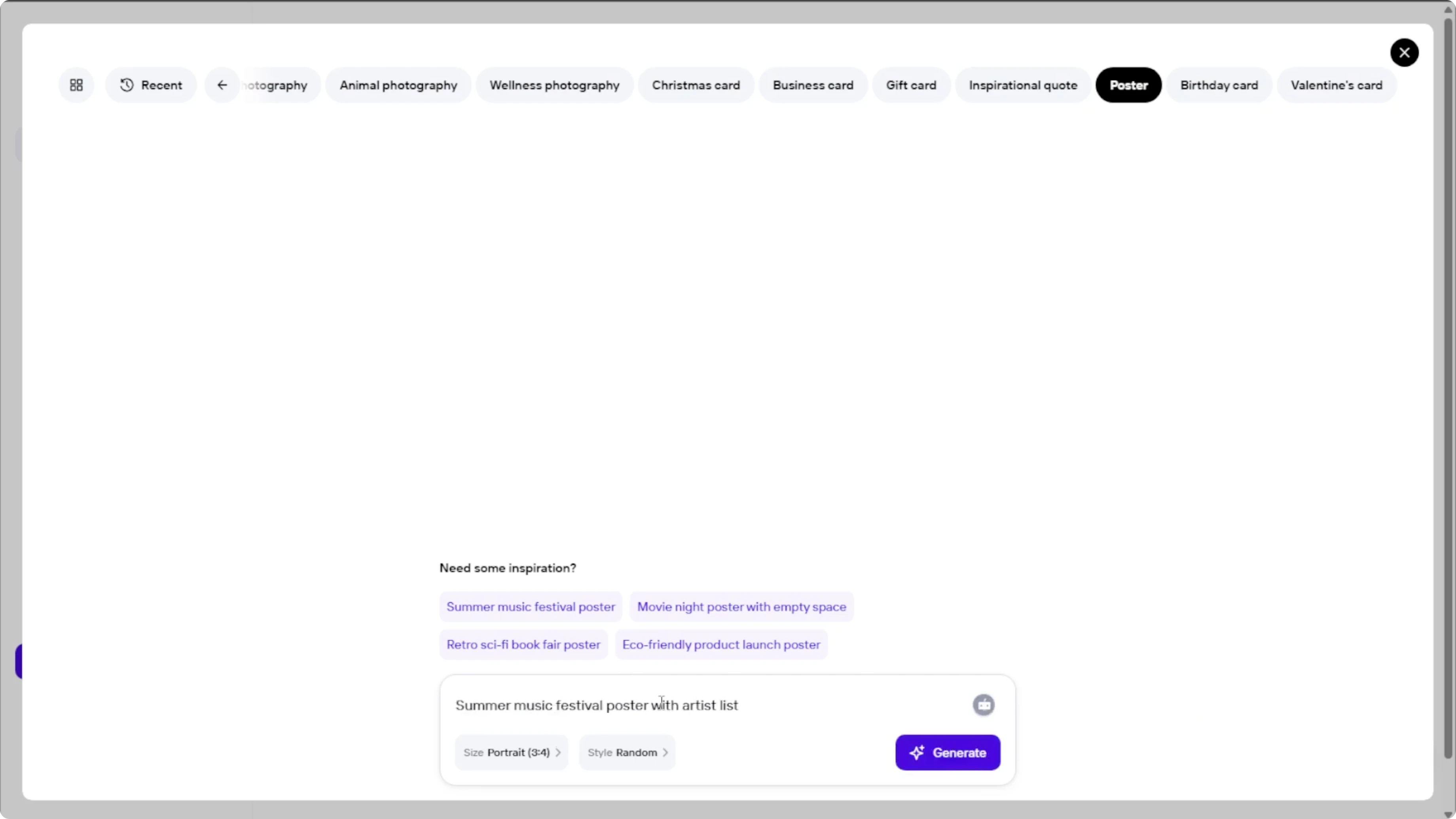
You will see a text prompt box.
Describe the poster that you want to create and be as detailed and creative as possible to guide the AI.
If you are stuck, use the inspiration examples listed to help spark your creativity.
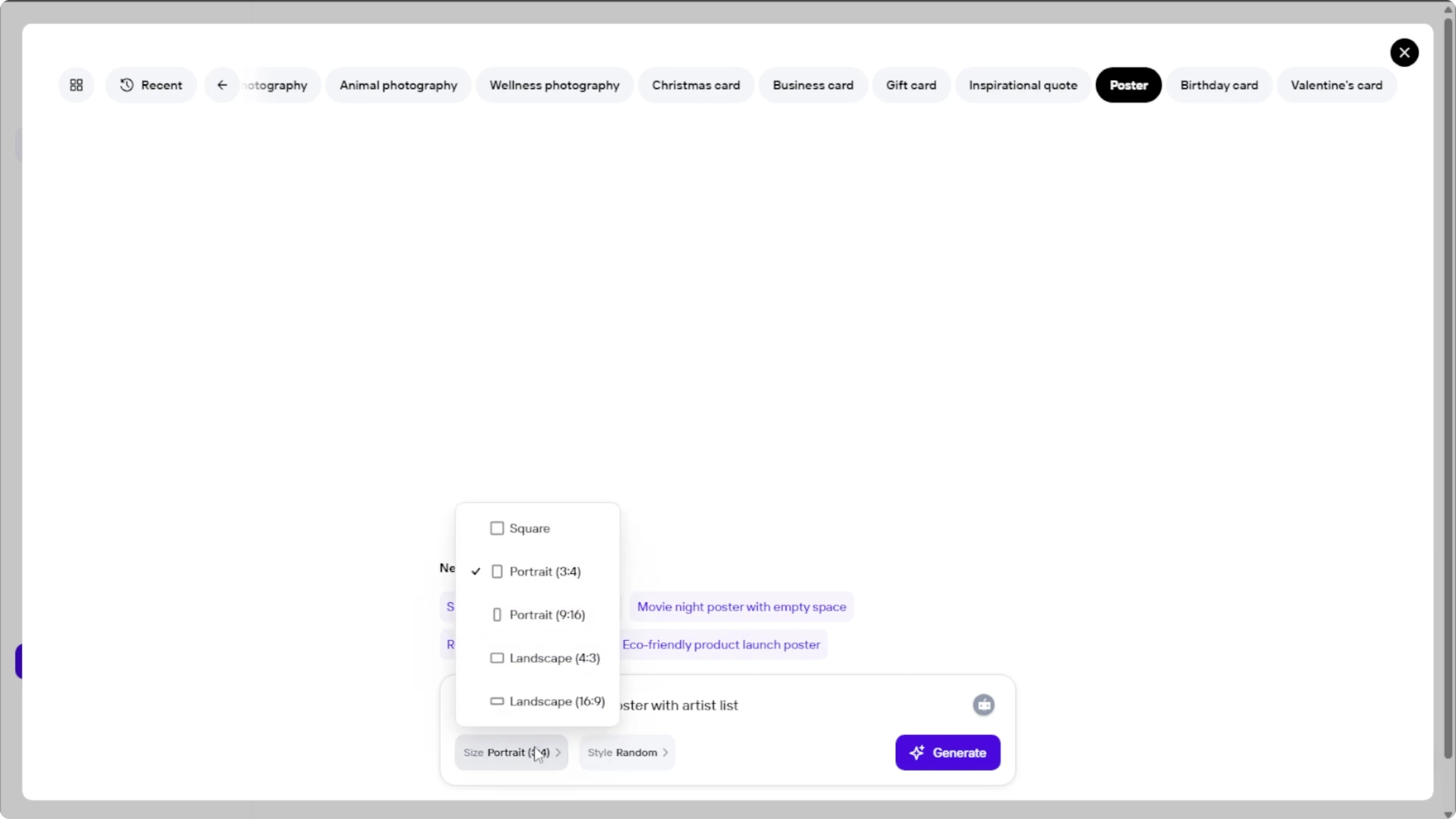
Choose size
Click the size setting button.
Select the size format that suits your intended use.
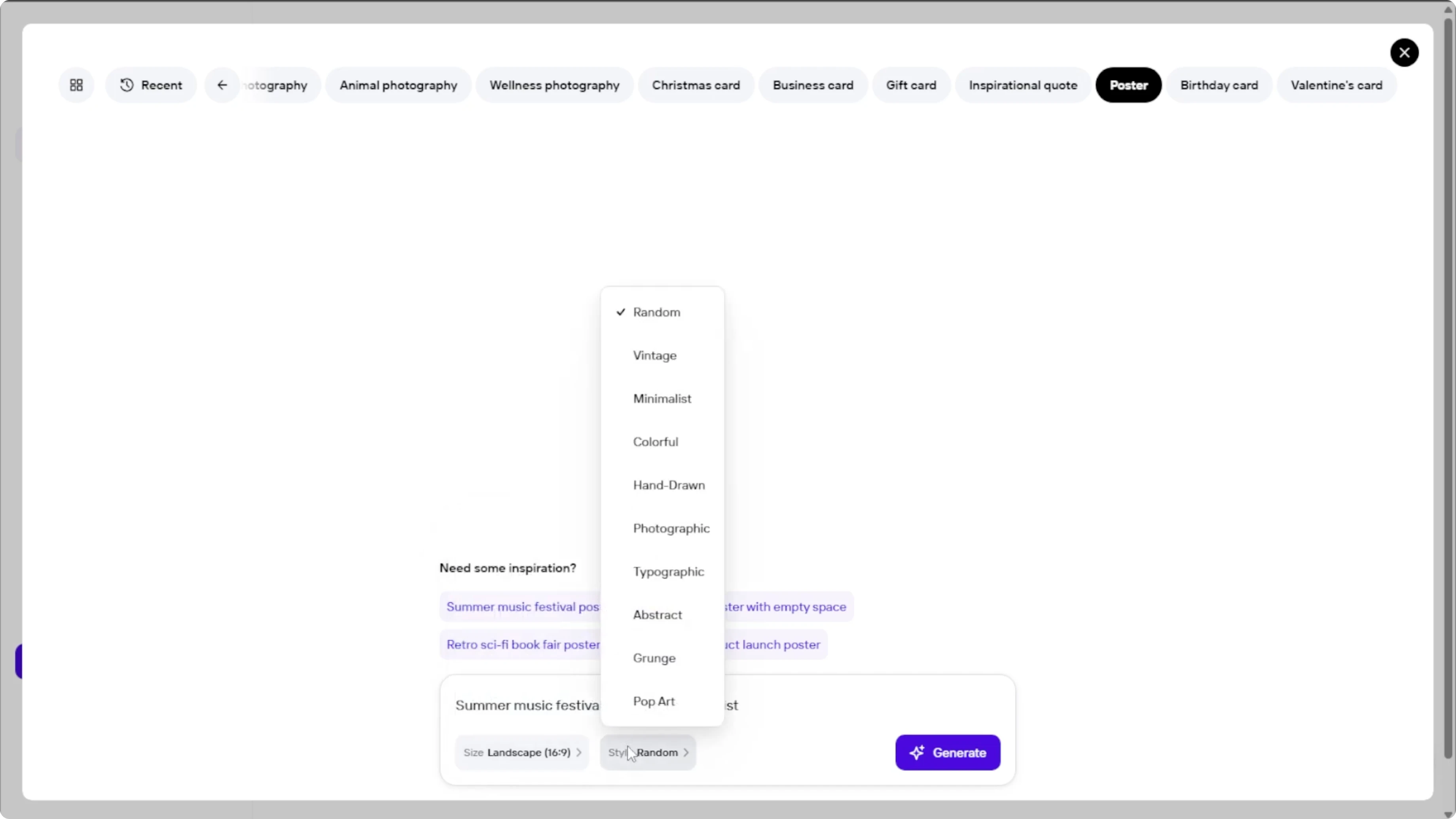
Pick style
Click the style settings button.
Choose a visual style from the available options to match your theme.
Generate
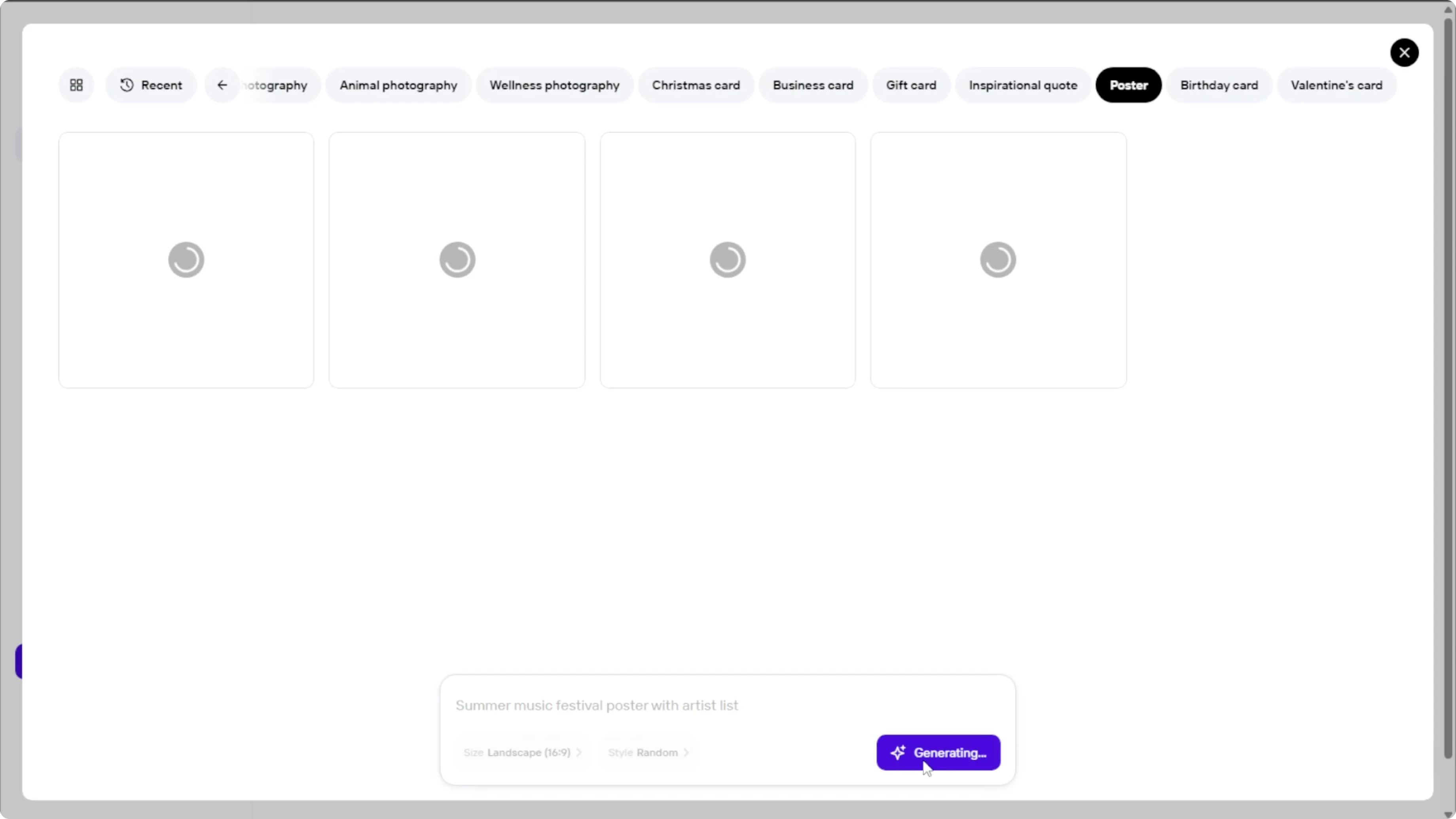
When you are happy with the prompt, size, and style, click Generate.
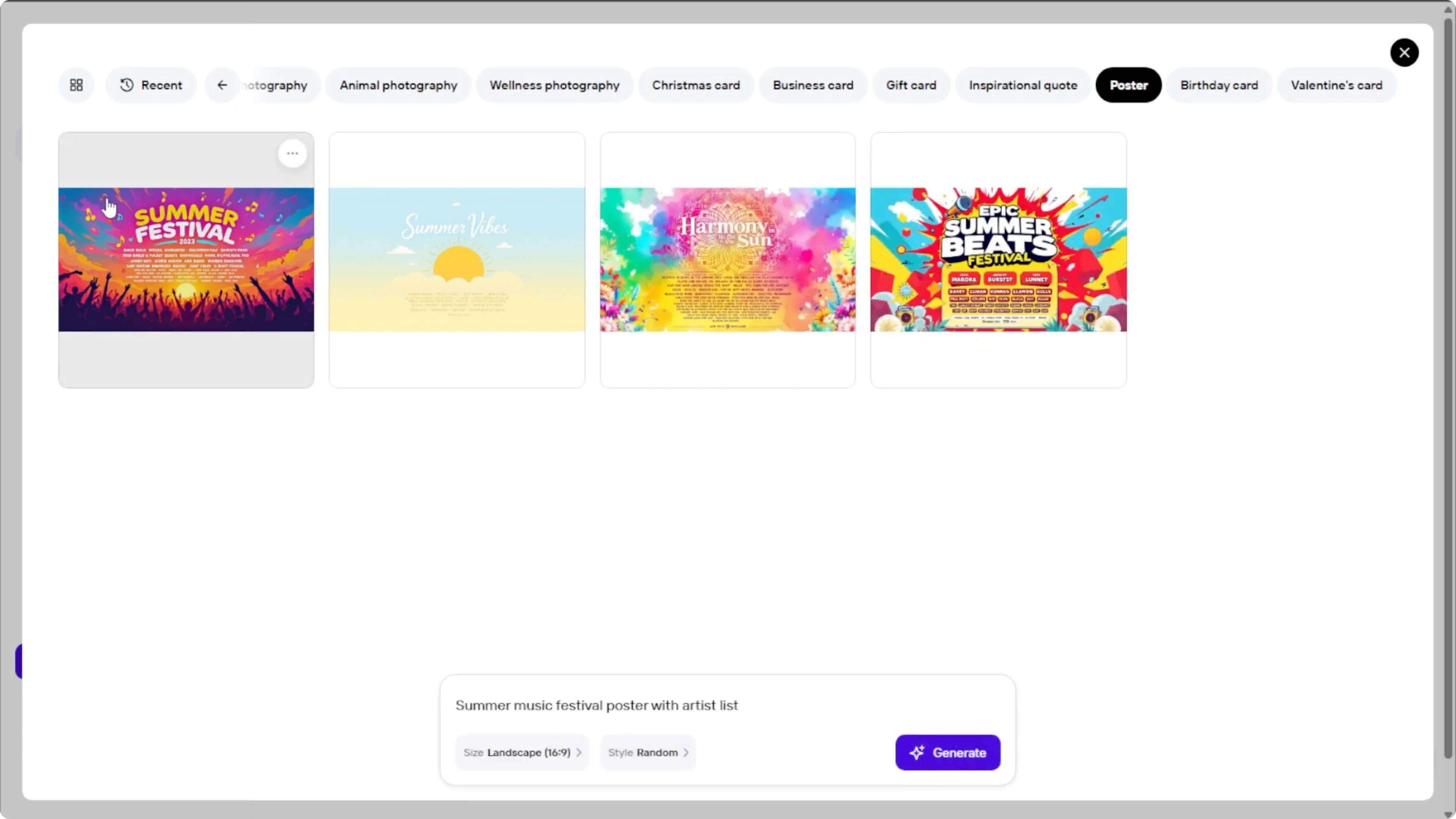
Photo Room AI will create four poster options based on your input.
Review and enhance
Click any poster to view it in full size and explore the results.
Each generated image comes with several enhancement options.
Enhancement tools
Use Remove background for cleaner edits.
Use Generate more variations to get different styles based on your favorite.
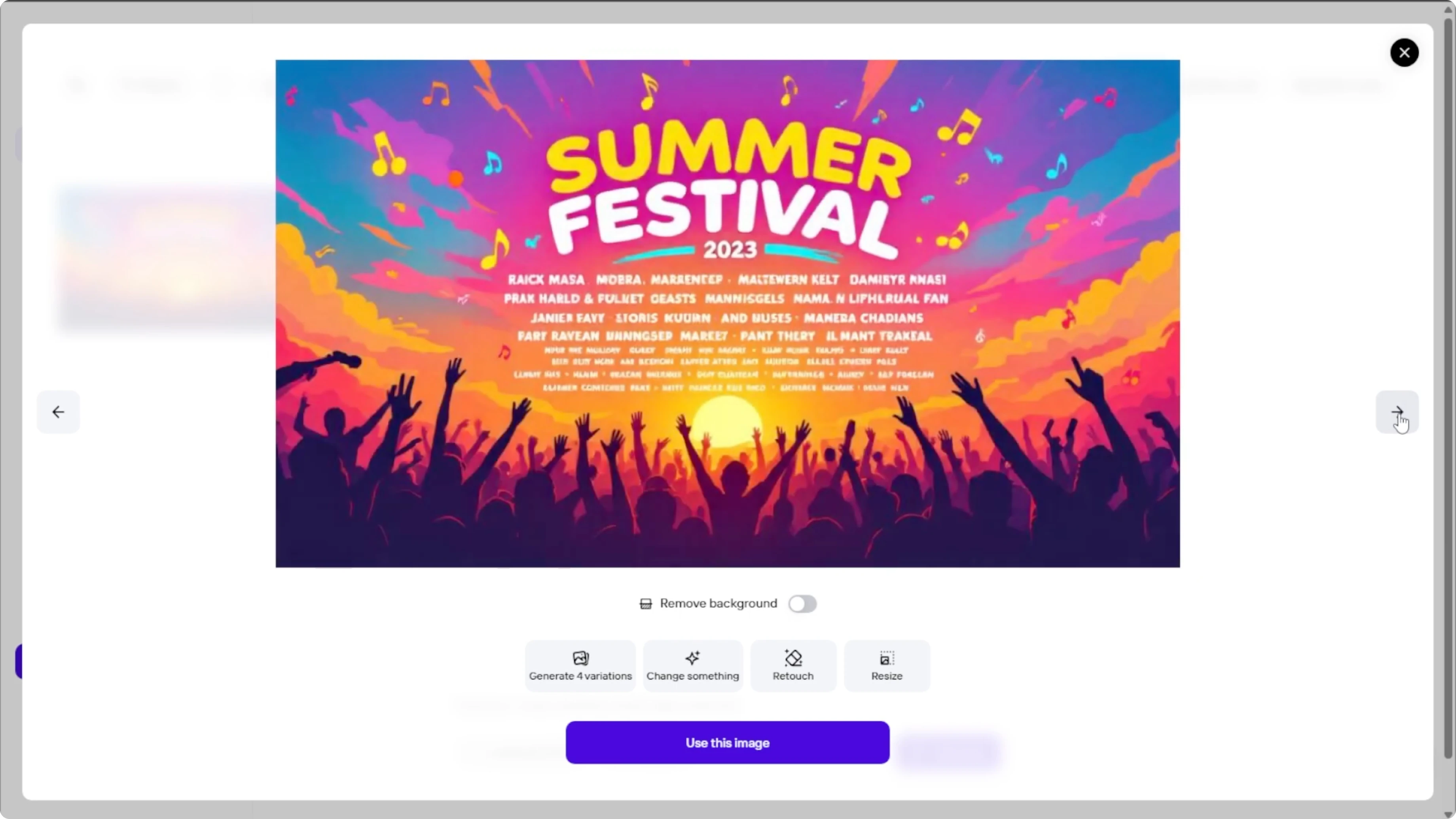
Use Change something to rewrite part of the prompt and tweak an element.
Use Retouch to refine small image flaws or color inconsistencies.
For targeted fixes like red eye, see how to remove red eye using AI.
Use Resize to adjust dimensions for different platforms.
This helps adapt the same poster to print, web, or social placements.
Modify without starting over
If you select Change something, describe exactly what you want to adjust.
This is a great way to refine the poster without starting from scratch.
Edit and export
When you are satisfied with the image, click Use this image to open it in Photo Room's editor.
In the editor, you can add studio lighting, insert logos or additional text, and fine tune colors and layout.
For deeper edits beyond posters, see our guide to image editing with Icedit AI.
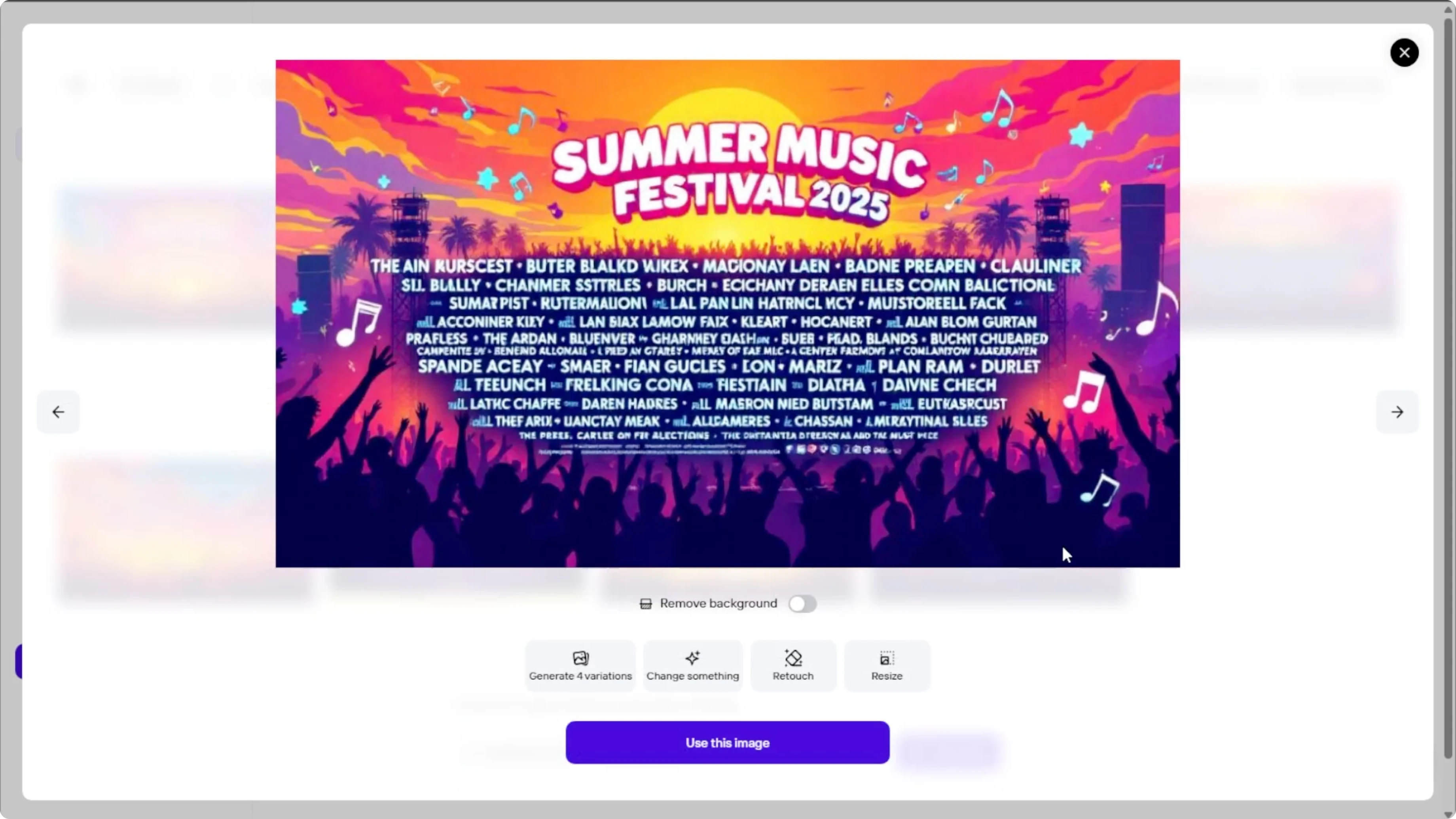
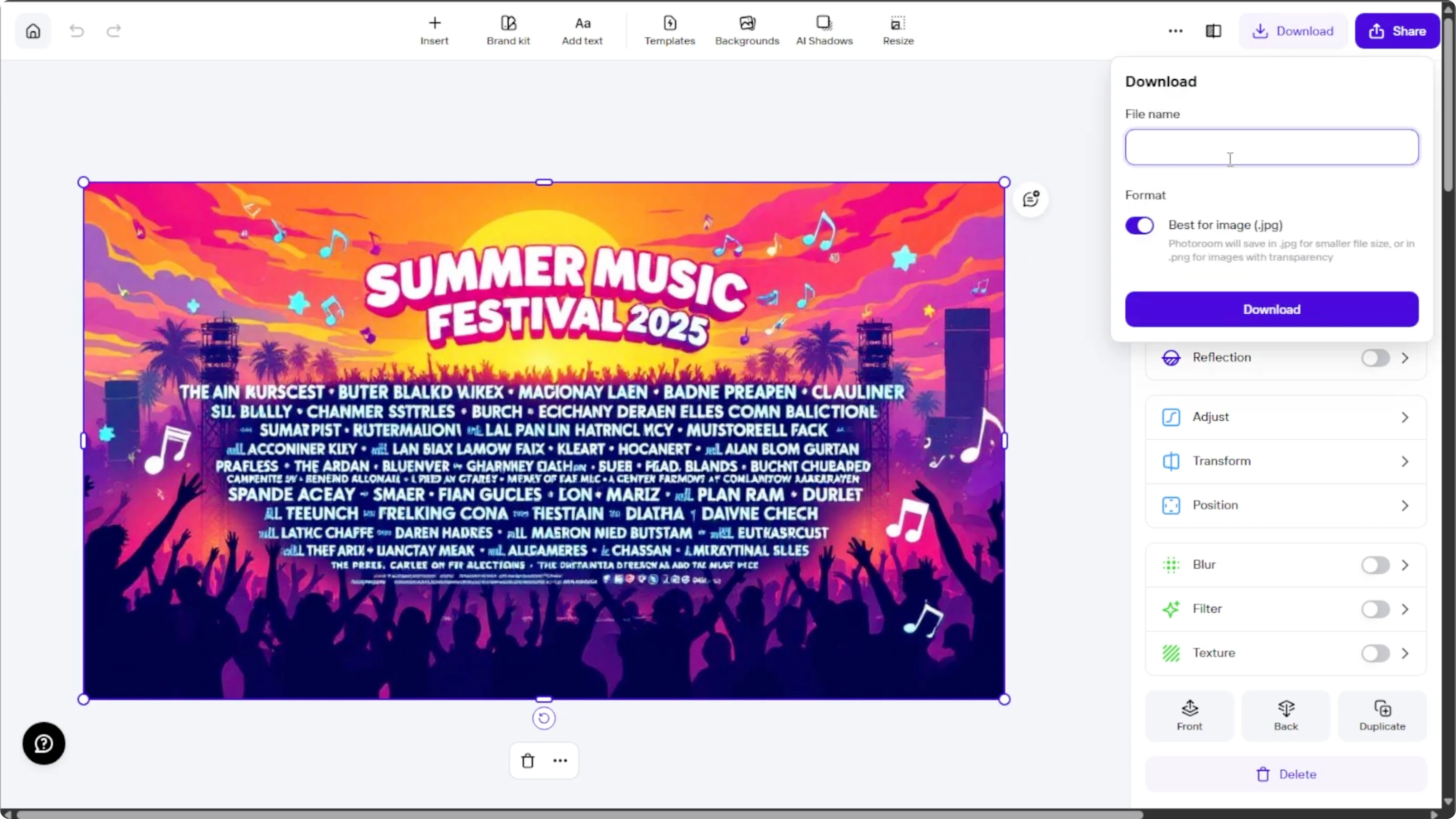
When you are ready, click Download to save the final poster to your computer.
You can also explore Photo Room 7 day free trial for full access to premium features, including HD downloads and advanced edits.
Final thoughts
AI can help you create attractive posters quickly while giving you control over prompt, size, and style.
Generate, review, enhance, and edit until the results meet your needs.
With a few focused adjustments, you can export a polished poster ready for print or digital use.
Recent Posts

How to Visualize Yourself as a Pixelized Character with AI?
How to Visualize Yourself as a Pixelized Character with AI?

How to Revive Faded Memories and Enhance Image Clarity with AI?
How to Revive Faded Memories and Enhance Image Clarity with AI?

How to Visualize Yourself as an Animal Crossing Character with AI?
How to Visualize Yourself as an Animal Crossing Character with AI?